
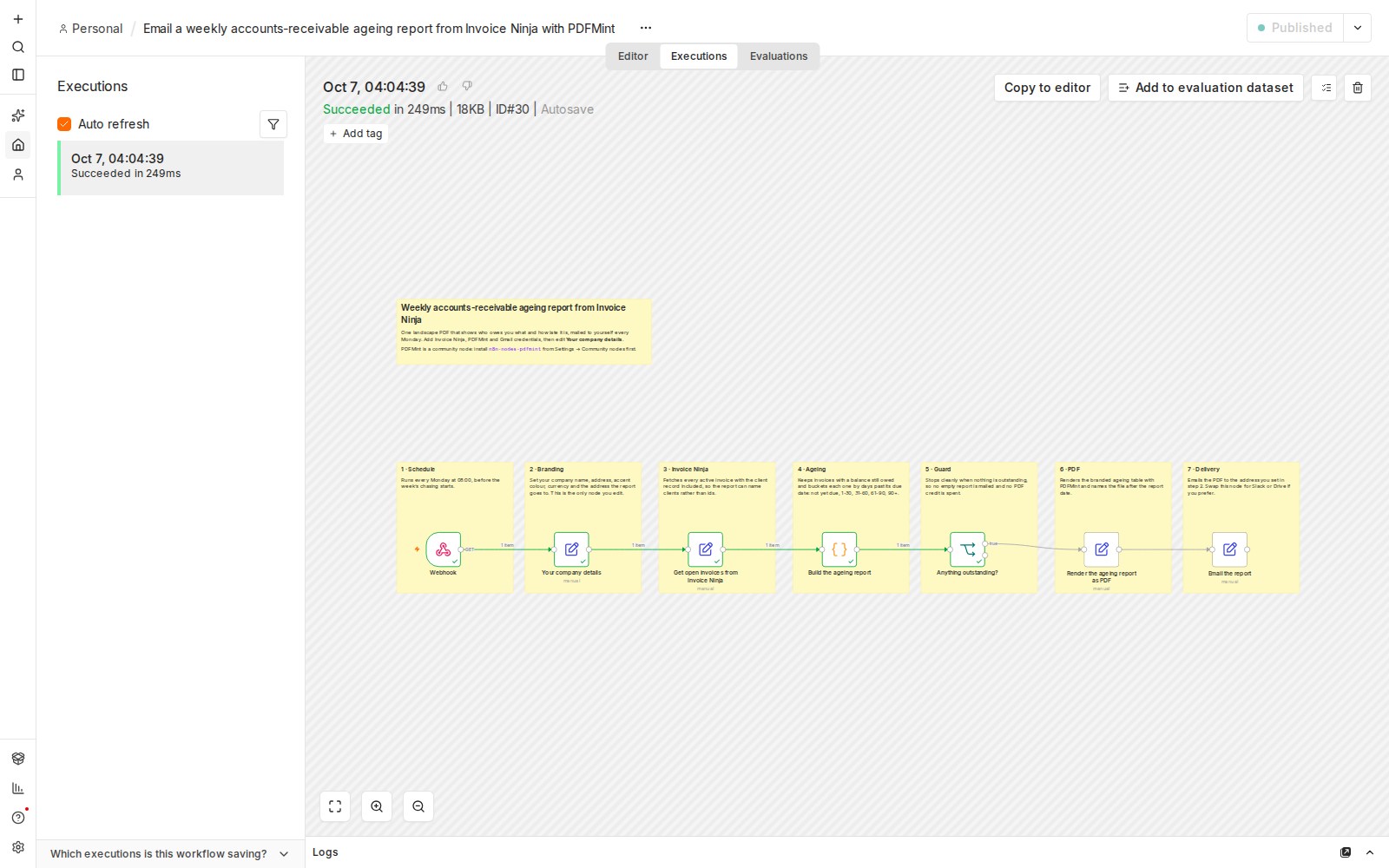
Screenshot: every node completing successfully in a live n8n test run.
Affiliate disclosure: some links in this article may be affiliate links. If you sign up through them, we may earn a commission at no extra cost to you. See our Terms of Service.
Monday, 8 a.m. You open your invoicing tool and try to answer one simple question: who owes me money, and for how long? You scroll through a list of invoices, filter by “unpaid,” sort by date, and add up numbers in your head. By the time you have an answer, half the morning is gone, and next week you will do it all again. Or, more likely, you will skip it. The invoice that is now three months late stays late, because nobody was looking.
This free n8n workflow does that Monday chore for you. Every Monday at 8 a.m. it reads your invoices from Invoice Ninja, keeps the ones that still have a balance, sorts each into an “aging bucket” (not yet due, 1 to 30 days late, 31 to 60, 61 to 90, over 90), groups them by client, turns the result into a one-page PDF with PDFMint, and emails it to you through Gmail. This guide explains each step in plain English, shows a worked example with real arithmetic, and is direct about three things the report quietly leaves out.
Read this first: the report can understate what you are owed
We ran the report logic on simulated invoices and found three situations where the numbers will not match your Invoice Ninja totals, and the workflow will not warn you:
- Invoices with no due date are left out. They are not in any bucket and not in the totals.
- All amounts are added together as one currency. An invoice in dollars and an invoice in euros are summed as if they were the same unit.
- Clients are grouped by name, not by account. Two different clients with the same name become one line.
If any of these applies to you, treat the PDF as a reminder, not as an accounting record, and compare it with Invoice Ninja before acting on it.
Template source: this workflow comes from the n8n Library at n8n.io, the public collection of workflow templates. We did not create it. LeenLabs prepared its JSON for publication and documented it. What we changed is listed in the section What we changed in the original template.
At a glance
- What it does: builds a weekly accounts receivable aging report from your open Invoice Ninja invoices and emails it as a PDF.
- Apps used: n8n, Invoice Ninja, PDFMint and Gmail.
- Trigger: a schedule, every Monday at 8:00 (in your n8n time zone).
- Setup effort: medium. Three logins, one community node to install, and your own details to type.
- Safe by design: it only reads invoices. It changes nothing in Invoice Ninja, and it sends nothing to your clients.
- Watch out for: missing due dates, mixed currencies, same-name clients, and the fact that client names and amounts go to PDFMint and Gmail.
- Test status: the report code was checked on simulated invoices outside n8n; the full file was not run on live APIs.
In this guide
- Why unpaid invoices go quiet, and what a weekly report changes
- Words you will see in this guide
- Apps and accounts this workflow talks to
- What to have ready before you import anything
- How the aging report is built, with a worked example
- The big picture: from Monday morning to your inbox
- Follow the data: what each of the 7 steps does
- Get the workflow JSON
- Install it in ten steps
- What it will not do: limits, costs and trade-offs
- Access, privacy and responsible use
- Problems you may meet and how to fix them
- Too much of a puzzle? Let us build or adapt it for you
- What we changed in the original template
- What was verified, and what was not
- Four ways to adapt the workflow
- Frequently asked questions
- Tools used in this workflow
- Keep exploring
Why unpaid invoices go quiet, and what a weekly report changes
Late payment rarely announces itself. An invoice slips past its due date by a day, then a week, then a month, and no alarm goes off. Each day it gets harder to chase, because the client’s attention has moved on and your own memory of the job has faded. Small businesses and freelancers feel this most: one or two large unpaid invoices can decide whether you can pay yourself this month.
Accountants solved this long ago with a simple table called an accounts receivable aging report. It lists each client who owes you money and splits the amount by how late it is. You see at a glance where the problem sits: a little overdue everywhere, or one client who is three months behind. The table is easy to read and tedious to make by hand. That is exactly the kind of job a workflow is good at.
In one run, this workflow does five jobs:
- Loads your company details (name, address, accent color, currency, recipient, footer note).
- Reads all active invoices from Invoice Ninja, with the client record included.
- Keeps the invoices that still have a balance and a due date, and sorts each into an aging bucket.
- Builds a one-page landscape report with four summary cards and a table by client, and turns it into a PDF.
- Emails the PDF to you, with the totals in the message. If nothing is outstanding, it stops and sends nothing.
It suits freelancers, agencies and small companies that invoice through Invoice Ninja and want a regular, hands-off look at what is owed. It is a poor fit if you invoice in several currencies, if many of your invoices have no due date, or if you need a report you can hand to an auditor without checking it first.
Words you will see in this guide
- n8n (say “n-eight-n”): a tool that connects apps and makes them follow your instructions automatically.
- Workflow: one set of instructions in n8n, drawn as boxes connected by lines.
- Node: one box in a workflow. Each node does one job.
- Trigger: the node that starts a workflow. Here, a weekly timer.
- Accounts receivable: money that customers owe you for work you have already invoiced.
- Aging report: a table that groups unpaid invoices by how long they are past their due date. This workflow’s own names use the British spelling “ageing”; this guide uses the American “aging”.
- Aging bucket: one column of that table, for example “31-60 days”.
- Balance: the part of an invoice that is still unpaid. A half-paid invoice has an amount of 900 and a balance of 450.
- Due date: the day an invoice should be paid by.
- Credential: a saved login that lets n8n use one of your accounts. The JSON file does not contain yours.
- Community node: an add-on node made by people outside the n8n team. You install it yourself. PDFMint is one.
- API: the way one program talks to another. n8n uses Invoice Ninja’s API to read your invoices.
- HTML: the formatting language of web pages. The report is first written as HTML, then converted to PDF.
- Cron expression: a short code for a schedule.
0 8 * * 1means minute 0, hour 8, any day of the month, any month, Monday. - JSON: a text format for data. The workflow file is a JSON file.
Apps and accounts this workflow talks to
- n8n: runs the workflow, hosted or self-hosted. Because PDFMint is a community node, check that your n8n setup allows installing community nodes.
- Invoice Ninja: holds your invoices. The workflow only reads them. n8n’s Invoice Ninja credential asks for your account address and API token, and, as far as we could tell, which version of the API you use. The field names in this workflow (
balance,due_date,client_id) look like those of the newer version, so use an account on the current one if you can. - PDFMint: a service that turns HTML into a PDF. The workflow sends it the finished report and gets a PDF file back. It needs its own API credential and the community node
n8n-nodes-pdfmint. - Gmail: sends the email with the PDF attached. You sign in with a Google account through OAuth2, a sign-in method where you approve access in your browser instead of handing over a password.
Costs: the workflow file is free. n8n, Invoice Ninja, PDFMint and Google each have their own plans and limits, and PDFMint may count each PDF it makes against your plan. We do not quote prices because they change. Check each provider’s current pricing page.
What to have ready before you import anything
- An n8n account or installation where you can create workflows and install a community node.
- An Invoice Ninja account (hosted or your own installation) and an API token that can read invoices and clients.
- A PDFMint account and its API key.
- A Google account for Gmail.
- Your company name, address, a brand color in hex form (for example
#0b6b57), your three-letter currency code (for example USD or EUR), and the address that should receive the report. - A list of the places where your invoices might break the rules above: invoices with no due date, other currencies, clients with identical names.
- Thirty minutes, and Invoice Ninja open in another tab so you can compare totals.
How the aging report is built, with a worked example
The report is built by one Code node. Here is its logic in plain language, followed by an example you can check with a calculator.
Which invoices count
An invoice is kept only if its balance is greater than zero and it has a due date. The balance, not the invoice amount, is what is added up, so a part-paid invoice counts only for what is still owed. Paid invoices (balance zero) and credits (negative balance) are dropped.
Which bucket
The code counts the days between the due date and today. Zero or fewer days late (including “due today”) goes in Not yet due. 1 to 30 goes in 1-30 days, 31 to 60 in 31-60 days, 61 to 90 in 61-90 days, and anything above 90 in 90+ days. “Today” is the date in UTC, so near midnight it can differ from your local date.
Who is on which line
Invoices are grouped by the client’s display name (or name). Each client’s line shows the amount in each bucket and a total. Clients are sorted from the largest total to the smallest. A client whose oldest unpaid invoice is more than 90 days late gets a red “90+ days” tag next to the name.
An example
Suppose the workflow runs on Monday, October 26, 2026, with the currency set to USD, and Invoice Ninja holds these six simulated invoices:
| Client | Amount | Balance | Due date | What the workflow does |
|---|---|---|---|---|
| Cedar Bakery | 1,200.00 | 1,200.00 | Nov 2, 2026 | Not yet due |
| Cedar Bakery | 800.00 | 800.00 | Oct 10, 2026 | 16 days late: 1-30 days |
| Lumen Design | 2,500.00 | 2,500.00 | Aug 30, 2026 | 57 days late: 31-60 days |
| Lumen Design | 900.00 | 300.00 (part-paid) | Jul 20, 2026 | 98 days late: 90+ days, only the 300.00 balance counts |
| Paid Co | 500.00 | 0.00 | Sep 1, 2026 | Dropped: nothing owed |
| No Due Date Ltd | 750.00 | 750.00 | (empty) | Dropped: no due date, and no warning |
The report then shows two clients and four invoices. Outstanding: 1,200 + 800 + 2,500 + 300 = 4,800.00. Overdue (everything except “not yet due”): 4,800 − 1,200 = 3,600.00. Over 90 days: 300.00. Lumen Design heads the table with 2,800.00 and a “90+ days” tag, because its oldest invoice is 98 days late. Cedar Bakery follows with 2,000.00.
Look at the last row of the table above. No Due Date Ltd owes 750.00, and that money is nowhere in the report. This is the first of the three gaps listed at the top, shown with numbers: the true amount owed is 5,550.00, and the report says 4,800.00. Also note that with the currency set to USD, the code formats amounts with an Irish English setting, so they appear as “US$4,800.00” in the report.
The big picture: from Monday morning to your inbox
- Wake up. A timer fires every Monday at 8:00.
- Load details. Your company name, address, color, currency, recipient and footer are read.
- Fetch. Invoice Ninja returns all active invoices with their clients.
- Build. One Code node filters, buckets, groups and writes the HTML report with its totals.
- Decide. If no client owes anything, the workflow ends here.
- Render. PDFMint turns the HTML into a PDF named with the report date.
- Send. Gmail emails the PDF, with the totals in the message.
Follow the data: what each of the 7 steps does
The names below match the names in the JSON file exactly.
Every Monday morning
The trigger. It uses the schedule 0 8 * * 1: every Monday at 8:00. The time zone is the one of your n8n instance or workflow settings, and this file does not set one, so check it. It only fires once the workflow is turned on, and you can always run it by hand with the execute button.
Your company details
A node that stores six settings for the rest of the workflow: companyName, companyAddress, accentColour (the report’s color, in hex form), currency, reportRecipient and footerNote. The names use the British spelling “colour”, so keep them as they are. This is where you type your own details. In this file, the name and address are placeholders and the recipient is empty.
Get open invoices from Invoice Ninja
A real Invoice Ninja node set to read all invoices, with two options: the status filter “active” and an option that includes each invoice’s client record, so the report can show client names instead of codes. Despite its name, it does not filter on unpaid invoices: Invoice Ninja’s “active” setting, as far as we could tell, refers to invoices that are not archived or deleted, so paid invoices still come through and are removed in the next step. We could not confirm exactly which invoices this setting returns on your account.
Build the ageing report
The brain of the workflow, a Code node. It keeps invoices with a positive balance and a due date, groups them by client, puts each invoice in a bucket, adds up each bucket, and writes the whole report as an HTML page (landscape A4, four summary cards, a table, a footer). It also returns a few numbers for later steps: the report date, the number of clients, the number of invoices and the formatted totals. If an invoice’s client record is missing, the line shows “Client” followed by the client’s code.
Anything outstanding?
A yes-or-no decision. If the number of clients is greater than zero, the workflow continues. Otherwise it ends quietly, which means no empty PDF and no empty email. It also means that on a Monday when nobody owes you anything, you hear nothing at all.
Render the ageing report as PDF
The PDFMint community node. It takes the HTML from the previous step, creates a PDF, and names it accounts-receivable- followed by the report date. You select your PDFMint credential here. How the PDF looks depends on PDFMint’s own rendering, which we could not check.
Email the report
The Gmail node. It sends a short message with the totals (outstanding, overdue, and the number of clients), with the PDF attached, to the address you typed in Your company details. The subject names the report date and the outstanding amount. It expects the PDF to be in a file field called data. Select your own Gmail credential here.
Get the workflow JSON
Open the box below to copy the JSON, or download the file. It contains the 7 nodes above, connected in order, with placeholders where your own details go, and nine notes on the canvas. It contains none of your logins.
Please read this first: this JSON is free and provided as is. n8n versions, installed nodes and invoicing setups differ from one person to another, so it may not run correctly on your side without adjustments. We cannot test it on every setup. That is why this article includes a long section, Problems you may meet and how to fix them. And if you would rather not deal with any of it, you can request a custom workflow and let us handle it.
Click to show or hide the workflow JSON
Click inside the box, select the whole text, copy it, then paste it onto an empty n8n canvas. If selecting is awkward on your device, use the download link above.
{
"name": "Weekly Accounts Receivable Aging Report with n8n (free JSON)",
"nodes": [
{
"id": "Sticky Note",
"name": "Sticky Note",
"type": "n8n-nodes-base.stickyNote",
"position": [
-560,
-520
],
"parameters": {
"color": "6",
"width": 700,
"height": 180,
"content": "## Weekly accounts-receivable ageing report from Invoice Ninja\n\nOne landscape PDF that shows who owes you what and how late it is, mailed to yourself every Monday. Add Invoice Ninja, PDFMint and Gmail credentials, then edit **Your company details**.\n\nPDFMint is a community node: install `n8n-nodes-pdfmint` from Settings → Community nodes first."
},
"typeVersion": 1
},
{
"id": "Sticky Note1",
"name": "Sticky Note1",
"type": "n8n-nodes-base.stickyNote",
"position": [
-560,
-80
],
"parameters": {
"width": 320,
"height": 360,
"content": "### 1 · Schedule\nRuns every Monday at 08:00, before the week's chasing starts."
},
"typeVersion": 1
},
{
"id": "Sticky Note2",
"name": "Sticky Note2",
"type": "n8n-nodes-base.stickyNote",
"position": [
-200,
-80
],
"parameters": {
"width": 320,
"height": 360,
"content": "### 2 · Branding\nSet your company name, address, accent colour, currency and the address the report goes to. This is the node where you type your own details."
},
"typeVersion": 1
},
{
"id": "Sticky Note3",
"name": "Sticky Note3",
"type": "n8n-nodes-base.stickyNote",
"position": [
160,
-80
],
"parameters": {
"width": 320,
"height": 360,
"content": "### 3 · Invoice Ninja\nFetches every active invoice with the client record included, so the report can name clients rather than ids."
},
"typeVersion": 1
},
{
"id": "Sticky Note4",
"name": "Sticky Note4",
"type": "n8n-nodes-base.stickyNote",
"position": [
520,
-80
],
"parameters": {
"width": 320,
"height": 360,
"content": "### 4 · Ageing\nKeeps invoices with a balance still owed and buckets each one by days past its due date: not yet due, 1-30, 31-60, 61-90, 90+. Invoices with no due date are left out of the report."
},
"typeVersion": 1
},
{
"id": "Sticky Note5",
"name": "Sticky Note5",
"type": "n8n-nodes-base.stickyNote",
"position": [
880,
-80
],
"parameters": {
"width": 320,
"height": 360,
"content": "### 5 · Guard\nStops cleanly when nothing is outstanding, so no empty report is mailed and no PDF credit is spent."
},
"typeVersion": 1
},
{
"id": "Sticky Note6",
"name": "Sticky Note6",
"type": "n8n-nodes-base.stickyNote",
"position": [
1240,
-80
],
"parameters": {
"width": 320,
"height": 360,
"content": "### 6 · PDF\nRenders the branded ageing table with PDFMint and names the file after the report date."
},
"typeVersion": 1
},
{
"id": "Sticky Note7",
"name": "Sticky Note7",
"type": "n8n-nodes-base.stickyNote",
"position": [
1600,
-80
],
"parameters": {
"width": 320,
"height": 360,
"content": "### 7 · Delivery\nEmails the PDF to the address you set in step 2. Swap this node for Slack or Drive if you prefer."
},
"typeVersion": 1
},
{
"id": "Every Monday morning",
"name": "Every Monday morning",
"type": "n8n-nodes-base.scheduleTrigger",
"position": [
-480,
100
],
"parameters": {
"rule": {
"interval": [
{
"field": "cronExpression",
"expression": "0 8 * * 1"
}
]
}
},
"typeVersion": 1.2
},
{
"id": "Your company details",
"name": "Your company details",
"type": "n8n-nodes-base.set",
"position": [
-120,
100
],
"parameters": {
"options": {},
"assignments": {
"assignments": [
{
"id": "a1",
"name": "companyName",
"type": "string",
"value": "Your Company Name"
},
{
"id": "a2",
"name": "companyAddress",
"type": "string",
"value": "Your company address"
},
{
"id": "a3",
"name": "accentColour",
"type": "string",
"value": "#0b6b57"
},
{
"id": "a4",
"name": "currency",
"type": "string",
"value": "EUR"
},
{
"id": "a5",
"name": "reportRecipient",
"type": "string",
"value": ""
},
{
"id": "a6",
"name": "footerNote",
"type": "string",
"value": "Balances are as at the run date. Questions about a line? Reply to this email."
}
]
}
},
"typeVersion": 3.4
},
{
"id": "Get open invoices from Invoice Ninja",
"name": "Get open invoices from Invoice Ninja",
"type": "n8n-nodes-base.invoiceNinja",
"position": [
240,
100
],
"parameters": {
"options": {
"status": "active",
"include": "client"
},
"resource": "invoice",
"operation": "getAll",
"returnAll": true
},
"typeVersion": 2
},
{
"id": "Build the ageing report",
"name": "Build the ageing report",
"type": "n8n-nodes-base.code",
"position": [
600,
100
],
"parameters": {
"jsCode": "// One accounts-receivable ageing report for the whole ledger: every client who\n// still owes money, split by how late each invoice is.\nconst brand = $('Your company details').first().json;\nconst today = new Date(new Date().toISOString().slice(0, 10));\nconst DAY = 24 * 60 * 60 * 1000;\n\nconst money = (n) => new Intl.NumberFormat('en-IE', {\n style: 'currency',\n currency: brand.currency || 'EUR',\n}).format(Number(n) || 0);\n\n// The order an accountant reads them in.\nconst BUCKETS = ['Not yet due', '1-30 days', '31-60 days', '61-90 days', '90+ days'];\nconst bucketFor = (dueDate) => {\n const days = Math.floor((today - new Date(String(dueDate).slice(0, 10))) / DAY);\n if (days <= 0) return BUCKETS[0];\n if (days <= 30) return BUCKETS[1];\n if (days <= 60) return BUCKETS[2];\n if (days <= 90) return BUCKETS[3];\n return BUCKETS[4];\n};\n\n// $input.all() is the documented Code node API. `items` is legacy and hands you\n// undefined entries when the node above returned nothing, which crashes the run\n// on the first property access.\nconst open = $input.all()\n .map((i) => i.json)\n .filter(Boolean)\n // Invoice Ninja keeps paid invoices in the same list. What is still owed is\n // `balance`, never `amount` - a part-paid invoice carries both.\n .filter((inv) => Number(inv.balance) > 0 && inv.due_date);\n\nconst byClient = new Map();\nfor (const inv of open) {\n // `include: client` fills inv.client. Without it there is still an id to group by.\n const name = inv.client?.display_name || inv.client?.name || `Client ${inv.client_id}`;\n if (!byClient.has(name)) {\n byClient.set(name, {\n name,\n total: 0,\n oldestDays: 0,\n buckets: Object.fromEntries(BUCKETS.map((b) => [b, 0])),\n });\n }\n const row = byClient.get(name);\n const owed = Number(inv.balance);\n const late = Math.max(0, Math.floor((today - new Date(String(inv.due_date).slice(0, 10))) / DAY));\n row.total += owed;\n row.oldestDays = Math.max(row.oldestDays, late);\n row.buckets[bucketFor(inv.due_date)] += owed;\n}\n\nconst clients = [...byClient.values()].sort((a, b) => b.total - a.total);\nconst columnTotal = (b) => clients.reduce((sum, c) => sum + c.buckets[b], 0);\nconst grandTotal = clients.reduce((sum, c) => sum + c.total, 0);\nconst overdueTotal = grandTotal - columnTotal(BUCKETS[0]);\nconst asOf = today.toISOString().slice(0, 10);\nconst accent = brand.accentColour || '#0b6b57';\n\nconst esc = (s) => String(s).replace(/[&<>]/g, (c) => ({ '&': '&', '<': '<', '>': '>' }[c]));\nconst cell = (v) => (v ? money(v) : '<span class=\"zero\">-</span>');\n\nconst rows = clients.map((c) => `\n <tr>\n <td class=\"name\">${esc(c.name)}${c.oldestDays > 90 ? ' <span class=\"flag\">90+ days</span>' : ''}</td>\n ${BUCKETS.map((b) => `<td class=\"num\">${cell(c.buckets[b])}</td>`).join('')}\n <td class=\"num total\">${money(c.total)}</td>\n </tr>`).join('');\n\nconst html = `<!doctype html>\n<html><head><meta charset=\"utf-8\"><title>Accounts receivable ${asOf}</title>\n<style>\n @page { size: A4 landscape; margin: 16mm 14mm; }\n body { font: 12px/1.5 -apple-system, \"Segoe UI\", Helvetica, Arial, sans-serif; color: #1c1c1c; }\n header { border-bottom: 3px solid ${accent}; padding-bottom: 10px; margin-bottom: 18px; }\n h1 { font-size: 20px; margin: 0 0 2px; color: ${accent}; }\n .sub { color: #555; }\n .cards { display: flex; gap: 10px; margin-bottom: 18px; }\n .card { flex: 1; border: 1px solid #e3e3e3; border-radius: 6px; padding: 10px 12px; }\n .card .k { color: #666; font-size: 11px; text-transform: uppercase; letter-spacing: .04em; }\n .card .v { font-size: 18px; font-weight: 600; margin-top: 2px; }\n table { width: 100%; border-collapse: collapse; }\n th, td { padding: 7px 8px; border-bottom: 1px solid #ececec; }\n th { text-align: right; font-size: 11px; text-transform: uppercase; letter-spacing: .04em; color: #666; }\n th:first-child, td.name { text-align: left; }\n td.num { text-align: right; font-variant-numeric: tabular-nums; }\n td.total, tfoot td { font-weight: 600; }\n tfoot td { border-top: 2px solid ${accent}; border-bottom: none; }\n .zero { color: #bbb; }\n .flag { background: #fdecea; color: #a4291c; border-radius: 3px; padding: 1px 5px; font-size: 10px; }\n footer { margin-top: 20px; color: #666; font-size: 11px; }\n</style></head>\n<body>\n <header>\n <h1>Accounts receivable — ${esc(brand.companyName || 'Your company')}</h1>\n <div class=\"sub\">Ageing as at ${asOf} · ${esc(brand.companyAddress || '')}</div>\n </header>\n <div class=\"cards\">\n <div class=\"card\"><div class=\"k\">Outstanding</div><div class=\"v\">${money(grandTotal)}</div></div>\n <div class=\"card\"><div class=\"k\">Overdue</div><div class=\"v\">${money(overdueTotal)}</div></div>\n <div class=\"card\"><div class=\"k\">Over 90 days</div><div class=\"v\">${money(columnTotal(BUCKETS[4]))}</div></div>\n <div class=\"card\"><div class=\"k\">Clients</div><div class=\"v\">${clients.length}</div></div>\n </div>\n <table>\n <thead><tr><th>Client</th>${BUCKETS.map((b) => `<th>${b}</th>`).join('')}<th>Total</th></tr></thead>\n <tbody>${rows}\n </tbody>\n <tfoot><tr><td>Total</td>${BUCKETS.map((b) => `<td class=\"num\">${money(columnTotal(b))}</td>`).join('')}<td class=\"num\">${money(grandTotal)}</td></tr></tfoot>\n </table>\n <footer>${esc(brand.footerNote || '')}</footer>\n</body></html>`;\n\nreturn [{\n json: {\n html,\n asOf,\n clientCount: clients.length,\n invoiceCount: open.length,\n grandTotal,\n grandTotalFormatted: money(grandTotal),\n overdueTotalFormatted: money(overdueTotal),\n },\n}];\n"
},
"typeVersion": 2
},
{
"id": "Anything outstanding?",
"name": "Anything outstanding?",
"type": "n8n-nodes-base.if",
"position": [
960,
100
],
"parameters": {
"options": {},
"conditions": {
"options": {
"version": 2,
"leftValue": "",
"caseSensitive": true,
"typeValidation": "loose"
},
"combinator": "and",
"conditions": [
{
"id": "c1",
"operator": {
"type": "number",
"operation": "gt"
},
"leftValue": "={{ $json.clientCount }}",
"rightValue": 0
}
]
},
"looseTypeValidation": true
},
"typeVersion": 2.2
},
{
"id": "Render the ageing report as PDF",
"name": "Render the ageing report as PDF",
"type": "n8n-nodes-pdfmint.pdfMint",
"position": [
1320,
100
],
"parameters": {
"html": "={{ $json.html }}",
"source": "html",
"options": {},
"fileName": "=accounts-receivable-{{ $json.asOf }}.pdf",
"resource": "document",
"operation": "pdf"
},
"typeVersion": 1
},
{
"id": "Email the report",
"name": "Email the report",
"type": "n8n-nodes-base.gmail",
"position": [
1680,
100
],
"parameters": {
"sendTo": "={{ $('Your company details').first().json.reportRecipient }}",
"message": "=Attached is this week's accounts-receivable ageing report.\n\nOutstanding: {{ $('Build the ageing report').first().json.grandTotalFormatted }}\nOf which overdue: {{ $('Build the ageing report').first().json.overdueTotalFormatted }}\nClients with a balance: {{ $('Build the ageing report').first().json.clientCount }}",
"options": {
"attachmentsUi": {
"attachmentsBinary": [
{
"property": "data"
}
]
}
},
"subject": "=Accounts receivable as at {{ $('Build the ageing report').first().json.asOf }} — {{ $('Build the ageing report').first().json.grandTotalFormatted }} outstanding"
},
"typeVersion": 2.1
},
{
"id": "Sticky Note8",
"name": "Sticky Note8",
"type": "n8n-nodes-base.stickyNote",
"position": [
180,
-520
],
"parameters": {
"color": 3,
"width": 700,
"height": 380,
"content": "## Before you turn it on\n\n1. Select your own Invoice Ninja, PDFMint and Gmail credentials, and type your own address in Your company details.\n2. Run it by hand once. A real run reads your invoices, sends the report content to PDFMint to make the PDF, and sends a real email.\n3. Check the totals against Invoice Ninja. Invoices with no due date are left out, invoices from different currencies are added together in one currency, and clients with the same name are merged.\n4. The schedule uses your n8n time zone. Check it so 08:00 means your 08:00.\n5. The report holds client names and amounts. Send it only to people allowed to see them.\n\nSource: based on a template from the n8n Library at n8n.io, documented by LeenLabs.\nNot tested on live APIs."
},
"typeVersion": 1
}
],
"connections": {
"Every Monday morning": {
"main": [
[
{
"node": "Your company details",
"type": "main",
"index": 0
}
]
]
},
"Your company details": {
"main": [
[
{
"node": "Get open invoices from Invoice Ninja",
"type": "main",
"index": 0
}
]
]
},
"Anything outstanding?": {
"main": [
[
{
"node": "Render the ageing report as PDF",
"type": "main",
"index": 0
}
],
[]
]
},
"Build the ageing report": {
"main": [
[
{
"node": "Anything outstanding?",
"type": "main",
"index": 0
}
]
]
},
"Render the ageing report as PDF": {
"main": [
[
{
"node": "Email the report",
"type": "main",
"index": 0
}
]
]
},
"Get open invoices from Invoice Ninja": {
"main": [
[
{
"node": "Build the ageing report",
"type": "main",
"index": 0
}
]
]
}
},
"settings": {
"executionOrder": "v1"
}
}Install it in ten steps
- Install the PDFMint node first. In n8n, open Settings, then Community nodes, and install
n8n-nodes-pdfmint. If your n8n does not allow community nodes, stop here and see the problems section. - Get the JSON from the box above or the download link.
- Import it. Open a new empty workflow, then paste the JSON onto the canvas or import it from a file.
- Check the 7 nodes appear, connected in a line, with nine notes.
- Edit Your company details. Type your company name, address, color, three-letter currency code and the recipient address.
- Connect Invoice Ninja. In Get open invoices from Invoice Ninja, create the credential with your account address and API token. Execute only that node and open its output. Check that you see your invoices, with a
balance, adue_dateand a client name. - Connect PDFMint. Select or create your credential in Render the ageing report as PDF.
- Connect Gmail. Select or create your Google credential in Email the report.
- Run it once by hand with the execute button. A real run reads your invoices, sends the report to PDFMint, and sends a real email.
- Check the PDF against Invoice Ninja: totals, client names, buckets. Then check your time zone and turn the workflow on (Activate or Publish, depending on your n8n version).
What it will not do: limits, costs and trade-offs
- It does not chase anyone. It tells you who is late. It sends nothing to your clients and changes nothing in Invoice Ninja.
- It leaves out invoices with no due date, silently.
- It handles one currency. Invoices in different currencies are added together as if they were one.
- It merges clients that share a name.
- It says nothing when nothing is owed. You cannot tell “no debts” from “the workflow broke” unless you check n8n.
- No error alert. If a step fails, the run stops and nobody is told, unless you set that up in n8n.
- It depends on an add-on. PDFMint is a community node and a paid-plan-limited service, so a change on their side can break the workflow.
- It shows a snapshot. Balances are as of the moment of the run.
- It is not accounting software. Use it as a reminder and compare with Invoice Ninja.
Access, privacy and responsible use
This workflow handles financial and personal data: your clients’ names, what they owe you, and how late they are. Be deliberate about where that data goes:
- PDFMint receives the full report (client names and amounts) to make the PDF. Read PDFMint’s current terms and privacy information before using real client data.
- Google handles the email, with the PDF attached. Send it only to people who are already allowed to see your finances.
- Use limited access. Give the Invoice Ninja token the smallest permissions that let it read invoices and clients.
- Know your rules. Depending on where you and your clients are, laws and your agreements may limit how client data is processed and shared. We are not a law firm or an accountant. This guide is not legal or financial advice, and nothing in it means the workflow complies with any law or accounting standard.
- Keep the file out of shared inboxes and delete old copies you no longer need.
Problems you may meet and how to fix them
Every n8n setup is different, so this workflow can behave differently for you than in our checks. Here are the most likely problems. For each one: what you see, why it happens, and what to do. They come from how the nodes are built and from running the report code on simulated invoices, not from a live run with real accounts.
1. No email arrives on Monday
What you see: nothing in your inbox, and no error.
Why: either nobody owes you anything (the workflow stops on purpose), the workflow is not turned on, or n8n was not running at 8:00.
Fix: open the executions list in n8n. If a run appears and stops at Anything outstanding?, there was nothing to report. If no run appears, turn the workflow on and check that your n8n stays online.
2. n8n says the PDFMint node is missing or unknown
What you see: a node with a warning icon after import, or a message that the node type is not installed.
Why: PDFMint is a community node and is not part of n8n by default.
Fix: install n8n-nodes-pdfmint from Settings, Community nodes, then reload the workflow.
3. You cannot install community nodes
What you see: no Community nodes option, or an installation error.
Why: some n8n setups, including some hosted plans and locked-down installations, restrict community nodes.
Fix: check your plan’s and your administrator’s rules. If it is not possible, replace the PDFMint node with another way of making the PDF, which is a good candidate for a custom build.
4. Invoice Ninja will not connect
What you see: an authorization or connection error in Get open invoices from Invoice Ninja.
Why: the account address, the API token or the API version in the credential is wrong, or your server blocks outside connections.
Fix: recreate the credential, using the exact address of your Invoice Ninja (including the part before the domain, if you self-host) and a fresh token. Follow n8n’s current Invoice Ninja documentation.
5. The report shows no clients although you have unpaid invoices
What you see: no email, because the workflow stopped at Anything outstanding?, or a report with zeros.
Why: the code keeps only invoices with a balance above zero and a due date. If your unpaid invoices have no due date, or Invoice Ninja returns balances in a different field, none is kept.
Fix: open the output of Get open invoices from Invoice Ninja and look at one unpaid invoice: does it have a balance and a due_date?
6. The totals are lower than in Invoice Ninja
What you see: an outstanding amount smaller than what Invoice Ninja shows.
Why: invoices with no due date are dropped. Credits and drafts may also differ from how Invoice Ninja counts them.
Fix: give every invoice a due date in Invoice Ninja, or ask us for a version that places undated invoices in a separate column.
7. Amounts for foreign-currency clients are wrong
What you see: totals that mix currencies, all shown in one.
Why: the code uses one currency, from Your company details, for every amount and never converts.
Fix: keep this report for one currency, or build one report per currency. That is a custom change.
8. Amounts show “US$” or an unexpected symbol
What you see: “US$4,800.00” instead of “$4,800.00”.
Why: the code formats numbers with an Irish English setting (en-IE), in which the US dollar is written “US$”.
Fix: in Build the ageing report, change en-IE to en-US in the formatting line.
9. The Build step fails after you changed the currency
What you see: an error in Build the ageing report about the currency.
Why: the currency field must be a valid three-letter code such as USD or EUR. A word, a symbol or a longer code makes the formatting fail.
Fix: type a valid three-letter currency code in Your company details.
10. Two clients appear as one
What you see: one line with an amount larger than either client owes.
Why: invoices are grouped by display name. Two clients with the same name share a line.
Fix: give clients distinct names in Invoice Ninja, or change the grouping to the client’s code.
11. A client shows as “Client” followed by a code
What you see: a line named like “Client Opnel5aKBz”.
Why: the invoice came without its client record, or the client has no name.
Fix: check that the include-client option is still set in Get open invoices from Invoice Ninja, and that the client has a name.
12. The email arrives without the PDF
What you see: the message with totals, but no attachment.
Why: the Gmail step looks for the file in a field called data. If PDFMint puts it under another name, nothing is attached.
Fix: run Render the ageing report as PDF, open the file section of its output, note the field name, and use it in the attachment setting of Email the report.
13. The email text runs together on one line
What you see: “Outstanding”, “Of which overdue” and the client count on a single line.
Why: the message has line breaks, and if the Gmail step sends it as HTML, line breaks collapse. We could not confirm the default for your version.
Fix: in Email the report, look for the setting for the email type and set it to text, or add line-break tags to the message.
14. Gmail will not connect, or Google blocks the sign-in
What you see: an authorization or access error in Email the report.
Why: the Google sign-in was not completed, or your Google account or organization restricts outside apps.
Fix: recreate the credential and sign in again. For a work account, ask your administrator. Follow n8n’s current Gmail documentation.
15. The email step complains that the recipient is missing
What you see: an error in Email the report saying a required field is empty.
Why: we emptied the recipient so that no stranger’s address stays in the file.
Fix: type your address in the recipient setting of Your company details.
16. The report arrives at the wrong hour
What you see: an email at 3 a.m. or 2 p.m. instead of 8 a.m.
Why: the schedule uses the time zone of your n8n instance or workflow, which may not be yours.
Fix: set the time zone in your n8n settings or in this workflow’s settings.
17. The PDF is cut off, not landscape, or looks different
What you see: a table that runs off the page, or a plain layout.
Why: the report is designed for A4 landscape. PDFMint’s own rendering decides how it is applied, and we could not check it.
Fix: look at PDFMint’s current documentation for page and layout options, or ask us to adjust the report.
18. PDFMint reports a limit or a payment error
What you see: an error in Render the ageing report as PDF mentioning a quota, a plan or a key.
Why: your PDFMint plan has a limit, or the API key is wrong or expired.
Fix: check your PDFMint account and plan. This workflow produces one PDF per run.
19. An invoice due today is not counted as overdue
What you see: an invoice due the same day in the “Not yet due” column.
Why: zero days late counts as not yet due, and “today” is the date in UTC.
Fix: this is by design. If you want a different rule, change the first condition in the bucket logic.
20. A strange bucket or a “NaN” appears
What you see: an invoice in the “90+ days” column that is not that late.
Why: the due date is not a real date (for example, text). The calculation fails and the invoice falls into the last bucket.
Fix: correct the due date in Invoice Ninja.
21. After import, nodes show missing credentials
What you see: red warnings on the Invoice Ninja, PDFMint and Gmail nodes.
Why: the file deliberately contains no credentials.
Fix: open each node and select or create your own credential.
Too much of a puzzle? Let us build or adapt it for you
Some people enjoy tinkering with n8n. Others want a Monday report that simply works with their own invoices. If you are in the second group, LeenLabs builds and adapts n8n workflows for people like you. We can:
- Close the gaps: include undated invoices, report each currency separately, and group by client account instead of name.
- Replace the PDF step with a method that needs no community node.
- Add a heads-up when nothing is owed or when a step fails.
- Send the results elsewhere, such as a spreadsheet or a chat channel.
- Build a new workflow from scratch for another task you want to automate.
Request a Custom Workflow, describe what you want to automate, and we will come back to you with the next steps. Prefer to ask a question first? Write to support@leenlabs.site.
What we changed in the original template
We want you to know exactly how this file differs from the template it comes from. Compared with the file we received, LeenLabs made these changes:
- Removed the original author’s setup details. The file contained credential names and placeholder identifiers for Invoice Ninja, PDFMint and Gmail. They are gone, and you select your own credentials.
- Removed the pinned sample data. The file carried six sample invoices for three example clients, attached to the Invoice Ninja node. Pinned data can be used in a manual run instead of your real invoices, so we removed it.
- Replaced the example company details. The sample company name and street address in Your company details are now placeholders, and the placeholder recipient address is now empty.
- Corrected and extended the canvas notes. One note said Your company details was the only node you edit; it now says it is where you type your own details. The Ageing note now says invoices with no due date are left out. We added a new note called Before you turn it on, with a source credit.
- Renamed the workflow to this article’s title and removed export leftovers, so the file imports switched off.
The schedule, the Invoice Ninja settings, the report code, the yes-or-no decision, the PDFMint settings and the Gmail settings are unchanged.
What was verified, and what was not
Here is exactly what we did. We ran the report code (Build the ageing report) outside n8n, on simulated invoices, with the date fixed. The checks covered: the six simulated invoices in this guide, a paid invoice, a part-paid invoice, a credit, an invoice with no due date (empty and null), a balance given as text, two clients with the same name, a missing client record, a client with no name, invoices due today, 30, 31, 90 and 91 days ago, a due date with a time part, an invalid date, no invoices at all, a missing currency, an invalid currency code, a mix of currencies, rounding of several small amounts, and two runs on the same data (same result). We also opened the resulting report in a browser engine to see that it fits one landscape A4 page. Everything behaved as described in this guide.
We did not import this exact file into n8n and run it end to end. We did not run it against live Invoice Ninja, PDFMint or Gmail accounts, so we cannot confirm how it behaves with real accounts. In particular, we could not confirm what the Invoice Ninja step returns, which invoices its “active” setting includes, the name of the file field PDFMint produces, how PDFMint renders the page, or the Gmail default for message format. That is why we recommend a first run by hand and a comparison of the PDF with Invoice Ninja.
Four ways to adapt the workflow
- Change the day or hour. In Every Monday morning, change the cron expression, for example to run on the first of the month.
- Change the buckets. In Build the ageing report, edit the list of bucket names and the day limits to match your payment terms.
- Change the look. Edit the color, the footer note and the company details in Your company details.
- Send the PDF elsewhere. Replace the Gmail node with a node for your file storage or chat tool.
These variations are suggestions based on how n8n works, not changes we tested on this template. If you want one built for you, send us a request.
Frequently asked questions
Will it change anything in Invoice Ninja?
No. The workflow only reads invoices and clients.
Will it contact my clients?
No. The only email goes to the address you typed.
Why does the PDF total not match Invoice Ninja?
Most likely because some invoices have no due date, you invoice in more than one currency, or clients share a name. See the first box in this article.
Do I need the PDFMint node?
This file does. It is a community node you install yourself. If you cannot, ask us for a version that does not need it.
Is the workflow free?
The file is free. The services it connects have their own plans, limits and prices.
What if the JSON does not work on my n8n?
It can happen, because setups differ. Go through the problems section above. If it still does not work, or you do not want to spend the time, request a custom workflow and we will handle it.
Who built the original template?
The original template comes from the n8n Library at n8n.io. LeenLabs adjusted and documented it.
Tools used in this workflow
The links below go to each tool’s home page, and some may be affiliate links, as explained in our Terms of Service.
- n8n (may be an affiliate link): the automation platform that runs the workflow, available hosted or self-hosted.
- Invoice Ninja (may be an affiliate link): the invoicing tool that holds your invoices.
- PDFMint (may be an affiliate link): the service that turns the report into a PDF.
- Gmail (may be an affiliate link): the email service that sends the report.
Keep exploring
Browse more free n8n workflows from LeenLabs.
Need this adapted to your own setup?
Tell us what you want to automate and we will come back to you with the next steps.