
Affiliate disclosure: some links in this article may be affiliate links. If you sign up through them, we may earn a commission at no extra cost to you. See our Terms of Service.
A customer writes: “How do I reset my password?” You know the answer, it takes ten seconds to type, and you will type it fifty times this month. An AI email reply workflow tries to type it for you. This free n8n workflow watches a Gmail inbox, asks an AI model to write a short answer to each new email, saves the email and the answer in an Airtable table, and sends the answer back in Gmail. It has only six steps, which makes it one of the easiest examples of email automation with an AI email assistant to read from start to finish.
It is also short on safeguards, and a few details do not work the way the template’s own notes say they do. In this guide we explain each step in plain English, show with simple checks where it is fragile, say exactly what we changed in the file, and tell you what we could not test.
Read this first: it answers every email by itself
- There is no filter. The trigger has no conditions, so newsletters, spam and automatic mail get a reply too.
- It may answer its own replies. The reply it sends is a new message in the same mailbox. We could not test whether the trigger picks it up again; if it does, the agent can answer itself in a loop.
- The AI sees only a preview. It receives the short snippet of each email, not the full text, but is told to answer “point by point” the exact content. It can answer without knowing what was asked.
- Nobody reviews the reply, and the “memory” does not link the messages of one conversation, because it is keyed on the message and not on the thread.
Use a test mailbox and your own addresses first. This guide is not legal advice.
Template source: this workflow comes from the n8n Library at n8n.io, the public collection of workflow templates. We did not create it. LeenLabs prepared its JSON for publication and documented it. What we changed is listed in the section What we changed in the original template.
At a glance
- What it does: writes an AI reply to each new Gmail email, logs both in Airtable and sends the reply.
- Apps used: n8n, Gmail, OpenAI (GPT-4.1 Mini) and Airtable.
- Trigger: a new email, checked every minute.
- Setup effort: low to medium. Three accounts and an Airtable table with five fields.
- Cost to run: the file is free. Each email uses one AI call, and the services have their own plans.
- Watch out for: no filter, a possible reply loop, replies written from a preview, invented facts, injected instructions, a memory that remembers nothing, personal data in several services.
- Test status: the file was checked for structure and its settings were read closely. No node was run in n8n and no service was contacted.
In this guide
- What is an AI email reply workflow?
- AI email reply with Airtable and Gmail: what this workflow does
- AI email assistant or email automation tool?
- Words you will see in this guide
- Apps and accounts this workflow talks to
- What to have ready before you import anything
- Where the logic is fragile: checks we made
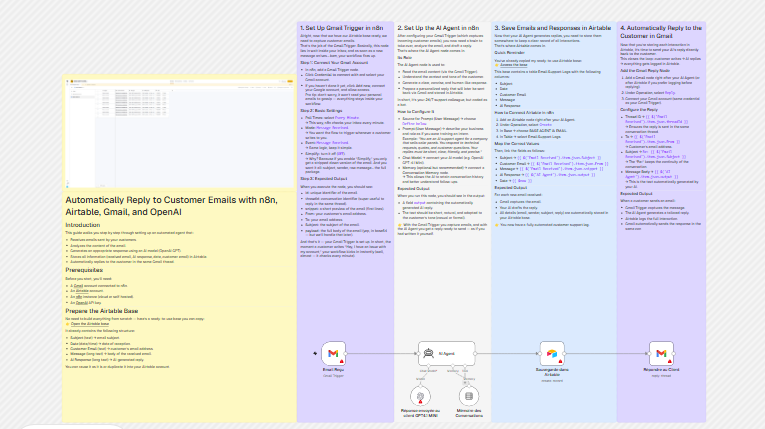
- The big picture: from email to reply
- Follow the data: what each of the 6 steps does
- Get the workflow JSON
- Install it in ten steps
- What it will not do: limits, costs and trade-offs
- Access, privacy and responsible use
- Problems you may meet and how to fix them
- Too much of a puzzle? Let us build or adapt it for you
- What we changed in the original template
- What was verified, and what was not
- Five ways to adapt the workflow
- Frequently asked questions
- Tools used in this workflow
- Suggested reading
- Keep exploring
What is an AI email reply workflow?
An AI email reply is an answer to an incoming email that an AI model writes, instead of you. A workflow makes it automatic: it notices the email, gives the model the sender, the subject and some text, takes the answer, and sends it. The idea is sound for simple, repeated questions. The risk is that the model writes with confidence even when it does not know the answer, and that nothing in the workflow stops a bad reply from reaching a real person.
AI email reply with Airtable and Gmail: what this workflow does
In one run, for one new email, the workflow does these jobs:
- Catches a new email in Gmail (checked every minute).
- Asks an AI agent to write a short, friendly reply, following a list of style rules.
- Saves the subject, the sender, a preview of the message and the AI reply as a new row in Airtable.
- Sends the reply in Gmail.
It suits a person who wants to understand how an AI reply is wired, or who will take it as a base and add the missing safeguards. It does not suit you if you receive a lot of mail, if a wrong answer would cost you a customer, or if you need the AI to read whole emails, remember conversations, or hand difficult cases to a person.
AI email assistant or email automation tool?
A ready-made email automation tool or AI email assistant usually adds what this file lacks: filters, an approval step, conversation memory that works, spam handling and support. An n8n workflow like this one is cheaper and more flexible, and you build every safeguard yourself. We have not tested or compared products, so we do not rank them.
Words you will see in this guide
- n8n (say “n-eight-n”): a tool that connects apps and makes them follow your instructions automatically.
- Workflow: one set of instructions in n8n, drawn as boxes connected by lines.
- Node: one box in a workflow. Each node does one job.
- Trigger: the node that starts a workflow. Here, a new email.
- AI agent: an n8n node that sends instructions and data to an AI model and returns its answer.
- Chat model: the AI model the agent uses. It is a separate node connected under the agent.
- Prompt: the instructions and data sent to the AI for one job.
- Snippet: the short preview of an email that Gmail provides. It is not the whole message.
- Thread: Gmail’s name for a conversation: the first email and the replies to it.
- Message id and thread id: two different codes. One identifies one email, the other a whole conversation.
- Memory node: a node that lets the AI see earlier messages of a conversation. It needs a key that says which conversation a message belongs to.
- Airtable: an online database that looks like a spreadsheet. Here it holds the log.
- Prompt injection: text inside an email that tries to give the AI new instructions.
- Credential: a saved login that lets n8n use one of your accounts. The JSON file does not contain yours.
Apps and accounts this workflow talks to
- n8n: runs the workflow, and must stay running because it checks for mail every minute.
- Gmail: the inbox it reads and the account that sends the replies.
- OpenAI: the AI model, GPT-4.1 Mini. The sender, subject and preview of each email go to it.
- Airtable: holds the log table.
Costs: the workflow file is free. n8n, OpenAI, Airtable and Google each have their own plans, limits and prices, which change, and we have not verified any of them. Every email costs one AI call, including spam.
What to have ready before you import anything
- A test Gmail account. Do not start on your main inbox.
- An Airtable base with a table that has five fields named exactly: Subject, Date, Customer Email, Message, AI Response. The template’s notes pointed to a ready-made copy owned by the author; we removed that link, so you build your own.
- An OpenAI key and its credential in n8n.
- Facts about your product, your company name and the address of your password reset page, to replace the placeholders in the prompt.
- Three or four test emails you will send yourself, including a newsletter-style one.
Where the logic is fragile: checks we made
This template has no Code node, so there was no code to run. What we could do was read every setting and expression and follow the data from node to node.
What the AI really receives
The prompt ends with five lines taken from the email: its id, its thread id, the snippet, the sender and the subject. The snippet is a short preview that Gmail provides. The template’s notes say the full text is in a field called payload, “in base64, but we’ll handle that later”. Nothing in the file decodes it, and the prompt does not use it. So the agent writes its reply from a preview and a subject line, while its instructions tell it to answer the exact content point by point.
What the memory remembers
The memory node is told which conversation a message belongs to by a key. The key in the file is the message id of the email that arrived. Every email has its own id, so every email starts a memory of its own, and nothing from an earlier email in the same conversation is available. The notes call this a conversation memory. To work as one, the key would have to be the thread id.
The thread of the reply
The reply step is given the message id for both the thread and the message. For the first email in a conversation, Gmail uses the same code for both. For a later email in a thread they differ, so a reply built this way may go to the wrong place or fail. The template’s notes say the thread id should be used for the thread; the file does not do that.
What gets saved
| Airtable field | What the file writes |
|---|---|
| Subject | The subject of the email. |
| Customer Email | The whole sender line, such as a name followed by an address in angle brackets, not just the address. |
| Message | The preview, not the full email. |
| AI Response | The reply the AI wrote. |
| Date | Nothing. The field is switched off in the node, although the notes say the date is saved. |
The order of the steps
The reply is sent after the Airtable step, and it reads the reply text from the Airtable result. If Airtable fails for any reason, for example a wrong field name, no reply is sent, and no alert tells you.
The big picture: from email to reply
- Catch. A new email is picked up.
- Write. The AI agent writes a reply from the sender, subject and preview.
- Save. A row is added in Airtable.
- Send. The reply is sent in Gmail.
Follow the data: what each of the 6 steps does
The names below are the names you will see on the canvas. The original file used French names for five of them; LeenLabs renamed them in English and updated every formula that refers to them.
Email Received
A Gmail trigger. It checks the mailbox every minute and starts a run for each new email. It has no filter, so it does not skip newsletters, spam or automatic mail, and we did not confirm whether it would also pick up messages you send, including the AI’s own replies. It returns the full email data, not the simplified version, with fields such as id, thread id, snippet, From and Subject.
AI Agent
The AI agent node. Its prompt tells it to act as the support agent of a B2B software product that receives many emails: be natural, friendly, clear, technical and very concise; match the customer’s tone, casual or formal; answer point by point; greet with the first name; acknowledge; give the answer or the next step; propose one action; close kindly; ask only one question if something is missing. The prompt ends with the data of the email and a password reset page address. You replace YOUR_COMPANY and YOUR_PASSWORD_RESET_LINK and describe your own product. The original prompt was written in French and said that the product was used by thousands of companies, a claim the AI could repeat to customers. LeenLabs translated the prompt into English and left that claim out. It gives the AI nothing about your real product, prices or policies, so it can invent them. It also hands the same reset address to anyone who asks, which is fine for a public page, but not for any link that is personal to one customer.
GPT-4.1 Mini Chat Model
The chat model the agent uses, GPT-4.1 Mini from OpenAI. It needs an OpenAI credential. Model names change, so check that this one is still offered, or pick another from the node’s list.
Conversation Memory
A window-buffer memory node connected to the agent, meant to let the AI see earlier messages. Its key is the message id of the email that arrived, so it never links two messages. See the examples above. To make it work, change the key to the thread id.
Save to Airtable
Creates a row in your table with Subject, Customer Email, Message and AI Response, as shown in the table above. You select your own base and table, replacing YOUR_AIRTABLE_BASE_ID and YOUR_AIRTABLE_TABLE_ID. It needs an Airtable credential and the five fields named exactly.
Reply to Customer
A Gmail node set to reply, with the text of the AI reply that Airtable returns. It uses the message id as both the thread and the message. It sends immediately and without review, from the Gmail account you connect.
Get the workflow JSON
Open the box below to copy the JSON, or download the file. It contains the 6 nodes above, connected as described, with placeholders for your company, your reset page, your Airtable base and your table, and 6 notes on the canvas, including one called Before you turn it on. It contains none of your logins.
Please read this first: this JSON is free and provided as is. n8n versions and installed nodes differ from one person to another, so it may not run correctly on your side without adjustments. We cannot test it on every setup. That is why this article includes a long section, Problems you may meet and how to fix them. And if you would rather not deal with any of it, you can request a custom workflow and let us handle it.
Click to show or hide the workflow JSON
Click inside the box, select the whole text, copy it, then paste it onto an empty n8n canvas. If selecting is awkward on your device, use the download link above.
{
  "name": "AI Email Reply with n8n, Airtable and Gmail (free JSON)",
  "nodes": [
    {
      "id": "91c45a87-a5e7-4446-ad36-52b779a04ff5",
      "name": "AI Agent",
      "type": "@n8n/n8n-nodes-langchain.agent",
      "position": [
        1680,
        704
      ],
      "parameters": {
        "text": "=You are an AI support agent for a B2B SaaS product from YOUR_COMPANY.\nYou receive many emails from customers and prospects every day: quote requests, technical questions, billing problems, bugs, requests for information about features.\nYour role is to answer them quickly, in a natural, friendly, clear, technical and very concise style.\n\nReply style\n\nThe reply must be very, very short (only the essentials, no useless chatter).\n\nAdapt to the customer's tone: if the customer is casual, be casual; if the customer is formal, be formal.\n\nBe friendly and human (as if writing to a colleague).\n\nBe technical when needed (give precise steps or direct solutions).\n\nAlways answer point by point the exact content of the email received.\n\nIf information is missing, ask 1 single clear question to move forward.\n\nReply structure\n\nPersonal greeting: say hello with the first name if possible.\n\nAcknowledgment: show that you understood the request.\n\nConcrete answer: give the solution or the next step directly.\n\nNext step: suggest one simple action (a test, a link, a detail to provide).\n\nFriendly closing: short and nice.\n\n\nID {{ $json.id }}\n\nTHREAD ID {{ $json.threadId }}\n\nSNIPPET {{ $json.snippet }}\n\nEMAIL {{ $json.From }}\n\nSUBJECT {{ $json.Subject }}\n\n\nPassword reset page: YOUR_PASSWORD_RESET_LINK",
        "options": {},
        "promptType": "define"
      },
      "typeVersion": 2.2
    },
    {
      "id": "f10f7b53-8918-4c90-b7e8-8b573c01e78f",
      "name": "Email Received",
      "type": "n8n-nodes-base.gmailTrigger",
      "position": [
        1296,
        704
      ],
      "parameters": {
        "filters": {},
        "pollTimes": {
          "item": [
            {
              "mode": "everyMinute"
            }
          ]
        }
      },
      "typeVersion": 1.2
    },
    {
      "id": "222701be-af4e-441a-8c95-199c631c331a",
      "name": "GPT-4.1 Mini Chat Model",
      "type": "@n8n/n8n-nodes-langchain.lmChatOpenAi",
      "position": [
        1648,
        880
      ],
      "parameters": {
        "model": {
          "__rl": true,
          "mode": "list",
          "value": "gpt-4.1-mini"
        },
        "options": {}
      },
      "typeVersion": 1.2
    },
    {
      "id": "4972ea0f-8d5e-48eb-bb42-f00017a9d2ad",
      "name": "Save to Airtable",
      "type": "n8n-nodes-base.airtable",
      "position": [
        2160,
        704
      ],
      "parameters": {
        "base": {
          "__rl": true,
          "mode": "id",
          "value": "YOUR_AIRTABLE_BASE_ID"
        },
        "table": {
          "__rl": true,
          "mode": "id",
          "value": "YOUR_AIRTABLE_TABLE_ID"
        },
        "columns": {
          "value": {
            "Message": "={{ $('Email Received').item.json.snippet }}",
            "Subject": "={{ $('Email Received').item.json.Subject }}",
            "AI Response": "={{ $('AI Agent').item.json.output }}",
            "Customer Email": "={{ $('Email Received').item.json.From }}"
          },
          "schema": [
            {
              "id": "Subject",
              "type": "string",
              "display": true,
              "removed": false,
              "readOnly": false,
              "required": false,
              "displayName": "Subject",
              "defaultMatch": false,
              "canBeUsedToMatch": true
            },
            {
              "id": "Date",
              "type": "dateTime",
              "display": true,
              "removed": true,
              "readOnly": false,
              "required": false,
              "displayName": "Date",
              "defaultMatch": false,
              "canBeUsedToMatch": true
            },
            {
              "id": "Customer Email",
              "type": "string",
              "display": true,
              "removed": false,
              "readOnly": false,
              "required": false,
              "displayName": "Customer Email",
              "defaultMatch": false,
              "canBeUsedToMatch": true
            },
            {
              "id": "Message",
              "type": "string",
              "display": true,
              "removed": false,
              "readOnly": false,
              "required": false,
              "displayName": "Message",
              "defaultMatch": false,
              "canBeUsedToMatch": true
            },
            {
              "id": "AI Response",
              "type": "string",
              "display": true,
              "removed": false,
              "readOnly": false,
              "required": false,
              "displayName": "AI Response",
              "defaultMatch": false,
              "canBeUsedToMatch": true
            }
          ],
          "mappingMode": "defineBelow",
          "matchingColumns": [],
          "attemptToConvertTypes": false,
          "convertFieldsToString": false
        },
        "options": {},
        "operation": "create"
      },
      "typeVersion": 2.1
    },
    {
      "id": "3ae5bac1-4774-4daa-b516-a50492c5b3bc",
      "name": "Reply to Customer",
      "type": "n8n-nodes-base.gmail",
      "position": [
        2592,
        704
      ],
      "parameters": {
        "message": "={{ $json.fields['AI Response'] }}",
        "options": {},
        "resource": "thread",
        "threadId": "={{ $('Email Received').item.json.id }}",
        "messageId": "={{ $('Email Received').item.json.id }}",
        "operation": "reply"
      },
      "typeVersion": 2.1
    },
    {
      "id": "d7d830d1-ea78-41f6-8261-aea5c7fb4dd4",
      "name": "Conversation Memory",
      "type": "@n8n/n8n-nodes-langchain.memoryBufferWindow",
      "position": [
        1840,
        880
      ],
      "parameters": {
        "sessionKey": "={{ $('Email Received').item.json.id }}",
        "sessionIdType": "customKey"
      },
      "typeVersion": 1.3
    },
    {
      "id": "a7c1d4db-0539-4db9-8f98-59e250645e17",
      "name": "Sticky Note",
      "type": "n8n-nodes-base.stickyNote",
      "position": [
        272,
        112
      ],
      "parameters": {
        "width": 928,
        "height": 912,
        "content": "## AI email reply with Airtable and Gmail\n\nFor each new email, an AI agent writes a short reply, the email and the reply are saved in an Airtable table, and the reply is sent in Gmail.\n\n### Setup\n1. Connect Gmail, Airtable and OpenAI credentials.\n2. Create an Airtable base with a table that has these fields: Subject, Date, Customer Email, Message, AI Response.\n3. Select your base and table in Save to Airtable.\n4. Edit the agent instructions: replace YOUR_COMPANY and YOUR_PASSWORD_RESET_LINK, and describe your own product.\n5. Test with your own addresses. Read the note Before you turn it on.\n\nSource: based on a template from the n8n Library at n8n.io, documented by LeenLabs. Not tested on live APIs."
      },
      "typeVersion": 1
    },
    {
      "id": "77461e99-0aab-4126-8019-424058945361",
      "name": "Sticky Note1",
      "type": "n8n-nodes-base.stickyNote",
      "position": [
        1200,
        -560
      ],
      "parameters": {
        "color": 6,
        "width": 384,
        "height": 1584,
        "content": "## Email Received\n\nGmail Trigger, checked every minute, with no filter. It returns the full email data, not the simplified version. The text it gives the agent is only the short preview (snippet), not the whole message."
      },
      "typeVersion": 1
    },
    {
      "id": "f1d51f68-15fb-47b6-9ce2-0c64c1c41042",
      "name": "Sticky Note2",
      "type": "n8n-nodes-base.stickyNote",
      "position": [
        1584,
        -560
      ],
      "parameters": {
        "color": 7,
        "width": 384,
        "height": 1584,
        "content": "## AI Agent\n\nWrites a short reply from the sender, subject and preview. Uses the GPT-4.1 Mini model and a memory node. The memory is keyed on the message id, so it does not link the messages of one conversation."
      },
      "typeVersion": 1
    },
    {
      "id": "cce445a1-0b91-4533-9e6a-b7ecff97d9a0",
      "name": "Sticky Note3",
      "type": "n8n-nodes-base.stickyNote",
      "position": [
        1968,
        -560
      ],
      "parameters": {
        "color": 5,
        "width": 496,
        "height": 1584,
        "content": "## Save to Airtable\n\nAdds one row: Subject, Customer Email (the full From line), Message (the preview) and AI Response. The Date field is switched off in this node, so no date is written. The reply step only runs if this step succeeds."
      },
      "typeVersion": 1
    },
    {
      "id": "41d75e25-18db-4d52-bf1f-3799268e75b4",
      "name": "Sticky Note4",
      "type": "n8n-nodes-base.stickyNote",
      "position": [
        2464,
        -560
      ],
      "parameters": {
        "color": 6,
        "width": 352,
        "height": 1584,
        "content": "## Reply to Customer\n\nReplies in Gmail with the text saved in Airtable. The message id is used as the thread id; this works for the first message of a conversation but may not for later ones. The reply is sent without review."
      },
      "typeVersion": 1
    },
    {
      "id": "3f6a8d12-7c45-49b0-a1e3-5d92b0c7f814",
      "name": "Before you turn it on",
      "type": "n8n-nodes-base.stickyNote",
      "position": [
        272,
        -352
      ],
      "parameters": {
        "color": 3,
        "width": 928,
        "height": 464,
        "content": "## Before you turn it on\n\n1. This replies to real people with AI text and nobody reads it first. Use a test mailbox and your own addresses.\n2. The trigger has no filter. Newsletters, spam and automatic mail get a reply too.\n3. Your own reply is a new message in the same mailbox. Check that it does not start the workflow again, or the agent may answer itself in a loop.\n4. The agent sees only the preview of each email, not the full text, so it can answer without knowing what was asked.\n5. The agent can invent facts and promises. The email text can also try to give it instructions.\n6. If Airtable fails, no reply is sent and nothing tells you.\n7. Email content goes to OpenAI, Airtable and Google.\n8. Not tested on live APIs."
      },
      "typeVersion": 1
    }
  ],
  "connections": {
    "AI Agent": {
      "main": [
        [
          {
            "node": "Save to Airtable",
            "type": "main",
            "index": 0
          }
        ]
      ]
    },
    "Email Received": {
      "main": [
        [
          {
            "node": "AI Agent",
            "type": "main",
            "index": 0
          }
        ]
      ]
    },
    "Save to Airtable": {
      "main": [
        [
          {
            "node": "Reply to Customer",
            "type": "main",
            "index": 0
          }
        ]
      ]
    },
    "Conversation Memory": {
      "ai_memory": [
        [
          {
            "node": "AI Agent",
            "type": "ai_memory",
            "index": 0
          }
        ]
      ]
    },
    "GPT-4.1 Mini Chat Model": {
      "ai_languageModel": [
        [
          {
            "node": "AI Agent",
            "type": "ai_languageModel",
            "index": 0
          }
        ]
      ]
    }
  },
  "settings": {}
}
Install it in ten steps
- Prepare a test Gmail account.
- Create the Airtable table with the five fields.
- Get the JSON from the box above or the download link.
- Import it. Open a new empty workflow in n8n, then paste the JSON onto the canvas or import it from a file.
- Check the 6 nodes appear, with 6 notes and no missing-node warning.
- Connect the credentials: Gmail in the trigger and the reply node, OpenAI in the chat model, Airtable in the save node.
- Select your base and table in Save to Airtable.
- Edit the prompt in the AI Agent: company, reset page and a description of your product.
- Send your test emails from another address and run the steps one at a time, reading each output.
- Turn it on only when it behaves, and watch the first days, including whether it answers its own replies.
What it will not do: limits, costs and trade-offs
- No filter. Every new email is answered.
- No full text. The AI only sees a preview.
- No working memory. The key does not link a conversation.
- No review, no approval step and no way to hand over to a person.
- No knowledge of your business beyond one generic prompt.
- No error alerts. A failure in Airtable stops the reply silently.
- Imperfect log. No date, a full sender line, and a preview instead of the message.
- A fixed English prompt style, tied to a B2B software support role.
Access, privacy and responsible use
This workflow reads private email, sends part of it to outside services, stores it in a table, and writes to people in your name.
- Know where email content goes. The sender, subject and preview of each email go to OpenAI, and the log to Airtable. Read their terms, and tell people where their data goes if the rules that apply to you require it. Do not point this at a mailbox that holds confidential or sensitive messages.
- Do not let an AI make promises. It can invent features, prices, deadlines or fixes. Add the real facts to the prompt and tell it to say it does not know when it does not.
- Treat every email as untrusted text. A sender can write instructions into a message to steer the AI. Review replies, and never give this agent access to anything private.
- Keep a person in the loop for anything sensitive: refunds, billing disputes, account access, legal or health matters.
- Be clear that an AI wrote the reply. Many customers expect to know, and some places require it. Add a line, and make sure a human can really be reached.
- Protect the Airtable table. It holds sender lines and message previews. Share it only with those who need it.
- Rules on automated email and personal data differ by country. We are not lawyers, and nothing here is legal advice or a statement that this workflow complies with any law. Our article on cold email compliance for small teams covers part of the US side.
Problems you may meet and how to fix them
Every n8n setup is different, so this workflow can behave differently for you than in our checks. Here are the most likely problems. For each one: what you see, why it happens, and what to do. They come from reading how the nodes are set up, not from a live run with real accounts.
1. The workflow imports, but a node shows as unknown or with a warning
What you see: a red or grey node after import.
Why: your n8n version may not have the same node versions as the one the template was made on.
Fix: update n8n, or replace the node with the same kind of node from your own menu and copy its settings across.
2. Nothing happens when a test email arrives
What you see: the workflow does not start.
Why: the workflow is not active, the Gmail connection is wrong, or the email arrived before the workflow was switched on.
Fix: turn the workflow on, then send a new email from another address and wait a minute.
3. The agent answers its own replies
What you see: a growing chain of messages in the same thread, or replies addressed to your own address.
Why: the trigger has no filter, and the reply is a new message in the mailbox. We could not test whether it is picked up again.
Fix: filter the trigger to the inbox, stop the workflow when the sender is your own address, and test by sending one email and watching the next few minutes.
4. Newsletters, spam and automatic mail get a reply
What you see: an answer to a message no person wrote.
Why: there is no filter and no check on the sender.
Fix: add a condition before the agent that lets through only known customers, or only messages with a certain label, and send replies as drafts at first.
5. Two automatic systems answer each other
What you see: a long chain of messages between your mailbox and another autoresponder.
Why: nothing checks whether the sender is a person.
Fix: allow one reply per sender per period and stop on automatic-looking mail. Test with a second mailbox.
6. The reply does not answer the question
What you see: a friendly, short answer that misses the point.
Why: the AI sees only the preview of the email.
Fix: give the agent the full text of the email. In the Gmail trigger, turning on the simplified output may include the text; check what your version returns, and otherwise decode the body field.
7. The reply invents a fact, a price or a promise
What you see: a feature you do not have, a deadline you did not set, or a fix that does not exist.
Why: the prompt gives the AI no facts about your product and asks it to be concrete and technical.
Fix: add real facts, add a rule not to guess, and tell it to say it does not know and hand over to a person.
8. A sender gets the AI to say something it should not
What you see: a reply that follows instructions written in the email.
Why: the email data goes straight into the prompt.
Fix: review replies, add a strict rule, and do not connect this agent to private data or tools.
9. The AI does not remember the earlier emails of a conversation
What you see: a customer replies, and the AI behaves as if it had never seen the conversation.
Why: the memory key is the message id, which is different for every email.
Fix: set the key to the thread id of the email.
10. The reply goes to the wrong thread or fails
What you see: a reply that starts a new conversation, or an error about the thread or message.
Why: the message id is used as the thread id, which only works for the first email of a conversation.
Fix: use the thread id field for the thread and the message id for the message.
11. The reply looks like one long block of text
What you see: line breaks missing in the customer’s mail client.
Why: the reply node has no email type set, and plain text may be shown as HTML.
Fix: set the email type to text, or ask the AI to write simple HTML, and look at a test email.
12. Airtable refuses the row
What you see: an error in Save to Airtable, and no reply is sent.
Why: a field name is different, the base or table was not selected, or the credential has no access to the base.
Fix: check the five field names and the access of your token. If the log matters less than the reply, change the order or set the node to continue on error.
13. The Date column stays empty
What you see: new rows without a date.
Why: the Date field is switched off in the save node.
Fix: switch it on and give it the current time, or use an Airtable field that records the creation time by itself.
14. The Customer Email column holds a name and brackets
What you see: something like a name followed by an address in angle brackets.
Why: the whole sender line is saved.
Fix: extract the address from the line, or add a second column for it.
15. The agent replies in the wrong language
What you see: English replies to a customer who wrote in another language.
Why: the prompt, now in English, does not say which language to use.
Fix: add a line telling the AI to answer in the language of the email.
16. The model is not found or the key is refused
What you see: an error in the chat model node.
Why: the OpenAI credential is missing or wrong, or the model name is no longer offered to your account.
Fix: check the credential and pick a model from the node’s list.
17. The Gmail node adds a line you did not write
What you see: a sentence about n8n at the bottom of the replies.
Why: some versions of the node add an attribution by default, and this node’s options are empty.
Fix: open the node options and look for an attribution setting. Read a test email before sending real ones.
18. The Gmail account is limited
What you see: Google warns about unusual activity, or sending stops.
Why: too many automatic messages, or a loop.
Fix: add a limit per day and per sender, and use an account you can afford to have restricted.
19. Costs rise unexpectedly
What you see: a bigger bill from OpenAI.
Why: every email, including spam and loops, uses an AI call.
Fix: filter before the AI and set a spending limit in your account.
20. The workflow stops running
What you see: new emails are no longer picked up.
Why: n8n restarted, the Google connection expired, or a failed run was not noticed.
Fix: check that the workflow is active and the credential works, and add an alert for failed runs.
21. Everything imports but the JSON does not behave as described
What you see: something this guide describes does not match what you see.
Why: versions differ, and we did not run this exact file in n8n.
Fix: test each step in your own n8n with the execute button, look at what each node outputs, and if you get stuck, request a custom workflow.
Too much of a puzzle? Let us build or adapt it for you
Some people enjoy tinkering with n8n. Others want an AI email reply that is safe to leave on. If you are in the second group, LeenLabs builds and adapts n8n workflows for people like you. We can:
- Turn replies into drafts that you approve with one click.
- Filter the trigger, and stop the workflow from answering itself or automatic mail.
- Give the AI the full email and your real facts.
- Make the memory work by linking a whole conversation.
- Fix the thread, the log and the date.
- Add an alert when a step fails.
- Connect your CRM or help desk instead of Airtable.
- Build a new workflow from scratch for another task you want to automate.
We do not run an email support agency, and we do not answer your email for you. We build the automation, and you stay in charge of what is said and to whom.
Request a Custom Workflow, describe what you want to automate, and we will come back to you with the next steps. Prefer to ask a question first? Write to support@leenlabs.site.
What we changed in the original template
We want you to know exactly how this file differs from the template it comes from. Compared with the file we received, LeenLabs made these changes:
- Removed the author’s details. The Airtable base and table identifiers, a link to the author’s ready-made Airtable base that contained an invitation token, the author’s website address inside the prompt, an image link, the template’s identifier and setup-status marker, the inactive flag and the saved test data. We renamed the workflow to this article’s title.
- Replaced the Airtable base and table with
YOUR_AIRTABLE_BASE_IDandYOUR_AIRTABLE_TABLE_ID. - Translated the agent prompt from French to English and replaced the product description, the company and the reset address with placeholders. In doing so we removed the statement that the product is used by thousands of companies, and we changed the rule about addressing the customer informally or formally (specific to French) into a rule about matching the customer’s tone. The rest of the prompt follows the original structure.
- Renamed five nodes from French to English and updated every formula that refers to them: Email Received, GPT-4.1 Mini Chat Model, Conversation Memory, Save to Airtable and Reply to Customer.
- Rewrote the canvas notes. The original notes were a long tutorial that contained marketing text, an invitation link, an image and formulas that did not match the nodes. We replaced them with five short, accurate notes, deleted the image note, and added Before you turn it on.
The nodes, their settings, the formulas, the memory key, the thread settings and the connections are otherwise unchanged. That includes the defects described above, which we documented rather than fixed.
What was verified, and what was not
Here is exactly what we did. This template has no Code node, so there was no code to run. We checked the structure of the file: six working nodes, correct connections, no logins and none of the author’s identifiers. We read every setting and formula and followed the data from the trigger to the reply, which is how we found the preview, the memory key, the thread settings, the empty date and the dependence on Airtable.
We did not import this exact file into n8n and run it end to end. We did not connect Gmail, OpenAI or Airtable. So we cannot confirm what the AI writes, how long the preview is, whether the trigger picks up your own replies, which fields your Gmail node returns, what the Airtable result contains, or whether the memory node behaves as we expect. That is why we recommend a full test with your own addresses before you turn it on.
Five ways to adapt the workflow
- Send drafts first. Change the reply to a draft in Gmail, so you approve each answer.
- Filter the trigger. Only answer mail with a certain label or from known addresses.
- Add your facts. Put your prices, hours, policies and answers to common questions in the prompt.
- Fix the memory key. Use the thread id.
- Change the log. Save the date, the clean address and the full text.
These variations are suggestions based on how n8n works, not changes we tested on this template. If you want one built for you, send us a request.
Frequently asked questions
What is an AI email reply?
An answer to an incoming email that an AI model writes. In this workflow it is sent automatically, which is why a review step and a filter matter.
Is this an AI email assistant?
A basic one. It writes and sends one reply per email. It does not sort, summarize, remember conversations or hand over to a person. For a larger example that sorts mail into categories, see our AI email assistant workflow in the suggested reading.
Is it email automation?
Yes. The fixed route (catch, write, save, send) is the automation, and the AI writes the text.
Does it improve cold email reply rates?
No. It answers emails that people send you. It does not write or send cold emails, and it does not measure replies. For outbound, see our outreach workflow and our articles on cold email.
Does it use the Instantly API or list replies from leads?
No. It reads your Gmail directly with n8n’s Gmail trigger. It does not connect to Instantly or to any cold-email platform, and we have not looked at those platforms’ interfaces.
Why does the AI not know what the customer asked?
Because it receives only the short preview of the email, not the whole text.
Is it safe to leave on?
Not as it is. Start with a test mailbox and drafts, add a filter, and read the replies.
Where does email data go?
To OpenAI, Airtable and Gmail. Read their terms.
Is the workflow free?
The file is free. The services it connects have their own plans, limits and prices.
What if the JSON does not work on my n8n?
It can happen, because setups differ. Go through the problems section above. If it still does not work, or you do not want to spend the time, request a custom workflow and we will handle it.
Who built the original template?
The original template comes from the n8n Library at n8n.io. LeenLabs adjusted and documented it.
Tools used in this workflow
The links below go to each tool’s home page, and some may be affiliate links, as explained in our Terms of Service.
- n8n (may be an affiliate link): the automation platform that runs the workflow, available hosted or self-hosted.
- OpenAI (may be an affiliate link): the AI service that provides the model.
- Airtable (may be an affiliate link): the online database that holds the log.
- Gmail (may be an affiliate link): the inbox and the sender of the replies.
Suggested reading
If email, replies and leads are your focus, these LeenLabs articles go well with this one:
- AI Email Autoresponder for Leads with n8n: a similar inbound workflow that first checks whether the sender is a lead.
- AI Email Assistant for Gmail: Classify and Route: a larger workflow that sorts mail into five categories and uses drafts for some of them.
- AI Email Automation with n8n: Outbound Outreach: the sending side, with a follow-up and a reply check.
- Cold Email Compliance for Small Teams: CAN-SPAM, 2026 Rules: a deeper business article on what the law asks of senders.
- AI Cold Email That Doesn’t Sound Like AI: Research Workflow: a deeper business article on writing better AI emails.
- Lead Follow-Up System: Recover Revenue From Your Pipeline: a deeper business article on following up with leads.
Keep exploring
Browse more free n8n workflows from LeenLabs.
Need this adapted to your own setup?
Tell us what you want to automate and we will come back to you with the next steps.