
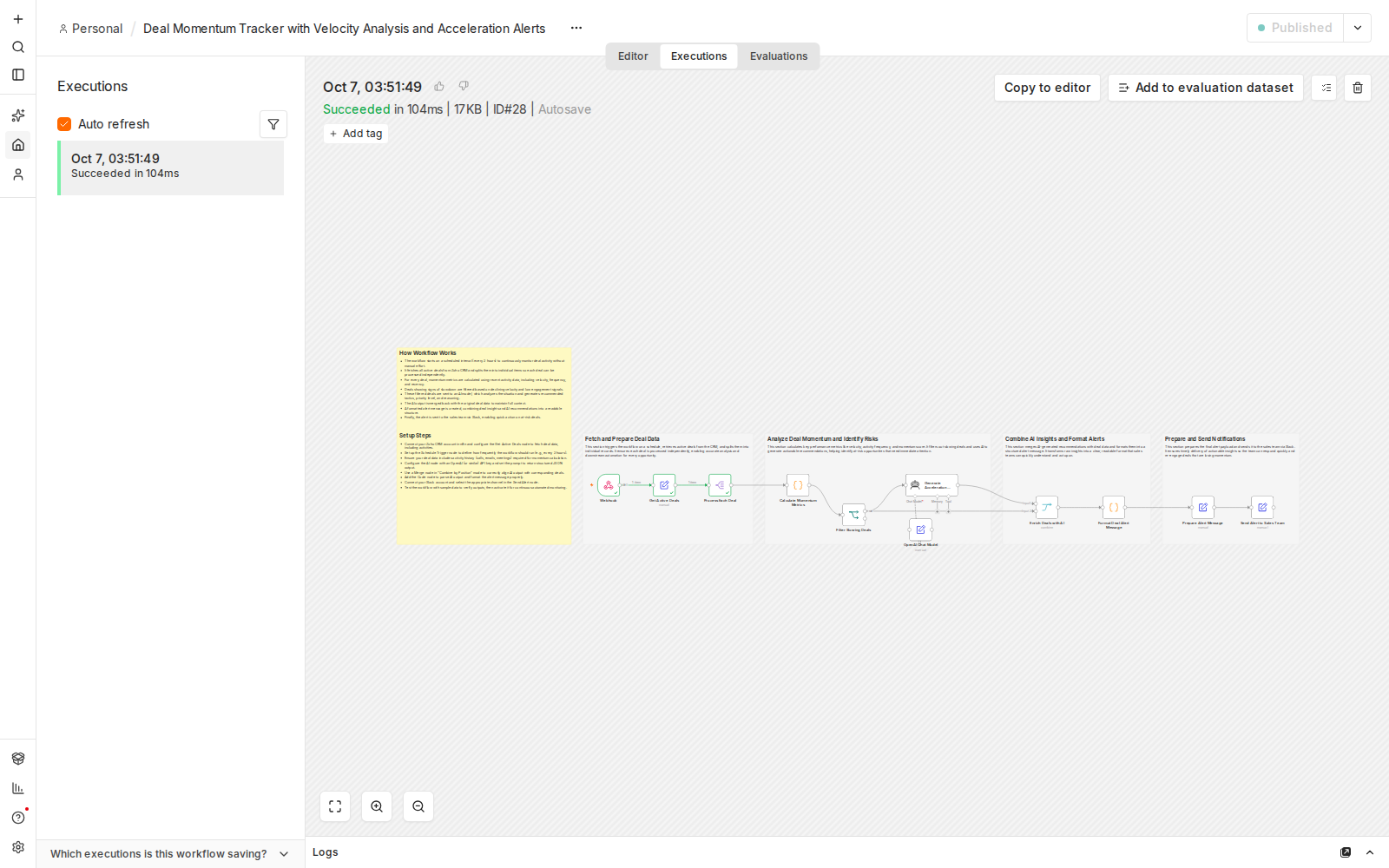
Screenshot: every node completing successfully in a live n8n test run.
Affiliate disclosure: some links in this article may be affiliate links. If you sign up through them, we may earn a commission at no extra cost to you. See our Terms of Service.
Deals rarely die with a bang. They go quiet. The prospect who answered within an hour in week one takes three days to reply in week three, then stops replying. In a CRM with forty open deals, nobody notices the silence until the quarter closes and the number is short. By then the only question left is why nobody followed up.
This free n8n workflow is a smoke detector for that silence. Every two hours it reads deals from Zoho CRM, counts how often each deal has had activity recently compared with the period before, and picks out the deals that are slowing down. For each of those it asks an OpenAI model for a short list of follow-up tactics, and it posts a formatted alert to a Slack channel. This guide explains every step in plain English, shows exactly how “slowing” is decided, and is direct about a catch that decides whether the workflow does anything at all.
Read this first: the workflow needs activity data that this file does not fetch
The calculation reads a list called Activities inside each deal (calls, emails, meetings, with dates). The Zoho CRM step in this file simply asks for deals and has no setting that asks for activities. Zoho’s developer documentation describes related records, such as activities, as a separate request for each deal. We found no statement that the normal list of deals contains an activity list. If your deals arrive without one, every deal looks silent, and the workflow reports nothing, with no error.
Before you do anything else, run the Zoho step by hand and look at its output. If there is no activity list, you need extra steps that fetch activities for each deal. That extension is not part of this file, and it is a good candidate for a custom build.
Template source: this workflow comes from the n8n Library at n8n.io, the public collection of workflow templates. We did not create it. LeenLabs prepared its JSON for publication and documented it. What we changed is listed in the section What we changed in the original template.
At a glance
- What it does: finds deals whose activity is slowing, asks OpenAI for follow-up tactics, and posts an alert to Slack.
- Apps used: n8n, Zoho CRM, OpenAI and Slack.
- Trigger: a schedule, every two hours once the workflow is turned on.
- Setup effort: medium, plus extra work if your deals do not include activity data.
- Safe by design: it only reads from Zoho CRM. It changes nothing in your CRM.
- Watch out for: it has no memory, so a slowing deal can be reported again every two hours.
- Test status: the two Code nodes were checked on simulated data; the full workflow was not run on live APIs.
In this guide
- Why quiet deals slip through, and what this watches for
- Words you will see in this guide
- Apps and accounts this workflow talks to
- What to have ready before you import anything
- How “slowing” is decided, with a worked example
- What the AI sees, and what it does not
- The big picture: from CRM to Slack
- Follow the data: what each of the 11 steps does
- Get the workflow JSON
- Install it in ten steps
- What it will not do: limits, costs and trade-offs
- Access, privacy and responsible use
- Problems you may meet and how to fix them
- Too much of a puzzle? Let us build or adapt it for you
- What we changed in the original template
- What was verified, and what was not
- Four ways to adapt the workflow
- Frequently asked questions
- Tools used in this workflow
- Keep exploring
Why quiet deals slip through, and what this watches for
Salespeople do not ignore deals on purpose. They answer the loudest ones. A deal that slowly goes from weekly contact to monthly contact never raises a flag, because no single day looks wrong. The pattern only shows when you compare two periods, and almost nobody does that by hand across a whole pipeline.
In one run, this workflow does five jobs:
- Reads up to 100 deals from Zoho CRM.
- Measures each deal’s activity in the last 15 days against the 15 days before that.
- Scores each deal’s momentum from 0 to 100 and labels the trend as increasing, stable or decreasing.
- Flags the deals that are slowing, using a fixed rule you can read and change.
- Alerts your team in Slack, with tactics written by an OpenAI model for each flagged deal.
It suits small sales teams and founders who log their calls, emails and meetings in Zoho CRM and want a regular nudge. It is a poor fit if you do not log activities, if you need alerts about deals that are already completely silent (see the rule below), or if you expect the AI to know your customers. It does not.
Words you will see in this guide
- n8n (say “n-eight-n”): a tool that connects apps and makes them follow your instructions automatically.
- Workflow: one complete chain of instructions, from the first step to the last.
- Node: one step in that chain. Each node does a single small job.
- Trigger: the node that starts everything. Here it is an alarm clock that rings every two hours.
- Credential: a saved login that lets n8n use one of your accounts, like a key to one specific room.
- CRM: a customer relationship management tool, the place where a team keeps its contacts and deals. Zoho CRM is one.
- Deal: one sales opportunity in the CRM, with a name, an amount and a stage.
- Activity: something logged on a deal: a call, an email, a meeting or a task.
- Velocity: how many activities a deal gets per week. Here it is worked out for the last 15 days and for the 15 days before.
- Momentum score: a number from 0 to 100 that sums up how lively a deal is. It is shown in the alert but is not what decides whether a deal is flagged.
- OAuth2: the sign-in method Zoho uses to let n8n act for you without sharing your password.
- AI Agent node and chat model: n8n’s AI building blocks. The chat model is the OpenAI model that answers, and the agent node is the step that sends it instructions.
- Merge by position: joining two lists by pairing the first with the first, the second with the second, and so on.
- Code node: a node that runs a short JavaScript snippet. This workflow has two, and they hold its calculation and its message formatting.
- JSON file: a plain text file that describes an entire workflow. Import it and every node appears, already connected.
Apps and accounts this workflow talks to
| App | Role in the workflow | What you need |
|---|---|---|
| n8n | Runs the workflow every two hours | An n8n instance that stays online (cloud or self-hosted) |
| Zoho CRM | Source of the deals | A Zoho CRM account with deals, activities logged on those deals, and an OAuth2 credential for n8n. Zoho accounts live in regional data centers, so use the setting that matches yours |
| OpenAI | Writes the follow-up tactics | An API account with a key and access to the model named in the file |
| Slack | Receives the alerts | A Slack workspace, a channel, and permission to connect an app |
What to have ready before you import anything
- An always-on n8n instance. A schedule only fires if n8n is on.
- Zoho CRM deals with logged activity. The rule compares activity counts. If your team does not log calls, emails and meetings, there is nothing to compare.
- A way to get activities into each deal’s data. See the warning at the top of this guide. Check the output of the Zoho step before anything else.
- An OpenAI API key. The model name in the file (
gpt-4o-mini) is the template’s, so confirm that your account can use it. - A Slack channel for the alerts, ideally a test channel first.
- A decision about repeats. The workflow will re-report the same slowing deal at every run. Decide how you will handle that before turning it on.
How “slowing” is decided, with a worked example
Everything starts from the dates of the activities on a deal. The Code node looks at three windows: the last 30 days, the last 15 days, and the 15 days before that.
| Measure | How it is worked out |
|---|---|
| Current velocity | Activities in the last 15 days, divided by 15, times 7 (activities per week) |
| Previous velocity | Activities in days 16 to 30, divided by 15, times 7 |
| Average velocity | Activities in the last 30 days, divided by 30, times 7 |
| Days since last activity | Days between today and the most recent activity. If a deal has no activities at all, the value is 999 |
The momentum score adds three parts, for a maximum of 100:
| Part | Points | Rule |
|---|---|---|
| Current velocity | Up to 40 | 5 activities per week or more earns the full 40, less earns proportionally |
| Trend | Up to 30 | Only when velocity rose. A rise of 2 activities per week or more earns the full 30 |
| Recency | Up to 30 | 30 points if the last activity was within 3 days, 20 within 7, 10 within 14, otherwise 0 |
The trend label is “increasing” if velocity rose by more than 20 percent, “decreasing” if it fell by more than 20 percent, and “stable” otherwise (also when the previous velocity was zero).
A deal is slowing only if both of these are true: current velocity is lower than previous velocity, and current velocity is below 70 percent of the 30-day average. The score does not take part in this decision.
Here is a made-up example. A deal has 5 activities in the last 30 days: 1 in the last 15 days and 4 in the 15 days before. Its current velocity is 0.47 per week, its previous velocity is 1.87 and its average is 1.17. Current is lower than previous, and 0.47 is below 70 percent of 1.17 (0.82), so the deal is slowing. The last activity was 5 days ago, so the score is about 4 points for velocity, 0 for trend and 20 for recency, which rounds to 24 out of 100. The trend label is “decreasing”.
Two blind spots to know about: a deal with no activity at all for 30 days has a current velocity of 0 and a previous velocity of 0. Zero is not lower than zero, so a completely cold deal is never flagged. Only deals that were active and then slowed down are caught. And the rule has no minimum: with very few activities, one extra call can flip a deal from slowing to fine. We checked both behaviors on sample data. The thresholds (15 days, 70 percent, 20 percent) are the template’s presets, not industry benchmarks, so treat the first weeks as calibration.
What the AI sees, and what it does not
The OpenAI model receives only the numbers calculated above, plus the deal’s name, its ID and its amount. It does not receive the deal stage, the contact, your notes, your emails or the content of any activity. Its tactics are therefore general advice about re-engaging a deal whose contact frequency dropped. They are not based on your customer’s situation.
The model is told to answer with strict JSON only: a short list of tactics (each with a title, an action and an immediate next step), a priority of high, medium or low, and a reason. The next steps turn that JSON into the Slack message. This is where things can break, because the workflow cannot cope with a model that adds markdown around the JSON or leaves a field out. The problems section covers it.
The big picture: from CRM to Slack
- Collect. Every two hours, read up to 100 deals from Zoho CRM and split them into single items.
- Measure. Calculate each deal’s velocities, score, trend and days since last activity.
- Filter. Keep only the slowing deals.
- Advise. Ask OpenAI for tactics, a priority and a reason for each of those deals.
- Combine. Pair each AI answer with its deal by position.
- Alert. Build one text message per deal and post it to Slack.
Follow the data: what each of the 11 steps does
The names below match the names in the JSON file exactly.
Monitor Deal Activity
The trigger. Once the workflow is turned on, it starts every two hours. If the workflow is not turned on, it never fires. You can also run it by hand with the execute button.
Get Active Deals
A Zoho CRM node that reads deals, up to a limit of 100. Despite its name, it sets no filter: it does not select open deals only, so closed deals can be included. It also reads only the first 100. It does not ask for activities.
Process Each Deal
Splits a field called data into one item per deal, so each deal can be analyzed on its own. If the Zoho step’s output has no field with that name, this step has nothing to split. We could not confirm the exact shape of the Zoho node’s output.
Calculate Momentum Metrics
The first Code node, run once per deal. It reads the deal’s activities, counts them in the three windows, and works out the velocities, the score, the trend label, the days since the last activity and the slowing flag, as explained above. It looks for the deal’s name, amount and ID under several common field names and uses fallbacks such as “Unnamed Deal” when they are missing.
Filter Slowing Deals
A yes-or-no decision. Deals flagged as slowing continue. All others stop here, silently.
Generate Acceleration Tactics
An AI Agent node. It receives the deal’s numbers as text and a short instruction: act as a sales acceleration expert and answer with valid JSON only, in a fixed shape. It sends that to the chat model below.
OpenAI Chat Model
The model that does the thinking, plugged into the agent node. The file names gpt-4o-mini. You select your own OpenAI credential here.
Enrich Deals with AI
A Merge node that joins two lists by position: the AI answers and the original flagged deals. It assumes both lists have the same length and the same order. That holds when every AI request succeeds, and it is the reason the workflow stops on any AI error.
Format Deal Alert Message
The second Code node. It reads the AI’s text as JSON, builds a numbered list of tactics, and writes the alert: deal name, deal value, momentum score, days since last activity, trend, priority, tactics and reason. It stops with the message “Invalid JSON from AI” if the answer cannot be read, and with a different error if the priority or the tactics are missing.
Prepare Alert Message
A small step that keeps only the fields the next step needs: deal name, deal ID, the alert text, the priority and the reason.
Send Alert to Sales Team
A Slack node that posts the alert text to the channel you choose. You select the channel and your Slack credential here.
Get the workflow JSON
Open the box below to copy the JSON, or download the file. It contains the 11 nodes above, connected in order, with empty fields where your own settings go, and five notes on the canvas. It contains none of your logins.
Please read this first: this JSON is free and provided as is. n8n versions, installed nodes and CRM setups differ from one person to another, so it may not run correctly on your side without adjustments. We cannot test it on every setup. That is why this article includes a long section, Problems you may meet and how to fix them. And if you would rather not deal with any of it, you can request a custom workflow and let us handle it.
Click to show or hide the workflow JSON
Click inside the box, select the whole text, copy it, then paste it onto an empty n8n canvas. If selecting is awkward on your device, use the download link above.
{
  "name": "Flag Slowing Zoho CRM Deals with n8n (free workflow JSON)",
  "nodes": [
    {
      "id": "2630470b-a369-4bc2-b722-d8ffcb04ef62",
      "name": "Monitor Deal Activity",
      "type": "n8n-nodes-base.scheduleTrigger",
      "position": [
        1056,
        336
      ],
      "parameters": {
        "rule": {
          "interval": [
            {
              "field": "hours",
              "hoursInterval": 2
            }
          ]
        }
      },
      "typeVersion": 1.3
    },
    {
      "id": "38444d6c-ceb7-49cb-acc5-8246afd172fa",
      "name": "Get Active Deals",
      "type": "n8n-nodes-base.zohoCrm",
      "position": [
        1296,
        336
      ],
      "parameters": {
        "limit": 100,
        "options": {},
        "resource": "deal",
        "operation": "getAll"
      },
      "typeVersion": 1
    },
    {
      "id": "f308510e-f84d-446c-974c-e551822d3c0e",
      "name": "Process Each Deal",
      "type": "n8n-nodes-base.splitOut",
      "position": [
        1536,
        336
      ],
      "parameters": {
        "options": {},
        "fieldToSplitOut": "data"
      },
      "typeVersion": 1
    },
    {
      "id": "e9920b69-911e-4cb2-a613-64aed8ee00b2",
      "name": "Calculate Momentum Metrics",
      "type": "n8n-nodes-base.code",
      "position": [
        1872,
        336
      ],
      "parameters": {
        "mode": "runOnceForEachItem",
        "jsCode": "// Calculate engagement velocity, momentum score, and activity patterns\nconst deal = $input.item.json;\n\n// Extract deal basic info\nconst dealId = deal.id || deal.Deal_ID || 'unknown';\nconst dealName = deal.Deal_Name || deal.name || 'Unnamed Deal';\nconst dealValue = deal.Amount || deal.value || 0;\n\n// Get activities (assuming they're in the deal data)\nconst activities = deal.Activities || deal.activities || [];\n\n// Calculate date ranges\nconst now = new Date();\nconst thirtyDaysAgo = new Date(now.getTime() - 30 * 24 * 60 * 60 * 1000);\nconst fifteenDaysAgo = new Date(now.getTime() - 15 * 24 * 60 * 60 * 1000);\n\n// Filter activities by time period\nconst last30DaysActivities = activities.filter(activity => {\n  const activityDate = new Date(activity.date || activity.Created_Time);\n  return activityDate >= thirtyDaysAgo && activityDate <= now;\n});\n\nconst last15DaysActivities = activities.filter(activity => {\n  const activityDate = new Date(activity.date || activity.Created_Time);\n  return activityDate >= fifteenDaysAgo && activityDate <= now;\n});\n\nconst first15DaysActivities = activities.filter(activity => {\n  const activityDate = new Date(activity.date || activity.Created_Time);\n  return activityDate >= thirtyDaysAgo && activityDate < fifteenDaysAgo;\n});\n\n// Calculate velocity (activities per week)\nconst currentVelocity = (last15DaysActivities.length / 15) * 7; // Convert to per week\nconst previousVelocity = (first15DaysActivities.length / 15) * 7; // Convert to per week\nconst averageVelocity = (last30DaysActivities.length / 30) * 7;\n\n// Calculate activity frequency (activities per day over 30 days)\nconst activityFrequency = last30DaysActivities.length / 30;\n\n// Calculate days since last activity\nlet daysSinceLastActivity = null;\nif (activities.length > 0) {\n  const sortedActivities = activities.sort((a, b) => {\n    const dateA = new Date(a.date || a.Created_Time);\n    const dateB = new Date(b.date || b.Created_Time);\n    return dateB - dateA;\n  });\n  const lastActivityDate = new Date(sortedActivities[0].date || sortedActivities[0].Created_Time);\n  daysSinceLastActivity = Math.floor((now - lastActivityDate) / (24 * 60 * 60 * 1000));\n} else {\n  daysSinceLastActivity = 999; // No activities found\n}\n\n// Calculate momentum score (0-100)\nlet momentumScore = 0;\n\n// Factor 1: Current velocity (40 points max)\nconst velocityScore = Math.min((currentVelocity / 5) * 40, 40); // 5 activities/week = max\n\n// Factor 2: Velocity trend (30 points max)\nconst velocityChange = currentVelocity - previousVelocity;\nconst trendScore = velocityChange > 0 ? Math.min((velocityChange / 2) * 30, 30) : 0;\n\n// Factor 3: Recency (30 points max)\nconst recencyScore = daysSinceLastActivity <= 3 ? 30 : \n                     daysSinceLastActivity <= 7 ? 20 : \n                     daysSinceLastActivity <= 14 ? 10 : 0;\n\nmomentumScore = Math.round(velocityScore + trendScore + recencyScore);\n\n// Determine momentum trend\nlet momentumTrend = 'stable';\nconst velocityChangePercent = previousVelocity > 0 ? \n  ((currentVelocity - previousVelocity) / previousVelocity) * 100 : 0;\n\nif (velocityChangePercent > 20) {\n  momentumTrend = 'increasing';\n} else if (velocityChangePercent < -20) {\n  momentumTrend = 'decreasing';\n}\n\n// Determine if deal is slowing\nconst isSlowing = currentVelocity < previousVelocity && \n                  currentVelocity < averageVelocity * 0.7;\n\n// Return the calculated metrics\nreturn {\n  dealId: dealId,\n  dealName: dealName,\n  dealValue: dealValue,\n  currentVelocity: Math.round(currentVelocity * 100) / 100,\n  previousVelocity: Math.round(previousVelocity * 100) / 100,\n  momentumScore: momentumScore,\n  daysSinceLastActivity: daysSinceLastActivity,\n  activityFrequency: Math.round(activityFrequency * 100) / 100,\n  momentumTrend: momentumTrend,\n  isSlowing: isSlowing,\n  totalActivitiesLast30Days: last30DaysActivities.length,\n  velocityChangePercent: Math.round(velocityChangePercent * 100) / 100\n};"
      },
      "typeVersion": 2
    },
    {
      "id": "78abb92a-cb91-44e5-9c97-4b74f6807639",
      "name": "Filter Slowing Deals",
      "type": "n8n-nodes-base.if",
      "position": [
        2112,
        464
      ],
      "parameters": {
        "options": {},
        "conditions": {
          "options": {
            "version": 3,
            "leftValue": "",
            "caseSensitive": true,
            "typeValidation": "strict"
          },
          "combinator": "and",
          "conditions": [
            {
              "id": "id-1",
              "operator": {
                "type": "boolean",
                "operation": "true"
              },
              "leftValue": "={{ $('Calculate Momentum Metrics').item.json.isSlowing }}"
            }
          ]
        }
      },
      "typeVersion": 2.3
    },
    {
      "id": "1859798e-fbfa-47db-8b35-d24ee517bdc9",
      "name": "Generate Acceleration Tactics",
      "type": "@n8n/n8n-nodes-langchain.agent",
      "position": [
        2384,
        336
      ],
      "parameters": {
        "text": "=={{\n  JSON.stringify({\n    deal: $json\n  })\n}}",
        "options": {
          "systemMessage": "You are a sales acceleration expert.\n\nAnalyze the deal data and return ONLY valid JSON (no markdown, no explanation).\n\nFormat:\n{\n  \"tactics\": [\n    {\n      \"title\": \"short title\",\n      \"action\": \"what to do\",\n      \"next_step\": \"specific immediate step\"\n    }\n  ],\n  \"priority\": \"high | medium | low\",\n  \"reason\": \"why this deal is slowing\"\n}"
        },
        "promptType": "define"
      },
      "typeVersion": 3.1
    },
    {
      "id": "c391d5b3-fda9-41d8-99fc-60b74e64cf99",
      "name": "OpenAI Chat Model",
      "type": "@n8n/n8n-nodes-langchain.lmChatOpenAi",
      "position": [
        2400,
        528
      ],
      "parameters": {
        "model": {
          "__rl": true,
          "mode": "id",
          "value": "gpt-4o-mini"
        },
        "options": {},
        "builtInTools": {}
      },
      "typeVersion": 1.3
    },
    {
      "id": "1a1f161d-2a5d-4010-ba88-7a614519be2e",
      "name": "Prepare Alert Message",
      "type": "n8n-nodes-base.set",
      "position": [
        3616,
        432
      ],
      "parameters": {
        "options": {},
        "assignments": {
          "assignments": [
            {
              "id": "id-1",
              "name": "dealName",
              "type": "string",
              "value": "={{ $json.dealName }}"
            },
            {
              "id": "id-7",
              "name": "alertMessage",
              "type": "string",
              "value": "={{ $json.alertMessage }}"
            },
            {
              "id": "45c2e476-c848-4b91-af8e-b297a57ba61c",
              "name": "dealId",
              "type": "string",
              "value": "={{ $json.dealId }}"
            },
            {
              "id": "561dc087-e438-489b-850d-2726ccf98a32",
              "name": "priority",
              "type": "string",
              "value": "={{ $json.priority }}"
            },
            {
              "id": "b78b23ef-0968-4bd8-a564-55812773b7b8",
              "name": "reason",
              "type": "string",
              "value": "={{ $json.reason }}"
            }
          ]
        }
      },
      "typeVersion": 3.4
    },
    {
      "id": "1361bd5a-1c82-44ca-b4a0-83d7fd32d1a5",
      "name": "Send Alert to Sales Team",
      "type": "n8n-nodes-base.slack",
      "position": [
        3872,
        432
      ],
      "parameters": {
        "text": "={{ $json.alertMessage }}",
        "select": "channel",
        "channelId": {
          "__rl": true,
          "mode": "list",
          "value": ""
        },
        "otherOptions": {}
      },
      "typeVersion": 2.4
    },
    {
      "id": "44b033f9-f76c-4a5f-a7b2-62d5c5cc2721",
      "name": "Enrich Deals with AI",
      "type": "n8n-nodes-base.merge",
      "position": [
        2944,
        432
      ],
      "parameters": {
        "mode": "combine",
        "options": {},
        "combineBy": "combineByPosition"
      },
      "typeVersion": 3.2
    },
    {
      "id": "4eddb617-6369-4c13-a7a0-456b46f9a383",
      "name": "Format Deal Alert Message",
      "type": "n8n-nodes-base.code",
      "position": [
        3232,
        432
      ],
      "parameters": {
        "jsCode": "return items.map(item => {\n  \n  // Step 1: Parse AI output\n  let parsed;\n\n  if (typeof item.json.output === \"string\") {\n    try {\n      parsed = JSON.parse(item.json.output);\n    } catch (e) {\n      throw new Error(\"Invalid JSON from AI: \" + item.json.output);\n    }\n  } else {\n    parsed = item.json.output;\n  }\n\n  // Step 2: Build tactics text\n  let tacticsText = \"\";\n\n  parsed.tactics.forEach((t, index) => {\n    tacticsText += `\\n${index + 1}. ${t.title}\\n- ${t.action}\\n- Next: ${t.next_step}\\n`;\n  });\n\n  // Step 3: Return one item per input\n  return {\n    json: {\n      dealId: item.json.dealId,\n      dealName: item.json.dealName,\n      priority: parsed.priority,\n      reason: parsed.reason,\n      alertMessage: `Deal Momentum Alert: ${item.json.dealName}\n\nDeal Value: $${item.json.dealValue}\nMomentum Score: ${item.json.momentumScore}/100\nDays Since Last Activity: ${item.json.daysSinceLastActivity}\nTrend: ${item.json.momentumTrend}\nPriority: ${parsed.priority.toUpperCase()}\n\nRecommended Tactics:\n${tacticsText}\n\nReason: ${parsed.reason}`\n    }\n  };\n});"
      },
      "typeVersion": 2
    },
    {
      "id": "6edf654c-82a2-40b0-88db-f918ac2eb2b8",
      "name": "Sticky Note",
      "type": "n8n-nodes-base.stickyNote",
      "position": [
        992,
        160
      ],
      "parameters": {
        "color": 7,
        "width": 736,
        "height": 480,
        "content": "## Fetch and Prepare Deal Data\nThis section triggers the workflow on a schedule, retrieves active deals from the CRM, and splits them into individual records. It ensures each deal is processed independently, enabling accurate analysis and downstream automation for every opportunity."
      },
      "typeVersion": 1
    },
    {
      "id": "55148013-fed4-43cd-a444-c1c47e7615e4",
      "name": "Sticky Note1",
      "type": "n8n-nodes-base.stickyNote",
      "position": [
        1776,
        160
      ],
      "parameters": {
        "color": 7,
        "width": 976,
        "height": 480,
        "content": "## Analyze Deal Momentum and Identify Risks\nThis section calculates key performance metrics like velocity, activity frequency, and momentum score. It filters out slowing deals and uses AI to generate actionable recommendations, helping identify at-risk opportunities that need immediate attention."
      },
      "typeVersion": 1
    },
    {
      "id": "d2774b52-9f23-4986-b6ea-a39596c61084",
      "name": "Sticky Note2",
      "type": "n8n-nodes-base.stickyNote",
      "position": [
        2800,
        160
      ],
      "parameters": {
        "color": 7,
        "width": 640,
        "height": 480,
        "content": "## Combine AI Insights and Format Alerts\nThis section merges AI-generated recommendations with deal data and formats them into a structured alert message. It transforms raw insights into a clear, readable format that sales teams can quickly understand and act upon."
      },
      "typeVersion": 1
    },
    {
      "id": "be1e3758-faaa-43f7-9f68-4c01b26a4137",
      "name": "Sticky Note3",
      "type": "n8n-nodes-base.stickyNote",
      "position": [
        3488,
        160
      ],
      "parameters": {
        "color": 7,
        "width": 592,
        "height": 480,
        "content": "## Prepare and Send Notifications\nThis section prepares the final alert payload and sends it to the sales team via Slack. It ensures timely delivery of actionable insights so the team can respond quickly and re-engage deals that are losing momentum."
      },
      "typeVersion": 1
    },
    {
      "id": "bd626727-ce06-4a8f-897e-71887ea96878",
      "name": "Sticky Note4",
      "type": "n8n-nodes-base.stickyNote",
      "position": [
        192,
        -208
      ],
      "parameters": {
        "width": 752,
        "height": 1500,
        "content": "## How Workflow Works\n\n- The workflow starts on a scheduled interval (every 2 hours) to continuously monitor deal activity without manual effort.\n- It fetches up to 100 deals from Zoho CRM (this file sets no stage or status filter) and splits them into individual items so each deal can be processed independently.\n- For every deal, momentum metrics are calculated using recent activity data, including velocity, frequency, and recency.\n- Deals showing signs of slowdown are filtered based on declining velocity and low engagement signals.\n- These filtered deals are sent to an AI model, which analyzes the situation and generates recommended tactics, priority level, and reasoning.\n- The AI output is merged back with the original deal data to maintain full context.\n- A formatted alert message is created, combining deal insights and AI recommendations into a readable structure.\n- Finally, the alert is sent to the sales team via Slack, enabling quick action on at-risk deals.\n\n\n\n## Setup Steps\n\n- Connect your Zoho CRM account in n8n and configure the Get Active Deals node to fetch deal data, including activities.\n- Set up the Schedule Trigger node to define how frequently the workflow should run (e.g., every 2 hours).\n- Ensure your deal data includes activity history (calls, emails, meetings) required for momentum calculation.\n- Configure the AI node with an OpenAI (or similar) API key and set the prompt to return structured JSON output.\n- Use a Merge node in “Combine by Position” mode to correctly align AI output with corresponding deals.\n- Add the Code node to parse AI output and format the alert message properly.\n- Connect your Slack account and select the appropriate channel in the Send Alert node.\n- Test the workflow with sample data to verify outputs, then activate it for continuous automated monitoring.\n\n## Before you turn it on\n\n1. The momentum calculation reads a list called Activities inside each deal. This file does not ask Zoho for activities. If the list is missing, every deal shows no activity and nothing is ever flagged. Check the output of Get Active Deals first.\n2. There is no stage filter, so closed deals can be analyzed too, and only the first 100 deals are read.\n3. Nothing remembers past alerts. A slowing deal can be reported again at every run (every 2 hours).\n4. The AI sees only the calculated numbers, the deal name and the amount, not the stage, notes or contacts.\n5. Select a Slack channel you can safely post to before the first run, and run it by hand first.\n6. Deal names and amounts are sent to OpenAI and to Slack. Check your own rules for customer data.\n\nSource: based on a template from the n8n Library at n8n.io, documented by LeenLabs.\nNot tested on live APIs."
      },
      "typeVersion": 1
    }
  ],
  "connections": {
    "Get Active Deals": {
      "main": [
        [
          {
            "node": "Process Each Deal",
            "type": "main",
            "index": 0
          }
        ]
      ]
    },
    "OpenAI Chat Model": {
      "ai_languageModel": [
        [
          {
            "node": "Generate Acceleration Tactics",
            "type": "ai_languageModel",
            "index": 0
          }
        ]
      ]
    },
    "Process Each Deal": {
      "main": [
        [
          {
            "node": "Calculate Momentum Metrics",
            "type": "main",
            "index": 0
          }
        ]
      ]
    },
    "Enrich Deals with AI": {
      "main": [
        [
          {
            "node": "Format Deal Alert Message",
            "type": "main",
            "index": 0
          }
        ]
      ]
    },
    "Filter Slowing Deals": {
      "main": [
        [
          {
            "node": "Generate Acceleration Tactics",
            "type": "main",
            "index": 0
          },
          {
            "node": "Enrich Deals with AI",
            "type": "main",
            "index": 1
          }
        ]
      ]
    },
    "Monitor Deal Activity": {
      "main": [
        [
          {
            "node": "Get Active Deals",
            "type": "main",
            "index": 0
          }
        ]
      ]
    },
    "Prepare Alert Message": {
      "main": [
        [
          {
            "node": "Send Alert to Sales Team",
            "type": "main",
            "index": 0
          }
        ]
      ]
    },
    "Format Deal Alert Message": {
      "main": [
        [
          {
            "node": "Prepare Alert Message",
            "type": "main",
            "index": 0
          }
        ]
      ]
    },
    "Calculate Momentum Metrics": {
      "main": [
        [
          {
            "node": "Filter Slowing Deals",
            "type": "main",
            "index": 0
          }
        ]
      ]
    },
    "Generate Acceleration Tactics": {
      "main": [
        [
          {
            "node": "Enrich Deals with AI",
            "type": "main",
            "index": 0
          }
        ]
      ]
    }
  },
  "settings": {
    "binaryMode": "separate",
    "executionOrder": "v1"
  }
}
Install it in ten steps
- Get the JSON from the box above or the download link.
- Import it. Open a new empty workflow in n8n, then paste the JSON onto the canvas or import it from a file.
- Check the 11 nodes appear, connected, with the five notes.
- Connect Zoho CRM. In Get Active Deals, create the Zoho OAuth2 credential, choose the data center or region setting that matches your account if the credential asks for one, and sign in.
- Look at the data. Execute only the Zoho step and open its output. Check that deals appear, that you can tell open deals from closed ones, and whether an activity list is present. Plan for the case where it is not.
- Connect OpenAI. Select your credential in OpenAI Chat Model and confirm the model name works on your account.
- Connect Slack. In Send Alert to Sales Team, select your credential and a channel you can safely post to.
- Run it once by hand with the execute button. A real run reads your CRM, sends deal names and amounts to OpenAI, and posts to Slack.
- Check each alert against the deal in Zoho. Is it really slowing? Is the amount right? Is it still open?
- Decide how to handle repeats, then turn the workflow on (Activate or Publish, depending on your n8n version).
What it will not do: limits, costs and trade-offs
Costs. The workflow file is free. n8n, Zoho CRM, OpenAI and Slack each have their own plans and limits, which change. Check each provider’s current page. We quote no figures on purpose. OpenAI usage grows with the number of slowing deals per run and with the number of runs per day.
It may see no activity at all. As explained at the top, the file does not fetch activities. Without them, nothing is flagged.
Closed deals are included. There is no stage filter. A deal that was won or lost a month ago can still look “slowing”, because its activity naturally stopped.
Only 100 deals. The Zoho step reads one batch of up to 100. Larger pipelines are only partly covered.
No memory. Nothing records which deals were already reported. A deal that stays slowing is reported again at every run, which means up to twelve alerts a day for the same deal and an AI request each time.
Cold deals are invisible. A deal with no activity in 30 days is not flagged, as shown above.
Generic advice. The AI works from numbers and a deal name only.
One failure stops everything. If one AI answer cannot be read, the formatting step stops, and none of the alerts of that run are sent.
Dates and time zones. The windows are counted from the moment the workflow runs, using the clock of your n8n server. An activity without a usable date is ignored in the windows, and it can make the “days since last activity” value show as NaN, which means “not a number”. An activity dated in the future (a scheduled meeting) counts as zero days since the last activity.
Currency. The alert text always shows a dollar sign before the amount, whatever your Zoho currency is.
Nothing is written back. The workflow never updates Zoho. Reacting to an alert is up to your team.
Access, privacy and responsible use
- Credentials stay in n8n. The JSON file contains none of your logins. The template’s own credential names and Slack channel were removed.
- Customer data leaves Zoho. Deal names, deal IDs and amounts are sent to OpenAI, and the alert, including the deal name and amount, is posted in Slack. Check your own rules and your customers’ expectations before you send CRM data to an AI provider, and keep the Slack channel restricted to the people who need it.
- Use the least access you can. Give the Zoho credential only the access this workflow needs, and review it from time to time.
- Treat the advice as a prompt, not a verdict. The tactics are generated from numbers. A person who knows the customer should decide what to do.
- No compliance claim. We do not claim that this workflow meets any privacy law or any vendor’s terms. Check what applies to you.
Problems you may meet and how to fix them
Every n8n setup is different, so this workflow can behave differently for you than in our checks. Here are the most likely problems. For each one: what you see, why it happens, and what to do. They come from how the nodes are built and from running the two Code nodes on sample data, not from a live run with real accounts.
1. The workflow runs but never sends an alert
What you see: green checks, then nothing after Filter Slowing Deals.
Why: the most likely cause is that your deals arrive without an activity list, so every deal shows no activity and none is flagged. Other causes: all your deals are cold (no activity for 30 days, which is never flagged), or none is actually slowing.
Fix: open the output of Get Active Deals and look for an Activities list. Then open the output of Calculate Momentum Metrics: if every deal shows 999 days since last activity and zero velocity, the activities are missing. Adding the retrieval of activities per deal is not part of this file and is a good candidate for a custom build.
2. Zoho will not connect, or says the token is invalid
What you see: an authorization error in Get Active Deals.
Why: the OAuth2 sign-in was not completed, the data center does not match your Zoho account’s region, or the account lacks access to deals.
Fix: recreate the credential with the data center of your account, sign in again, and check that your Zoho user can see deals. Follow n8n’s current Zoho documentation for the exact fields.
3. “Process Each Deal” finds nothing to split
What you see: an error saying a field was not found, or no items after Process Each Deal.
Why: this step splits a field named data. If the Zoho step returns each deal as its own item, there is no such field.
Fix: look at the real output of Get Active Deals. If deals already arrive one per item, remove Process Each Deal and connect Get Active Deals straight to Calculate Momentum Metrics. If they arrive inside a differently named field, change the field name in Process Each Deal.
4. Closed deals show up in alerts
What you see: alerts about deals that were already won or lost.
Why: the Zoho step has no stage filter.
Fix: add a filter on the deal stage in the Zoho step or add a filter node before the calculation. This depends on your own stage names.
5. Only part of my pipeline is analyzed
What you see: deals that are missing from the results.
Why: the Zoho step reads one batch with a limit of 100.
Fix: raise the limit if the node allows, or retrieve all deals instead. Expect more AI requests as well.
6. Every deal shows 999 days and zero activity
What you see: in the output of Calculate Momentum Metrics, “daysSinceLastActivity” is 999 for all deals.
Why: the code found no list called Activities or activities in the deal.
Fix: see problem 1. If your activities have another field name, change the two names in the line that reads them. Each activity also needs a date in a field called date or Created_Time.
7. “Days since last activity” shows NaN
What you see: the word NaN in the alert.
Why: an activity has no usable date, and it ended up as the most recent one when the code sorted the list. We reproduced this on sample data.
Fix: make sure every activity has a valid date, or filter out activities without a date before the calculation.
8. Too many or too few deals are flagged
What you see: a flood of alerts, or none for deals you know are slowing.
Why: the rule has no minimum activity count and uses fixed thresholds. With few activities, one call changes the result.
Fix: change the 0.7 factor or add a minimum number of activities in the line that sets the slowing flag in Calculate Momentum Metrics. Start with a week of observation before tuning.
9. OpenAI refuses the request
What you see: a red OpenAI Chat Model or agent node with an unauthorized, unknown-model or limit message.
Why: a missing credential, a model name your account cannot use, an empty balance or a rate limit.
Fix: select your credential, check the model name against OpenAI’s current list, and check your balance and limits.
10. “Invalid JSON from AI”
What you see: Format Deal Alert Message stops with this message followed by the model’s text.
Why: the model added something around the JSON, such as markdown code fences, a sentence before it, or a cut-off ending. We confirmed that a fenced answer stops the node, and that one bad answer stops the whole batch.
Fix: repeat the run first, since AI answers vary. If it keeps happening, strengthen the instruction in Generate Acceleration Tactics, or add a step that strips fences before parsing.
11. An error mentioning “toUpperCase” or “forEach” on undefined
What you see: Format Deal Alert Message fails with a message about something being undefined.
Why: the AI’s JSON was valid but left out the priority or the list of tactics. The code does not check for missing fields. We reproduced both errors on sample data.
Fix: repeat the run, and consider adding default values in the code for a missing priority or an empty tactics list.
12. An alert shows the tactics of another deal
What you see: a message whose advice does not match the deal named in it.
Why: Enrich Deals with AI pairs the two lists by position. If the lists differ in length or order, the pairs are wrong.
Fix: keep the run to deals that all received an AI answer, and check the output of the Merge node. A safer design, which includes the deal ID in the AI request and matches on it, is a good candidate for a custom adjustment.
13. The same deal is reported again and again
What you see: identical alerts every two hours.
Why: the workflow has no memory of alerts already sent. Identical data gives an identical result at every run. We confirmed this on sample data.
Fix: lengthen the schedule interval, or add a memory step, for example a table of deals already reported, with an expiry. That is not part of this file and is a good candidate for a custom build.
14. Slack says the channel is missing or the app is not in the channel
What you see: an error in Send Alert to Sales Team, such as “channel not found” or “not in channel”.
Why: no channel was selected (the file ships with the field empty), the Slack app is not a member of the channel, or the credential is invalid.
Fix: select the channel, add the Slack app to it, and recheck the credential.
15. Amounts show a dollar sign but my currency is different
What you see: “Deal Value: $” followed by an amount in euros, pounds or another currency.
Why: the symbol is written into the text of the alert.
Fix: open Format Deal Alert Message and replace the dollar sign in the “Deal Value” line. Do not remove the ${ and } pieces next to it, which insert the number.
16. The run is slow or times out
What you see: a long run, or a run that stops.
Why: up to 100 deals can mean many AI requests in one run.
Fix: tighten the filter, lengthen the interval, or reduce the number of deals read.
17. The workflow never runs on schedule
What you see: no alerts at all, and no executions in the list.
Why: a schedule only fires when the workflow is turned on and n8n is running.
Fix: turn the workflow on (Activate or Publish) and keep the instance online.
18. A Code node shows a syntax error after you edited it
What you see: a red Code node.
Why: code copied from a web page can arrive with special characters turned into their web-encoded form, for example => instead of the arrow =>.
Fix: import the downloadable file instead of copying code from a page, and replace encoded characters by hand.
19. A node shows a question mark or a version warning
What you see: a node n8n does not recognize, or a message about an unsupported version.
Why: the file uses current node versions (for example the schedule trigger 1.3, the Slack node 2.4 and the AI agent 3.1), and it needs n8n’s AI nodes. An older n8n may not have them.
Fix: update n8n if you can. Otherwise replace the affected node with a fresh one of the same kind, keep the name, and copy the settings from this guide.
Too much of a puzzle? Let us build or adapt it for you
Some people enjoy tinkering with n8n. Others want a deal alert that simply works on their own CRM. If you are in the second group, LeenLabs builds and adapts n8n workflows for people like you. We can:
- Add the missing activity retrieval so the calculation works with your Zoho data.
- Filter to open deals and cover your whole pipeline, not just 100 deals.
- Add a memory so each slowing deal is reported once, or once a week.
- Make the AI step sturdier, with answers that cannot break the alert and advice based on more than the numbers.
- Build a new workflow from scratch for another task you want to automate.
Request a Custom Workflow, describe what you want to automate, and we will come back to you with the next steps. Prefer to ask a question first? Write to support@leenlabs.site.
What we changed in the original template
We want you to know exactly how this file differs from the template it comes from. Compared with the file we received, LeenLabs made these changes:
- Removed the original author’s setup details. The file contained references to specific credentials (including a credential name), a specific Slack channel and its ID, and instance identifiers. These are gone. The Slack channel field is empty, and you select your own credentials.
- Corrected one sentence on the main canvas note. It said the workflow fetches “all active deals”. The Zoho step actually reads up to 100 deals and sets no filter, so the note now says that. We also added a source credit and a checklist of what to check before turning it on.
- Renamed the workflow to this article’s title and removed export leftovers (identifiers, empty tags, the “active” flag and empty saved data), so the file imports switched off.
The nodes, their settings, the prompt, both Code nodes and the connections are unchanged.
What was verified, and what was not
Here is exactly what we did. An earlier check of this workflow ran on n8n 2.38.5 with a test copy in which the trigger was a test link and Zoho CRM, the OpenAI model and Slack were replaced by stand-in nodes. The stand-in for Zoho CRM returned no deals, so that check could not exercise the calculation, the AI, the formatting or the alert with real deal data.
For this article we also ran the two Code nodes separately, outside n8n, on sample deals. The checks covered: a deal with no activity list, a slowing deal (with the example in this guide), a completely cold deal, a deal with one old activity, an increasing deal, an activity without a date, alternative field names, empty deals, a future-dated activity, repeated runs on identical data, a well-formed AI answer, an answer given as an object, an answer wrapped in markdown, a missing priority, missing tactics, and a batch containing one bad answer. Everything behaved as described in this guide.
We did not import this exact file into n8n and run it end to end. We did not run it against live Zoho CRM, OpenAI or Slack accounts, so we cannot confirm how it behaves with real accounts. In particular, we could not confirm what the Zoho step returns, whether deals contain activities, or whether your model name is available. That is why we recommend a first run by hand, with a test Slack channel, and a comparison of every alert with the deal in Zoho.
Four ways to adapt the workflow
- Change the rhythm. In Monitor Deal Activity you can run less often, which also reduces repeated alerts and AI usage.
- Tune the rule. In Calculate Momentum Metrics, change the 0.7 factor, the 15-day windows, or add a minimum number of activities.
- Change the voice of the advice. Edit the instruction in Generate Acceleration Tactics, for example to ask for tactics suited to your sales process.
- Send alerts elsewhere. Replace the Slack node with email or another tool.
These variations are suggestions based on how n8n works, not changes we tested on this template. If you want one built for you, send us a request.
Frequently asked questions
Will it change anything in my CRM?
No. The workflow only reads deals from Zoho CRM. Nothing is written back.
Why does it report nothing for my deals?
Most likely because your deals do not include an activity list, or because they are completely cold, which this rule never flags. See the first problem above.
Does the AI know my customers?
No. It sees the calculated numbers, the deal name, ID and amount. Its advice is general.
Will I get the same alert every two hours?
Yes, for as long as the deal stays slowing, because the workflow has no memory of alerts already sent.
Is the workflow free?
The file is free. The services it connects have their own plans, limits and prices.
What if the JSON does not work on my n8n?
It can happen, because setups differ. Go through the problems section above. If it still does not work, or you do not want to spend the time, request a custom workflow and we will handle it.
Who built the original template?
The original template comes from the n8n Library at n8n.io. LeenLabs adjusted and documented it.
Tools used in this workflow
The links below go to each tool’s home page, and some may be affiliate links, as explained in our Terms of Service.
- n8n (may be an affiliate link): the automation platform that runs the workflow, available hosted or self-hosted.
- Zoho CRM (may be an affiliate link): the CRM that holds your deals.
- OpenAI (may be an affiliate link): provides the model that writes the follow-up tactics.
- Slack (may be an affiliate link): the messaging app that receives the alerts.
Keep exploring
Browse more free n8n workflows from LeenLabs.
Need this adapted to your own setup?
Tell us what you want to automate and we will come back to you with the next steps.