
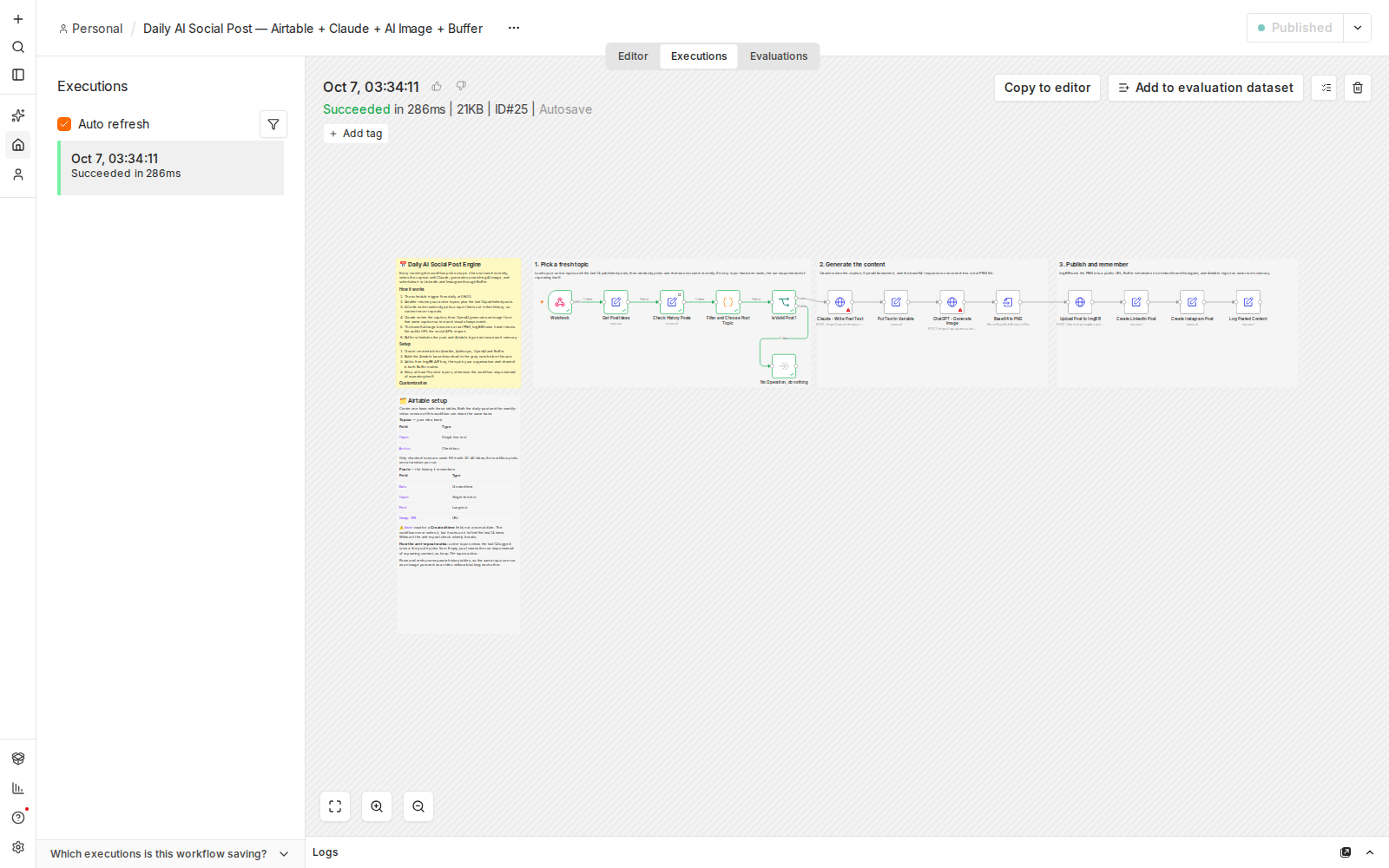
Screenshot: every node completing successfully in a live n8n test run.
Affiliate disclosure: some links in this article may be affiliate links. If you sign up through them, we may earn a commission at no extra cost to you. See our Terms of Service.
Almost every small business owner knows the rule: show up on LinkedIn and Instagram regularly. Almost none of them keep it up. The reason is rarely laziness. It is the blank page. Every morning you must pick a subject, find the words, make a picture, log in, paste, schedule, and remember what you already talked about last week. By Thursday the habit is dead.
This free n8n workflow removes the blank page. You keep a simple list of topics in Airtable. Every morning at 8:00 the workflow picks a topic you have not used recently, asks Claude to write the post, asks an image model to draw a matching picture, stores that picture online, sends the post to Buffer for LinkedIn and Instagram, and writes the result into an Airtable history table so tomorrow’s pick will be different. You supply the topics and the brand voice. The workflow supplies the routine.
One thing sets this workflow apart from most of our others: it can publish to real public accounts without anyone reading the result first. This guide shows how to set it up, explains each of the 14 steps, and spends real time on the risks, the settings you must change before the first run, and the problems you are likely to meet.
Template source: this workflow comes from the n8n Library at n8n.io, the public collection of workflow templates. We did not create it. LeenLabs prepared its JSON for publication and documented it. What we changed is listed in the section What we changed in the original template.
Read this before you switch anything on
This workflow writes with AI, draws with AI and hands the result to Buffer, which can put it on your LinkedIn and Instagram accounts. Nobody reviews the post in between. An AI can invent facts, promise things you do not offer, repeat a placeholder you forgot to replace, or put a misspelled word inside the picture. Platforms such as LinkedIn and Instagram have their own rules, and some countries have rules about disclosing AI-made content. You remain responsible for everything that goes out under your name.
Do your first runs with a Buffer channel you can safely post to, check what Buffer does with the post (queue, schedule or publish), and read each result before trusting the routine. We make no claim that this workflow complies with any platform’s terms or any law.
At a glance
- What it does: picks a fresh topic each day, writes a LinkedIn-style post with Claude, creates an AI image, and sends both to Buffer for LinkedIn and Instagram.
- Apps used: n8n, Airtable, Anthropic (Claude), OpenAI (image), ImgBB, Buffer.
- Trigger: a schedule, every day at 8:00 once the workflow is turned on.
- Setup effort: medium to high. Five accounts, two Airtable tables, two prompts to rewrite.
- Costs to expect: the file is free. Each run uses AI quota (one text request and one image request), plus your Buffer and Airtable plans. Check current plans yourself.
- Important to know: the Buffer steps use a node that does not ship with n8n, and we could not confirm how to install it. See the problems section.
- Test status: the topic-picking logic was checked on simulated data; the publishing steps were not run on live APIs.
In this guide
- The daily routine this workflow takes off your plate
- Plain-English glossary
- Apps and accounts this workflow talks to
- What to have ready before you import anything
- Airtable: the two tables that act as idea bank and memory
- Make the prompts yours before the first run
- How the no-repeat memory works
- The big picture: from topic to published post
- Follow the data: what each of the 14 steps does
- Get the workflow JSON
- Install it in eleven steps
- What it will not do: limits, costs and trade-offs
- Access, keys and responsible use
- Problems you may meet and how to fix them
- Too much of a puzzle? Let us build or adapt it for you
- What we changed in the original template
- What was verified, and what was not
- Four ways to adapt the workflow
- Frequently asked questions
- Tools used in this workflow
- Keep exploring
The daily routine this workflow takes off your plate
Posting daily by hand means six small chores, every day: choose a subject, write the text, make or find a picture, upload it somewhere, schedule it on each network, and keep a record so you do not repeat yourself. Each chore is easy. Together they are the reason most accounts go quiet.
In one run, this workflow does all six:
- Chooses a topic from your Airtable list, skipping anything used in the last 14 posts.
- Writes the post text with Claude, following the rules and the brand description you put in the prompt.
- Draws a square image with an OpenAI image model, based on the topic and the finished text.
- Hosts the image on ImgBB so it has a public web address, which social tools need.
- Sends the text and picture to Buffer, once for LinkedIn and once for Instagram.
- Remembers what it posted by logging the topic, text and image address in Airtable.
It suits solo founders, freelancers and small teams that already know what they want to talk about and want consistency. It is a poor fit if you need every post approved before publishing, if your topics need fresh facts or news (it knows only what you put in the topic and the prompt), or if you cannot spare time to review the output regularly.
Plain-English glossary
- n8n (say “n-eight-n”): a tool that connects apps and makes them follow your instructions automatically.
- Workflow: one complete chain of instructions, from the first step to the last.
- Node: one step in that chain. Each node does a single small job.
- Trigger: the node that starts everything. Here it is a daily alarm clock.
- Credential: a saved login that lets n8n use one of your accounts, like a key to one specific room.
- API: a way for two programs to talk to each other directly. An API key is the secret code that proves who is asking.
- Airtable base and table: a base is one Airtable project. A table is one spreadsheet-like list inside it.
- Prompt: the written instructions you give an AI model.
- Base64: a way of writing a picture as a long string of letters and numbers. The image service returns the picture this way, and the workflow turns it back into a file.
- Binary file: in n8n, a real file (such as a PNG picture) travelling through the workflow, as opposed to text.
- Community node: a node made by someone other than n8n, installed separately. The two Buffer nodes are of this kind.
- Buffer queue: Buffer’s list of upcoming posts. A post can be added to the queue or set for a specific time.
- Code node: a node that runs a short JavaScript snippet. This workflow has one, and it chooses the topic.
- JSON file: a plain text file that describes an entire workflow. Import it and every node appears, already connected.
Apps and accounts this workflow talks to
| App | Role in the workflow | What you need |
|---|---|---|
| n8n | Runs the workflow every day | An n8n instance that stays online (cloud or self-hosted) |
| Airtable | Your topic list and your post history | An account, a base with two tables, and an access credential for n8n |
| Anthropic (Claude) | Writes the post text | An API account with a key and access to the model named in the file |
| OpenAI | Draws the image | An API account with a key and access to the image model named in the file |
| ImgBB | Gives the image a public web address | An API key |
| Buffer | Puts the post on LinkedIn and Instagram | A Buffer account with both channels connected, an API key, your organization ID and the two channel IDs, and a way to run the Buffer node |
What to have ready before you import anything
- An always-on n8n instance. A schedule only fires when n8n is running.
- Two or three sentences about your business. Who you help, what you offer, what you want readers to do. These go into the prompts.
- At least 15 topics. The workflow refuses to repeat a topic used in the last 14 posts, so with fewer than 15 it will run out of choices and stop. Aim for 20 to 40.
- The Airtable base with two tables, built as described in the next section.
- API keys for Anthropic, OpenAI and ImgBB, and an Airtable credential.
- A Buffer account with LinkedIn and Instagram connected, your organization ID and both channel IDs. We could not confirm where Buffer shows these IDs, so check Buffer’s current developer documentation.
- A safe test destination. A Buffer channel, or a private test account, where a mistake costs nothing.
Airtable: the two tables that act as idea bank and memory
Create one base with two tables. Field names must be spelled exactly as shown, because the nodes look for them by name.
Table “Topics” (your idea bank):
| Field | Type | What goes in it |
|---|---|---|
| Topic | Single line text | One subject per row, for example “Why customers trust a clear price list” |
| Active | Checkbox | Tick it for every topic the workflow may use. Unticked rows are ignored |
Table “Posts” (the history it remembers):
| Field | Type | What goes in it |
|---|---|---|
| Date | Created time | Filled in by Airtable itself when a row is added. The workflow never writes it, but it sorts on it to find the latest 14 posts |
| Topic | Single line text | The topic that was used |
| Post | Long text | The text that was sent to Buffer |
| Image URL | URL | The public address of the picture |
The Date field must be a “Created time” field, not an ordinary date. If it is not, Airtable cannot fill it in, the sorting breaks, and the no-repeat memory quietly stops working.
Two more rules. Keep topics free of double quotation marks and line breaks (the reason is in the problems section). And remember that matching is exact: “Save time” and “save time” count as two different topics.
Make the prompts yours before the first run
The original template shipped with prompts written for one specific business: its name, its offers, its prices and its colors, in a language that was probably not yours. We replaced that with neutral placeholders in square brackets. You must replace every one of them. The workflow does not check. If you forget one, Claude will write about “[YOUR BRAND NAME]” and Buffer will receive it.
In the node Claude – Write Post Text, open the JSON body and edit the text of the prompt:
| Placeholder | Replace it with |
|---|---|
| [YOUR BRAND NAME] | Your business or personal brand name |
| [DESCRIBE YOUR BUSINESS …] | Two or three sentences on who you help and what makes you different |
| [LIST YOUR OFFERS OR SERVICES HERE …] | What you sell. Only write what is true and current, because the AI may repeat it |
| [LANGUAGE] | The language of your posts, for example English |
The prompt also contains the writing rules from the template: 120 to 180 words, two or three emojis at most, no hashtags, a simple professional tone, a strong first sentence and a closing question. Change them freely, but keep the line TOPIC: {{ $json.topic }}, because that is where the chosen topic is inserted.
In the node ChatGPT – Generate Image, edit the prompt value in the same way. It has seven placeholders: your brand name, one sentence about your business, your brand’s core idea, the language of the word shown in the picture, your two brand colors, and the central visual idea. Keep the two lines that contain {{ ... }}, which insert the topic and the finished post text.
Why the placeholders matter: a post with a leftover bracket is embarrassing. A post with an invented price, a promise you cannot keep or a wrong claim about your services can cause real trouble. Read the first ten posts yourself before you let the routine run unattended.
How the no-repeat memory works
The idea is simple arithmetic. The pool of allowed topics is your active topics minus the topics found in the 14 most recent rows of the Posts table. One topic is drawn from that pool at random.
Here is a made-up example. You have 20 active topics. The last 14 posts used 14 different ones, so 6 remain. Tomorrow’s topic is drawn from those 6. Once it is logged, the oldest of the 14 drops out of the window, so the pool is again 6. If you had only 14 active topics, the pool would be empty on every run and the workflow would stop. That is why we say 15 at minimum.
This memory depends on the final step: the log. If a run fails before the log is written, the topic is not remembered and may come up again. The limits section explains the cases.
The big picture: from topic to published post
- Choose. Read the topics and the history, then pick one fresh topic. If none is left, stop.
- Write. Claude writes the post text.
- Draw. An image model draws a square picture based on the topic and the text, and the answer is turned into a PNG file.
- Host. ImgBB stores the picture and returns its public address.
- Publish. Two Buffer nodes create the post, first for LinkedIn, then for Instagram.
- Remember. Airtable stores the topic, text and picture address.
The steps run in a single line, one after the other. That matters later: if one step fails, every step after it is skipped.
Follow the data: what each of the 14 steps does
The names below match the names in the JSON file exactly.
Schedule Trigger Posts
The trigger. Once the workflow is turned on, it starts every day at 8:00, using the time zone of your workflow or n8n instance. If the workflow is not turned on, it never fires. Running it by hand with the execute button also works.
Get Post Ideas
An Airtable node that searches your Topics table and keeps only rows where the Active box is ticked. You choose the base and the table in this node. If no row is ticked, nothing comes out and the run ends quietly.
Check History Posts
Another Airtable node. It reads the 14 newest rows of your Posts table, sorted by the Date field, newest first. It is set to keep going even if the table is empty, which is the normal situation on day one.
Filter and Choose Post Topic
The only Code node. It lists your active topics, lists the topics found in the history, removes the overlap, and draws one topic at random from what is left. It outputs the topic and a flag called isValid. If nothing is left, it outputs a message and sets the flag to false.
Is Valid Post?
A yes-or-no decision. If isValid is true, the run continues to Claude. If not, it goes to the dead end below.
No Operation, do nothing
A node that does nothing, on purpose. It is where the run ends when no fresh topic is available. Nothing is published and you are not notified. You can add a Slack or email node here if you want an alert.
Claude – Write Post Text
Sends your prompt and the chosen topic to Anthropic’s messages service and receives the post text. It uses your Anthropic credential and a model name written in the file, which you should check is available to your account.
Put Text in Variable
Pulls the plain text out of Claude’s answer and stores it under the name postText so later steps can use it. It looks first at the second block of the answer and falls back to the first. That is a safeguard for models that return a thinking block before the text. If the answer has no text at all, postText ends up empty.
ChatGPT – Generate Image
Sends an image prompt to OpenAI’s image service and asks for a 1024 by 1024 picture. The prompt includes the chosen topic and the finished post text, so the picture matches the post. It uses your OpenAI credential and an image model name written in the file.
Base64 to PNG
The image service answers with the picture written as base64 text. This node converts it into a real PNG file named social-image.png.
Upload Post to ImgBB
Uploads the PNG to ImgBB and receives its public address. Social tools need an address, not a file. Your ImgBB key goes in a field of this node, not in a credential.
Create LinkedIn Post
A Buffer node that sends the text and the picture address to your LinkedIn channel. You fill in your organization ID and the channel ID.
Create Instagram Post
The same, for your Instagram channel. It runs after the LinkedIn step, so an error in the first one stops the second.
Log Posted Content
An Airtable node that adds a row to the Posts table with the topic, the text and the picture address. This is the memory. Do not remove it.
Get the workflow JSON
Open the box below to copy the JSON, or download the file. It contains the 14 nodes above, connected in order, with empty fields where your own settings go, and five notes on the canvas. It contains none of your logins.
Please read this first: this JSON is free and provided as is. n8n versions, installed nodes and account setups differ from one person to another, so it may not run correctly on your side without adjustments. We cannot test it on every setup. That is why this article includes a long section, Problems you may meet and how to fix them. And if you would rather not deal with any of it, you can request a custom workflow and let us handle it.
Click to show or hide the workflow JSON
Click inside the box, select the whole text, copy it, then paste it onto an empty n8n canvas. If selecting is awkward on your device, use the download link above.
{
"name": "Post Daily to LinkedIn and Instagram with n8n (free workflow JSON)",
"nodes": [
{
"id": "bba4f2bc-e012-4ed1-bb7e-dcc3d265bcd8",
"name": "Schedule Trigger Posts",
"type": "n8n-nodes-base.scheduleTrigger",
"notes": "Runs every day at 08:00 (workflow timezone). Change the hour/interval here to adjust your posting rhythm.",
"position": [
608,
128
],
"parameters": {
"rule": {
"interval": [
{
"triggerAtHour": 8
}
]
}
},
"notesInFlow": false,
"typeVersion": 1.3
},
{
"id": "dd4c240e-212b-46ac-b6ce-c7aa1a91f416",
"name": "Get Post Ideas",
"type": "n8n-nodes-base.airtable",
"notes": "Reads every row from the 'Topics' table where Active = TRUE. This is your idea bank: one topic per row in a field called 'Topic'.",
"position": [
832,
128
],
"parameters": {
"base": {
"__rl": true,
"mode": "list",
"value": ""
},
"table": {
"__rl": true,
"mode": "list",
"value": ""
},
"options": {},
"operation": "search",
"filterByFormula": "{Active} = TRUE()"
},
"notesInFlow": false,
"typeVersion": 2.2
},
{
"id": "9cda55c9-b207-43d1-9bc0-190bcd013d6c",
"name": "Check History Posts",
"type": "n8n-nodes-base.airtable",
"notes": "Fetches the last 14 published posts (sorted by Date, newest first). Used to avoid repeating a topic too soon. 'Always output data' is ON so an empty table does not stop the run.",
"position": [
1056,
128
],
"parameters": {
"base": {
"__rl": true,
"mode": "list",
"value": ""
},
"sort": {
"property": [
{
"field": "Date",
"direction": "desc"
}
]
},
"limit": 14,
"table": {
"__rl": true,
"mode": "list",
"value": ""
},
"options": {},
"operation": "search",
"returnAll": false
},
"notesInFlow": false,
"typeVersion": 2.2,
"alwaysOutputData": true
},
{
"id": "3523c85a-2943-4614-9d0f-3ad174742cc8",
"name": "Filter and Choose Post Topic",
"type": "n8n-nodes-base.code",
"notes": "Compares the idea bank against the last 14 published posts, keeps only the topics that were NOT used recently and picks one at random. Outputs { topic, isValid }.",
"position": [
1280,
128
],
"parameters": {
"jsCode": "// 1. Get the available topics from the 'Get Post Ideas' node\nconst availableRecords = $('Get Post Ideas').all();\nconst availableTopics = availableRecords.map(item => {\n return item.json.Topic || item.json.topic || (item.json.fields ? item.json.fields.Topic : undefined);\n}).filter(t => t !== undefined);\n\n// 2. Get the LAST 14 posts from the 'Check History Posts' node\nconst historyRecords = $('Check History Posts').all();\nconst recentTopics = historyRecords.map(item => {\n return item.json.Topic || item.json.topic || (item.json.fields ? item.json.fields.Topic : undefined);\n}).filter(t => t !== undefined);\n\n// 3. Filter: keep only the topics that were NOT posted in the last 14 posts\nconst freshTopics = availableTopics.filter(topic => !recentTopics.includes(topic));\n\n// 4. If ALL available topics were already used in the last 14 posts\nif (freshTopics.length === 0) {\n return [{\n json: {\n topic: \"All available topics were already posted in the last 14 posts!\",\n isValid: false\n }\n }];\n}\n\n// 5. Pick a random topic from the allowed list\nconst chosenTopic = freshTopics[Math.floor(Math.random() * freshTopics.length)];\n\nreturn [{\n json: {\n topic: chosenTopic,\n isValid: true\n }\n}];"
},
"notesInFlow": false,
"typeVersion": 2
},
{
"id": "32734e90-9d26-465b-9748-ac796c873128",
"name": "Is Valid Post?",
"type": "n8n-nodes-base.if",
"notes": "TRUE branch = a fresh topic was found, continue. FALSE branch = every topic was already used in the last 14 runs, stop safely.",
"position": [
1504,
128
],
"parameters": {
"options": {},
"conditions": {
"options": {
"version": 3,
"leftValue": "",
"caseSensitive": true,
"typeValidation": "strict"
},
"combinator": "and",
"conditions": [
{
"id": "c47f4a42-4f78-4660-a026-936af9adea14",
"operator": {
"type": "boolean",
"operation": "equals"
},
"leftValue": "={{ $json.isValid }}",
"rightValue": true
}
]
}
},
"notesInFlow": false,
"typeVersion": 2.3
},
{
"id": "b268a578-c2b1-4593-b8b6-5cde2aee07d5",
"name": "No Operation, do nothing",
"type": "n8n-nodes-base.noOp",
"notes": "Dead end on purpose: nothing is published when no fresh topic is available. Add more rows to the Topics table (or a Slack/Email node here) if you want an alert.",
"position": [
1504,
384
],
"parameters": {},
"notesInFlow": false,
"typeVersion": 1
},
{
"id": "50a851cd-bf34-49d8-8321-3591ad0ed280",
"name": "Claude - Write Post Text",
"type": "n8n-nodes-base.httpRequest",
"notes": "Calls the Anthropic Messages API and writes the caption for the chosen topic. EDIT THE PROMPT INSIDE THE JSON BODY: replace the brand context, tone of voice and rules with your own.",
"position": [
1728,
128
],
"parameters": {
"url": "https://api.anthropic.com/v1/messages",
"method": "POST",
"options": {},
"jsonBody": "={\n \"model\": \"claude-sonnet-5\",\n \"max_tokens\": 500,\n \"messages\": [\n {\n \"role\": \"user\",\n \"content\": \"You are an experienced content writer for [YOUR BRAND NAME].\\n\\nBUSINESS CONTEXT:\\n[DESCRIBE YOUR BUSINESS: who you help, what you do, and what makes you different.]\\n\\nYOUR OFFER (mention it subtly when it fits the topic):\\n[LIST YOUR OFFERS OR SERVICES HERE, one per line.]\\n\\nTASK:\\nWrite a strong LinkedIn post in [LANGUAGE].\\n\\nTOPIC: {{ $json.topic }}\\n\\nSTRICT RULES:\\n- Length: between 120 and 180 words.\\n- Emojis: at most 2 or 3 subtle, professional emojis (for example a rocket or a briefcase). No excess.\\n- Hashtags: absolutely NO hashtags.\\n- Tone: professional, to the point, simple and easy to read (no complicated jargon).\\n- Structure: start with a strong opening sentence, focus on a practical solution, and ALWAYS end with a thought-provoking question.\\n\\nReturn ONLY the text of the post, without an introduction or extra comments.\"\n }\n ]\n}",
"sendBody": true,
"sendHeaders": true,
"specifyBody": "json",
"authentication": "predefinedCredentialType",
"headerParameters": {
"parameters": [
{
"name": "anthropic-version",
"value": "2023-06-01"
}
]
},
"nodeCredentialType": "anthropicApi"
},
"notesInFlow": false,
"typeVersion": 4.4
},
{
"id": "35f87aa4-6f68-4a1a-a798-f8a411f97643",
"name": "Put Text in Variable",
"type": "n8n-nodes-base.set",
"notes": "Extracts the plain text out of the Anthropic API response and stores it as 'postText', so later nodes can reference it cleanly.",
"position": [
1952,
128
],
"parameters": {
"options": {},
"assignments": {
"assignments": [
{
"id": "ae899b15-0887-42ee-ac55-9cfec431c8a3",
"name": "postText",
"type": "string",
"value": "={{ $json.content[1]?.text || $json.content[0]?.text }}"
}
]
}
},
"notesInFlow": false,
"typeVersion": 3.4
},
{
"id": "12d87a72-17fa-4ae6-afce-8380897d7cda",
"name": "ChatGPT - Generate Image",
"type": "n8n-nodes-base.httpRequest",
"notes": "Generates a 1024x1024 branded illustration with the OpenAI image API. The prompt reuses the chosen topic and the generated caption, so image and text always match. Edit the style/colours in the prompt.",
"position": [
2176,
128
],
"parameters": {
"url": "https://api.openai.com/v1/images/generations",
"method": "POST",
"options": {},
"sendBody": true,
"sendHeaders": true,
"authentication": "predefinedCredentialType",
"bodyParameters": {
"parameters": [
{
"name": "model",
"value": "gpt-image-2"
},
{
"name": "size",
"value": "1024x1024"
},
{
"name": "prompt",
"value": "=A professional, modern vector illustration for [YOUR BRAND NAME], [ONE SENTENCE ABOUT WHAT YOUR BUSINESS DOES].\n\nCORE CONCEPT:\n[THE IDEA YOUR BRAND STANDS FOR].\n\nTHEME & TEXT INCLUSION:\nThe main subject of this post is: \"{{ $node[\"Is Valid Post?\"].json.topic }}\".\nInside the image, clearly and cleanly render one short, highly relevant word in [LANGUAGE] integrated into the design. Ensure perfect typography and correct spelling.\n\nINSPIRATION FROM CONTENT:\nUse the specific theme of this text to shape the main object of the illustration:\n\"{{ $json.postText }}\"\n\nCOLOR PALETTE (Mandatory):\n- Main Color: [YOUR MAIN COLOR, for example a hex code]\n- Secondary Color: [YOUR SECONDARY COLOR]\n- Accents: Deep Charcoal/Black and Pure White\n\nSTYLE DETAILS:\n- Clean 2D vector art with smooth, modern gradients.\n- Visually dynamic: create a central, recognizable metaphor for [THE MAIN IDEA OF YOUR BRAND].\n- Constraints: White background only. No photorealism. No corporate logos. No random gibberish text."
}
]
},
"headerParameters": {
"parameters": [
{
"name": "Content-Type",
"value": "application/json"
}
]
},
"nodeCredentialType": "openAiApi"
},
"notesInFlow": false,
"typeVersion": 4.4
},
{
"id": "fdda7c03-2010-4f0a-a127-7d984e70fc00",
"name": "Base64 to PNG",
"type": "n8n-nodes-base.convertToFile",
"notes": "The image API returns base64. This node converts data[0].b64_json into a real binary PNG file so it can be uploaded.",
"position": [
2400,
128
],
"parameters": {
"options": {
"fileName": "social-image.png"
},
"operation": "toBinary",
"sourceProperty": "data[0].b64_json"
},
"notesInFlow": false,
"typeVersion": 1.1
},
{
"id": "32feec4b-44a7-4b33-a944-fc9bfde7589e",
"name": "Upload Post to ImgBB",
"type": "n8n-nodes-base.httpRequest",
"notes": "Social APIs need a public image URL, not a file. ImgBB hosts the PNG and returns that URL. Paste your own free ImgBB API key in the 'key' query parameter (or swap this node for S3 / Cloudinary / Drive).",
"position": [
2688,
128
],
"parameters": {
"url": "https://api.imgbb.com/1/upload",
"method": "POST",
"options": {},
"sendBody": true,
"sendQuery": true,
"contentType": "multipart-form-data",
"bodyParameters": {
"parameters": [
{
"name": "image",
"parameterType": "formBinaryData",
"inputDataFieldName": "data"
}
]
},
"queryParameters": {
"parameters": [
{
"name": "key",
"value": "YOUR_IMGBB_API_KEY"
}
]
}
},
"notesInFlow": false,
"typeVersion": 4.4
},
{
"id": "dca0a5e7-14de-4a51-86f3-fa394f6a9377",
"name": "Create LinkedIn Post",
"type": "@bufferapp/n8n-nodes-buffer.buffer",
"notes": "Sends caption + image URL to Buffer for the LinkedIn channel. Fill in your own Buffer organization ID and channel ID.",
"position": [
2912,
128
],
"parameters": {
"imageUrl": "={{ $json.data.image.url }}",
"postText": "={{ $('Put Text in Variable').item.json.postText }}",
"resource": "post",
"channelId": "",
"attachmentType": "image",
"organizationId": ""
},
"notesInFlow": false,
"typeVersion": 1
},
{
"id": "c3e6edc3-f458-4b77-a6b3-c2eddaa2d6a6",
"name": "Create Instagram Post",
"type": "@bufferapp/n8n-nodes-buffer.buffer",
"notes": "Sends the same caption + image URL to Buffer for the Instagram channel. Fill in your own Buffer organization ID and channel ID.",
"position": [
3136,
128
],
"parameters": {
"imageUrl": "={{ $('Upload Post to ImgBB').item.json.data.image.url }}",
"postText": "={{ $('Put Text in Variable').item.json.postText }}",
"resource": "post",
"channelId": "",
"attachmentType": "image",
"organizationId": ""
},
"notesInFlow": false,
"typeVersion": 1
},
{
"id": "4d942c34-a15c-45a4-a5f8-f8309c4c31d9",
"name": "Log Posted Content",
"type": "n8n-nodes-base.airtable",
"notes": "Writes topic, caption and image URL to the 'Posts' table. This is what makes the 14-day anti-repeat memory work, so do not remove it.",
"position": [
3360,
128
],
"parameters": {
"base": {
"__rl": true,
"mode": "list",
"value": ""
},
"table": {
"__rl": true,
"mode": "list",
"value": ""
},
"columns": {
"value": {
"Post": "={{ $('Put Text in Variable').item.json.postText }}",
"Topic": "={{ $('Is Valid Post?').item.json.topic }}",
"Image URL": "={{ $('Upload Post to ImgBB').item.json.data.image.url }}"
},
"schema": [
{
"id": "Date",
"type": "dateTime",
"display": true,
"removed": true,
"readOnly": false,
"required": false,
"displayName": "Date",
"defaultMatch": false,
"canBeUsedToMatch": true
},
{
"id": "Topic",
"type": "string",
"display": true,
"removed": false,
"readOnly": false,
"required": false,
"displayName": "Topic",
"defaultMatch": false,
"canBeUsedToMatch": true
},
{
"id": "Post",
"type": "string",
"display": true,
"removed": false,
"readOnly": false,
"required": false,
"displayName": "Post",
"defaultMatch": false,
"canBeUsedToMatch": true
},
{
"id": "Image URL",
"type": "string",
"display": true,
"removed": false,
"readOnly": false,
"required": false,
"displayName": "Image URL",
"defaultMatch": false,
"canBeUsedToMatch": true
},
{
"id": "Platform",
"type": "array",
"display": true,
"options": [
{
"name": "LinkedIn",
"value": "LinkedIn"
},
{
"name": "Instagram",
"value": "Instagram"
}
],
"removed": true,
"readOnly": false,
"required": false,
"displayName": "Platform",
"defaultMatch": false,
"canBeUsedToMatch": true
}
],
"mappingMode": "defineBelow",
"matchingColumns": [],
"attemptToConvertTypes": false,
"convertFieldsToString": false
},
"options": {},
"operation": "create"
},
"notesInFlow": false,
"typeVersion": 2.2
},
{
"id": "7f9ce8de-30bd-4e5c-8fa3-8ffbe9e34967",
"name": "Sticky Note1",
"type": "n8n-nodes-base.stickyNote",
"position": [
544,
0
],
"parameters": {
"color": 7,
"width": 1120,
"height": 520,
"content": "## 1. Pick a fresh topic\nLoads your active topics and the last 14 published posts, then randomly picks one that was not used recently. If every topic has been used, the run stops instead of repeating itself."
},
"typeVersion": 1
},
{
"id": "6c206ae9-6f9a-406c-888d-9070d002eddd",
"name": "Sticky Note2",
"type": "n8n-nodes-base.stickyNote",
"position": [
1680,
0
],
"parameters": {
"color": 7,
"width": 930,
"height": 520,
"content": "## 2. Generate the content\nClaude writes the caption, OpenAI illustrates it, and the base64 response is converted into a real PNG file."
},
"typeVersion": 1
},
{
"id": "cb613965-ae55-427e-9075-35d1da535f6e",
"name": "Sticky Note3",
"type": "n8n-nodes-base.stickyNote",
"position": [
2640,
0
],
"parameters": {
"color": 7,
"width": 970,
"height": 520,
"content": "## 3. Publish and remember\nImgBB turns the PNG into a public URL, Buffer schedules it on LinkedIn and Instagram, and Airtable logs it as tomorrow's memory."
},
"typeVersion": 1
},
{
"id": "d842558e-3730-454e-a37f-63e33a30c81a",
"name": "Sticky Note5",
"type": "n8n-nodes-base.stickyNote",
"position": [
0,
1144
],
"parameters": {
"color": 7,
"width": 500,
"height": 960,
"content": "## 🗂️ Airtable setup\n\nCreate one base with these tables.\n\n**Topics** — your idea bank\n| Field | Type |\n|---|---|\n| `Topic` | Single line text |\n| `Active` | Checkbox |\n\nOnly checked rows are used. Fill it with 20-40 ideas; the workflow picks one at random per run.\n\n**Posts** — the history it remembers\n| Field | Type |\n|---|---|\n| `Date` | Created time |\n| `Topic` | Single line text |\n| `Post` | Long text |\n| `Image URL` | URL |\n\n⚠️ `Date` must be a **Created time** field, not a normal date. The workflow never writes it, but it sorts on it to find the last 14 items. Without it the anti-repeat check silently breaks.\n\n**How the anti-repeat works:** active topics minus the last 14 logged rows = the pool it picks from. Empty pool means the run stops instead of repeating content, so keep 15+ topics active."
},
"typeVersion": 1
},
{
"id": "edc088ec-3634-4c9e-b83d-13cd7bd2c7ea",
"name": "Sticky Note6",
"type": "n8n-nodes-base.stickyNote",
"position": [
0,
0
],
"parameters": {
"width": 500,
"height": 1100,
"content": "## 📅 Daily AI Social Post Engine\n\nEvery morning this workflow picks a topic it has not used recently, writes the caption with Claude, generates a matching AI image, and schedules it to LinkedIn and Instagram through Buffer.\n\n### How it works\n1. The schedule trigger fires daily at 08:00.\n2. Airtable returns your active topics plus the last 14 published posts.\n3. A Code node randomly picks a topic that is not in that history, so content never repeats.\n4. Claude writes the caption, then OpenAI generates an image from that same caption so text and visual always match.\n5. The base64 image becomes a real PNG, ImgBB hosts it and returns the public URL the social APIs require.\n6. Buffer schedules the post and Airtable logs it as tomorrow's memory.\n\n### Setup\n1. Create credentials for Airtable, Anthropic, OpenAI and Buffer.\n2. Build the Airtable base described in the grey note below this one.\n3. Add a free ImgBB API key, then pick your organization and channel in both Buffer nodes.\n4. Keep at least 15 active topics, otherwise the workflow stops instead of repeating itself.\n\n### Customization\nEdit the Claude prompt for your tone of voice and the image prompt for your brand style. Swap ImgBB for S3, Drive or Cloudinary if you prefer.\n\n### Before you turn it on\n1. Replace every [BRACKETED] placeholder in both prompts (Claude and image). If you forget, the placeholder text can end up in a real post.\n2. Run it by hand first, with a Buffer channel you can safely post to. Each run writes a row to your Posts table and can create real posts.\n3. The two Buffer nodes come from a Buffer community node. If n8n shows them as unknown, check Buffer's current n8n documentation for how to connect.\n4. The ImgBB key sits in the upload node's key field. Do not share or export this workflow after you paste your key.\n5. Review what gets published. The text and image are AI-generated, and platform rules and local laws still apply to you.\n\nSource: based on a template from the n8n Library at n8n.io, documented by LeenLabs.\nNot tested on live APIs."
},
"typeVersion": 1
}
],
"connections": {
"Base64 to PNG": {
"main": [
[
{
"node": "Upload Post to ImgBB",
"type": "main",
"index": 0
}
]
]
},
"Get Post Ideas": {
"main": [
[
{
"node": "Check History Posts",
"type": "main",
"index": 0
}
]
]
},
"Is Valid Post?": {
"main": [
[
{
"node": "Claude - Write Post Text",
"type": "main",
"index": 0
}
],
[
{
"node": "No Operation, do nothing",
"type": "main",
"index": 0
}
]
]
},
"Check History Posts": {
"main": [
[
{
"node": "Filter and Choose Post Topic",
"type": "main",
"index": 0
}
]
]
},
"Create LinkedIn Post": {
"main": [
[
{
"node": "Create Instagram Post",
"type": "main",
"index": 0
}
]
]
},
"Put Text in Variable": {
"main": [
[
{
"node": "ChatGPT - Generate Image",
"type": "main",
"index": 0
}
]
]
},
"Upload Post to ImgBB": {
"main": [
[
{
"node": "Create LinkedIn Post",
"type": "main",
"index": 0
}
]
]
},
"Create Instagram Post": {
"main": [
[
{
"node": "Log Posted Content",
"type": "main",
"index": 0
}
]
]
},
"Schedule Trigger Posts": {
"main": [
[
{
"node": "Get Post Ideas",
"type": "main",
"index": 0
}
]
]
},
"ChatGPT - Generate Image": {
"main": [
[
{
"node": "Base64 to PNG",
"type": "main",
"index": 0
}
]
]
},
"Claude - Write Post Text": {
"main": [
[
{
"node": "Put Text in Variable",
"type": "main",
"index": 0
}
]
]
},
"Filter and Choose Post Topic": {
"main": [
[
{
"node": "Is Valid Post?",
"type": "main",
"index": 0
}
]
]
}
},
"settings": {
"executionOrder": "v1"
}
}Install it in eleven steps
- Get the JSON from the box above or the download link.
- Build the Airtable base with the two tables above, and add at least 15 active topics.
- Import the JSON. Open a new empty workflow in n8n, then paste the JSON onto the canvas or import it from a file.
- Check the nodes. You should see 14 nodes and five notes. If the two Buffer nodes show as unknown, read problem 1 below before going further.
- Connect Airtable. In Get Post Ideas, Check History Posts and Log Posted Content, add your credential and select the base and the right table (Topics for the first, Posts for the other two).
- Connect Anthropic and OpenAI. Select the credentials in the Claude node and the image node, and confirm that both model names are available to your accounts.
- Replace the placeholders in both prompts, as explained above.
- Add your ImgBB key in the
keyfield of Upload Post to ImgBB, replacingYOUR_IMGBB_API_KEY. - Connect Buffer. In both Buffer nodes, add the credential and fill in the organization ID and the channel ID (LinkedIn in the first, Instagram in the second).
- Run it once by hand with the execute button, using a safe test channel. A real run uses paid AI quota, uploads a public image, creates a Buffer post and adds a row to your history.
- Check everything, then turn the workflow on (Activate or Publish, depending on your n8n version). Check the first few days of output closely.
What it will not do: limits, costs and trade-offs
Costs. The workflow file is free. n8n hosting, Airtable, Anthropic, OpenAI, ImgBB and Buffer each have their own plans, limits and prices, which change. Check each provider’s current page. We quote no figures on purpose. Every run uses one text request and one image request, and every manual test counts as a run.
No human approval. There is no review step. If you want one, the simplest safe change is to stop before the Buffer nodes and send the text and image to yourself first. That is a good candidate for a custom build.
A failure part-way leaves a mess. The steps run in one line. If LinkedIn succeeds and Instagram fails, the LinkedIn post exists but nothing is logged. If both succeed and the Airtable log fails, both posts exist but the topic is not remembered and may come back. After any failed run, check Buffer and Airtable by hand.
Test runs write history. Each manual run that reaches the end adds a row to Posts. It also uses up one topic of the 14-post window. Delete test rows if you want a clean start.
Buffer’s behavior depends on the node. Buffer’s API documentation describes two ways to create a post: add it to the next free slot in the queue, or set a specific time. The settings of the community node are not visible in the file, so we cannot tell you which it uses or when your post will actually appear. Confirm this with your first test.
Buffer queues can be full. Buffer’s documentation lists a full queue as a common cause of errors when creating posts.
The picture is public. ImgBB gives every uploaded image a web address. Anyone who has the address can open it. We do not know how long ImgBB keeps images or what limits apply to your account, so check ImgBB’s current terms.
Your content passes through third parties. Your topics, your business description and the generated text are sent to Anthropic and OpenAI, and the picture goes to ImgBB and Buffer. Do not put confidential information in topics or prompts.
AI limits. The AI can invent facts or misspell the word it paints in the picture. The workflow knows only your topic and your prompt, not current news.
Exact-match memory. Topics are compared as exact text. If you reword a topic, the workflow sees a new one.
One post per day. The same text is used for LinkedIn and Instagram, with no adjustment for each network’s style or length limits.
Access, keys and responsible use
- Credentials stay in n8n. The JSON contains none of your logins. The exception is the ImgBB key, which you type into a node field. After you paste it, anyone who receives an export of your workflow receives your key. Do not share or publish the workflow after that.
- Use the least access you can. Create API keys that serve only this workflow and keep an eye on their usage.
- Set spending limits in your AI accounts if the provider offers them, so a loop or a mistake cannot run up a bill.
- Follow each platform’s rules. Read the current terms of LinkedIn, Instagram, Buffer and your AI providers, including anything about automated posting and AI-generated content.
- Be honest with your audience. Decide how you will handle AI-made text and images, and respect any disclosure rule that applies to you.
- Do not claim what you cannot deliver. Keep your offer list in the prompt accurate and current.
Problems you may meet and how to fix them
Every n8n setup is different, so this workflow can behave differently for you than in our checks. Here are the most likely problems. For each one: what you see, why it happens, and what to do. They come from how the nodes are built and from running the topic-picking code on sample data, not from a live run with real accounts.
1. The two Buffer nodes show as unknown, or n8n says to install a node
What you see: Create LinkedIn Post and Create Instagram Post appear with a question mark or an “install this node” message.
Why: the file uses a node of type @bufferapp/n8n-nodes-buffer, which is not part of n8n itself. We could not confirm this package in our research, and Buffer’s current n8n guide describes a different route: n8n’s MCP Client node with a Bearer credential holding your Buffer API key.
Fix: first try installing the package named in the node type from the community nodes settings of your n8n, if your instance allows it. If that fails, follow Buffer’s current n8n documentation and replace the two nodes with the route it describes, keeping the same names. Replacing them is a good candidate for a custom adjustment.
2. Airtable says it cannot find the base, table or field
What you see: an error in Get Post Ideas, Check History Posts or Log Posted Content, such as an unknown table or field name.
Why: the base or table was not selected, the credential has no access to that base, or a field is misspelled. The nodes need Active and Topic in Topics, and Date, Topic, Post and Image URL in Posts.
Fix: select the base and the table again in each Airtable node, give your credential access to the base, and compare every field name with the tables above.
3. The run ends right after Get Post Ideas
What you see: green checks, then nothing.
Why: no row in Topics has the Active box ticked, or the field is not a checkbox named Active.
Fix: tick Active on at least 15 rows and check the field type.
4. It always stops at “No Operation, do nothing”
What you see: the Code node outputs “All available topics were already posted in the last 14 posts!” and the run ends.
Why: you have 14 or fewer active topics, or every active topic appears in the latest 14 rows of Posts (test runs count).
Fix: add more active topics, or delete test rows from Posts.
5. The same topic comes back too soon
What you see: a topic repeats within two weeks.
Why: a run failed before Log Posted Content, the Date field is not a Created time field so the sorting returns the wrong rows, or the topic was reworded so the exact-match comparison missed it.
Fix: check that the Posts table has a Created time field called Date, add missing rows by hand after a failed run, and avoid rewording topics that were recently used.
6. The Claude node reports that the JSON is not valid
What you see: an error mentioning invalid JSON in Claude – Write Post Text, usually on certain days only.
Why: the topic is inserted directly into a JSON text. A topic containing a double quotation mark or a line break breaks that text. We confirmed this behavior on sample data.
Fix: remove double quotation marks and line breaks from your topics. Use single quotation marks inside a topic if you need quotes.
7. Claude fails with a 401, “model not found” or a limit error
What you see: a red Claude – Write Post Text node and a message from Anthropic.
Why: a missing or wrong credential, a model name your account cannot use (the name in the file is the template’s), an empty balance or a rate limit.
Fix: check the credential, put a model name from Anthropic’s current list into the JSON body, and check your balance and limits.
8. The post text is empty or wrong
What you see: the image prompt or the Buffer post contains an empty text, or the text of the wrong block.
Why: Put Text in Variable reads the second block of Claude’s answer and falls back to the first. An answer with several text blocks, or none, gives an unexpected result.
Fix: open the output of Claude – Write Post Text, look at the content list, and edit the expression in Put Text in Variable to point at the right block.
9. The post contains a bracket, the wrong language or invented claims
What you see: “[YOUR BRAND NAME]” in a post, a post in the wrong language, or a price or promise you never made.
Why: a placeholder was left in the prompt, or the AI filled a gap in your description with its own idea.
Fix: replace every placeholder, tighten the business description, and add a rule such as “never mention prices or guarantees” to the prompt. Then keep reading the output.
10. The image step fails
What you see: an error in ChatGPT – Generate Image: unauthorized, unknown model, a limit, or a refusal.
Why: a wrong credential, an image model name your account cannot use, an exhausted balance, or a prompt the provider declines to draw.
Fix: check the credential and the model name in the node, check your limits, and try a simpler prompt.
11. Base64 to PNG cannot find the image
What you see: an error saying the property data[0].b64_json is missing or empty.
Why: the image service answered in a different shape, for example with a web address instead of base64 text, or with an error.
Fix: open the output of ChatGPT – Generate Image, see what it really returned, and adjust the property name in Base64 to PNG or the request options.
12. The ImgBB upload fails
What you see: an error in Upload Post to ImgBB, such as an invalid key.
Why: the field still contains YOUR_IMGBB_API_KEY, the key is wrong, or the file was refused.
Fix: paste your own key into the key field, and check ImgBB’s current limits on file size.
13. Buffer refuses the post
What you see: an error in one of the Buffer nodes, or no post in Buffer.
Why: an empty or wrong organization ID or channel ID, a channel that is disconnected, a full queue, an image Instagram does not accept, or a key without access.
Fix: re-enter the IDs, reconnect the channels in Buffer, free up queue slots and read the error message in the node output.
14. A post appears right away, or at the wrong time
What you see: the post is live immediately, or Buffer schedules it for a time you did not expect.
Why: how the community node creates the post (queue, set time or immediately) is not visible in the file, and your Buffer posting schedule also plays a part.
Fix: test with a safe channel, look at where the post lands in Buffer, and adapt the node options or your Buffer schedule.
15. LinkedIn was posted but Instagram or the log was not
What you see: a post exists on one network only, and no new row in Posts.
Why: the steps run one after another, so a failure in a later step leaves the earlier ones done.
Fix: fix the failing step, then create the missing post and the history row by hand so the topic is remembered and nothing is posted twice.
16. The picture contains a misspelled or strange word
What you see: text inside the image with typos or gibberish.
Why: the prompt asks the model to draw a word inside the picture, and image models do not always spell correctly.
Fix: remove the request for text from the image prompt, or add a review step before publishing.
17. The workflow never runs at 8:00
What you see: no new post in the morning.
Why: a schedule only fires when the workflow is turned on and n8n is running. The hour also follows the time zone of your workflow or instance.
Fix: turn the workflow on, keep the instance online, and check the time zone in your n8n settings.
18. The Code node shows a syntax error after you edited it
What you see: a red Filter and Choose Post Topic node.
Why: code copied from a web page can arrive with special characters turned into their web-encoded form, for example => instead of the arrow =>.
Fix: import the downloadable file instead of copying code from a web page, and replace any encoded characters by hand.
19. A node shows a version warning
What you see: a message about an unsupported node version.
Why: the file uses current node versions (for example Airtable 2.2 and the schedule trigger 1.3), which an older n8n may not know.
Fix: update n8n if you can. Otherwise replace the node with a fresh one of the same kind, keep the name, and copy the settings from this guide.
Too much of a puzzle? Let us build or adapt it for you
Some people enjoy tinkering with n8n. Others want a posting routine that simply works on their own accounts. If you are in the second group, LeenLabs builds and adapts n8n workflows for people like you. We can:
- Set it up on your n8n with your own accounts and settings.
- Fix or replace the Buffer step so it uses the connection route that works for you.
- Add an approval step so you read each post and image before anything is published.
- Tailor the prompts to your brand voice, your language and one style per network.
- Build a new workflow from scratch for another task you want to automate.
Request a Custom Workflow, describe what you want to automate, and we will come back to you with the next steps. Prefer to ask a question first? Write to support@leenlabs.site.
What we changed in the original template
We want you to know exactly how this file differs from the template it comes from. Compared with the file we received, LeenLabs made these changes:
- Removed another business’s details. The original prompts, and the name of the picture file, carried one specific company’s name, offers, prices and brand colors, and asked for Dutch text. We replaced them with neutral placeholders in English, plus a language placeholder. The rest of the prompt rules are the template’s.
- Translated the Code node. Its comments and its “no topic left” message were in Dutch. They are now in English. The logic is unchanged, and on sample data the translated code picked the same topics as the original.
- Edited two canvas notes. We added a source credit and a pre-run checklist to the main note, and removed sentences about a sister workflow you do not have from the Airtable note.
- Renamed the workflow to this article’s title and removed export leftovers (template setup flag, empty tags, the “active” flag and empty saved data), so the file imports switched off.
The nodes, their settings and their connections are unchanged. The model names (for Claude and for the image) are the template’s, and we could not confirm them against your accounts.
What was verified, and what was not
Here is exactly what we did. An earlier check of this workflow ran on n8n 2.38.5 with a test copy in which Airtable, Buffer and the trigger were replaced by stand-in nodes. Those stand-ins returned no topics, so that check could only reach the “no fresh topic” path and end at the node that does nothing. The Claude, image, ImgBB, Buffer and logging steps were never reached.
For this article we also ran the topic-picking Code node and the text-extraction expression separately, outside n8n, on sample data. The checks covered: excluding recent topics, drawing from what is left, stopping when nothing is left, an empty history, Airtable’s nested field layout, no active topics, the exact-match behavior, the 14-topic limit, and an answer from Claude with a thinking block. They also confirmed that a topic with a double quotation mark or a line break breaks the Claude request body. Everything behaved as described in this guide, and the translated code behaved like the original.
We did not import this exact file into n8n and run it end to end. We did not run it against live Airtable, Anthropic, OpenAI, ImgBB or Buffer accounts, so we cannot confirm how it behaves with real accounts. We could not confirm the Buffer node package, where Buffer shows the organization and channel IDs, or the model names. That is why we recommend a first run with a safe test channel and a close look at every result.
Four ways to adapt the workflow
- Change the posting hour or rhythm. In Schedule Trigger Posts you can change the hour, or switch to a different interval.
- Post to one network only. Disconnect or delete one of the two Buffer nodes and reconnect the chain, then check the log still runs.
- Get an alert when topics run out. Add a Slack or email node after the node that does nothing.
- Change the voice. Edit the rules in the Claude prompt: length, tone, emojis, structure, and the closing question.
These variations are suggestions based on how n8n works, not changes we tested on this template. If you want one built for you, send us a request.
Frequently asked questions
Does it publish without asking me?
It sends the post to Buffer without any approval step. Whether Buffer publishes it at once, queues it or schedules it depends on the Buffer node and your Buffer settings, so test with a safe channel.
Can I use it for only one network?
Yes. Remove one of the Buffer nodes and reconnect the chain. Check the result of a run afterwards.
Do I have to write in Dutch or in English?
Neither. You choose the language by replacing the language placeholder in both prompts.
Is the workflow free?
The file is free. The services it connects have their own plans, limits and prices.
Why do I need at least 15 topics?
Because the workflow skips every topic used in the last 14 posts. With 14 topics or fewer, no topic would ever be left.
What if the JSON does not work on my n8n?
It can happen, because setups differ. Go through the problems section above. If it still does not work, or you do not want to spend the time, request a custom workflow and we will handle it.
Who built the original template?
The original template comes from the n8n Library at n8n.io. LeenLabs adjusted and documented it.
Tools used in this workflow
The links below go to each tool’s home page, and some may be affiliate links, as explained in our Terms of Service.
- n8n (may be an affiliate link): the automation platform that runs the workflow, available hosted or self-hosted.
- Airtable (may be an affiliate link): holds your topic list and your post history.
- Anthropic (may be an affiliate link): the company behind Claude, which writes the post text.
- OpenAI (may be an affiliate link): provides the image model that draws the picture.
- ImgBB (may be an affiliate link): hosts the image and gives it a public address.
- Buffer (may be an affiliate link): the social media tool that receives the post.
- LinkedIn (may be an affiliate link): one of the two networks you post to.
- Instagram (may be an affiliate link): the other network you post to.
Keep exploring
Browse more free n8n workflows from LeenLabs.
Need this adapted to your own setup?
Tell us what you want to automate and we will come back to you with the next steps.