
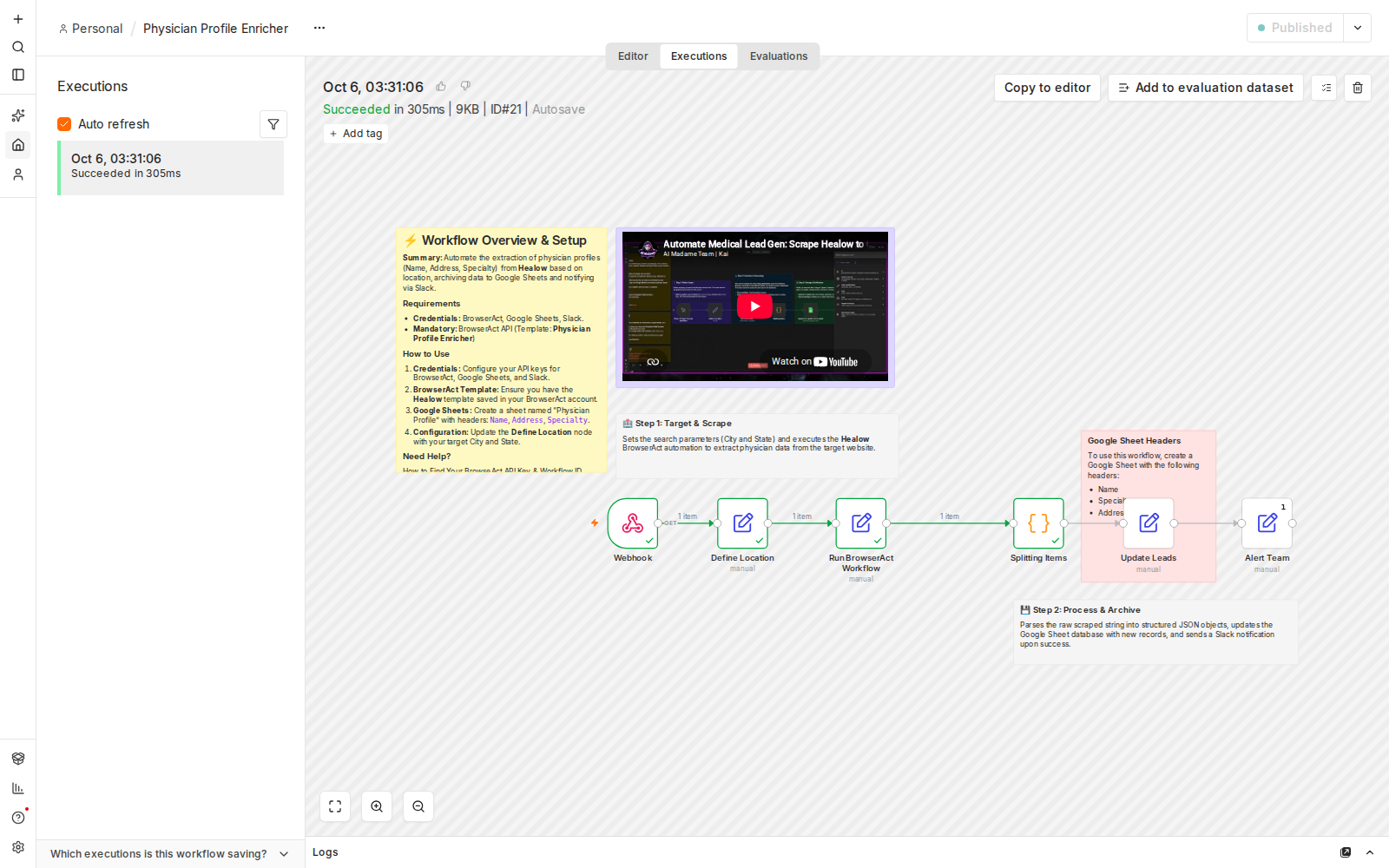
Screenshot: every node completing successfully in a live n8n test run.
Affiliate disclosure: some links in this article may be affiliate links. If you sign up through them, we may earn a commission at no extra cost to you. See our Terms of Service.
Every city has hundreds of physicians, and every one of them has a public profile somewhere: a name, an office address, a specialty. Gathering those details into one place is the kind of job that looks simple until you try it. You open a provider search page, copy a name, paste it into a spreadsheet, switch back, copy the address, and repeat. Mistakes creep in, rows get skipped, and the work has to be redone when you move on to the next city.
This free n8n workflow turns that routine into a single click. You enter a city and a state, run the workflow, and it collects physician profiles from Healow through BrowserAct, saves each one as a row in Google Sheets, and posts a Slack message so your team knows fresh data has landed. This guide walks you through it from zero, explains every technical word along the way, lists the problems you may run into with their fixes, and is upfront about what has and has not been verified.
Template source: this workflow comes from the n8n Library at n8n.io, the public collection of workflow templates. We did not create the original template. LeenLabs documented it, cleaned up its JSON for publication, and explains how to use it.
At a glance
- What it does: collects physician names, addresses and specialties for one city and state, saves them in Google Sheets, and alerts your team in Slack.
- Apps used: n8n, BrowserAct, Google Sheets and Slack.
- Skill level: beginner friendly. You import a file, connect three accounts and type a location.
- Trigger: a manual click, so nothing runs until you decide.
- Test status: logic verified with simulated data on n8n 2.38.5; not tested on live APIs.
- Heads up: this deals with personal data. Read the compliance section before you run it.
In this guide
- What the workflow does
- Key terms in plain English
- Apps and accounts
- What to prepare
- How it runs, node by node
- Get the workflow JSON
- Set it up in ten steps
- Limits, costs and cases where it will not work
- Personal data and compliance
- Problems you may meet and how to fix them
- Want us to build or adapt it for you?
- How it was verified
- Three ways to adapt it
- FAQ
- Tools used
What this n8n workflow does and who it helps
The workflow solves one specific problem: building a structured list of physician profiles for a chosen location without copying anything by hand. In one run it does three things:
- Collects physician profiles (name, address and specialty) for the city and state you define.
- Stores them in a Google Sheet, one physician per row, under the columns Name, Address and Specialty.
- Notifies your team in Slack after the sheet has been updated.
It suits people who research local healthcare coverage, prepare directory projects, or need a first-draft dataset to review. It does not replace a verified medical database. Later sections explain why, and also cover the privacy questions you should answer before collecting this kind of data.
Key terms explained in plain English
Automation comes with jargon. Here are the words you will meet, in everyday language.
- n8n (say “n-eight-n”): a tool that connects apps and makes them follow your instructions automatically.
- Workflow: one complete chain of instructions, from first step to last.
- Node: one step in that chain. Each node does a single small job, like saving a row or sending a message.
- Trigger: the node that starts everything. It can be a button you click or a timer.
- Credential: a saved login that lets n8n use one of your accounts. Think of it as giving an assistant a key to one specific room.
- API: a way for two programs to exchange information directly. An “API key” is the password that proves one program is allowed to talk to the other.
- OAuth2: the “sign in with Google” pop-up. It lets you approve access without typing your password into n8n.
- JSON file: a plain text file that describes an entire workflow. Import it and every node appears, already connected.
- Code node: a node that runs a short JavaScript snippet. You rarely need to edit it.
Apps and accounts this workflow connects
| App | Role in the workflow | What you need |
|---|---|---|
| n8n | Runs the workflow and links the other apps | n8n Cloud account or your own installation |
| BrowserAct | Runs the extraction task that retrieves physician profiles from Healow for your location | A BrowserAct account and its API credentials |
| Google Sheets | Stores the profiles | A Google account and a Google Sheets OAuth2 credential |
| Slack | Alerts your team | A Slack workspace and a Slack API credential |
What to prepare before you import anything
- An n8n instance, either cloud or self-hosted.
- A BrowserAct account with an extraction workflow for Healow physician profiles, plus its API key. The next node in the workflow expects BrowserAct to return the physicians as a text string containing a JSON list, and the field names in that list should match your sheet headers.
- A Google Sheet with a tab named exactly
Physician Profileand three headers in the first row:Name,Address,Specialty. Spelling and capitals matter, because n8n matches data to columns by name. - A Slack channel for the alert, and permission to connect an app to it.
- A city and a state to search.
How the workflow runs, node by node
The workflow has six nodes. Data moves through them from left to right.
On-Demand Execution
The trigger. Nothing happens until you click execute in n8n. That gives you full control over when a search runs, and protects your BrowserAct usage from accidental runs.
Define Location
This node stores the City and the State (the file ships with Brooklyn and NY as examples). It is the only node you edit for each new search. Change the two values here and the whole workflow aims at a new place.
Run BrowserAct Workflow
This node sends the location to BrowserAct and asks it to run its extraction task on Healow. BrowserAct automates the clicking and reading you would otherwise do by hand in a browser, then returns the physician profiles to n8n.
Splitting Items
BrowserAct returns the physicians as a single text string that contains a JSON list. Google Sheets, however, needs one row per physician. This node reads that string, checks that it is not empty, converts it into a proper list, and turns each physician into a separate item. If the string is missing, damaged or not a list, the node stops with a clear error message (see the problems section below). It runs a short piece of JavaScript, so it is the first node to check when something fails.
Update Leads
This Google Sheets node archives the profiles in the Physician Profile tab, filling Name, Address and Specialty.
Alert Team
This Slack node posts a notification once the sheet update is complete, so nobody is alerted about data that is not saved yet. It runs once per execution, not once per physician, and the message names the city and state you searched.
Get the workflow JSON
Open the box below to copy the JSON, or download the file. It contains the six nodes above, connected in order, with the on-demand trigger, empty fields where your own credentials and settings go, and two short notes on the canvas with setup reminders. The Update Leads node adds new rows at the end of your sheet.
Please read this first: this JSON is free and provided as is. n8n versions, installed nodes and BrowserAct setups differ from one person to another, so it may not run correctly on your side without small adjustments. We cannot test it on every setup. That is why this article includes a full section, Problems you may meet and how to fix them, with a fix for each one. And if you would rather not deal with any of it, you can request a custom workflow and let us handle it.
Click to show or hide the workflow JSON
Click inside the box, select the whole text, copy it, then paste it onto an empty n8n canvas. If selecting is awkward on your device, use the download link above.
{
  "name": "Collect Physician Profiles with n8n (free workflow JSON)",
  "nodes": [
    {
      "id": "a1c3e5f7-2b4d-4f60-8a91-0c1d2e3f4a51",
      "name": "On-Demand Execution",
      "type": "n8n-nodes-base.manualTrigger",
      "typeVersion": 1,
      "position": [
        0,
        0
      ],
      "parameters": {}
    },
    {
      "id": "31c3822d-20cf-446e-85fa-a676844918de",
      "name": "Define Location",
      "type": "n8n-nodes-base.set",
      "typeVersion": 3.4,
      "position": [
        240,
        0
      ],
      "parameters": {
        "assignments": {
          "assignments": [
            {
              "id": "0411384e-7a25-4aa3-b1e9-be72ce7a110c",
              "name": "City",
              "type": "string",
              "value": "Brooklyn"
            },
            {
              "id": "60b18157-88b0-41b1-bc21-ab83a3ae09d3",
              "name": "State",
              "type": "string",
              "value": "NY"
            }
          ]
        },
        "options": {}
      }
    },
    {
      "id": "cec08a88-a511-4720-9e72-5bf17d756dc3",
      "name": "Run BrowserAct Workflow",
      "type": "n8n-nodes-browseract.browserAct",
      "typeVersion": 1,
      "position": [
        480,
        0
      ],
      "parameters": {}
    },
    {
      "id": "0af9c556-6b8c-47d3-bab0-722de1127819",
      "name": "Splitting Items",
      "type": "n8n-nodes-base.code",
      "typeVersion": 2,
      "position": [
        720,
        0
      ],
      "parameters": {
        "jsCode": "// Get the JSON string using the exact path provided by the user.\nconst jsonString = $input.first().json.output.string;\n\nlet parsedData;\n\n// Check if the string exists before attempting to parse\nif (!jsonString) {\n    // Return an empty array or throw an error if no string is found\n    // Throwing an error is usually better to stop the workflow if data is missing.\n    throw new Error(\"Input string is empty or missing at the specified path: $input.first().json.output.string\");\n}\n\ntry {\n    // 1. Parse the JSON string into a JavaScript array of objects\n    parsedData = JSON.parse(jsonString);\n} catch (error) {\n    // Handle JSON parsing errors (e.g., if the string is malformed)\n    throw new Error(`Failed to parse JSON string: ${error.message}`);\n}\n\n// 2. Ensure the parsed data is an array\nif (!Array.isArray(parsedData)) {\n    throw new Error('Parsed data is not an array. It cannot be split into multiple items.');\n}\n\n// 3. Map the array of objects into the n8n item format { json: object }\n// Each element in this array will be treated as a new item by n8n, achieving the split.\nconst outputItems = parsedData.map(item => ({\n    json: item,\n}));\n\n// 4. Return the new array of items\nreturn outputItems;"
      }
    },
    {
      "id": "289cd4a1-bfc5-4827-8395-375e92847137",
      "name": "Update Leads",
      "type": "n8n-nodes-base.googleSheets",
      "typeVersion": 4.5,
      "position": [
        960,
        0
      ],
      "parameters": {
        "operation": "append",
        "documentId": {
          "__rl": true,
          "value": "",
          "mode": "list"
        },
        "sheetName": {
          "__rl": true,
          "value": "Physician Profile",
          "mode": "name"
        },
        "columns": {
          "mappingMode": "autoMapInputData",
          "value": {},
          "matchingColumns": [],
          "schema": []
        },
        "options": {}
      }
    },
    {
      "id": "c16f982d-e745-42fc-a438-e22d0eb03353",
      "name": "Alert Team",
      "type": "n8n-nodes-base.slack",
      "typeVersion": 2.3,
      "position": [
        1200,
        0
      ],
      "executeOnce": true,
      "parameters": {
        "select": "channel",
        "channelId": {
          "__rl": true,
          "value": "",
          "mode": "list"
        },
        "text": "=Physician profiles for {{ $('Define Location').first().json.City }}, {{ $('Define Location').first().json.State }} have been added to the \"Physician Profile\" sheet.",
        "otherOptions": {}
      }
    },
    {
      "id": "3f70263f-f704-4f7d-8802-2f56b13d5ce7",
      "name": "Setup Notes",
      "type": "n8n-nodes-base.stickyNote",
      "typeVersion": 1,
      "position": [
        0,
        -360
      ],
      "parameters": {
        "width": 520,
        "height": 300,
        "content": "## Setup\n\n1. Add your own credentials: Google Sheets in **Update Leads**, Slack in **Alert Team**, BrowserAct in **Run BrowserAct Workflow**.\n2. In Google Sheets, create a tab named `Physician Profile` with the headers `Name`, `Address`, `Specialty`.\n3. Set **City** and **State** in **Define Location** (Brooklyn and NY are only examples).\n4. Click **Execute workflow**.\n\nSource: based on a template from n8n.io, documented by LeenLabs."
      }
    },
    {
      "id": "1ba59dc8-0198-4f02-8149-0582d433444b",
      "name": "BrowserAct Note",
      "type": "n8n-nodes-base.stickyNote",
      "typeVersion": 1,
      "position": [
        440,
        -200
      ],
      "parameters": {
        "color": 7,
        "width": 400,
        "height": 160,
        "content": "### BrowserAct step\n\nSelect your own BrowserAct extraction workflow and map City and State to its inputs.\n\nThe next node expects the result in `output.string`, as text containing a JSON list of physicians. Field names should match your sheet headers (Name, Address, Specialty)."
      }
    }
  ],
  "connections": {
    "On-Demand Execution": {
      "main": [
        [
          {
            "node": "Define Location",
            "type": "main",
            "index": 0
          }
        ]
      ]
    },
    "Define Location": {
      "main": [
        [
          {
            "node": "Run BrowserAct Workflow",
            "type": "main",
            "index": 0
          }
        ]
      ]
    },
    "Run BrowserAct Workflow": {
      "main": [
        [
          {
            "node": "Splitting Items",
            "type": "main",
            "index": 0
          }
        ]
      ]
    },
    "Splitting Items": {
      "main": [
        [
          {
            "node": "Update Leads",
            "type": "main",
            "index": 0
          }
        ]
      ]
    },
    "Update Leads": {
      "main": [
        [
          {
            "node": "Alert Team",
            "type": "main",
            "index": 0
          }
        ]
      ]
    }
  },
  "settings": {
    "executionOrder": "v1"
  }
}
Set it up in ten steps
- Get the JSON from the block above or the download link.
- Import it. Open a new empty workflow in n8n, then use the menu to import from a file, or paste the JSON onto the canvas. Menu labels vary slightly between versions.
- Check the six nodes appear and are connected in the order described above.
- Add your Google Sheets credential in Update Leads and sign in with the Google account that owns the spreadsheet.
- Choose the spreadsheet and the tab named
Physician Profile. - Add your Slack credential in Alert Team and select the channel.
- Connect BrowserAct in Run BrowserAct Workflow: add your credential, select your own extraction workflow, and map City and State to the inputs it expects.
- Set the location in Define Location.
- Click execute and watch each node. A green check means the node finished without an error.
- Verify the output in Google Sheets and Slack, and compare a few rows against the source.
If any step does not go as described, jump to the problems section below before you give up. Most issues have a short fix.
Limits, costs and cases where it will not work
Costs. The workflow file is free, but the services around it have their own plans and limits: n8n (cloud or self-hosted), BrowserAct, Google Sheets and Slack. Prices and free tiers change, so check each provider’s pricing page. We do not quote figures here on purpose.
Data quality. The workflow copies what the source shows. It cannot confirm that a physician still practices, still works at that address, or is correctly categorized. Treat the output as a draft list that needs review.
Volume is unknown. How many profiles a single run returns depends on your BrowserAct extraction setup and on what the source displays for a location. We cannot promise a number.
It may stop working. The extraction depends on the source website. If Healow changes how its pages are built, your BrowserAct task may return empty or partial results until it is updated.
One location per run. Each run covers the single city and state in Define Location.
Duplicates. Update Leads adds new rows at the end of the sheet, so running the same location twice adds the same physicians again.
Personal data, source terms and compliance
Names and office addresses of physicians are personal data in many countries, even when they are publicly listed. Before you run this workflow, think through these points:
- The source’s terms. Read the terms of use of the website you extract from. Many sites restrict automated collection. Following the workflow technically does not mean the source allows it.
- Privacy laws. Depending on where you and the people in your list are located, rules such as the GDPR in Europe or equivalent laws elsewhere may apply to how you collect, store and use this data.
- Purpose and minimization. Collect only what you need, for a clear purpose, and delete it when you no longer need it.
- Contact and marketing rules. Do not use the list to send unsolicited messages. Anti-spam and marketing laws vary by country.
- Access control. Your Google Sheet now holds personal data. Limit who can open it.
This workflow does not make your use compliant with any law or with any website’s terms, and nothing here is legal advice. If you are unsure, ask a qualified professional before collecting data at scale.
Problems you may meet and how to fix them
Because every n8n setup is different, this workflow can behave differently for you than it did on our side. Here are the most likely problems, in the order you are likely to meet them. For each one: what you see, why it happens, and what to do. These come from how the nodes are built, not from a full live test.
1. The BrowserAct node shows a question mark or “unknown node”
What you see: after import, the node called Run BrowserAct Workflow has a question mark, or n8n says it does not recognize the node type.
Why: the BrowserAct node is not installed in your n8n, or the node type in this file does not match the one your installation provides.
Fix: look for the BrowserAct node in n8n’s community nodes (in your n8n settings, the exact name and availability depend on your version, plan and hosting, so check n8n’s documentation) and install it. Then delete the broken node, add the BrowserAct node from the nodes panel, and connect it between Define Location and Splitting Items. Finally add your credential and select your extraction workflow.
2. The Google Sheets or Slack node shows a version warning or empty settings
What you see: a message about an unsupported node version, or settings that look blank.
Why: the file uses recent node versions (Google Sheets 4.5 and Slack 2.3). An older n8n may not know them.
Fix: update n8n if you can. If not, delete the node and add a fresh one with the same name. For Google Sheets, choose the operation that appends a row, select your spreadsheet, choose the Physician Profile tab, and set the columns to map automatically. For Slack, choose to send a message to a channel, select the channel, and write a short text such as “Physician profiles for the city and state you searched were added to the sheet.”
3. A red warning appears on a node about credentials
What you see: a red marker or a “credentials not set” message on Update Leads, Alert Team or Run BrowserAct Workflow.
Why: the file contains no logins. That is intentional, so none of your accounts are exposed.
Fix: open the node, choose to create a new credential, and follow the pop-up. If Google blocks the sign-in or asks for admin approval, you are probably using a work account with restrictions: use a personal account or ask your administrator.
4. Splitting Items stops with an error message
What you see: the Splitting Items node turns red with one of three messages.
- “Input string is empty or missing”: the BrowserAct node did not return text where this node looks for it. Run the BrowserAct node on its own and open its output to see what it returned.
- “Failed to parse JSON string”: the text exists but is not a valid JSON list. Compare it with the output of your BrowserAct task.
- “Parsed data is not an array”: BrowserAct returned a single object instead of a list. Adjust the extraction task so it returns a list.
If the text is in a different place: this node reads the field named output.string. If your BrowserAct output shows the text under another field name, open the Code node and replace $input.first().json.output.string on its first line with the path you see in the output panel.
5. The sheet fills, but columns are empty or mixed up
What you see: rows appear but Name, Address or Specialty are blank, or sit in the wrong column.
Why: Update Leads matches data to columns by name. If your BrowserAct task returns fields with different names, the match fails.
Fix: either rename your sheet headers to match the field names in the output, or open Update Leads and switch the column mapping to manual, then pick which field goes in each column.
6. The workflow runs with green checks, but the sheet stays empty
What you see: no errors, no new rows.
Why: BrowserAct returned an empty list. Typical causes are a misspelled city or state, a location with no listings, a task that needs updating, or a change on the source website.
Fix: run your extraction task directly in BrowserAct with the same city and state, and check what it returns before blaming n8n.
7. Google Sheets cannot find the tab
What you see: an error saying the sheet or tab does not exist.
Why: the tab name must be exactly Physician Profile, with the same capitals and no extra space.
Fix: rename the tab, or select your own tab in the Update Leads node.
8. No Slack message arrives
What you see: the sheet updates, but Slack stays silent, or the node shows an error such as “not_in_channel”.
Why: the Slack app connected to n8n has not been added to that channel.
Fix: open the channel in Slack and add the app to it, then run the workflow again. Also confirm that the channel selected in Alert Team is the one you expect.
9. The Slack message shows an empty city or state
What you see: a message with blanks where the city and state should be.
Why: the message reads the City and State fields from the Define Location node. If you rename that node or its fields, the message cannot find them.
Fix: keep the names as they are, or update the message text in Alert Team to point to your new names.
10. The same physicians appear twice
What you see: duplicate rows after running the same location more than once.
Why: Update Leads adds rows; it does not check what is already in the sheet.
Fix: in Google Sheets, use the data cleanup tool to remove duplicate rows. For a lasting fix, change the Google Sheets operation so it updates existing rows and matches on a column you choose. Be careful: two physicians can share a name, so pick a matching column that is truly unique, such as a combination you create yourself.
11. The Code node shows a syntax error after you edited it
What you see: a syntax error in Splitting Items.
Why: code copied from some web pages arrives with special characters turned into their web-encoded form. For example, the arrow => that JavaScript uses can appear as =>, which JavaScript cannot read.
Fix: replace any => with =>. To avoid the problem, import the downloadable file instead of copying code from a web page.
12. BrowserAct stops or returns an error about limits
What you see: the BrowserAct step fails or runs out of allowance.
Why: each run uses your BrowserAct plan, and plans have limits.
Fix: check your usage and plan in your BrowserAct account, and run one small location at a time while you test.
Too much of a puzzle? Let us build or adapt it for you
Some people enjoy tinkering with n8n. Others have a business to run and would rather have a workflow that simply works on their own accounts. If you are in the second group, LeenLabs builds and adapts n8n workflows for people like you. We can:
- Adapt this workflow to your own sources, your own sheet columns, or different tools, such as an email or a CRM instead of Slack or Google Sheets.
- Set it up on your n8n with your accounts, so it is ready to run.
- Build a new workflow from scratch for another task you want to automate.
Request a Custom Workflow, describe what you want to automate, and we will come back to you with the next steps. Prefer to ask a question first? Write to support@leenlabs.site.
Logic verified with simulated data on n8n 2.38.5; not tested on live APIs
Here is exactly what that means. We ran a check on n8n 2.38.5 in which the BrowserAct, Google Sheets and Slack steps were replaced by mock nodes, and the simulated BrowserAct output was an empty list. That check covers how the nodes are wired together, not how the workflow handles real physician records. We did not run this workflow against the live BrowserAct, Google Sheets or Slack services. The JSON published here is the clean version without the mock nodes, so its BrowserAct, Google Sheets and Slack settings were never exercised with real accounts. That is why we recommend a first run on a single small location, followed by a manual comparison with the source.
Three ways to adapt the workflow
- Run it on a schedule. Replace On-Demand Execution with a Schedule Trigger node to collect data weekly or monthly. Keep in mind that every run consumes your BrowserAct allowance, and that scheduled collection increases your data protection responsibilities.
- Cover several locations. Put a list of cities and states in a sheet, read it with a Google Sheets node, and feed each row into Define Location one at a time. This requires adding nodes and testing them yourself.
- Change where alerts go. Point Alert Team to a different Slack channel, or replace it with an email node if your team does not use Slack.
These variations are suggestions based on how n8n works, not changes we have tested on this template. If you want one of them built for you, send us a request.
Frequently asked questions
Do I need to code to use this workflow?
No. You import a file, connect your accounts and type a city and state. A short code snippet already sits inside the Splitting Items node.
What does the workflow collect?
Three fields per physician: name, address and specialty.
Is the workflow free?
The workflow file is free. The tools it connects have their own plans and limits.
What if the JSON does not work on my n8n?
It can happen, because setups differ. Go through the problems section above: each common issue comes with a fix. If it still does not work, or you do not want to spend time on it, request a custom workflow and we will handle it.
Can you build or adapt a workflow for me?
Yes. Use the Request a Custom Workflow page, or write to support@leenlabs.site.
Is it legal to collect this data?
It depends on the source’s terms and the laws that apply to you. See the personal data section above, and ask a qualified professional if you are unsure.
Who built the original template?
The original template comes from the n8n Library at n8n.io. LeenLabs documented it and cleaned up its JSON.
Tools used in this workflow
The links below go to each tool’s home page, and some may be affiliate links, as explained in our Terms of Service.
- n8n (may be an affiliate link): the automation platform that runs the workflow, available hosted or self-hosted.
- BrowserAct (may be an affiliate link): the browser automation service that performs the extraction on Healow.
- Google Sheets (may be an affiliate link): the spreadsheet where the physician list is stored.
- Slack (may be an affiliate link): the messaging app that notifies your team.
Keep exploring
Browse more free n8n workflows from LeenLabs.
Need this adapted to your own setup?
Tell us what you want to automate and we will come back to you with the next steps.