
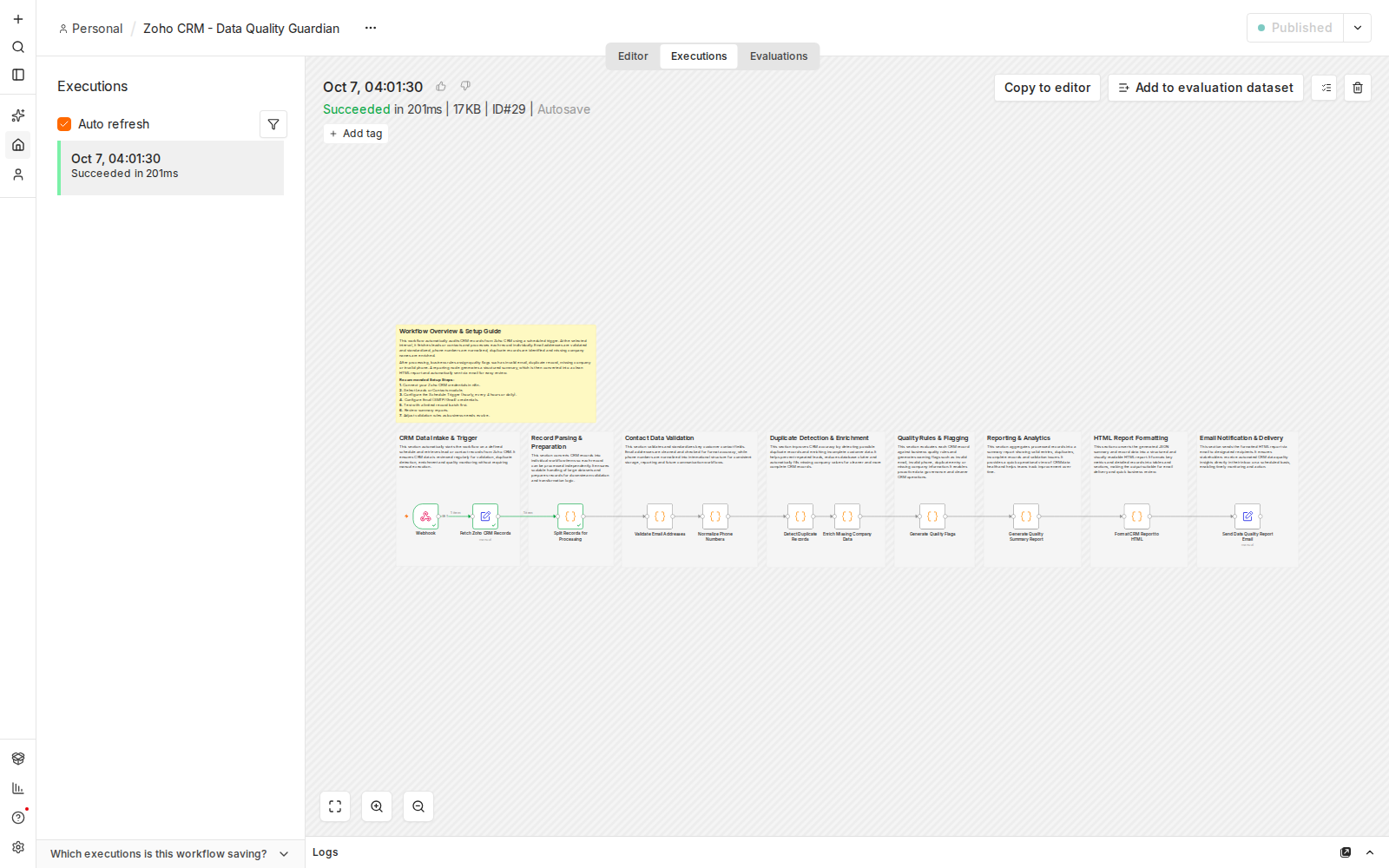
Screenshot: every node completing successfully in a live n8n test run.
Affiliate disclosure: some links in this article may be affiliate links. If you sign up through them, we may earn a commission at no extra cost to you. See our Terms of Service.
Every CRM rots slowly. Someone types an email address with two dots in a row. A lead arrives from a trade show with a phone number missing one digit. The same prospect gets entered twice, once by a salesperson and once by a web form. None of these mistakes is big. Together, they mean that part of your outreach goes to addresses that bounce, that two reps call the same person, and that your reports count leads that do not exist.
This free n8n workflow acts as a small auditor for the Leads in your Zoho CRM. On a schedule, it reads every lead, checks the email address and the phone number, spots exact duplicates, adds a flag to each lead with a problem, and sends you one HTML report by email through Gmail. This guide explains every step in plain English, shows what each check really does with examples, and is direct about the places where the original template needs care. One of them decides whether the workflow produces anything at all.
Read this first: the original file would likely send nothing
In the template as we received it, the second step expects a field called records that contains your leads written as one block of text. The Zoho CRM step does not produce such a field as far as we could tell: it returns one item per lead. When we ran that step’s code on leads shaped like Zoho’s records, it produced zero items, and a step with zero items stops the whole workflow quietly. No error, no email.
The file in this article fixes that step so it accepts one item per lead. That fix was tested only on simulated leads, not on a live Zoho account. The first thing to do after importing is to run the Zoho step alone and look at its output.
Template source: this workflow comes from the n8n Library at n8n.io, the public collection of workflow templates. We did not create it. LeenLabs prepared its JSON for publication and documented it. What we changed is listed in the section What we changed in the original template.
At a glance
- What it does: checks all your Zoho CRM leads for invalid emails, invalid phone numbers, exact duplicates and missing company names, then emails you an HTML report.
- Apps used: n8n, Zoho CRM and Gmail.
- Trigger: a schedule. The original is set to every hour, which is too often for most people.
- Setup effort: easy to medium: two logins and one email address to type.
- Safe by design: it only reads from Zoho CRM. It changes nothing in your CRM.
- Watch out for: every run reads all your leads and emails a table listing every one of them, and the report contains personal data.
- Test status: the Code nodes were checked on simulated leads outside n8n; the full file was not run on live APIs.
In this guide
- Why CRM data decays, and what this audit catches
- Words you will see in this guide
- Apps and accounts this workflow talks to
- What to have ready before you import anything
- How each lead is judged, with a worked example
- The big picture: from CRM to your inbox
- Follow the data: what each of the 11 steps does
- Get the workflow JSON
- Install it in ten steps
- What it will not do: limits, costs and trade-offs
- Access, privacy and responsible use
- Problems you may meet and how to fix them
- Too much of a puzzle? Let us build or adapt it for you
- What we changed in the original template
- What was verified, and what was not
- Four ways to adapt the workflow
- Frequently asked questions
- Tools used in this workflow
- Keep exploring
Why CRM data decays, and what this audit catches
Nobody sets out to enter bad data. It piles up through ordinary habits: typing fast, copying from a business card, importing a spreadsheet, letting a web form accept anything. The cost is hidden, because a wrong email address looks exactly like a right one until you send to it.
In one run, this workflow does six jobs:
- Reads all the leads in your Zoho CRM.
- Checks emails for a valid shape after cleaning them (spaces removed, lowercase).
- Standardizes phone numbers into digits only, with a country code when it can guess one.
- Finds duplicates by comparing the email and phone together.
- Flags each lead with its problems: invalid email, invalid phone, duplicate, missing company.
- Reports the counts and the lead-by-lead list in one HTML email.
It suits small sales and marketing teams who want a regular health check on their lead list, and anyone who wants to know how bad the problem is before paying for a cleanup. It is a poor fit if you expect it to fix your data (it does not write anything back to Zoho), if your phone numbers are mostly from one country that is not India (see the phone section), or if you need smart duplicate matching (it only finds exact copies).
Words you will see in this guide
- n8n (say “n-eight-n”): a tool that connects apps and makes them follow your instructions automatically.
- Workflow: one set of instructions in n8n, drawn as boxes connected by lines.
- Node: one box in a workflow. Each node does one job.
- Trigger: the node that starts a workflow. Here, a timer.
- Item: one piece of data moving through the workflow. Here, one item is one lead.
- CRM: a customer relationship management tool, the place where you keep your contacts and sales. Zoho CRM is one.
- Lead: a person or company that might become a customer, stored as a record in your CRM.
- Credential: a saved login that lets n8n use one of your accounts. The JSON file does not contain yours.
- Code node: a node that runs a small program written in JavaScript. Seven of the nodes here are Code nodes.
- Regex (short for regular expression): a compact pattern used to check if text has a given shape, for example “something, then @, then something, then a dot, then something”.
- Duplicate: in this workflow, a lead whose email and phone are both identical to an earlier lead.
- HTML: the formatting language of web pages and many emails. It is what makes the report look like a styled page instead of plain text.
- OAuth2: the sign-in method Zoho and Google use, where you approve access in your browser instead of giving n8n your password.
- JSON: a text format for data. The workflow file is a JSON file.
Apps and accounts this workflow talks to
- n8n: runs the workflow. You can use n8n’s hosted service or run it yourself on your own server or computer. Check n8n’s current pricing page for plans.
- Zoho CRM: holds your leads. The workflow only reads them. Your Zoho user needs permission to see leads, and Zoho applies limits on how many requests an account can make, so check your plan’s current limits.
- Gmail: sends the report. You sign in with a Google account through OAuth2. The workflow was published with Gmail in the last step; the author says other email services can be used, but that means replacing the node.
Costs: the workflow file is free. n8n, Zoho and Google each have their own plans and limits, and we do not quote prices here because they change. Check each provider’s current pricing page.
What to have ready before you import anything
- An n8n account or installation where you can create workflows.
- A Zoho CRM account in which you can see leads, and the ability to sign in with OAuth2 from n8n.
- A Google account for Gmail, and the address that should receive the report.
- A decision about how often you want a report. We suggest daily or weekly, not hourly.
- A decision about who is allowed to read the report. It will list names and email addresses of your leads.
- Twenty minutes, and a few leads in Zoho that you know are wrong, so you can check that the report catches them.
How each lead is judged, with a worked example
Four checks decide a lead’s flags. Here is each one in plain language, followed by a table of examples we ran through the code.
The email check
The workflow trims spaces, makes the address lowercase, and tests it against a simple pattern: some text, an @ sign, some text, a dot, some text, with no spaces anywhere, and no two dots in a row. This catches typos such as a missing @ or name@@site style errors. It does not check that the mailbox exists. nobody@made-up-domain.example passes, because its shape is fine.
The phone check
The workflow removes everything that is not a digit. A number with exactly 10 digits gets 91 added in front and is labeled India. Otherwise it labels the country from the first digits: 1 means US, 44 means UK, 971 means UAE, 49 means Germany, 61 means Australia. Any result shorter than 10 or longer than 15 digits is emptied and counted as an invalid phone. This is a rough guess, not real phone validation, and the India rule matters a lot: see the example below.
The duplicate check
The workflow builds a key from the email and the phone, joined together, and keeps a list of the keys it has seen. The first lead with a key is fine. Any later lead with the same key is flagged as a duplicate. Because the Zoho step reads all your leads, the comparison covers your whole Leads list. But it only finds exact copies: two leads with the same email and a different phone are not duplicates.
The company check
A lead with an empty company field is flagged “Missing Company”. The workflow also guesses a company from the email domain (the part after the @ and before the first dot) and stores it as company_enriched. As built, that guess is never shown in the report and does not remove the flag. It is calculated and then ignored.
Examples we ran
| Lead (simulated) | What the workflow made of it | Flags |
|---|---|---|
Email Ana@Acme.COM , phone (555) 123-4567, company Acme |
Email cleaned to ana@acme.com. Phone becomes 915551234567 and is labeled India, although it looks like a US number. |
None, so it counts as valid |
Email bad..mail@x.com, phone +44 7700 900123, no company |
Email rejected (two dots in a row). Phone kept as 447700900123, labeled UK. |
Invalid Email, Missing Company |
| Same email and phone as the first lead, entered again | Same key as the first lead. | Duplicate |
| No email, no phone, no company | Nothing to check. | Invalid Email, Invalid Phone, Missing Company |
Email p@gmail.com, phone +971 50 123 4567, no company |
Company guess “Gmail” is stored but not used. Phone labeled UAE. | Missing Company |
| A phone number with only 5 digits | Phone emptied. | Invalid Phone |
The workflow also computes a quality score for each lead (100 minus 25 for every flag). Like the company guess, the score is stored on the item and never appears in the report. Treat both as unfinished extras that you can use if you extend the workflow.
The big picture: from CRM to your inbox
- Start. A timer fires.
- Collect. Zoho CRM returns all leads, one item per lead.
- Prepare. The leads are passed on with consistent field names.
- Check. Email, phone, duplicates and company are examined, one Code node each.
- Flag. Each lead gets its list of problems and a score.
- Summarize. All leads are counted into one summary and one detailed list.
- Format. The summary becomes an HTML page.
- Send. Gmail emails the page to the address you chose.
Follow the data: what each of the 11 steps does
The names below match the names in the JSON file exactly.
Automated Schedule Trigger
The timer. In the original file it fires every hour at five minutes past the hour. It only runs once the workflow is turned on, and you can always run it by hand with the execute button. Change it to daily or weekly before turning it on, for reasons explained in the limits section.
Fetch Zoho CRM Records
A Zoho CRM node set to read leads and return all of them. It sets no filter, so every lead is read, whatever its status. On a large CRM this can take time and use a lot of your Zoho request allowance. It does not change anything in Zoho.
Split Records for Processing
The step we fixed. In the original, this Code node expected one field holding all the leads as text and turned that text into separate items. With Zoho’s real output, that field does not exist and the step produced nothing. In this file, the step keeps each lead as its own item, and copies Zoho’s field names (Email, Phone, Company, Full_Name, or first and last name) into the lowercase names the next steps read (email, phone, company, name). If a records field containing a list does arrive, it still splits it. We could not confirm the exact field names the Zoho node returns on your account, so check its output.
Validate Email Addresses
Cleans each email (spaces removed, lowercase) and sets email_valid to true or false, using the pattern described above.
Normalize Phone Numbers
Keeps only the digits, adds 91 to numbers with exactly 10 digits, labels a country when the start of the number matches one of five rules, and empties numbers shorter than 10 or longer than 15 digits. At the top of the code, two lines now hold the country code and the country label, so you can change them in one place.
Detect Duplicate Records
Marks the second and later occurrence of the same email and phone pair. We added one safeguard: a lead with neither an email nor a phone is no longer called a duplicate of every other empty lead.
Enrich Missing Company Data
For leads with an empty company, guesses a name from the email domain, with a first capital letter, or uses “Unknown Company” when there is no email. The result is stored as company_enriched. Nothing later uses it. Be aware that a guess from a free email service gives “Gmail” or “Yahoo”, which is not a company.
Generate Quality Flags
Builds the list of flags for each lead (Invalid Email, Invalid Phone, Duplicate, Missing Company) and a score of 100 minus 25 per flag. A lead with all four flags gets a score of zero. The score is not shown in the report.
Generate Quality Summary Report
Reads all the leads at once and counts: total leads, valid leads (no flags at all), invalid emails, invalid phones, duplicates and missing companies. It also builds the detailed list with one line per lead: ID, name, email, country, status (VALID or INVALID) and flags. A lead can be counted in several problem categories at once, so the category counts can add up to more than the number of invalid leads.
Format CRM Report to HTML
Turns the summary and the list into a styled HTML page with a summary box and a table. We added a step that escapes special characters in names, emails and IDs, so that a lead named with angle brackets or an ampersand cannot break the page or inject markup into your email.
Send Data Quality Report Email
The Gmail node. It sends the HTML page to the address in its recipient field, with the subject “Zoho CRM Data Quality Report”. In the original, the recipient was a placeholder. In this file the field is empty, and you must type your address. Select your own Gmail credential here.
Get the workflow JSON
Open the box below to copy the JSON, or download the file. It contains the 11 nodes above, connected in order, with empty fields where your own settings go, and ten notes on the canvas. It contains none of your logins.
Please read this first: this JSON is free and provided as is. n8n versions, installed nodes and CRM setups differ from one person to another, so it may not run correctly on your side without adjustments. We cannot test it on every setup. That is why this article includes a long section, Problems you may meet and how to fix them. And if you would rather not deal with any of it, you can request a custom workflow and let us handle it.
Click to show or hide the workflow JSON
Click inside the box, select the whole text, copy it, then paste it onto an empty n8n canvas. If selecting is awkward on your device, use the download link above.
{
"name": "Audit Zoho CRM Lead Data Quality with n8n (free workflow JSON)",
"nodes": [
{
"id": "08710672-102e-4641-88d6-ba503a40b7c9",
"name": "Sticky Note2",
"type": "n8n-nodes-base.stickyNote",
"position": [
3824,
704
],
"parameters": {
"color": 7,
"width": 512,
"height": 512,
"content": "## Contact Data Validation\n\nThis section validates and standardizes key customer contact fields. Email addresses are cleaned and checked for format accuracy, while phone numbers are normalized into international structure for consistent storage, reporting and future communication workflows."
},
"typeVersion": 1
},
{
"id": "34120122-8478-4a88-a905-11883a008f9a",
"name": "Sticky Note3",
"type": "n8n-nodes-base.stickyNote",
"position": [
4368,
704
],
"parameters": {
"color": 7,
"width": 448,
"height": 512,
"content": "## Duplicate Detection & Enrichment\n\nThis section improves CRM accuracy by detecting possible duplicate records and enriching incomplete customer data. Duplicates are exact matches on email plus phone. The company guess is stored on each item, but the flags and the report do not use it, and nothing is written back to Zoho."
},
"typeVersion": 1
},
{
"id": "e21f01f0-81c1-4cc8-9a63-e011d149bf69",
"name": "Sticky Note4",
"type": "n8n-nodes-base.stickyNote",
"position": [
4848,
704
],
"parameters": {
"color": 7,
"width": 304,
"height": 512,
"content": "## Quality Rules & Flagging\n\nThis section evaluates each CRM record against business quality rules and generates warning flags such as invalid email, invalid phone, duplicate entry or missing company information. It enables proactive data governance and cleaner CRM operations."
},
"typeVersion": 1
},
{
"id": "d366f741-23f7-47c3-ab0a-bd1430d2811b",
"name": "Sticky Note5",
"type": "n8n-nodes-base.stickyNote",
"position": [
2976,
304
],
"parameters": {
"width": 752,
"height": 368,
"content": "## Workflow Overview & Setup Guide\n\nThis workflow automatically audits CRM records from Zoho CRM using a scheduled trigger. At the selected interval, it fetches all leads and processes each record individually. Email addresses are validated and standardized, phone numbers are normalized, duplicate records are identified and missing company names are enriched.\n\nAfter processing, business rules assign quality flags such as invalid email, duplicate record, missing company or invalid phone. A reporting node generates a structured summary, which is then converted into a clean HTML report and automatically sent via email for easy review.\n\n**Recommended Setup Steps:**\n**1.** Connect your Zoho CRM credentials in n8n.\n**2.** The module is set to Leads. Contacts use different field names, so the Code nodes would need changes.\n**3.** Configure the Schedule Trigger (hourly, every 4 hours or daily).\n**4.** Select your Gmail credential and type the recipient address in the last node.\n**5.** Test with a small batch first: in the Zoho node, turn off Return All and set a limit.\n**6.** Review summary reports.\n**7.** Adjust validation rules as business needs evolve.\n\nSource: based on a template from the n8n Library at n8n.io, documented by LeenLabs.\nNot tested on live APIs."
},
"typeVersion": 1
},
{
"id": "b253810c-8bf4-489d-aad3-b7d3dc7da95e",
"name": "Sticky Note - Ingestion",
"type": "n8n-nodes-base.stickyNote",
"position": [
2976,
704
],
"parameters": {
"color": 7,
"width": 468,
"height": 508,
"content": "## CRM Data Intake & Trigger\n\nThis section automatically starts the workflow on a defined schedule and retrieves lead records from Zoho CRM. It ensures CRM data is reviewed regularly for validation, duplicate detection, enrichment and quality monitoring without requiring manual execution."
},
"typeVersion": 1
},
{
"id": "d47e0e28-098b-444b-a497-7f2f0faf49d4",
"name": "Sticky Note - Normalization",
"type": "n8n-nodes-base.stickyNote",
"position": [
3472,
704
],
"parameters": {
"color": 7,
"width": 324,
"height": 508,
"content": "## Record Parsing & Preparation\n\nThis section converts CRM records into individual workflow items so each record can be processed independently. It also copies Zoho's field names (Email, Phone, Company) into the lowercase names the next steps read."
},
"typeVersion": 1
},
{
"id": "98c25fd5-ca8b-4396-bd51-f1b97c03c1cc",
"name": "Fetch Zoho CRM Records",
"type": "n8n-nodes-base.zohoCrm",
"position": [
3264,
976
],
"parameters": {
"options": {},
"resource": "lead",
"operation": "getAll",
"returnAll": true
},
"typeVersion": 1
},
{
"id": "fd0b451b-f5ef-48d7-9292-033f4ae5359c",
"name": "Split Records for Processing",
"type": "n8n-nodes-base.code",
"position": [
3584,
976
],
"parameters": {
"jsCode": "// The Zoho CRM node returns one item per lead. This step keeps them as they are\n// and copies Zoho's field names (Email, Phone, Company, ...) into the lowercase names used by the next steps.\n// If a field called \"records\" holds a list (or JSON text of a list), that list is split into items instead.\nconst out = [];\nfor (const item of items) {\n const j = item.json;\n let list = [j];\n if (typeof j.records === 'string') list = JSON.parse(j.records || '[]');\n else if (Array.isArray(j.records)) list = j.records;\n for (const r of list) {\n const name = r.Full_Name || [r.First_Name, r.Last_Name].filter(Boolean).join(' ') || r.name || '';\n out.push({ json: { ...r, id: r.id, name, email: r.Email ?? r.email ?? '', phone: r.Phone ?? r.phone ?? '', company: r.Company ?? r.company ?? '' } });\n }\n}\nreturn out;"
},
"typeVersion": 2
},
{
"id": "2c0a7dad-a579-40f4-b94d-d6d3b348dc32",
"name": "Validate Email Addresses",
"type": "n8n-nodes-base.code",
"position": [
3920,
976
],
"parameters": {
"jsCode": "return items.map(item => {\nconst email = (item.json.email || '').trim().toLowerCase();\n\nconst email_valid =\n/^[^\\s@]+@[^\\s@]+\\.[^\\s@]+$/.test(email) &&\n!email.includes('..');\n\nreturn {\njson:{\n...item.json,\nemail,\nemail_valid\n}\n};\n});"
},
"typeVersion": 2
},
{
"id": "970049ae-8c6a-4b21-b96d-b50941f17055",
"name": "Normalize Phone Numbers",
"type": "n8n-nodes-base.code",
"position": [
4128,
976
],
"parameters": {
"jsCode": "// Country code added to numbers that have exactly 10 digits. Change these two lines for your market.\nconst DEFAULT_CODE = '91';\nconst DEFAULT_COUNTRY = 'IN';\n\nreturn items.map(item => {\n\nlet phone = (item.json.phone || '')\n.toString()\n.replace(/\\D/g,'');\n\nlet country='unknown';\n\nif(phone.length===10){\nphone=DEFAULT_CODE+phone;\ncountry=DEFAULT_COUNTRY;\n}\nelse if(phone.startsWith('1')) country='US';\nelse if(phone.startsWith('44')) country='UK';\nelse if(phone.startsWith('971')) country='UAE';\nelse if(phone.startsWith('49')) country='DE';\nelse if(phone.startsWith('61')) country='AU';\n\nif(phone.length < 10 || phone.length > 15){\nphone='';\n}\n\nreturn {\njson:{\n...item.json,\nphone_standardized: phone,\ncountry\n}\n};\n});"
},
"typeVersion": 2
},
{
"id": "6fec4e7b-ff3e-42eb-a3e6-d78e9d503795",
"name": "Detect Duplicate Records",
"type": "n8n-nodes-base.code",
"position": [
4448,
976
],
"parameters": {
"jsCode": "const seen = {};\n\nreturn items.map(item => {\n\nconst email = item.json.email;\nconst phone = item.json.phone_standardized;\n\nconst key = email + \"|\" + phone;\n\nlet is_duplicate = false;\n\n// A lead with no email and no phone has nothing to compare, so it is not called a duplicate.\nif(email || phone){\nif(seen[key]){\nis_duplicate = true;\n}else{\nseen[key] = true;\n}\n}\n\nreturn {\njson:{\n...item.json,\nis_duplicate\n}\n};\n\n});"
},
"typeVersion": 2
},
{
"id": "33ccb61b-820f-400b-b155-43ce073b9748",
"name": "Enrich Missing Company Data",
"type": "n8n-nodes-base.code",
"position": [
4624,
976
],
"parameters": {
"jsCode": "return items.map(item => {\n\nlet company = item.json.company;\n\nif(!company || company.trim()===''){\n\nconst email = item.json.email || '';\n\nif(email.includes('@')){\ncompany = email.split('@')[1].split('.')[0];\ncompany =\ncompany.charAt(0).toUpperCase() +\ncompany.slice(1);\n}else{\ncompany='Unknown Company';\n}\n\n}\n\nreturn {\njson:{\n...item.json,\ncompany_enriched: company\n}\n};\n\n});"
},
"typeVersion": 2
},
{
"id": "f9113ab3-eaba-4490-92cf-b7a0d493a372",
"name": "Generate Quality Flags",
"type": "n8n-nodes-base.code",
"position": [
4944,
976
],
"parameters": {
"jsCode": "return items.map(item => {\n\nconst flags=[];\n\nif(!item.json.email_valid)\nflags.push('Invalid Email');\n\nif(!item.json.phone_standardized)\nflags.push('Invalid Phone');\n\nif(item.json.is_duplicate)\nflags.push('Duplicate');\n\nif(!item.json.company || item.json.company==='')\nflags.push('Missing Company');\n\nreturn {\njson:{\n...item.json,\ndata_quality_flags: flags,\nquality_score: 100 - (flags.length * 25)\n}\n};\n\n});"
},
"typeVersion": 2
},
{
"id": "6a235f60-3a14-465b-a2db-5b886fad0b2f",
"name": "Generate Quality Summary Report",
"type": "n8n-nodes-base.code",
"position": [
5296,
976
],
"parameters": {
"jsCode": "let total = items.length;\n\nlet summary = {\n total_records: total,\n valid_records: 0,\n invalid_email: 0,\n invalid_phone: 0,\n duplicates: 0,\n missing_company: 0\n};\n\nlet report = [];\n\nfor (const item of items) {\n const d = item.json;\n\n let isValid = true;\n\n // Email validation\n if (!d.email_valid) {\n summary.invalid_email++;\n isValid = false;\n }\n\n // Phone validation\n if (!d.phone_standardized) {\n summary.invalid_phone++;\n isValid = false;\n }\n\n // Duplicate check\n if (d.is_duplicate) {\n summary.duplicates++;\n isValid = false;\n }\n\n // Company check\n if (!d.company || d.company === '' || d.company === null) {\n summary.missing_company++;\n isValid = false;\n }\n\n if (isValid) {\n summary.valid_records++;\n }\n\n report.push({\n id: d.id,\n name: d.name,\n email: d.email,\n country: d.country || 'unknown',\n status: isValid ? 'VALID' : 'INVALID',\n flags: d.data_quality_flags || []\n });\n}\n\nreturn [\n {\n json: {\n summary,\n report\n }\n }\n];"
},
"typeVersion": 2
},
{
"id": "70f1c232-5eb9-4a89-97a3-073c884041b4",
"name": "Sticky Note",
"type": "n8n-nodes-base.stickyNote",
"position": [
5184,
704
],
"parameters": {
"color": 7,
"width": 368,
"height": 512,
"content": "## Reporting & Analytics\n\nThis section aggregates processed records into a summary report showing valid entries, duplicates, incomplete records and validation issues. It provides a quick operational view of CRM data health and helps teams track improvement over time."
},
"typeVersion": 1
},
{
"id": "140c559c-0d24-4085-8360-212b307ad6d5",
"name": "Automated Schedule Trigger",
"type": "n8n-nodes-base.scheduleTrigger",
"position": [
3040,
976
],
"parameters": {
"rule": {
"interval": [
{
"field": "hours",
"triggerAtMinute": 5
}
]
}
},
"typeVersion": 1.3
},
{
"id": "9c47b7ef-b298-4344-852c-dd55845c3d51",
"name": "Sticky Note1",
"type": "n8n-nodes-base.stickyNote",
"position": [
5584,
704
],
"parameters": {
"color": 7,
"width": 368,
"height": 512,
"content": "## HTML Report Formatting\n\nThis section converts the generated JSON summary and record data into a structured and visually readable HTML report. It formats key metrics and detailed records into tables and sections, making the output suitable for email delivery and quick business review."
},
"typeVersion": 1
},
{
"id": "d55a7169-bd77-468e-be3b-ab6ebc021f2f",
"name": "Sticky Note6",
"type": "n8n-nodes-base.stickyNote",
"position": [
5984,
704
],
"parameters": {
"color": 7,
"width": 384,
"height": 512,
"content": "## Email Notification & Delivery\nThis section sends the formatted HTML report via email to designated recipients. It ensures stakeholders receive automated CRM data quality insights directly in their inbox on a scheduled basis, enabling timely monitoring and action."
},
"typeVersion": 1
},
{
"id": "6be3a895-046d-439c-b173-a4a640b727b9",
"name": "Format CRM Report to HTML",
"type": "n8n-nodes-base.code",
"position": [
5712,
976
],
"parameters": {
"jsCode": "const { summary, report } = items[0].json;\n\n// Lead values come from your CRM, so special characters are escaped before they go into the HTML.\nconst esc = v => String(v ?? '').replace(/&/g, '&').replace(/</g, '<').replace(/>/g, '>').replace(/\"/g, '"');\n\nlet rows = report.map(r => {\n const statusColor = r.status === 'VALID' ? '#16a34a' : '#dc2626';\n\n return `\n <tr>\n <td style=\"padding:8px;border:1px solid #ddd;\">${esc(r.id)}</td>\n <td style=\"padding:8px;border:1px solid #ddd;\">${esc(r.name)}</td>\n <td style=\"padding:8px;border:1px solid #ddd;\">${esc(r.email)}</td>\n <td style=\"padding:8px;border:1px solid #ddd;\">${esc(r.country)}</td>\n <td style=\"padding:8px;border:1px solid #ddd;font-weight:bold;color:${statusColor};\">\n ${r.status}\n </td>\n <td style=\"padding:8px;border:1px solid #ddd;\">\n ${esc((r.flags || []).join(', ') || '-')}\n </td>\n </tr>\n `;\n}).join('');\n\nconst html = `\n<div style=\"font-family: Arial, sans-serif; background:#f9fafb; padding:20px;\">\n \n <h2 style=\"color:#111827;\">📊 CRM Data Quality Report</h2>\n\n <div style=\"background:#ffffff;padding:15px;border-radius:8px;margin-bottom:20px;\">\n <h3 style=\"margin-top:0;\">Summary</h3>\n <p><strong>Total Records:</strong> ${summary.total_records}</p>\n <p><strong style=\"color:#16a34a;\">Valid Records:</strong> ${summary.valid_records}</p>\n <p><strong style=\"color:#dc2626;\">Invalid Emails:</strong> ${summary.invalid_email}</p>\n <p><strong style=\"color:#dc2626;\">Invalid Phones:</strong> ${summary.invalid_phone}</p>\n <p><strong style=\"color:#dc2626;\">Duplicates:</strong> ${summary.duplicates}</p>\n <p><strong style=\"color:#dc2626;\">Missing Company:</strong> ${summary.missing_company}</p>\n </div>\n\n <div style=\"background:#ffffff;padding:15px;border-radius:8px;\">\n <h3 style=\"margin-top:0;\">Details</h3>\n\n <table style=\"width:100%;border-collapse:collapse;font-size:14px;\">\n <thead>\n <tr style=\"background:#111827;color:#ffffff;\">\n <th style=\"padding:10px;border:1px solid #ddd;\">ID</th>\n <th style=\"padding:10px;border:1px solid #ddd;\">Name</th>\n <th style=\"padding:10px;border:1px solid #ddd;\">Email</th>\n <th style=\"padding:10px;border:1px solid #ddd;\">Country</th>\n <th style=\"padding:10px;border:1px solid #ddd;\">Status</th>\n <th style=\"padding:10px;border:1px solid #ddd;\">Flags</th>\n </tr>\n </thead>\n <tbody>\n ${rows}\n </tbody>\n </table>\n </div>\n\n <p style=\"margin-top:20px;font-size:12px;color:#6b7280;\">\n Generated automatically by n8n workflow\n </p>\n\n</div>\n`;\n\nreturn [{ json: { html } }];"
},
"typeVersion": 2
},
{
"id": "b17d66ab-47eb-4d2b-a8a9-81c3608ea176",
"name": "Send Data Quality Report Email",
"type": "n8n-nodes-base.gmail",
"position": [
6128,
976
],
"parameters": {
"sendTo": "",
"message": "={{$json.html}}",
"options": {
"appendAttribution": false
},
"subject": "Zoho CRM Data Quality Report"
},
"typeVersion": 2.2
},
{
"id": "5b1f0c3e-6a52-4c1e-9d0e-3c7a1e6f2a10",
"name": "Sticky Note - Before you turn it on",
"type": "n8n-nodes-base.stickyNote",
"position": [
3760,
304
],
"parameters": {
"width": 752,
"height": 368,
"content": "## Before you turn it on\n\n1. The schedule runs every hour and each run reads ALL your leads and emails one report listing every lead. Change it to daily or weekly first.\n2. Type your own address in the last node, and select your own Zoho and Gmail credentials.\n3. Run it by hand once and check the report against a few leads in Zoho.\n4. The country code added to 10-digit phone numbers is 91 (India). Change it in Normalize Phone Numbers if that is wrong for you.\n5. Duplicates are exact matches on email plus phone only.\n6. The quality score and the company guess are calculated but never appear in the report.\n7. The report contains personal data (names, emails). Send it only to people allowed to see your leads."
},
"typeVersion": 1
}
],
"connections": {
"Fetch Zoho CRM Records": {
"main": [
[
{
"node": "Split Records for Processing",
"type": "main",
"index": 0
}
]
]
},
"Generate Quality Flags": {
"main": [
[
{
"node": "Generate Quality Summary Report",
"type": "main",
"index": 0
}
]
]
},
"Normalize Phone Numbers": {
"main": [
[
{
"node": "Detect Duplicate Records",
"type": "main",
"index": 0
}
]
]
},
"Detect Duplicate Records": {
"main": [
[
{
"node": "Enrich Missing Company Data",
"type": "main",
"index": 0
}
]
]
},
"Validate Email Addresses": {
"main": [
[
{
"node": "Normalize Phone Numbers",
"type": "main",
"index": 0
}
]
]
},
"Format CRM Report to HTML": {
"main": [
[
{
"node": "Send Data Quality Report Email",
"type": "main",
"index": 0
}
]
]
},
"Automated Schedule Trigger": {
"main": [
[
{
"node": "Fetch Zoho CRM Records",
"type": "main",
"index": 0
}
]
]
},
"Enrich Missing Company Data": {
"main": [
[
{
"node": "Generate Quality Flags",
"type": "main",
"index": 0
}
]
]
},
"Split Records for Processing": {
"main": [
[
{
"node": "Validate Email Addresses",
"type": "main",
"index": 0
}
]
]
},
"Generate Quality Summary Report": {
"main": [
[
{
"node": "Format CRM Report to HTML",
"type": "main",
"index": 0
}
]
]
}
},
"settings": {
"binaryMode": "separate",
"executionOrder": "v1"
}
}Install it in ten steps
- Get the JSON from the box above or the download link.
- Import it. Open a new empty workflow in n8n, then paste the JSON onto the canvas or import it from a file.
- Check the 11 nodes appear, connected in a single line, with ten notes.
- Connect Zoho CRM. In Fetch Zoho CRM Records, create the Zoho OAuth2 credential, choose the data center or region that matches your account if the credential asks for one, and sign in.
- Look at the data. To test safely, turn off “Return All” in that node and set a small limit, then execute only that node. Open its output and check the field names of one lead: email, phone, company and name.
- Connect Gmail. In Send Data Quality Report Email, create the Google credential, sign in, and type the recipient address.
- Change the schedule. In Automated Schedule Trigger, replace the hourly rule with a daily or weekly one.
- Run it once by hand with the execute button. A real run reads leads from your CRM and sends a real email.
- Check the report against the leads in Zoho. Is every flagged lead really wrong? Is an obviously wrong lead missing from the flags?
- Turn the workflow on (Activate or Publish, depending on your n8n version), once you are happy with the first report and know who will receive it.
What it will not do: limits, costs and trade-offs
- It does not fix anything. It reports problems. Nothing is written back to Zoho.
- It reads everything on every run. There is no memory of the last run, so each run reads all leads again and uses your Zoho request allowance each time. At an hourly schedule, that is 24 full reads a day.
- The email lists every lead, including the valid ones. A large CRM means a very large email, which may be slow to open or be cut off or rejected by mail systems.
- The phone logic is a rough guess. The India default and the short list of country rules will mislabel many numbers.
- Duplicates are exact copies only. Different spellings, capital letters in names, or a changed phone number escape detection.
- It checks the shape of an email, not its existence.
- It only handles Leads. Contacts and accounts use different field names in Zoho, so the code would need changes.
- The company guess and the score are not used.
- No retry and no error alert. If a step fails, the run stops and nobody is told, unless you set that up in n8n.
Access, privacy and responsible use
This workflow handles personal data: names, email addresses and phone numbers of people in your CRM. The report places all of it in an email. A few habits keep that responsible:
- Send the report only to people who are already allowed to see your leads. Email is not a secure container. Avoid forwarding it.
- Collect no more than you need. If you only care about the problems, edit the report code so that it lists only flagged leads.
- Know your rules. Depending on where you and your leads are, laws and your own agreements with Zoho and Google may limit how lead data is processed and who may receive it. We are not a law firm and this guide is not legal advice, and nothing in this article means the workflow complies with any law.
- Use limited access. Give the Zoho credential a user with only the permissions the workflow needs. Read access to leads is enough.
- Keep the email out of shared inboxes unless every reader should see the data.
Problems you may meet and how to fix them
Every n8n setup is different, so this workflow can behave differently for you than in our checks. Here are the most likely problems. For each one: what you see, why it happens, and what to do. They come from how the nodes are built and from running the Code nodes on simulated leads, not from a live run with real accounts.
1. The workflow runs but no email arrives
What you see: green checks up to the Split step, nothing after it, no email.
Why: a step that produces zero items stops the workflow. Either Zoho returned no leads, or the data has a shape the Split step does not expect.
Fix: open the output of Fetch Zoho CRM Records. If it is empty, check that your Zoho user can see leads. If leads are there, open the output of Split Records for Processing and see what it returned.
2. Zoho will not connect, or the token is invalid
What you see: an authorization error in Fetch Zoho CRM Records.
Why: the OAuth2 sign-in was not completed, the data center does not match your Zoho account’s region, or the user lacks access to leads.
Fix: recreate the credential with the data center of your account, sign in again, and check that your Zoho user can see leads. Follow n8n’s current Zoho documentation for the exact fields.
3. Every lead is flagged Invalid Email, Invalid Phone and Missing Company
What you see: a report where almost nothing is valid and every name is blank.
Why: the Code nodes read the lowercase fields email, phone and company. The Split step fills them from Zoho’s Email, Phone and Company. If your Zoho output uses other names, for example custom fields, nothing is found.
Fix: open the output of Fetch Zoho CRM Records, note the exact field names, and edit the lines in Split Records for Processing that copy them.
4. The email shows raw HTML tags
What you see: an email full of angle brackets and style text instead of a formatted report.
Why: the Gmail node is sending the message as plain text.
Fix: open Send Data Quality Report Email and look for the setting for the email type. Choose HTML. We could not confirm the default for every n8n version.
5. Gmail will not connect, or Google blocks the sign-in
What you see: an authorization or access error in Send Data Quality Report Email.
Why: the Google sign-in was not completed, or your Google account or organization restricts access for outside apps.
Fix: recreate the Gmail credential and sign in again. If you use a work account, ask your administrator. Follow n8n’s current Gmail documentation.
6. The email step complains that the recipient is missing
What you see: an error in Send Data Quality Report Email saying a required field is empty.
Why: we emptied the recipient field so that no stranger’s address stays in the file.
Fix: type your address in the recipient field.
7. You get an email every hour
What you see: a new report in your inbox 24 times a day.
Why: the original schedule runs every hour, and nothing limits it.
Fix: in Automated Schedule Trigger, switch to a daily or weekly rule, then check which time zone your n8n uses.
8. The email is huge, slow, cut off or rejected
What you see: a report that takes long to open, a table that stops in the middle, or a send error.
Why: the report lists every lead, including valid ones. With thousands of leads, the message becomes very large and mail systems limit message size.
Fix: edit Format CRM Report to HTML so that the table lists only leads whose status is INVALID, or only the first few hundred, and keep the summary counts for all.
9. The run is slow, or Zoho says you made too many requests
What you see: long runs, timeouts, or an error mentioning limits from Zoho.
Why: returning all leads can need many requests, and Zoho limits how many an account may make.
Fix: run less often, and ask Zoho support or check your plan’s current limits. For a very large CRM, a custom build that reads only changed leads is a better design.
10. A US or European number is labeled India
What you see: in the report, the country column says IN for numbers that are not Indian.
Why: any number that has exactly 10 digits gets 91 in front and is labeled India. A US number written without the country code has 10 digits. So does a short number from another country.
Fix: in Normalize Phone Numbers, change the two lines at the top (DEFAULT_CODE and DEFAULT_COUNTRY) to your market, for example 1 and US.
11. A good phone number is flagged Invalid Phone
What you see: a lead whose phone looks right is flagged.
Why: after removing non-digits, numbers with fewer than 10 or more than 15 digits are emptied. Local numbers written without the area code, or with extra digits, can fall outside that range.
Fix: change the 10 and 15 limits in Normalize Phone Numbers to match the numbers in your CRM.
12. A local number is kept but has no country
What you see: a number such as 07700 900123 kept, with country “unknown”.
Why: a number written in national style (leading zero) has no international prefix, so none of the country rules match, and it is kept because it is long enough.
Fix: accept that the country column is only a hint, or add your own rule to the code.
13. A cleared phone still shows a country
What you see: an Invalid Phone lead whose country says US.
Why: the country is decided before the length check. A short number starting with 1 gets the US label, then the number is emptied.
Fix: ignore the country for leads flagged Invalid Phone, or edit the code to reset it when the phone is emptied.
14. Duplicates you know about are not flagged
What you see: two leads for the same person, both marked valid.
Why: only an identical email and an identical phone count. A different phone number, or a missing phone on one lead, hides the duplicate.
Fix: in Detect Duplicate Records, build the key from the email alone, as the original author suggests, and accept more matches.
15. The first copy is never flagged
What you see: only one lead of each duplicate pair is flagged.
Why: the code marks the second and later copies only.
Fix: this is by design. Search your CRM for the email to see both copies.
16. Leads are flagged Missing Company although a company was guessed
What you see: the report still says Missing Company.
Why: the guessed company is stored but not used by the flags or the report.
Fix: leave it as a pure audit, or change Generate Quality Flags to read company_enriched. Remember that a guess from a free email service gives names like “Gmail”.
17. The quality score is missing from the report
What you see: no score anywhere in the email.
Why: the score is calculated in Generate Quality Flags and never passed to the report.
Fix: add the score to the report list in Generate Quality Summary Report, then to the table in Format CRM Report to HTML.
18. The Split step fails with a message about unexpected text
What you see: an error in Split Records for Processing that mentions unexpected text or invalid JSON.
Why: a field called records arrived as text that is not valid JSON, so the step could not read it.
Fix: look at that field in the incoming data. In the normal case, Zoho sends one item per lead and the field does not exist.
19. You switched to Contacts and everything looks wrong
What you see: blank names, companies marked missing, many invalid emails.
Why: the Code nodes were written for the field names of Leads. Contacts use different ones, for example the company sits in an account field.
Fix: inspect the Contacts output and update the field copies in Split Records for Processing.
20. Names appear blank in the report
What you see: an empty Name column.
Why: the code builds the name from the full-name field, or from first and last name. Leads without any of these have no name.
Fix: check which name field your Zoho leads fill in and add it in Split Records for Processing.
21. After import, nodes show missing credentials
What you see: red warnings on the Zoho and Gmail nodes.
Why: the file deliberately contains no credentials.
Fix: open each node and select or create your own credential.
22. Nothing happens on schedule
What you see: no email at the expected time, although manual runs work.
Why: the workflow is not turned on, or n8n is not running at that time (for example a computer that is asleep).
Fix: turn the workflow on and check that your n8n stays online.
Too much of a puzzle? Let us build or adapt it for you
Some people enjoy tinkering with n8n. Others want a lead audit that simply works on their own CRM. If you are in the second group, LeenLabs builds and adapts n8n workflows for people like you. We can:
- Adapt the field names to your own Zoho setup, including custom fields.
- Fit the phone rules to the countries of your leads.
- Make the report shorter and smarter, listing only problem leads.
- Write the results back to a sheet or to Zoho, if you want a cleanup list.
- Build a new workflow from scratch for another task you want to automate.
Request a Custom Workflow, describe what you want to automate, and we will come back to you with the next steps. Prefer to ask a question first? Write to support@leenlabs.site.
What we changed in the original template
We want you to know exactly how this file differs from the template it comes from. Compared with the file we received, LeenLabs made these changes:
- Removed the original author’s setup details. The file contained a credential name, credential placeholders, a webhook identifier on the email node, instance and version identifiers, and a placeholder recipient address. These are gone. The recipient field is empty and you select your own credentials.
- Fixed Split Records for Processing. The original expected a field called
recordsholding text, which the Zoho step does not appear to provide. The step now keeps one item per lead and copies Zoho’s field names into the lowercase names used later. It still accepts the old shape. - Made the phone defaults editable. The country code 91 and the label IN now sit in two named lines at the top of Normalize Phone Numbers. The behavior is unchanged.
- Added a guard in Detect Duplicate Records. Leads with no email and no phone are no longer treated as duplicates of each other.
- Added escaping in Format CRM Report to HTML. Names, emails, IDs and flags are escaped before they go into the report.
- Corrected the canvas notes. They said the workflow handles “leads or contacts” and “automatically fills missing company values”. The Code is written for leads, and the company guess is not used. We corrected those sentences, added a new note called Before you turn it on, and added a source credit.
- Renamed the workflow to this article’s title and removed export leftovers (identifiers, empty tags, the “active” flag and empty saved data), so the file imports switched off.
The schedule, the Zoho settings, the email check, the enrichment, the flags, the summary and the Gmail settings are unchanged.
What was verified, and what was not
Here is exactly what we did. We ran the seven Code nodes outside n8n, on simulated leads written the way Zoho’s records are written (capitalized field names, empty fields as null), and also on lowercase leads. The checks covered: the original Split step on Zoho-shaped leads (it returned zero items), the fixed Split step, a lead with spaces and capitals in its email, a bad email, a valid duplicate pair, leads with no email and no phone, special characters in a name, phone numbers of different lengths and prefixes, an empty input, the older text-based shape, invalid JSON in that field, and two runs on the same data (same result). Everything behaved as described in this guide.
We did not import this exact file into n8n and run it end to end. We did not run it against live Zoho CRM or Gmail accounts, so we cannot confirm how it behaves with real accounts. In particular, we could not confirm the exact field names the Zoho step returns, whether the Gmail step sends HTML by default, or how it performs with a large number of leads. That is why we recommend a first run by hand, with a small limit, and a comparison of the report with the leads in Zoho.
Four ways to adapt the workflow
- Change the rhythm. In Automated Schedule Trigger, run weekly if the list changes slowly.
- Shorten the report. In Format CRM Report to HTML, list only the invalid leads.
- Change the rules. In Normalize Phone Numbers, set your country code and length limits. In Detect Duplicate Records, match on email only.
- Send the report elsewhere. Replace the Gmail node with another email or chat node.
These variations are suggestions based on how n8n works, not changes we tested on this template. If you want one built for you, send us a request.
Frequently asked questions
Will it change anything in my CRM?
No. The workflow only reads leads from Zoho CRM. Nothing is written back.
Does it clean my data?
No. It finds and reports problems. Cleaning is up to you or to a workflow you add.
Can it check Contacts instead of Leads?
The Zoho node can be switched, but the Code nodes were written for the fields of Leads, so they would need changes.
Why is a US number marked as India?
Because the code adds 91 to every number with exactly 10 digits. Change the two default lines in Normalize Phone Numbers.
Will I get an email every hour?
With the original schedule, yes. Change it to daily or weekly before turning the workflow on.
Is the workflow free?
The file is free. The services it connects have their own plans, limits and prices.
What if the JSON does not work on my n8n?
It can happen, because setups differ. Go through the problems section above. If it still does not work, or you do not want to spend the time, request a custom workflow and we will handle it.
Who built the original template?
The original template comes from the n8n Library at n8n.io. LeenLabs adjusted and documented it.
Tools used in this workflow
The links below go to each tool’s home page, and some may be affiliate links, as explained in our Terms of Service.
- n8n (may be an affiliate link): the automation platform that runs the workflow, available hosted or self-hosted.
- Zoho CRM (may be an affiliate link): the CRM that holds your leads.
- Gmail (may be an affiliate link): the email service that sends the report.
Keep exploring
Browse more free n8n workflows from LeenLabs.
Need this adapted to your own setup?
Tell us what you want to automate and we will come back to you with the next steps.