
Affiliate disclosure: some links in this article may be affiliate links. If you sign up through them, we may earn a commission at no extra cost to you. See our Terms of Service.
The first thing a good support person does with a customer email is look up the answer in the company’s own notes: the price list, the FAQ, the service description. An AI email responder that works like this is built on a technique called RAG, short for retrieval-augmented generation. Instead of letting an AI answer from what it vaguely remembers, you first search your own documents, then ask the AI to write a reply using only what the search found. This free n8n workflow is a complete example of that idea for Gmail: it decides whether a new email is a real question about your service, searches a knowledge base in Pinecone, reads a short brand brief for tone, writes an HTML reply and sends it.
It is one of the more thoughtful templates we have documented, with a clear separation between finding facts and writing, and a signature that tells the reader an AI wrote the reply. It is also a template with real problems: the AI sees only a preview of each email, the memory is shared by every customer, the search and the storage could not find each other as built, and the file is really three workflows pasted on one canvas. In this guide we explain every step in plain English, show where it breaks, say exactly what we fixed and why, and list what we could not test.
Read this first: it answers customers automatically, from a preview of their email
- The AI never sees the full email. Every step works from Gmail’s short preview, while the instructions talk about “the full client message”.
- All customers share one memory. The memory uses one fixed key for every email, so one customer’s question stays in the memory the next customer’s reply is built with.
- No review, no filter, no log. The reply is sent at once. The trigger has no filter, your own reply may start the workflow again, and nothing records what was sent, although the template’s description says it does.
- It can still answer without knowing. If the knowledge base finds nothing, the writer is not told to stop or to hand over to a person.
Use a test mailbox and your own addresses first. This guide is not legal advice.
Template source: this workflow comes from the n8n Library at n8n.io, the public collection of workflow templates. We did not create it. LeenLabs prepared its JSON for publication and documented it. What we changed is listed in the section What we changed in the original template.
At a glance
- What it does: checks whether a new Gmail email is a question about your service, searches your documents and a brand brief, and sends an AI-written HTML reply.
- Apps used: n8n, Gmail, OpenAI, Pinecone, Google Drive and Notion.
- Trigger: a new email, checked every minute. A second trigger watches a Drive folder for new documents.
- Setup effort: high. Five accounts, a vector index, and three flows to separate.
- Cost to run: the file is free. A reply uses several AI calls, and the services have their own plans.
- Watch out for: reading from a preview, a shared memory, a missing filter, a reply written with no facts, a knowledge base that must match in two places, and data going to several services.
- Test status: the file was checked for structure, and its settings and formulas were read closely. No node was run in n8n and no service was contacted.
In this guide
- What is an AI email responder with RAG?
- AI email responder with a knowledge base: what this workflow does
- AI email assistant or email automation tool?
- Words you will see in this guide
- Apps and accounts this workflow talks to
- What to have ready before you import anything
- Where the logic is fragile: checks we made
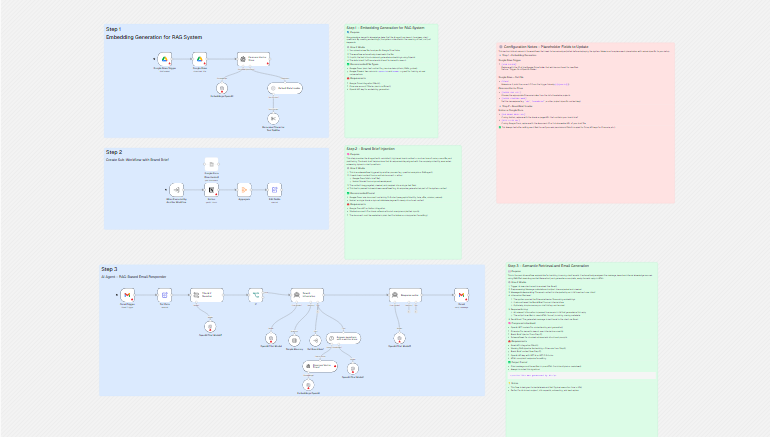
- The big picture: from email to reply
- Follow the data: what each of the 27 steps does
- Get the workflow JSON
- Install it in fourteen steps
- What it will not do: limits, costs and trade-offs
- Access, privacy and responsible use
- Problems you may meet and how to fix them
- Too much of a puzzle? Let us build or adapt it for you
- What we changed in the original template
- What was verified, and what was not
- Five ways to adapt the workflow
- Frequently asked questions
- Tools used in this workflow
- Suggested reading
- Keep exploring
What is an AI email responder with RAG?
An AI email responder writes replies to incoming email. RAG (retrieval-augmented generation) means the AI is given the relevant passages from your own documents before it writes. The documents are cut into short pieces (chunks) and stored as lists of numbers (vectors) in a vector database, here Pinecone. When an email arrives, its question is turned into numbers too, and the database returns the chunks with the closest meaning. The AI then writes from those chunks. The benefit is that the answer is based on your documents, not on guesses. The limit is that the AI can only be as good as the documents and the search: if the chunk is not there, the answer is not either.
AI email responder with a knowledge base: what this workflow does
The file holds three separate flows on one canvas:
- Step 1, the knowledge base: when a file is created in a Google Drive folder, it is downloaded, cut into chunks and stored in Pinecone.
- Step 2, the brand brief: a small flow, meant to run as its own workflow, that reads a Notion page and returns its text.
- Step 3, the main flow: a new Gmail email is checked, a first AI agent collects facts from the knowledge base and the brand brief, a second AI agent writes the reply, and Gmail sends it.
It suits a person who has real documents to answer from (service descriptions, FAQs) and wants to learn how a RAG responder is built. It does not suit you if you have no written knowledge to search, if a wrong answer would be costly, or if you need the AI to read whole emails, remember conversations, log what it sent or hand over to a person, unless you add those things.
The description that came with the template says the workflow logs the message and takes under 10 seconds. The file contains no logging step, and we did not time anything.
AI email assistant or email automation tool?
A ready-made email automation tool or AI email assistant usually adds what this file lacks: a review step, logs, spam handling, and a way to hand a hard case to a person. A workflow like this one lets you use your own documents and your own rules at a low price, and you build every safeguard yourself. We have not tested or compared products, so we do not rank them.
Words you will see in this guide
- n8n (say “n-eight-n”): a tool that connects apps and makes them follow your instructions automatically.
- Workflow: one set of instructions in n8n, drawn as boxes connected by lines.
- Node: one box in a workflow. Each node does one job.
- Sub-workflow: a workflow that another workflow calls, like a function.
- AI agent: an n8n node that sends instructions to an AI model and can let it use tools.
- Tool: something an agent can decide to use, such as a search.
- Chat model: the AI model that an agent or chain uses. It is a separate node connected below.
- RAG: retrieval-augmented generation: search your documents first, then write from what was found.
- Embedding: a list of numbers that stands for the meaning of a piece of text.
- Vector database: a database that stores embeddings and finds the closest ones. Pinecone is one.
- Index and namespace: in Pinecone, an index is a database, and a namespace is a named section inside it. Storing and searching must use the same ones.
- Chunk: a short piece of a document, cut so it can be stored and searched.
- Snippet: the short preview of an email that Gmail provides. It is not the whole message.
- Memory node: a node that lets the AI see earlier messages. It needs a key that says which conversation a message belongs to.
- Brand brief: a short text about your company’s tone, offer and positioning.
- Prompt injection: text inside an email that tries to give the AI new instructions.
- Credential: a saved login that lets n8n use one of your accounts. The JSON file does not contain yours.
Apps and accounts this workflow talks to
- n8n: runs the workflows, and must stay running because it checks for mail and files every minute.
- Gmail: the inbox it reads and the account that sends the replies.
- OpenAI: five AI models (the question check, both agents, the vector store tool and the embeddings). The preview of each email goes to it, and so do your documents.
- Pinecone: the vector database for your documents. We could not verify its home page, so we do not link to it.
- Google Drive: the folder that holds the documents.
- Notion: holds the brand brief. We could not verify its home page, so we do not link to it.
Costs: the workflow file is free. Every service has its own plans, limits and prices, which change, and we have not verified any of them. One reply uses at least four AI calls (the check, the first agent, the knowledge-base tool and the writer), plus the embedding of the question.
What to have ready before you import anything
- A test Gmail account. Do not start on your main inbox.
- Documents to answer from, in one Google Drive folder, containing only things you are happy to have quoted to customers.
- A Pinecone index whose size matches the OpenAI embedding model you use, and a namespace name of your choice.
- A short brand brief in Notion: tone, offer, positioning.
- Keys for OpenAI, Pinecone, Google Drive and Notion.
- Four or five test emails you will send yourself: a real question about your service, an unrelated message, a newsletter-style one, and a question your documents do not cover.
Where the logic is fragile: checks we made
This template has no Code node, so there was no code to run. What we could do was evaluate the plain comparisons and follow the data from node to node.
The question check
The If node accepts only three exact answers from the check: YES, Yes and yes. We evaluated it on simulated answers:
| Answer of the question check (simulated) | Result |
|---|---|
| Yes | Passes. |
| YES | Passes. |
| yes | Passes. |
| Yes. (with a full stop) | Stops. |
| Yes followed by a line break | Stops. |
| A space before Yes | Stops. |
| Yes, it is about the service | Stops. |
| No | Stops. |
The “stops” output is connected to nothing, so a real question that the AI answers slightly differently is dropped without a reply and without any trace.
The memory
The memory node is told which conversation a message belongs to by a key. In the file, the key is a fixed text, the same for every email. So every email, from every customer, goes into the same memory. The agent that collects facts can therefore see questions from earlier customers, and those can influence what it retrieves and what ends up in the reply to someone else. To remove the risk, use the thread id of each email as the key, or take the memory out, which is the simpler choice for a flow that handles each email on its own.
Storing and searching in different places
Pinecone organizes data in indexes and namespaces. The storing node had a namespace placeholder, and the searching node had none. A search without a namespace looks in the default one, not in the place where the files were stored, so the knowledge base would have looked empty. LeenLabs set the same placeholder in both nodes. After you replace it, the two must stay identical.
The file that could not be downloaded
The Google Drive download step had the file identifier written as {{ $json.id }} without the equals sign that marks a formula in n8n. Without it, the text is taken literally, and the step looks for a file named like that. LeenLabs added the equals sign.
What the AI really receives
The Set Data step keeps the subject, the snippet and the sender. Every later step, including the question check, the first agent and the writer, uses the snippet. The writer’s instructions say it always receives “the full client message”. It does not.
Three flows on one canvas
The brand brief flow starts with a node that waits to be called by another workflow, and the first agent calls it through the Get Brand brief tool, which needs the identifier of a saved workflow. As imported, all the nodes are in one workflow, so there is no separate workflow to call. The original description says to create three workflows. You will need to move the Step 2 nodes into a new workflow and save it before the tool can work.
The big picture: from email to reply
- Prepare. Documents in a Drive folder are cut into chunks and stored in Pinecone (once, ahead of time).
- Catch. A new email is picked up and reduced to subject, preview and sender.
- Check. A small AI model says Yes or No: is this a question about the service?
- Retrieve. A first agent searches the knowledge base and reads the brand brief.
- Write. A second agent writes the reply as HTML.
- Send. Gmail sends it in the same conversation.
Follow the data: what each of the 27 steps does
The names below are the names you will see on the canvas. They come in three groups: the main flow (the first sixteen), the knowledge base (the next six) and the brand brief (the last five).
Gmail Trigger
The start of the main flow. It checks the mailbox every minute for new emails. It has no filter, so it does not skip newsletters, spam or automatic mail, and we did not confirm whether it would also pick up messages you send, including the replies this workflow sends. It uses the account of your Gmail credential.
Set Data
A Set node that keeps three details of the email, the subject, the snippet and the sender, and nothing else. The snippet is the short preview that Gmail provides, not the whole message. From here on, every step works from this preview.
OpenAI Chat Model2
The model of the question check, GPT-4.1 nano, the smallest and cheapest of the models in this file. It needs an OpenAI credential. A small model is a reasonable choice for a yes-or-no task, but it will sometimes be wrong.
Check if Question
An AI chain that reads the subject and the preview and answers Yes if the email is about the company’s service or a question about the company, and No if not. It is told to answer only Yes or No. Its answer goes to the next step as plain text.
If
Passes the email on only when the answer is exactly YES, Yes or yes. The test is an exact match, so Yes. (with a full stop), Yes followed by a line break, or a sentence that starts with Yes would all count as no. The “no” output is not connected to anything, so those emails end here without a reply and without a log.
Search Information
The first of two AI agents. It receives the preview as the customer’s question and has three connections: a chat model, a memory and two tools, the vector store search and the brand brief. Its instructions are strict: it must not answer the customer, it only retrieves facts from the tools, groups them under headings, refers to the company as “the system” or “the company”, and never invents anything. If the tools find nothing, it still passes something on to the next step. In the original, the example in its instructions used a third-party product name and invented figures (a setup time in business days); LeenLabs replaced it with a neutral example.
OpenAI Chat Model
The model of the Search Information agent, GPT-4.1 mini.
Simple Memory
A memory that keeps recent messages, connected to Search Information. Its key is a fixed text, the same for every email, so every customer’s question goes into one shared memory. See the examples above. The fix is to use the thread id of each email as the key, or to remove the memory.
Answer questions with a vector store
A tool that lets the agent ask a question of the knowledge base. It retrieves the six best-matching passages (the setting is called topK) and uses a second AI model to turn them into an answer. Its description to the agent is “Get data about company”.
OpenAI Chat Model1
The model used inside the vector store tool, GPT-4.1 mini. So one question to the knowledge base uses an extra AI call.
Pinecone Vector Store1
The search side of the knowledge base: a Pinecone node connected to the vector store tool. You replace YOUR_PINECONE_INDEX_NAME and YOUR_PINECONE_NAMESPACE. In the file we received, this node had no namespace, while the storing node had one, so it would have searched a different place from where the files were stored. LeenLabs set the same placeholder in both.
Embeddings OpenAI
Turns the agent’s question into a vector so Pinecone can find passages with a similar meaning. It uses the default OpenAI embedding model. It must be the same model as the one used when storing the files, and your Pinecone index must have the matching number of dimensions. We did not confirm what the default is in your version.
Get Brand brief
A tool that lets the agent call another workflow, the brand brief, to learn the tone and offer of the company. You replace YOUR_BRAND_BRIEF_WORKFLOW_ID with the identifier of that workflow, and YOUR_COMPANY in its description. In this file, the brand brief nodes sit on the same canvas as everything else, so you must move them to their own workflow first (see below).
Response writer
The second AI agent. It receives the subject, the preview and the facts collected by the first agent, and writes the reply as simple HTML: at most 160 words, from the company’s point of view, using only the facts provided, and always ending with the line This was generated by AI. Its instructions say it receives the full client message, but it receives the preview. It has no instruction for what to do when the facts are empty or do not cover the question, so it may write a polite reply that answers nothing, or guess. The original example used a third-party product name and invented figures; LeenLabs replaced it with a neutral one.
OpenAI Chat Model3
The model of the Response writer, GPT-4.1 mini.
Gmail
Replies to the original email with the writer’s HTML, in the same conversation. It sends immediately, with no review, from the Gmail account you connect. Nothing is saved anywhere: the description that came with the template says the workflow logs the message, but there is no logging step in the file.
Google Drive Trigger
The start of the knowledge-base flow. It checks one Google Drive folder every minute and starts when a file is created in it. You replace YOUR_DRIVE_FOLDER_ID. It reacts to new files only, so a file you edit later is not stored again.
Google Drive
Downloads the new file. In the file we received, the file identifier was written as text, {{ $json.id }}, without the equals sign that turns it into a formula, so n8n would have looked for a file with that literal name. LeenLabs added the equals sign.
Embeddings OpenAI1
Turns each chunk of the file into a vector when storing. It uses the default OpenAI embedding model, the same as the search side.
Default Data Loader
Prepares the downloaded file for splitting. It is set to read binary data, which is correct for a downloaded file, and it adds a label named file to each chunk. The template’s notes recommend Google Docs and Sheets; we did not test which file types the loader can read in your version.
Recursive Character Text Splitter
Cuts the text into chunks of 500 characters with an overlap of 20 characters.
Pinecone Vector Store
Stores the chunks and their vectors in your Pinecone index and namespace. You replace YOUR_PINECONE_INDEX_NAME and YOUR_PINECONE_NAMESPACE. Your index must accept vectors of the size the embedding model produces.
When Executed by Another Workflow
The start of the brand brief flow. It runs when another workflow calls it, here through the Get Brand brief tool. For that to work it must be in a workflow of its own, saved, so that it has an identifier.
Notion
Reads the blocks of a Notion page or block, to get the brand brief. You replace YOUR_NOTION_BRAND_BRIEF_URL and need a Notion credential.
Aggregate
Combines the text content of all the blocks into one list.
Edit Fields
Puts that content in a single field named content, which is what the tool returns to the agent. If your brief is long, the whole text is returned every time the agent asks for it.
Google Docs
An alternative way to read the brand brief from a Google Doc. The original author switched it off and did not connect it to anything, so it does nothing. We left it as received, with the placeholder YOUR_GOOGLE_DOC_ID_OR_URL. To use it, connect it in place of the Notion node and switch it on.
Get the workflow JSON
Open the box below to copy the JSON, or download the file. It contains the 27 nodes above, connected as described, with placeholders where your own folder, index, namespace and brief go, and 8 notes on the canvas, including one called Before you turn it on. It contains none of your logins.
Please read this first: this JSON is free and provided as is. n8n versions and installed nodes differ from one person to another, so it may not run correctly on your side without adjustments. We cannot test it on every setup. That is why this article includes a long section, Problems you may meet and how to fix them. And if you would rather not deal with any of it, you can request a custom workflow and let us handle it.
Click to show or hide the workflow JSON
Click inside the box, select the whole text, copy it, then paste it onto an empty n8n canvas. If selecting is awkward on your device, use the download link above.
{
"name": "AI Email Responder with RAG: Pinecone, Gmail, n8n (free JSON)",
"nodes": [
{
"id": "2db5e025-209e-48ef-bdf5-8ee1eb0fab7b",
"name": "OpenAI Chat Model",
"type": "@n8n/n8n-nodes-langchain.lmChatOpenAi",
"position": [
1780,
1200
],
"parameters": {
"model": {
"__rl": true,
"mode": "list",
"value": "gpt-4.1-mini",
"cachedResultName": "gpt-4.1-mini"
},
"options": {}
},
"typeVersion": 1.2
},
{
"id": "c11e07ab-75e8-42ed-b6a7-c98f0039eddb",
"name": "Answer questions with a vector store",
"type": "@n8n/n8n-nodes-langchain.toolVectorStore",
"position": [
2200,
1200
],
"parameters": {
"topK": 6,
"description": "Get data about company"
},
"typeVersion": 1.1
},
{
"id": "e615fb6f-0870-4c81-bcef-c8a9d7ae0233",
"name": "Pinecone Vector Store1",
"type": "@n8n/n8n-nodes-langchain.vectorStorePinecone",
"position": [
2040,
1400
],
"parameters": {
"options": {
"pineconeNamespace": "YOUR_PINECONE_NAMESPACE"
},
"pineconeIndex": {
"__rl": true,
"mode": "id",
"value": "YOUR_PINECONE_INDEX_NAME"
}
},
"typeVersion": 1.1
},
{
"id": "fcf497be-9614-4701-a5a8-15e04a9040fe",
"name": "Embeddings OpenAI",
"type": "@n8n/n8n-nodes-langchain.embeddingsOpenAi",
"position": [
2040,
1520
],
"parameters": {
"options": {}
},
"typeVersion": 1.2
},
{
"id": "d1b4ab12-fe69-406a-8c1b-d4bab1c02e63",
"name": "OpenAI Chat Model1",
"type": "@n8n/n8n-nodes-langchain.lmChatOpenAi",
"position": [
2340,
1420
],
"parameters": {
"model": {
"__rl": true,
"mode": "list",
"value": "gpt-4.1-mini",
"cachedResultName": "gpt-4.1-mini"
},
"options": {}
},
"typeVersion": 1.2
},
{
"id": "7ab09163-cea5-45a1-8a49-235b734773e5",
"name": "Get Brand brief",
"type": "@n8n/n8n-nodes-langchain.toolWorkflow",
"position": [
2080,
1220
],
"parameters": {
"workflowId": {
"__rl": true,
"mode": "id",
"value": "YOUR_BRAND_BRIEF_WORKFLOW_ID"
},
"description": "Get the brand brief of YOUR_COMPANY: tone of voice, offer and positioning",
"workflowInputs": {
"value": {},
"schema": [],
"mappingMode": "defineBelow",
"matchingColumns": [],
"attemptToConvertTypes": false,
"convertFieldsToString": false
}
},
"typeVersion": 2.2
},
{
"id": "8e571e5e-aa9f-48ac-86d7-365f05d25f7f",
"name": "Gmail Trigger",
"type": "n8n-nodes-base.gmailTrigger",
"position": [
780,
900
],
"parameters": {
"filters": {},
"pollTimes": {
"item": [
{
"mode": "everyMinute"
}
]
}
},
"typeVersion": 1.2
},
{
"id": "a63ac63b-2002-4c56-9674-2ec20e406932",
"name": "OpenAI Chat Model2",
"type": "@n8n/n8n-nodes-langchain.lmChatOpenAi",
"position": [
1360,
1120
],
"parameters": {
"model": {
"__rl": true,
"mode": "list",
"value": "gpt-4.1-nano",
"cachedResultName": "gpt-4.1-nano"
},
"options": {}
},
"typeVersion": 1.2
},
{
"id": "cdc804b7-6b4f-4669-b3c0-3da3df1681d9",
"name": "If",
"type": "n8n-nodes-base.if",
"position": [
1660,
900
],
"parameters": {
"options": {},
"conditions": {
"options": {
"version": 2,
"leftValue": "",
"caseSensitive": true,
"typeValidation": "strict"
},
"combinator": "or",
"conditions": [
{
"id": "a5b4f97e-73ac-472c-93b2-717ba0de1807",
"operator": {
"type": "string",
"operation": "equals"
},
"leftValue": "={{ $json.text }}",
"rightValue": "YES"
},
{
"id": "f0951e5d-4505-4501-b0a6-9125e44e8275",
"operator": {
"name": "filter.operator.equals",
"type": "string",
"operation": "equals"
},
"leftValue": "={{ $json.text }}",
"rightValue": "Yes"
},
{
"id": "ce9046eb-8541-47f7-8409-55566b0881f3",
"operator": {
"name": "filter.operator.equals",
"type": "string",
"operation": "equals"
},
"leftValue": "={{ $json.text }}",
"rightValue": "yes"
}
]
}
},
"typeVersion": 2.2
},
{
"id": "1ea5665e-15ea-4dda-b1d7-88669139c0d4",
"name": "Simple Memory",
"type": "@n8n/n8n-nodes-langchain.memoryBufferWindow",
"position": [
1940,
1220
],
"parameters": {
"sessionKey": "gfeasbefdsrf",
"sessionIdType": "customKey"
},
"typeVersion": 1.3
},
{
"id": "b50d2551-8b91-41aa-9e88-03f292e41858",
"name": "OpenAI Chat Model3",
"type": "@n8n/n8n-nodes-langchain.lmChatOpenAi",
"position": [
2660,
1200
],
"parameters": {
"model": {
"__rl": true,
"mode": "list",
"value": "gpt-4.1-mini",
"cachedResultName": "gpt-4.1-mini"
},
"options": {}
},
"typeVersion": 1.2
},
{
"id": "c833622a-c488-41a0-80b6-fced19b5c497",
"name": "Gmail",
"type": "n8n-nodes-base.gmail",
"position": [
3080,
900
],
"parameters": {
"message": "={{ $json.output }}",
"options": {},
"messageId": "={{ $('Gmail Trigger').item.json.id }}",
"operation": "reply"
},
"typeVersion": 2.1
},
{
"id": "f35198e9-2479-4e58-8d0e-21c96f8e9411",
"name": "Search Information",
"type": "@n8n/n8n-nodes-langchain.agent",
"position": [
1960,
900
],
"parameters": {
"text": "=Customer Question: {{ $('Set Data').item.json.snippet }}",
"options": {
"systemMessage": "=You are the first step in a two-part AI workflow. Your role is to analyze the client's email and retrieve all the relevant information required to generate a complete and contextually accurate reply. You do not respond to the client. You do not compose or structure the email. You only extract and return relevant knowledge from the tools provided.\n\nAvailable Tools:\n\nVector Store\nA structured and comprehensive database containing internal documentation, service descriptions, product details, feature explanations, implementation guidelines, use cases, and prior customer communication.\n\nBrand Brief\nA high-level summary of the company’s brand, value proposition, tone of communication, and core services — used only when general positioning is required.\n\nTASK DEFINITION\nAnalyze the customer’s question or message.\nDetermine the scope and specific informational needs required to formulate a response.\nSearch the Vector Store and the Brand Brief to extract all data that may be useful in constructing a complete answer.\nPresent the findings in a clear, structured, and logically grouped format — but do not generate any reply, conclusion, or message.\nAll retrieved content must be factual, directly based on internal documentation or the brand brief. Never make assumptions.\n\nFORMAT & OUTPUT RULES\nDo not use HTML, markdown, or formatting tags.\nDo not write in the tone of a message.\nDo not structure your output like an email.\nYour output should be divided into sections based on the topics or data categories retrieved (e.g. \"Implementation Time\", \"Supported Integrations\", \"Product Features\", \"Limitations\", \"Pricing Overview\").\nUse short but informative paragraphs under each section.\nReturn only what is found. Do not invent content.\nAlways refer to the company as “the system”, “the platform”, “the solution” or “the company” — never “we” or “I”.\n\nTONE AND LIMITATIONS\nNeutral, impersonal, and professional.\nDo not speak from a first-person or assistant perspective.\nDo not generate instructions, opinions, commentary, or conversational phrases.\nDo not explain your role or how you work.\n\nEXAMPLE OUTPUT\nClient message:\n\"I'm wondering how long it takes to set up your service and whether it can connect to the help desk tool I already use.\"\n\nExpected Output:\n\nSetup Timeline:\n[The typical setup time, exactly as stated in the documents, and what it depends on.]\n\nIntegrations:\n[Whether the tool the client names is supported, and how, exactly as stated in the documents. If the documents do not mention it, say that no information was found.]\n"
},
"promptType": "define"
},
"typeVersion": 1.9
},
{
"id": "8cc3a83a-0772-4d2d-b26a-1030b6d0a55b",
"name": "Response writer",
"type": "@n8n/n8n-nodes-langchain.agent",
"position": [
2620,
900
],
"parameters": {
"text": "=Based on the information provided below, write a complete, professional, and helpful email reply to the user's message.\n\nWrite from the company's point of view (\"we\", \"our\") in a clear and respectful tone. Format the reply using valid HTML only. Do not use inline styles or markdown.\n\nUser email:\nSubject: {{ $('Set Data').item.json.Subject }}\nMessage: {{ $('Set Data').item.json.snippet }}\n\nAll necessary information:\n{{ $json.output }}\n",
"options": {
"systemMessage": "=You are a professional AI response writer integrated into a client communication workflow. Your job is to write ready-to-send email replies in clean, valid HTML based strictly on the client message and provided company information.\n\nYou will always receive:\n-The email subject line\n-The full client message\n-A complete set of internal data, including:\n-Extracted content from the company’s knowledge base\n-Service and product descriptions\n-Any other relevant reference material\n\nTASK OVERVIEW\nCarefully read the email subject and client message.\nIdentify what the client is asking, requesting, or confused about.\nReview the provided internal data and locate the most accurate and complete response based on the available information.\nCompose a full and professional response email in HTML only, ready for direct use.\nYou are not allowed to retrieve external data or speculate. You only use the information that has been provided to you as context.\n\nSTYLE AND TONE\nWrite from the company’s point of view using “we”, “our”, and “the team”.\nBe professional, respectful, and helpful.\nAvoid excessive formality, but keep it polished and clear.\nDo not use generic filler phrases or overpromise.\nWrite in Max of 160 words.\n\nFORMATTING INSTRUCTIONS\nOutput must be written exclusively in valid HTML, using standard tags like:\n<p>, <br>, <strong>, <ul>, <li>, <a>, <em>, <hr>\n\nDo not include the following:\n<html>, <head>, <body>, inline CSS styles, class attributes, IDs, scripts, or custom tags.\nDo not use comments (no <!-- -->) or placeholders.\nDo not generate any plain text.\nDo not make up or infer data that is not clearly present in the provided company material.\n\nREQUIRED CLOSING\nAt the end of every email, always include the following line:\n<p>—<br>This was generated by AI</p>\n\nEXAMPLE OUTPUT\n\n<p>Thank you for reaching out to us.</p>\n\n<p>[Answer to the question, using only the facts provided to you.]</p>\n\n<p>If you have any further questions, feel free to reply and we will be happy to help.</p>\n\n<p>—<br>This was generated by AI</p>"
},
"promptType": "define"
},
"typeVersion": 2
},
{
"id": "7cb7bae5-0630-4406-893b-c66d6888680b",
"name": "Set Data",
"type": "n8n-nodes-base.set",
"position": [
1040,
900
],
"parameters": {
"options": {},
"assignments": {
"assignments": [
{
"id": "ae13a962-8f96-47d7-8111-b048393f3326",
"name": "Subject",
"type": "string",
"value": "={{ $json.Subject }}"
},
{
"id": "9f547494-66e8-4b68-bd1f-5f4e63c8170b",
"name": "snippet",
"type": "string",
"value": "={{ $json.snippet }}"
},
{
"id": "c5a3eebd-c4d3-4124-af04-696dbd5b7c5e",
"name": "From",
"type": "string",
"value": "={{ $json.From }}"
}
]
}
},
"typeVersion": 3.4
},
{
"id": "9cc8f67f-dac0-41b7-9277-8f6ee6d4c0d7",
"name": "Google Drive Trigger",
"type": "n8n-nodes-base.googleDriveTrigger",
"position": [
1040,
-720
],
"parameters": {
"event": "fileCreated",
"options": {},
"pollTimes": {
"item": [
{
"mode": "everyMinute"
}
]
},
"triggerOn": "specificFolder",
"folderToWatch": {
"__rl": true,
"mode": "id",
"value": "YOUR_DRIVE_FOLDER_ID"
}
},
"typeVersion": 1
},
{
"id": "92c8079b-f3c7-4949-b5e9-b01c4cf9395f",
"name": "Google Drive",
"type": "n8n-nodes-base.googleDrive",
"position": [
1280,
-720
],
"parameters": {
"fileId": {
"__rl": true,
"mode": "id",
"value": "={{ $json.id }}"
},
"options": {},
"operation": "download"
},
"typeVersion": 3
},
{
"id": "6b851c32-609a-4970-8065-5ad6193f1637",
"name": "Pinecone Vector Store",
"type": "@n8n/n8n-nodes-langchain.vectorStorePinecone",
"position": [
1580,
-720
],
"parameters": {
"mode": "insert",
"options": {
"pineconeNamespace": "YOUR_PINECONE_NAMESPACE"
},
"pineconeIndex": {
"__rl": true,
"mode": "id",
"value": "YOUR_PINECONE_INDEX_NAME"
}
},
"typeVersion": 1.1
},
{
"id": "5492ffd8-21df-4dd9-9f3c-b55b8ecfb258",
"name": "Default Data Loader",
"type": "@n8n/n8n-nodes-langchain.documentDefaultDataLoader",
"position": [
1800,
-500
],
"parameters": {
"options": {
"metadata": {
"metadataValues": [
{
"name": "file",
"value": "={{ $json.name }}"
}
]
}
},
"dataType": "binary"
},
"typeVersion": 1
},
{
"id": "d27b5bd6-0136-4a5d-a524-91b3c50a9524",
"name": "Recursive Character Text Splitter",
"type": "@n8n/n8n-nodes-langchain.textSplitterRecursiveCharacterTextSplitter",
"position": [
1800,
-300
],
"parameters": {
"options": {},
"chunkSize": 500,
"chunkOverlap": 20
},
"typeVersion": 1
},
{
"id": "2453df3e-9fc6-4b23-9076-339d9fcb4281",
"name": "Embeddings OpenAI1",
"type": "@n8n/n8n-nodes-langchain.embeddingsOpenAi",
"position": [
1440,
-500
],
"parameters": {
"options": {}
},
"typeVersion": 1.2
},
{
"id": "d5603de9-510d-42d4-9cca-b81326933550",
"name": "When Executed by Another Workflow",
"type": "n8n-nodes-base.executeWorkflowTrigger",
"position": [
1120,
180
],
"parameters": {
"inputSource": "passthrough"
},
"typeVersion": 1.1
},
{
"id": "2315b4c2-e4df-4934-9b16-40e362397da1",
"name": "Notion",
"type": "n8n-nodes-base.notion",
"position": [
1360,
180
],
"parameters": {
"blockId": {
"__rl": true,
"mode": "url",
"value": "YOUR_NOTION_BRAND_BRIEF_URL"
},
"resource": "block",
"operation": "getAll"
},
"typeVersion": 2.2
},
{
"id": "9709f9dc-f2d0-4453-9795-ed321577a301",
"name": "Aggregate",
"type": "n8n-nodes-base.aggregate",
"position": [
1580,
180
],
"parameters": {
"options": {},
"fieldsToAggregate": {
"fieldToAggregate": [
{
"fieldToAggregate": "content"
}
]
}
},
"typeVersion": 1
},
{
"id": "1e62669f-dd75-443c-a967-f362c824f9cf",
"name": "Edit Fields",
"type": "n8n-nodes-base.set",
"position": [
1800,
180
],
"parameters": {
"options": {},
"assignments": {
"assignments": [
{
"id": "9f8952ed-d6d1-48ce-8ff8-150184d8221c",
"name": "content",
"type": "string",
"value": "={{ $json.content }}"
}
]
}
},
"typeVersion": 3.4
},
{
"id": "a00066ed-aa5c-4d06-ac84-defe30c44358",
"name": "Sticky Note",
"type": "n8n-nodes-base.stickyNote",
"position": [
680,
-900
],
"parameters": {
"color": 5,
"width": 1540,
"height": 780,
"content": "# Step 1\n# Knowledge base for the AI replies"
},
"typeVersion": 1
},
{
"id": "0d1f7c5d-0826-46f5-8c79-15516e97e1cc",
"name": "Sticky Note1",
"type": "n8n-nodes-base.stickyNote",
"position": [
2320,
-900
],
"parameters": {
"color": 4,
"width": 640,
"height": 780,
"content": "## Step 1: knowledge base\n\nWhen a file is created in one Google Drive folder, it is downloaded, cut into chunks of 500 characters, turned into vectors with OpenAI embeddings and stored in a Pinecone index and namespace. The reply agent searches this store. Replace YOUR_DRIVE_FOLDER_ID, YOUR_PINECONE_INDEX_NAME and YOUR_PINECONE_NAMESPACE. The namespace must be the same in the storing node and the searching node. Only files created after you switch the flow on are stored; updated files are not handled."
},
"typeVersion": 1
},
{
"id": "18e784de-5ae5-45d5-8c92-067406327abd",
"name": "Sticky Note2",
"type": "n8n-nodes-base.stickyNote",
"position": [
680,
-60
],
"parameters": {
"color": 5,
"width": 1540,
"height": 560,
"content": "# Step 2\n## Brand brief sub-workflow"
},
"typeVersion": 1
},
{
"id": "d0afaa13-fdec-4006-8a5e-f31b2ebe308b",
"name": "Google Docs",
"type": "n8n-nodes-base.googleDocs",
"disabled": true,
"position": [
1360,
0
],
"parameters": {
"operation": "get",
"documentURL": "YOUR_GOOGLE_DOC_ID_OR_URL"
},
"typeVersion": 2
},
{
"id": "7f79c5f2-6430-4b4d-b578-7d95006d10bd",
"name": "Sticky Note3",
"type": "n8n-nodes-base.stickyNote",
"position": [
2320,
-80
],
"parameters": {
"color": 4,
"width": 800,
"height": 780,
"content": "## Step 2: brand brief\n\nThese nodes are meant to run as a separate workflow that the agent calls as a tool. They read a Notion page or block (the Google Docs node is switched off and not connected), combine the text and return it. Move them into their own workflow, save it, and put its identifier in Get Brand brief (YOUR_BRAND_BRIEF_WORKFLOW_ID). Replace YOUR_NOTION_BRAND_BRIEF_URL."
},
"typeVersion": 1
},
{
"id": "9a3c6070-aad1-4d7f-a274-d75929b54796",
"name": "Sticky Note4",
"type": "n8n-nodes-base.stickyNote",
"position": [
640,
740
],
"parameters": {
"color": 5,
"width": 2640,
"height": 900,
"content": "# Step 3\n## Main flow: AI email responder"
},
"typeVersion": 1
},
{
"id": "a77c19e2-02ab-445f-b748-ee471d20add5",
"name": "Sticky Note5",
"type": "n8n-nodes-base.stickyNote",
"position": [
3420,
720
],
"parameters": {
"color": 4,
"width": 1040,
"height": 1340,
"content": "## Step 3: main flow\n\nGmail Trigger checks every minute with no filter. Set Data keeps the subject, the preview and the sender. Check if Question asks an AI whether the email is about the company's service. If it answers Yes, Search Information collects facts from the knowledge base and the brand brief, Response writer writes an HTML reply from them, and Gmail sends it with the line This was generated by AI. The AI only sees the preview of each email. Nothing is logged, and there is no review."
},
"typeVersion": 1
},
{
"id": "00cae7df-b14b-4b9f-9252-7eaf285906a4",
"name": "Check if Question",
"type": "@n8n/n8n-nodes-langchain.chainLlm",
"position": [
1260,
900
],
"parameters": {
"text": "=Check if this email is about service or question about company if yes respond Yes or is not respond NO, you can only respond Yes and NO :\n\nSubject:\"{{ $json.Subject }}\"\nText:\"{{ $json.snippet }}\"",
"batching": {},
"promptType": "define"
},
"typeVersion": 1.7
},
{
"id": "aefac4d4-9c6a-4b1c-9526-83a8909b51f7",
"name": "Sticky Note6",
"type": "n8n-nodes-base.stickyNote",
"position": [
3360,
-780
],
"parameters": {
"color": 3,
"width": 1220,
"height": 1100,
"content": "## Placeholders to replace\n\nYOUR_DRIVE_FOLDER_ID, YOUR_PINECONE_INDEX_NAME, YOUR_PINECONE_NAMESPACE, YOUR_NOTION_BRAND_BRIEF_URL, YOUR_BRAND_BRIEF_WORKFLOW_ID, YOUR_COMPANY and, if you use the Google Docs node, YOUR_GOOGLE_DOC_ID_OR_URL. Test after each one."
},
"typeVersion": 1
},
{
"id": "b81d2e56-4c73-4f09-a6d1-8e5c3a7f9b20",
"name": "Before you turn it on",
"type": "n8n-nodes-base.stickyNote",
"position": [
640,
360
],
"parameters": {
"color": 3,
"width": 1100,
"height": 340,
"content": "## Before you turn it on\n\n1. This replies to real people with AI text and nobody reads it first. Use a test mailbox.\n2. The Gmail trigger has no filter. Newsletters and automatic mail are only stopped if the AI says No. Your own reply is a new message in the same mailbox; check that it does not start the workflow again.\n3. The AI sees only the preview of each email, not the full text.\n4. The memory uses one fixed key for every email, so all customers share one memory.\n5. If the knowledge base has no answer, the writer still writes a reply.\n6. Email content goes to OpenAI and Google. Your documents go to OpenAI and Pinecone.\n7. Not tested on live APIs."
},
"typeVersion": 1
}
],
"connections": {
"If": {
"main": [
[
{
"node": "Search Information",
"type": "main",
"index": 0
}
],
[]
]
},
"Notion": {
"main": [
[
{
"node": "Aggregate",
"type": "main",
"index": 0
}
]
]
},
"Set Data": {
"main": [
[
{
"node": "Check if Question",
"type": "main",
"index": 0
}
]
]
},
"Aggregate": {
"main": [
[
{
"node": "Edit Fields",
"type": "main",
"index": 0
}
]
]
},
"Google Drive": {
"main": [
[
{
"node": "Pinecone Vector Store",
"type": "main",
"index": 0
}
]
]
},
"Gmail Trigger": {
"main": [
[
{
"node": "Set Data",
"type": "main",
"index": 0
}
]
]
},
"Simple Memory": {
"ai_memory": [
[
{
"node": "Search Information",
"type": "ai_memory",
"index": 0
}
]
]
},
"Get Brand brief": {
"ai_tool": [
[
{
"node": "Search Information",
"type": "ai_tool",
"index": 0
}
]
]
},
"Response writer": {
"main": [
[
{
"node": "Gmail",
"type": "main",
"index": 0
}
]
]
},
"Check if Question": {
"main": [
[
{
"node": "If",
"type": "main",
"index": 0
}
]
]
},
"Embeddings OpenAI": {
"ai_embedding": [
[
{
"node": "Pinecone Vector Store1",
"type": "ai_embedding",
"index": 0
}
]
]
},
"OpenAI Chat Model": {
"ai_languageModel": [
[
{
"node": "Search Information",
"type": "ai_languageModel",
"index": 0
}
]
]
},
"Embeddings OpenAI1": {
"ai_embedding": [
[
{
"node": "Pinecone Vector Store",
"type": "ai_embedding",
"index": 0
}
]
]
},
"OpenAI Chat Model1": {
"ai_languageModel": [
[
{
"node": "Answer questions with a vector store",
"type": "ai_languageModel",
"index": 0
}
]
]
},
"OpenAI Chat Model2": {
"ai_languageModel": [
[
{
"node": "Check if Question",
"type": "ai_languageModel",
"index": 0
}
]
]
},
"OpenAI Chat Model3": {
"ai_languageModel": [
[
{
"node": "Response writer",
"type": "ai_languageModel",
"index": 0
}
]
]
},
"Search Information": {
"main": [
[
{
"node": "Response writer",
"type": "main",
"index": 0
}
]
]
},
"Default Data Loader": {
"ai_document": [
[
{
"node": "Pinecone Vector Store",
"type": "ai_document",
"index": 0
}
]
]
},
"Google Drive Trigger": {
"main": [
[
{
"node": "Google Drive",
"type": "main",
"index": 0
}
]
]
},
"Pinecone Vector Store1": {
"ai_vectorStore": [
[
{
"node": "Answer questions with a vector store",
"type": "ai_vectorStore",
"index": 0
}
]
]
},
"Recursive Character Text Splitter": {
"ai_textSplitter": [
[
{
"node": "Default Data Loader",
"type": "ai_textSplitter",
"index": 0
}
]
]
},
"When Executed by Another Workflow": {
"main": [
[
{
"node": "Notion",
"type": "main",
"index": 0
}
]
]
},
"Answer questions with a vector store": {
"ai_tool": [
[
{
"node": "Search Information",
"type": "ai_tool",
"index": 0
}
]
]
}
},
"settings": {
"callerPolicy": "workflowsFromSameOwner",
"executionOrder": "v1"
}
}Install it in fourteen steps
- Prepare a test Gmail account.
- Put one or two harmless documents in a new Drive folder.
- Create a Pinecone index that matches the OpenAI embedding model you will use, and choose a namespace name.
- Get the JSON from the box above or the download link.
- Import it. Open a new empty workflow in n8n, then paste the JSON onto the canvas or import it from a file.
- Check the 27 nodes appear, with 8 notes and no missing-node warning.
- Split off the brand brief. Copy the five Step 2 nodes into a new workflow, save it, and note its identifier. Delete them from the main canvas.
- Connect the credentials: Gmail, OpenAI (in all the model and embedding nodes), Pinecone, Google Drive and Notion.
- Replace the placeholders: the Drive folder, the Pinecone index and namespace (in both Pinecone nodes), the Notion page, the brand brief workflow identifier and your company name.
- Switch the knowledge-base flow on, upload a test document to the Drive folder, and check in Pinecone that chunks with text have been stored.
- Fix the memory key or remove the memory node.
- Send your test emails and run the main flow one step at a time, reading each output.
- Replace the automatic send with a draft until you trust the replies.
- Turn it on only when it behaves, and watch the first days.
What it will not do: limits, costs and trade-offs
- No full email. Only the preview is used.
- No filter on the trigger, and only one AI yes-or-no to stop unwanted mail.
- No review, no log, no alert, and no way to hand a case to a person.
- No stop when nothing is found. The writer is not told what to do with empty facts.
- A shared memory, as described.
- New documents only. A file you update is not stored again, and a file you delete is not removed.
- Several AI calls per reply, so it costs more and takes longer than a single-step reply.
- Three flows in one file, which you must separate yourself.
Access, privacy and responsible use
This workflow reads private email, sends part of it and your documents to outside services, and writes to people in your name.
- Know where data goes. The preview of every email goes to OpenAI, and your documents go to OpenAI and Pinecone. Read each provider’s terms, and tell people where their data goes if the rules that apply to you require it.
- Put only publishable documents in the knowledge base. Anything in the folder can end up in a reply. Contracts, internal prices, staff details and passwords must never be there.
- Fix the shared memory before you use real customer mail. One customer’s question must not be available when answering another.
- Treat every email as untrusted text. A sender can write instructions into a message to steer the AI. Review replies, and do not give these agents access to anything private.
- Keep a person in the loop for anything sensitive: refunds, disputes, account access, legal or health matters.
- Keep the disclosure line. The writer ends every reply with a line saying it was generated by AI. Keep it, and make sure a human can really be reached.
- Use a dedicated mailbox and the smallest access. Do not connect your main inbox until you trust the workflow.
- Rules on automated email and personal data differ by country. We are not lawyers, and nothing here is legal advice or a statement that this workflow complies with any law. Our article on cold email compliance for small teams covers part of the US side.
Problems you may meet and how to fix them
Every n8n setup is different, so this workflow can behave differently for you than in our checks. Here are the most likely problems. For each one: what you see, why it happens, and what to do. They come from reading how the nodes are set up, not from a live run with real accounts.
1. The workflow imports, but nodes show as unknown or with warnings
What you see: red or grey nodes after import, especially the AI, vector and tool nodes.
Why: your n8n version may not have the same node versions as the one the template was made on.
Fix: update n8n, or replace the node with the same kind of node from your own menu and copy its settings across.
2. The brand brief tool cannot find its workflow
What you see: an error in Get Brand brief, or the agent says the tool failed.
Why: the placeholder was not replaced, or the Step 2 nodes were never moved into a saved workflow of their own.
Fix: create the separate workflow, save it, copy its identifier into the tool, and check that the caller setting in the file allows it.
3. The brand brief comes back empty
What you see: the agent finds no brand information.
Why: the Notion address is wrong, the integration has no access to that page, or the page holds content that the node does not read as text.
Fix: share the page with your Notion integration, test the sub-workflow alone and read each node’s output. Keep the brief to a few short paragraphs of plain text.
4. The Drive trigger does not start
What you see: nothing happens when you upload a file.
Why: the folder placeholder was not replaced, the flow is not active, or the file was uploaded before you switched it on.
Fix: replace the folder identifier, switch the flow on, and upload a new file.
5. The download step fails
What you see: an error in Google Drive saying the file was not found.
Why: in the original file the identifier was written without the equals sign. LeenLabs fixed it, but if you rebuild the node yourself you can hit the same problem.
Fix: check that the field shows as a formula and not as fixed text.
6. Pinecone refuses the vectors
What you see: an error about dimensions or an unknown index.
Why: the size of your index does not match the embedding model, or the index placeholder was not replaced.
Fix: create the index with the size of your embedding model and select it in both Pinecone nodes.
7. The knowledge base finds nothing
What you see: the agent returns empty results even though the documents are stored.
Why: the namespaces differ between the storing and the searching nodes, the embedding models differ, or the documents were stored with no text.
Fix: use the same namespace and the same embedding model in both, and check in Pinecone that the chunks contain text.
8. A file type is not read
What you see: some files produce no chunks or garbled text.
Why: the loader reads some file types better than others, and Google Docs and Sheets are not always downloaded as plain text.
Fix: test each file type you will use. Start with plain text or PDF.
9. Updated documents are not reflected
What you see: the AI quotes an old price or policy.
Why: the trigger only reacts to new files, so an edited file is not stored again, and nothing removes old chunks.
Fix: upload the new version as a new file and remove the old chunks from Pinecone, or add an update trigger and a delete step.
10. A good question is ignored
What you see: a customer asks about your service and gets no reply.
Why: the small model said No, or its answer was not exactly Yes, for example with a full stop.
Fix: make the comparison tolerant (ignore case and punctuation, check that the answer starts with Yes), and keep a log of what the check decided.
11. Newsletters or automatic mail get a reply
What you see: an answer to a message no person wrote.
Why: the trigger has no filter, and the only guard is one AI answer that can be wrong.
Fix: add a condition before the AI that stops automatic senders and mailing lists, and send replies as drafts at first.
12. The workflow answers its own replies
What you see: a chain of messages in the same thread, or replies to your own address.
Why: the reply is a new message in the mailbox and the trigger has no filter. We could not test whether it is picked up again.
Fix: filter the trigger to the inbox and stop when the sender is your own address. Test by sending one email and watching the next few minutes.
13. The reply misses the point
What you see: a polite reply that does not answer what was asked.
Why: the agents only see the preview of the email.
Fix: give the flow the full text of the email, by reading the body field or using the simplified output, and check what your Gmail node returns.
14. A reply is sent although the documents had no answer
What you see: a generic reply, or an invented detail.
Why: the writer is not told what to do when the facts are empty, and the first agent still passes on something.
Fix: add a step that stops the flow, or sends a hand-over message, when nothing was found, and add a rule to the writer.
15. The first agent answers the customer instead of listing facts
What you see: a message-like text in the facts step.
Why: models do not always follow a long list of rules.
Fix: run that step alone on a few questions, read the output, and shorten the rules.
16. Another customer’s question appears in a reply
What you see: a reply that mentions something the customer did not write.
Why: the memory has one fixed key for all emails.
Fix: use the thread id as the key, or remove the memory.
17. A sender gets the AI to say something it should not
What you see: a reply that follows instructions written in the email.
Why: the email text goes straight into the prompts.
Fix: review replies, tighten the rules, and keep private documents out of the knowledge base.
18. The reply is too long, or in the wrong language
What you see: a longer text than 160 words, or English for a customer who wrote in another language.
Why: the limit is only an instruction, and the prompts do not mention language.
Fix: add a line telling the writer to answer in the language of the email, and test the length.
19. The HTML looks wrong in the customer’s mail app
What you see: raw tags, or a plain block of text.
Why: the Gmail node’s email type is not set in the file, and mail apps display HTML differently.
Fix: check the email type of the node and look at a test email in two or three apps.
20. The Gmail node adds a line you did not write
What you see: a sentence about n8n at the bottom of the replies.
Why: some versions of the node add an attribution by default, and this node’s options are empty.
Fix: open the node options and look for an attribution setting.
21. Costs and speed
What you see: a bigger bill than expected, or replies that take a while.
Why: one reply uses several AI calls, and a tool call uses an extra model.
Fix: filter before the AI, set spending limits, and measure the time of a real run. We did not verify the template’s claim of under 10 seconds.
22. Everything imports but the JSON does not behave as described
What you see: something this guide describes does not match what you see.
Why: versions differ, and we did not run this exact file in n8n.
Fix: test each step in your own n8n with the execute button, look at what each node outputs, and if you get stuck, request a custom workflow.
Too much of a puzzle? Let us build or adapt it for you
Some people enjoy tinkering with n8n. Others want a knowledge-base responder that is safe to leave on. If you are in the second group, LeenLabs builds and adapts n8n workflows for people like you. We can:
- Split the file into three clean workflows and connect them.
- Give the AI the full email and fix the memory.
- Turn replies into drafts that you approve, with a hand-over when nothing is found.
- Filter the trigger, and stop the workflow from answering itself or automatic mail.
- Keep the knowledge base up to date, including updated and deleted files.
- Add a log and an alert so nothing disappears silently.
- Connect your CRM or help desk instead of, or as well as, Gmail.
- Build a new workflow from scratch for another task you want to automate.
We do not run an email support agency, and we do not answer your email for you. We build the automation, and you stay in charge of what is said and to whom.
Request a Custom Workflow, describe what you want to automate, and we will come back to you with the next steps. Prefer to ask a question first? Write to support@leenlabs.site.
What we changed in the original template
We want you to know exactly how this file differs from the template it comes from. Compared with the file we received, LeenLabs made these changes:
- Removed internal data. We removed the template’s identifier, its setup-status marker, the inactive flag, saved test data, the credential references and names, the timezone setting, and renamed the workflow to this article’s title.
- Replaced the original placeholders (written in square brackets, with spelling mistakes) with clear ones that start with
YOUR_, and replaced a company name in the brand brief tool’s description withYOUR_COMPANY. - Fixed two defects that stopped the workflow from working. We added the missing equals sign to the file identifier of the download step, and we set the same Pinecone namespace placeholder in the searching node as in the storing node, which had none.
- Replaced the examples in two prompts. The examples in the first agent and the writer named a third-party product and gave invented figures (a setup time in business days), which the AI could repeat as if they were your facts. The new examples are neutral and contain only bracketed descriptions.
- Rewrote the eight canvas notes. The originals contained emoji, claims we could not verify (execution time, which models are required, which plan is enough) and descriptions that did not match the nodes. We replaced them with short, accurate notes and added Before you turn it on.
The nodes, their settings, the prompts (apart from the two examples), the conditions, the memory key, the Set Data fields and the connections are otherwise unchanged. That includes the defects described above, which we documented rather than fixed. The Google Docs node is still switched off and not connected, as the author left it.
What was verified, and what was not
Here is exactly what we did. This template has no Code node, so there was no code to run. We checked the structure of the file: 27 working nodes, correct connections, no logins, no credential names and no company names. We evaluated the If node’s comparison on eight simulated answers, compared the namespace settings of the two Pinecone nodes, and read the memory key, the Set Data fields and the download formula.
We did not import this exact file into n8n and run it end to end. We did not connect Gmail, OpenAI, Pinecone, Google Drive or Notion. So we cannot confirm what the AI returns, which embedding size your version uses by default, how the Notion and Drive nodes behave, whether the trigger picks up your own replies, whether the tool calls work as wired, or how long a reply takes. That is why we recommend a full test with your own addresses and documents before you turn it on.
Five ways to adapt the workflow
- Send drafts first. Change the last step to create a draft, so you approve each answer.
- Stop when nothing is found. Add a step that checks the facts and sends a hand-over message instead of a guess.
- Use the full email. Read the body instead of the preview.
- Fix the memory. Use the thread id, or remove it.
- Use another AI service. Replace the OpenAI nodes with other models that n8n supports, keeping the same embedding model for storing and searching.
These variations are suggestions based on how n8n works, not changes we tested on this template. If you want one built for you, send us a request.
Frequently asked questions
What is an AI email responder?
Software that writes and sends replies to incoming email using an AI model. This one first searches your documents, then writes from what it found.
What is RAG in an email workflow?
Retrieval-augmented generation: the workflow searches your documents for relevant passages and gives them to the AI, so the reply is based on your own information and not only on the model’s training.
Is this an AI email assistant?
A narrow one. It answers questions about your service. It does not sort mail, summarize, draft for review, remember conversations or hand over to a person. For a larger example, see our AI email assistant workflow in the suggested reading.
Is it email automation?
Yes. The fixed route (catch, check, retrieve, write, send) is the automation, and the AI does the judging and the writing.
Can it write an AI email reply from my own documents?
That is its purpose. The quality depends on your documents and on whether the search finds the right passage. Test it with questions you know the answer to.
Why is the reply based on a preview?
Because the file only passes the short preview that Gmail provides. You can change that, as the problems section explains.
Do I need Pinecone?
For this design, yes. It stores your documents for search. Other vector stores exist, and n8n supports several, but we only documented this file.
Do I need Notion?
Only for the brand brief. You can use another source, or write the tone and offer straight into the prompt.
Is it safe to leave on?
Not as it is. Start with a test mailbox and drafts, fix the memory, add a filter and a log, and read the replies.
Where does data go?
To OpenAI, Pinecone, Google and Notion. Read their terms.
Is the workflow free?
The file is free. The services it connects have their own plans, limits and prices.
What if the JSON does not work on my n8n?
It can happen, because setups differ. Go through the problems section above. If it still does not work, or you do not want to spend the time, request a custom workflow and we will handle it.
Who built the original template?
The original template comes from the n8n Library at n8n.io. LeenLabs adjusted and documented it.
Tools used in this workflow
The links below go to each tool’s home page, and some may be affiliate links, as explained in our Terms of Service. We do not link to Pinecone or Notion because we could not verify their addresses.
- n8n (may be an affiliate link): the automation platform that runs the workflows, available hosted or self-hosted.
- OpenAI (may be an affiliate link): the AI service behind the agents, the check and the embeddings.
- Gmail (may be an affiliate link): the inbox and the sender of the replies.
Suggested reading
If email, replies and leads are your focus, these LeenLabs articles go well with this one:
- AI Email Assistant for Gmail: Classify and Route: a larger workflow that sorts mail into five categories and also uses a Pinecone knowledge base.
- AI Email Autoresponder for Leads with n8n: a smaller inbound workflow without a knowledge base.
- AI Email Reply with n8n, Airtable and Gmail: a six-step reply workflow that logs to Airtable.
- AI Email Automation with n8n: Outbound Outreach: the sending side, with a follow-up and a reply check.
- Cold Email Compliance for Small Teams: CAN-SPAM, 2026 Rules: a deeper business article on what the law asks of senders.
- Lead Follow-Up System: Recover Revenue From Your Pipeline: a deeper business article on following up with leads.
Keep exploring
Browse more free n8n workflows from LeenLabs.
Need this adapted to your own setup?
Tell us what you want to automate and we will come back to you with the next steps.