
Affiliate disclosure: some links in this article may be affiliate links. If you sign up through them, we may earn a commission at no extra cost to you. See our Terms of Service.
Most late payments are not refusals. The invoice got lost in an inbox, the person who pays was away, or the payment is “being processed” and nobody has said so. A polite reminder fixes most of them. A firmer reminder fixes some more. And a small number of clients need a direct, written final notice before anything else happens. The hard part is not writing those three emails. It is sending the right one, to the right client, on the right day, without sending too many, and without forgetting to do it at all.
This free n8n workflow does that on a daily schedule. Every morning at 9:00 it reads an invoice tracker in Google Sheets. For each invoice that is marked unpaid and is at least 3 days past its due date, it picks one of three levels of reminder from the number of days overdue (friendly, second reminder, final notice), writes the email, sends it through Gmail, and records the date and the count back in the sheet. It will not email the same invoice more than once every 7 days. When a final notice goes out, it also emails you an alert. In this guide we explain every step in plain English, show a day-by-day example of what a client receives over two months, and, because this workflow writes to your clients on its own, we are direct about where it can mislead you or them. For a simpler version with a single reminder, see our guide on weekly overdue invoice reminders.
Read this first: what this workflow does on its own
- The level depends on days overdue, not on what the client already received. An invoice that is 40 days overdue the first time the workflow sees it gets a FINAL NOTICE as its very first email, and the text starts “Despite previous reminders” even though there were none.
- The final notice repeats. Every 7 days, for as long as the invoice is marked unpaid, the client receives another FINAL NOTICE and you receive another alert.
- It does not know who has paid. It trusts the Status column. A client who paid yesterday and is not yet marked paid in your sheet gets a reminder, possibly a final notice.
- A failed sheet update means daily emails. The pause between reminders comes from the date written back to the sheet. If that write fails after the email is sent, the client can be emailed again the next morning.
Test it on a copy of your sheet, with your own email address in every ClientEmail cell, before it ever touches a real client.
Template source: this workflow comes from the n8n Library at n8n.io, the public collection of workflow templates. We did not create it. LeenLabs prepared its JSON for publication and documented it. What we changed is listed in the section What we changed in the original template.
At a glance
- What it does: every day at 9:00, emails clients about unpaid invoices at three escalating levels, logs each reminder in the sheet, and alerts you when a final notice is sent.
- Apps used: n8n, Google Sheets and Gmail.
- Trigger: a daily schedule.
- Setup effort: medium. Two logins, one sheet tab with nine exact column names, and three email texts to review.
- Cost to run: no AI service is involved. Only your n8n plan and the limits of Google and Gmail apply.
- Watch out for: a first email that is already a final notice, final notices that repeat, reminders to clients who already paid, dates read wrongly, and a one-day error in some timezones.
- Test status: the code that writes and chooses the emails was tested on simulated data outside n8n, in four timezones; the full file was not run on live services.
In this guide
- Chasing payment without becoming the villain
- Words you will see in this guide
- Apps and accounts this workflow talks to
- What to have ready before you import anything
- What a client receives over two months
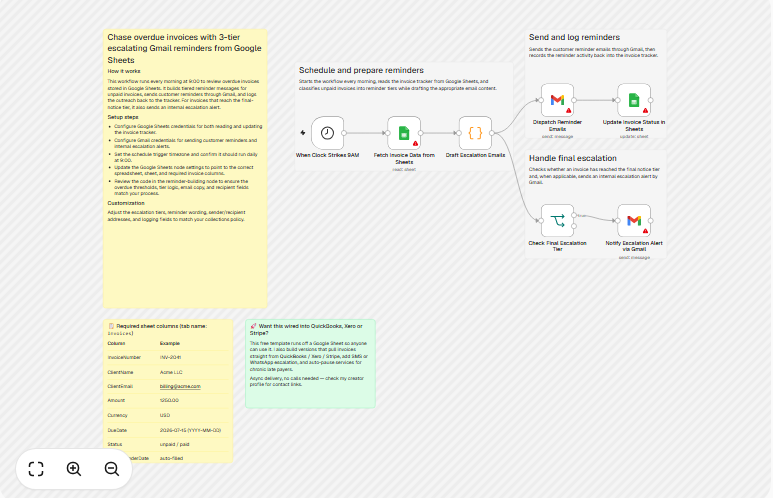
- The big picture: from sheet to inbox and back
- Follow the data: what each of the 7 steps does
- Get the workflow JSON
- Install it in eleven steps
- What it will not do: limits, costs and trade-offs
- Access, privacy and responsible use
- Problems you may meet and how to fix them
- Too much of a puzzle? Let us build or adapt it for you
- What we changed in the original template
- What was verified, and what was not
- Five ways to adapt the workflow
- Frequently asked questions
- Tools used in this workflow
- Suggested reading
- Keep exploring
Chasing payment without becoming the villain
Collecting money is a tone problem as much as a timing problem. A reminder that is too harsh too early damages a relationship with a client who simply forgot. A reminder that is too soft, too late, teaches clients that your due dates are suggestions. The usual compromise is escalation: a friendly note first, a firmer one after a couple of weeks, and a formal final notice after a month.
This workflow encodes that compromise. The three levels, called tiers in the code, are:
- Tier 1, friendly reminder: from 3 to 13 days overdue. “Just a quick note… if you’ve already sent the payment, thank you.”
- Tier 2, second reminder: from 14 to 29 days overdue. It asks for payment within 5 business days.
- Tier 3, final notice: 30 days overdue or more. It asks for payment within 7 days, mentions pausing ongoing work and possible late-payment charges, and triggers an alert to you.
In one run, the workflow does these jobs:
- Wakes up at 9:00 every day.
- Reads every row of the Invoices tab.
- Keeps unpaid invoices with a due date and a client email, at least 3 days overdue, and not reminded in the last 7 days.
- Chooses a tier and writes the subject and the body.
- Sends the email to the client.
- Records the new reminder count and today’s date in the same row.
- Alerts you when the tier is 3.
It suits freelancers and small businesses that keep a simple invoice tracker in a spreadsheet and want consistent follow-up. It does not suit you if your invoices live in accounting software (use its built-in reminders), if you need different wording per client, or if you cannot afford a wrong email reaching a client.
Words you will see in this guide
- n8n (say “n-eight-n”): a tool that connects apps and makes them follow your instructions automatically.
- Workflow: one set of instructions in n8n, drawn as boxes connected by lines.
- Node: one box in a workflow. Each node does one job.
- Trigger: the node that starts a workflow. Here, a daily schedule.
- Overdue: past the due date of the invoice. In this workflow, days overdue are counted from the DueDate column, which is more accurate than counting from the invoice date.
- Tier: one of three reminder levels. The tier is a number, 1, 2 or 3.
- Throttle: a rule that limits how often something can happen. Here, no more than one reminder every 7 days per invoice.
- Escalation: moving to firmer wording as time passes.
- Final notice: the last formal reminder before further steps. What those steps are is your decision.
- Code node: a node that runs a small program written in JavaScript. Here, it holds the rules and the three email texts.
- Timezone: the clock the schedule and the code follow. It matters more than you would expect in this workflow.
- Credential: a saved login that lets n8n use one of your accounts. The JSON file does not contain yours.
- OAuth2: a sign-in method where you approve access in your browser instead of handing over your password.
Apps and accounts this workflow talks to
- n8n: runs the workflow, hosted or self-hosted.
- Google Sheets: holds your invoice tracker. The workflow reads it and writes two columns back.
- Gmail: sends the client reminders and your own alerts, from the account you connect. Clients see that address as the sender, and their replies come to it.
No AI service is involved. Costs: the workflow file is free. n8n, Google and Gmail each have their own plans and sending limits. We do not quote prices because they change; check each provider’s current pricing and limits page.
What to have ready before you import anything
- An n8n account or installation where you can create workflows.
- A Google Sheets spreadsheet with a tab named exactly
Invoices. - In row 1 of that tab, these nine headers, spelled exactly:
InvoiceNumber,ClientName,ClientEmail,Amount,Currency,DueDate,Status,LastReminderDate,RemindersSent. DueDatewritten as text in the form year-month-day, for example2026-07-15. Format the column as plain text so the sheet does not change it.Statusset tounpaidfor invoices to chase, and changed topaid(or anything else) the moment a payment arrives.ClientNamestarting with a first name, such asJane Smith, because only the first word is used in the greeting.- The ID of your spreadsheet: the long code between
/d/and/editin its address. - Your own email address, for the final-notice alert.
- A copy of the sheet for testing, with your own address in every ClientEmail cell.
- Your real payment terms, written down, so you can check that the three email texts do not promise anything you would not do.
What a client receives over two months
The best way to understand the tiers is to follow one invoice. Suppose an invoice is due on 1 October 2026 and the workflow starts running on 4 October, when the invoice is 3 days overdue. The client never pays, and Status stays unpaid. Every morning the workflow runs, and every time an email goes out, the date is written back to the sheet. We simulated the code day by day (in the UTC timezone), and here is what it sends:
| Date | Days overdue | You also receive | |
|---|---|---|---|
| 4 Oct | 3 | Tier 1, friendly reminder | Nothing |
| 11 Oct | 10 | Tier 1, friendly reminder again | Nothing |
| 18 Oct | 17 | Tier 2, second reminder | Nothing |
| 25 Oct | 24 | Tier 2, second reminder again | Nothing |
| 1 Nov | 31 | Tier 3, FINAL NOTICE | An alert |
| 8 Nov | 38 | FINAL NOTICE again | An alert |
| 15, 22, 29 Nov, 6 Dec | 45, 52, 59, 66 | FINAL NOTICE again, each time | An alert each time |
Over 66 days, the client gets 10 emails, 6 of them marked FINAL NOTICE, and the same sequence would continue every 7 days until you mark the invoice paid. The pattern shows the real behavior of the workflow: tiers do not advance by reminders sent, they advance by days overdue, so a client can receive the same tier twice, and the last tier never ends.
Now a second case. An invoice that was due on 23 September is added to the sheet on 31 October, when it is already 38 days overdue. The first email this client ever receives from the workflow is FINAL NOTICE: invoice INV-1, 38 days overdue, opening with “Despite previous reminders, invoice INV-1 for 1250.00 USD remains unpaid”. If you did not send earlier reminders by other means, that sentence is false, and the tone may surprise a client who never received a first reminder. Decide how you want to handle invoices that are already old when you start using this workflow, for example by setting their LastReminderDate to today, or by marking them paid in a test copy first.
The big picture: from sheet to inbox and back
- Wake. Every day at 9:00.
- Read. All rows of the Invoices tab.
- Decide. The code keeps the invoices that qualify, picks the tier and writes the email.
- Send. One email per qualifying invoice.
- Record. The count and today’s date go back into the row.
- Alert. For tier 3, an email to you.
Follow the data: what each of the 7 steps does
The names below match the names in the JSON file exactly.
When Clock Strikes 9AM
The trigger: a Schedule Trigger set to fire once a day at hour 9. The file does not set a timezone for the workflow, so it uses the timezone of your n8n instance. Check that setting: 9:00 may not be your 9:00, and, as you will see below, the timezone also changes how the code reads dates. It runs every day, including weekends. The workflow runs only while it is turned on.
Fetch Invoice Data from Sheets
A Google Sheets node that reads every row of the Invoices tab. You replace the placeholder YOUR_GOOGLE_SHEET_ID with your spreadsheet ID. Each row becomes one item, with one field per column. The next step also expects a row_number field, the row’s position in the sheet, which we could not confirm the node supplies in every version.
Draft Escalation Emails
The Code node, and the heart of the workflow. For every row, in order, it applies these rules:
- Skip the row unless Status, with spaces removed and capitals ignored, is
unpaid. So “Unpaid” and ” UNPAID ” qualify, while “Overdue”, “Pending” and “Partially paid” do not. - Skip the row if DueDate or ClientEmail is empty.
- Read DueDate as a date. If it cannot be read, skip the row.
- Count the whole days between today (at midnight) and the due date (at midnight). If fewer than 3, skip.
- If LastReminderDate holds a readable date less than 7 days before today, skip. An unreadable date counts as “never reminded”.
- Choose the tier: 30 days or more is tier 3, 14 days or more is tier 2, otherwise tier 1.
- Build the amount text from Amount and Currency, and the greeting from the first word of ClientName (or “there” if empty).
- Write the subject and the body for the tier, and output the row with the new count (the old RemindersSent plus 1) and today’s date as year-month-day.
The three limits (3 days, 7 days, and the tier thresholds 14 and 30) are plain numbers in the code, and the three email texts are in it too. Since the texts speak in your name, read them closely. Tier 2 asks for payment within 5 business days. Tier 3 says that you will pause ongoing work and may add late-payment charges “as per our terms”. Only keep those sentences if they are true for your business.
Dispatch Reminder Emails
A Gmail node that sends one plain-text email per item, to the address in ClientEmail, with the subject and body written by the previous step. The emails end with “Best regards” or “Regards” and no name, so you may want to add yours.
Update Invoice Status in Sheets
A Google Sheets node that finds the row by its row_number and writes two columns: RemindersSent (the new count) and LastReminderDate (today’s date). It runs after the email is sent. This write is what keeps the 7-day pause working, so if it fails, the pause is lost.
Check Final Escalation Tier
A yes-or-no node that is fed in parallel with the sending step. It asks: is the tier equal to 3? Only a yes continues. It is connected to the drafting step, not to the result of the email, so the alert does not depend on the email having been sent.
Notify Escalation Alert via Gmail
A Gmail node that emails you: “Final notice was just sent to” the client’s name and address, with invoice number, amount, due date, days overdue and reminder number, and the suggestion to consider pausing work or handing the case to collections. The recipient is a placeholder (YOUR_EMAIL_ADDRESS) that you replace. The subject starts with an alarm emoji.
Get the workflow JSON
Open the box below to copy the JSON, or download the file. It contains the 7 nodes above, connected as described, with placeholders for your spreadsheet ID and your own address, and six notes on the canvas. It contains none of your logins.
Please read this first: this JSON is free and provided as is. n8n versions and installed nodes differ from one person to another, so it may not run correctly on your side without adjustments. We cannot test it on every setup. That is why this article includes a long section, Problems you may meet and how to fix them. And if you would rather not deal with any of it, you can request a custom workflow and let us handle it.
Click to show or hide the workflow JSON
Click inside the box, select the whole text, copy it, then paste it onto an empty n8n canvas. If selecting is awkward on your device, use the download link above.
{
  "name": "Send Escalating Overdue Invoice Reminders with n8n (free JSON)",
  "nodes": [
    {
      "id": "4902b93f-a3cb-421a-ab51-7c099a8d0312",
      "name": "Overview",
      "type": "n8n-nodes-base.stickyNote",
      "position": [
        -480,
        -192
      ],
      "parameters": {
        "width": 480,
        "height": 1000,
        "content": "## Escalating reminders for overdue invoices\n\nEvery day at 9:00 this workflow reads an invoice tracker in Google Sheets. For each invoice marked unpaid that is at least 3 days past its due date and has not been reminded in the last 7 days, it picks a tier from the number of days overdue (1: under 14 days, 2: 14 to 29 days, 3: 30 days or more), writes the email, sends it to the client through Gmail, and records the reminder count and date in the sheet. For tier 3 it also emails you an alert. Nothing checks whether the client has actually paid.\n\n### How it works\n\n1. When Clock Strikes 9AM: daily schedule.\n2. Fetch Invoice Data from Sheets: reads every row of the Invoices tab.\n3. Draft Escalation Emails: code that filters, picks the tier and writes subject and body.\n4. Dispatch Reminder Emails: sends the email to ClientEmail.\n5. Update Invoice Status in Sheets: writes RemindersSent and LastReminderDate to the same row.\n6. Check Final Escalation Tier: passes tier 3 only.\n7. Notify Escalation Alert via Gmail: emails you.\n\n### Setup\n\n1. Connect Google Sheets and Gmail credentials.\n2. Replace YOUR_GOOGLE_SHEET_ID in both Google Sheets nodes.\n3. Replace YOUR_EMAIL_ADDRESS in Notify Escalation Alert via Gmail.\n4. Create the Invoices tab with the columns in the note Required sheet columns.\n5. Read and rewrite the three email texts in the code node. They make promises on your behalf.\n6. Check the timezone of the schedule and of your n8n instance.\n7. Test on a copy of the sheet with your own address in ClientEmail.\n\n### Customize\n\n- Tier limits (3, 14, 30 days) and the 7-day pause: constants in the code node.\n- Wording: the three templates in the code node.\n\nSource: based on a template from the n8n Library at n8n.io, documented by LeenLabs.\nNot tested on live APIs."
      },
      "typeVersion": 1
    },
    {
      "id": "b5f73b37-2fd7-4803-bd5a-929d4d4d64f0",
      "name": "Sticky Note1",
      "type": "n8n-nodes-base.stickyNote",
      "position": [
        80,
        -96
      ],
      "parameters": {
        "color": 7,
        "width": 640,
        "height": 320,
        "content": "## Schedule and prepare reminders\n\nStarts the workflow every morning, reads the invoice tracker from Google Sheets, and classifies unpaid invoices into reminder tiers while drafting the appropriate email content."
      },
      "typeVersion": 1
    },
    {
      "id": "93ea7e41-006b-49c8-829a-9e160990a50b",
      "name": "Sticky Note2",
      "type": "n8n-nodes-base.stickyNote",
      "position": [
        752,
        -192
      ],
      "parameters": {
        "color": 7,
        "width": 416,
        "height": 320,
        "content": "## Send and log reminders\n\nSends the customer reminder emails through Gmail, then records the reminder activity back into the invoice tracker."
      },
      "typeVersion": 1
    },
    {
      "id": "06889b0d-92fc-4892-a3ac-1be5accdbfc1",
      "name": "Sticky Note3",
      "type": "n8n-nodes-base.stickyNote",
      "position": [
        752,
        160
      ],
      "parameters": {
        "color": 7,
        "width": 416,
        "height": 320,
        "content": "## Handle final escalation\n\nChecks whether an invoice has reached the final notice tier and, when applicable, sends an internal escalation alert by Gmail."
      },
      "typeVersion": 1
    },
    {
      "id": "node-schedule",
      "name": "When Clock Strikes 9AM",
      "type": "n8n-nodes-base.scheduleTrigger",
      "position": [
        120,
        60
      ],
      "parameters": {
        "rule": {
          "interval": [
            {
              "field": "days",
              "triggerAtHour": 9
            }
          ]
        }
      },
      "typeVersion": 1.2
    },
    {
      "id": "node-read-sheet",
      "name": "Fetch Invoice Data from Sheets",
      "type": "n8n-nodes-base.googleSheets",
      "position": [
        340,
        60
      ],
      "parameters": {
        "options": {},
        "sheetName": {
          "__rl": true,
          "mode": "name",
          "value": "Invoices"
        },
        "documentId": {
          "__rl": true,
          "mode": "id",
          "value": "YOUR_GOOGLE_SHEET_ID"
        }
      },
      "typeVersion": 4.5
    },
    {
      "id": "node-build",
      "name": "Draft Escalation Emails",
      "type": "n8n-nodes-base.code",
      "position": [
        560,
        60
      ],
      "parameters": {
        "jsCode": "// Classify every unpaid invoice into an escalation tier and draft the email.\n// Edit the three email templates below to match your voice.\n\nconst REMIND_EVERY_DAYS = 7; // never email the same client more often than this\nconst today = new Date();\ntoday.setHours(0, 0, 0, 0);\n\nconst out = [];\n\nfor (const item of $input.all()) {\n  const inv = item.json;\n\n  if (String(inv.Status || '').trim().toLowerCase() !== 'unpaid') continue;\n  if (!inv.DueDate || !inv.ClientEmail) continue;\n\n  const due = new Date(inv.DueDate);\n  if (isNaN(due)) continue;\n  due.setHours(0, 0, 0, 0);\n\n  const daysOverdue = Math.floor((today - due) / 86400000);\n  if (daysOverdue < 3) continue; // small grace period\n\n  // throttle: skip if a reminder went out recently\n  if (inv.LastReminderDate) {\n    const last = new Date(inv.LastReminderDate);\n    if (!isNaN(last) && (today - last) / 86400000 < REMIND_EVERY_DAYS) continue;\n  }\n\n  const tier = daysOverdue >= 30 ? 3 : daysOverdue >= 14 ? 2 : 1;\n  const amount = `${inv.Amount} ${inv.Currency || ''}`.trim();\n  const firstName = String(inv.ClientName || 'there').split(' ')[0];\n\n  let subject, body;\n\n  if (tier === 1) {\n    subject = `Friendly reminder: invoice ${inv.InvoiceNumber} (${amount})`;\n    body = `Hi ${firstName},\\n\\nJust a quick note that invoice ${inv.InvoiceNumber} for ${amount} was due on ${inv.DueDate} and looks unpaid on our side.\\n\\nIf you've already sent the payment — thank you, please ignore this. Otherwise it would be great if you could settle it this week.\\n\\nIf anything is unclear about the invoice, just reply to this email.\\n\\nBest regards`;\n  } else if (tier === 2) {\n    subject = `Second reminder: invoice ${inv.InvoiceNumber} is ${daysOverdue} days overdue`;\n    body = `Hi ${firstName},\\n\\nInvoice ${inv.InvoiceNumber} for ${amount} is now ${daysOverdue} days past its due date (${inv.DueDate}).\\n\\nPlease arrange payment within the next 5 business days, or let me know when we can expect it.\\n\\nIf there is an issue with the invoice or the work, reply here and we'll sort it out quickly.\\n\\nBest regards`;\n  } else {\n    subject = `FINAL NOTICE: invoice ${inv.InvoiceNumber} — ${daysOverdue} days overdue`;\n    body = `Hi ${firstName},\\n\\nDespite previous reminders, invoice ${inv.InvoiceNumber} for ${amount} remains unpaid ${daysOverdue} days after its due date (${inv.DueDate}).\\n\\nPlease settle the amount within 7 days. After that we will have to pause ongoing work and may add late-payment charges as per our terms.\\n\\nI would much rather resolve this simply — if payment is already on its way, a quick reply is enough.\\n\\nRegards`;\n  }\n\n  out.push({\n    json: {\n      row_number: inv.row_number,\n      InvoiceNumber: inv.InvoiceNumber,\n      ClientName: inv.ClientName,\n      ClientEmail: inv.ClientEmail,\n      Amount: inv.Amount,\n      Currency: inv.Currency || '',\n      DueDate: inv.DueDate,\n      daysOverdue,\n      tier,\n      subject,\n      body,\n      remindersSent: (parseInt(inv.RemindersSent, 10) || 0) + 1,\n      todayISO: today.toISOString().slice(0, 10),\n    },\n  });\n}\n\nreturn out;"
      },
      "typeVersion": 2
    },
    {
      "id": "node-send",
      "name": "Dispatch Reminder Emails",
      "type": "n8n-nodes-base.gmail",
      "position": [
        800,
        -40
      ],
      "parameters": {
        "sendTo": "={{ $json.ClientEmail }}",
        "message": "={{ $json.body }}",
        "options": {},
        "subject": "={{ $json.subject }}",
        "emailType": "text"
      },
      "typeVersion": 2.1
    },
    {
      "id": "node-log",
      "name": "Update Invoice Status in Sheets",
      "type": "n8n-nodes-base.googleSheets",
      "position": [
        1020,
        -40
      ],
      "parameters": {
        "columns": {
          "value": {
            "row_number": "={{ $json.row_number }}",
            "RemindersSent": "={{ $json.remindersSent }}",
            "LastReminderDate": "={{ $json.todayISO }}"
          },
          "schema": [],
          "mappingMode": "defineBelow",
          "matchingColumns": [
            "row_number"
          ]
        },
        "options": {},
        "operation": "update",
        "sheetName": {
          "__rl": true,
          "mode": "name",
          "value": "Invoices"
        },
        "documentId": {
          "__rl": true,
          "mode": "id",
          "value": "YOUR_GOOGLE_SHEET_ID"
        }
      },
      "typeVersion": 4.5
    },
    {
      "id": "node-if-final",
      "name": "Check Final Escalation Tier",
      "type": "n8n-nodes-base.if",
      "position": [
        800,
        320
      ],
      "parameters": {
        "options": {},
        "conditions": {
          "options": {
            "version": 2,
            "leftValue": "",
            "caseSensitive": true,
            "typeValidation": "strict"
          },
          "combinator": "and",
          "conditions": [
            {
              "id": "cond-final",
              "operator": {
                "type": "number",
                "operation": "equals"
              },
              "leftValue": "={{ $json.tier }}",
              "rightValue": 3
            }
          ]
        }
      },
      "typeVersion": 2.2
    },
    {
      "id": "node-alert",
      "name": "Notify Escalation Alert via Gmail",
      "type": "n8n-nodes-base.gmail",
      "position": [
        1024,
        320
      ],
      "parameters": {
        "sendTo": "YOUR_EMAIL_ADDRESS",
        "message": "={{ 'Final notice was just sent to ' + $json.ClientName + ' (' + $json.ClientEmail + ') for invoice ' + $json.InvoiceNumber + ', amount ' + $json.Amount + ' ' + $json.Currency + ', due ' + $json.DueDate + ' (' + $json.daysOverdue + ' days overdue, reminder #' + $json.remindersSent + ').\\n\\nConsider pausing work for this client or handing the case to collections.' }}",
        "options": {},
        "subject": "={{ '🚨 Escalation: ' + $json.ClientName + ' — ' + $json.InvoiceNumber + ' is ' + $json.daysOverdue + ' days overdue' }}",
        "emailType": "text"
      },
      "typeVersion": 2.1
    },
    {
      "id": "sticky-02",
      "name": "Required sheet columns",
      "type": "n8n-nodes-base.stickyNote",
      "position": [
        -480,
        656
      ],
      "parameters": {
        "width": 380,
        "height": 460,
        "content": "## Required sheet columns (tab name: Invoices)\n\nRow 1 must hold these headers, spelled exactly:\n\n- InvoiceNumber (example: INV-2041)\n- ClientName (example: Jane Smith; only the first word is used in the greeting)\n- ClientEmail\n- Amount (example: 1250.00)\n- Currency (example: USD)\n- DueDate (example: 2026-07-15, written as year-month-day text)\n- Status (unpaid or paid)\n- LastReminderDate (filled by the workflow)\n- RemindersSent (filled by the workflow)\n\nSet Status to paid by hand as soon as a payment arrives. Only rows with Status unpaid (any capitals) are processed."
      },
      "typeVersion": 1
    },
    {
      "id": "2b9e5d70-6a14-4c83-8f3b-d17a0e94c562",
      "name": "Before you turn it on",
      "type": "n8n-nodes-base.stickyNote",
      "position": [
        -64,
        656
      ],
      "parameters": {
        "color": 3,
        "width": 640,
        "height": 820,
        "content": "## Before you turn it on\n\n1. This emails your clients every day with no human review. Test on a copy of the sheet with your own address in ClientEmail.\n2. Nothing checks payments. A client who paid but is not yet marked paid in the sheet gets a reminder, possibly a final notice.\n3. The tier comes from days overdue, not from reminders already sent. An invoice that is 30 days overdue the first time the workflow sees it gets a FINAL NOTICE as its first email, which says Despite previous reminders.\n4. Tier 3 repeats every 7 days, with an alert to you each time, until you change Status.\n5. If the sheet update fails after an email is sent, LastReminderDate is not written and the client can be emailed again the next day.\n6. Dates: DueDate must be readable as year-month-day. Other forms are skipped without any message or misread. In some timezones the code is off by one day (see the article).\n7. The alert address in Notify Escalation Alert via Gmail is a placeholder (YOUR_EMAIL_ADDRESS). Replace it, or you will not receive the final-notice alerts.\n8. The email texts mention pausing work, late-payment charges and fixed payment deadlines. Edit them to match your real terms and the rules that apply to you.\n9. Row numbers come from the read step. If they are missing, the update step fails.\n10. Not tested on live APIs."
      },
      "typeVersion": 1
    }
  ],
  "connections": {
    "When Clock Strikes 9AM": {
      "main": [
        [
          {
            "node": "Fetch Invoice Data from Sheets",
            "type": "main",
            "index": 0
          }
        ]
      ]
    },
    "Draft Escalation Emails": {
      "main": [
        [
          {
            "node": "Dispatch Reminder Emails",
            "type": "main",
            "index": 0
          },
          {
            "node": "Check Final Escalation Tier",
            "type": "main",
            "index": 0
          }
        ]
      ]
    },
    "Dispatch Reminder Emails": {
      "main": [
        [
          {
            "node": "Update Invoice Status in Sheets",
            "type": "main",
            "index": 0
          }
        ]
      ]
    },
    "Check Final Escalation Tier": {
      "main": [
        [
          {
            "node": "Notify Escalation Alert via Gmail",
            "type": "main",
            "index": 0
          }
        ]
      ]
    },
    "Fetch Invoice Data from Sheets": {
      "main": [
        [
          {
            "node": "Draft Escalation Emails",
            "type": "main",
            "index": 0
          }
        ]
      ]
    }
  },
  "settings": {
    "executionOrder": "v1"
  }
}
Install it in eleven steps
- Prepare your sheet. Create the Invoices tab with the nine headers, DueDate as year-month-day text, and Status words as described. Make a copy for testing.
- Put your own address in the ClientEmail column of the test copy.
- Get the JSON from the box above or the download link.
- Import it. Open a new empty workflow in n8n, then paste the JSON onto the canvas or import it from a file.
- Check the 7 nodes appear, with six notes.
- Connect Google Sheets. In Fetch Invoice Data from Sheets and Update Invoice Status in Sheets, select or create your credential.
- Set the spreadsheet. In both Google Sheets nodes, replace
YOUR_GOOGLE_SHEET_IDwith the ID of your test copy. - Connect Gmail. In Dispatch Reminder Emails and Notify Escalation Alert via Gmail, select or create your credential. In the second one, replace
YOUR_EMAIL_ADDRESSwith your own address. - Rewrite the three emails in Draft Escalation Emails so that they match your terms, and add your name at the end.
- Run it by hand. Check which rows were emailed, whether RemindersSent and LastReminderDate were written, and whether the dates look right. Run it again: nothing should be sent, because of the 7-day pause.
- Go live carefully. Point both nodes at the real sheet, decide what to do with old invoices (see the example above), then turn the workflow on (Activate or Publish, depending on your n8n version). Check your sent folder every morning for the first week.
What it will not do: limits, costs and trade-offs
- It does not know who has paid. Only your Status column does.
- Tiers follow days overdue, not history. A new invoice that is already old starts at its current tier.
- The final notice never stops. It repeats every 7 days.
- It does not ask you before sending. There is no approval step.
- One wording for everyone. The same three texts go to every client, in English.
- Strict about dates. DueDate must be readable as a date, and the form year-month-day is the safe one.
- No error handling. If something fails, the run stops and nobody is told.
- Runs every day, weekends included.
- It uses your Gmail account, so it is subject to Gmail’s sending limits, and replies come to that mailbox.
- It does not add late fees or pause any work. It only says it may.
Access, privacy and responsible use
This workflow contacts your clients about money, automatically, in firm language. That deserves care.
- Keep a person in the loop. For the first weeks, read your sent folder each morning. Consider turning the Gmail send into a draft so you approve before anything leaves.
- Keep your sheet honest. A payment that is not recorded means a wrong reminder. Update Status the day money arrives, before 9:00.
- Only say what is true. The tier 3 text mentions pausing work and late-payment charges. If your contract does not allow charges, remove that sentence.
- Know who you are writing to. Rules about contacting people about debts can differ for consumers and for businesses, and by country. Check what applies to you before you automate firm reminders.
- Protect the data. The sheet holds names, emails and amounts. Share it only with the people who need it, and know that this workflow uses a Google login with access to your spreadsheets and a Gmail login that can send mail as you.
- Know your rules. We are not a law firm, a collections agency or an adviser. This guide is not legal advice, and nothing in it means this workflow complies with any law or collections rule.
Problems you may meet and how to fix them
Every n8n setup is different, so this workflow can behave differently for you than in our checks. Here are the most likely problems. For each one: what you see, why it happens, and what to do. They come from how the nodes are built and from running the Code node on simulated data, not from a live run with real accounts.
1. Nothing happens in the morning
What you see: no emails, no new runs in the executions list.
Why: the workflow is not turned on, or your n8n instance was off at 9:00.
Fix: turn the workflow on, make sure n8n runs every day, and test with a manual run.
2. It runs at the wrong hour
What you see: emails at 8:00 or 10:00 your time.
Why: the file sets no timezone, so your instance’s timezone applies.
Fix: set the timezone in the workflow settings or in your instance.
3. Google Sheets will not connect
What you see: an authorization error in one of the two Google Sheets nodes.
Why: the sign-in was not completed, or the account cannot open the sheet.
Fix: recreate the credential, sign in again, and open the sheet in your browser with the same account.
4. The spreadsheet or tab is not found
What you see: an error mentioning the document or the sheet name.
Why: YOUR_GOOGLE_SHEET_ID is still in one of the nodes, or the tab is not named exactly Invoices.
Fix: replace the ID in both Google Sheets nodes and check the tab name.
5. The run finishes but no email goes out
What you see: a run with no emails, though unpaid invoices exist.
Why: every row was skipped. Typical reasons: Status is not unpaid (for example “Overdue” or “Pending”), DueDate or ClientEmail is empty, the invoice is less than 3 days overdue, or it was reminded less than 7 days ago.
Fix: go through the rules in the Draft Escalation Emails step with one row at a time.
6. A due date is skipped or read wrongly
What you see: an invoice never gets a reminder, or gets a final notice that makes no sense.
Why: the code uses the computer’s own date reading. In our check, 2026-10-19 and Oct 19, 2026 were read correctly, 19/10/2026 could not be read and was skipped without any message, and 03/10/2026, meant as 3 October, was read as 10 March and treated as 237 days overdue, which produced a final notice. A bare number such as 46310 was read as a date in 1970 and also produced a final notice.
Fix: store DueDate as year-month-day text. Never use day-first dates with this workflow.
7. The date in the sheet is one day off
What you see: LastReminderDate shows yesterday’s date.
Why: the code converts today’s date through universal time. In our check, with the timezone of Central Africa (one hour ahead of UTC) and New Zealand, the date written was one day earlier than the real date. In timezones behind UTC, such as the US, the writing was correct.
Fix: be aware of it when you read the sheet, or ask us for a version that writes the date in your own timezone.
8. Reminders start one day early
What you see: an invoice 2 days overdue gets a reminder, though the rule says 3.
Why: in timezones behind UTC, the due date read from year-month-day text lands on the evening before. In our check with a US timezone, an invoice 2 days overdue counted as 3, and the thresholds for tiers 2 and 3 shifted by one day too.
Fix: raise the limits by one day, or ask us for a version that reads dates in your timezone.
9. A client received a FINAL NOTICE as the first email
What you see: a firm email to a client who never received a reminder.
Why: the tier depends on days overdue only. If the invoice was already 30 days overdue when the workflow started, it starts at tier 3.
Fix: before going live, set LastReminderDate to today for old invoices, send a manual message, or change the code so that tier 3 requires earlier reminders.
10. The final notice keeps coming
What you see: the same FINAL NOTICE every week, and an alert for each.
Why: there is no end to tier 3. It repeats every 7 days while Status is unpaid.
Fix: change Status once you have taken another step (a call, a collections agency, a payment plan), and consider limiting the number of final notices in the code.
11. A client who already paid got a reminder
What you see: an annoyed reply.
Why: the workflow does not check payments. Status was still unpaid.
Fix: update Status as soon as a payment arrives, and apologize quickly. Consider a review step before sending.
12. The client is emailed every morning
What you see: the same client receives an email each day.
Why: the pause depends on LastReminderDate, which the last step writes. If the sheet update fails, or if the LastReminderDate column does not exist, the date is never saved.
Fix: turn the workflow off at once, check the two columns and the update step, and look at the executions list. Test on a copy first.
13. The update step cannot find the row
What you see: an error in Update Invoice Status in Sheets after the email went out.
Why: the step finds the row by row_number, which must come from the reading step. We could not confirm that the node supplies it in every version, and the step also fails if the sheet is read-only or the two columns are missing.
Fix: open the output of Fetch Invoice Data from Sheets and look for row_number. If it is missing, ask us for a version that numbers the rows itself.
14. The email says “undefined”
What you see: a subject like “Friendly reminder: invoice INV-1 (undefined USD)”.
Why: the Amount cell is empty. In our check, that produced exactly this text.
Fix: fill the Amount column for every unpaid invoice.
15. The greeting is odd
What you see: “Hi The,” or “Hi Acme,”.
Why: the greeting uses the first word of ClientName. For a company name such as “The Smith Company”, that gives “The”.
Fix: store a contact’s first name in ClientName, or change the greeting in the code.
16. The amount looks unformatted
What you see: “1250.00 USD” or “1,250.00” with no symbol.
Why: the amount is placed in the text exactly as it is in the cell.
Fix: format the cell as you want it to read, or edit the texts.
17. Gmail refuses to send, or stops after some emails
What you see: an error in Dispatch Reminder Emails.
Why: the credential expired, an address is invalid, or Gmail’s sending limits for your account were reached.
Fix: reconnect Gmail, check ClientEmail cells, and check Gmail’s current limits.
18. You get an alert, but the client was not emailed
What you see: “Final notice was just sent” in your inbox, although the client email failed.
Why: the alert step is connected to the drafting step, not to the result of the send step. It does not know whether the email arrived.
Fix: check your sent folder before you act on an alert, or ask us to connect the alert after the send.
19. You never receive the alerts
What you see: final notices go out but no alert arrives.
Why: YOUR_EMAIL_ADDRESS is still in Notify Escalation Alert via Gmail, or the alert went to spam.
Fix: replace the placeholder with your address and check spam.
20. Two emails for one invoice
What you see: the client gets the same reminder twice on the same day.
Why: the sheet has two rows for the same invoice, and each is processed.
Fix: remove the duplicate row.
21. Reminders reach clients on weekends
What you see: an email on a Sunday morning.
Why: the schedule runs every day.
Fix: change the schedule to weekdays only, in the schedule node.
22. After import, nodes show missing credentials
What you see: warnings on the Google Sheets and Gmail nodes.
Why: the file deliberately contains no credentials.
Fix: open each node and select or create your own credential.
Too much of a puzzle? Let us build or adapt it for you
Some people enjoy tinkering with n8n. Others want a collections reminder that simply behaves. If you are in the second group, LeenLabs builds and adapts n8n workflows for people like you. We can:
- Fix the escalation logic so that tiers follow the reminders actually sent, and the final notice is sent once.
- Read dates safely in your timezone and in your date format.
- Send drafts for your approval before any email leaves.
- Connect the alert to the send, so you hear about real sends only.
- Rewrite the three emails in your voice and with your payment details.
- Alert you when a run fails.
- Build a new workflow from scratch for another task you want to automate.
Request a Custom Workflow, describe what you want to automate, and we will come back to you with the next steps. Prefer to ask a question first? Write to support@leenlabs.site.
What we changed in the original template
We want you to know exactly how this file differs from the template it comes from. Compared with the file we received, LeenLabs made these changes:
- Removed an advertising note. One canvas note promoted the original author’s paid custom versions and pointed to their profile. We deleted it.
- Rewrote the main note and renamed it Overview, with a source credit and a statement that the file was not tested on live services.
- Rewrote the column note, renamed Required sheet columns. We removed the emoji and the example client and email address, and changed the examples to neutral ones.
- Added a note called Before you turn it on with the main warnings.
- Replaced the alert address. The example address in Notify Escalation Alert via Gmail now reads
YOUR_EMAIL_ADDRESS, so a forgotten replacement fails loudly. - Removed the empty test-data block and renamed the workflow to this article’s title.
The three notes that label the sections of the canvas are unchanged. The nodes, their settings, the code with its three email texts, the connections and the schedule are unchanged. The alert subject still starts with an emoji, as in the original.
What was verified, and what was not
Here is exactly what we did. We ran the Code node (Draft Escalation Emails) outside n8n on about 25 simulated invoice rows, covering the tier limits (2, 3, 14, 29 and 30 days overdue), Status variations, several date forms, empty and invalid dates, the 7-day pause (3, 6 and 7 days after the last reminder), a missing amount, a company name, and an unreadable reminder count. We also ran two day-by-day simulations in which the sheet is updated after each email, one for an invoice that becomes overdue after the start and one for an invoice that is already 38 days overdue. We repeated the runs in four timezones (UTC, Central Africa, US Eastern and New Zealand). The behavior in the example section and in problems 6 to 10 comes from these runs.
We did not import this exact file into n8n and run it end to end. We did not run it against a live Google Sheet or Gmail account. We could not confirm that the Google Sheets node supplies row_number, that the update step writes the two columns in your version, in which order n8n runs the two branches after the drafting step, or which timezone the code uses on your instance (we assumed it follows the instance setting). That is why we recommend a full test on a copy of your sheet before you turn it on.
Five ways to adapt the workflow
- Change the limits. The grace period (3 days), the pause (7 days) and the tier limits (14 and 30) are plain numbers in the code.
- Rewrite the emails. Edit the three texts. Add your name, your payment details and the invoice link.
- Run on weekdays only. Change the schedule.
- Send drafts instead. Replace the Gmail send with a draft step and review before sending. Test it, because it changes what the next step receives.
- Add a second alert channel. Add a chat message next to the final-notice email.
These variations are suggestions based on how n8n works, not changes we tested on this template. If you want one built for you, send us a request.
Frequently asked questions
Does it check whether the client has paid?
No. It trusts the Status column, so update it when money arrives.
How often does a client get an email?
At most once every 7 days per invoice, if the sheet update works.
Does the final notice stop?
No. It repeats every 7 days until you change Status.
Can I use day/month/year dates?
Not safely. Use year-month-day text in DueDate.
Does it use AI?
No. Everything is fixed rules and fixed email texts.
Is it safe to use on real clients straight away?
We would not. Test on a copy of your sheet with your own address first, and read all three emails.
Is the workflow free?
The file is free. The services it connects have their own plans, limits and prices.
What if the JSON does not work on my n8n?
It can happen, because setups differ. Go through the problems section above. If it still does not work, or you do not want to spend the time, request a custom workflow and we will handle it.
Who built the original template?
The original template comes from the n8n Library at n8n.io. LeenLabs adjusted and documented it.
Tools used in this workflow
The links below go to each tool’s home page, and some may be affiliate links, as explained in our Terms of Service.
- n8n (may be an affiliate link): the automation platform that runs the workflow, available hosted or self-hosted.
- Google Sheets (may be an affiliate link): the spreadsheet that holds your invoice tracker.
- Gmail (may be an affiliate link): the email service that sends the reminders and the alerts.
Suggested reading
If invoices and payments are on your mind, these LeenLabs workflow guides pair well with this one:
- Send weekly overdue invoice reminders with n8n: a simpler version that sends one reminder per invoice every Monday and marks it as chased.
- Weekly accounts receivable aging report with n8n: turns your open Invoice Ninja invoices into a weekly PDF report, a good companion for seeing who is late.
- Log invoice line items and verify totals with n8n: upload an invoice through a form, log every line and check that the total adds up.
Keep exploring
Browse more free n8n workflows from LeenLabs.
Need this adapted to your own setup?
Tell us what you want to automate and we will come back to you with the next steps.