
Affiliate disclosure: some links in this article may be affiliate links. If you sign up through them, we may earn a commission at no extra cost to you. See our Terms of Service.
An invoice has a simple promise: the lines add up to the total. A bookkeeper checks that promise with a calculator, one invoice at a time. Two items at 500 and 500 make 1,000, plus tax, makes the amount at the bottom. When a vendor makes a mistake, or a number was typed wrongly, the sum does not match, and the error travels into your accounts unless somebody catches it. Most of the time nobody does, because nobody has the time.
This free n8n workflow does the calculator work. Someone uploads an invoice PDF through a web form. n8n reads the text in the PDF and asks an OpenAI model to return the invoice header and every line item as structured data. The workflow saves the header in one tab of a Google Sheet and each line item in another, adds up the lines, compares the sum with the invoice total, and emails a formatted report with a green “Total Verified” or an amber “Total Mismatch” banner. This guide explains every step in plain English, works through the arithmetic with an example, and is direct about three problems you should know before you let anyone near the form.
Read this first: three things that decide whether this workflow is safe and useful
- The original request to OpenAI was broken. In the template as we received it, the invoice text was attached outside the quotation marks of the request, which makes it invalid. When we rebuilt the request outside n8n, it could not be read as valid JSON, so the AI step would fail on every upload. The file in this article fixes that. The fix was tested by evaluating the request, not on a live account.
- The total check can raise false alarms. It compares the sum of the line totals with the final invoice total. If your invoices add tax on top of the lines, the sum will be lower than the total and the report will say “Total Mismatch” even when the invoice is right. We show this in the worked example.
- The form can make your Gmail send email to anyone. The report goes to whatever address is typed in the form. If the form link is public, a stranger can use your Gmail account to send an email to any address.
Read the safety section before you share the form link with anybody.
Template source: this workflow comes from the n8n Library at n8n.io, the public collection of workflow templates. We did not create it. LeenLabs prepared its JSON for publication and documented it. What we changed is listed in the section What we changed in the original template.
At a glance
- What it does: reads an uploaded invoice PDF, logs the header and every line item in Google Sheets, checks that the lines add up to the total, and emails a report to the person who uploaded it.
- Apps used: n8n (its form feature), OpenAI, Google Sheets and Gmail.
- Trigger: a web form with name, email, currency, notes and a PDF.
- Setup effort: medium. Three logins, a spreadsheet with two prepared tabs.
- Designed for: Indian GST invoices (it has GST, CGST, SGST and HSN fields and DD/MM/YYYY dates), though it can read others.
- Watch out for: false mismatch alarms on taxed invoices, a public form that sends email, no duplicate detection, and invoice data traveling to OpenAI and Google.
- Test status: the request and the three Code nodes were checked on simulated data outside n8n; the full file was not run on live services.
In this guide
- The invoice that does not add up
- Words you will see in this guide
- Apps and accounts this workflow talks to
- What to have ready before you import anything
- How the total check works, with a worked example
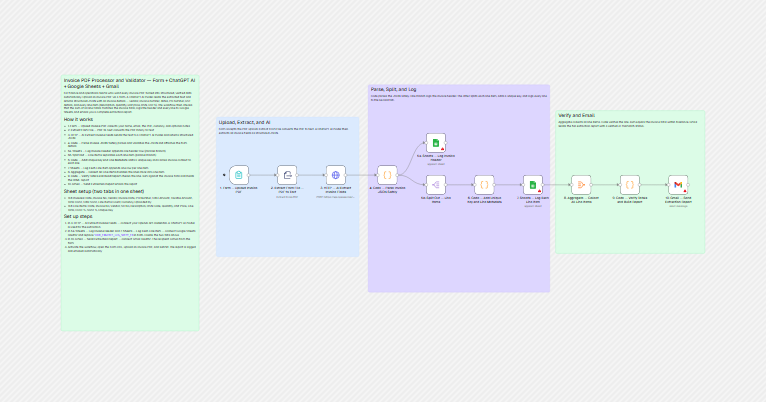
- The big picture: from upload to report
- Follow the data: what each of the 11 steps does
- Get the workflow JSON
- Install it in thirteen steps
- What it will not do: limits, costs and trade-offs
- Access, privacy and responsible use
- Problems you may meet and how to fix them
- Too much of a puzzle? Let us build or adapt it for you
- What we changed in the original template
- What was verified, and what was not
- Four ways to adapt the workflow
- Frequently asked questions
- Tools used in this workflow
- Suggested reading
- Keep exploring
The invoice that does not add up
Invoice mistakes are rarely dramatic. A line is missing from the total. A quantity of 10 is typed as 100. A tax is applied twice. They are small, and they are expensive because they are found late: when a client disputes a bill, when an auditor asks, or when a payment is already gone. The earlier a mismatch is caught, the cheaper it is to fix.
Typing every invoice into a spreadsheet and adding up the lines is the classic defense, and it is also the kind of work that people postpone. The idea behind this workflow is to catch the mismatch at the moment the invoice arrives, and to keep every line item in a sheet you can sort and filter later, for example to find every purchase of one product or from one vendor.
In one run, this workflow does eight jobs:
- Collects an invoice PDF, the uploader’s name and email, the currency and optional notes through a form.
- Reads the text inside the PDF.
- Asks OpenAI for the invoice header (number, vendor, dates, purchase order, totals, tax amounts) and all line items.
- Checks that the answer is usable, and stops if the invoice number or the line items are missing.
- Logs one header row in the “Invoices” tab.
- Logs one row per line item in the “Line Items” tab.
- Adds up the line totals and compares them with the invoice total.
- Emails the uploader a formatted report with the verdict.
It suits small finance teams, bookkeepers and agencies that handle invoices with clear, software-made PDFs and want a searchable record of line items. It is a poor fit if your invoices are scans or photos, if your tax is shown separately and you need a precise check, or if the documents are too sensitive to send to an outside AI service.
Words you will see in this guide
- n8n (say “n-eight-n”): a tool that connects apps and makes them follow your instructions automatically.
- Workflow: one set of instructions in n8n, drawn as boxes connected by lines.
- Node: one box in a workflow. Each node does one job. The nodes here are numbered in the order they run.
- Trigger: the node that starts a workflow. Here, a web form.
- Line item: one row on an invoice, such as “Widget, quantity 2, unit price 500”.
- Header: the information about the invoice as a whole: who sent it, its number, its date and its total.
- OpenAI API: the way n8n talks to OpenAI’s AI models. It is separate from a ChatGPT subscription and has its own key and billing.
- Prompt: the written instructions given to the AI.
- JSON: a text format for data, with names and values. The workflow file and the AI’s answer are both JSON.
- OCR (optical character recognition): technology that reads text from pictures. This workflow does not have it, so it cannot read scans.
- GST: Goods and Services Tax, a tax used in India. On many invoices it is split into CGST (the central government’s part) and SGST (the state’s part).
- HSN code: a number that classifies a product for tax purposes on Indian invoices.
- Tolerance: the small difference allowed before two numbers count as different. Here, less than 1.00 in the invoice’s currency.
- Credential: a saved login or key that lets n8n use one of your accounts. The JSON file does not contain yours.
- Code node: a node that runs a small program written in JavaScript. Three of the nodes here are Code nodes.
Apps and accounts this workflow talks to
- n8n: runs the workflow, hosted or self-hosted. Its form feature creates the upload page.
- OpenAI: reads the invoice text and returns the data. You need an API key from your OpenAI account and some credit. The file names the model
gpt-4o-mini, which you should check against the models your account can use. - Google Sheets: stores the header and line items. You sign in with a Google account through OAuth2, a sign-in method where you approve access in your browser instead of handing over a password.
- Gmail: sends the report, using the same kind of Google sign-in.
Costs: the workflow file is free. n8n, OpenAI and Google each have their own plans and limits. Each upload makes one request to OpenAI, with the whole invoice text. We do not quote prices because they change. Check each provider’s current pricing page.
What to have ready before you import anything
- An n8n account or installation where you can create workflows.
- An OpenAI API key with credit.
- A Google account, and a new spreadsheet with two tabs named exactly
InvoicesandLine Items. - In row 1 of
Invoices, these 12 column names, each in its own cell: Date, Invoice No, Vendor, Invoice Date, PO Number, Total Amount, Taxable Amount, Total CGST, Total SGST, Line Items Count, Currency, Uploaded By. - In row 1 of
Line Items, these 12 column names: Date, Invoice No, Vendor, SR No, Description, HSN Code, Quantity, Unit Price, Line Total, CGST %, SGST %, Unique Key. - Your spreadsheet’s ID: the long code in its address, between
/d/and/edit. - Test invoices: one clean software-made PDF without tax, one with tax, and one scan.
- A decision about who may use the form and who may see the spreadsheet.
How the total check works, with a worked example
The check lives in the last Code node. In plain language: it adds up the “line total” of every line item, takes the invoice total that the AI extracted, and calculates the difference. If the difference is less than 1.00, the report says “Total Verified”. Otherwise, it says “Total Mismatch” and suggests that some line items may be missing.
The important question is what a “line total” means. In the instructions sent to the AI, the line total must equal the quantity multiplied by the unit price. That is the amount before tax. The invoice total, on the other hand, is described as the final payable amount including all taxes. Here is what that means for three simulated invoices. We did not call OpenAI; we fed the checking code the answers it could plausibly receive:
| Invoice | Lines | Invoice total | Result |
|---|---|---|---|
| A: tax added on top | Widget 2 × 500 = 1,000.00 and Gadget 1 × 500 = 500.00. Sum: 1,500.00. Taxes: 135.00 (CGST) + 135.00 (SGST). | 1,770.00 | Total Mismatch. The difference is 270.00, which is exactly the tax. |
| B: no tax | Same two lines. Sum: 1,500.00. | 1,500.00 | Total Verified. |
| C: line amounts already include tax | 1,180.00 and 590.00. Sum: 1,770.00. | 1,770.00 | Total Verified. |
Invoice A is a perfectly correct invoice, and the workflow flags it. This is the most important thing to understand about this template. Whether the check works for you depends on how your invoices show their line amounts, and on how the AI reads them. If your invoices show tax separately, expect many amber banners, and treat the check as a prompt to look, not a verdict.
Two more details: the tolerance is exactly one currency unit (a difference of 0.99 passes and 1.00 fails), and the same tolerance applies whatever the currency. The code also checks each line (quantity times unit price against the line total), but that result is never shown in the report or the sheets.
The big picture: from upload to report
- Upload. Someone fills in the form and chooses a PDF.
- Read. n8n extracts the text from the PDF.
- Ask. The text goes to OpenAI with strict instructions.
- Check the answer. A Code node parses it and stops the run if the invoice number or the lines are missing.
- Split in two. One branch logs the header. The other separates the line items.
- Log lines. Each line item gets a key and a row in the “Line Items” tab.
- Collect. The lines are gathered again, once all of them are logged.
- Verify and report. The totals are compared and an HTML report is built.
- Send. Gmail emails the report to the address in the form.
Follow the data: what each of the 11 steps does
The names below match the names in the JSON file exactly, including the numbers and the dashes.
1. Form — Upload Invoice PDF
The trigger: a form titled “Invoice PDF Processor” with five fields: your name, your email, the invoice PDF (one file, PDFs only), the currency (a list of INR, USD, EUR and GBP) and optional notes. The button says “Process Invoice”. The form has the web address path invoice-processor. n8n gives it a test address, which works while you are building, and a production address, which works once the workflow is turned on. Anyone who has the production address can use it, unless you protect it.
2. Extract From File — PDF to Text
Turns the PDF into plain text. It reads the text layer of the PDF only. A scan or a photo has none, and there is no OCR. The step uses its default settings, which means it looks for the file in the standard field name. We could not confirm that this matches the name the form gives the uploaded file, so check this on your first test.
3. HTTP — AI Extract Invoice Fields
An HTTP Request node that calls OpenAI’s Chat Completions service. The request names the model, sets a very low “temperature” of 0.1 (lower means less random answers), allows up to 4,000 tokens in the answer (a token is a small piece of a word), and carries a system instruction (“return only valid raw JSON”) and a user instruction that spells out the exact structure: invoice number, vendor, date as DD/MM/YYYY, PO number and date, total, taxable amount, CGST, SGST, and a list of line items with serial number, description, HSN code, quantity, unit price, line total and tax percentages. It says to extract every line, and to use null for anything it cannot find. The invoice text is attached to the end, and it is not shortened. The request waits up to 60 seconds, and has no retry. This is the step we repaired, as explained in the changes section.
4. Code — Parse Invoice JSON Safely
A Code node that reads OpenAI’s answer. It removes code fences if the model added them, cuts out everything between the first opening brace and the last closing brace, and reads the result as JSON. It then stops the whole run, on purpose, with a clear message, if the answer is empty, if the JSON cannot be read, if there is no invoice number or if there are no line items. If all is well, it adds the data from the form: the uploader’s name, email, currency (the three-letter code from the dropdown), notes, and the date and time of processing.
5a. Sheets — Log Invoice Header
A Google Sheets node that adds one row to the “Invoices” tab: date, invoice number, vendor, invoice date, PO number, total, taxable amount, CGST, SGST, number of line items, currency and uploader. You must replace the placeholder spreadsheet ID. This step runs on a parallel branch, at the same time as the line items.
5b. Split Out — Line Items
Takes the list of line items and turns it into separate items, one per line, so each can be processed alone.
6. Code — Add Unique Key and Line Metadata
A Code node that runs once per line item. It builds a “unique key” from the invoice number and the line’s position (for example INV-7-0), converts the quantity, price and total to numbers, compares quantity times price with the line total, and attaches the invoice details (vendor, date, currency, uploader, email, invoice total). The key is not truly unique: the same invoice uploaded twice gets the same keys, and two vendors using the same invoice number do too. The line-level comparison is computed but never used afterwards.
7. Sheets — Log Each Line Item
A Google Sheets node that adds one row per line item to the “Line Items” tab: date, invoice number, vendor, serial number, description, HSN code, quantity, unit price, line total, CGST percent, SGST percent and the key. Replace the spreadsheet ID here too.
8. Aggregate — Collect All Line Items
Gathers all the line items into one item again. Its real job is to wait until every line has been logged, so that the next step runs only once.
9. Code — Verify Totals and Build Report
The checking and reporting step. It adds up the line totals, compares the sum with the invoice total (tolerance below 1.00), picks a currency symbol (a dollar sign, euro sign, pound sign, or “Rs” for rupees and as the fallback), and builds an HTML email: a header with uploader, vendor, invoice number, date and total; a green or amber banner; a table of line items; and a total row. It also writes the subject, which starts with “[Verified]” or “[Check Totals]”. Amounts are formatted in the Indian style, with digit groups like 12,34,567.50, whatever the currency. In this file, the step reads the lines directly from step 6 and escapes special characters before building the email.
10. Gmail — Send Extraction Report
The Gmail node. It sends the report to the address typed in the form, under the sender name “Invoice Processor”. Select your own Gmail credential here.
Get the workflow JSON
Open the box below to copy the JSON, or download the file. It contains the 11 nodes above, connected in order, with a placeholder where your spreadsheet ID goes, and five notes on the canvas. It contains none of your logins or keys.
Please read this first: this JSON is free and provided as is. n8n versions, installed nodes and AI services differ from one person to another, so it may not run correctly on your side without adjustments. We cannot test it on every setup. That is why this article includes a long section, Problems you may meet and how to fix them. And if you would rather not deal with any of it, you can request a custom workflow and let us handle it.
Click to show or hide the workflow JSON
Click inside the box, select the whole text, copy it, then paste it onto an empty n8n canvas. If selecting is awkward on your device, use the download link above.
{
"name": "Log Invoice Line Items and Verify Totals with n8n (free JSON)",
"nodes": [
{
"id": "c63c136a-ae4f-471c-b846-3d2e42f6d818",
"name": "Overview",
"type": "n8n-nodes-base.stickyNote",
"position": [
-1536,
-224
],
"parameters": {
"color": 4,
"width": 684,
"height": 1268,
"content": "## Invoice PDF line items and total check\n\nFor finance and operations teams who want invoice PDFs turned into structured rows, with a check on the totals. Upload an invoice PDF via a form. An OpenAI model reads the extracted text and returns structured JSON with all invoice details — vendor, invoice number, dates, PO number, GST details, and every line item (description, quantity, unit price, HSN, GST%). The workflow then checks that the sum of all line totals matches the invoice total, logs the header and every line to Google Sheets, and emails you a complete extraction report.\n\n## How it works\n- **1. Form — Upload Invoice PDF** collects your name, email, the PDF, currency, and optional notes\n- **2. Extract From File — PDF to Text** converts the PDF binary to text\n- **3. HTTP — AI Extract Invoice Fields** sends the text to an OpenAI model and returns structured JSON\n- **4. Code — Parse Invoice JSON Safely** parses and validates the JSON and attaches the form details\n- **5a. Sheets — Log Invoice Header** appends one header row (parallel branch)\n- **5b. Split Out — Line Items** separates each line item (parallel branch)\n- **6. Code — Add Unique Key and Line Metadata** adds a unique key and carries invoice context to each line\n- **7. Sheets — Log Each Line Item** appends one row per line item\n- **8. Aggregate — Collect All Line Items** bundles the lines back into one item\n- **9. Code — Verify Totals and Build Report** checks the line-sum against the invoice total and builds the HTML report\n- **10. Gmail — Send Extraction Report** emails the report\n\n## Sheet setup (two tabs in one sheet)\n- Tab **Invoices**: Date, Invoice No, Vendor, Invoice Date, PO Number, Total Amount, Taxable Amount, Total CGST, Total SGST, Line Items Count, Currency, Uploaded By\n- Tab **Line Items**: Date, Invoice No, Vendor, SR No, Description, HSN Code, Quantity, Unit Price, Line Total, CGST %, SGST %, Unique Key\n\n## Set up steps\n1. In **3. HTTP — AI Extract Invoice Fields** — connect your OpenAI API credential. An OpenAI model is used for the extraction\n2. In **5a. Sheets — Log Invoice Header** and **7. Sheets — Log Each Line Item** — connect Google Sheets OAuth2 and replace `YOUR_INVOICE_LOG_SHEET_ID` in both. Create the two tabs above\n3. In **10. Gmail — Send Extraction Report** — connect Gmail OAuth2. The recipient comes from the form\n4. Activate the workflow, open the Form URL, upload an invoice PDF, and submit. The report is logged and emailed automatically\n\nSource: based on a template from the n8n Library at n8n.io, documented by LeenLabs.\nNot tested on live APIs."
},
"typeVersion": 1
},
{
"id": "908fb953-9f3e-4004-8a33-711942aae766",
"name": "Section — Upload, Extract, and AI",
"type": "n8n-nodes-base.stickyNote",
"position": [
-768,
-16
],
"parameters": {
"color": 5,
"width": 708,
"height": 692,
"content": "## Upload, Extract, and AI\nForm accepts the PDF upload. Extract From File converts the PDF to text. An OpenAI model then extracts all invoice fields as structured JSON."
},
"typeVersion": 1
},
{
"id": "efb797a6-bd64-4aed-bd84-61e8aec9dfd3",
"name": "Section — Parse, Split, and Log",
"type": "n8n-nodes-base.stickyNote",
"position": [
-16,
-176
],
"parameters": {
"color": 6,
"width": 900,
"height": 1028,
"content": "## Parse, Split, and Log\nCode parses the JSON safely. One branch logs the invoice header. The other splits each line item, adds a unique key, and logs every line to the second tab."
},
"typeVersion": 1
},
{
"id": "dbbb73dd-f965-44c5-89a9-ef120ac4ea7c",
"name": "Section — Verify and Email",
"type": "n8n-nodes-base.stickyNote",
"position": [
912,
-48
],
"parameters": {
"color": 4,
"width": 740,
"height": 708,
"content": "## Verify and Email\nAggregate collects all line items. Code verifies the line-sum equals the invoice total within tolerance. Gmail sends the full extraction report with a verified or mismatch status."
},
"typeVersion": 1
},
{
"id": "6af86046-b05e-44ce-a658-74357489aef6",
"name": "1. Form — Upload Invoice PDF",
"type": "n8n-nodes-base.formTrigger",
"position": [
-704,
224
],
"parameters": {
"options": {
"path": "invoice-processor",
"buttonLabel": "Process Invoice",
"appendAttribution": false
},
"formTitle": "Invoice PDF Processor",
"formFields": {
"values": [
{
"fieldLabel": "Your Name",
"placeholder": "e.g. Jane Smith",
"requiredField": true
},
{
"fieldLabel": "Your Email",
"placeholder": "your@email.com — extraction report will be sent here",
"requiredField": true
},
{
"fieldType": "file",
"fieldLabel": "Invoice PDF",
"multipleFiles": false,
"requiredField": true,
"acceptFileTypes": ".pdf"
},
{
"fieldType": "dropdown",
"fieldLabel": "Currency",
"fieldOptions": {
"values": [
{
"option": "INR — Indian Rupee"
},
{
"option": "USD — US Dollar"
},
{
"option": "EUR — Euro"
},
{
"option": "GBP — British Pound"
}
]
},
"requiredField": true
},
{
"fieldLabel": "Notes",
"placeholder": "Optional — any context about this invoice batch or vendor"
}
]
},
"formDescription": "Upload a vendor invoice PDF. AI will extract all line items, validate totals, log to Google Sheets, and email you a full extraction report."
},
"typeVersion": 2.2
},
{
"id": "f12462ee-3de1-4f57-96d6-d0a81b8b373f",
"name": "2. Extract From File — PDF to Text",
"type": "n8n-nodes-base.extractFromFile",
"position": [
-464,
224
],
"parameters": {
"options": {},
"operation": "pdf"
},
"typeVersion": 1.1
},
{
"id": "c9096ea0-90cd-48b4-b278-8c070cbd7709",
"name": "3. HTTP — AI Extract Invoice Fields",
"type": "n8n-nodes-base.httpRequest",
"position": [
-224,
224
],
"parameters": {
"url": "https://api.openai.com/v1/chat/completions",
"method": "POST",
"options": {
"timeout": 60000,
"response": {
"response": {
"responseFormat": "json"
}
}
},
"jsonBody": "={\n \"model\": \"gpt-4o-mini\",\n \"temperature\": 0.1,\n \"max_tokens\": 4000,\n \"messages\": [\n {\n \"role\": \"system\",\n \"content\": \"You are a document parsing assistant. Extract structured data from invoice text and return ONLY valid raw JSON. No markdown, no code fences, no explanation text. Output must start with { and end with }.\"\n },\n {\n \"role\": \"user\",\n \"content\": {{ JSON.stringify(\"Extract all fields from this invoice. Return ONLY valid JSON with this exact structure:\\n{\\n \\\"invoice_number\\\": \\\"string\\\",\\n \\\"vendor_name\\\": \\\"string\\\",\\n \\\"invoice_date\\\": \\\"DD/MM/YYYY\\\",\\n \\\"po_number\\\": \\\"string or null\\\",\\n \\\"po_date\\\": \\\"DD/MM/YYYY or null\\\",\\n \\\"total_amount\\\": float,\\n \\\"taxable_amount\\\": float or null,\\n \\\"total_cgst\\\": float or null,\\n \\\"total_sgst\\\": float or null,\\n \\\"line_items\\\": [\\n {\\n \\\"serial_no\\\": \\\"string\\\",\\n \\\"description\\\": \\\"string — item name without HSN code\\\",\\n \\\"hsn_code\\\": \\\"string or null\\\",\\n \\\"quantity\\\": float,\\n \\\"unit_price\\\": float,\\n \\\"line_total\\\": float,\\n \\\"cgst_pct\\\": \\\"string e.g. 9% or null\\\",\\n \\\"sgst_pct\\\": \\\"string e.g. 9% or null\\\"\\n }\\n ]\\n}\\n\\nRules:\\n- Extract EVERY line item — do not skip any\\n- line_total must equal quantity multiplied by unit_price\\n- total_amount is the final payable amount including all taxes\\n- If a field is not found, use null\\n- Return ONLY the JSON object\\n\\nInvoice text:\\n\" + ($('2. Extract From File — PDF to Text').first().json.text || '')) }}\n }\n ]\n}",
"sendBody": true,
"sendHeaders": true,
"specifyBody": "json",
"authentication": "predefinedCredentialType",
"headerParameters": {
"parameters": [
{
"name": "Content-Type",
"value": "application/json"
}
]
},
"nodeCredentialType": "openAiApi"
},
"typeVersion": 4.2
},
{
"id": "a753efd7-27a3-40ee-b4ee-11a5cc45b774",
"name": "4. Code — Parse Invoice JSON Safely",
"type": "n8n-nodes-base.code",
"position": [
32,
224
],
"parameters": {
"jsCode": "const resp = $input.first().json;\nconst formData = $('1. Form — Upload Invoice PDF').first().json;\n\nconst raw = resp?.choices?.[0]?.message?.content || '';\n\nif (!raw) throw new Error('AI returned empty response. Check your OpenAI API key and credits.');\n\nlet invoice = {};\ntry {\n const cleaned = raw.trim()\n .replace(/^```json\\s*/i, '')\n .replace(/^```\\s*/i, '')\n .replace(/```$/i, '')\n .trim();\n const start = cleaned.indexOf('{');\n const end = cleaned.lastIndexOf('}');\n if (start === -1 || end === -1) throw new Error('No JSON object found in response');\n invoice = JSON.parse(cleaned.substring(start, end + 1));\n} catch (e) {\n throw new Error('JSON parsing failed: ' + e.message + ' | Raw: ' + raw.substring(0, 300));\n}\n\nif (!invoice.invoice_number) throw new Error('Invoice number not found in extraction. PDF may be image-only — OCR required.');\nif (!Array.isArray(invoice.line_items) || invoice.line_items.length === 0) {\n throw new Error('No line items extracted. Check PDF quality or invoice format.');\n}\n\nconst submitter = (formData['Your Name'] || '').trim();\nconst email = (formData['Your Email'] || '').trim();\nconst currency = (formData['Currency'] || 'INR').split('—')[0].trim();\nconst notes = (formData['Notes'] || '').trim();\nconst processedAt = new Date().toISOString();\nconst dateOnly = processedAt.split('T')[0];\n\nreturn [{\n json: {\n ...invoice,\n submitter,\n email,\n currency,\n notes,\n processedAt,\n dateOnly\n }\n}];"
},
"typeVersion": 2
},
{
"id": "bfda95c7-0753-4d32-a6ba-fc4750da3a95",
"name": "5a. Sheets — Log Invoice Header",
"type": "n8n-nodes-base.googleSheets",
"position": [
272,
64
],
"parameters": {
"columns": {
"value": {
"Date": "={{ $json.dateOnly }}",
"Vendor": "={{ $json.vendor_name }}",
"Currency": "={{ $json.currency }}",
"PO Number": "={{ $json.po_number || '' }}",
"Invoice No": "={{ $json.invoice_number }}",
"Total CGST": "={{ $json.total_cgst || '' }}",
"Total SGST": "={{ $json.total_sgst || '' }}",
"Uploaded By": "={{ $json.submitter }}",
"Invoice Date": "={{ $json.invoice_date }}",
"Total Amount": "={{ $json.total_amount }}",
"Taxable Amount": "={{ $json.taxable_amount || '' }}",
"Line Items Count": "={{ $json.line_items.length }}"
},
"schema": [
{
"id": "Date",
"type": "string",
"display": true,
"required": false,
"displayName": "Date",
"defaultMatch": false,
"canBeUsedToMatch": true
},
{
"id": "Invoice No",
"type": "string",
"display": true,
"required": false,
"displayName": "Invoice No",
"defaultMatch": false,
"canBeUsedToMatch": true
},
{
"id": "Vendor",
"type": "string",
"display": true,
"required": false,
"displayName": "Vendor",
"defaultMatch": false,
"canBeUsedToMatch": true
},
{
"id": "Invoice Date",
"type": "string",
"display": true,
"required": false,
"displayName": "Invoice Date",
"defaultMatch": false,
"canBeUsedToMatch": true
},
{
"id": "PO Number",
"type": "string",
"display": true,
"required": false,
"displayName": "PO Number",
"defaultMatch": false,
"canBeUsedToMatch": true
},
{
"id": "Total Amount",
"type": "string",
"display": true,
"required": false,
"displayName": "Total Amount",
"defaultMatch": false,
"canBeUsedToMatch": true
},
{
"id": "Taxable Amount",
"type": "string",
"display": true,
"required": false,
"displayName": "Taxable Amount",
"defaultMatch": false,
"canBeUsedToMatch": true
},
{
"id": "Total CGST",
"type": "string",
"display": true,
"required": false,
"displayName": "Total CGST",
"defaultMatch": false,
"canBeUsedToMatch": true
},
{
"id": "Total SGST",
"type": "string",
"display": true,
"required": false,
"displayName": "Total SGST",
"defaultMatch": false,
"canBeUsedToMatch": true
},
{
"id": "Line Items Count",
"type": "string",
"display": true,
"required": false,
"displayName": "Line Items Count",
"defaultMatch": false,
"canBeUsedToMatch": true
},
{
"id": "Currency",
"type": "string",
"display": true,
"required": false,
"displayName": "Currency",
"defaultMatch": false,
"canBeUsedToMatch": true
},
{
"id": "Uploaded By",
"type": "string",
"display": true,
"required": false,
"displayName": "Uploaded By",
"defaultMatch": false,
"canBeUsedToMatch": true
}
],
"mappingMode": "defineBelow",
"matchingColumns": [],
"attemptToConvertTypes": false,
"convertFieldsToString": true
},
"options": {},
"operation": "append",
"sheetName": {
"__rl": true,
"mode": "name",
"value": "Invoices"
},
"documentId": {
"__rl": true,
"mode": "id",
"value": "YOUR_INVOICE_LOG_SHEET_ID"
}
},
"typeVersion": 4.5
},
{
"id": "4a2cc96f-966c-4330-a542-159c91119e68",
"name": "5b. Split Out — Line Items",
"type": "n8n-nodes-base.splitOut",
"position": [
272,
272
],
"parameters": {
"options": {},
"fieldToSplitOut": "line_items"
},
"typeVersion": 1
},
{
"id": "bd83cbed-1b29-4082-8399-790a0e0ae9ce",
"name": "6. Code — Add Unique Key and Line Metadata",
"type": "n8n-nodes-base.code",
"position": [
512,
272
],
"parameters": {
"mode": "runOnceForEachItem",
"jsCode": "const item = $input.item.json;\nconst invoice = $('4. Code — Parse Invoice JSON Safely').first().json;\nconst idx = $itemIndex;\n\nconst uniqueKey = (invoice.invoice_number || 'INV') + '-' + idx;\n\nconst calcTotal = parseFloat(item.quantity || 0) * parseFloat(item.unit_price || 0);\nconst lineTotal = parseFloat(item.line_total || 0);\nconst lineTotalMatch = Math.abs(calcTotal - lineTotal) < 0.5;\n\nreturn {\n json: {\n uniqueKey,\n invoiceNo: invoice.invoice_number,\n vendor: invoice.vendor_name,\n invoiceDate: invoice.invoice_date,\n currency: invoice.currency,\n dateOnly: invoice.dateOnly,\n submitter: invoice.submitter,\n email: invoice.email,\n serialNo: item.serial_no || String(idx + 1),\n description: item.description || '',\n hsnCode: item.hsn_code || '',\n quantity: parseFloat(item.quantity) || 0,\n unitPrice: parseFloat(item.unit_price) || 0,\n lineTotal: lineTotal,\n cgstPct: item.cgst_pct || '',\n sgstPct: item.sgst_pct || '',\n lineTotalMatch,\n invoiceTotal: parseFloat(invoice.total_amount) || 0\n }\n};"
},
"typeVersion": 2
},
{
"id": "c762da7e-055e-4f93-aec5-8e4255b4eca0",
"name": "7. Sheets — Log Each Line Item",
"type": "n8n-nodes-base.googleSheets",
"position": [
752,
272
],
"parameters": {
"columns": {
"value": {
"Date": "={{ $json.dateOnly }}",
"SR No": "={{ $json.serialNo }}",
"CGST %": "={{ $json.cgstPct }}",
"SGST %": "={{ $json.sgstPct }}",
"Vendor": "={{ $json.vendor }}",
"HSN Code": "={{ $json.hsnCode }}",
"Quantity": "={{ $json.quantity }}",
"Invoice No": "={{ $json.invoiceNo }}",
"Line Total": "={{ $json.lineTotal }}",
"Unique Key": "={{ $json.uniqueKey }}",
"Unit Price": "={{ $json.unitPrice }}",
"Description": "={{ $json.description }}"
},
"schema": [
{
"id": "Date",
"type": "string",
"display": true,
"required": false,
"displayName": "Date",
"defaultMatch": false,
"canBeUsedToMatch": true
},
{
"id": "Invoice No",
"type": "string",
"display": true,
"required": false,
"displayName": "Invoice No",
"defaultMatch": false,
"canBeUsedToMatch": true
},
{
"id": "Vendor",
"type": "string",
"display": true,
"required": false,
"displayName": "Vendor",
"defaultMatch": false,
"canBeUsedToMatch": true
},
{
"id": "SR No",
"type": "string",
"display": true,
"required": false,
"displayName": "SR No",
"defaultMatch": false,
"canBeUsedToMatch": true
},
{
"id": "Description",
"type": "string",
"display": true,
"required": false,
"displayName": "Description",
"defaultMatch": false,
"canBeUsedToMatch": true
},
{
"id": "HSN Code",
"type": "string",
"display": true,
"required": false,
"displayName": "HSN Code",
"defaultMatch": false,
"canBeUsedToMatch": true
},
{
"id": "Quantity",
"type": "string",
"display": true,
"required": false,
"displayName": "Quantity",
"defaultMatch": false,
"canBeUsedToMatch": true
},
{
"id": "Unit Price",
"type": "string",
"display": true,
"required": false,
"displayName": "Unit Price",
"defaultMatch": false,
"canBeUsedToMatch": true
},
{
"id": "Line Total",
"type": "string",
"display": true,
"required": false,
"displayName": "Line Total",
"defaultMatch": false,
"canBeUsedToMatch": true
},
{
"id": "CGST %",
"type": "string",
"display": true,
"required": false,
"displayName": "CGST %",
"defaultMatch": false,
"canBeUsedToMatch": true
},
{
"id": "SGST %",
"type": "string",
"display": true,
"required": false,
"displayName": "SGST %",
"defaultMatch": false,
"canBeUsedToMatch": true
},
{
"id": "Unique Key",
"type": "string",
"display": true,
"required": false,
"displayName": "Unique Key",
"defaultMatch": false,
"canBeUsedToMatch": true
}
],
"mappingMode": "defineBelow",
"matchingColumns": [],
"attemptToConvertTypes": false,
"convertFieldsToString": true
},
"options": {},
"operation": "append",
"sheetName": {
"__rl": true,
"mode": "name",
"value": "Line Items"
},
"documentId": {
"__rl": true,
"mode": "id",
"value": "YOUR_INVOICE_LOG_SHEET_ID"
}
},
"typeVersion": 4.5
},
{
"id": "ef4c76a0-45d8-4b78-9880-f06d905a189b",
"name": "8. Aggregate — Collect All Line Items",
"type": "n8n-nodes-base.aggregate",
"position": [
992,
272
],
"parameters": {
"options": {},
"aggregate": "aggregateAllItemData",
"destinationFieldName": "allItems"
},
"typeVersion": 1
},
{
"id": "df9dfbd4-69c7-4320-993a-7468a5d0051b",
"name": "9. Code — Verify Totals and Build Report",
"type": "n8n-nodes-base.code",
"position": [
1232,
272
],
"parameters": {
"jsCode": "// The lines are read from step 6 (not from the output of the Sheets step), so the report does not depend on what the Sheets step returns.\nconst all = $('6. Code — Add Unique Key and Line Metadata').all().map(i => i.json);\nconst first = all[0] || {};\nconst currency = (first.currency || 'INR').split('—')[0].trim();\nconst symbol = currency === 'USD' ? '$' : currency === 'EUR' ? '€' : currency === 'GBP' ? '£' : 'Rs ';\n\n// Text from the PDF goes into an email, so special characters are escaped first.\nconst esc = (v) => String(v ?? '').replace(/&/g, '&').replace(/</g, '<').replace(/>/g, '>').replace(/\"/g, '"');\n\nconst sumOfLineTotals = all.reduce((s, i) => s + parseFloat(i.lineTotal || 0), 0);\nconst invoiceTotal = parseFloat(first.invoiceTotal || 0);\nconst difference = Math.abs(sumOfLineTotals - invoiceTotal);\nconst totalVerified = difference < 1.0;\n\nconst fmtNum = (n) => Number(n || 0).toLocaleString('en-IN', { minimumFractionDigits: 2, maximumFractionDigits: 2 });\n\nconst lineRows = all.map((item, i) =>\n '<tr>' +\n '<td style=\"padding:7px 10px;border-bottom:1px solid #eee;font-size:12px;color:#1a1a2e;\">' + esc(item.serialNo || (i+1)) + '</td>' +\n '<td style=\"padding:7px 10px;border-bottom:1px solid #eee;font-size:12px;color:#333;\">' + esc(item.description || '') + '</td>' +\n '<td style=\"padding:7px 10px;border-bottom:1px solid #eee;font-size:12px;text-align:center;color:#666;\">' + esc(item.hsnCode || '-') + '</td>' +\n '<td style=\"padding:7px 10px;border-bottom:1px solid #eee;font-size:12px;text-align:right;color:#333;\">' + (item.quantity || 0) + '</td>' +\n '<td style=\"padding:7px 10px;border-bottom:1px solid #eee;font-size:12px;text-align:right;color:#333;\">' + symbol + fmtNum(item.unitPrice) + '</td>' +\n '<td style=\"padding:7px 10px;border-bottom:1px solid #eee;font-size:12px;text-align:right;font-weight:600;color:#1a1a2e;\">' + symbol + fmtNum(item.lineTotal) + '</td>' +\n '<td style=\"padding:7px 10px;border-bottom:1px solid #eee;font-size:12px;text-align:center;color:#666;\">' + esc(item.cgstPct || '-') + '</td>' +\n '<td style=\"padding:7px 10px;border-bottom:1px solid #eee;font-size:12px;text-align:center;color:#666;\">' + esc(item.sgstPct || '-') + '</td>' +\n '</tr>'\n).join('');\n\nconst verifyBanner = totalVerified\n ? '<div style=\"background:#e8f5e9;border-left:4px solid #43a047;padding:12px 18px;border-radius:0 6px 6px 0;margin-bottom:20px;\"><strong style=\"color:#1b5e20;\">Total Verified</strong> — Sum of line items (' + symbol + fmtNum(sumOfLineTotals) + ') matches invoice total (' + symbol + fmtNum(invoiceTotal) + ').</div>'\n : '<div style=\"background:#fff8e1;border-left:4px solid #f57f17;padding:12px 18px;border-radius:0 6px 6px 0;margin-bottom:20px;\"><strong style=\"color:#e65100;\">Total Mismatch</strong> — Sum of line items (' + symbol + fmtNum(sumOfLineTotals) + ') differs from invoice total (' + symbol + fmtNum(invoiceTotal) + ') by ' + symbol + fmtNum(difference) + '. Some line items may be missing from the extraction.</div>';\n\nconst htmlEmail = '<!DOCTYPE html><html><head><meta charset=\"utf-8\"></head>' +\n'<body style=\"font-family:Arial,sans-serif;max-width:900px;margin:0 auto;background:#f5f5f5;\">' +\n\n'<div style=\"background:#1a1a2e;padding:24px 28px;border-radius:8px 8px 0 0;\">' +\n'<h1 style=\"color:#fff;font-size:20px;margin:0;\">Invoice Extraction Report</h1>' +\n'<p style=\"color:#90caf9;font-size:13px;margin:6px 0 0;\">Processed by ' + esc(first.submitter) + ' on ' + esc(first.dateOnly) + '</p>' +\n'</div>' +\n\n'<div style=\"background:#263159;padding:10px 24px;display:flex;gap:24px;flex-wrap:wrap;\">' +\n'<span style=\"color:#fff;font-size:13px;\">' + esc(first.vendor) + '</span>' +\n'<span style=\"color:#fff;font-size:13px;\">' + esc(first.invoiceNo) + '</span>' +\n'<span style=\"color:#fff;font-size:13px;\">' + esc(first.invoiceDate) + '</span>' +\n'<span style=\"color:#90caf9;font-size:13px;font-weight:700;\">' + symbol + fmtNum(invoiceTotal) + '</span>' +\n'</div>' +\n\n'<div style=\"background:#fff;padding:20px 24px;\">' +\n\nverifyBanner +\n\n'<h2 style=\"font-size:15px;color:#1a1a2e;border-bottom:2px solid #eee;padding-bottom:8px;margin:0 0 14px;\">Line Items (' + all.length + ' extracted)</h2>' +\n'<div style=\"overflow-x:auto;\">' +\n'<table style=\"width:100%;border-collapse:collapse;font-size:13px;min-width:600px;\">' +\n'<thead><tr style=\"background:#f0f4ff;\">' +\n'<th style=\"padding:9px 10px;text-align:left;color:#444;border-bottom:2px solid #ddd;font-size:11px;\">SR</th>' +\n'<th style=\"padding:9px 10px;text-align:left;color:#444;border-bottom:2px solid #ddd;font-size:11px;\">Description</th>' +\n'<th style=\"padding:9px 10px;text-align:center;color:#444;border-bottom:2px solid #ddd;font-size:11px;\">HSN</th>' +\n'<th style=\"padding:9px 10px;text-align:right;color:#444;border-bottom:2px solid #ddd;font-size:11px;\">Qty</th>' +\n'<th style=\"padding:9px 10px;text-align:right;color:#444;border-bottom:2px solid #ddd;font-size:11px;\">Unit Price</th>' +\n'<th style=\"padding:9px 10px;text-align:right;color:#444;border-bottom:2px solid #ddd;font-size:11px;\">Line Total</th>' +\n'<th style=\"padding:9px 10px;text-align:center;color:#444;border-bottom:2px solid #ddd;font-size:11px;\">CGST</th>' +\n'<th style=\"padding:9px 10px;text-align:center;color:#444;border-bottom:2px solid #ddd;font-size:11px;\">SGST</th>' +\n'</tr></thead><tbody>' + lineRows + '</tbody>' +\n'<tfoot><tr style=\"background:#f0f4ff;\">' +\n'<td colspan=\"5\" style=\"padding:10px;text-align:right;font-weight:700;font-size:13px;color:#1a1a2e;\">TOTAL</td>' +\n'<td style=\"padding:10px;text-align:right;font-weight:700;font-size:14px;color:#1a1a2e;\">' + symbol + fmtNum(sumOfLineTotals) + '</td>' +\n'<td colspan=\"2\"></td>' +\n'</tr></tfoot>' +\n'</table></div>' +\n\n'</div>' +\n\n'<div style=\"background:#1a1a2e;padding:12px 24px;text-align:center;border-radius:0 0 8px 8px;\">' +\n'<p style=\"color:#90caf9;font-size:11px;margin:0;\">Invoice Processor — n8n + OpenAI + Google Sheets</p>' +\n'</div>' +\n\n'</body></html>';\n\nreturn [{\n json: {\n email: first.email,\n invoiceNo: first.invoiceNo,\n vendor: first.vendor,\n lineCount: all.length,\n invoiceTotal,\n sumOfLineTotals: +sumOfLineTotals.toFixed(2),\n totalVerified,\n difference: +difference.toFixed(2),\n htmlEmail,\n emailSubject: (totalVerified ? '[Verified] ' : '[Check Totals] ') + 'Invoice Extracted — ' + (first.invoiceNo || '') + ' | ' + (first.vendor || '') + ' | ' + symbol + fmtNum(invoiceTotal)\n }\n}];"
},
"typeVersion": 2
},
{
"id": "48075d92-d433-4298-be80-3024d5711bb4",
"name": "10. Gmail — Send Extraction Report",
"type": "n8n-nodes-base.gmail",
"position": [
1472,
272
],
"parameters": {
"sendTo": "={{ $json.email }}",
"message": "={{ $json.htmlEmail }}",
"options": {
"senderName": "Invoice Processor"
},
"subject": "={{ $json.emailSubject }}"
},
"typeVersion": 2.1
},
{
"id": "3c8e1a77-52d4-4b1f-9a6e-0d7b4c2e8f15",
"name": "Before you turn it on",
"type": "n8n-nodes-base.stickyNote",
"position": [
-1536,
1080
],
"parameters": {
"color": 3,
"width": 684,
"height": 640,
"content": "## Before you turn it on\n\n1. Create the two tabs with the exact column names listed in the Overview note, and replace YOUR_INVOICE_LOG_SHEET_ID in both Sheets steps.\n2. The report is emailed to the address typed in the form. The form link is public by default, so anyone who has it can make your Gmail account send an email to any address. Use the form's authentication option if your n8n version has one, or keep the workflow switched off when unused.\n3. The tax fields (GST, CGST, SGST, HSN) and the DD/MM/YYYY date format are built for Indian invoices. For other invoices these fields are usually empty.\n4. The total check compares the sum of the line totals with the invoice total. On invoices where tax is added on top of the lines, it can show a mismatch even when the invoice is right.\n5. The model name (gpt-4o-mini) may not be available on your OpenAI account. Check and change it in step 3.\n6. Any error stops the run. Nothing is logged after the failing step, and the person who submitted the form is not told.\n7. Invoices are sent to OpenAI and written to Google Sheets. Uploading the same invoice twice creates duplicate rows."
},
"typeVersion": 1
}
],
"connections": {
"5b. Split Out — Line Items": {
"main": [
[
{
"node": "6. Code — Add Unique Key and Line Metadata",
"type": "main",
"index": 0
}
]
]
},
"1. Form — Upload Invoice PDF": {
"main": [
[
{
"node": "2. Extract From File — PDF to Text",
"type": "main",
"index": 0
}
]
]
},
"7. Sheets — Log Each Line Item": {
"main": [
[
{
"node": "8. Aggregate — Collect All Line Items",
"type": "main",
"index": 0
}
]
]
},
"2. Extract From File — PDF to Text": {
"main": [
[
{
"node": "3. HTTP — AI Extract Invoice Fields",
"type": "main",
"index": 0
}
]
]
},
"3. HTTP — AI Extract Invoice Fields": {
"main": [
[
{
"node": "4. Code — Parse Invoice JSON Safely",
"type": "main",
"index": 0
}
]
]
},
"4. Code — Parse Invoice JSON Safely": {
"main": [
[
{
"node": "5a. Sheets — Log Invoice Header",
"type": "main",
"index": 0
},
{
"node": "5b. Split Out — Line Items",
"type": "main",
"index": 0
}
]
]
},
"8. Aggregate — Collect All Line Items": {
"main": [
[
{
"node": "9. Code — Verify Totals and Build Report",
"type": "main",
"index": 0
}
]
]
},
"9. Code — Verify Totals and Build Report": {
"main": [
[
{
"node": "10. Gmail — Send Extraction Report",
"type": "main",
"index": 0
}
]
]
},
"6. Code — Add Unique Key and Line Metadata": {
"main": [
[
{
"node": "7. Sheets — Log Each Line Item",
"type": "main",
"index": 0
}
]
]
}
},
"settings": {
"binaryMode": "separate",
"executionOrder": "v1"
}
}Install it in thirteen steps
- Prepare the spreadsheet. Create the tabs
InvoicesandLine Itemsand write the 12 column names in row 1 of each, exactly as listed above. - Get the JSON from the box above or the download link.
- Import it. Open a new empty workflow in n8n, then paste the JSON onto the canvas or import it from a file.
- Check the 11 nodes appear, connected, with five notes.
- Connect OpenAI. In step 3, create or select your OpenAI credential.
- Check the model name. The request names
gpt-4o-mini. Make sure your account can use it, or change it. - Connect Google Sheets. In steps 5a and 7, create or select your credential and sign in.
- Set the spreadsheet ID. In steps 5a and 7, replace
YOUR_INVOICE_LOG_SHEET_IDwith your ID. - Connect Gmail. In step 10, create or select your credential.
- Test with the form’s test link, using your own email address and a clean invoice without tax. Look at the two tabs, and open the email.
- Test an invoice with tax, and see whether the banner says “Total Mismatch” for a correct invoice. Decide whether the check is useful for your invoices.
- Test a scan. The workflow should stop with a message about OCR, and nothing should be logged.
- Protect the form, then turn the workflow on. Use the form’s authentication option if your n8n version has one, share the link only with people who should use it, and activate the workflow (Activate or Publish, depending on your n8n version).
What it will not do: limits, costs and trade-offs
- It cannot read scans or photos. There is no OCR.
- The check is a sum, not an audit. It does not know whether the invoice is genuine, whether the amounts are right for the goods, or whether the AI read every line correctly. A model can also leave out a line or, rarely, invent one; the total check may or may not catch it.
- It can flag correct invoices. See the worked example.
- It is built around Indian invoices. The tax fields and the date format follow Indian practice. The date is requested as day, month, year, which is ambiguous for invoices that use month first.
- The currency comes from the form, not from the invoice. If the uploader chooses the wrong one, the report shows the wrong symbol.
- No duplicate detection. The same invoice uploaded twice creates two sets of rows.
- Any error stops the run, quietly for the uploader. Nothing is logged after the failing step, and the person who submitted the form is not told. The header can be logged even if the line items fail afterwards.
- The PDF is not saved anywhere by this workflow.
- Numbers can be stored as text in the sheet.
- No retry. If the call to OpenAI fails, the run ends.
Access, privacy and responsible use
This workflow handles three kinds of sensitive material: invoices (names, addresses, amounts, tax numbers, sometimes bank details), the personal details of the person who uses the form (name and email), and your own Gmail account. Please treat it with care:
- Protect the form. The report is emailed to whatever address is typed in the form, from your Gmail account, with content that comes from the uploaded PDF. A public form is therefore a way for strangers to make your account send messages to any address. That can harm your sender reputation and may break Google’s rules. Use the form’s authentication option if your n8n version has one, or keep the workflow switched off when you do not need it, and consider limiting the recipient to your own domain.
- Know where the data goes. The invoice text is sent to OpenAI. Read OpenAI’s current terms and data policies before using real documents, and use only invoices you are allowed to process this way.
- Protect the spreadsheet. It will hold vendor names, amounts and the names of your uploaders. Share it only with people who should see them.
- Keep a person in the loop. Do not pay an invoice or enter figures in your accounts only because the report says “Total Verified”. Check the original document.
- Beware of formulas. Text taken from a document is written to the sheet. A text that starts with an equals sign can be treated as a formula by a spreadsheet. Review odd cells.
- Know your rules. Tax, accounting and data protection rules differ by country and by business. We are not a law firm, an accountant or a tax adviser. This guide is not legal, tax or financial advice, and nothing in it means the workflow complies with any law or accounting standard.
Problems you may meet and how to fix them
Every n8n setup is different, so this workflow can behave differently for you than in our checks. Here are the most likely problems. For each one: what you see, why it happens, and what to do. They come from how the nodes are built and from running the request and the Code nodes on simulated data, not from a live run with real accounts.
1. You submit the form and nothing seems to happen
What you see: the form accepts the upload, and no row and no email appear.
Why: a step failed after the form was accepted. The person who used the form is not told.
Fix: open the executions list in n8n, find the run and see which node is red.
2. The form link does not work
What you see: a “not found” page.
Why: the production link works only when the workflow is turned on. The test link works only while n8n is waiting for a test submission.
Fix: use the test link while building, then activate the workflow and copy the production link from the form node.
3. The PDF step says it found no file
What you see: an error in step 2 about missing binary data.
Why: step 2 looks for the file in its default field name, which may differ from the name the form gives to the upload.
Fix: run step 1, open its output, check the name of the file field in the binary data, and type that name into the input field setting of step 2.
4. The OpenAI step fails at once with a message about JSON
What you see: an error in step 3 saying the body is not valid JSON.
Why: this happens with the original template, where the invoice text was placed outside the quotation marks. The file in this article has the fix.
Fix: use the file from this article, and check that your edits did not remove the closing parts of the expression in the request body.
5. OpenAI says the key is wrong
What you see: an authentication error in step 3.
Why: the credential is missing, mistyped or disabled.
Fix: create a new key in your OpenAI account and a new credential in n8n.
6. The model is not available
What you see: an error saying the model does not exist or you do not have access.
Why: the file names gpt-4o-mini. Models change, and your account may not have it.
Fix: pick a model your account can use and change the name in the request body. Some newer models expect different request settings, such as another name for the maximum answer length.
7. A credit or limit error
What you see: an error about quota, billing or too many requests.
Why: no credit left, or a usage limit reached.
Fix: check your OpenAI account.
8. The call times out or the invoice is too long
What you see: a timeout error, or an error about the length of the text.
Why: the request waits 60 seconds at most, and the invoice text is sent in full, so a very long PDF can be too much for the model.
Fix: try a shorter invoice or split the PDF. A custom build can handle long documents.
9. The run stops with “AI returned empty response. Check your OpenAI API key and credits.”
What you see: exactly that message in step 4.
Why: OpenAI sent nothing usable: a wrong key, no credit, or a failed call.
Fix: look at the output of step 3 to see what came back, then fix the cause as in problems 5 to 7.
10. The run stops with “JSON parsing failed:”
What you see: that message followed by the beginning of the model’s answer.
Why: the answer was not valid JSON, or was cut off because it hit the 4,000-token limit.
Fix: read the raw text in the message. For very long invoices with many lines, raise the limit in step 3.
11. The run stops with “Invoice number not found in extraction. PDF may be image-only — OCR required.”
What you see: that message in step 4.
Why: the PDF has no text layer, or the model could not find an invoice number.
Fix: use a software-made PDF, or add an OCR step. The second option is a good candidate for a custom build.
12. The run stops with “No line items extracted. Check PDF quality or invoice format.”
What you see: that message in step 4.
Why: the model returned no lines, often because the document is not an invoice or its layout is unusual.
Fix: check the document, and adjust the instruction in step 3 for your layout.
13. Google Sheets cannot find the spreadsheet or the tab
What you see: an error in step 5a or 7 about the document or the sheet name.
Why: the placeholder YOUR_INVOICE_LOG_SHEET_ID is still there, the tab names differ, or your Google account cannot open the sheet.
Fix: replace the placeholder in both steps with the ID from your sheet’s address, and name the tabs exactly Invoices and Line Items.
14. Rows appear with empty columns
What you see: cells that stay empty.
Why: the steps write to columns by their names in row 1. A missing or misspelled name leaves that column empty.
Fix: make row 1 match the lists in the preparation section, letter for letter, including the percent signs.
15. Amounts will not add up in the sheet
What you see: totals that Google Sheets treats as text.
Why: the Sheets steps convert values to text before writing.
Fix: convert the columns to numbers in Sheets, or use a formula that turns them into numbers.
16. Dates look wrong
What you see: a date such as 03/04/2026 that you read the other way around.
Why: the model is asked for day, month, year. For invoices that write the month first, it may guess.
Fix: check dates against the PDF, or change the format in the instruction.
17. “Total Mismatch” on an invoice that is correct
What you see: an amber banner, with a difference that equals the tax.
Why: the line totals are before tax and the invoice total includes it.
Fix: see the worked example. You can change step 9 to compare against the taxable amount, or add the tax to the sum. A custom build can do this properly.
18. Quantities or amounts are far too small
What you see: a quantity of 1 where the invoice says 1,000.
Why: if the model returns a number as text with a thousands separator, step 6 reads only the part before the comma.
Fix: compare every figure with the PDF. A stricter instruction or a cleaning step helps.
19. The same invoice appears twice
What you see: two sets of rows with the same keys.
Why: nothing compares new uploads with old ones, and the key depends only on the invoice number and the line position.
Fix: filter by vendor and invoice number in your sheet, or ask us to add a duplicate check.
20. The header is logged but the lines are not
What you see: a row in “Invoices” and nothing in “Line Items”.
Why: the header branch runs first, and a later step failed.
Fix: find the failing step in the executions list, fix it, and delete the orphan header row before re-uploading.
21. The email never arrives, or arrives in spam
What you see: no report in the inbox.
Why: a typo in the address, a Gmail sending limit, or a spam filter at the receiving end.
Fix: check the Gmail node’s output and your Sent folder, and test with your own address.
22. The email shows raw HTML tags
What you see: angle brackets and style text instead of a formatted report.
Why: the Gmail step is sending the message as plain text.
Fix: open step 10, look for the email type setting, and choose HTML. We could not confirm the default for every version.
23. Dollar amounts have odd commas
What you see: $12,34,567.50 instead of $1,234,567.50.
Why: the report formats numbers in the Indian style, whatever the currency.
Fix: in step 9, change en-IN in the number-formatting line to en-US.
24. Strangers use your form
What you see: uploads and emails you did not expect.
Why: the form link is public by default.
Fix: use the form’s authentication option if your version has one, turn the workflow off when unused, and read the safety section.
25. Google blocks the sign-in
What you see: an authorization error in a Sheets or Gmail step.
Why: the sign-in was not completed, or your Google account or organization restricts outside apps.
Fix: recreate the credential and sign in again. For a work account, ask your administrator.
26. After import, nodes show missing credentials
What you see: warnings on steps 3, 5a, 7 and 10.
Why: the file deliberately contains no credentials.
Fix: open each node and select or create your own credential.
Too much of a puzzle? Let us build or adapt it for you
Some people enjoy tinkering with n8n. Others want an invoice checker that simply works with their own invoices. If you are in the second group, LeenLabs builds and adapts n8n workflows for people like you. We can:
- Make the total check fit your invoices, with and without tax, and in the currency you use.
- Adapt the fields for invoices from your own country.
- Add OCR so scans and photos can be read.
- Add safeguards: duplicate detection, a locked-down recipient, and an alert when a run fails.
- Keep the PDF and link it to each row.
- Build a new workflow from scratch for another task you want to automate.
Request a Custom Workflow, describe what you want to automate, and we will come back to you with the next steps. Prefer to ask a question first? Write to support@leenlabs.site.
What we changed in the original template
We want you to know exactly how this file differs from the template it comes from. Compared with the file we received, LeenLabs made these changes:
- Removed export leftovers. The file contained workflow, instance and version identifiers, a template-setup flag, an empty tags list, an empty node-groups list, identifiers on the form and Gmail nodes, the “active” flag and an empty saved-data section. They are gone, so the file imports switched off. The file contained no credentials.
- Repaired the request to OpenAI (step 3). In the original, the invoice text was joined to the instructions after the closing quotation mark, which makes the request invalid. The text is now inside the quotation marks, and an empty text no longer produces the word “undefined”.
- Changed where step 9 reads the lines. The original read them from the output of the Aggregate step, which collects what the Sheets step returns. If that output holds the sheet’s column names instead of the workflow’s own names, the email address and the amounts are missing. Step 9 now reads the lines directly from step 6. The Aggregate step stays and still makes step 9 wait for all lines.
- Escaped text in the email (step 9). Descriptions, vendor names, the uploader’s name and other values taken from the PDF or the form are now escaped before they go into the HTML. We also changed the footer from “ChatGPT AI” to “OpenAI”.
- Replaced an example name. The name field’s hint showed a person’s name. It now shows a neutral one.
- Corrected and extended the canvas notes. They said that ChatGPT was used and that invoices were turned into “verified” data automatically. They now say that an OpenAI model is used and that the totals are checked. We added a note called Before you turn it on and a source credit.
- Renamed the workflow to this article’s title.
The prompt, the model, the parsing code, the split, the key logic, the Sheets mappings, the total check and the Gmail settings are unchanged.
What was verified, and what was not
Here is exactly what we did. First, we rebuilt the request body of step 3 outside n8n with sample text that contained a line break, quotation marks, a tab and a backslash. The original could not be read as JSON; the fixed version could, with the text intact. Second, we ran the three Code nodes outside n8n on simulated data. For step 4: a normal answer, a code fence, text around the JSON, an empty answer, an error object, no JSON, broken JSON, a missing invoice number, an empty line list, and currency parsing. For step 6: a normal line, a line that does not match quantity times price, numbers with commas, and the same invoice twice. For step 9: an invoice with tax, one without, one with tax included in the lines, differences of 0.99 and 1.00, dollar and rupee formatting, an empty list, and special characters in vendor and descriptions. Everything behaved as described in this guide.
We did not import this exact file into n8n and run it end to end. We did not run it against a live form, OpenAI, Google Sheets or Gmail, so we cannot confirm how it behaves with real accounts. In particular, we could not confirm the file field name the form produces and the PDF step expects, whether your OpenAI account has the named model, how well the model reads real invoices, what the Sheets steps return, or the Gmail default for message format. That is why we recommend a test with your own address and three kinds of invoices before you rely on it.
Four ways to adapt the workflow
- Change the total check. In step 9, compare the line total with the taxable amount, or add the tax to the sum, depending on how your invoices are laid out.
- Change the fields. In the instruction in step 3, replace the Indian tax fields with the ones your invoices use, then update the code and the column names to match.
- Change the number style. In step 9, change
en-INtoen-USor another setting you prefer. - Send the report elsewhere. Replace step 10 with a node for your chat tool, or send the report only to a fixed address instead of the one in the form.
These variations are suggestions based on how n8n works, not changes we tested on this template. If you want one built for you, send us a request.
Frequently asked questions
Does it work for invoices outside India?
It can read them, but the tax fields and the date format are built for Indian invoices, so some fields will usually be empty. You can adapt the instruction.
Why did it call my correct invoice a mismatch?
Most likely because tax is added on top of the lines. See the worked example in this guide.
Does it work on scanned invoices?
No. It reads the text layer of a PDF. Scans and photos need OCR.
Who receives the report?
The email address typed in the form. That is why the form needs protection.
What does OpenAI see?
The full text of each uploaded invoice. Read OpenAI’s current data policies before using real documents.
Is the workflow free?
The file is free. The services it connects have their own plans, limits and prices.
What if the JSON does not work on my n8n?
It can happen, because setups differ. Go through the problems section above. If it still does not work, or you do not want to spend the time, request a custom workflow and we will handle it.
Who built the original template?
The original template comes from the n8n Library at n8n.io. LeenLabs adjusted and documented it.
Tools used in this workflow
The links below go to each tool’s home page, and some may be affiliate links, as explained in our Terms of Service.
- n8n (may be an affiliate link): the automation platform that runs the workflow and hosts the form, available hosted or self-hosted.
- OpenAI (may be an affiliate link): provides the AI model that reads the invoices.
- Google Sheets (may be an affiliate link): the spreadsheet that stores the headers and line items.
- Gmail (may be an affiliate link): the email service that sends the report.
Suggested reading
If invoices are on your mind, these LeenLabs workflow guides pair well with this one:
- Extract invoice data from PDFs with n8n and Claude: a simpler extraction workflow with a review queue for doubtful results.
- Weekly accounts receivable aging report with n8n: turns your open Invoice Ninja invoices into a weekly PDF report.
- Automate Zoho CRM data quality audits: checks your Zoho CRM leads for bad data and emails a report.
Keep exploring
Browse more free n8n workflows from LeenLabs.
Need this adapted to your own setup?
Tell us what you want to automate and we will come back to you with the next steps.