
Affiliate disclosure: some links in this article may be affiliate links. If you sign up through them, we may earn a commission at no extra cost to you. See our Terms of Service.
Every small business has the same awkward Monday task. You open the invoice tracker, scan the Status column, spot the invoices that are still unpaid, and ask yourself whether it is too early to nudge the client. Some weeks you do it. Some weeks you do not, because there is a delivery to chase, a customer call, a deadline. The invoice from three weeks ago stays unpaid, not because the client refused, but because nobody reminded them.
This free n8n workflow does the nudging for you, on a schedule. Every Monday at 08:00 it reads your invoice tracker in Google Sheets, finds the invoices that are marked Unpaid, have never been chased, and were issued more than 7 days ago, and sends each client one polite HTML reminder through Gmail. Then it goes back to the sheet and marks each of those rows as Chased with today’s date, so the same client is not reminded again next week. In this guide we explain every step in plain English, show with a worked example which invoices are picked and which are skipped, and, because this workflow sends real emails to your clients without asking you first, we spend real time on what can go wrong.
Read this first: it emails your clients on its own
- “Days overdue” is not what it sounds like. The workflow counts the days since the invoice date, not since a due date. An invoice with 30-day payment terms gets a reminder on day 8, before it is actually late. The email even says “Days overdue”.
- A client can be reminded twice. If the email is sent but the sheet update fails, the row stays Unpaid with no chase date, and next Monday the client gets the same reminder again.
- Rows can be skipped without any message. A Status written as “unpaid” instead of “Unpaid”, or a date not written as day/month/year, and the invoice is simply left out.
Test it on a copy of your sheet, with your own email address in the Email column, before it ever touches a real client.
Template source: this workflow comes from the n8n Library at n8n.io, the public collection of workflow templates. We did not create it. LeenLabs prepared its JSON for publication and documented it. What we changed is listed in the section What we changed in the original template.
At a glance
- What it does: every Monday at 08:00, emails a reminder to each client with an unpaid, never-chased invoice older than 7 days, then marks the row as Chased.
- Apps used: n8n, Google Sheets and Gmail.
- Trigger: a weekly schedule.
- Setup effort: easy to medium. Two logins and a tracker sheet with six exact column names.
- Cost to run: no AI service is involved. Only your n8n plan and the limits of Google and Gmail apply.
- Watch out for: reminders sent before a real due date, repeated reminders after a failure, rows skipped silently, and no human review before sending.
- Test status: parts of the logic were checked on simulated data outside n8n; the file was not run on live services.
In this guide
- The Monday chase nobody enjoys
- Words you will see in this guide
- Apps and accounts this workflow talks to
- What to have ready before you import anything
- Which invoices get a reminder? A worked example
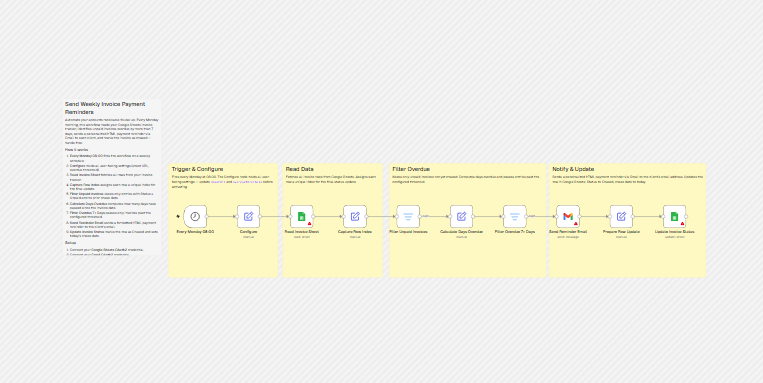
- The big picture: from sheet to inbox and back
- Follow the data: what each of the 10 steps does
- Get the workflow JSON
- Install it in ten steps
- What it will not do: limits, costs and trade-offs
- Access, privacy and responsible use
- Problems you may meet and how to fix them
- Too much of a puzzle? Let us build or adapt it for you
- What we changed in the original template
- What was verified, and what was not
- Four ways to adapt the workflow
- Frequently asked questions
- Tools used in this workflow
- Suggested reading
- Keep exploring
The Monday chase nobody enjoys
Chasing payment is a small job with a large effect. Late payment squeezes cash, and the most common reason for it is not refusal but forgetting: the invoice sat in someone’s inbox, or the person who pays was away. A short, polite reminder a few days after the invoice date is often all it takes. The problem is doing it consistently.
That is what a scheduled workflow is good at. It does not forget, it does not get tired, and it does the same thing every Monday. It is also, however, the kind of automation where a small mistake is visible to your clients. A reminder sent to someone who paid yesterday, or a reminder that arrives before the payment deadline, costs you goodwill. So read the limits and the safety sections before you switch it on.
In one run, the workflow does these jobs:
- Wakes up on Monday at 08:00.
- Reads every row of your invoice tracker.
- Numbers each row, so it can find it again later.
- Keeps only rows marked Unpaid with an empty Chase_Date.
- Counts the days since the invoice date.
- Keeps only rows where that count is greater than 7.
- Emails the client an HTML reminder showing the invoice date, the amount and the days.
- Marks the row as Chased, with today’s date.
It suits freelancers, small agencies and small shops that keep invoices in a spreadsheet and send them by hand. It does not suit you if your invoices live in accounting software (use that software’s own reminders), if you need different reminders for different clients, or if you need to follow up more than once.
Words you will see in this guide
- n8n (say “n-eight-n”): a tool that connects apps and makes them follow your instructions automatically.
- Workflow: one set of instructions in n8n, drawn as boxes connected by lines.
- Node: one box in a workflow. Each node does one job.
- Trigger: the node that starts a workflow. Here, a weekly schedule.
- Cron expression: a short code that describes a schedule.
0 8 * * 1means minute 0, hour 8, any day of the month, any month, Monday. - Item: one piece of data moving through the workflow. Here, one row of your sheet.
- Filter: a node that keeps the items that meet a condition and drops the others.
- Expression: a small formula inside a node, written between double curly brackets, such as
{{ $json.Email }}, that fetches or calculates a value. - Chased: the status this workflow writes once a reminder has been sent.
- Overdue: past the date by which payment was due. As you will see, this workflow uses the invoice date instead.
- OAuth2: a sign-in method where you approve access in your browser instead of handing over your password.
- Credential: a saved login that lets n8n use one of your accounts. The JSON file does not contain yours.
- HTML email: an email with formatting, such as bold text and a table, as opposed to plain text.
Apps and accounts this workflow talks to
- n8n: runs the workflow, hosted or self-hosted.
- Google Sheets: holds your invoice tracker. The workflow reads it and writes back to it.
- Gmail: sends the reminders from the account you connect. Clients see that address as the sender.
No AI service is involved, and nothing is sent to anyone except the clients in your sheet. Costs: the workflow file is free. n8n, Google and Gmail each have their own plans and sending limits. We do not quote prices because they change; check each provider’s current pricing and limits page.
What to have ready before you import anything
- An n8n account or installation where you can create workflows.
- A Google Sheets invoice tracker. Row 1 of the first tab must contain these six column names, spelled exactly like this:
Client,Email,Amount,Invoice_Date,Status,Chase_Date. - In that sheet:
Statusmust be exactlyUnpaidfor invoices you want chased (capital U).Invoice_Datemust be written as day/month/year with two digits for the day and month, for example05/10/2026.Chase_Datemust be empty for invoices not yet chased. - No blank rows between your invoices.
- A Gmail account to send from, and a few minutes to review the wording of the email.
- The address (URL) of your spreadsheet.
- A copy of your sheet for testing, with your own email address in the Email column of every row.
Which invoices get a reminder? A worked example
Suppose today is Monday 26 October 2026, at 08:00, and your sheet looks like this:
| Client | Status | Invoice_Date | Chase_Date | Reminded? | Why |
|---|---|---|---|---|---|
| Acme Ltd | Unpaid | 18/10/2026 | (empty) | Yes | 8 days since the invoice date, which is more than 7. |
| Brightside | Unpaid | 19/10/2026 | (empty) | No | 7 days is not more than 7. It will be picked next Monday. |
| Corner Cafe | Paid | 01/10/2026 | (empty) | No | Status is not Unpaid. |
| Delta Works | Unpaid | 05/10/2026 | 12/10/2026 | No | Already chased: Chase_Date is not empty. |
| Evergreen | unpaid | 01/10/2026 | (empty) | No, silently | Lowercase “unpaid” is not the same as “Unpaid”, so the row is left out without any message. |
Only Acme Ltd receives an email. Its row is then updated: Status becomes Chased and Chase_Date becomes 26/10/2026. Next Monday, Acme is skipped (the Chase_Date is no longer empty), and Brightside is reminded if it is still Unpaid.
Two lessons from this example. First, the workflow reminds an invoice only once: after the Chased mark, it is never contacted again by this workflow. Second, notice what the count measures. Acme’s invoice might have 30-day terms, in which case it is not late at all on day 8, yet the email would say “Days overdue: 8 days”. Decide whether that matches how you do business before you turn it on.
The big picture: from sheet to inbox and back
- Wake. Monday, 08:00.
- Read. All rows come in from the sheet, with their row numbers.
- Select. Two filters keep only the unpaid, never-chased, older-than-7-days rows.
- Send. One email per selected row.
- Record. Each selected row is marked Chased with today’s date.
Follow the data: what each of the 10 steps does
The names below match the names in the JSON file exactly.
Every Monday 08:00
The trigger: a Schedule Trigger using the cron expression 0 8 * * 1, meaning every Monday at 08:00. The file does not set a timezone, so it uses the timezone of your n8n instance. Check it, or 08:00 may not be your 08:00. The workflow runs only while it is turned on.
Configure
A node that holds two settings so you do not have to hunt for them: sheetUrl, the address of your spreadsheet (a placeholder, YOUR_SPREADSHEET_URL, that you replace), and overdueThreshold, the number of days, set to 7. Later nodes read these two values from here.
Read Invoice Sheet
A Google Sheets node that reads all rows of one tab. The spreadsheet comes from the Configure node. The tab is chosen by its number, 0, which is the id of the first tab in most spreadsheets. If you have deleted and recreated your first tab, its id is different, and you will read the wrong tab or get an error.
Capture Row Index
Adds a new field, row_number, to each row, calculated as the item’s position plus 2. Position 0 is the first data row, which sits on row 2 of the sheet because row 1 holds the headers. This number is how the workflow will find the row again at the end. It is only right if your headers are on row 1 and there are no blank rows in between, which we could not verify for blank rows (see the problems section).
Filter Unpaid Invoices
A filter with two conditions that must both be true: Status equals Unpaid exactly (same capital letter), and Chase_Date is empty. Rows that fail either condition are dropped here. The comparison is strict about types, and we could not confirm what happens if the Status column is missing altogether.
Calculate Days Overdue
Adds a field called joursRetard (French for “days of delay”, a leftover from the original author’s French version) containing the number of whole days between the Invoice_Date and the moment of the run. It reads the date as text in the form day/month/year (dd/MM/yyyy). Note again: this is days since the invoice was issued.
Filter Overdue 7+ Days
Keeps rows where joursRetard is greater than the threshold from Configure (7). Greater than 7 means 8 or more. Despite the node’s name, an invoice that is exactly 7 days old is not picked yet.
Send Reminder Email
A Gmail node that sends an HTML email to the address in the Email column. The subject is “Payment reminder — Invoice dated” followed by the invoice date. The body greets the client by name, says the invoice remains outstanding, shows a small table with the invoice date, the amount due and the days overdue, asks for payment “at your earliest convenience” and signs off “Best regards”, with no name. The text is built by joining the sheet values together, and the values are inserted as they are. There is no invoice number, no due date, no payment details and no company name in it. You will want to edit it.
Prepare Row Update
The Gmail node’s output is information about the sent email, not your sheet row. So this node fetches the row_number and Client back from the earlier filter step, matching them to the right row. It relies on n8n tracking which output belongs to which input, which we could not confirm in every setup.
Update Invoice Status
A Google Sheets node that updates the row identified by row_number: Status becomes Chased and Chase_Date becomes today’s date, written as day/month/year. From then on, the first filter drops this row.
Get the workflow JSON
Open the box below to copy the JSON, or download the file. It contains the 10 nodes above, connected in order, with one placeholder for your spreadsheet address, and six notes on the canvas. It contains none of your logins.
Please read this first: this JSON is free and provided as is. n8n versions and installed nodes differ from one person to another, so it may not run correctly on your side without adjustments. We cannot test it on every setup. That is why this article includes a long section, Problems you may meet and how to fix them. And if you would rather not deal with any of it, you can request a custom workflow and let us handle it.
Click to show or hide the workflow JSON
Click inside the box, select the whole text, copy it, then paste it onto an empty n8n canvas. If selecting is awkward on your device, use the download link above.
{
  "name": "Send Weekly Overdue Invoice Reminders with n8n (free JSON)",
  "nodes": [
    {
      "id": "9209c319-41a0-4b50-a40c-6a728f665afb",
      "name": "Overview",
      "type": "n8n-nodes-base.stickyNote",
      "position": [
        -500,
        -440
      ],
      "parameters": {
        "color": 7,
        "width": 420,
        "height": 700,
        "content": "## Weekly reminders for overdue invoices\n\nEvery Monday at 08:00 this workflow reads an invoice tracker in Google Sheets, picks the invoices that are still marked Unpaid, have no chase date and were issued more than 7 days ago, emails each client one HTML reminder through Gmail, then marks the row as Chased with today's date.\n\n### How it works\n\n1. Every Monday 08:00: weekly schedule.\n2. Configure: holds the spreadsheet address and the number of days (7).\n3. Read Invoice Sheet: reads all rows of the first tab.\n4. Capture Row Index: stores each row's sheet row number.\n5. Filter Unpaid Invoices: keeps Status = Unpaid with an empty Chase_Date.\n6. Calculate Days Overdue: counts the days since Invoice_Date (not since a due date).\n7. Filter Overdue 7+ Days: keeps rows where that count is greater than 7.\n8. Send Reminder Email: sends the reminder to the address in Email.\n9. Prepare Row Update: gets the row number back.\n10. Update Invoice Status: writes Chased and today's date.\n\n### Setup\n\n1. Connect your Google Sheets and Gmail credentials.\n2. In Configure, replace YOUR_SPREADSHEET_URL with your spreadsheet address.\n3. Row 1 of the first tab needs these headers: Client, Email, Amount, Invoice_Date, Status, Chase_Date.\n4. Status must be exactly Unpaid. Invoice_Date must be text in the form dd/MM/yyyy.\n5. Test on a copy of the sheet with your own address in Email before turning it on.\n\n### Customize\n\n- The number of days is overdueThreshold in Configure.\n- Day and time: the schedule node.\n- Wording: the message field of Send Reminder Email.\n\nSource: based on a template from the n8n Library at n8n.io, documented by LeenLabs.\nNot tested on live APIs."
      },
      "typeVersion": 1
    },
    {
      "id": "d523135e-eb66-4893-a55c-a0a322b8274e",
      "name": "Trigger & Configure",
      "type": "n8n-nodes-base.stickyNote",
      "position": [
        -60,
        -180
      ],
      "parameters": {
        "color": 1,
        "width": 460,
        "height": 480,
        "content": "## Trigger and settings\n\nRuns every Monday at 08:00, in the timezone set in your n8n instance. Configure holds the spreadsheet address (YOUR_SPREADSHEET_URL must be replaced) and the number of days, 7."
      },
      "typeVersion": 1
    },
    {
      "id": "5dfdd87b-c662-485a-b491-8d3894068d3c",
      "name": "Read Data",
      "type": "n8n-nodes-base.stickyNote",
      "position": [
        428,
        -180
      ],
      "parameters": {
        "color": 1,
        "width": 420,
        "height": 480,
        "content": "## Read data\n\nReads all rows of the first tab. Capture Row Index then stores each row's position (item number + 2, which assumes headers in row 1 and no blank rows) so the right row can be updated later."
      },
      "typeVersion": 1
    },
    {
      "id": "62f6a266-c5dc-4bba-b2ce-e25c8b2291f0",
      "name": "Filter Overdue",
      "type": "n8n-nodes-base.stickyNote",
      "position": [
        876,
        -180
      ],
      "parameters": {
        "color": 1,
        "width": 660,
        "height": 480,
        "content": "## Filter overdue\n\nKeeps rows with Status exactly Unpaid and an empty Chase_Date. Then counts the days since Invoice_Date (format dd/MM/yyyy) and keeps rows where that number is greater than the threshold. This is time since the invoice date, not since a due date."
      },
      "typeVersion": 1
    },
    {
      "id": "69ee17f8-29ac-4478-b390-702faba05c7a",
      "name": "Notify & Update",
      "type": "n8n-nodes-base.stickyNote",
      "position": [
        1548,
        -180
      ],
      "parameters": {
        "color": 1,
        "width": 660,
        "height": 480,
        "content": "## Notify and update\n\nSends one HTML email per selected row to the address in Email, then sets Status to Chased and Chase_Date to today. A row is chased only once. If the email is sent but the sheet update fails, the client may get a second reminder next Monday."
      },
      "typeVersion": 1
    },
    {
      "id": "5f99d986-89a8-4bc9-b12f-2189093b646a",
      "name": "Every Monday 08:00",
      "type": "n8n-nodes-base.scheduleTrigger",
      "position": [
        0,
        0
      ],
      "parameters": {
        "rule": {
          "interval": [
            {
              "field": "cronExpression",
              "expression": "0 8 * * 1"
            }
          ]
        }
      },
      "typeVersion": 1.3
    },
    {
      "id": "51aada92-f2f9-44f0-b8b6-4dd17ec7a0f4",
      "name": "Configure",
      "type": "n8n-nodes-base.set",
      "position": [
        224,
        0
      ],
      "parameters": {
        "mode": "manual",
        "options": {},
        "assignments": {
          "assignments": [
            {
              "id": "cfg-sheet-url",
              "name": "sheetUrl",
              "type": "string",
              "value": "YOUR_SPREADSHEET_URL"
            },
            {
              "id": "cfg-threshold",
              "name": "overdueThreshold",
              "type": "number",
              "value": 7
            }
          ]
        },
        "includeOtherFields": false
      },
      "typeVersion": 3.4
    },
    {
      "id": "fbbdb8cc-1c5c-4a6e-a148-30b4408dc8dd",
      "name": "Read Invoice Sheet",
      "type": "n8n-nodes-base.googleSheets",
      "position": [
        448,
        0
      ],
      "parameters": {
        "options": {},
        "resource": "sheet",
        "operation": "read",
        "sheetName": {
          "__rl": true,
          "mode": "id",
          "value": 0
        },
        "documentId": {
          "__rl": true,
          "mode": "url",
          "value": "={{ $('Configure').first().json.sheetUrl }}"
        }
      },
      "typeVersion": 4.7
    },
    {
      "id": "f2ae0213-5964-4f48-a14e-74181ea80347",
      "name": "Capture Row Index",
      "type": "n8n-nodes-base.set",
      "position": [
        672,
        0
      ],
      "parameters": {
        "mode": "manual",
        "options": {},
        "assignments": {
          "assignments": [
            {
              "id": "assign-row-number",
              "name": "row_number",
              "type": "number",
              "value": "={{ $itemIndex + 2 }}"
            }
          ]
        },
        "includeOtherFields": true
      },
      "typeVersion": 3.4
    },
    {
      "id": "e09a5ea4-35f8-4c13-a15f-47f22ca1f8a6",
      "name": "Filter Unpaid Invoices",
      "type": "n8n-nodes-base.filter",
      "position": [
        896,
        0
      ],
      "parameters": {
        "options": {},
        "conditions": {
          "options": {
            "version": 3,
            "leftValue": "",
            "caseSensitive": true,
            "typeValidation": "strict"
          },
          "combinator": "and",
          "conditions": [
            {
              "id": "cond-statut",
              "operator": {
                "type": "string",
                "operation": "equals"
              },
              "leftValue": "={{ $json.Status }}",
              "rightValue": "Unpaid"
            },
            {
              "id": "cond-relance",
              "operator": {
                "type": "string",
                "operation": "empty",
                "singleValue": true
              },
              "leftValue": "={{ $json['Chase_Date'] }}",
              "rightValue": ""
            }
          ]
        }
      },
      "typeVersion": 2.3
    },
    {
      "id": "2f232b6d-a960-45d3-8e87-e22e3db9a654",
      "name": "Calculate Days Overdue",
      "type": "n8n-nodes-base.set",
      "position": [
        1120,
        0
      ],
      "parameters": {
        "mode": "manual",
        "options": {},
        "assignments": {
          "assignments": [
            {
              "id": "assign-retard",
              "name": "joursRetard",
              "type": "number",
              "value": "={{ Math.floor($now.diff(DateTime.fromFormat($json.Invoice_Date, 'dd/MM/yyyy'), 'days').days) }}"
            }
          ]
        },
        "includeOtherFields": true
      },
      "typeVersion": 3.4
    },
    {
      "id": "b9ca502e-0745-4071-bc9c-7e8986e414d3",
      "name": "Filter Overdue 7+ Days",
      "type": "n8n-nodes-base.filter",
      "position": [
        1344,
        0
      ],
      "parameters": {
        "options": {},
        "conditions": {
          "options": {
            "version": 3,
            "leftValue": "",
            "caseSensitive": true,
            "typeValidation": "loose"
          },
          "combinator": "and",
          "conditions": [
            {
              "id": "cond-retard",
              "operator": {
                "type": "number",
                "operation": "gt"
              },
              "leftValue": "={{ $json.joursRetard }}",
              "rightValue": "={{ $('Configure').first().json.overdueThreshold }}"
            }
          ]
        }
      },
      "typeVersion": 2.3
    },
    {
      "id": "6de52584-3429-4489-a78c-2baa389fe72d",
      "name": "Send Reminder Email",
      "type": "n8n-nodes-base.gmail",
      "position": [
        1568,
        0
      ],
      "parameters": {
        "sendTo": "={{ $json.Email }}",
        "message": "={{ \"<html><body style=\\\"font-family:Arial,sans-serif\\\"><p>Dear <strong>\" + $json.Client + \"</strong>,</p><p>This is a friendly reminder that the following invoice remains outstanding.</p><table border=\\\"1\\\" cellpadding=\\\"8\\\"><tr><td>Invoice date</td><td>\" + $json.Invoice_Date + \"</td></tr><tr><td>Amount due</td><td>\" + $json.Amount + \"</td></tr><tr><td>Days overdue</td><td>\" + $json.joursRetard + \" days</td></tr></table><p>Please arrange payment at your earliest convenience.</p><p>Best regards</p></body></html>\" }}",
        "options": {
          "appendAttribution": false
        },
        "subject": "={{ \"Payment reminder — Invoice dated \" + $json.Invoice_Date }}",
        "resource": "message",
        "emailType": "html",
        "operation": "send"
      },
      "typeVersion": 2.2
    },
    {
      "id": "29bf23cc-0c96-43f4-ae31-81b8459d0acd",
      "name": "Prepare Row Update",
      "type": "n8n-nodes-base.set",
      "position": [
        1792,
        0
      ],
      "parameters": {
        "mode": "manual",
        "options": {},
        "assignments": {
          "assignments": [
            {
              "id": "restore-row",
              "name": "row_number",
              "type": "number",
              "value": "={{ $('Filter Overdue 7+ Days').item.json.row_number }}"
            },
            {
              "id": "restore-client",
              "name": "Client",
              "type": "string",
              "value": "={{ $('Filter Overdue 7+ Days').item.json.Client }}"
            }
          ]
        }
      },
      "typeVersion": 3.4
    },
    {
      "id": "efe3881b-edd9-42fe-8168-e981ed3193ea",
      "name": "Update Invoice Status",
      "type": "n8n-nodes-base.googleSheets",
      "position": [
        2016,
        0
      ],
      "parameters": {
        "columns": {
          "value": {
            "Status": "Chased",
            "Chase_Date": "={{ $now.toFormat('dd/MM/yyyy') }}",
            "row_number": "={{ $json.row_number }}"
          },
          "mappingMode": "defineBelow",
          "matchingColumns": [
            "row_number"
          ]
        },
        "options": {},
        "resource": "sheet",
        "operation": "update",
        "sheetName": {
          "__rl": true,
          "mode": "id",
          "value": 0
        },
        "documentId": {
          "__rl": true,
          "mode": "url",
          "value": "={{ $('Configure').first().json.sheetUrl }}"
        }
      },
      "typeVersion": 4.7
    },
    {
      "id": "4f7a2c19-8d36-4b05-9e71-a3c60d5b8e24",
      "name": "Before you turn it on",
      "type": "n8n-nodes-base.stickyNote",
      "position": [
        -500,
        -1180
      ],
      "parameters": {
        "color": 3,
        "width": 420,
        "height": 700,
        "content": "## Before you turn it on\n\n1. This sends real emails to your clients with no human review. Test on a copy of the sheet with your own address in the Email column.\n2. Days are counted from the invoice date, not from a due date. Payment terms are ignored.\n3. Each invoice is reminded once. After that Chase_Date is filled and it is never chased again.\n4. Rows are silently skipped when Status is not exactly Unpaid or Invoice_Date is not in the form dd/MM/yyyy.\n5. The row number is item position + 2. Blank rows or headers not in row 1 can make it update the wrong row.\n6. If a reminder is sent but the sheet update fails, the client can be reminded again next Monday.\n7. The sheet is chosen by id 0, normally the first tab. Check it is the right one.\n8. The email has no invoice number, due date, payment details or sender name. Edit it before use.\n9. Check the data protection and debt collection rules that apply to you before you contact clients automatically."
      },
      "typeVersion": 1
    }
  ],
  "connections": {
    "Configure": {
      "main": [
        [
          {
            "node": "Read Invoice Sheet",
            "type": "main",
            "index": 0
          }
        ]
      ]
    },
    "Capture Row Index": {
      "main": [
        [
          {
            "node": "Filter Unpaid Invoices",
            "type": "main",
            "index": 0
          }
        ]
      ]
    },
    "Every Monday 08:00": {
      "main": [
        [
          {
            "node": "Configure",
            "type": "main",
            "index": 0
          }
        ]
      ]
    },
    "Prepare Row Update": {
      "main": [
        [
          {
            "node": "Update Invoice Status",
            "type": "main",
            "index": 0
          }
        ]
      ]
    },
    "Read Invoice Sheet": {
      "main": [
        [
          {
            "node": "Capture Row Index",
            "type": "main",
            "index": 0
          }
        ]
      ]
    },
    "Send Reminder Email": {
      "main": [
        [
          {
            "node": "Prepare Row Update",
            "type": "main",
            "index": 0
          }
        ]
      ]
    },
    "Calculate Days Overdue": {
      "main": [
        [
          {
            "node": "Filter Overdue 7+ Days",
            "type": "main",
            "index": 0
          }
        ]
      ]
    },
    "Filter Overdue 7+ Days": {
      "main": [
        [
          {
            "node": "Send Reminder Email",
            "type": "main",
            "index": 0
          }
        ]
      ]
    },
    "Filter Unpaid Invoices": {
      "main": [
        [
          {
            "node": "Calculate Days Overdue",
            "type": "main",
            "index": 0
          }
        ]
      ]
    }
  },
  "settings": {
    "executionOrder": "v1"
  }
}
Install it in ten steps
- Prepare your sheet. Check the six column names in row 1 of the first tab, the Unpaid spelling and the day/month/year dates. Make a copy of the sheet for testing.
- Put your own address in the Email column of the test copy.
- Get the JSON from the box above or the download link.
- Import it. Open a new empty workflow in n8n, then paste the JSON onto the canvas or import it from a file.
- Check the 10 nodes appear, with six notes.
- Connect Google Sheets. In Read Invoice Sheet and Update Invoice Status, select or create your credential.
- Connect Gmail. In Send Reminder Email, select or create your credential.
- Set the spreadsheet. In Configure, replace
YOUR_SPREADSHEET_URLwith the address of your test copy. Check the schedule node’s timezone. - Run it by hand and compare the result with your sheet: did the right rows get an email, and were they marked Chased? Run it a second time: nothing should be sent.
- Go live carefully. Edit the email text, point Configure at the real sheet, then turn the workflow on (Activate or Publish, depending on your n8n version). Look at the sent folder and the sheet the first Monday.
What it will not do: limits, costs and trade-offs
- It does not know due dates. It counts from the invoice date, whatever your payment terms are.
- It sends one reminder per invoice. No second or third notice, no escalation.
- It does not check whether you have been paid. If you forget to change Status to Paid before Monday 08:00, the client gets a reminder.
- It does not ask you before sending. There is no approval step.
- It is strict about spelling. Unpaid, the column names and the date form must be exact.
- It reads one tab and one spreadsheet.
- It has no error handling. If something fails, the run stops and nobody is told.
- The email is generic. The same wording goes to every client, in English, with no invoice number.
- It uses your Gmail account, so it is subject to Gmail’s sending limits, and replies come to that mailbox.
Access, privacy and responsible use
This workflow contacts your clients about money, automatically. That deserves care.
- Keep a person in the loop. For the first weeks, check the sent folder each Monday. Consider replacing the send step with a draft, so you approve before anything leaves.
- Keep your sheet honest. The workflow trusts your Status column. A payment that has not been recorded means a wrong reminder.
- Mind the tone and the contract. A reminder before the due date can annoy a client who has agreed longer terms.
- Protect the data. The sheet holds client names, email addresses and amounts. Share it only with people who need it, and know that the workflow uses a Google login with access to your spreadsheets and a Gmail login that can send mail as you.
- Know your rules. Rules on contacting clients about debts, on marketing and on data protection differ by country and by business. We are not a law firm or an adviser, this guide is not legal advice, and nothing in it means this workflow complies with any law.
Problems you may meet and how to fix them
Every n8n setup is different, so this workflow can behave differently for you than in our checks. Here are the most likely problems. For each one: what you see, why it happens, and what to do. They come from how the nodes are built and from checks on simulated data, not from a live run with real accounts.
1. Nothing happens on Monday
What you see: no emails, no new runs in the executions list.
Why: the workflow is not turned on, or your n8n instance was off at 08:00.
Fix: turn the workflow on and make sure n8n is running on Mondays. Test with a manual run.
2. It runs at the wrong hour
What you see: runs at 07:00 or 09:00 your time.
Why: the file sets no timezone, so your instance’s timezone applies.
Fix: set the timezone in the workflow settings or in your instance.
3. Google Sheets will not connect
What you see: an authorization error in Read Invoice Sheet or Update Invoice Status.
Why: the sign-in was not completed, or the Google account cannot open the sheet.
Fix: recreate the credential, sign in again, and open the sheet in your browser with the same account.
4. The spreadsheet is not found
What you see: an error mentioning the document or its address.
Why: YOUR_SPREADSHEET_URL is still in the Configure node, or the address is wrong.
Fix: paste your real spreadsheet address into the sheetUrl value.
5. It reads the wrong tab
What you see: an error, or rows that are not your invoices.
Why: the tab is selected by the number 0, which is the first tab’s id only in most spreadsheets.
Fix: open the node, select your tab from the list, and do the same in Update Invoice Status.
6. No row is ever picked
What you see: the run finishes with nothing sent, though unpaid invoices exist.
Why: Status is not exactly Unpaid (the comparison respects capital letters), Chase_Date has a value or a stray space, or the invoices are not yet older than 7 days.
Fix: compare your sheet with the worked example. Fix the spelling or clear the cell.
7. Days overdue comes out wrong or empty
What you see: a strange number, or the invoice is never selected.
Why: the date is read as text in the form day/month/year with two digits. A date in another form, such as month/day/year, a date with a single-digit day, or a cell stored as a date value, may not be understood. We could not run n8n’s date tool here, so we cannot say exactly which forms fail.
Fix: store the dates as plain text such as 05/10/2026, or check the output of Calculate Days Overdue and adjust the date format in the node.
8. An invoice is picked a week later than you expected
What you see: an invoice that is 7 days old is not reminded.
Why: the rule is “greater than 7”, so 8 days or more.
Fix: lower the number in Configure to 6 if you want day 7.
9. Clients are reminded before payment is late
What you see: a client with 30-day terms gets a reminder on day 8 that says “Days overdue”.
Why: the count starts at the invoice date, not at a due date.
Fix: raise the number in Configure to match your usual terms, or ask us for a version with a due date column.
10. The email fails to send
What you see: an error in Send Reminder Email.
Why: the Gmail credential is missing, or the Email cell is empty or not a valid address, or Gmail’s sending limit was reached.
Fix: reconnect Gmail, check the Email column for blanks, and check Gmail’s limits.
11. One bad address stops the whole run
What you see: some clients were emailed, yet no row was marked Chased.
Why: as far as we can tell, n8n runs each step for all rows before the next step. If the email step fails on one row, the update step never runs, so rows already emailed stay unmarked.
Fix: mark those rows Chased by hand before the next Monday, or you will email those clients twice. Clean the Email column.
12. A client got the same reminder twice
What you see: two identical emails on two Mondays.
Why: the email went out but the sheet update failed, so the row stayed Unpaid with no chase date.
Fix: after any failed run, look at the sheet and mark the rows by hand. Watch your sent folder.
13. The wrong row was updated
What you see: another client’s row says Chased.
Why: the row number is the item’s position plus 2. If your sheet has blank rows, or the headers are not in row 1, the number points to the wrong row. We could not confirm how the Sheets node treats blank rows.
Fix: remove blank rows and keep headers in row 1. Test with a copy first.
14. The sheet update fails
What you see: an error in Update Invoice Status after the email went out.
Why: a missing column name, a locked or read-only sheet, or an expired Google sign-in.
Fix: check the six headers, the sharing rights and the credential, then mark the affected row by hand.
15. Prepare Row Update shows an error about items
What you see: a message about not being able to determine which item to use.
Why: the step finds the row number by following the data back to an earlier node. In some setups that link is lost after the Gmail step.
Fix: ask us for a version that carries the row number through in a way that is certain to work.
16. The email says “Dear undefined”
What you see: a greeting with the word undefined.
Why: the Client cell is empty or the column is spelled differently. In our check, a missing Client gave exactly that word.
Fix: fill the Client column and check the header.
17. The email looks broken or shows odd symbols
What you see: bold text or tags where a client name should be.
Why: the sheet values are placed into the HTML as they are. A name containing HTML characters changes the layout. In our check, a name with bold tags was inserted unchanged.
Fix: keep client names plain. If you import names from elsewhere, clean them first.
18. The amount has no currency
What you see: “Amount due 1200”.
Why: the email shows the cell exactly as the node receives it. No currency is added.
Fix: add the currency in the sheet cell or in the email text.
19. The reminder ends up in spam
What you see: clients say they never received it.
Why: automatic emails with little text can be filtered. We cannot predict this.
Fix: look at your sent folder first, then ask a client to check spam, and make the email more personal.
20. After import, nodes show missing credentials
What you see: warnings on the Google Sheets and Gmail nodes.
Why: the file deliberately contains no credentials.
Fix: open each node and select or create your own credential.
Too much of a puzzle? Let us build or adapt it for you
Some people enjoy tinkering with n8n. Others want reminders that simply work with their own sheet and their own wording. If you are in the second group, LeenLabs builds and adapts n8n workflows for people like you. We can:
- Use a due date column instead of counting from the invoice date.
- Send a draft for your approval instead of sending right away.
- Add a second and third reminder with firmer wording.
- Make the row update safer, so a failure cannot lead to double reminders.
- Write the email with your invoice number, payment details and name.
- Alert you when a run fails.
- Build a new workflow from scratch for another task you want to automate.
Request a Custom Workflow, describe what you want to automate, and we will come back to you with the next steps. Prefer to ask a question first? Write to support@leenlabs.site.
What we changed in the original template
We want you to know exactly how this file differs from the template it comes from. Compared with the file we received, LeenLabs made these changes:
- Rewrote the canvas notes. The original notes described the workflow in promotional terms and contained a few statements that did not match how it works (for example, that it computes days overdue). We replaced them with plain explanations, and renamed the main note from a name with an emoji to Overview.
- Made the placeholder clearer. The spreadsheet address now reads
YOUR_SPREADSHEET_URL, so a forgotten replacement fails loudly. - Added a note called Before you turn it on with the main warnings.
- Removed the description and the inactive flag from the file’s header, and renamed the workflow to this article’s title.
The nodes, their settings, the email text, the filters, the formulas and the connections are unchanged.
What was verified, and what was not
Here is exactly what we did. We evaluated the formulas that build the email subject and body on five simulated rows: a complete row, a client name containing HTML characters, a row with no Client and no amount, a number instead of text for the amount, and an empty Email. We simulated the two filters and the row numbering on a five-row sheet, which gave the picks in the worked example, and we checked the 7-day rule with plain date arithmetic. We also checked the schedule expression and the fields written back to the sheet.
We did not import this exact file into n8n and run it end to end. We did not run it against a live Google Sheet or Gmail account. We also could not install the date library that n8n uses in this environment, so the date reading in Calculate Days Overdue was not run, and the 7-day check above uses simpler arithmetic. We could not confirm how n8n treats blank rows or a missing Status column, how the Sheets node handles the date text written back, whether the row number survives the Gmail step, or whether the tab id 0 is right for your sheet. That is why we recommend a full test on a copy of your sheet before you turn it on.
Four ways to adapt the workflow
- Change the threshold. Edit
overdueThresholdin Configure to match your payment terms. - Change the day and time. Edit the cron expression in the schedule node.
- Rewrite the email. Edit the message field of Send Reminder Email. Add your name, the invoice number and how to pay.
- Send a draft instead. Replace the Gmail send step with a draft step, and review before sending. This changes what the node does, so test it.
These variations are suggestions based on how n8n works, not changes we tested on this template. If you want one built for you, send us a request.
Frequently asked questions
Does it check whether the invoice is really overdue?
No. It counts days since the invoice date and does not know your due dates.
Will it email the same client every week?
No. After a successful run, the row is marked Chased and is skipped. After a failed update it can happen, so check the sheet.
Can I use English or French status words?
The file expects Unpaid and writes Chased. You can change both words in the filter node and the update node, as long as they match.
Does it use AI?
No. Everything is fixed rules and a fixed email text.
Is it safe to use on real clients straight away?
We would not. Test it on a copy of your sheet with your own address first.
Is the workflow free?
The file is free. The services it connects have their own plans, limits and prices.
What if the JSON does not work on my n8n?
It can happen, because setups differ. Go through the problems section above. If it still does not work, or you do not want to spend the time, request a custom workflow and we will handle it.
Who built the original template?
The original template comes from the n8n Library at n8n.io. LeenLabs adjusted and documented it.
Tools used in this workflow
The links below go to each tool’s home page, and some may be affiliate links, as explained in our Terms of Service.
- n8n (may be an affiliate link): the automation platform that runs the workflow, available hosted or self-hosted.
- Google Sheets (may be an affiliate link): the spreadsheet that holds your invoice tracker.
- Gmail (may be an affiliate link): the email service that sends the reminders.
Suggested reading
If invoices are on your mind, these LeenLabs workflow guides pair well with this one:
- Weekly accounts receivable aging report with n8n: turns your open Invoice Ninja invoices into a weekly PDF report.
- Auto-capture supplier invoices from Gmail with n8n: reads invoice PDFs from a Gmail label and logs them to Google Sheets.
- Log invoice line items and verify totals with n8n: upload an invoice through a form, log every line and check that the total adds up.
- Extract invoice data from PDFs with n8n and Claude: a simpler extraction workflow with a review queue for doubtful results.
Keep exploring
Browse more free n8n workflows from LeenLabs.
Need this adapted to your own setup?
Tell us what you want to automate and we will come back to you with the next steps.