
Affiliate disclosure: some links in this article may be affiliate links. If you sign up through them, we may earn a commission at no extra cost to you. See our Terms of Service.
Supplier invoices do not arrive in a tidy pile. They arrive as email attachments, between a meeting reminder and a newsletter, and they wait there. Someone opens each one, reads the supplier and the amounts, and types them into a spreadsheet. If that person is on holiday, the invoices wait longer. If the same person is tired on a Friday afternoon, a 1,440 becomes a 1,404, and nobody notices until the supplier chases.
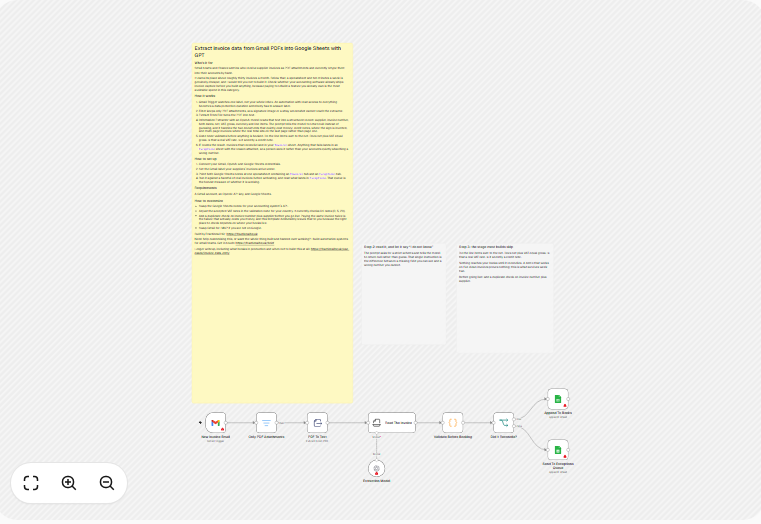
This free n8n workflow turns the email itself into the starting point. It watches one Gmail label, and whenever an email with a PDF arrives under that label, it reads the PDF with an OpenAI model and pulls out the supplier, invoice number, dates, currency, net amount, VAT, total and line items. Then comes the part that makes it worth reading about: before anything is written down, a Code node checks the arithmetic. Invoices that add up go to an “Invoices” tab in Google Sheets. Invoices that do not add up go to an “Exceptions” tab with the reason written next to them, so a person looks at them instead of your books quietly absorbing a wrong number. This guide explains each step in plain English, shows the checks with worked examples, and is direct about the gaps that the checks leave open.
Read this first: what the checks do not catch
- Some failures leave no trace. If the AI step fails, the run stops. Nothing is written to either tab, the email is not tried again, and nobody is told. Only n8n’s list of executions shows it.
- Only the first attachment counts. An email whose PDF is the second attachment (after a logo, for example) is skipped, and a second PDF in the same email is never read.
- Passing the checks is not proof. The code checks arithmetic. It does not check that an invoice is real, that it was not entered before, or that the bank details are right. If the VAT cannot be read, the net-plus-VAT check is skipped, so an invoice can pass even though the total is different from the net amount.
Use the “Invoices” tab as a first draft that a person still reviews, and never pay an invoice only because it landed there.
Template source: this workflow comes from the n8n Library at n8n.io, the public collection of workflow templates. We did not create it. LeenLabs prepared its JSON for publication and documented it. What we changed is listed in the section What we changed in the original template.
At a glance
- What it does: watches a Gmail label for invoice emails, reads the PDF, extracts the main fields with OpenAI, checks the arithmetic, and logs each invoice either as clean or as an exception.
- Apps used: n8n, Gmail, OpenAI and Google Sheets.
- Trigger: a new email under one Gmail label with an attachment. n8n checks every minute once the workflow is turned on.
- Setup effort: medium. Three logins, one Gmail label, a spreadsheet with two prepared tabs.
- Designed for: UK-style invoices (VAT at 0, 5 or 20 percent, day/month/year dates).
- Watch out for: silent failures, the first-attachment rule, no duplicate check, and invoice data traveling to OpenAI and Google.
- Test status: the checking code was tested on simulated data outside n8n; the full file was not run on live services.
In this guide
- Invoices buried in an inbox
- Words you will see in this guide
- Apps and accounts this workflow talks to
- What to have ready before you import anything
- How the checks work, with worked examples
- The big picture: from inbox to spreadsheet
- Follow the data: what each of the 9 steps does
- Get the workflow JSON
- Install it in twelve steps
- What it will not do: limits, costs and trade-offs
- Access, privacy and responsible use
- Problems you may meet and how to fix them
- Too much of a puzzle? Let us build or adapt it for you
- What we changed in the original template
- What was verified, and what was not
- Four ways to adapt the workflow
- Frequently asked questions
- Tools used in this workflow
- Suggested reading
- Keep exploring
Invoices buried in an inbox
An inbox is a poor filing cabinet for invoices. Nothing in it says “this one is waiting for you,” nothing counts how many are unprocessed, and nothing stops the same invoice from being entered twice or not at all. The common fix is a rule: a Gmail filter that puts every supplier invoice under a label. That solves finding them. It does not solve typing them.
The interesting design choice in this template is the order of events. Many AI workflows extract data and write it straight into a sheet. This one extracts, then checks, then decides where the data goes. The “Exceptions” tab is the safety valve: anything the checks reject is shown to a person together with the reason. This pattern, extract then validate then route, is worth reusing for any workflow where an AI reads documents that involve money.
In one run, the workflow does six jobs:
- Notices a new email under your invoice label, with an attachment.
- Keeps it only if the first attachment is a PDF.
- Reads the text inside the PDF.
- Asks OpenAI for the supplier, invoice number, dates, currency, net, VAT, gross, VAT rate and line items.
- Checks required fields, whether net plus VAT equals gross, whether the line items add up to the net, whether the VAT rate is one of three expected values, and whether the total is negative.
- Logs the result in “Invoices” if all checks pass, or in “Exceptions” with the problems listed.
It suits small finance teams and bookkeepers who receive a steady flow of software-made PDF invoices from suppliers and are based in a country where VAT is shown as net, VAT and gross. It is a poor fit if your invoices are scans or photos, if you receive very few of them, or if you need a system that never lets a wrong or duplicate invoice through.
Words you will see in this guide
- n8n (say “n-eight-n”): a tool that connects apps and makes them follow your instructions automatically.
- Workflow: one set of instructions in n8n, drawn as boxes connected by lines.
- Node: one box in a workflow. Each node does one job.
- Trigger: the node that starts a workflow. Here, a new email.
- Polling: checking at regular intervals whether something new has arrived. This trigger asks Gmail every minute.
- Gmail label: a tag you attach to emails, like a folder. A filter can apply it automatically.
- Net, VAT and gross: the three amounts on a typical invoice. Net is the price before tax. VAT is the value added tax. Gross is the total to pay, net plus VAT.
- Credit note: a document from a supplier that reduces what you owe, with negative amounts.
- Reconcile: to check that numbers that should agree actually agree.
- Line item: one row on an invoice, such as “Consulting, quantity 1, 1,200.00”.
- OpenAI API: the way n8n talks to OpenAI’s AI models. It has its own key and billing, separate from a ChatGPT subscription.
- Information Extractor: an n8n node that asks an AI model to fill in a fixed set of fields from a text.
- Exceptions queue: a list of items a person has to look at. Here, a tab in your spreadsheet.
- OCR (optical character recognition): technology that reads text from pictures. This workflow does not have it, so it cannot read scans.
- Credential: a saved login or key that lets n8n use one of your accounts. The JSON file does not contain yours.
- Code node: a node that runs a small program written in JavaScript.
Apps and accounts this workflow talks to
- n8n: runs the workflow, hosted or self-hosted.
- Gmail: where the invoices arrive. You sign in with a Google account through OAuth2, a sign-in method where you approve access in your browser instead of handing over a password. As far as we could tell, this gives n8n permission to read your mail, not only the one label. The label is a filter inside the workflow, not a limit on the permission. For that reason, we suggest using a dedicated mailbox for invoices.
- OpenAI: reads the invoice text. You need an API key and some credit. The file does not name a model, so the node uses its default, which you should check.
- Google Sheets: stores the results in two tabs.
Costs: the workflow file is free. n8n, Google and OpenAI each have their own plans and limits, and every qualifying email causes one request to OpenAI. We do not quote prices because they change. Check each provider’s current pricing page.
What to have ready before you import anything
- An n8n account or installation where you can create workflows.
- A Gmail account (ideally a dedicated one), a label for supplier invoices such as “Supplier Invoices”, and a Gmail filter that applies it to the right emails.
- An OpenAI API key with credit.
- A Google Sheets spreadsheet with two tabs named exactly
InvoicesandExceptions. - In row 1 of both tabs, these 13 column names, each in its own cell:
supplier,invoice_number,issue_date,due_date,currency,net,vat,gross,vat_rate,line_items,ok,problems,source_email. - The address of your spreadsheet.
- Five test invoices, including one you know is wrong and one credit note.
How the checks work, with worked examples
The Code node called Validate Before Booking is the heart of this workflow. In plain language, it runs these tests on the data the AI returned:
- Required fields: the supplier, the invoice number and the issue date must not be empty. The net and the gross must be readable numbers (a number written as text, such as “1200” in quotation marks, counts as unreadable).
- Net plus VAT equals gross, when all three are present, with a margin of about 0.02.
- Line items add up to the net, when there are line items and the net is known. A line amount that is not a number counts as zero.
- VAT rate: if a rate is given, it must be 0, 5 or 20.
- Negative total: a gross below zero is flagged as “looks like a credit note”.
If nothing fails, the invoice is marked as OK and goes to “Invoices”. Otherwise, it goes to “Exceptions” with the list of problems in the problems column. Here is what happens to simulated invoices. We did not call OpenAI; we gave the code answers it could plausibly receive. The base invoice is net 1,200.00, VAT 240.00, gross 1,440.00, rate 20, with one line “Consulting” of 1,200.00.
| Simulated case | Goes to | Reason shown |
|---|---|---|
| The base invoice | Invoices | All checks pass. |
| VAT written as 200.00 instead of 240.00 | Exceptions | net + VAT does not equal gross |
| The line item is 1,100.00 instead of 1,200.00 | Exceptions | line items do not sum to net |
| VAT rate 15 | Exceptions | VAT rate 15% is not a UK rate |
| Supplier missing | Exceptions | missing supplier |
| Net amount returned as text | Exceptions | net unreadable |
| Credit note: net -100, VAT -20, gross -120 | Exceptions | negative total, looks like a credit note |
| VAT unreadable (null), net 1,000.00, gross 1,200.00 | Invoices | No reason: the net-plus-VAT check is skipped when VAT is missing. This is a gap. |
| No line items at all | Invoices | The line check is skipped when the list is empty. |
| Issue date “banana”, or currency missing | Invoices | Dates and currency are not checked. |
| The same invoice a second time | Invoices | There is no duplicate check, so it is added again. |
The last five rows matter as much as the first six. The checks are a good filter for arithmetic mistakes and unreadable fields. They are not a control against missing data, bad dates, duplicates or fraud. Credit notes always go to “Exceptions”, because their total is negative, so someone has to handle them by hand.
The big picture: from inbox to spreadsheet
- Arrive. An email with an attachment lands under your label.
- Filter. Only emails whose first attachment is a PDF continue.
- Read. The PDF text is extracted.
- Extract. An OpenAI model fills in the invoice fields.
- Check. A Code node tests the arithmetic and the rules.
- Route. A yes-or-no node splits clean invoices from exceptions.
- Record. One sheet tab receives the row, with the Gmail message ID so you can find the email.
Follow the data: what each of the 9 steps does
The names below match the names in the JSON file exactly.
New Invoice Email
The trigger: a Gmail Trigger that checks every minute for new emails under the label you choose, and only those that have an attachment. It downloads the attachments so the next steps can read them. In this file, the label is a placeholder (YOUR_GMAIL_LABEL_ID) that you replace by selecting your own label. It only reacts to emails that arrive once the workflow is turned on.
Only PDF Attachments
A filter. It looks at the file type of the first attachment only, and keeps the email if it is a PDF. The comparison ignores capital letters. If the PDF is not the first attachment, the email stops here without any message.
PDF To Text
Turns the first attachment into plain text. It reads the text layer of the PDF only. A scan or a photo has none, and there is no OCR.
Read The Invoice
An Information Extractor node, part of n8n’s AI features. It receives the text and a fixed example of the data to return (supplier, invoice number, issue date, due date, currency, net, VAT, gross, VAT rate and a list of line items). Its instructions to the model are: return null for anything you cannot read with confidence and never guess a number; amounts are numbers, with no currency symbols or thousands separators; dates are in year-month-day form, assuming day/month/year when the order is unclear; credit notes have negative amounts; read the final total, which on a multi-page invoice is usually on the last page. The example shows a number or a text for every field, and we could not confirm how n8n handles a field the model returns as null.
Extraction Model
The OpenAI chat model that the extractor uses, connected to it as a sub-node. You select your OpenAI credential here. The file does not name a model, so the node uses the default of your n8n version. Check which one is selected and whether your account can use it.
Validate Before Booking
The Code node described in the section above. It runs once per invoice, applies the five tests, and builds the row: all the extracted fields, plus ok (true or false), problems (a text listing the failed tests, or empty), and source_email (the Gmail message ID of the email the invoice came from). It reads the message ID by following the path back to the trigger, and we could not confirm that this works in every n8n setup.
Did It Reconcile?
A yes-or-no node. If ok is true, the row goes to the first output. Otherwise, it goes to the second.
Append To Books
A Google Sheets node that adds the row to the “Invoices” tab. It maps the data to your columns by name. Replace the placeholder YOUR_SPREADSHEET_URL with your spreadsheet’s address.
Send To Exceptions Queue
The same kind of node, adding the row to the “Exceptions” tab. Replace the placeholder here too.
Get the workflow JSON
Open the box below to copy the JSON, or download the file. It contains the 9 nodes above, connected in order, with placeholders where your label and spreadsheet go, and four notes on the canvas. It contains none of your logins or keys.
Please read this first: this JSON is free and provided as is. n8n versions, installed nodes and AI services differ from one person to another, so it may not run correctly on your side without adjustments. We cannot test it on every setup. That is why this article includes a long section, Problems you may meet and how to fix them. And if you would rather not deal with any of it, you can request a custom workflow and let us handle it.
Click to show or hide the workflow JSON
Click inside the box, select the whole text, copy it, then paste it onto an empty n8n canvas. If selecting is awkward on your device, use the download link above.
{
  "name": "Auto-Capture Supplier Invoices from Gmail with n8n (free JSON)",
  "nodes": [
    {
      "id": "a0a29ec1-a984-48db-a476-a71b2eedee7e",
      "name": "New Invoice Email",
      "type": "n8n-nodes-base.gmailTrigger",
      "position": [
        0,
        0
      ],
      "parameters": {
        "simple": false,
        "filters": {
          "labelIds": [
            "YOUR_GMAIL_LABEL_ID"
          ],
          "hasAttachment": true
        },
        "options": {
          "downloadAttachments": true
        },
        "pollTimes": {
          "item": [
            {
              "mode": "everyMinute"
            }
          ]
        }
      },
      "typeVersion": 1.2
    },
    {
      "id": "51b32d3b-9804-4e3f-b569-c76c55eb9800",
      "name": "Only PDF Attachments",
      "type": "n8n-nodes-base.filter",
      "position": [
        240,
        0
      ],
      "parameters": {
        "conditions": {
          "options": {
            "leftValue": "",
            "caseSensitive": false,
            "typeValidation": "loose"
          },
          "combinator": "and",
          "conditions": [
            {
              "operator": {
                "type": "string",
                "operation": "equals"
              },
              "leftValue": "={{ $binary.attachment_0?.fileExtension }}",
              "rightValue": "pdf"
            }
          ]
        }
      },
      "typeVersion": 2.2
    },
    {
      "id": "758e0879-38aa-4bb1-9c52-22a7073016f5",
      "name": "PDF To Text",
      "type": "n8n-nodes-base.extractFromFile",
      "position": [
        480,
        0
      ],
      "parameters": {
        "options": {},
        "operation": "pdf",
        "binaryPropertyName": "attachment_0"
      },
      "typeVersion": 1
    },
    {
      "id": "d4396ed2-7626-44b2-a359-3d564c4d1946",
      "name": "Read The Invoice",
      "type": "@n8n/n8n-nodes-langchain.informationExtractor",
      "position": [
        760,
        0
      ],
      "parameters": {
        "text": "={{ $json.text }}",
        "options": {
          "systemPromptTemplate": "You read supplier invoices and return structured data.\n\nRules that matter more than completeness:\n1. Return null for any field you cannot read with confidence. NEVER guess a number.\n2. Amounts are numbers, not strings. No currency symbols, no thousands separators.\n3. Dates are ISO yyyy-mm-dd. If the format is ambiguous between UK and US, assume UK (dd/mm/yyyy).\n4. A credit note has negative amounts. If the document says credit note, refund or negative total, return all amounts as negative numbers.\n5. Read the FINAL total, which on a multi-page invoice is usually on the last page. Do not take a subtotal from page one."
        },
        "schemaType": "fromJson",
        "jsonSchemaExample": "{\n  \"supplier\": \"Acme Supplies Ltd\",\n  \"invoice_number\": \"INV-2041\",\n  \"issue_date\": \"2026-08-12\",\n  \"due_date\": \"2026-09-11\",\n  \"currency\": \"GBP\",\n  \"net\": 1200.00,\n  \"vat\": 240.00,\n  \"gross\": 1440.00,\n  \"vat_rate\": 20,\n  \"line_items\": [{ \"description\": \"Consulting\", \"quantity\": 1, \"unit_price\": 1200.00, \"amount\": 1200.00 }]\n}"
      },
      "typeVersion": 1.2
    },
    {
      "id": "3c651ffa-195c-4c9e-a499-a065089077b0",
      "name": "Extraction Model",
      "type": "@n8n/n8n-nodes-langchain.lmChatOpenAi",
      "position": [
        760,
        220
      ],
      "parameters": {
        "options": {}
      },
      "typeVersion": 1.3
    },
    {
      "id": "3a1fd8b2-1896-45e2-afdd-6a483d92ee20",
      "name": "Validate Before Booking",
      "type": "n8n-nodes-base.code",
      "position": [
        1120,
        0
      ],
      "parameters": {
        "mode": "runOnceForEachItem",
        "jsCode": "const d = $json.output ?? $json;\nconst fails = [];\nconst num = (v) => (typeof v === 'number' && Number.isFinite(v) ? v : null);\nconst near = (a, b) => Math.abs(a - b) < 0.02;\n\nconst net = num(d.net), vat = num(d.vat), gross = num(d.gross);\n\nfor (const f of ['supplier', 'invoice_number', 'issue_date']) {\n  if (!d[f]) fails.push('missing ' + f);\n}\nif (net === null) fails.push('net unreadable');\nif (gross === null) fails.push('gross unreadable');\n\nif (net !== null && vat !== null && gross !== null && !near(net + vat, gross)) {\n  fails.push('net + VAT does not equal gross');\n}\n\nif (Array.isArray(d.line_items) && d.line_items.length && net !== null) {\n  const sum = d.line_items.reduce((t, li) => t + (num(li.amount) ?? 0), 0);\n  if (!near(sum, net)) fails.push('line items do not sum to net');\n}\n\nif (d.vat_rate != null && ![0, 5, 20].includes(Number(d.vat_rate))) {\n  fails.push('VAT rate ' + d.vat_rate + '% is not a UK rate');\n}\n\nif (gross !== null && gross < 0) fails.push('negative total, looks like a credit note');\n\nreturn { json: { ...d, ok: fails.length === 0, problems: fails.join('; ') || null, source_email: $('New Invoice Email').item.json.id } };"
      },
      "typeVersion": 2
    },
    {
      "id": "380ff8c3-4c67-45b0-aa64-2a3e9b79c218",
      "name": "Did It Reconcile?",
      "type": "n8n-nodes-base.if",
      "position": [
        1360,
        0
      ],
      "parameters": {
        "conditions": {
          "options": {
            "leftValue": "",
            "caseSensitive": true,
            "typeValidation": "strict"
          },
          "combinator": "and",
          "conditions": [
            {
              "operator": {
                "type": "boolean",
                "operation": "true",
                "singleValue": true
              },
              "leftValue": "={{ $json.ok }}"
            }
          ]
        }
      },
      "typeVersion": 2.2
    },
    {
      "id": "aec681c6-03f8-46c4-9aab-d1efd2e51612",
      "name": "Append To Books",
      "type": "n8n-nodes-base.googleSheets",
      "position": [
        1620,
        -120
      ],
      "parameters": {
        "columns": {
          "value": {},
          "mappingMode": "autoMapInputData",
          "matchingColumns": []
        },
        "options": {},
        "operation": "append",
        "sheetName": {
          "__rl": true,
          "mode": "name",
          "value": "Invoices"
        },
        "documentId": {
          "__rl": true,
          "mode": "url",
          "value": "YOUR_SPREADSHEET_URL"
        }
      },
      "typeVersion": 4.5
    },
    {
      "id": "f190f073-1ea3-4dae-a70a-b000dd588714",
      "name": "Send To Exceptions Queue",
      "type": "n8n-nodes-base.googleSheets",
      "position": [
        1620,
        120
      ],
      "parameters": {
        "columns": {
          "value": {},
          "mappingMode": "autoMapInputData",
          "matchingColumns": []
        },
        "options": {},
        "operation": "append",
        "sheetName": {
          "__rl": true,
          "mode": "name",
          "value": "Exceptions"
        },
        "documentId": {
          "__rl": true,
          "mode": "url",
          "value": "YOUR_SPREADSHEET_URL"
        }
      },
      "typeVersion": 4.5
    },
    {
      "id": "7e3e6152-cc56-4ab0-9a5c-30c1b3162072",
      "name": "Overview",
      "type": "n8n-nodes-base.stickyNote",
      "position": [
        -60,
        -780
      ],
      "parameters": {
        "color": 1,
        "width": 760,
        "height": 720,
        "content": "## Supplier invoices from a Gmail label to Google Sheets\n\nReads PDF invoices that arrive under one Gmail label, extracts the main fields with an OpenAI model, checks the arithmetic in code, and logs each invoice to one of two sheet tabs: Invoices (checks passed) or Exceptions (checks failed, with the reason).\n\n### How it works\n\n1. New Invoice Email: watches one Gmail label for emails with attachments.\n2. Only PDF Attachments: keeps the email only if its first attachment is a PDF.\n3. PDF To Text: turns that PDF into text.\n4. Read The Invoice: an OpenAI model returns supplier, number, dates, currency, net, VAT, gross, VAT rate and line items.\n5. Validate Before Booking: checks required fields, net + VAT = gross, line items = net, the VAT rate, and negative totals.\n6. Did It Reconcile?: sends the result to Invoices or Exceptions.\n\n### Setup\n\n1. Connect your Gmail, OpenAI and Google Sheets credentials.\n2. In New Invoice Email, select your invoice label (the placeholder YOUR_GMAIL_LABEL_ID must be replaced).\n3. In both Google Sheets nodes, replace YOUR_SPREADSHEET_URL with your spreadsheet address. Create the tabs Invoices and Exceptions. Put these column names in row 1 of both tabs: supplier, invoice_number, issue_date, due_date, currency, net, vat, gross, vat_rate, line_items, ok, problems, source_email.\n4. Test with a few real invoices before activating, and read the Exceptions tab.\n\n### Customize\n\n- The accepted VAT rates (0, 5, 20) are in Validate Before Booking. Change them for your country.\n- Add a duplicate check on supplier plus invoice number before you rely on it.\n\nSource: based on a template from the n8n Library at n8n.io, documented by LeenLabs.\nNot tested on live APIs."
      },
      "typeVersion": 1
    },
    {
      "id": "590f3c3d-10c2-4f96-8032-d04371beab33",
      "name": "Sticky Note 63eefec7",
      "type": "n8n-nodes-base.stickyNote",
      "position": [
        740,
        -800
      ],
      "parameters": {
        "color": 7,
        "width": 400,
        "height": 480,
        "content": "### Read the invoice\n\nThe model is asked for a fixed set of fields and told to return null for anything it cannot read. The model is not named in this file, so the node uses its default. Check which model is selected."
      },
      "typeVersion": 1
    },
    {
      "id": "4d0bd788-acfa-45ac-8389-0901ab486d83",
      "name": "Sticky Note 69a5617a",
      "type": "n8n-nodes-base.stickyNote",
      "position": [
        1180,
        -800
      ],
      "parameters": {
        "color": 7,
        "width": 460,
        "height": 520,
        "content": "### Check before booking\n\nThe code checks the arithmetic: line items against net, net plus VAT against gross, the VAT rate, and negative totals. Passing these checks does not prove an invoice is genuine or that it has not been entered before.\n\n**Before going live:** add a duplicate check on supplier plus invoice number."
      },
      "typeVersion": 1
    },
    {
      "id": "9b1d4e62-7a35-4c80-b2f1-6e8a0c3d5f47",
      "name": "Before you turn it on",
      "type": "n8n-nodes-base.stickyNote",
      "position": [
        -60,
        -1500
      ],
      "parameters": {
        "color": 3,
        "width": 760,
        "height": 680,
        "content": "## Before you turn it on\n\n1. Only the first attachment of each email is checked and read. If the PDF is not the first attachment, the email is skipped. Only the first PDF is processed.\n2. If a step fails before the check (for example the AI step), the run stops, nothing is written to either tab, and the email is not tried again.\n3. The code is built for UK invoices: it accepts VAT rates 0, 5 and 20 only, and assumes day/month/year when a date is unclear.\n4. If VAT cannot be read (null), the net-plus-VAT check is skipped, so an invoice can pass with a gross that differs from the net.\n5. An invoice that reconciles is not proof that it is real. Check unusual suppliers and bank details yourself.\n6. Credit notes (negative totals) are always sent to Exceptions.\n7. Supplier invoices are sent to OpenAI and written to Google Sheets. Use only the label you intend, and review who can send to it.\n8. Run it by hand on a few emails first. It checks the label every minute once switched on."
      },
      "typeVersion": 1
    }
  ],
  "connections": {
    "PDF To Text": {
      "main": [
        [
          {
            "node": "Read The Invoice",
            "type": "main",
            "index": 0
          }
        ]
      ]
    },
    "Extraction Model": {
      "ai_languageModel": [
        [
          {
            "node": "Read The Invoice",
            "type": "ai_languageModel",
            "index": 0
          }
        ]
      ]
    },
    "Read The Invoice": {
      "main": [
        [
          {
            "node": "Validate Before Booking",
            "type": "main",
            "index": 0
          }
        ]
      ]
    },
    "Did It Reconcile?": {
      "main": [
        [
          {
            "node": "Append To Books",
            "type": "main",
            "index": 0
          }
        ],
        [
          {
            "node": "Send To Exceptions Queue",
            "type": "main",
            "index": 0
          }
        ]
      ]
    },
    "New Invoice Email": {
      "main": [
        [
          {
            "node": "Only PDF Attachments",
            "type": "main",
            "index": 0
          }
        ]
      ]
    },
    "Only PDF Attachments": {
      "main": [
        [
          {
            "node": "PDF To Text",
            "type": "main",
            "index": 0
          }
        ]
      ]
    },
    "Validate Before Booking": {
      "main": [
        [
          {
            "node": "Did It Reconcile?",
            "type": "main",
            "index": 0
          }
        ]
      ]
    }
  },
  "settings": {
    "executionOrder": "v1"
  }
}
Install it in twelve steps
- Prepare Gmail. Create a label for supplier invoices and a filter that applies it. Use a dedicated mailbox if you can.
- Prepare the spreadsheet. Create the tabs
InvoicesandExceptionsand write the 13 column names in row 1 of each, exactly as listed above. - Get the JSON from the box above or the download link.
- Import it. Open a new empty workflow in n8n, then paste the JSON onto the canvas or import it from a file.
- Check the 9 nodes appear, with the model connected below Read The Invoice, and four notes.
- Connect Gmail. In New Invoice Email, create or select your credential and sign in.
- Select your label. In the same node, replace the placeholder by selecting your invoice label from the list.
- Connect OpenAI. In Extraction Model, select or create your credential, and check which model is selected.
- Connect Google Sheets. In Append To Books and Send To Exceptions Queue, select your credential and replace the spreadsheet placeholder with your address.
- Test by hand. Pick a few emails that carry your label and run the workflow. Check both tabs and compare every row with its PDF.
- Test the awkward ones. A wrong invoice, a credit note, a scan, an email with the PDF as the second attachment. Learn what the workflow does with each.
- Turn the workflow on (Activate or Publish, depending on your n8n version) and check the “Exceptions” tab every day for the first week.
What it will not do: limits, costs and trade-offs
- It cannot read scans or photos. There is no OCR.
- It reads only the first attachment, and skips emails where that is not a PDF.
- It has no duplicate check. The same invoice twice gives two rows.
- It has no memory of failures. A run that fails before the check writes nothing and is not retried.
- The checks are narrow. They do not test dates, currency, the due date, the supplier’s identity or the bank details.
- It is built for UK-style VAT. Only the rates 0, 5 and 20 pass. Invoices from other countries, or other situations, will often land in “Exceptions”.
- Credit notes always go to “Exceptions”.
- It does not put anything into accounting software. It writes rows to a spreadsheet.
- It is as good as the AI’s reading. A model can misread a number in a way that still adds up.
- Every qualifying email costs one request to OpenAI, and the trigger checks Gmail every minute.
Access, privacy and responsible use
Invoices contain names, addresses, amounts, tax numbers and often bank details. This workflow reads them from a mailbox, sends their text to an outside AI service and stores the result in a spreadsheet. A few habits keep that responsible:
- Limit what the mailbox can see. The Google sign-in gives n8n access to your mail, as far as we could tell not only to one label. Use a dedicated mailbox, or a forwarding address that holds only invoices.
- Control who can send to the label. Anything that gets the label and has a PDF is read and logged. A fake invoice that adds up will pass the checks.
- Watch for invoice fraud. Criminals send convincing invoices or change bank details on real ones. This workflow cannot detect that. Check unusual suppliers and any change of bank details by another route before you pay.
- Know where the data goes. Invoice text is sent to OpenAI. Read OpenAI’s current terms and data policies before using real documents, and use only invoices you are allowed to process this way.
- Protect the spreadsheet. Share it only with people who should see your suppliers and amounts.
- Keep a person in the loop. Do not pay or book an invoice only because it is in “Invoices”.
- Know your rules. Tax, accounting and data protection rules differ by country and by business. We are not a law firm, an accountant or a tax adviser. This guide is not legal, tax or financial advice, and nothing in it means the workflow complies with any law or accounting standard.
Problems you may meet and how to fix them
Every n8n setup is different, so this workflow can behave differently for you than in our checks. Here are the most likely problems. For each one: what you see, why it happens, and what to do. They come from how the nodes are built and from running the Code node on simulated invoices, not from a live run with real accounts.
1. Nothing happens when invoices arrive
What you see: no new rows, and no runs in the executions list.
Why: the workflow is not turned on, the label does not match, or the emails arrived before you activated it.
Fix: turn the workflow on, check that the emails carry the label, and send a new test email.
2. The Gmail step complains about the label
What you see: an error in New Invoice Email mentioning the label or an invalid value.
Why: the placeholder YOUR_GMAIL_LABEL_ID is still in place.
Fix: open the node and select your label from the list.
3. Gmail will not connect, or Google blocks the sign-in
What you see: an authorization or access error.
Why: the sign-in was not completed, or your Google account or organization restricts outside apps.
Fix: recreate the credential and sign in again. For a work account, ask your administrator.
4. It processes emails you did not expect
What you see: rows for emails that are not invoices.
Why: your Gmail filter puts the label on too many emails, and any email with the label and a PDF is processed.
Fix: narrow the Gmail filter, for example by sender, and review what carries the label.
5. An email with a PDF is skipped
What you see: the run ends at Only PDF Attachments.
Why: the filter looks only at the first attachment. A logo or image before the PDF makes the email fail the test.
Fix: ask suppliers to send the invoice alone, or ask us for a version that finds the PDF among all attachments.
6. Only one of two PDFs is read
What you see: one invoice logged although the email had two.
Why: the workflow reads only the first attachment.
Fix: forward each invoice separately, or request a custom version.
7. The PDF gives no text
What you see: empty or useless output from PDF To Text, and an exception or an error after it.
Why: a scanned or photographed invoice has no text layer.
Fix: use software-made PDFs, or add an OCR step. The second option is a good candidate for a custom build.
8. The OpenAI step fails
What you see: an authentication, model or credit error in Read The Invoice or Extraction Model.
Why: the credential is missing or wrong, the default model is not available on your account, or there is no credit.
Fix: check the credential and the selected model, then your OpenAI account.
9. The extractor stops because the answer does not fit
What you see: an error in Read The Invoice about the output not matching the expected structure.
Why: the model returned something that does not fit the shape built from the example, for instance null for a field the example shows as a number.
Fix: look at the invoice and at the node’s output. If it happens often with certain suppliers, ask us for a sturdier version.
10. A field looks guessed or invented
What you see: a plausible value that is not on the invoice.
Why: the instructions say to return null, but the expected shape may push the model to fill every field.
Fix: compare each logged invoice with its PDF during the first weeks.
11. The Code node fails about which email an item belongs to
What you see: an error in Validate Before Booking saying it cannot tell which item to use.
Why: the step finds the Gmail message ID by following the path back to the first step. In some setups that link is lost on the way.
Fix: remove the source_email part of the code, or ask us to rewrite it in a way that is certain to work.
12. Everything lands in Exceptions with “net unreadable”
What you see: the reasons net unreadable or gross unreadable on invoices that look fine.
Why: the code accepts only real numbers. A number written as text, even “1200”, counts as unreadable.
Fix: look at the output of Read The Invoice. If the amounts are text, tighten the instruction or convert them in the code.
13. A correct invoice goes to Exceptions with “line items do not sum to net”
What you see: that reason, although the invoice is right.
Why: the model left out a line, read an amount wrongly, or the invoice has discounts or delivery charges outside the lines.
Fix: open the PDF and compare. Fix by hand, and consider adjusting the rule.
14. A non-UK invoice is rejected with “is not a UK rate”
What you see: a reason such as “VAT rate 15% is not a UK rate”.
Why: only 0, 5 and 20 are accepted.
Fix: edit the list of rates in Validate Before Booking for your country.
15. Credit notes keep arriving in Exceptions
What you see: the reason “negative total, looks like a credit note”.
Why: by design, a negative gross is always flagged.
Fix: handle credit notes by hand, or ask us for a version with its own tab.
16. Google Sheets cannot find the spreadsheet
What you see: an error in Append To Books or Send To Exceptions Queue.
Why: the placeholder YOUR_SPREADSHEET_URL is still there, or your Google account cannot open the sheet.
Fix: replace the placeholder in both nodes with your spreadsheet’s address and check access.
17. Rows have empty columns, or the line items look strange
What you see: cells that stay empty, or a line items cell that looks like code.
Why: the nodes match data to columns by name, so a missing or misspelled header leaves a column empty. The line items are a list, which a spreadsheet cell cannot hold in a tidy way.
Fix: make row 1 match the list in the preparation section, letter for letter. Treat the line items cell as a record, not as a table.
18. The same invoice appears twice
What you see: two identical rows in Invoices.
Why: nothing compares new invoices with old ones.
Fix: sort or filter by supplier and invoice number, or ask us to add a duplicate check before the sheet step.
19. A wrong invoice sits in Invoices
What you see: a clean-looking row with a wrong value.
Why: the checks do not cover dates, currency, due dates, a missing VAT or an empty line list, and the model can misread a figure in a way that still adds up.
Fix: review the Invoices tab regularly against the PDFs.
20. An invoice disappeared with no row anywhere
What you see: an email you know is an invoice, with no row in either tab.
Why: a step before the check failed, or the email was skipped by the PDF filter. Failed runs are not logged in the sheets and are not retried.
Fix: look in the executions list. For the future, set up an alert in n8n for failed runs.
21. Dates are read in the wrong order
What you see: 03/04/2026 logged as the other date.
Why: the instruction tells the model to assume day/month/year when unsure, which is wrong for suppliers who write the month first.
Fix: change that sentence in Read The Invoice, and check dates for such suppliers.
22. Costs or runs add up
What you see: many OpenAI requests.
Why: every email with the label and a PDF triggers one.
Fix: narrow the Gmail filter and check your OpenAI usage page.
23. After import, nodes show missing credentials
What you see: warnings on the Gmail, OpenAI and Google Sheets nodes.
Why: the file deliberately contains no credentials.
Fix: open each node and select or create your own credential.
Too much of a puzzle? Let us build or adapt it for you
Some people enjoy tinkering with n8n. Others want invoice capture that simply works with their own mailbox and books. If you are in the second group, LeenLabs builds and adapts n8n workflows for people like you. We can:
- Close the gaps: a duplicate check, tests for dates and currency, and a rule for a missing VAT.
- Read every attachment and every PDF, not only the first.
- Adapt the rules to the VAT or sales tax of your country, and give credit notes their own tab.
- Add OCR for scanned invoices.
- Add alerts when a run fails or the exceptions list grows.
- Send the results to your accounting software instead of a spreadsheet.
- Build a new workflow from scratch for another task you want to automate.
Request a Custom Workflow, describe what you want to automate, and we will come back to you with the next steps. Prefer to ask a question first? Write to support@leenlabs.site.
What we changed in the original template
We want you to know exactly how this file differs from the template it comes from. Compared with the file we received, LeenLabs made these changes:
- Rewrote the canvas notes. The main note carried the original author’s name and business, links to their website, an offer of paid help and a link to a longer write-up, along with personal opinions. We replaced the three notes with neutral explanations of the steps and the setup, and added a source credit.
- Made the placeholders clearer. The Gmail label and the spreadsheet address now read
YOUR_GMAIL_LABEL_IDandYOUR_SPREADSHEET_URL, so a forgotten replacement fails loudly instead of silently watching the wrong mail. - Removed a sharing setting. The file had a setting called
availableInMCPswitched on, which, as far as we could tell, makes a workflow reachable by AI tools through n8n’s MCP access. We removed it, so the workflow is not shared that way unless you choose to. - Added a note called Before you turn it on, and renamed the main note to Overview.
- Renamed the workflow to this article’s title.
The nodes, their settings, the instructions to the model, the example data, the checking code, the decision node, the sheet mappings and the connections are unchanged. We confirmed that the checking code is identical to the original.
What was verified, and what was not
Here is exactly what we did. We ran the Code node (Validate Before Booking) outside n8n on 24 simulated cases: a clean invoice, data without the wrapper, a wrong VAT, line items that do not add up, a line amount written as text, VAT rates of 15 and “20” as text and 0, a missing supplier, invoice number and date, a net written as text, an unreadable gross, a credit note, an unreadable VAT, an empty line list, differences of 0.01 and 0.02, an invalid date, a missing currency and due date, a zero invoice, the same invoice twice, an unavailable link to the first step, and an empty answer. We also checked that the example data in the extractor is valid JSON. Everything behaved as described in this guide.
We did not import this exact file into n8n and run it end to end. We did not run it against a live Gmail label, OpenAI or Google Sheets, so we cannot confirm how it behaves with real accounts. In particular, we could not confirm how n8n handles null values in the extractor, which OpenAI model your version selects by default, whether the link back to the Gmail message works in your setup, how the Sheets steps write the list of line items, or how the trigger names the attachments. That is why we recommend a hand test with your own emails before you turn it on.
Four ways to adapt the workflow
- Change the tax rules. In Validate Before Booking, edit the list of accepted rates (0, 5, 20) for your country.
- Add fields. Add them to the example data in Read The Invoice, then add the same names to your column headers.
- Tighten the checks. Add tests for the date, the currency and a missing VAT in the Code node.
- Change the destination. Replace the two Sheets nodes with your accounting system or another tool.
These variations are suggestions based on how n8n works, not changes we tested on this template. If you want one built for you, send us a request.
Frequently asked questions
Does it read my whole inbox?
The workflow only processes emails under the label you choose. But the Google sign-in lets n8n read your mail, as far as we could tell, so use a dedicated mailbox if you can.
Does it work outside the UK?
It can read invoices from anywhere, but the VAT check accepts only the rates 0, 5 and 20, so other invoices will often land in “Exceptions” until you change the list.
Will it catch duplicate invoices?
No. There is no duplicate check.
Does it work on scanned invoices?
No. It reads the text layer of a PDF. Scans and photos need OCR.
Can I trust what is in the Invoices tab?
As a first draft, yes. As a final record, no. Compare with the PDFs, especially in the first weeks.
Is the workflow free?
The file is free. The services it connects have their own plans, limits and prices.
What if the JSON does not work on my n8n?
It can happen, because setups differ. Go through the problems section above. If it still does not work, or you do not want to spend the time, request a custom workflow and we will handle it.
Who built the original template?
The original template comes from the n8n Library at n8n.io. LeenLabs adjusted and documented it.
Tools used in this workflow
The links below go to each tool’s home page, and some may be affiliate links, as explained in our Terms of Service.
- n8n (may be an affiliate link): the automation platform that runs the workflow, available hosted or self-hosted.
- Gmail (may be an affiliate link): the email service where the invoices arrive.
- OpenAI (may be an affiliate link): provides the AI model that reads the invoices.
- Google Sheets (may be an affiliate link): the spreadsheet that stores the results.
Suggested reading
If invoices are on your mind, these LeenLabs workflow guides pair well with this one:
- Log invoice line items and verify totals with n8n: upload an invoice through a form, log every line and check that the total adds up.
- Extract invoice data from PDFs with n8n and Claude: a simpler extraction workflow with a review queue for doubtful results.
- Weekly accounts receivable aging report with n8n: turns your open Invoice Ninja invoices into a weekly PDF report.
- Automate Zoho CRM data quality audits: checks your Zoho CRM leads for bad data and emails a report.
Keep exploring
Browse more free n8n workflows from LeenLabs.
Need this adapted to your own setup?
Tell us what you want to automate and we will come back to you with the next steps.