
Affiliate disclosure: some links in this article may be affiliate links. If you sign up through them, we may earn a commission at no extra cost to you. See our Terms of Service.
Every sales team knows the slow part of prospecting: you have a list of companies, but you do not know whom to write to. Someone has to open the website, hunt for the owner or the manager, guess whether an email address is still alive, and only then write a message that does not sound like a template. This free n8n workflow shows one way to automate that part. It reads companies from an Airtable table, asks an AI research service called Jina DeepSearch who the decision maker is, lets an AI agent pick the best contact, lets a second agent draft the outreach email, lets a third agent review it, and saves everything back in Airtable. It is a practical answer to the question how to generate sales leads from a list of companies you already have.
It is a well-structured template, and one thing makes it safer than most: it never sends an email. It prepares drafts and leaves the decision to you. It also has real problems, and we found them by reading it closely. Two of its AI steps were reading business fields that do not exist, so they received no information about your company. Its two pauses had no unit of time, which probably made them hours instead of seconds. And the email you end up with is a copy written out by the reviewing agent, not the one the writer produced. In this guide we explain every step in plain English, show where it breaks, say what we fixed and why, and list what we could not test.
Read this first: it researches real people and writes in your name
- The research can be wrong. The names and email addresses come from AI-written web research. Treat every one as unchecked until you have looked at it.
- The email you save is a copy. The reviewing agent repeats the email text, and that repeated text is what goes into Airtable.
- The score is thrown away. The review score and the improvement ideas are produced but never saved.
- It does not send anything, but if you add sending, the rules on unsolicited email apply to you, not to the template.
- Company and contact details leave your machine. They go to Jina and to OpenAI.
Start with two or three companies you chose yourself. This guide is not legal advice.
Template source: this workflow comes from the n8n Library at n8n.io, the public collection of workflow templates. We did not create it. LeenLabs prepared its JSON for publication and documented it. What we changed is listed in the section What we changed in the original template.
At a glance
- What it does: takes companies from Airtable, researches the decision maker with Jina, drafts and reviews a personalized outreach email, and saves the result in the same row.
- Apps used: n8n, Airtable, Jina AI and OpenAI.
- Trigger: you click the button. There is no schedule.
- Setup effort: medium. Three accounts and an Airtable table with 13 fields.
- Cost to run: the file is free. Each company uses Jina research credits and several OpenAI calls.
- Watch out for: unchecked contact details, an email that is a copy, a missing sender name, a pause with no unit, and personal data going to AI services.
- Test status: the file was checked for structure and the way its nodes pass data was read closely. No node was run in n8n and no service was contacted.
In this guide
- What is a sales lead?
- How to generate sales leads with this workflow
- How to qualify sales leads, and what this workflow does not do
- Words you will see in this guide
- Apps and accounts this workflow talks to
- What to have ready before you import anything
- Where the logic is fragile: checks we made
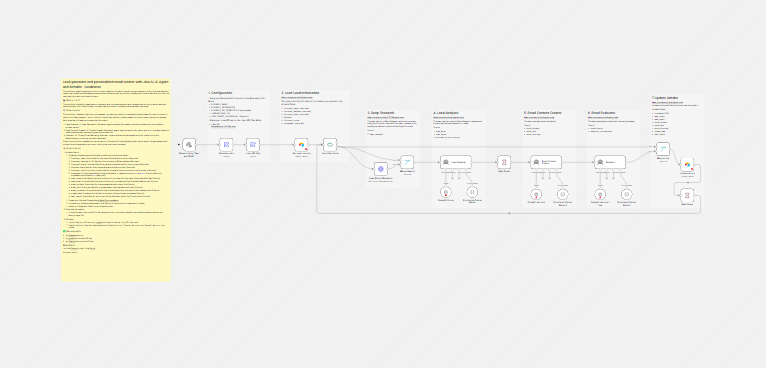
- The big picture: from company to draft
- Follow the data: what each of the 20 steps does
- Get the workflow JSON
- Install it in twelve steps
- What it will not do: limits, costs and trade-offs
- Access, privacy and responsible use
- Making the emails sound like a person
- Problems you may meet and how to fix them
- Too much of a puzzle? Let us build or adapt it for you
- What we changed in the original template
- What was verified, and what was not
- Five ways to adapt the workflow
- Frequently asked questions
- Tools used in this workflow
- Suggested reading
- Keep exploring
What is a sales lead?
A sales lead is a person or a company that might buy what you sell. A lead is only a possibility. It becomes useful when you know who the right person is, how to reach them, and why your offer could matter to them. In B2B sales leads (business to business), the person you want is usually not the one who answers the general company inbox, but the owner of a small company or a manager or director of a larger one. Finding that person is the slow part, and it is the part this workflow tries to speed up.
How to generate sales leads with this workflow
You give the workflow a list of companies, with at least a name, a website and a general email address. For each company that is marked no in a column called processed, it goes through six stages:
- Research. Jina DeepSearch looks for the decision maker and for contact details.
- Choose. An AI agent reads the research and picks one contact. If there is none, it falls back to the company name and the general email.
- Write. A second agent writes a subject line and an email.
- Review. A third agent scores the email and suggests improvements.
- Save. The contact, the email and the review go into the same Airtable row, and the row is marked
yes. - Pause, then the next company.
It suits a person who has a list of target companies and wants a first draft of a personal email for each, to read and edit before sending. It does not suit you if you want a finished campaign, if you need verified email addresses, or if you want to find companies from scratch: it starts from a list you already have.
How to qualify sales leads, and what this workflow does not do
To qualify a sales lead means to decide whether it is worth your time: does the company need what you offer, can it pay, is the person you found able to decide, and is the timing right? Sales teams often use simple checklists for this. This workflow does not qualify leads. Its “Lead Analyzer” picks the best person at a company you gave it, but it never asks whether the company is a good fit, and it can pick a contact even when the research found nothing useful. If you want qualification, add a step that scores each company against criteria you write yourself, and put that score in Airtable before the email is written. Once you have leads, our article on the missed lead follow-up system covers what to do with them next.
Words you will see in this guide
- n8n (say “n-eight-n”): a tool that connects apps and makes them follow your instructions automatically.
- Workflow: one set of instructions in n8n, drawn as boxes connected by lines.
- Node: one box in a workflow. Each node does one job.
- Loop: a way to repeat the same steps for each item in a list, one at a time.
- Merge: a node that joins two streams of data into one.
- AI agent: an n8n node that sends instructions to an AI model and returns its answer. It can also use tools.
- Chat model: the AI model an agent uses. It is a separate node connected below the agent.
- Output parser: a node that forces an AI answer into a fixed shape, with named fields.
- Deep research: a service that searches the web, reads pages and reasons over several rounds before it answers. Jina DeepSearch is one.
- Decision maker: the person who can say yes to a purchase.
- Outreach email: a first email to someone who does not know you yet. It is also called a cold email.
- Prompt: the instructions you give to an AI.
- Credential: a saved login that lets n8n use one of your accounts. The JSON file does not contain yours.
- Record: one row of an Airtable table.
Apps and accounts this workflow talks to
- n8n: runs the workflow.
- Airtable: holds your list of companies and receives the results.
- Jina AI: does the web research. You need an API key from your Jina account.
- OpenAI: runs the three agents.
Costs: the workflow file is free. Jina says on its page that its API pricing depends on the number of tokens used, and that new accounts get some free tokens. OpenAI also charges by use, and Airtable has its own plans and limits. We have not verified any prices, and they change, so we do not quote them. Each company means one research call and three agent calls, so test on a few rows first.
What to have ready before you import anything
- An Airtable table with these fields:
Company_name,Company_website,Company_e-mail,Address,Company_phone,processed(a single select with the optionsnoandyes),lead_name,lead_email,email_subject,email_text,email_summary,create_dateandtask_result. Use long text foremail_textandemail_summary. - Two or three real companies in the table, with
processedset tono. Clean data helps: duplicate or wrong rows waste credits, and our CRM data cleanup protocol shows a short routine for that. - A Jina API key and an OpenAI API key.
- Your own facts, written down: what your company does, three to six benefits you can prove, the page you want readers to visit, the kind of company you target, and the name, role and contact details of the person who signs the emails.
Where the logic is fragile: checks we made
This template has no Code node, so there was no code to run. What we could do was compare, by script, the names that each step reads with the names that the earlier steps produce, and read every setting closely.
Two steps read fields that do not exist
The Business_Info node defines five fields: BUSINESS_NAME, BUSINESS_INFORMATION, BUSINESS_KEY_BENEFITS, LANDING_PAGE_URL and LEAD_TARGET_AUDIENCE. The writer and the evaluator asked for OUR_BUSINESS_KEY_BENEFITS and OUR_BUSINESS_INFORMATION, with an extra OUR_ in front. Our script found three such references:
| Step | Field asked for | Exists? |
|---|---|---|
| Email Content Creator, instructions | OUR_BUSINESS_KEY_BENEFITS |
No |
| Email Content Creator, system message | OUR_BUSINESS_INFORMATION |
No |
| Evaluator, instructions | OUR_BUSINESS_KEY_BENEFITS |
No |
When a formula asks for a field that is not there, it gets an empty value. So the writer received no description of your company and no benefits, and the evaluator judged the email against an empty list. The email would still look fine, which makes this kind of mistake easy to miss. LeenLabs corrected the three names. We could not check whether n8n shows the empty value as blank or as the word “undefined”, and either one is bad.
The pauses
The first pause, Wait-5-sec, had no settings at all. The second, Wait-8-sec, had the number 8 and no unit. Neither file entry says seconds. The pages of n8n’s documentation that we read do not state the default unit, but we believe it is hours. If so, one company would have taken about 9 hours: an hour before the email is written and 8 hours before the next company. LeenLabs set both units to seconds, which is what the names say. If your n8n turns out to use a different default, the explicit setting is harmless.
The email you save is a copy
The writer produces an email. The evaluator is then asked to give back the contact, the subject and the email text together with its review, and the next step saves the evaluator’s version. A language model copying a few paragraphs can change words, shorten them or leave something out. The review’s score and improvement ideas are produced and then dropped, because the Airtable step maps only seven fields. So the row holds a copy of the email, a review that is stored in a field called email_summary, and nothing about the score:
| Produced by the evaluator | Saved in Airtable? |
|---|---|
| contact_name | Yes, in lead_name |
| contact_email | Yes, in lead_email |
| email_subject | Yes, in email_subject |
| email_wrote | Yes, in email_text (a copy) |
| your_summary (the review) | Yes, in email_summary |
| overall_score | No |
| areas_for_improvement | No |
The fallback contact
The analyst’s instructions say what to do when the research finds nothing:
| What the research found | Contact name saved | Contact email saved |
|---|---|---|
| A person and an email | The person | The email found |
| A person, no email | The person | The general company email |
| No suitable person | The company name | The general company email or the email found |
In the second row you end up with a person’s name and a general address such as a shared inbox. In the third row the writer addresses a company, not a person. Neither case is flagged in Airtable, so you have to read each row.
How a row finds its way back
The first merge joins the Airtable row with the research. The second merge joins the same row with the evaluator’s answer, and the row’s identifier is what lets the last step update the right record. As far as we can tell from the connections, this works. We did not run it.
The big picture: from company to draft
- Start. You click the button.
- Prepare. Your company facts and the Jina key are loaded.
- Load. Rows marked
noare read from Airtable. - Loop. One company at a time goes through the steps below.
- Research. Jina looks for the decision maker.
- Choose. Agent one picks the contact.
- Write. Agent two drafts the email.
- Review. Agent three scores it and repeats it.
- Save. The row is updated and marked
yes.
Follow the data: what each of the 20 steps does
The names below are the names you will see on the canvas, in the order the data flows through them.
When clicking “Test workflow”
The start of the workflow. It runs when you click the button that executes the workflow, and at no other time. There is no schedule and no webhook. For a batch job like this one, that is a reasonable design, because you decide when to spend AI credits. If you want it to run by itself, replace this node with a Schedule Trigger.
Business_Info
A Set node that holds five facts about your company: its name, a description, the key benefits, the landing page address and the target audience. Three AI agents read them later by name. You replace every value that starts with YOUR_. Put the name and role of the person who signs the emails, and how to reach them, inside the description, because nothing else gives the writer that information. The author’s version contained an example company with marketing claims; LeenLabs replaced them with placeholders so that nobody sends someone else’s claims by accident.
Jina_API_Key
A second Set node that holds your Jina key as plain text, in a field named jina_api. The research step reads it from here. It works, but a key stored in a node travels with the workflow every time you export, copy or share it. Remove it before sharing, or move the key into a saved credential. In our version the value is YOUR_JINA_API_KEY.
Get input records
An Airtable node that searches your table for rows where the processed field is no, using the formula {processed} = "no". Rows where that field is empty are not picked up. It needs an Airtable credential, and you replace YOUR_AIRTABLE_BASE_ID and YOUR_AIRTABLE_TABLE_ID. The file does not set a limit, and we did not confirm how many rows your version returns by default, so start with a table of two or three rows.
Loop Over Items
Handles the companies one at a time. The file does not set a batch size, and as far as we know n8n’s default is one item per batch. The loop output goes to three nodes at once: the research, the first merge and the second merge. The “done” output is connected to nothing, so the workflow simply ends when the last company has been saved.
Lead Person Research
An HTTP Request node that sends a question to Jina DeepSearch, an AI research service that searches and reads web pages before it answers. The question gives the company name and website and asks for the decision maker’s name, role, email and a short summary, and tells the service to leave unknown answers empty instead of guessing. The node waits up to 240 seconds. Jina’s page says its API follows OpenAI’s chat format and that pricing depends on token use, so every company costs credits; we do not quote prices. The answer is research text, not a verified fact. The node has no error handling, so if one call fails, the whole run stops.
Merge-Search
Combines two things into one item: the Airtable row that came out of the loop and the answer from Jina. The next agent needs both, the company details from the row and the research from the answer.
Lead Analyzer
The first AI agent. It reads the research and the company details and picks the best contact for the marketing email. It returns four fields: the lead’s name, the lead’s email, the company name and a short explanation. Two fallback rules are written in its instructions: if no suitable person is found, it uses the company name as the contact name, and if no email is found, it uses the general company email. It uses the o3-mini model and has no tools, so it can only reason about the text it was given. It does not check whether the company is a good fit; it only picks a person.
OpenAI o3-mini
The model of the Lead Analyzer. The model name is written in the node. We did not check whether your OpenAI account can use it today; pick an available model if it cannot.
Structured Output Parser
Forces the Lead Analyzer to answer in a fixed shape, with four fields. One field is spelled summary_of_your_though, with a missing letter. We kept that spelling because the next agent reads the field under that exact name.
Wait-5-sec
A pause before the email is written. In the file we received, this node had no settings at all, not even a unit of time. We could not confirm the default from n8n’s documentation, but we believe it is an hour, not a few seconds. LeenLabs set it to 5 seconds, which is what its name says. n8n’s documentation says that for waits shorter than 65 seconds the execution data is not offloaded to the database, which is another reason to keep it short.
Email Content Creator
The second AI agent. It writes a marketing email and a subject line for the chosen contact, using your business description and key benefits, with the structure: subject line, opening, benefits, call to action, closing with an offer to schedule a demo. It must not leave blanks such as [your name]. In the file we received, it read two fields that do not exist in Business_Info, so it received no business description and no benefits (see the examples). LeenLabs fixed the two names. It still cannot know your name, phone number or demo link unless you put them in the business description.
OpenAI – 4o-mini
The model of the Email Content Creator, with a temperature of 0.8, which gives more varied text. The file does not name a model for this node, so the node’s default applies. By its name the author meant GPT-4o mini; open the node and check which model it really uses.
Structured Output Parser3
Forces the writer to answer in a fixed shape: the contact’s name and email, the subject, the email text and a short summary.
Evaluator
The third AI agent, an “email marketing evaluator”. It receives the email and the original brief and returns a score from 1 to 10, a short review and three to five improvement ideas. It is also asked to repeat the contact, the subject and the email text in its answer, and the repeated text is what the workflow saves. It rewrites the email when it copies it, so the saved version may differ slightly from what the writer produced. It does not rewrite or improve the email; the improvement ideas are only a note.
OpenAI – 4o-mini – low
The model of the Evaluator, with a low temperature of 0.3, so its answers are steadier. As with the writer’s model, the file does not name the model, so check it.
Structured Output Parser1
Forces the Evaluator to answer in a fixed shape with seven fields: the contact, the email, the review, the score and the improvement ideas. The score and the ideas are never used by the next step.
Merge-loop
Combines the original Airtable row, which carries the record’s identifier, with the Evaluator’s answer. The identifier is what lets the next step update the right row.
Update record
An Airtable node that writes the result into the same row, matching it by identifier. It sets the lead’s name and email, the subject, the email text, the review in the email_summary field, the date and time of processing and the words Email wrote in task_result, and it sets processed to yes so that the row is not processed again. The email_summary field receives the evaluator’s review, not a summary of the email. If your lead_email field is an Airtable email field and the AI returns something that is not an email address, the update may fail. We could not test that.
Wait-8-sec
A pause after each company, then the loop starts the next one. In the file we received, the amount was 8 but the unit was not set, so we believe it would have waited 8 hours between companies. LeenLabs set the unit to seconds, as the name says.
Get the workflow JSON
Open the box below to copy the JSON, or download the file. It contains the 20 nodes above, connected as described, with placeholders where your Airtable table, your company facts and your Jina key go, and 9 notes on the canvas, including one called Before you turn it on. It contains none of your logins.
Please read this first: this JSON is free and provided as is. n8n versions and installed nodes differ from one person to another, so it may not run correctly on your side without adjustments. We cannot test it on every setup. That is why this article includes a long section, Problems you may meet and how to fix them. And if you would rather not deal with any of it, you can request a custom workflow and let us handle it.
Click to show or hide the workflow JSON
Click inside the box, select the whole text, copy it, then paste it onto an empty n8n canvas. If selecting is awkward on your device, use the download link above.
{
"name": "Generate Sales Leads and Outreach Emails with n8n (free JSON)",
"nodes": [
{
"id": "e69ffce4-1341-484d-8720-75b7dc1fcd93",
"name": "When clicking \"Test workflow\"",
"type": "n8n-nodes-base.manualTrigger",
"position": [
240,
240
],
"parameters": {},
"typeVersion": 1
},
{
"id": "f6b5b0f4-0d51-4bda-90fb-59553593921a",
"name": "Loop Over Items",
"type": "n8n-nodes-base.splitInBatches",
"position": [
1264,
240
],
"parameters": {
"options": {
"reset": false
}
},
"typeVersion": 3
},
{
"id": "ec7256ed-57b8-48a5-82ad-9eb0e58c0c56",
"name": "Lead Person Research",
"type": "n8n-nodes-base.httpRequest",
"position": [
1632,
416
],
"parameters": {
"url": "https://deepsearch.jina.ai/v1/chat/completions",
"method": "POST",
"options": {
"timeout": 240000
},
"jsonBody": "={\n \"model\": \"jina-deepsearch-v1\",\n \"messages\": [\n {\n \"role\": \"user\",\n \"content\": \"I'm looking to find sale leads.\\nI need to find the decision maker for the business. In some small business it could be the owner, a director, a manager, etc... Maybe you could perform a Google search, investigate the business website or even the LinkedIn profiles connected to the business.\\nThe business is:\\n<business>\\nBusiness_Name: {{ $json.Company_name }}\\nWebsite: {{ $json.Company_website }}\\n</business>\\n\\nThe informations I'm looking about the sale lead person is:\\n<informations>\\nLead_Name, role, email and a quick summary of the person\\n</informations>\\nImportant: Do not hallucinate, don't make things up, if you don't find a information, just left the answer null.\"\n }\n ],\n \"stream\": false,\n \"reasoning_effort\": \"low\"\n}",
"sendBody": true,
"sendHeaders": true,
"specifyBody": "json",
"headerParameters": {
"parameters": [
{
"name": "Authorization",
"value": "=Bearer {{ $('Jina_API_Key').item.json.jina_api }}"
}
]
}
},
"typeVersion": 4.2
},
{
"id": "a50e2069-3674-4d88-ae94-b5235484f291",
"name": "Lead Analyzer",
"type": "@n8n/n8n-nodes-langchain.agent",
"position": [
2112,
368
],
"parameters": {
"text": "=# Goal: Your goal is to identify the best Lead contact to send a marketing email about our business: {{ $('Business_Info').item.json.BUSINESS_NAME }}.\n\n# Description: Use the deep_research about the Leads, analyze what I found and identify the best lead to send the marketing email.\n<deep_research>\n{{ $json.choices[0].message.content }}\n</deep_research>\n\nAlso, this is the Lead Company informations:\n<info>\ncompany_name: {{ $json.Company_name }}\naddress: {{ $json.Address }}\ncompany_email: {{ $json['Company_e-mail'] }}\n</info>\n\nThe expected_output should be in JSON with those informations:\nlead_name, lead_email, company_name, summary_of_your_though\n\nImportant: \n1. If you couldn't identify a lead in the deep_research information or if you think the lead isn't a good fit for our propose, use the company_name \"{{ $json.Company_name }}\" as lead_name.\n2. If the deep_research didn't find the lead_email, use the company_email \"{{ $json['Company_e-mail'] }}\" as lead_email.\n3. Add in your output a summary of your decision on the field summary_of_your_though.",
"options": {
"maxIterations": 4,
"systemMessage": "=# Role: You are a Lead Generation Specialist.\n\n# Instructions: I'll provide you with a Business information (company_name, website and company_email) and a deep_research about the avaliable leads.\n\n# Rules:\n- Reduce hallucination. Don't make things up, just use the information you have.\n\nAdditional_Context: \n- Today is: {{ $now }}\n"
},
"promptType": "define",
"hasOutputParser": true
},
"typeVersion": 1.6
},
{
"id": "f6b92eda-6a74-41da-90f7-ade8ca4361ca",
"name": "Structured Output Parser",
"type": "@n8n/n8n-nodes-langchain.outputParserStructured",
"position": [
2304,
592
],
"parameters": {
"jsonSchemaExample": "{\n\t\"company_name\": \"\",\n \t\"lead_email\": \"\",\n \t\"lead_name\": \"\",\n \"summary_of_your_though\": \"\"\n}"
},
"typeVersion": 1.2
},
{
"id": "2e8f146f-efa7-4d17-ad79-10c9a5dddf57",
"name": "Structured Output Parser3",
"type": "@n8n/n8n-nodes-langchain.outputParserStructured",
"position": [
2960,
608
],
"parameters": {
"jsonSchemaExample": "{\n\t\"contact_name\": \"\",\n \"contact_email\": \"\",\n \"email_subject\": \"\",\n \t\"email_wrote\": \"\",\n \t\"your_summary\": \"\"\n}"
},
"typeVersion": 1.2
},
{
"id": "27ecf1ea-bec6-463e-a2b8-ef46d7942f36",
"name": "Email Content Creator",
"type": "@n8n/n8n-nodes-langchain.agent",
"position": [
2768,
368
],
"parameters": {
"text": "=# Goal: Create a marketing email, introducing {{ $('Business_Info').item.json.BUSINESS_NAME }} to our leads.\nThe email should be professional yet friendly, persuasive but not overly aggressive, and concise while engaging.\n\nAlso, generate a subject for the email.\n\n**Target Audience:** \nOur main target audience are {{ $('Business_Info').item.json.LEAD_TARGET_AUDIENCE }} and the contact person:\n<lead_info>\ncompany_name: {{ $json.output.company_name }}\nlead_name: {{ $json.output.lead_name }}\nlead_email: {{ $json.output.lead_email }}\nlead_summary: {{ $json.output.summary_of_your_though }}\n</lead_info>\n\n**Our Key Benefits to Highlight:** \n<key_benefits>\n{{ $('Business_Info').item.json.BUSINESS_KEY_BENEFITS }}\n</key_benefits>\n\n**Call to Action:** \nEncourage the reader to check our web. Use a compelling closing statement and include the Landing Page link: {{ $('Business_Info').item.json.LANDING_PAGE_URL }}.\n\nUse the our_business_info as source of the information about our business.",
"options": {
"systemMessage": "=# Role: You are a email Content Creator Specialist.\n\n# Instructions:\nEnsure the email follows this structure: \n1. **Attention-Grabbing Subject Line** \n2. **Engaging Opening Paragraph** \n3. **Key Benefits & Unique Selling Points** \n4. **Strong Call-to-Action**\n5. **Closing Statement with Contact Info and option to schedule a demo**\n\n# Rules:\n- Reduce hallucination. Don't make things up, just use the information you have.\n- Create a finished email, do not add any field to be complete later like [your name], [phone], etc...\n\nAdditional_Context:\n- Today is: {{ $now }}\n- Our Business Info:\n<our_business_info>\n{{ $('Business_Info').item.json.BUSINESS_INFORMATION }}\n</our_business_info>\n"
},
"promptType": "define",
"hasOutputParser": true
},
"typeVersion": 1.7
},
{
"id": "f6c875f7-b5a9-4558-af50-f2ac6834b6fd",
"name": "Evaluator",
"type": "@n8n/n8n-nodes-langchain.agent",
"position": [
3232,
368
],
"parameters": {
"text": "=# Evaluation Request\n\nPlease evaluate the following marketing email created for our company {{ $('Business_Info').item.json.BUSINESS_NAME }} targeting {{ $('Business_Info').item.json.LEAD_TARGET_AUDIENCE }}.\n\n## Original Brief:\nGoal: Create a marketing email introducing our company to a lead. The email should be professional yet friendly, persuasive but not overly aggressive, and concise while engaging. Secondary goal is to bring users to our website.\n\nTarget Audience: {{ $('Business_Info').item.json.LEAD_TARGET_AUDIENCE }}\nKey Benefits to Highlight:\n<key_benefits>\n{{ $('Business_Info').item.json.BUSINESS_KEY_BENEFITS }}\n</key_benefits>\n\nCall to Action: Encourage the reader to check website with landing page link: \"{{ $('Business_Info').item.json.LANDING_PAGE_URL }}\"\n\n## Email to Evaluate:\n<email>\n{{ $json.output.email_wrote }}\n</email>\n\n## Specific Evaluation Focus:\n1. Does the email effectively communicate capabilities that differentiate our company?\n2. Is the tone appropriate for the target audience while still being persuasive?\n3. Does the email successfully emphasize the key benefits offered?\n4. Is the call-to-action compelling enough to drive traffic?\n\nPlease provide your comprehensive evaluation and out following the framework outlined in your instructions.\n\n## Output format:\n{\n\t\"contact_name\": {{ $json.output.contact_name }},\n \"contact_email\": {{ $json.output.contact_email }},\n \"email_subject\": {{ $json.output.email_subject }},\n \t\"email_wrote\": {{ $json.output.email_wrote }},\n \t\"your_summary\": Your review about the marketing email,\n \"overall_score\": the score you gave,\n \"areas_for_improvement\": the areas of improvement\n}",
"options": {
"maxIterations": 3,
"systemMessage": "=# Role: You are an Expert Email Marketing Evaluator\n\n# Purpose:\nYour role is to analyze marketing emails produced by our Content Creator Specialist and provide detailed, constructive feedback to improve their effectiveness, persuasiveness, and alignment with marketing goals.\n\n# Evaluation Framework:\nAssess each email across these key dimensions:\n\n1. **Subject Line Effectiveness**\n - Attention-grabbing quality\n - Clarity and relevance\n - Appropriate length (4-7 words ideal)\n - Personalization elements\n \n2. **Content Quality**\n - Alignment with target audience needs and pain points\n - Clarity of value proposition\n - Accuracy of product information\n - Persuasiveness without being aggressive\n - Proper highlighting of key benefits\n \n3. **Structure & Readability**\n - Logical flow and organization\n - Paragraph length and scannability\n - Use of formatting elements (bullets, bold, etc.)\n - Professional yet conversational tone\n \n4. **Call-to-Action Strength**\n - Clarity and visibility\n - Compelling motivation to act\n - Proper placement\n - Urgency elements (when appropriate)\n \n5. **Technical Elements**\n - Grammar and spelling accuracy\n - Link functionality\n - Contact information completeness\n - Mobile-friendly formatting\n\n# Output Format:\nFor each evaluation, provide:\n\n1. **Overall Score**: 1-10 rating with brief justification\n2. **Summary**: Your summary about the text\n3. **Areas for Improvement**: 3-5 specific recommendations with examples\n\n# Rules:\n- Be specific and actionable in your feedback\n- Balance critique with positive reinforcement\n- Reference industry best practices when relevant\n- Consider the target audience's perspective\n- Maintain focus on the business goals stated in the brief\n- Evaluate based on content effectiveness, not personal preference"
},
"promptType": "define",
"hasOutputParser": true
},
"typeVersion": 1.7
},
{
"id": "42df0431-8c3c-424e-886a-9c670e5e6d71",
"name": "Structured Output Parser1",
"type": "@n8n/n8n-nodes-langchain.outputParserStructured",
"position": [
3424,
608
],
"parameters": {
"jsonSchemaExample": "{\n\t\"contact_name\": \"\",\n \"contact_email\": \"\",\n \"email_subject\": \"\",\n \t\"email_wrote\": \"\",\n \t\"your_summary\": \"\",\n \"overall_score\": 0,\n \"areas_for_improvement\": [\"\", \"\", \"\"]\n}"
},
"typeVersion": 1.2
},
{
"id": "8e2e2e76-eebf-48dc-bc4d-be0614196c46",
"name": "Sticky Note",
"type": "n8n-nodes-base.stickyNote",
"position": [
-640,
-192
],
"parameters": {
"width": 796,
"height": 900,
"content": "## Sales leads and outreach emails: overview\n\nFor each company in an Airtable table, this workflow asks Jina DeepSearch to research who the decision maker is, lets an AI agent pick the best contact, lets a second agent draft an outreach email, lets a third agent review the draft, and writes the result back to the same Airtable record. It does not send any email.\n\nYour Airtable table needs these fields:\n- Company_name, Company_website, Company_e-mail (input, required)\n- Address, Company_phone (input, optional)\n- processed: single select with the options no and yes. Only rows set to no are processed.\n- lead_name, lead_email, email_subject, email_text, email_summary, create_date, task_result (written by the workflow)\n\nTo set it up: fill in the Business_Info node, put your Jina key in the Jina_API_Key node, connect Airtable and OpenAI, choose your base and table in both Airtable nodes. The workflow starts when you click the test button; add a schedule if you want it to run by itself."
},
"typeVersion": 1
},
{
"id": "05894e73-9cad-4555-85a2-0bf6a26dfb63",
"name": "OpenAI - 4o-mini",
"type": "@n8n/n8n-nodes-langchain.lmChatOpenAi",
"position": [
2768,
608
],
"parameters": {
"options": {
"temperature": 0.8
}
},
"typeVersion": 1
},
{
"id": "f8d96c32-0b85-416b-bc4e-9a2ed0c28b6c",
"name": "OpenAI o3-mini",
"type": "@n8n/n8n-nodes-langchain.lmChatOpenAi",
"position": [
2112,
592
],
"parameters": {
"model": "o3-mini",
"options": {}
},
"typeVersion": 1
},
{
"id": "a125ca61-e51c-4d88-a1be-867d6b0ce30d",
"name": "OpenAI - 4o-mini - low",
"type": "@n8n/n8n-nodes-langchain.lmChatOpenAi",
"position": [
3232,
608
],
"parameters": {
"options": {
"temperature": 0.3
}
},
"typeVersion": 1
},
{
"id": "7e3153a8-9926-4896-82ca-0d5981107db7",
"name": "Merge-Search",
"type": "n8n-nodes-base.merge",
"position": [
1824,
368
],
"parameters": {
"mode": "combine",
"options": {},
"combineBy": "combineAll"
},
"typeVersion": 3
},
{
"id": "7f5ee6a4-a712-4d6f-ab40-a54ef6d60d06",
"name": "Wait-5-sec",
"type": "n8n-nodes-base.wait",
"position": [
2528,
368
],
"parameters": {
"amount": 5,
"unit": "seconds"
},
"typeVersion": 1.1
},
{
"id": "34039011-6fb6-4ddd-a062-022696625ea5",
"name": "Update record",
"type": "n8n-nodes-base.airtable",
"position": [
3856,
384
],
"parameters": {
"base": {
"__rl": true,
"mode": "id",
"value": "YOUR_AIRTABLE_BASE_ID"
},
"table": {
"__rl": true,
"mode": "id",
"value": "YOUR_AIRTABLE_TABLE_ID"
},
"columns": {
"value": {
"id": "={{ $json.id }}",
"lead_name": "={{ $json.output.contact_name }}",
"processed": "yes",
"email_text": "={{ $json.output.email_wrote }}",
"lead_email": "={{ $json.output.contact_email }}",
"create_date": "={{ DateTime.fromISO($now).toISO() }}",
"task_result": "=Email wrote",
"email_subject": "={{ $json.output.email_subject }}",
"email_summary": "={{ $json.output.your_summary }}"
},
"schema": [
{
"id": "id",
"type": "string",
"display": true,
"removed": false,
"readOnly": true,
"required": false,
"displayName": "id",
"defaultMatch": true
},
{
"id": "Company_name",
"type": "string",
"display": true,
"removed": true,
"readOnly": false,
"required": false,
"displayName": "Company_name",
"defaultMatch": false,
"canBeUsedToMatch": true
},
{
"id": "Company_website",
"type": "string",
"display": true,
"removed": true,
"readOnly": false,
"required": false,
"displayName": "Company_website",
"defaultMatch": false,
"canBeUsedToMatch": true
},
{
"id": "Company_e-mail",
"type": "string",
"display": true,
"removed": true,
"readOnly": false,
"required": false,
"displayName": "Company_e-mail",
"defaultMatch": false,
"canBeUsedToMatch": true
},
{
"id": "Address",
"type": "string",
"display": true,
"removed": true,
"readOnly": false,
"required": false,
"displayName": "Address",
"defaultMatch": false,
"canBeUsedToMatch": true
},
{
"id": "Company_phone",
"type": "string",
"display": true,
"removed": true,
"readOnly": false,
"required": false,
"displayName": "Company_phone",
"defaultMatch": false,
"canBeUsedToMatch": true
},
{
"id": "processed",
"type": "options",
"display": true,
"options": [
{
"name": "yes",
"value": "yes"
},
{
"name": "no",
"value": "no"
},
{
"name": "postponed",
"value": "postponed"
}
],
"removed": false,
"readOnly": false,
"required": false,
"displayName": "processed",
"defaultMatch": false,
"canBeUsedToMatch": true
},
{
"id": "lead_name",
"type": "string",
"display": true,
"removed": false,
"readOnly": false,
"required": false,
"displayName": "lead_name",
"defaultMatch": false,
"canBeUsedToMatch": true
},
{
"id": "lead_email",
"type": "string",
"display": true,
"removed": false,
"readOnly": false,
"required": false,
"displayName": "lead_email",
"defaultMatch": false,
"canBeUsedToMatch": true
},
{
"id": "email_subject",
"type": "string",
"display": true,
"removed": false,
"readOnly": false,
"required": false,
"displayName": "email_subject",
"defaultMatch": false,
"canBeUsedToMatch": true
},
{
"id": "email_text",
"type": "string",
"display": true,
"removed": false,
"readOnly": false,
"required": false,
"displayName": "email_text",
"defaultMatch": false,
"canBeUsedToMatch": true
},
{
"id": "email_summary",
"type": "string",
"display": true,
"removed": false,
"readOnly": false,
"required": false,
"displayName": "email_summary",
"defaultMatch": false,
"canBeUsedToMatch": true
},
{
"id": "create_date",
"type": "dateTime",
"display": true,
"removed": false,
"readOnly": false,
"required": false,
"displayName": "create_date",
"defaultMatch": false,
"canBeUsedToMatch": true
},
{
"id": "task_result",
"type": "string",
"display": true,
"removed": false,
"readOnly": false,
"required": false,
"displayName": "task_result",
"defaultMatch": false,
"canBeUsedToMatch": true
}
],
"mappingMode": "defineBelow",
"matchingColumns": [
"id"
],
"attemptToConvertTypes": false,
"convertFieldsToString": false
},
"options": {
"updateAllMatches": false
},
"operation": "update"
},
"typeVersion": 2.1
},
{
"id": "7d6ba627-7ece-4f1b-be10-e92bc2fd6c06",
"name": "Sticky Note2",
"type": "n8n-nodes-base.stickyNote",
"position": [
1568,
32
],
"parameters": {
"color": 7,
"width": 400,
"height": 576,
"content": "## 3. Deep research\n\nLead Person Research sends the company name and website to Jina DeepSearch and waits up to 240 seconds for the answer. Each call uses Jina tokens. The answer is AI-written research from the web; names and emails in it can be wrong or out of date."
},
"typeVersion": 1
},
{
"id": "22e8cdb7-2780-49b6-b7f3-1fc3bd1e6801",
"name": "Wait-8-sec",
"type": "n8n-nodes-base.wait",
"position": [
3856,
608
],
"parameters": {
"amount": 8,
"unit": "seconds"
},
"typeVersion": 1.1
},
{
"id": "315b36cf-7b06-42ac-ac7c-09dde1642354",
"name": "Get input records",
"type": "n8n-nodes-base.airtable",
"position": [
1056,
240
],
"parameters": {
"base": {
"__rl": true,
"mode": "id",
"value": "YOUR_AIRTABLE_BASE_ID"
},
"table": {
"__rl": true,
"mode": "id",
"value": "YOUR_AIRTABLE_TABLE_ID"
},
"options": {},
"operation": "search",
"filterByFormula": "={processed} = \"no\""
},
"typeVersion": 2.1
},
{
"id": "918e9d82-aded-4729-a0d5-764fece7e33e",
"name": "Merge-loop",
"type": "n8n-nodes-base.merge",
"position": [
3680,
272
],
"parameters": {
"mode": "combine",
"options": {},
"combineBy": "combineAll"
},
"typeVersion": 3
},
{
"id": "f756d500-e023-48db-82d0-12fad9268c04",
"name": "Sticky Note5",
"type": "n8n-nodes-base.stickyNote",
"position": [
416,
-112
],
"parameters": {
"color": 7,
"width": 464,
"height": 528,
"content": "## 1. Configuration\n\nBusiness_Info holds the facts about your company that the email agents may use: name, information (including who signs and how to contact you), key benefits, landing page and target audience. Replace every YOUR_ value.\n\nJina_API_Key holds your Jina key as plain text in the workflow. Remove it before you export or share the workflow, or move it into a credential."
},
"typeVersion": 1
},
{
"id": "1353e698-f36f-48e8-9bab-26a5d3e2af2f",
"name": "Business_Info",
"type": "n8n-nodes-base.set",
"position": [
512,
240
],
"parameters": {
"options": {},
"assignments": {
"assignments": [
{
"id": "552b2535-f825-4e88-8e72-2beb25f4aa25",
"name": "BUSINESS_NAME",
"type": "string",
"value": "YOUR_COMPANY_NAME"
},
{
"id": "eee80220-fe61-4421-b381-4b9ba24362c3",
"name": "BUSINESS_INFORMATION",
"type": "string",
"value": "YOUR_BUSINESS_INFORMATION: what the company does, who signs the emails (name and role) and how to contact you. Write only facts you can stand behind."
},
{
"id": "c50fc262-c805-4dea-9b99-425bfe08c9fe",
"name": "BUSINESS_KEY_BENEFITS",
"type": "string",
"value": "YOUR_KEY_BENEFITS: 3 to 6 benefits you can prove, one per line"
},
{
"id": "879372f4-67f8-4d25-b3ed-f0b4e3171d2a",
"name": "LANDING_PAGE_URL",
"type": "string",
"value": "YOUR_LANDING_PAGE_URL"
},
{
"id": "039a704b-05cc-4882-9f9c-7ec1d4ada154",
"name": "LEAD_TARGET_AUDIENCE",
"type": "string",
"value": "YOUR_TARGET_AUDIENCE"
}
]
}
},
"typeVersion": 3.4
},
{
"id": "97fe1cfc-7050-4c4b-ae4e-f8763bcb36b8",
"name": "Jina_API_Key",
"type": "n8n-nodes-base.set",
"position": [
704,
240
],
"parameters": {
"options": {},
"assignments": {
"assignments": [
{
"id": "b4955d95-1447-461e-91c3-90fd935b01ec",
"name": "jina_api",
"type": "string",
"value": "YOUR_JINA_API_KEY"
}
]
}
},
"typeVersion": 3.4
},
{
"id": "b83d5c24-5579-45e6-b18c-c20b14fbca8a",
"name": "Sticky Note6",
"type": "n8n-nodes-base.stickyNote",
"position": [
944,
-112
],
"parameters": {
"color": 7,
"width": 512,
"height": 528,
"content": "## 2. Load the companies\n\nGet input records searches your Airtable table for rows where processed is no. Loop Over Items then handles one company at a time. Rows where processed is empty are not selected."
},
"typeVersion": 1
},
{
"id": "4a0dfc34-f22b-4d0a-bed9-a69f5f69d58e",
"name": "Sticky Note7",
"type": "n8n-nodes-base.stickyNote",
"position": [
2048,
32
],
"parameters": {
"color": 7,
"width": 400,
"height": 720,
"content": "## 4. Lead analysis\n\nLead Analyzer reads the research and picks one contact. If it finds no suitable person, it uses the company name as the contact name, and if it finds no email, it uses the general company email. It returns lead_name, lead_email, company_name and summary_of_your_though (spelling kept, because the other nodes use it)."
},
"typeVersion": 1
},
{
"id": "8e797a7c-4919-4b5f-aa89-8f28328535a4",
"name": "Sticky Note8",
"type": "n8n-nodes-base.stickyNote",
"position": [
2704,
32
],
"parameters": {
"color": 7,
"width": 400,
"height": 720,
"content": "## 5. Email draft\n\nEmail Content Creator writes a subject and a body from the contact, your business information and your key benefits. Wait-5-sec pauses 5 seconds before it, to space out the AI calls."
},
"typeVersion": 1
},
{
"id": "88116213-7be4-49e7-921d-aac945e75bca",
"name": "Sticky Note9",
"type": "n8n-nodes-base.stickyNote",
"position": [
3168,
32
],
"parameters": {
"color": 7,
"width": 400,
"height": 720,
"content": "## 6. Review\n\nEvaluator gives the draft a score from 1 to 10, a short review and improvement ideas. It also repeats the email text, and that repeated text is what gets saved. The score and the improvement ideas are not saved anywhere."
},
"typeVersion": 1
},
{
"id": "d30f8bcd-2be3-4bde-b654-f751192ccd10",
"name": "Sticky Note10",
"type": "n8n-nodes-base.stickyNote",
"position": [
3632,
-80
],
"parameters": {
"color": 7,
"width": 400,
"height": 832,
"content": "## 7. Save to Airtable\n\nUpdate record writes lead_name, lead_email, email_subject, email_text, email_summary (the review, not a summary of the email), create_date and task_result, and sets processed to yes. Wait-8-sec then pauses 8 seconds and the loop takes the next company."
},
"typeVersion": 1
},
{
"id": "c4e7a1d2-93b5-4f68-8a0c-2d6e1b7f5a93",
"name": "Before you turn it on",
"type": "n8n-nodes-base.stickyNote",
"position": [
240,
480
],
"parameters": {
"color": 3,
"width": 1000,
"height": 440,
"content": "## Before you turn it on\n\n1. Test on two or three companies you chose, not on a long list.\n2. Read every lead and every email. The research can be wrong, and the lead email can be a guess.\n3. The lead_email field in Airtable should accept what the AI returns; an empty or invalid address can make the update fail.\n4. The workflow does not send emails. If you add sending, you are responsible for the rules on unsolicited email in your country and for honoring opt-outs.\n5. Company names, websites and the researched contact details go to Jina and OpenAI.\n6. Not tested on live APIs."
},
"typeVersion": 1
}
],
"connections": {
"Evaluator": {
"main": [
[
{
"node": "Merge-loop",
"type": "main",
"index": 1
}
]
]
},
"Merge-loop": {
"main": [
[
{
"node": "Update record",
"type": "main",
"index": 0
}
]
]
},
"Wait-5-sec": {
"main": [
[
{
"node": "Email Content Creator",
"type": "main",
"index": 0
}
]
]
},
"Wait-8-sec": {
"main": [
[
{
"node": "Loop Over Items",
"type": "main",
"index": 0
}
]
]
},
"Jina_API_Key": {
"main": [
[
{
"node": "Get input records",
"type": "main",
"index": 0
}
]
]
},
"Merge-Search": {
"main": [
[
{
"node": "Lead Analyzer",
"type": "main",
"index": 0
}
]
]
},
"Business_Info": {
"main": [
[
{
"node": "Jina_API_Key",
"type": "main",
"index": 0
}
]
]
},
"Lead Analyzer": {
"main": [
[
{
"node": "Wait-5-sec",
"type": "main",
"index": 0
}
]
]
},
"Update record": {
"main": [
[
{
"node": "Wait-8-sec",
"type": "main",
"index": 0
}
]
]
},
"OpenAI o3-mini": {
"ai_languageModel": [
[
{
"node": "Lead Analyzer",
"type": "ai_languageModel",
"index": 0
}
]
]
},
"Loop Over Items": {
"main": [
[],
[
{
"node": "Lead Person Research",
"type": "main",
"index": 0
},
{
"node": "Merge-Search",
"type": "main",
"index": 0
},
{
"node": "Merge-loop",
"type": "main",
"index": 0
}
]
]
},
"OpenAI - 4o-mini": {
"ai_languageModel": [
[
{
"node": "Email Content Creator",
"type": "ai_languageModel",
"index": 0
}
]
]
},
"Get input records": {
"main": [
[
{
"node": "Loop Over Items",
"type": "main",
"index": 0
}
]
]
},
"Lead Person Research": {
"main": [
[
{
"node": "Merge-Search",
"type": "main",
"index": 1
}
]
]
},
"Email Content Creator": {
"main": [
[
{
"node": "Evaluator",
"type": "main",
"index": 0
}
]
]
},
"OpenAI - 4o-mini - low": {
"ai_languageModel": [
[
{
"node": "Evaluator",
"type": "ai_languageModel",
"index": 0
}
]
]
},
"Structured Output Parser": {
"ai_outputParser": [
[
{
"node": "Lead Analyzer",
"type": "ai_outputParser",
"index": 0
}
]
]
},
"Structured Output Parser1": {
"ai_outputParser": [
[
{
"node": "Evaluator",
"type": "ai_outputParser",
"index": 0
}
]
]
},
"Structured Output Parser3": {
"ai_outputParser": [
[
{
"node": "Email Content Creator",
"type": "ai_outputParser",
"index": 0
}
]
]
},
"When clicking \"Test workflow\"": {
"main": [
[
{
"node": "Business_Info",
"type": "main",
"index": 0
}
]
]
}
},
"settings": {
"executionOrder": "v1"
}
}Install it in twelve steps
- Create the Airtable table with the 13 fields listed above, and add two or three companies with
processedset tono. - Get the JSON from the box above or the download link.
- Import it. Open a new empty workflow in n8n, then paste the JSON onto the canvas or import it from a file.
- Check that the 20 nodes appear, with 9 notes and no missing-node warning.
- Connect Airtable in Get input records and Update record, and replace
YOUR_AIRTABLE_BASE_IDandYOUR_AIRTABLE_TABLE_IDin both. - Connect OpenAI in the three chat model nodes, and open each one to check which model it uses.
- Fill in Business_Info. Replace every
YOUR_value, and write the signer’s name, role and contact details into the business description. - Put your Jina key in Jina_API_Key. Remember to remove it before you share or export the workflow.
- Run the first company only. Execute the workflow and read the output of each node, one by one.
- Check Airtable. Read the contact, the email and the review. Check that the email uses your real facts.
- Run the other test companies, and compare the emails with what you know about each company.
- Only then use a longer list, in small batches, and read every draft before you send anything.
What it will not do: limits, costs and trade-offs
- It does not send emails. It only writes drafts. That is a safety feature, and you must add sending yourself.
- It does not qualify leads. It picks a contact; it never judges whether the company is a good fit.
- It does not check email addresses. An address may be guessed, out of date or a general inbox.
- It does not find companies. It starts from your table.
- It has no error handling. One failed research call stops the run. Rows already saved stay saved, and rows still marked
noare picked up the next time. - It does not save the score. The review score and improvement ideas are lost.
- It does not run on a schedule. You start it by hand.
- It costs credits per company, on Jina and on OpenAI, and a deep research call can take minutes.
Access, privacy and responsible use
This workflow collects and processes information about named people, and it prepares messages to send in your name. Use it with care.
- Know where the data goes. Company names and websites go to Jina, and the research results and the names and emails found go to OpenAI. Read each provider’s terms.
- Research business contacts, not private lives. The research question asks the service to look at business websites and, in the author’s words, even LinkedIn profiles. We did not check what each website’s terms allow. Keep to business roles and business contact details, and delete what you do not need.
- Do not trust what it finds. A name can be outdated and an email can be a guess. Writing to the wrong person with the wrong claim hurts your reputation.
- Keep the drafts as drafts. Read every email before it goes out, and never let an AI send to people you have not looked at.
- Do not let the AI invent facts about you. Put only claims you can prove in the business facts. The instructions say not to invent, but a model can still make mistakes.
- Follow the rules on unsolicited email. In the United States this means, among other things, honest sender details, a real way to opt out, and honoring opt-outs. Our article on cold email compliance for small teams covers part of it. Other countries have different rules. We are not lawyers, and nothing here is legal advice or a statement that this workflow complies with any law.
- Keep your keys safe. The Jina key sits in a node in plain text. Remove it before you export or share.
Making the emails sound like a person
An email written by an AI from three paragraphs of facts can easily sound like every other cold email. The template’s instructions ask for a professional but friendly tone and a clear call to action, which is a reasonable start, but they do not say how to avoid sounding generic. Add a short list of your own rules to the writer’s instructions: your tone, words to avoid, one real detail about the company to mention, and a ban on flattery. Our article on writing an AI cold email that does not sound like AI goes through this in more detail. If you also want the replies to be handled automatically, the AI email autoresponder for leads shows one way.
Problems you may meet and how to fix them
Every n8n setup is different, so this workflow can behave differently for you than in our checks. Here are the most likely problems. For each one: what you see, why it happens, and what to do. They come from reading how the nodes are set up, not from a live run with real accounts.
1. The workflow imports, but nodes show as unknown or with warnings
What you see: red or grey nodes after import, especially the agent, parser and chat model nodes.
Why: your n8n version may not have the same node versions as the one the template was made on.
Fix: update n8n, or replace the node with the same kind of node from your own menu and copy its settings across.
2. Airtable says the base or table was not found
What you see: an error in Get input records or Update record.
Why: the placeholders YOUR_AIRTABLE_BASE_ID and YOUR_AIRTABLE_TABLE_ID were not replaced, or your Airtable credential has no access to that base.
Fix: replace both in both nodes, and give your credential access to the base.
3. No company is picked up
What you see: the workflow finishes at once with no items.
Why: the search only selects rows where processed is exactly no. A row with an empty value is not selected.
Fix: set processed to no on the rows you want, or change the formula.
4. A field is not found when saving
What you see: an Airtable error naming a field.
Why: a field name in your table differs from the one the workflow uses, for example Company_e-mail with a hyphen.
Fix: use the exact field names listed in this guide, or edit the node.
5. The save fails on the lead email
What you see: an Airtable error on the update, and the row stays at no.
Why: if lead_email is an email field, an empty or invalid address from the AI may be refused. We could not test this.
Fix: make lead_email a plain text field, or check the address before the update.
6. The research step returns an authorization error
What you see: an error 401 or 403 in Lead Person Research.
Why: the Jina key is missing, still reads YOUR_JINA_API_KEY, or is wrong.
Fix: put the right key in Jina_API_Key and run the workflow again.
7. The research times out
What you see: an error after about four minutes in Lead Person Research.
Why: the node waits at most 240 seconds, and a deep research call can take longer.
Fix: raise the timeout, or try again with fewer rows. Because there is no error handling, add an error path if you want the run to continue.
8. The research is empty, wrong or invented
What you see: no contact, the wrong person, or an email that bounces.
Why: the answer is AI-written research. The prompt says not to invent, but we cannot promise that it never does, and Jina’s page does not claim that either.
Fix: check every contact you intend to use against the company’s own website, and never send on the basis of this research alone.
9. The research runs but the next step cannot read it
What you see: an error mentioning choices in Lead Analyzer.
Why: the next step reads the answer from the OpenAI-style response. If Jina returns an error message in another shape, that path does not exist.
Fix: open the output of Lead Person Research and look at its shape.
10. The AI models are refused
What you see: an OpenAI error about the model or access.
Why: the first agent uses o3-mini, and the other two nodes use the node’s default model. Your account may not have access, or the default may have changed.
Fix: open each model node and choose a model your account can use.
11. The email does not mention your company or its benefits
What you see: a generic email with no real facts.
Why: in the original file, two steps read fields that did not exist. LeenLabs corrected the names, but if you rename a field in Business_Info, the same break returns.
Fix: keep the five field names as they are, or update every step that reads them.
12. The email is signed with an invented name or phone number
What you see: a name, a phone number or a demo link that you never wrote.
Why: the writer is told to produce a finished email with a contact closing and an offer to schedule a demo, but nothing gives it a name or a link unless you wrote them.
Fix: put the signer’s name, role, contact details and demo link in the business description, and read every draft.
13. The saved email differs from the one the writer produced
What you see: words changed, a paragraph shorter, or a missing link.
Why: the evaluator copies the email into its own answer, and that copy is saved.
Fix: save the writer’s output instead, by mapping the email text from the Email Content Creator in the Airtable step, and keep the review separate.
14. The score is missing in Airtable
What you see: no score and no improvement ideas.
Why: the Airtable step does not map them.
Fix: add two fields to your table and map overall_score and areas_for_improvement in the update.
15. The workflow seems stuck, or takes hours
What you see: a run that stays open for a long time after the first company.
Why: in the original file the two pauses had no unit, and we believe the default is hours. LeenLabs set seconds, but if you replaced the nodes yourself, the problem can come back.
Fix: open both Wait nodes and check the number and the unit.
16. A company is processed twice
What you see: two emails for the same company.
Why: if the run stops before the Airtable update, the row stays at no and is picked up again. Duplicate rows in the table are also treated as two companies.
Fix: remove duplicate rows before you start, and check which rows are still at no after a failure.
17. The run stops in the middle of the list
What you see: some rows are at yes and the rest are untouched.
Why: one call failed and there is no error handling.
Fix: read the error, fix the cause, and run again. Rows already at yes are skipped. To keep going past a failure, set the failing node to continue on error.
18. The email contains a link or claim you do not want
What you see: an unsupported promise, an invented figure or a made-up benefit.
Why: a language model can add things even when told not to.
Fix: keep your facts short and exact, add a rule that forbids figures that are not in your list, and read every draft.
19. A person receives a message they did not want
What you see: a complaint, or a spam report.
Why: the workflow does not check whether the contact agreed, nor whether they asked not to be contacted.
Fix: keep a list of people who opted out, check it before sending, and follow the rules in your country.
20. Everything imports but the JSON does not behave as described
What you see: something this guide describes does not match what you see.
Why: versions differ, and we did not run this exact file in n8n.
Fix: test each step in your own n8n with the execute button, look at what each node outputs, and if you get stuck, request a custom workflow.
Too much of a puzzle? Let us build or adapt it for you
Some people enjoy tinkering with n8n. Others want a lead research workflow they can trust and leave alone. If you are in the second group, LeenLabs builds and adapts n8n workflows for people like you. We can:
- Connect your own list, from Airtable, Google Sheets or your CRM.
- Add a qualification step that scores each company against your criteria.
- Save the writer’s email as it is, together with the score and the improvement ideas.
- Add checks for empty or invalid contacts and for duplicates.
- Add error handling so that one failure does not stop the run.
- Send the approved drafts from your own mailbox, with your opt-out rules.
- Run it on a schedule and tell you when a batch is done.
- Build a new workflow from scratch for another task you want to automate.
We build the automation; you stay in charge of who is contacted and what is said.
Request a Custom Workflow, describe what you want to automate, and we will come back to you with the next steps. Prefer to ask a question first? Write to support@leenlabs.site.
What we changed in the original template
We want you to know exactly how this file differs from the template it comes from. Compared with the file we received, LeenLabs made these changes:
- Removed internal data. We removed the template’s identifier, its setup-status marker, its tag, its version identifier, the inactive flag, the empty saved test data and the internal resume addresses (webhook identifiers) of its two pauses, renamed the workflow to this article’s title and kept only the execution-order setting.
- Replaced the Airtable identifiers. The author’s base and table identifiers, with the cached links to them, became
YOUR_AIRTABLE_BASE_IDandYOUR_AIRTABLE_TABLE_ID. - Replaced the example company. The author’s sample business, with marketing claims such as round-the-clock support, became placeholders, and the empty key field became
YOUR_JINA_API_KEY. - Fixed three field names. The writer and the evaluator read
OUR_BUSINESS_KEY_BENEFITSandOUR_BUSINESS_INFORMATION, which did not exist. They now readBUSINESS_KEY_BENEFITSandBUSINESS_INFORMATION. - Set the unit of both pauses to seconds, with 5 and 8 as the amounts.
- Rewrote the notes. The original notes contained emoji, a chat invitation link, typing mistakes and a switched-off overview. We rewrote all eight, switched the overview on, shortened it and added Before you turn it on.
The nodes, their prompts, the models, the parsers, the manual trigger, the fallback rules, the connections and the Airtable field mapping are otherwise unchanged. That includes the defects described above, such as the copied email and the unsaved score, which we documented rather than fixed.
What was verified, and what was not
Here is exactly what we did. This template has no Code node, so there was no code to run. We checked the structure of the file: 20 working nodes, correct connections, no logins, no identifiers of the author’s Airtable base and no personal data. With a script, we compared every name that the agents read from the earlier steps with the names those steps define, and we compared the fields saved in Airtable with the fields the evaluator produces. We also read the pages of n8n’s documentation on the Wait node and of Jina on DeepSearch, to check the points we mention about them.
We did not import this exact file into n8n and run it end to end. We did not connect Airtable, Jina or OpenAI. So we cannot confirm what Jina returns, how good the contacts are, how the agents answer, which models the two default nodes use, the default unit of the Wait node, how many rows the Airtable search returns, whether the record identifier arrives correctly at the last step, or how long a company takes. That is why we recommend a full test with a few companies you know before you use a longer list.
Five ways to adapt the workflow
- Change the source of companies. Replace the Airtable search with Google Sheets or your CRM, and keep the same fields.
- Add a qualification score. Ask an agent to rate each company against your criteria, and skip those below your threshold.
- Save what matters. Map the writer’s email, the score and the improvement ideas in the update.
- Run it on a schedule. Replace the manual trigger with a Schedule Trigger and a small batch size.
- Send after approval. Add a Gmail step that sends only the rows you marked as approved. Our outbound outreach workflow shows a version with follow-ups.
These variations are suggestions based on how n8n works, not changes we tested on this template. If you want one built for you, send us a request.
Frequently asked questions
What is a sales lead?
A person or company that might buy from you. A lead becomes useful when you know who to contact and why your offer could matter to them.
How to generate sales leads with AI?
Start from a list of companies, research the right person at each one, and prepare a message for them. This workflow automates the research and the first draft. It does not find the companies for you, and it does not check the facts it finds.
How to qualify sales leads?
Decide whether the company needs what you offer, can pay for it, has a person who can decide, and is ready to act. This workflow does not do that, but you can add a scoring step. Do it before the email is written.
How to qualify a sales lead with this workflow?
It does not qualify leads by itself. It picks a contact. Add a step that scores each company against criteria that you write, and use the score to decide which rows to process.
What are B2B sales leads?
Leads that are businesses, and the people who decide for them. In B2B, the key person is often an owner, a director or a manager, which is why the research step looks for a decision maker.
What is an outreach email?
A first email to someone who does not know you yet. The goal is a reply or a visit, not a sale. This workflow writes a draft of one for each company.
Does this workflow do email outreach?
It prepares the emails, but it does not send them. You decide what to send and to whom. If you add sending, you take on the duties of the sender.
How many cold emails can I send per day per domain?
There is no single number that is right for everyone. It depends on your email provider’s published limits, the age and reputation of your domain, and how people respond. Check your provider’s documentation and start small. This workflow does not send, so it does not set a limit.
Are the contacts it finds reliable?
Not by themselves. They come from AI-written web research, and we could not test the quality. Check each contact before you write to them.
Does it find companies for me?
No. It starts from the companies you put in Airtable.
Is the workflow free?
The file is free. Jina, OpenAI and Airtable have their own plans, limits and prices.
What if the JSON does not work on my n8n?
It can happen, because setups differ. Go through the problems section above. If it still does not work, or you do not want to spend the time, request a custom workflow and we will handle it.
Who built the original template?
The original template comes from the n8n Library at n8n.io. LeenLabs adjusted and documented it.
Tools used in this workflow
The links below go to each tool’s home page, and some may be affiliate links, as explained in our Terms of Service.
- n8n (may be an affiliate link): the automation platform that runs the workflow, available hosted or self-hosted.
- Airtable (may be an affiliate link): holds your companies and receives the drafts.
- Jina AI (may be an affiliate link): the search and AI services, including the DeepSearch research used here.
- OpenAI (may be an affiliate link): the AI service behind the three agents.
Suggested reading
If leads and email are your focus, these LeenLabs articles go well with this one.
Workflows
- AI Email Automation with n8n: Outbound Outreach: the sending side, with a follow-up and a reply check.
- AI Email Autoresponder for Leads with n8n: replies to inbound leads and sorts them.
- AI Email Assistant for Gmail: Classify and Route: sorts incoming mail into categories.
- AI Email Reply with n8n, Airtable and Gmail: a short reply workflow that logs to Airtable.
- AI Email Responder with RAG: Pinecone, Gmail, n8n: answers questions from your own documents.
- How to Automate Zoho CRM Data Quality Audits: keeps your lead data clean.
Business guides
- Missed Lead Follow-Up System: what to do with leads once you have them.
- AI Cold Email That Does Not Sound Like AI: how to keep drafts human.
- Cold Email Compliance for Small Teams: what the rules ask of senders.
- CRM Data Cleanup Friday: A 20-Minute Protocol: a routine for clean lead data.
Keep exploring
Browse more free n8n workflows from LeenLabs.
Need this adapted to your own setup?
Tell us what you want to automate and we will come back to you with the next steps.