
Affiliate disclosure: some links in this article may be affiliate links. If you sign up through them, we may earn a commission at no extra cost to you. See our Terms of Service.
Most people who try to build a lead generation tool start in the same place: a pile of names in a spreadsheet and no habit of working through them. Someone searches for the right kind of person, copies a few rows, writes a first email, sends it, remembers three days later that a follow-up was due, and loses the thread by the end of the week. This free n8n workflow tries to replace that routine with four connected flows. One turns a short description of your ideal lead into a search, one turns the raw results into a clean Google Sheet, one sends the first email to one lead at a time, and one sends a follow-up two days later.
It is also one of the most mixed templates we have documented. The idea is clear and the pieces are real. But the file arrived with 324,000 characters of real people’s names, LinkedIn addresses and company details pasted into a code node, a description that promises things the nodes do not do, a wait with no unit that probably lasts hours, not minutes, a status column that one of the flows never fills, and a date check that stops working on a server set to a different language. In this guide we explain every step in plain English, show where it breaks and why, say what we removed and fixed, and list what we could not test.
Read this first: this workflow scrapes and emails real people
- It collects personal data about strangers (names, email addresses, job titles, LinkedIn pages) and sends them to an AI service. Read the terms of every service involved before you run it, and the rules that apply where you and your leads are.
- It sends real emails from your Gmail account, on a timer, with no check for replies. A lead who answered you can still receive the follow-up.
- The follow-up date check can fail silently. It reads a date that depends on your server’s language settings, and on many settings it never lets a follow-up through.
- Adding a lead that is already in your sheet resets its status to
not sent, so the lead can be emailed again. - The file has placeholders for your sheet, your Apify actor, your subject line, your name and your email text. If you leave them, that is what is sent or what fails.
Start with your own email address as the only lead. This guide is not legal advice.
Template source: this workflow comes from the n8n Library at n8n.io, the public collection of workflow templates. We did not create it. LeenLabs prepared its JSON for publication and documented it. What we changed is listed in the section What we changed in the original template.
At a glance
- What it does: finds leads through an Apollo search run on Apify, cleans them with AI, stores them in Google Sheets, emails them through Gmail and follows up two days later.
- Apps used: n8n, Apify, OpenAI, Google Sheets and Gmail. The file also refers to Apollo, which Apify reads for you.
- Triggers: a form (switched off in the file), a manual button, and two schedules that run every 100 minutes.
- Setup effort: high. Four accounts, a sheet with nine columns, an Apify actor, two email texts and four flows to understand.
- Cost to run: the file is free. Apify, OpenAI and your email account have their own terms, so check each provider’s current page.
- Watch out for: personal data, scraping terms, no reply check, status resets, a follow-up date that depends on locale, and a wait with no unit.
- Test status: the file was checked for structure. Three Code nodes were run outside n8n on simulated data. No other node was run and no service was contacted. Not tested on live APIs.
In this guide
- What a do-it-yourself lead generation tool really consists of
- From a search description to a follow-up: what the workflow does
- Build it yourself or hire a B2B lead generation agency?
- Where it fits among lead generation strategies
- Words you will see in this guide
- Apps and accounts this workflow talks to
- What to have ready before you import anything
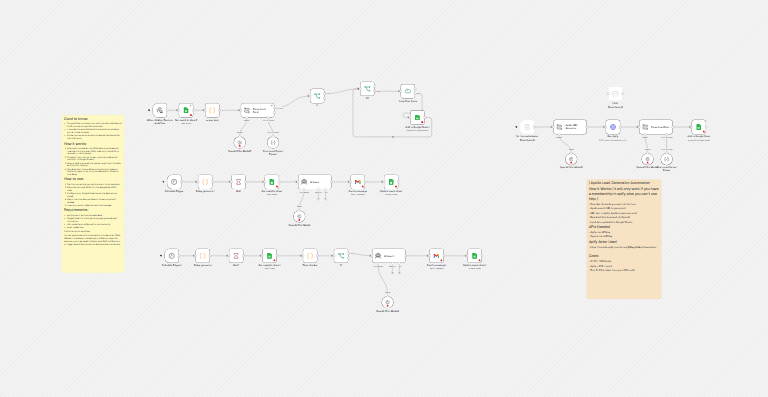
- Four flows, one canvas: how the pieces connect
- The big picture: four flows and what starts each
- Follow the data: what each of the 36 nodes does
- Get the workflow JSON
- Install it in twelve steps
- What it will not do: limits, costs and trade-offs
- Access, privacy and responsible use
- Writing emails that people may actually answer
- Problems you may meet and how to fix them
- Too much of a puzzle? Let us build or adapt it for you
- What we changed in the original template
- What was verified, and what was not
- Four ways to adapt the workflow
- Frequently asked questions
- Tools used in this workflow
- Suggested reading
- Get more advanced automation and AI resources for business
- Keep exploring
What a do-it-yourself lead generation tool really consists of
The phrase lead generation tools covers a lot of ground. Some are databases of contacts, some are forms and landing pages, some are services that send emails for you. What this workflow builds is the plumbing between them: it asks for leads, stores them, and runs a basic outreach routine on the stored list. It does not own a database of people. It borrows one by reading search results from a contact database called Apollo, through a scraping service called Apify.
That matters for two reasons. First, the quality of your leads is the quality of what Apollo holds and what the Apify actor (a small program that runs on Apify) returns, and neither is under your control. Second, you are responsible for what you do with that data. A lead generation tool that you assemble from parts is still a tool that handles people’s personal information, and the checks that a commercial product might add for you, such as opt-out handling, are missing here unless you add them.
From a search description to a follow-up: what the workflow does
- Describe. You fill in a short form (job title, company size, keywords, location). An AI model turns your answers into an Apollo search address. This flow is switched off in the file.
- Collect and clean. Apify runs a scraper on that search and returns the leads. An AI model picks six fields out of each lead (name, email, title, LinkedIn page, company name, company website) and a Google Sheet receives them. There is a second, manual way into the same sheet: you paste Apify’s data into a code node and run a flow by hand.
- Email. On a timer, the workflow takes one lead whose status is
not sent, asks an AI model to write your email with the lead’s name in it, sends it from Gmail, and marks the lead assentwith the date and time. - Follow up. On another timer, it takes one lead whose follow-up is
not sent, checks that two days have passed since the first email, writes a short follow-up and sends it.
It suits a solo seller or a small team who want a rough, visible outreach routine in a sheet they can read, and who accept that they will have to supervise it. It does not suit you if you cannot afford a wrong email going out, if you need reply handling, or if you want something that runs without anyone watching it.
Build it yourself or hire a B2B lead generation agency?
A B2B lead generation agency does for you what this workflow tries to do: it finds companies and contacts that match your offer, contacts them, and books conversations. The difference is not only price. An agency brings judgment, a sending setup that has history, and someone who answers when a prospect replies in an odd way. A workflow brings control, a record in your own sheet and a cost that depends on how much you run it. We do not quote prices because they vary and we could not verify any.
If you are weighing the two, a useful test is to ask who will read the replies. This workflow does not read them. If nobody on your side will, an agency, or a tool built around a shared inbox, is a better fit. If you will, and you want to learn what works with your own audience, the workflow gives you an inexpensive way to run small experiments. Our lead follow-up system explains what good follow-up looks like, so you can judge how far this workflow gets you.
Where it fits among lead generation strategies
Among lead generation strategies, this workflow belongs to outbound: you go to the people instead of waiting for them to find you. Outbound works best when the list is narrow and the message is specific. A scraped list of five people per search, which is what the file asks for, suits that approach better than a list of thousands. Before you contact anyone, decide who deserves the email. Our B2B lead qualification framework for solo sellers gives five questions to apply to a list. If you want to start from companies you already know, see generating sales leads and outreach emails. If your leads live on LinkedIn, see how to automate LinkedIn lead scoring and outreach, which scores each person and never sends anything.
The opposite approach is inbound, where people write to you first. The workflow does not help there, but our AI email autoresponder for leads shows how to answer them quickly when they do.
Words you will see in this guide
| Word | What it means here |
|---|---|
| Workflow | A chain of steps in n8n. Each step is a box called a node. |
| Node | One step of the workflow, such as “read the sheet” or “send an email”. |
| Item | One piece of data traveling through the nodes. Here, one item is usually one lead. |
| Trigger | What starts a flow: a form, a button or a schedule. |
| Apollo | A contact database. The workflow builds a search address for it. |
| Apify | A service that runs scrapers, called actors, and returns what they collect. |
| Actor | A ready-made scraper program on Apify. You choose which one and you read its terms and its input fields. |
| Scraping | Collecting data from a website with a program instead of by hand. |
| Prompt | The written instructions you give an AI model. |
| Expression | A small formula between double curly brackets, such as {{ $json.Email }}, that reads a value from an earlier node. |
| Credential | The saved login n8n uses to reach an app. Credentials are not included in the JSON file. |
| Locale | The language and region settings of a computer. They decide how a date is written, for example month first or day first. |
| Cold email | An email to someone who has not asked to hear from you. |
Apps and accounts this workflow talks to
| App | Its role | What you need |
|---|---|---|
| n8n | Runs the four flows, on timers or by hand. | An n8n account or your own installation that stays on, because the two schedules only fire while it runs. |
| Apify | Runs the scraper on an Apollo search. | An account, an API token, and the identifier of an actor that you chose. The file does not say which one. |
| OpenAI | Builds the search address, picks fields out of each lead and writes the two emails. | An OpenAI account and an API key. |
| Google Sheets | Holds the leads and their statuses. | A sheet with nine columns and a Google login for n8n. |
| Gmail | Sends the emails. | A Google account that n8n can send from, connected with OAuth. |
What to have ready before you import anything
The sheet. Create a Google Sheet with a tab named Leads and these nine columns in the first row, spelled exactly like this, because the workflow reads them by name: Full Name, Email, Title, Personal LinkedIn, Company Name, Company Website, Status, Followed up and Date sent. Add one test row under the headers, with your own name and address, not sent in Status and not sent in Followed up. One row at least has to be there, for a reason explained later.
The emails. Write the first email and the follow-up. The workflow adds the lead’s name in the greeting and signs with the name you put in. Decide the subject line of the first email. The workflow adds nothing else, so add what your situation needs at the bottom of each message, such as who you are and how to opt out.
The Apify actor. If you use the form flow, you need an actor that reads Apollo search addresses. Choose it yourself, read its page and its terms, and check which input fields it expects. The request in the file sends four fields: whether to get personal emails, whether to get work emails, how many records, and the search address. They match one actor’s input, not necessarily yours.
The accounts. A Google login for Sheets and Gmail, an OpenAI key, and an Apify token. If you can, test with a separate Gmail address first.
Four flows, one canvas: how the pieces connect
The workflow looks like one big diagram, but it is four flows that share a sheet and nothing else. The form flow and the paste flow both fill the sheet. The first-email flow and the follow-up flow both read it. No arrow connects the flows, and the Apify results do not reach the paste flow by themselves. The description says the data is “inserted” after Apify completes. In the file, you paste it in by hand.
Here is a made-up timeline for one lead, in a setup where everything works. On Monday, the paste flow adds Maya Reed, Lantern Studio to the sheet with Status and Followed up both set to not sent. The next time the first-email timer fires, the workflow reads the first row whose status is not sent, which is Maya’s. It writes her email, sends it and sets Status to sent and Date sent to something like 11/16/2026, 10:34:12 AM. On Tuesday, the follow-up timer fires. It reads the first row whose Followed up is not sent, which is still Maya’s. The date check finds one day and stops. On Wednesday it finds two days, writes the follow-up, sends it and sets Followed up to sent.
Now two things that can go differently. First, the date 11/16/2026, 10:34:12 AM is month first because the server that wrote it uses US settings. On a server with British settings, the same moment is written 16/11/2026, 10:34:12. The date check reads the first number as the month, so it reads 16 as a month and lands in the following year. In our run of that code on simulated dates, the check returned “no” on the British, German and Swedish formats for a lead emailed three days earlier, so no follow-up would ever be sent. Second, if Maya’s email were added to the sheet again by the paste flow, her Status would go back to not sent and she would be emailed again. We come back to both in the problems section.
The big picture: four flows and what starts each
- Form flow, 8 nodes. Starts at On form submission, which is switched off in the file.
- Paste flow, 10 nodes. Starts at the manual button. It adds the leads you pasted into a code node.
- First-email flow, 8 nodes. Starts at Schedule Trigger, every 100 minutes.
- Follow-up flow, 10 nodes. Starts at Schedule Trigger1, every 100 minutes.
The six AI models and the two output parsers are attached underneath the nodes that use them. They are counted in the totals above. The rest of the guide follows the four flows in order.
Follow the data: what each of the 36 nodes does
The names below are the exact names in the JSON file, including the ones that are not very helpful, such as Schedule Trigger1 and If2. The file also holds three notes on the canvas, which are reminders and not steps.
Stage 1, the form flow: from a description to leads in the sheet (switched off in the file)
On form submission
The start of the form flow. It shows a form titled “Apollo + Apify Lead Generation” with four fields: job title, company size (a dropdown), keywords and location. In the file this node is switched off. Switch it on to use the form flow. The company size options contain typos, such as 10001-5000, and may not match the ranges Apollo uses.
Apollo URL Generator
A Basic LLM Chain that turns the four form answers into an Apollo search address. Its instructions give the address template, the four fields it may use and one example. The address it writes is in a field called text. We did not verify that Apollo accepts every address the model produces, so open one in Apollo before you trust the flow.
OpenAI Chat Model2
The model behind Apollo URL Generator. It uses gpt-4.1. It needs an OpenAI credential, and model names change, so check that it is still offered to your account.
Run Apify
An HTTP Request node that sends a POST request to the Apify endpoint that runs an actor and waits for the results. You replace YOUR_APIFY_ACTOR_ID in the address. The body asks for personal emails, work emails, 5 records and the search address from the previous step. Apify’s documentation says a synchronous run that goes beyond 300 seconds returns a timeout error. The body fields belong to one actor’s input and may not fit yours. The node returns one item per record.
Parse Lead Data
A Basic LLM Chain that reads one lead at a time and picks six fields: full name, email, title, LinkedIn page, company name and company website. Its text passes only six values, name, title, email, linkedin_url, organization_name and organization_website_url. The answer goes through an output parser and lands in a field called output. In the original, this prompt asked for eight fields and had a broken line, which LeenLabs corrected.
OpenAI Chat Model1
The model behind Parse Lead Data. It uses gpt-4.1-mini. Because the job is copying fields, a mistake here means a changed address or name in your sheet.
Structured Output Parser
Forces the answer of Parse Lead Data into a fixed shape, a JSON object with the six fields. It learns the shape from an example record, which LeenLabs replaced with an invented one.
Add to Google Sheet
A Google Sheets node that writes the six fields into the sheet. It adds a new row, or updates the existing row that has the same Email. The original did not set Status or Followed up, so these leads were never picked up for emailing. LeenLabs set both to not sent.
Stage 2, the paste flow: add leads you pasted, by hand
When clicking ‘Execute workflow’
The start of the paste flow. It runs when you click the button and at no other time.
Get row(s) in sheet2
A Google Sheets node that reads every row of the sheet, with no filter. Its output is not used by the next node, which ignores it. Its only effect is that the flow does not continue if the sheet returns no rows, as far as we know, so keep at least one row under the headers. The original sheet name suggests it was meant for a duplicate check.
proper json
A Code node. The original held a list of real leads, about 324,000 characters, which LeenLabs removed. It now holds one invented record and a comment. You paste the list of leads that Apify returned in place of the example, keeping the square brackets. The code turns each record into one item. The node does not read its input.
Parse Lead Data1
The same kind of node as Parse Lead Data, for the leads you pasted. It picks six fields out of each record with an AI model, even though the pasted records already contain them. The answer is in output.
OpenAI Chat Model3
The model behind Parse Lead Data1. It uses gpt-4.1-mini.
Structured Output Parser1
Forces the answer of Parse Lead Data1 into the six-field shape, learned from an invented example.
If
Lets a lead through only when output.email is not empty. A lead without an email stops here. The check is strict about types. The form flow has no equivalent.
If2
Looks like a duplicate check, but it is not one. Its left value is empty and its right value is the lead’s email, and it tests for equality, so the “true” side is never used. The “false” side leads to Loop Over Items. In practice, it only passes everything on. It is also where the loop comes back after each sheet write.
Loop Over Items
Handles the leads one at a time. The batch size is not written in the file, so it uses the default, which we understand to be 1. The “done” output is connected to nothing, so the flow ends after the last lead. The “loop” output goes to Add to Google Sheet1.
Add to Google Sheet1
A Google Sheets node that writes one lead to the sheet, matching on Email. It sets Status and Followed up to not sent each time. If the email already exists, the row is updated and both values go back to not sent. That is how a lead that was already emailed can be emailed again.
Stage 3, the first-email flow: one lead per run
Schedule Trigger
The start of the first-email flow. It runs every 100 minutes while the workflow is switched on. The description says every hour, which the file does not match.
Delay generator1
A Code node that draws a random whole number of minutes from 5 to 20 and also gives it in milliseconds. We ran it 20,000 times on simulated data and it always stayed in that range. Its comment said 1 to 10 minutes, which LeenLabs corrected to match the code.
Wait
Pauses the flow for the number of minutes that Delay generator1 drew. The unit is written in the file as minutes. The pause spreads the sends over time so that they do not happen exactly on the schedule.
Get row(s) in sheet
Reads the sheet and keeps only the rows whose Status is not sent, and returns only the first match. So each run handles at most one lead, in sheet order. If there is none, the flow ends with no items and no email.
AI Agent
An AI Agent node with no tools, used as a plain text writer. Its text is your first email, with the lead’s Full Name in the greeting, preceded by the instruction not to change the structure. You replace the sample text and YOUR_NAME. The answer is in a field called output. Nothing checks that the model returned your text unchanged.
OpenAI Chat Model
The model behind AI Agent. It uses gpt-4.1-mini.
Send a message
A Gmail node that sends the email in plain text to the lead’s Email, read from the sheet node, with the agent’s answer as the body. You replace YOUR_SUBJECT_LINE. The node does not stop to ask. It sends. The n8n attribution line is switched off.
Update row in sheet
Finds the row by Email and writes Status as sent and Date sent as the current date and time, produced by new Date().toLocaleString(). That form follows the language settings of the machine that runs n8n, for example 11/16/2026, 10:34:12 AM in US settings and 16/11/2026, 10:34:12 in British ones. The follow-up flow reads this cell, so the form matters.
Stage 4, the follow-up flow: two days later
Schedule Trigger1
The start of the follow-up flow. It also runs every 100 minutes. The name ends with a 1 because it was copied from the other schedule.
Delay generator
The same random 5 to 20 minute draw as Delay generator1, for the follow-up flow.
Wait1
Pauses the flow for the amount that Delay generator drew. Unlike Wait, it has no unit written in the file. n8n leaves out values that are on their default, and the node definition we read gives hours as the default, so this wait is probably 5 to 20 hours. Open the node and set the unit you want.
Get row(s) in sheet1
Keeps only the rows whose Followed up is not sent, and returns the first one. It does not look at Status, so a lead that was never emailed can be the first match. It returns one lead per run, in sheet order.
Time checker
A Code node that reads Date sent, splits it on a comma and slashes as if it were month, day, year, and compares the day with today. It returns the lead plus canSendFollowUp, which is true when two or more days have passed, and daysPassed. We ran it on simulated dates. A US-style date gave the right answer. British dates gave a wrong month and a negative number of days, German and Swedish dates gave no number, a missing date raised an error and an empty one gave “no”.
If1
Lets the lead through when canSendFollowUp is true, and stops the flow when it is not. The check is strict about types.
AI Agent1
An AI Agent node used as a plain text writer for the follow-up. Its text is a short follow-up with the lead’s Full Name in the greeting. The sample sentence “I wasn’t sure if you had a chance to see my last note” is kept, and you replace the rest and YOUR_NAME.
OpenAI Chat Model4
The model behind AI Agent1. It uses gpt-4.1-mini.
Send a message1
A Gmail node that sends the follow-up in plain text. The subject greets the lead by name. LeenLabs corrected the typos in the original subject.
Update row in sheet1
Finds the row by Email and sets Followed up to sent. Nothing records the date of the follow-up.
Get the workflow JSON
Open the box below to copy the JSON, or download the file. It contains the 36 nodes above, connected as described, with placeholders for your sheet, your Apify actor, your subject line, your name and your email text, and 3 notes on the canvas, including one called Before you turn it on. It contains none of your logins and none of the original author’s lead data.
Please read this first: this JSON is free and provided as is. n8n versions and installed nodes differ from one person to another, so it may not run correctly on your side without adjustments. We cannot test it on every setup. That is why this article includes a long section, Problems you may meet and how to fix them. And if you would rather not deal with any of it, you can request a custom workflow and let us handle it.
Click to show or hide the workflow JSON
Click inside the box, select the whole text, copy it, then paste it onto an empty n8n canvas. If selecting is awkward on your device, use the download link above.
{
"name": "Lead Generation Tool in n8n: Apify, AI and Gmail (free JSON)",
"nodes": [
{
"id": "e106ff39-a4ce-4859-9b4b-a1b6e4640bcf",
"name": "Wait",
"type": "n8n-nodes-base.wait",
"position": [
-240,
576
],
"parameters": {
"unit": "minutes",
"amount": "={{ $json.delayMinutes }}\n"
},
"typeVersion": 1.1
},
{
"id": "0ce9db68-c58b-4b09-8e85-fc7a49ea6307",
"name": "Get row(s) in sheet",
"type": "n8n-nodes-base.googleSheets",
"position": [
-16,
576
],
"parameters": {
"options": {
"returnFirstMatch": true
},
"filtersUI": {
"values": [
{
"lookupValue": "not sent",
"lookupColumn": "Status"
}
]
},
"sheetName": {
"__rl": true,
"mode": "name",
"value": "Leads"
},
"documentId": {
"__rl": true,
"mode": "id",
"value": "YOUR_GOOGLE_SHEET_ID"
}
},
"typeVersion": 4.7
},
{
"id": "2cfca14f-0c63-49f6-b4c1-597a15ba1fc2",
"name": "AI Agent",
"type": "@n8n/n8n-nodes-langchain.agent",
"position": [
208,
576
],
"parameters": {
"text": "=Don't change the structure of the email below:\n\n\n\nHi {{ $json['Full Name'] }},\n\nPASTE YOUR FIRST EMAIL HERE.\n\nBest,\nYOUR_NAME",
"options": {},
"promptType": "define"
},
"typeVersion": 2.2
},
{
"id": "4645e708-502a-4593-855a-03813497815e",
"name": "OpenAI Chat Model",
"type": "@n8n/n8n-nodes-langchain.lmChatOpenAi",
"position": [
176,
816
],
"parameters": {
"model": {
"__rl": true,
"mode": "list",
"value": "gpt-4.1-mini"
},
"options": {}
},
"typeVersion": 1.2
},
{
"id": "196fe8a2-9759-4ffc-a2e8-2b2ffc733ebf",
"name": "Send a message",
"type": "n8n-nodes-base.gmail",
"position": [
560,
576
],
"parameters": {
"sendTo": "={{ $('Get row(s) in sheet').item.json.Email }}",
"message": "={{ $json.output }}",
"options": {
"appendAttribution": false
},
"subject": "YOUR_SUBJECT_LINE",
"emailType": "text"
},
"typeVersion": 2.1
},
{
"id": "5e7a9e77-3743-4d98-ba28-a11761c0a329",
"name": "Update row in sheet",
"type": "n8n-nodes-base.googleSheets",
"position": [
784,
576
],
"parameters": {
"columns": {
"value": {
"Email": "={{ $('Get row(s) in sheet').item.json.Email }}",
"Status": "sent",
"Date sent": "={{ new Date().toLocaleString() }}\n\n\n\n"
},
"schema": [
{
"id": "Full Name",
"type": "string",
"display": true,
"removed": true,
"required": false,
"displayName": "Full Name",
"defaultMatch": false,
"canBeUsedToMatch": true
},
{
"id": "Email",
"type": "string",
"display": true,
"removed": false,
"required": false,
"displayName": "Email",
"defaultMatch": false,
"canBeUsedToMatch": true
},
{
"id": "Title",
"type": "string",
"display": true,
"removed": true,
"required": false,
"displayName": "Title",
"defaultMatch": false,
"canBeUsedToMatch": true
},
{
"id": "Personal LinkedIn",
"type": "string",
"display": true,
"removed": true,
"required": false,
"displayName": "Personal LinkedIn",
"defaultMatch": false,
"canBeUsedToMatch": true
},
{
"id": "Company Name",
"type": "string",
"display": true,
"removed": true,
"required": false,
"displayName": "Company Name",
"defaultMatch": false,
"canBeUsedToMatch": true
},
{
"id": "Company Website",
"type": "string",
"display": true,
"removed": true,
"required": false,
"displayName": "Company Website",
"defaultMatch": false,
"canBeUsedToMatch": true
},
{
"id": "Status",
"type": "string",
"display": true,
"removed": false,
"required": false,
"displayName": "Status",
"defaultMatch": false,
"canBeUsedToMatch": true
},
{
"id": "Followed up",
"type": "string",
"display": true,
"removed": true,
"required": false,
"displayName": "Followed up",
"defaultMatch": false,
"canBeUsedToMatch": true
},
{
"id": "Date sent",
"type": "string",
"display": true,
"removed": false,
"required": false,
"displayName": "Date sent",
"defaultMatch": false,
"canBeUsedToMatch": true
},
{
"id": "row_number",
"type": "number",
"display": true,
"removed": true,
"readOnly": true,
"required": false,
"displayName": "row_number",
"defaultMatch": false,
"canBeUsedToMatch": true
}
],
"mappingMode": "defineBelow",
"matchingColumns": [
"Email"
],
"attemptToConvertTypes": false,
"convertFieldsToString": false
},
"options": {},
"operation": "update",
"sheetName": {
"__rl": true,
"mode": "name",
"value": "Leads"
},
"documentId": {
"__rl": true,
"mode": "id",
"value": "YOUR_GOOGLE_SHEET_ID"
}
},
"typeVersion": 4.7
},
{
"id": "44668354-7b56-4ebd-b2f9-63c50c8527cd",
"name": "Add to Google Sheet1",
"type": "n8n-nodes-base.googleSheets",
"position": [
960,
144
],
"parameters": {
"columns": {
"value": {
"Email": "={{ $('If').item.json.output.email }}",
"Title": "={{ $('If').item.json.output.title }}",
"Status": "not sent",
"Full Name": "={{ $('If').item.json.output.fullName }}",
"Followed up": "not sent",
"Company Name": "={{ $('If').item.json.output.companyName }}",
"Company Website": "={{ $('If').item.json.output.companyWebsite }}",
"Personal LinkedIn": "={{ $('If').item.json.output.LinkedIn }}"
},
"schema": [
{
"id": "Full Name",
"type": "string",
"display": true,
"removed": false,
"required": false,
"displayName": "Full Name",
"defaultMatch": false,
"canBeUsedToMatch": true
},
{
"id": "Email",
"type": "string",
"display": true,
"removed": false,
"required": false,
"displayName": "Email",
"defaultMatch": false,
"canBeUsedToMatch": true
},
{
"id": "Title",
"type": "string",
"display": true,
"required": false,
"displayName": "Title",
"defaultMatch": false,
"canBeUsedToMatch": true
},
{
"id": "Personal LinkedIn",
"type": "string",
"display": true,
"required": false,
"displayName": "Personal LinkedIn",
"defaultMatch": false,
"canBeUsedToMatch": true
},
{
"id": "Company Name",
"type": "string",
"display": true,
"required": false,
"displayName": "Company Name",
"defaultMatch": false,
"canBeUsedToMatch": true
},
{
"id": "Company Website",
"type": "string",
"display": true,
"required": false,
"displayName": "Company Website",
"defaultMatch": false,
"canBeUsedToMatch": true
},
{
"id": "Status",
"type": "string",
"display": true,
"removed": false,
"required": false,
"displayName": "Status",
"defaultMatch": false,
"canBeUsedToMatch": true
},
{
"id": "Followed up",
"type": "string",
"display": true,
"removed": false,
"required": false,
"displayName": "Followed up",
"defaultMatch": false,
"canBeUsedToMatch": true
},
{
"id": "Date sent",
"type": "string",
"display": true,
"removed": true,
"required": false,
"displayName": "Date sent",
"defaultMatch": false,
"canBeUsedToMatch": true
}
],
"mappingMode": "defineBelow",
"matchingColumns": [
"Email"
],
"attemptToConvertTypes": false,
"convertFieldsToString": false
},
"options": {},
"operation": "appendOrUpdate",
"sheetName": {
"__rl": true,
"mode": "name",
"value": "Leads"
},
"documentId": {
"__rl": true,
"mode": "id",
"value": "YOUR_GOOGLE_SHEET_ID"
}
},
"typeVersion": 4.5
},
{
"id": "0b11e707-4df3-4d55-acf9-f1dd40be47b0",
"name": "Parse Lead Data1",
"type": "@n8n/n8n-nodes-langchain.chainLlm",
"onError": "continueErrorOutput",
"position": [
-176,
96
],
"parameters": {
"text": "=Name: {{ $json.name }}\n\nTitle: {{ $json.title }}\n\nEmail: {{ $json.email }}\n\nLinkedIn: {{ $json.linkedin_url }}\n\nOrg Name: {{ $json.organization_name }}\n\nOrg Website: {{ $json.organization_website_url }}\n\n\n\n\n\n",
"batching": {},
"messages": {
"messageValues": [
{
"message": "=You are a sophisticated AI data-processing engine. Your task is to receive a raw JSON object for a single business prospect, perform two critical actions, and then provide your response in a specific JSON format.\n\n**Your Instructions:**\n\n1. **EXTRACT KEY DATA:** You must parse the raw JSON input to find and extract the following specific data points. If a field is not present, use a value of `null`.\n * **Full Name:** Look for `first_name` and `last_name`.\n * **Email:** Find the first available email address. Look in fields like `emails` or `personal_emails`.\n * **LinkedIn** Look for the 'linkedin_url'\n * **Title:** Look for the `title` field.\n * **Company Name:** Look for the `organization_name` field.\n * **Company Website:** Look for the `organization_website` field.\n \n\n2. **FORMAT THE OUTPUT:** You MUST structure your entire response as a single, clean JSON object. The object should contain exactly the keys listed below. Do not include any other text, explanations, or greetings in your response—ONLY the final JSON object.\n\n**Required Output Format:**\n{\n \"fullName\": \"...\",\n \"email\": \"...\",\n \"title\": \"...\",\n \"LinkedIn\": \"...\",\n \"companyName\": \"...\",\n \"companyWebsite\": \"...\"\n}"
}
]
},
"promptType": "define",
"hasOutputParser": true
},
"typeVersion": 1.7
},
{
"id": "c6bd294f-d484-4385-9a6f-6d8982e836e2",
"name": "OpenAI Chat Model3",
"type": "@n8n/n8n-nodes-langchain.lmChatOpenAi",
"position": [
-224,
320
],
"parameters": {
"model": {
"__rl": true,
"mode": "list",
"value": "gpt-4.1-mini"
},
"options": {}
},
"typeVersion": 1.2
},
{
"id": "f3bc251a-22ce-4127-8aef-42ba62583d55",
"name": "Structured Output Parser1",
"type": "@n8n/n8n-nodes-langchain.outputParserStructured",
"position": [
0,
320
],
"parameters": {
"jsonSchemaExample": "{\n \"fullName\": \"Maya Reed\",\n \"email\": \"maya@example.com\",\n \"title\": \"Founder\",\n \"LinkedIn\": \"https://www.linkedin.com/in/example-maya-reed\",\n \"companyName\": \"Lantern Studio\",\n \"companyWebsite\": \"https://www.example.com\"\n}\n"
},
"typeVersion": 1.3
},
{
"id": "3f30569c-5d9c-4dd7-84d2-972b6bc8ee4c",
"name": "When clicking ‘Execute workflow’",
"type": "n8n-nodes-base.manualTrigger",
"position": [
-768,
96
],
"parameters": {},
"typeVersion": 1
},
{
"id": "44589449-d7bd-4d54-9754-916040cd5257",
"name": "Add to Google Sheet",
"type": "n8n-nodes-base.googleSheets",
"position": [
2848,
208
],
"parameters": {
"columns": {
"value": {
"Email": "={{ $json.output.email }}",
"Title": "={{ $json.output.title }}",
"Full Name": "={{ $json.output.fullName }}",
"Company Name": "={{ $json.output.companyName }}",
"Company Website": "={{ $json.output.companyWebsite }}",
"Personal LinkedIn": "={{ $json.output.LinkedIn }}",
"Status": "not sent",
"Followed up": "not sent"
},
"schema": [
{
"id": "Full Name",
"type": "string",
"display": true,
"removed": false,
"required": false,
"displayName": "Full Name",
"defaultMatch": false,
"canBeUsedToMatch": true
},
{
"id": "Email",
"type": "string",
"display": true,
"removed": false,
"required": false,
"displayName": "Email",
"defaultMatch": false,
"canBeUsedToMatch": true
},
{
"id": "Title",
"type": "string",
"display": true,
"required": false,
"displayName": "Title",
"defaultMatch": false,
"canBeUsedToMatch": true
},
{
"id": "Personal LinkedIn",
"type": "string",
"display": true,
"required": false,
"displayName": "Personal LinkedIn",
"defaultMatch": false,
"canBeUsedToMatch": true
},
{
"id": "Company Name",
"type": "string",
"display": true,
"required": false,
"displayName": "Company Name",
"defaultMatch": false,
"canBeUsedToMatch": true
},
{
"id": "Company Website",
"type": "string",
"display": true,
"required": false,
"displayName": "Company Website",
"defaultMatch": false,
"canBeUsedToMatch": true
},
{
"id": "Status",
"type": "string",
"display": true,
"removed": false,
"required": false,
"displayName": "Status",
"defaultMatch": false,
"canBeUsedToMatch": true
},
{
"id": "Followed up",
"type": "string",
"display": true,
"removed": false,
"required": false,
"displayName": "Followed up",
"defaultMatch": false,
"canBeUsedToMatch": true
}
],
"mappingMode": "defineBelow",
"matchingColumns": [
"Email"
],
"attemptToConvertTypes": false,
"convertFieldsToString": false
},
"options": {},
"operation": "appendOrUpdate",
"sheetName": {
"__rl": true,
"mode": "name",
"value": "Leads"
},
"documentId": {
"__rl": true,
"mode": "id",
"value": "YOUR_GOOGLE_SHEET_ID"
}
},
"typeVersion": 4.5
},
{
"id": "d3a1e7c2-a664-42b7-8e10-349b69f58fb8",
"name": "On form submission",
"type": "n8n-nodes-base.formTrigger",
"disabled": true,
"position": [
1696,
208
],
"parameters": {
"options": {},
"formTitle": "Apollo + Apify Lead Generation",
"formFields": {
"values": [
{
"fieldLabel": "Job Title",
"placeholder": "Founder, Engineer, Owner"
},
{
"fieldType": "dropdown",
"fieldLabel": "Company Size",
"fieldOptions": {
"values": [
{
"option": "1-10"
},
{
"option": "11-50"
},
{
"option": "51-200"
},
{
"option": "201-1000"
},
{
"option": "10001-5000"
},
{
"option": "5001-10000"
},
{
"option": "10001-100000"
}
]
}
},
{
"fieldLabel": "Keywords",
"placeholder": "Keywords relevant to the contact or company"
},
{
"fieldLabel": "Location",
"placeholder": "United States, California, London"
}
]
},
"formDescription": "Describe the types of leads you are trying to find."
},
"typeVersion": 2.2
},
{
"id": "873f3e58-b968-4184-9e1a-d9a7f576e895",
"name": "Apollo URL Generator",
"type": "@n8n/n8n-nodes-langchain.chainLlm",
"position": [
1920,
208
],
"parameters": {
"text": "=Job Title: {{ $json['Job Title'] }}\n\nCompany Size: {{ $json['Company Size'] }}\n\nKeywords: {{ $json.Keywords }}\n\nLocation: {{ $json.Location }}\n\n\n",
"batching": {},
"messages": {
"messageValues": [
{
"message": "=You are an expert Apollo search URL generator.\n\nYour task is to take key-value data from a form submission and turn it into a precise Apollo Search URL. You will only receive input for the fields listed below.\n\nSupported Search Fields\nYou only support the following four fields from the form input:\n\npersonLocation: The location of the person. Maps to the personLocations[] parameter.\njobTitle: The person's job title. Maps to the personTitles[] parameter.\ncompanySize: The employee range of the company. Maps to the organizationNumEmployeesRanges[] parameter.\nkeywords: Specific keyword tags for the organization. Maps to the qOrganizationKeywordTags[] parameter.\nDo not add or infer any other fields or parameters.\n\nURL Template\nUse the following URL template:\n\n\nhttps://app.apollo.io/#/people?{field1}={value1}&{field2}={value2}&...\n\n\n\n\nExample:\n\nInput\npersonLocation: New York\njobTitle: VP of Engineering\ncompanySize: 51-200\nkeywords: Healthcare AI\n\n\nOutput\n\nhttps://app.apollo.io/#/people?personLocations[]=New%20York&personTitles[]=VP%20of%20Engineering&organizationNumEmployeesRanges[]=51%2C200&qOrganizationKeywordTags[]=Healthcare%20AI"
}
]
},
"promptType": "define"
},
"typeVersion": 1.7
},
{
"id": "c589a388-9e33-462f-b25a-4f8d578ff8ff",
"name": "Run Apify",
"type": "n8n-nodes-base.httpRequest",
"position": [
2272,
208
],
"parameters": {
"url": "https://api.apify.com/v2/acts/YOUR_APIFY_ACTOR_ID/run-sync-get-dataset-items",
"method": "POST",
"options": {},
"jsonBody": "={\n \"getPersonalEmails\": true,\n \"getWorkEmails\": true,\n \"totalRecords\": 5,\n \"url\": \"{{ $json.text }}\"\n}",
"sendBody": true,
"sendHeaders": false,
"specifyBody": "json",
"authentication": "genericCredentialType",
"genericAuthType": "httpHeaderAuth"
},
"typeVersion": 4.2
},
{
"id": "dfd4c6c1-5339-4f0d-88e5-dfacdea6eac0",
"name": "OpenAI Chat Model1",
"type": "@n8n/n8n-nodes-langchain.lmChatOpenAi",
"position": [
2512,
432
],
"parameters": {
"model": {
"__rl": true,
"mode": "list",
"value": "gpt-4.1-mini",
"cachedResultName": "gpt-4.1-mini"
},
"options": {}
},
"typeVersion": 1.2
},
{
"id": "46ff8717-17b6-4a20-aa7d-27b141b4616f",
"name": "Structured Output Parser",
"type": "@n8n/n8n-nodes-langchain.outputParserStructured",
"position": [
2640,
432
],
"parameters": {
"jsonSchemaExample": "{\n \"fullName\": \"Maya Reed\",\n \"email\": \"maya@example.com\",\n \"title\": \"Founder\",\n \"LinkedIn\": \"https://www.linkedin.com/in/example-maya-reed\",\n \"companyName\": \"Lantern Studio\",\n \"companyWebsite\": \"https://www.example.com\"\n}\n"
},
"typeVersion": 1.2
},
{
"id": "f2dc9fcb-e732-40d9-a8c2-f7aae1a4420e",
"name": "Parse Lead Data",
"type": "@n8n/n8n-nodes-langchain.chainLlm",
"position": [
2496,
208
],
"parameters": {
"text": "=Name: {{ $json.name }}\n\nTitle: {{ $json.title }}\n\nEmail: {{ $json.email }}\n\nLinkedIn: {{ $json.linkedin_url }}\n\nOrg Name: {{ $json.organization_name }}\n\nOrg Website: {{ $json.organization_website_url }}\n\n\n\n\n\n",
"batching": {},
"messages": {
"messageValues": [
{
"message": "=You are a sophisticated AI data-processing engine. Your task is to receive a raw JSON object for a single business prospect, perform two critical actions, and then provide your response in a specific JSON format.\n\n**Your Instructions:**\n\n1. **EXTRACT KEY DATA:** You must parse the raw JSON input to find and extract the following specific data points. If a field is not present, use a value of `null`.\n * **Full Name:** Look for `first_name` and `last_name`.\n * **Email:** Find the first available email address. Look in fields like `emails` or `personal_emails`.\n * **LinkedIn** Look for the 'linkedin_url'\n * **Title:** Look for the `title` field.\n * **Company Name:** Look for the `organization_name` field.\n * **Company Website:** Look for the `organization_website` field.\n \n\n2. **FORMAT THE OUTPUT:** You MUST structure your entire response as a single, clean JSON object. The object should contain exactly the keys listed below. Do not include any other text, explanations, or greetings in your response—ONLY the final JSON object.\n\n**Required Output Format:**\n{\n \"fullName\": \"...\",\n \"email\": \"...\",\n \"title\": \"...\",\n \"LinkedIn\": \"...\",\n \"companyName\": \"...\",\n \"companyWebsite\": \"...\"\n}"
}
]
},
"promptType": "define",
"hasOutputParser": true
},
"typeVersion": 1.7
},
{
"id": "c2aaeb6d-a672-4b5a-9c26-9ec9fe676d2d",
"name": "OpenAI Chat Model2",
"type": "@n8n/n8n-nodes-langchain.lmChatOpenAi",
"position": [
2000,
432
],
"parameters": {
"model": {
"__rl": true,
"mode": "list",
"value": "gpt-4.1",
"cachedResultName": "gpt-4.1"
},
"options": {}
},
"typeVersion": 1.2
},
{
"id": "bffff111-b13c-46e3-9dc5-0308a9deecee",
"name": "Schedule Trigger",
"type": "n8n-nodes-base.scheduleTrigger",
"position": [
-672,
576
],
"parameters": {
"rule": {
"interval": [
{
"field": "minutes",
"minutesInterval": 100
}
]
}
},
"typeVersion": 1.2
},
{
"id": "252bde84-f9c3-42bd-ac90-1671d3b63651",
"name": "Wait1",
"type": "n8n-nodes-base.wait",
"position": [
-256,
1072
],
"parameters": {
"amount": "={{ $json.delayMinutes }}\n"
},
"typeVersion": 1.1
},
{
"id": "ed24a32a-e6fc-44d3-95b0-7b8a81ce0c59",
"name": "Get row(s) in sheet1",
"type": "n8n-nodes-base.googleSheets",
"position": [
-32,
1072
],
"parameters": {
"options": {
"returnFirstMatch": true
},
"filtersUI": {
"values": [
{
"lookupValue": "not sent",
"lookupColumn": "Followed up"
}
]
},
"sheetName": {
"__rl": true,
"mode": "name",
"value": "Leads"
},
"documentId": {
"__rl": true,
"mode": "id",
"value": "YOUR_GOOGLE_SHEET_ID"
}
},
"typeVersion": 4.7
},
{
"id": "d4f06004-f3ab-4a1f-be45-673b4e02d18e",
"name": "AI Agent1",
"type": "@n8n/n8n-nodes-langchain.agent",
"position": [
704,
1072
],
"parameters": {
"text": "=Don't change the structure of the email below:\n\n\n\n\nHi {{ $json['Full Name'] }},\n\nI wasn’t sure if you had a chance to see my last note.\n\nPASTE THE REST OF YOUR FOLLOW-UP HERE.\n\nBest,\nYOUR_NAME",
"options": {},
"promptType": "define"
},
"typeVersion": 2.2
},
{
"id": "a529d18d-1166-4d68-a36c-9af6173d50c6",
"name": "Send a message1",
"type": "n8n-nodes-base.gmail",
"position": [
1088,
1072
],
"parameters": {
"sendTo": "={{ $('Get row(s) in sheet1').item.json.Email }}",
"message": "={{ $json.output }}",
"options": {
"appendAttribution": false
},
"subject": "=Hey {{ $('Get row(s) in sheet1').item.json['Full Name'] }}, I wanted to bump this up in case you missed it",
"emailType": "text"
},
"typeVersion": 2.1
},
{
"id": "c131a939-28ee-424c-bf9f-7c31a94e007b",
"name": "Update row in sheet1",
"type": "n8n-nodes-base.googleSheets",
"position": [
1344,
1072
],
"parameters": {
"columns": {
"value": {
"Email": "={{ $('Get row(s) in sheet1').item.json.Email }}",
"Followed up": "sent"
},
"schema": [
{
"id": "Full Name",
"type": "string",
"display": true,
"removed": true,
"required": false,
"displayName": "Full Name",
"defaultMatch": false,
"canBeUsedToMatch": true
},
{
"id": "Email",
"type": "string",
"display": true,
"removed": false,
"required": false,
"displayName": "Email",
"defaultMatch": false,
"canBeUsedToMatch": true
},
{
"id": "Title",
"type": "string",
"display": true,
"removed": true,
"required": false,
"displayName": "Title",
"defaultMatch": false,
"canBeUsedToMatch": true
},
{
"id": "Personal LinkedIn",
"type": "string",
"display": true,
"removed": true,
"required": false,
"displayName": "Personal LinkedIn",
"defaultMatch": false,
"canBeUsedToMatch": true
},
{
"id": "Company Name",
"type": "string",
"display": true,
"removed": true,
"required": false,
"displayName": "Company Name",
"defaultMatch": false,
"canBeUsedToMatch": true
},
{
"id": "Company Website",
"type": "string",
"display": true,
"removed": true,
"required": false,
"displayName": "Company Website",
"defaultMatch": false,
"canBeUsedToMatch": true
},
{
"id": "Status",
"type": "string",
"display": true,
"removed": true,
"required": false,
"displayName": "Status",
"defaultMatch": false,
"canBeUsedToMatch": true
},
{
"id": "Followed up",
"type": "string",
"display": true,
"removed": false,
"required": false,
"displayName": "Followed up",
"defaultMatch": false,
"canBeUsedToMatch": true
},
{
"id": "row_number",
"type": "number",
"display": true,
"removed": true,
"readOnly": true,
"required": false,
"displayName": "row_number",
"defaultMatch": false,
"canBeUsedToMatch": true
}
],
"mappingMode": "defineBelow",
"matchingColumns": [
"Email"
],
"attemptToConvertTypes": false,
"convertFieldsToString": false
},
"options": {},
"operation": "update",
"sheetName": {
"__rl": true,
"mode": "name",
"value": "Leads"
},
"documentId": {
"__rl": true,
"mode": "id",
"value": "YOUR_GOOGLE_SHEET_ID"
}
},
"typeVersion": 4.7
},
{
"id": "c8f62500-05a7-446d-9b5e-5d377732cd8e",
"name": "Schedule Trigger1",
"type": "n8n-nodes-base.scheduleTrigger",
"position": [
-688,
1072
],
"parameters": {
"rule": {
"interval": [
{
"field": "minutes",
"minutesInterval": 100
}
]
}
},
"typeVersion": 1.2
},
{
"id": "72f5255a-1770-42a9-95cd-da78cf724320",
"name": "OpenAI Chat Model4",
"type": "@n8n/n8n-nodes-langchain.lmChatOpenAi",
"position": [
768,
1392
],
"parameters": {
"model": {
"__rl": true,
"mode": "list",
"value": "gpt-4.1-mini"
},
"options": {}
},
"typeVersion": 1.2
},
{
"id": "37ed477a-4c47-4763-b81a-3811c205bfe7",
"name": "If1",
"type": "n8n-nodes-base.if",
"position": [
448,
1072
],
"parameters": {
"options": {},
"conditions": {
"options": {
"version": 2,
"leftValue": "",
"caseSensitive": true,
"typeValidation": "strict"
},
"combinator": "and",
"conditions": [
{
"id": "7819ddc2-23f4-4456-8870-9a056af394c7",
"operator": {
"type": "boolean",
"operation": "true",
"singleValue": true
},
"leftValue": "={{ $json.canSendFollowUp }}",
"rightValue": ""
}
]
}
},
"typeVersion": 2.2
},
{
"id": "06e93388-90b4-4fc9-81be-c2acc070f759",
"name": "Get row(s) in sheet2",
"type": "n8n-nodes-base.googleSheets",
"position": [
-592,
96
],
"parameters": {
"options": {},
"sheetName": {
"__rl": true,
"mode": "name",
"value": "Leads"
},
"documentId": {
"__rl": true,
"mode": "id",
"value": "YOUR_GOOGLE_SHEET_ID"
}
},
"executeOnce": true,
"typeVersion": 4.7,
"alwaysOutputData": false
},
{
"id": "8f973349-bc9a-4969-b522-36b2a6342e04",
"name": "If",
"type": "n8n-nodes-base.if",
"position": [
288,
0
],
"parameters": {
"options": {},
"conditions": {
"options": {
"version": 2,
"leftValue": "",
"caseSensitive": true,
"typeValidation": "strict"
},
"combinator": "and",
"conditions": [
{
"id": "d094f9ec-b150-4b72-9793-8113829b8bed",
"operator": {
"type": "string",
"operation": "notEmpty",
"singleValue": true
},
"leftValue": "={{ $json.output.email }}",
"rightValue": ""
}
]
}
},
"typeVersion": 2.2
},
{
"id": "55a98bc4-4bb5-48ce-b7b8-9d56d7e0241d",
"name": "Loop Over Items",
"type": "n8n-nodes-base.splitInBatches",
"position": [
896,
-32
],
"parameters": {
"options": {}
},
"typeVersion": 3
},
{
"id": "1d3a7c2a-a4a5-4973-bed3-f23e7951e1de",
"name": "If2",
"type": "n8n-nodes-base.if",
"position": [
624,
-48
],
"parameters": {
"options": {},
"conditions": {
"options": {
"version": 2,
"leftValue": "",
"caseSensitive": true,
"typeValidation": "strict"
},
"combinator": "and",
"conditions": [
{
"id": "07b00e22-98e5-44b6-bc2b-5f7a9e45206f",
"operator": {
"name": "filter.operator.equals",
"type": "string",
"operation": "equals"
},
"leftValue": "=",
"rightValue": "={{ $('Parse Lead Data1').item.json.output.email }}"
}
]
}
},
"typeVersion": 2.2
},
{
"id": "6a36210f-0618-4ff7-b49a-93d45032864f",
"name": "Delay generator",
"type": "n8n-nodes-base.code",
"position": [
-480,
1072
],
"parameters": {
"jsCode": "// Random delay between 5 and 20 minutes\nconst minMinutes = 5;\nconst maxMinutes = 20;\nconst delayMinutes = Math.floor(Math.random() * (maxMinutes - minMinutes + 1)) + minMinutes;\n\nreturn [\n {\n json: {\n delayMinutes: delayMinutes,\n delayMilliseconds: delayMinutes * 60 * 1000\n }\n }\n];\n\n"
},
"typeVersion": 2
},
{
"id": "0cb8f2a6-70cd-43e0-a824-c784baaa226d",
"name": "Time checker",
"type": "n8n-nodes-base.code",
"position": [
240,
1072
],
"parameters": {
"jsCode": "const dateString = $input.item.json[\"Date sent\"];\nconst [datePart, timePart] = dateString.split(', ');\nconst [month, day, year] = datePart.split('/');\nconst dateSent = new Date(year, month - 1, day);\nconst currentDate = new Date();\nconst today = new Date(currentDate.getFullYear(), currentDate.getMonth(), currentDate.getDate());\nconst timeDifference = today.getTime() - dateSent.getTime();\nconst daysDifference = timeDifference / (1000 * 60 * 60 * 24);\n\nreturn {\n ...$input.item.json, // Keep all original data\n canSendFollowUp: daysDifference >= 2,\n daysPassed: daysDifference\n};"
},
"typeVersion": 2
},
{
"id": "8a19f9cc-d672-4331-a505-7c66011b7b0f",
"name": "Delay generator1",
"type": "n8n-nodes-base.code",
"position": [
-464,
576
],
"parameters": {
"jsCode": "// Random delay between 5 and 20 minutes\nconst minMinutes = 5;\nconst maxMinutes = 20;\nconst delayMinutes = Math.floor(Math.random() * (maxMinutes - minMinutes + 1)) + minMinutes;\n\nreturn [\n {\n json: {\n delayMinutes: delayMinutes,\n delayMilliseconds: delayMinutes * 60 * 1000\n }\n }\n];\n\n"
},
"typeVersion": 2
},
{
"id": "f6791d1e-8d8a-41d6-bd59-8c4773367625",
"name": "proper json",
"type": "n8n-nodes-base.code",
"position": [
-416,
96
],
"parameters": {
"jsCode": "// Paste the data returned by your Apify run here, replacing the example record below.\n// Keep the square brackets. Each record is one lead.\n// The record below is invented. Delete it before you use your own data.\nconst rawData = [\n {\n \"first_name\": \"Maya\",\n \"last_name\": \"Reed\",\n \"name\": \"Maya Reed\",\n \"email\": \"maya@example.com\",\n \"title\": \"Founder\",\n \"linkedin_url\": \"https://www.linkedin.com/in/example-maya-reed\",\n \"organization_name\": \"Lantern Studio\",\n \"organization_website_url\": \"https://www.example.com\"\n }\n];\n\nreturn rawData.map(item => ({ json: item }));\n"
},
"typeVersion": 2
},
{
"id": "716182d1-a069-46a4-ae80-d07cfd8f53bd",
"name": "Before you turn it on",
"type": "n8n-nodes-base.stickyNote",
"position": [
-1400,
-120
],
"typeVersion": 1,
"parameters": {
"color": 4,
"width": 620,
"height": 760,
"content": "## Before you turn it on\n\nThis file holds four flows on one canvas. Replace every placeholder:\n\n- `YOUR_GOOGLE_SHEET_ID`, in every Google Sheets node, and a tab named `Leads`\n- `YOUR_APIFY_ACTOR_ID`, in Run Apify\n- `YOUR_SUBJECT_LINE` and `YOUR_NAME`, and the sample text in the two AI Agent nodes\n\nThen add your own credentials: Google Sheets, OpenAI, Gmail, Apify.\n\nThe sheet needs these columns, spelled exactly: `Full Name`, `Email`, `Title`, `Personal LinkedIn`, `Company Name`, `Company Website`, `Status`, `Followed up`, `Date sent`. Keep at least one row under the headers.\n\nFirst run: use your own email address as the only lead. Switch the two schedules on only after that.\n\nThe file was checked for structure only. It was not run against live accounts."
}
},
{
"id": "3babe59d-af0a-44bd-99a8-bc7c7f2aab1c",
"name": "The four flows",
"type": "n8n-nodes-base.stickyNote",
"position": [
-1400,
700
],
"typeVersion": 1,
"parameters": {
"color": 5,
"width": 620,
"height": 600,
"content": "## The four flows\n\n1. Form flow (the form trigger is switched off in the file): form, Apollo search URL, Apify, AI parsing, Google Sheet.\n2. Paste flow, started by hand: reads the sheet, then adds the leads you pasted into the node called proper json.\n3. First email: `Schedule Trigger`, picks one lead with Status `not sent`, writes the email, sends it by Gmail.\n4. Follow-up: `Schedule Trigger1`, picks one lead with Followed up `not sent`, checks the date, sends the follow-up.\n\nThe flows do not feed each other automatically. Apify results do not reach the paste flow by themselves."
}
},
{
"id": "677c0c89-0ac6-4534-ad54-c3e32cb768a6",
"name": "What it does not do",
"type": "n8n-nodes-base.stickyNote",
"position": [
-1400,
1340
],
"typeVersion": 1,
"parameters": {
"color": 6,
"width": 620,
"height": 600,
"content": "## What it does not do\n\n- It does not check whether a lead replied before it follows up.\n- It has no unsubscribe link and no bounce handling.\n- The follow-up wait has no unit written in the file. Check it in the Wait1 node.\n- Adding a lead whose email is already in the sheet resets its two status columns to `not sent`.\n- Do not scrape or email people without checking the terms of the services involved and the rules that apply where you and your leads are."
}
}
],
"connections": {
"If": {
"main": [
[
{
"node": "If2",
"type": "main",
"index": 0
}
]
]
},
"If1": {
"main": [
[
{
"node": "AI Agent1",
"type": "main",
"index": 0
}
]
]
},
"If2": {
"main": [
[],
[
{
"node": "Loop Over Items",
"type": "main",
"index": 0
}
]
]
},
"Wait": {
"main": [
[
{
"node": "Get row(s) in sheet",
"type": "main",
"index": 0
}
]
]
},
"Wait1": {
"main": [
[
{
"node": "Get row(s) in sheet1",
"type": "main",
"index": 0
}
]
]
},
"AI Agent": {
"main": [
[
{
"node": "Send a message",
"type": "main",
"index": 0
}
]
]
},
"AI Agent1": {
"main": [
[
{
"node": "Send a message1",
"type": "main",
"index": 0
}
]
]
},
"Run Apify": {
"main": [
[
{
"node": "Parse Lead Data",
"type": "main",
"index": 0
}
]
]
},
"proper json": {
"main": [
[
{
"node": "Parse Lead Data1",
"type": "main",
"index": 0
}
]
]
},
"Time checker": {
"main": [
[
{
"node": "If1",
"type": "main",
"index": 0
}
]
]
},
"Send a message": {
"main": [
[
{
"node": "Update row in sheet",
"type": "main",
"index": 0
}
]
]
},
"Delay generator": {
"main": [
[
{
"node": "Wait1",
"type": "main",
"index": 0
}
]
]
},
"Loop Over Items": {
"main": [
[],
[
{
"node": "Add to Google Sheet1",
"type": "main",
"index": 0
}
]
]
},
"Parse Lead Data": {
"main": [
[
{
"node": "Add to Google Sheet",
"type": "main",
"index": 0
}
]
]
},
"Send a message1": {
"main": [
[
{
"node": "Update row in sheet1",
"type": "main",
"index": 0
}
]
]
},
"Delay generator1": {
"main": [
[
{
"node": "Wait",
"type": "main",
"index": 0
}
]
]
},
"Parse Lead Data1": {
"main": [
[
{
"node": "If",
"type": "main",
"index": 0
}
]
]
},
"Schedule Trigger": {
"main": [
[
{
"node": "Delay generator1",
"type": "main",
"index": 0
}
]
]
},
"OpenAI Chat Model": {
"ai_languageModel": [
[
{
"node": "AI Agent",
"type": "ai_languageModel",
"index": 0
}
]
]
},
"Schedule Trigger1": {
"main": [
[
{
"node": "Delay generator",
"type": "main",
"index": 0
}
]
]
},
"On form submission": {
"main": [
[
{
"node": "Apollo URL Generator",
"type": "main",
"index": 0
}
]
]
},
"OpenAI Chat Model1": {
"ai_languageModel": [
[
{
"node": "Parse Lead Data",
"type": "ai_languageModel",
"index": 0
}
]
]
},
"OpenAI Chat Model2": {
"ai_languageModel": [
[
{
"node": "Apollo URL Generator",
"type": "ai_languageModel",
"index": 0
}
]
]
},
"OpenAI Chat Model3": {
"ai_languageModel": [
[
{
"node": "Parse Lead Data1",
"type": "ai_languageModel",
"index": 0
}
]
]
},
"OpenAI Chat Model4": {
"ai_languageModel": [
[
{
"node": "AI Agent1",
"type": "ai_languageModel",
"index": 0
}
]
]
},
"Get row(s) in sheet": {
"main": [
[
{
"node": "AI Agent",
"type": "main",
"index": 0
}
]
]
},
"Add to Google Sheet1": {
"main": [
[
{
"node": "If2",
"type": "main",
"index": 0
}
]
]
},
"Apollo URL Generator": {
"main": [
[
{
"node": "Run Apify",
"type": "main",
"index": 0
}
]
]
},
"Get row(s) in sheet1": {
"main": [
[
{
"node": "Time checker",
"type": "main",
"index": 0
}
]
]
},
"Get row(s) in sheet2": {
"main": [
[
{
"node": "proper json",
"type": "main",
"index": 0
}
]
]
},
"Structured Output Parser": {
"ai_outputParser": [
[
{
"node": "Parse Lead Data",
"type": "ai_outputParser",
"index": 0
}
]
]
},
"Structured Output Parser1": {
"ai_outputParser": [
[
{
"node": "Parse Lead Data1",
"type": "ai_outputParser",
"index": 0
}
]
]
},
"When clicking ‘Execute workflow’": {
"main": [
[
{
"node": "Get row(s) in sheet2",
"type": "main",
"index": 0
}
]
]
}
},
"settings": {
"executionOrder": "v1"
}
}Install it in twelve steps
- Create the sheet with the tab
Leads, the nine columns and one test row with your own address. - Get the JSON from the box above or the download link.
- Import it. Open a new empty workflow in n8n, then paste the JSON onto the canvas or import it from a file.
- Check that the 36 nodes appear, with 3 notes and no missing-node warning.
- Connect Google Sheets in the seven sheet nodes and replace
YOUR_GOOGLE_SHEET_IDin each one. Check that the tab isLeads. - Connect OpenAI in the six model nodes, and check that the model names are still offered to your account.
- Write your emails. In AI Agent, replace the sample text and
YOUR_NAME. Do the same in AI Agent1. ReplaceYOUR_SUBJECT_LINEin Send a message. - Connect Gmail in Send a message and Send a message1.
- Open Wait1 and set its unit to minutes if you want a delay of minutes. See problem 3.
- Test the first-email flow. With only your own address in the sheet, run the flow from the canvas by starting at Schedule Trigger. Read the email, then check the sheet:
Statusshould besentandDate sentfilled. - Test the date check. Run the follow-up flow once and look at the output of Time checker. Check
daysPassedandcanSendFollowUp. Change aDate sentto three days ago in the format your server writes, and run it again. - Only then add real leads, either through the paste flow or the form flow, and switch the two schedules on. In recent n8n versions the switch may be labeled Publish instead of Active.
What it will not do: limits, costs and trade-offs
- It does not check for replies. The follow-up goes to every lead whose first email is two days old, including those who answered.
- It does not handle opt-outs or bounces. Nothing records a request to stop, and a bad address is not noticed.
- It sends one lead per run. Both sheet reads are set to return only the first match. With a run every 100 minutes, the schedule alone allows about 14 first emails a day, if each run finds a lead.
- It does not remove duplicates. A check that looks like a duplicate check does nothing, as we explain in problem 8.
- The follow-up is one fixed text. Only the name changes.
- AI does jobs that code could do. Picking six fields out of a record and filling a name into a text are both exact jobs. A model can alter an email address or reword your message, and nothing checks the result.
- Costs depend on your providers. The original notes quote prices for Apify and per lead. We did not verify them and we do not repeat them. Check the current pages of Apify, OpenAI and Google.
- The Apollo search address is built by an AI model. We did not verify that Apollo accepts every address it writes.
- A single Apify call can run for at most 300 seconds. Apify’s documentation says that a synchronous run beyond that returns a timeout error.
Access, privacy and responsible use
This workflow gathers information about people who did not ask you to, and writes to them in your name. Think about these points before you switch it on.
- Scraping terms. The file runs a scraper on an Apollo search. Whether that is allowed depends on Apollo’s terms and on the terms of the actor you choose. We could not read Apollo’s terms, so we do not say what they permit. Read them, and read the actor’s page.
- What goes to the AI service. The parsing step sends each lead’s name, title, email address, LinkedIn page, company name and company website to OpenAI. The email steps send the name. Check what OpenAI says about how it handles the data you send.
- What goes to Google. The sheet holds a personal-data list of strangers, with their email addresses, in your Google account. Decide who can open it.
- Who you email. Rules about unsolicited email differ from one country to another and may differ between business and personal addresses. We do not give legal advice and we do not claim that this workflow meets any law. Our guide to cold email compliance for small teams is a good place to start, and a qualified person should confirm what applies to you.
- How people can say no. The workflow has no unsubscribe step. If your situation requires one, put the instructions in your email text and handle each request yourself, by marking the lead so it is not emailed again.
- Your sending reputation. Sending cold email from your normal Gmail account puts that account at risk. Read Google’s current rules for senders, and consider a separate address.
Writing emails that people may actually answer
The workflow sends two fixed texts, so the result depends on how you write them. Write as you would to one person. Say who you are in the first lines. Ask one clear question. Do not claim results you cannot show. Keep the follow-up short and give the reader an easy way to say no. Our article on AI cold emails that do not sound like AI goes through the common mistakes. If you want to personalize more than a name, our cold email icebreakers with Apify and GPT and outreach email openers with Perplexity and Claude show two ways to write a first line for each lead.
Problems you may meet and how to fix them
Every n8n setup is different, so this workflow can behave differently for you than in our checks. Here are the most likely problems. For each one: what you see, why it happens, and what to do. They come from reading how the nodes are set up and from running the three Code nodes on simulated data, not from a live run with real accounts.
1. The workflow imports, but nodes show as unknown or with warnings
What you see: red or grey nodes after import, especially the AI Agent, the chain and the parser nodes.
Why: your n8n version may not include the same AI nodes, or not at the same version, as the one the template was made on.
Fix: update n8n, or add the same kind of node from your own menu and copy the settings across.
2. Google Sheets cannot find the document or the tab
What you see: an error in one of the seven sheet nodes.
Why: YOUR_GOOGLE_SHEET_ID was replaced in some nodes and not in others, the tab is not named Leads, or your credential has no access to the sheet.
Fix: open every sheet node, replace the identifier, check the tab name and share the sheet with the account of your credential.
3. The follow-up arrives hours late, not minutes
What you see: the follow-up flow runs but takes much longer than the first-email flow to reach the sheet.
Why: Wait1 has an amount (5 to 20, from Delay generator) but no unit written in the file. n8n leaves out values that are on their default, and the definition of the Wait node that we read gives hours as the default unit. So the wait is probably 5 to 20 hours. The first Wait node says minutes.
Fix: open Wait1 and set the unit you want.
4. Waiting runs pile up
What you see: many executions in the waiting state, and sometimes the same lead emailed twice.
Why: a new follow-up run starts every 100 minutes and each one waits before it reads the sheet. If the wait is hours long, runs overlap. Two runs that wake close together can read the same first lead before either has marked it as followed up.
Fix: shorten the wait, lengthen the schedule interval, or remove the wait from the follow-up flow.
5. Follow-ups never go out
What you see: leads emailed days ago still show not sent in Followed up, and the executions of the follow-up flow end after Time checker with no email.
Why: Time checker splits Date sent on a comma and on slashes and expects month, day, year as in US settings. In our run on simulated dates, a US-style date worked and the British, German and Swedish forms did not. A British date is read as the wrong month, giving a negative number of days. German and Swedish dates give no number at all.
Fix: find out how your server writes a date, by looking at a Date sent cell after a test. Then either set your n8n language settings to match, or change the formula that writes Date sent in Update row in sheet and the code in Time checker to use a format that is the same everywhere, such as year, month, day.
6. The follow-up flow stops with an error about “split”
What you see: a red Time checker with a message that a value is undefined.
Why: Get row(s) in sheet1 returns the first row whose Followed up is not sent. A lead that was added but never emailed has that value too and no Date sent. In our run, a missing date raised an error and an empty text gave “no”.
Fix: add a condition so the follow-up only looks at rows whose Status is sent, or fill Followed up with something else until the first email is sent.
7. One lead at the top blocks all the others
What you see: the same lead appears in every follow-up run and nothing else moves.
Why: both sheet reads return only the first match. If the first lead is not yet two days old, or cannot be processed, the runs do not move on to the next one.
Fix: keep the sheet in the order of sending, and clear stuck rows by hand. For a better design, see the adaptation section.
8. A lead gets emailed twice after a new import
What you see: a lead that already received the first email is back in the queue, with a Status of not sent.
Why: Add to Google Sheet1 writes by matching on Email, and sets Status and Followed up to not sent every time. When an address is already in the sheet, its row is updated and the two columns go back to not sent. The If2 node looks like a duplicate check, but its left value is empty, so it does not compare anything.
Fix: remove from your pasted data the leads that are already in the sheet, before you run the paste flow.
9. The paste flow does nothing
What you see: the manual run stops after the first sheet read, and the code node with your data never runs.
Why: Get row(s) in sheet2 reads the sheet and feeds proper json, which ignores what it receives and returns your pasted data. As far as we know, n8n does not run a node that receives no items, so a sheet with only headers stops the flow.
Fix: keep at least one row in the sheet, or make the code node the first node of the flow.
10. The pasted data does not parse
What you see: an error in proper json, or an empty result.
Why: the pasted text lost its square brackets or its commas, or you pasted two lists, or the field names differ from the ones the next node reads: name, title, email, linkedin_url, organization_name and organization_website_url.
Fix: keep the structure of the example record, and check that your records use those field names.
11. An email address was changed or invented
What you see: a bounce, or an address in the sheet that is not the one in your data.
Why: Parse Lead Data1 asks an AI model to copy the fields and the model can make a mistake. Nothing compares its answer with the original.
Fix: replace the AI step with an Edit Fields node that copies the fields exactly, or spot-check a few leads against your data before every send.
12. Some leads have no email or no name
What you see: rows with an empty Email, or a greeting such as “Hi null,”.
Why: the data had no email for that person, or the model wrote a null. The If node drops leads with an empty email in the paste flow, but the form flow has no such check. Nothing checks the name.
Fix: add the same check to the form flow and add one for Full Name.
13. The leads from the form flow are never emailed
What you see: new rows with an empty Status that are never picked up.
Why: in the original file, Add to Google Sheet did not set Status, and the first-email flow looks for not sent. LeenLabs fixed this in the file we publish. If you rebuilt the flow from the original, you may still have it.
Fix: set Status and Followed up to not sent in Add to Google Sheet.
14. Run Apify fails or times out
What you see: an error in Run Apify, such as an authorization problem, a not-found error or a timeout.
Why: YOUR_APIFY_ACTOR_ID was not replaced, the credential is missing or of the wrong type, the actor expects other input fields, or the run took more than 300 seconds.
Fix: replace the identifier with your actor’s ID or its username and name joined by a tilde, create the credential as a header with your Apify token, check the actor’s input page and ask for fewer records.
15. The Apollo search address does not work
What you see: Apify returns no leads, or the wrong ones.
Why: an AI model wrote the address from your form answers. It may be malformed. The company size choices on the form also contain typos, such as 10001-5000.
Fix: open the address in the Apollo search yourself. Correct the dropdown values to match the ranges your actor accepts.
16. The model name is refused
What you see: an error in one of the OpenAI model nodes about the model.
Why: the models named in the file, gpt-4.1 and gpt-4.1-mini, may not be offered to your account any more.
Fix: choose a model from the list in each node.
17. The email contains extra words or a different text
What you see: a sentence such as “Here is your email”, a changed line or a different signature.
Why: the AI Agent nodes are only told not to change the structure. They are not forced to return your exact text.
Fix: read the first emails of every new text, or replace the agents with an Edit Fields node that builds the message from your template.
18. The email says “PASTE YOUR FIRST EMAIL HERE” or “YOUR_SUBJECT_LINE”
What you see: placeholder text in the message or the subject.
Why: the placeholders were not replaced.
Fix: replace them in AI Agent, AI Agent1 and Send a message, then send a test to yourself.
19. Gmail refuses to send or stops you
What you see: an error in Send a message, or a warning from Google about your account.
Why: the Gmail credential is missing a permission, or your account hit a sending limit. We did not look up Google’s current limits and do not quote any.
Fix: reconnect the credential with sending permission, lower the number of emails, and read Google’s current guidance.
20. The workflow does not start on its own
What you see: no runs at the expected times.
Why: the workflow is not switched on, n8n was not running, or you started the wrong flow. There are two schedules and one button.
Fix: switch the workflow on, keep n8n running, and look at the list of executions.
21. Replies and unsubscribes are ignored
What you see: a person who answered, or asked you to stop, receives the follow-up.
Why: nothing in the workflow reads replies.
Fix: when someone answers, set their Followed up to sent by hand, or build a step that checks the inbox. Our outbound outreach workflow shows a reply check.
22. The same lead is updated twice, or the wrong row changes
What you see: a status on a different row than the one emailed.
Why: both update steps find the row by Email. Two rows with the same address make the match unclear.
Fix: keep every address unique in the sheet.
Too much of a puzzle? Let us build or adapt it for you
Some people enjoy tinkering with n8n. Others want a lead routine that behaves, with checks they can trust. If you are in the second group, LeenLabs builds and adapts n8n workflows for people like you. We can:
- Fix the date handling so the follow-up works on any server.
- Add a reply and opt-out check before any follow-up.
- Remove duplicates before leads enter the sheet.
- Replace AI steps with exact steps where the job is a copy or a fill-in.
- Connect your own CRM instead of a sheet.
- Add limits and pauses that follow your email provider’s rules.
- Build a new workflow from scratch for another task you want to automate.
We build the automation. You stay in charge of who is contacted and what is said.
Request a Custom Workflow, describe what you want to automate, and we will come back to you with the next steps. Prefer to ask a question first? Write to support@leenlabs.site.
What we changed in the original template
We want you to know exactly how this file differs from the template it comes from. Compared with the file we received, LeenLabs made these changes:
- Removed internal data. We removed the template’s identifier, instance identifier, tags, the active flag, the version identifier, the empty saved test data and the credential references, renamed the workflow to this article’s title and kept only the execution-order setting.
- Removed 324,000 characters of lead data. The code node called proper json held a long list of real people with names, email fields, LinkedIn pages and company details. We replaced it with one invented record, Maya Reed of Lantern Studio, and instructions to paste your own data.
- Replaced the author’s sheet. The identifier and the names of the author’s sheets became
YOUR_GOOGLE_SHEET_IDand a tab namedLeads. - Replaced the author’s emails. The first email and the follow-up were written for one niche, with the author’s first name as signature. They are now placeholders,
PASTE YOUR FIRST EMAIL HERE,PASTE THE REST OF YOUR FOLLOW-UP HEREandYOUR_NAME. The first subject, which named that niche, is nowYOUR_SUBJECT_LINE. We fixed the typos in the follow-up subject. - Replaced real examples. The two parser examples named a real person and company. They now use the invented record.
- Set the Apify request. The address contained
your url end. It is nowYOUR_APIFY_ACTOR_ID. The node was set to basic authentication while the credential it used was a header one. We set it to header authentication and removed one empty header. - Aligned the form flow with the sheet. Add to Google Sheet now sets
StatusandFollowed uptonot sent, so that these leads can be picked up. - Aligned the form flow parser. The prompt of Parse Lead Data asked for eight fields, with a broken line, while its parser and the sheet expect six. It now uses the same six-field prompt as the other parser.
- Corrected a comment. The delay code said “between 1 and 10 minutes” and used 5 to 20. The comment now says 5 to 20.
- Removed an unused node. A disabled Limit node, connected to nothing, was removed.
- Rewrote the notes. The original notes quoted prices, named a specific Apify actor by identifier and said a paid membership was needed. We replaced them with three short notes.
- Left unchanged. The 100-minute schedules, the random delay, the wait with no unit, the date formula, the date check, the If2 node, the model names, the form fields and the structure of the flows.
Where the description and the file differ. The description says the workflow runs every hour. The file runs every 100 minutes. It says Apify’s data is inserted into the code node after the run. In the file, you paste it in. It says follow-ups are scheduled two days after the first email. The file checks the date only when a follow-up run happens, and only if the date can be read. It says the delay helps spread the load. The delay is random, and in the follow-up flow its unit is not written. We report these gaps so that you do not expect more than the nodes do.
What was verified, and what was not
Here is exactly what we did. We checked the structure of the file: 36 working nodes, 3 notes, connections that match the description, and none of the author’s identifiers, names or lead data. With a script, we listed the values that nodes read from earlier nodes by name and checked that those nodes exist. We ran three Code nodes outside n8n, in Node.js, on simulated data. Delay generator, run 20,000 times, always gave a whole number from 5 to 20. proper json returned one item with the expected fields. Time checker was run on dates written in US, British, German and Swedish forms, and on a missing and an empty date, which is how we found problems 5 and 6. We also read the documentation pages of the Apify run endpoint, and the definition of the Wait node for the unit default.
We did not import this exact file into n8n and run it. We did not connect Google Sheets, OpenAI, Gmail or Apify, and we did not send any email or run any scraper. So we cannot confirm what the AI models return, how the sheet nodes treat empty cells, whether the Apollo address works, what the actor returns, how the nodes behave when they receive no items, whether the row pairing used by the update steps holds, or how Gmail reacts to your sending. Not tested on live APIs. That is why we recommend a full test with your own address before you use any real lead.
Four ways to adapt the workflow
- Make the date check locale-proof. Write
Date sentas year, month and day, and have Time checker read that form. - Replace the AI with exact steps. Use an Edit Fields node to copy the six fields and another to fill the name into your text. It costs nothing per lead and cannot change a word.
- Stop on a reply. Add a Gmail step that looks for an answer from the lead before the follow-up and, if it finds one, marks the lead as done.
- Deduplicate before adding. Compare the new leads with the sheet’s emails and keep only the new ones, so that no status is ever reset.
These variations are suggestions based on how n8n works, not changes we tested on this template. If you want one built for you, send us a request.
Frequently asked questions
What is a lead generation tool?
Software or a set of connected steps that finds potential customers and starts a conversation with them. This workflow is a do-it-yourself one: it finds leads through Apollo and Apify, stores them in a sheet and emails them.
Are there other lead generation tools I should compare?
Yes. Many products offer contact databases, sequences and reply tracking in one place. We do not compare prices because they change and we could not verify them. The advantage of this workflow is control and a record in your own sheet. The cost is that you maintain it.
Is this better than hiring a B2B lead generation agency?
It depends on who reads the replies and who is responsible for the result. An agency brings people and a sending setup. This workflow brings a low-cost routine you control. Neither guarantees results.
What are good lead generation strategies?
That depends on your offer and your audience. This workflow supports outbound, where you contact people first. It works best with a narrow, qualified list and a message that fits it.
Do I need Apollo?
The file builds an Apollo search address and runs it through an Apify actor. You need access to whatever the actor reads, and you need to check the terms. You can also paste data from another source into the paste flow if it has the same fields.
Does it check whether a lead replied?
No. The follow-up is sent to leads two days old, whether or not they answered.
Why did my follow-up never go out?
The most likely cause is the date format. See problem 5. The second is a lead at the top of the sheet that was never emailed. See problem 6.
Is the wait in the follow-up flow minutes or hours?
The file writes no unit. In the node definition we read, the default is hours. Open the node and set the unit you want.
Can I use the same sheet for several campaigns?
You can, but the flows read the first row that matches. A shared sheet means different campaigns can pick each other’s leads. Use one tab or one sheet per campaign.
The JSON does not work on my setup. What do I do?
Read the problems section first. Most issues come from placeholders that were not replaced, credentials, column names, the date format and the node versions of your n8n. If you are still stuck, request a custom workflow.
Who created the original template?
It comes from the n8n Library at n8n.io. LeenLabs prepared and documented the file, and did not create it.
Tools used in this workflow
The links below go to each tool’s home page, and some may be affiliate links, as explained in our Terms of Service. We do not link to Google Sheets, Gmail or Apollo because we could not verify their home pages.
- n8n (may be an affiliate link): the automation platform that runs the workflow, available hosted or self-hosted.
- Apify (may be an affiliate link): the service that runs the scraper on the search.
- OpenAI (may be an affiliate link): the AI service behind the parsing and the two emails.
Suggested reading
If leads, cold email and follow-up are your focus, these LeenLabs articles go well with this one.
Workflows
- Generate Sales Leads and Outreach Emails with n8n: finds a contact at each company and drafts the whole email.
- How to Automate LinkedIn Lead Scoring and Outreach: scores each profile and writes drafts, and never sends.
- Cold Email Icebreakers with n8n, Apify and GPT: writes a first line from the prospect’s own website.
- Outreach Email Openers: n8n, Perplexity, Claude: researches each lead before writing.
- Email Outreach with n8n: AI, NocoDB and SMTP: a daily send with a follow-up date.
- AI Email Autoresponder for Leads with n8n: answers inbound leads.
Guides
- B2B Lead Qualification Framework for Solo Sellers (No SDR): decide who deserves an email.
- Lead Follow-Up System: Recover Revenue From Your Pipeline: four lead states and a six-touch cadence.
- Cold Email Compliance for Small Teams: what to think about before you send.
- AI Cold Email That Does Not Sound Like AI: write the emails well.
- CRM Data Cleanup Friday: A 20-Minute Protocol: keep the sheet clean.
Get more advanced automation and AI resources for business
A workflow article covers one template at a time. For people who want to go further, we will send more advanced resources on automation and AI in business, beyond what fits in a single workflow guide. Leave your email below and you will receive them as they are released.
Keep exploring
Browse more free n8n workflows from LeenLabs.
Prefer a ready-made workflow?
Lead generation and outreach are campaign operations, and that is the kind of work a ready-made workflow could simplify. The LeenLabs Marketplace is the home of paid n8n workflows for Content Creators & Digital Marketers. Each workflow is tested on an n8n instance before it is listed. Leave your email on the category page to be notified when new workflows are listed.
See Content Creators & Digital Marketers workflows Explore the full marketplace
Need this adapted to your own setup?
Tell us what you want to automate and we will come back to you with the next steps.