
Affiliate disclosure: some links in this article may be affiliate links. If you sign up through them, we may earn a commission at no extra cost to you. See our Terms of Service.
You have a list of fifty leads and an outreach email that works well when the first line is right. The problem is the first line. A generic one, such as “I hope you are doing well”, gets deleted, and a good one needs a few minutes of reading about the person and the company. This free n8n workflow tries to do that reading for you. For each lead in a Google Sheet, it asks a research model with web access to find information about the person and their company, then asks a writing model to turn that research into a short, casual opener, and puts the result back in the sheet next to the lead.
It is a compact template with a sensible idea: use one AI to find facts and another to write. It is also a template whose description makes bigger promises than the file keeps. It mentions reply-rate gains, a cost per lead, retries, resumable runs and “best practices for lead data”, and none of those can be found in the file. In the version we received, the writing step was never told the lead’s first name, although it was asked to start with it, and the research question was only a name, a title and a date. In this guide we explain every step in plain English, show where it breaks, say what we changed and why, and list what we could not test.
Read this first: it researches real people with an AI that can be wrong
- The research can describe the wrong person. It is asked about a name, a job title and a company. Two people can share a name, and the answer is not checked.
- The opener can state something false. It is written from that research, and the writing model can still add or misread a detail.
- A failed batch is lost. The sheet is updated only after all 25 leads of a batch have been processed.
- No pauses. There is no delay between calls, so rate limits are your problem.
- It does not send emails, and reply rates and costs quoted in the original description are not something this file can show.
Start with two or three leads you know. This guide is not legal advice.
Template source: this workflow comes from the n8n Library at n8n.io, the public collection of workflow templates. We did not create it. LeenLabs prepared its JSON for publication and documented it. What we changed is listed in the section What we changed in the original template.
At a glance
- What it does: researches each lead in a Google Sheet, writes a one-line opener for an outreach email, and saves it in the same row.
- Apps used: n8n, Google Sheets, OpenAI and OpenRouter (which gives access to Perplexity and Anthropic models).
- Trigger: you click the button. There is no schedule.
- Setup effort: medium. Three accounts and a sheet with seven columns.
- Cost to run: the file is free. Each lead uses three AI calls, billed by your providers.
- Watch out for: research about the wrong person, invented details, an exact-match filter, lost batches and personal data going to AI services.
- Test status: the file was checked for structure and every reference between nodes was compared by script. No node was run in n8n and no service was contacted.
In this guide
- What is an outreach email, and what is an icebreaker?
- Email outreach with AI research: what this workflow does
- Which leads to research, and how this compares with scraping
- Words you will see in this guide
- Apps and accounts this workflow talks to
- What to have ready before you import anything
- Where the logic is fragile: checks we made
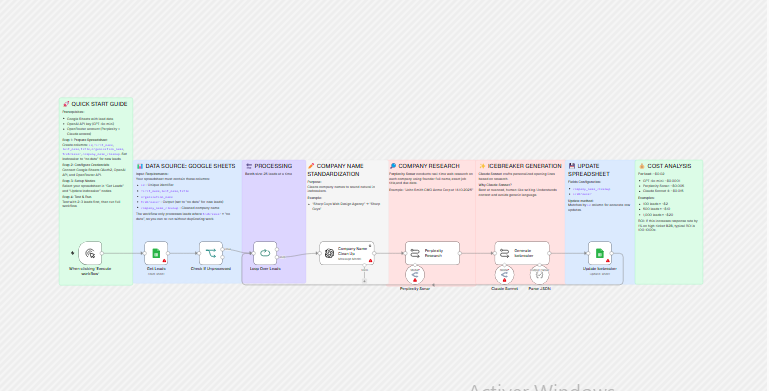
- The big picture: from lead to opener
- Follow the data: what each of the 11 steps does
- Get the workflow JSON
- Install it in ten steps
- What it will not do: limits, costs and trade-offs
- Access, privacy and responsible use
- Making the opener sound like a person
- Problems you may meet and how to fix them
- Too much of a puzzle? Let us build or adapt it for you
- What we changed in the original template
- What was verified, and what was not
- Five ways to adapt the workflow
- Frequently asked questions
- Tools used in this workflow
- Suggested reading
- Keep exploring
What is an outreach email, and what is an icebreaker?
An outreach email is a first message to someone who does not know you, sent to start a conversation or open a sale. The first line decides whether the rest is read. A cold email icebreaker is that first line: one or two sentences that show you looked at the reader’s business. Good ones are specific and true. Bad ones are flattery that could be sent to anyone. This workflow produces the first kind only if the research is right, which is why most of this guide is about checking the research.
Email outreach with AI research: what this workflow does
The workflow handles email outreach preparation in four stages:
- Select. It reads your sheet and keeps only the rows whose
Icebreakercell saysno data. - Clean. A small OpenAI model shortens the company name so it sounds natural.
- Research. A Perplexity model with web access is asked about the lead and the company.
- Write and save. A Claude model writes the opener from the research, and the sheet is updated.
It suits a person who already has a list of leads with names, job titles and companies, and wants a first draft of an opener for each, to read and correct. It does not suit you if you do not yet have leads, if you want emails verified, or if you cannot read each opener before it is used.
Which leads to research, and how this compares with scraping
Research costs money and time for every lead, so choose carefully. If you have B2B sales leads from a database, an export or a tool, qualify them first. Our B2B lead qualification framework for solo sellers gives five questions you can apply to a list before spending anything on AI. If you do not have a list yet, our workflow on generating sales leads and outreach emails starts from companies and finds a contact at each.
There are two ways to find something personal to say. The workflow in this article asks an AI with web access about the person and the company. The workflow in Cold Email Icebreakers with n8n, Apify and GPT downloads the company’s own website and summarizes a few pages. The first is faster to set up and can find outside information, such as news, but it can confuse people. The second stays on the prospect’s own site, so it is easier to check, but it only sees what the site says. Neither checks facts, and either way you should read the opener before you use it.
Words you will see in this guide
- n8n (say “n-eight-n”): a tool that connects apps and makes them follow your instructions automatically.
- Workflow: one set of instructions in n8n, drawn as boxes connected by lines.
- Node: one box in a workflow. Each node does one job.
- Lead: a person or company you might sell to.
- Icebreaker: the first line of a cold email, meant to show you looked at the reader.
- Cold email: an email to someone who does not know you yet.
- Batch: a group of items handled together. Here, 25 leads.
- Loop: a way to repeat the same steps for each batch.
- Research model: an AI that searches the web while it answers. Perplexity’s Sonar is one.
- OpenRouter: a service that gives access to many AI models, from different companies, through one account.
- LLM chain: an n8n node that sends instructions to an AI model and returns its answer.
- Output parser: a node that forces an AI answer into a fixed shape, with named fields.
- Prompt: the instructions you give to an AI.
- Token: a small piece of text that an AI is charged for.
- Credential: a saved login that lets n8n use one of your accounts. The JSON file does not contain yours.
Apps and accounts this workflow talks to
- n8n: runs the workflow.
- Google Sheets: holds your leads and receives the openers. We do not link to it because we could not verify a home page.
- OpenAI: runs the company name cleanup (GPT-4o mini).
- OpenRouter: gives access to the research model (Perplexity Sonar) and the writing model (Claude Sonnet 4). You need an account with credits.
- Perplexity and Anthropic: the companies behind those two models. You do not need an account with them in this workflow, because OpenRouter sits in between. We do not link to their sites because we could not verify their home pages.
Costs: the workflow file is free. OpenAI and OpenRouter charge by use, at prices that change, and we have not verified them. The original notes contain a cost per lead and a return on investment; we could not verify them and do not repeat them. What the file does tell us is the number of calls: three per lead, one to each of the three models. Set spending limits on both accounts before a large run.
What to have ready before you import anything
- A Google Sheet with a tab named
Leadsand these columns:id,first_name,last_name,title,organization_name,Icebreakerandcompany_name_cleanup. Keep the capital I inIcebreaker. - Unique values in
id. The update finds each row by this value. Our CRM data cleanup protocol shows a short routine for clean lead data. - Two or three test leads, with the exact text
no datainIcebreaker. Choose people whose work you know, so you can judge the research. - Accounts and keys for OpenAI and OpenRouter, and spending limits on both.
- A decision about who you may contact, and how you will handle opt-outs.
Where the logic is fragile: checks we made
This template has no Code node, so there was no code to run. We did two things: we listed every value that each step reads from the earlier steps and compared it with what those steps produce, and we evaluated the one condition in the file on simulated cell values.
The “no data” filter
The If node accepts a row only when the Icebreaker cell equals no data exactly:
| Value in the Icebreaker cell (simulated) | Row processed? |
|---|---|
no data |
Yes. |
No data |
No. |
No Data |
No. |
no data followed by a space |
No. |
| An empty cell | No. |
| An opener that was already written | No, as intended. |
The original notes say so: you must write no data in every new row. But a row that has an empty cell, which is what a freshly pasted lead usually has, is silently skipped. If you run the workflow and nothing happens, check this first.
What the writing step knows about the lead
The writing step receives the research text and nothing else. In the file we received, the lead’s first name was not among its inputs, although its instructions say the opener must begin with “Hey” and the first name. The research answer usually contains the name, because the question did, but nothing forces it. LeenLabs passes the first name explicitly. The company name does reach the writing step, through the cleanup step.
The research question
The question sent to the research model has this shape:
Find information followed by Jane Doe Founder Lantern Agency at 14.11.2026.
There is no instruction about what to look for, which sources to trust, or what to do when two people share the name. The date after “at” can be read as a date, a place or a time. The description says the research finds recent news and funding, but the question does not ask for it. The model decides.
The cleanup output
The cleanup step is told to answer with a field called CompanyNameCleanUp, and the writing step and the sheet update both read that exact field. We checked that the spelling matches in all three places. It matches, so the chain holds, as long as the model answers in the requested shape.
Claims in the original that the file does not support
| Claim in the original description or notes | What the file contains |
|---|---|
| Rate limits respected through batches of 25 | Batches of 25, but no pause between calls. |
| Error handling and retry mechanisms | One retry switch on the cleanup step. The sheet update tries twice but its retry switch is off. The research and writing steps have none. |
| Can stop and restart without losing progress | True only between batches. The sheet is updated at the end of each batch of 25. |
| The research finds news, funding and achievements | The question is a name, a title, a company and a date. |
| Claude Sonnet 4.5 | The model named in the file is Claude Sonnet 4. |
| Security best practices for lead data | None in the file. |
| Integration with cold email tools | The result is a column in a sheet. |
| Reply-rate gains and cost per lead | Not something a file can show. We do not repeat or verify them. |
The big picture: from lead to opener
- Start. You click the button.
- Read all the rows of the leads tab.
- Select the rows that say
no data. - Batch the selected rows, 25 at a time.
- Clean each company name.
- Research each lead on the web.
- Write an opener for each lead.
- Save the openers and cleaned names in the sheet, then take the next batch.
Follow the data: what each of the 11 steps does
The names below are the names you will see on the canvas, in the order the data flows through them.
When clicking ‘Execute workflow’
The start of the workflow. It runs when you click the button that executes the workflow, and at no other time. There is no schedule. For a batch job that spends AI credits, starting it by hand is a reasonable choice. Replace it with a Schedule Trigger only when you trust the results.
Get Leads
A Google Sheets node that reads the rows of your leads tab. It needs a Google Sheets credential, and you replace YOUR_GOOGLE_SHEET_ID; the tab is set to Leads. The file does not state the operation, so it relies on the node’s default; open the node and check that it is set to get rows. It reads every row, finished or not.
Check If Unprocessed
An If node that lets a row through only when the Icebreaker cell is exactly no data, with a lowercase n, a lowercase d and one space. Anything else is skipped, and the “false” output is connected to nothing. That includes an empty cell, which is what a new row usually has. See the examples. The original name of this node ended with a space; LeenLabs removed it.
Loop Over Leads
Handles the leads in batches of 25. As far as we know, n8n runs each node on all the items of a batch before it moves to the next node, so for 25 leads you get 25 name cleanups, then 25 researches, then 25 openers, then 25 sheet updates. The sheet is updated only at the end. There is no pause anywhere. The “done” output is connected to nothing, so the workflow simply ends after the last batch.
Company Name Clean Up
An OpenAI node using GPT-4o mini that shortens the company name, so that “Lantern Agency” becomes “Lantern”. It receives the name from the sheet and a list of examples, and must answer in JSON with one field, CompanyNameCleanUp. The temperature is 0.6, the answer is limited to 250 tokens, and the node is set to try again if it fails. In the file we received, its instructions began with “Your task is to make an icebreaker”, which is not this step’s job; LeenLabs corrected it. The original examples were real agencies, which LeenLabs replaced with invented ones.
Perplexity Research
A Basic LLM Chain that sends one question to the research model: the lead’s first name, last name, job title and company, followed by at and today’s date in the form 14.11.2026, after a first line that says “Find information”. That is the whole question. It does not ask for news, funding or achievements, although the original description says it finds them, and the date after “at” can be read in more than one way. Its answer, in a field called text, goes to the next step.
Perplexity Sonar
The model behind the research, Perplexity’s Sonar, reached through OpenRouter under the name perplexity/sonar. It needs an OpenRouter credential with credits. Sonar searches the web while it answers, so it can be current, but it can also describe a different person who has the same name, or a company that is not yours. OpenRouter lists a page for this model; we did not check that your account can use it.
Generate Icebreaker
A Basic LLM Chain that writes the opener. Its instructions ask for one customized introduction line in a casual, plain tone, based only on the research, ending with the sentence “I wanted to share something that could be relevant for” and the cleaned company name. After “Hey” and the first name it must put a blank line. It receives two inputs: the first name and the research text. In the file we received, the first name was not passed at all, so the model had to find it in the research. LeenLabs added it. The original asked the model to look for “plausible (but vague) connections”, which invites empty flattery; we changed that to real connections only, added a rule to mention only facts that appear in the research, and replaced the example, which named a real company and person, with an invented one.
Claude Sonnet
The model that writes the opener: Claude Sonnet 4, reached through OpenRouter under the name anthropic/claude-sonnet-4, limited to 300 tokens. The original description speaks of Sonnet 4.5, but the file names Sonnet 4. OpenRouter lists a page for it, but model names change, so check that it is still available to you.
Parse JSON
Forces the opener into a fixed shape, a JSON object with one field named icebreaker. The sheet update reads that field.
Update Icebreaker
A Google Sheets node that finds the row with the same id and writes two cells: company_name_cleanup and Icebreaker. Because the value of Icebreaker is no longer no data, the next run skips this lead. It also contains a leftover setting, row_number set to 0, that matches no column in its list; we could not tell whether it is harmless. It tries at most twice, but its retry switch is off. If the id values in your sheet are not unique, the wrong row can be updated.
Get the workflow JSON
Open the box below to copy the JSON, or download the file. It contains the 11 nodes above, connected as described, with a placeholder where your sheet goes, and 9 notes on the canvas, including one called Before you turn it on. It contains none of your logins.
Please read this first: this JSON is free and provided as is. n8n versions and installed nodes differ from one person to another, so it may not run correctly on your side without adjustments. We cannot test it on every setup. That is why this article includes a long section, Problems you may meet and how to fix them. And if you would rather not deal with any of it, you can request a custom workflow and let us handle it.
Click to show or hide the workflow JSON
Click inside the box, select the whole text, copy it, then paste it onto an empty n8n canvas. If selecting is awkward on your device, use the download link above.
{
  "name": "Outreach Email Openers: n8n, Perplexity, Claude (free JSON)",
  "nodes": [
    {
      "id": "33074582-e6ea-4ba4-be34-a6f4695b5958",
      "name": "Sticky Note - Data Source",
      "type": "n8n-nodes-base.stickyNote",
      "position": [
        -1376,
        -80
      ],
      "parameters": {
        "color": 5,
        "width": 452,
        "height": 508,
        "content": "## Data source: Google Sheets\n\nGet Leads reads your Leads tab. The columns used are id, first_name, last_name, title, organization_name, Icebreaker and company_name_cleanup. The id must be unique for every row, because the update matches rows by id.\n\nSet Icebreaker to exactly no data for every lead you want processed. Rows with any other value, including an empty cell, are skipped."
      },
      "typeVersion": 1
    },
    {
      "id": "7f8ff355-6c3a-4bdf-ae3a-2339cec3c289",
      "name": "Sticky Note - Batch Processing",
      "type": "n8n-nodes-base.stickyNote",
      "position": [
        -928,
        -80
      ],
      "parameters": {
        "color": 6,
        "width": 264,
        "height": 508,
        "content": "## Batches\n\nLoop Over Leads takes 25 leads at a time. All 25 go through each step before the next step starts, and the sheet is updated only at the end of the batch. There is no pause between calls."
      },
      "typeVersion": 1
    },
    {
      "id": "0bd311ec-7e5c-42ab-bfaf-d7765ba7ca84",
      "name": "Sticky Note - Company Name Cleanup",
      "type": "n8n-nodes-base.stickyNote",
      "position": [
        -672,
        -80
      ],
      "parameters": {
        "color": 7,
        "width": 348,
        "height": 512,
        "content": "## Company name cleanup\n\nAn OpenAI model shortens the company name so it sounds natural, for example Lantern Agency becomes Lantern. It returns a JSON field named CompanyNameCleanUp, which is read by the next steps and saved in the sheet."
      },
      "typeVersion": 1
    },
    {
      "id": "65c388ac-5d75-4ee3-8886-31208aba6725",
      "name": "Sticky Note - Research",
      "type": "n8n-nodes-base.stickyNote",
      "position": [
        -336,
        -80
      ],
      "parameters": {
        "color": 3,
        "width": 372,
        "height": 520,
        "content": "## Research\n\nPerplexity Sonar, reached through OpenRouter, is asked about the lead's first name, last name, job title, company and today's date. Its answer is web research written by an AI. It can describe the wrong person or the wrong company, and it can be out of date."
      },
      "typeVersion": 1
    },
    {
      "id": "38c666f7-d9a3-4888-9626-6aec78a6fd7c",
      "name": "Sticky Note - Icebreaker Generation",
      "type": "n8n-nodes-base.stickyNote",
      "position": [
        32,
        -80
      ],
      "parameters": {
        "color": 3,
        "width": 376,
        "height": 512,
        "content": "## Icebreaker\n\nClaude Sonnet, reached through OpenRouter, writes the opener from the research. It is told to use a casual tone, mention only facts that appear in the research, and end with the sentence that points to your company. Read every opener before you use it."
      },
      "typeVersion": 1
    },
    {
      "id": "89b9858e-2ef6-448a-8e06-b0b734f35311",
      "name": "Sticky Note - Update",
      "type": "n8n-nodes-base.stickyNote",
      "position": [
        400,
        -80
      ],
      "parameters": {
        "color": 5,
        "width": 300,
        "height": 512,
        "content": "## Update the sheet\n\nUpdate Icebreaker writes company_name_cleanup and Icebreaker into the row with the same id, then sends the loop to the next batch."
      },
      "typeVersion": 1
    },
    {
      "id": "715bd285-c8a7-4520-9571-8e2c3db18511",
      "name": "Sticky Note - Quick Start",
      "type": "n8n-nodes-base.stickyNote",
      "position": [
        -1680,
        -336
      ],
      "parameters": {
        "color": 4,
        "width": 304,
        "height": 772,
        "content": "## Quick start\n\n1. Create a Google Sheet with a tab named Leads and the columns id, first_name, last_name, title, organization_name, Icebreaker and company_name_cleanup.\n2. Put no data in Icebreaker for two or three test leads.\n3. Connect Google Sheets, OpenAI and OpenRouter.\n4. Replace YOUR_GOOGLE_SHEET_ID in Get Leads and Update Icebreaker, and check the tab name.\n5. Run it on the test leads and read each opener."
      },
      "typeVersion": 1
    },
    {
      "id": "9ec50fca-839f-446d-87b9-1d03e7a0baff",
      "name": "Sticky Note - Cost Analysis",
      "type": "n8n-nodes-base.stickyNote",
      "position": [
        688,
        -80
      ],
      "parameters": {
        "color": 4,
        "width": 280,
        "height": 512,
        "content": "## Cost and limits\n\nEach lead uses three AI calls: the name cleanup, the research and the opener. Prices depend on your providers and change, so check them and set spending limits before a large run."
      },
      "typeVersion": 1
    },
    {
      "id": "e47f3da6-f275-4de1-8cda-d9f6e8bbb09f",
      "name": "When clicking ‘Execute workflow’",
      "type": "n8n-nodes-base.manualTrigger",
      "position": [
        -1600,
        256
      ],
      "parameters": {},
      "typeVersion": 1
    },
    {
      "id": "55f0d612-d933-42c0-9724-23a9ade26fb1",
      "name": "Loop Over Leads",
      "type": "n8n-nodes-base.splitInBatches",
      "position": [
        -880,
        256
      ],
      "parameters": {
        "options": {},
        "batchSize": 25
      },
      "typeVersion": 3
    },
    {
      "id": "1ac1c796-fb63-4505-aab2-e03bf331bd19",
      "name": "Company Name Clean Up",
      "type": "@n8n/n8n-nodes-langchain.openAi",
      "position": [
        -608,
        256
      ],
      "parameters": {
        "modelId": {
          "__rl": true,
          "mode": "list",
          "value": "gpt-4o-mini",
          "cachedResultName": "GPT-4O-MINI"
        },
        "options": {
          "topP": 1,
          "maxTokens": 250,
          "temperature": 0.6
        },
        "messages": {
          "values": [
            {
              "role": "system",
              "content": "You are a helpful, intelligent writing assistant."
            },
            {
              "content": "=Your task is to clean up a company name.\n\n\nTo clean up company name paraphrase {{ $('Get Leads').item.json.organization_name }}\ne.g.:\n\"The Lantern Agency\" MUST be \"Lantern\"\n\"Oakfield Branding Solutions\" MUST be \"Oakfield\"\n\"Cedar Collective Agency\" MUST be \"Cedar Collective\"\n\"RG Agency\" MUST be \"RG\"\n\"Pinewood Web Design and Digital Marketing Agency\" MUST be \"Pinewood\"\n\nAlways output a cleaned up company name!\n\nReturn JSON:\n{\nCompanyNameCleanUp: \"\"\n}"
            },
            {
              "content": "Shorten company names so they sound natural in a message, the way a person would say them.\n\nExamples:\n\"Lantern Agency\" or \"Lantern\" NOT \"THE LANTERN AGENCY\"; \"Oakfield\" NOT \"Oakfield Branding Solutions\"; \"RG\" or \"RG agency\" NOT \"RG Digital Agency\"; \"Cedar\" NOT \"Cedar Marketing Agency\". If a company name contains the word \"Agency\" like this: \"Lantern Agency\", use only the name, for example \"Lantern\". If a company has \"Inc.\" or \"Group\" in the name, avoid using these words in the text."
            }
          ]
        },
        "jsonOutput": true
      },
      "retryOnFail": true,
      "typeVersion": 1.6
    },
    {
      "id": "d3fc0e7f-aa5c-4371-9320-8464732f974a",
      "name": "Perplexity Sonar",
      "type": "@n8n/n8n-nodes-langchain.lmChatOpenRouter",
      "position": [
        -256,
        352
      ],
      "parameters": {
        "model": "perplexity/sonar",
        "options": {}
      },
      "typeVersion": 1
    },
    {
      "id": "b995242f-530f-4ab0-8aa6-805cb02ccac7",
      "name": "Claude Sonnet",
      "type": "@n8n/n8n-nodes-langchain.lmChatOpenRouter",
      "position": [
        112,
        352
      ],
      "parameters": {
        "model": "anthropic/claude-sonnet-4",
        "options": {
          "topP": 0.8,
          "maxTokens": 300
        }
      },
      "typeVersion": 1
    },
    {
      "id": "107c9bc9-0ed5-4513-9312-b287705e1842",
      "name": "Parse JSON",
      "type": "@n8n/n8n-nodes-langchain.outputParserStructured",
      "position": [
        256,
        352
      ],
      "parameters": {
        "jsonSchemaExample": "{\"icebreaker\":\"\"}"
      },
      "typeVersion": 1.3
    },
    {
      "id": "9433978e-fbcc-4c33-8366-285ff7a7ae17",
      "name": "Generate Icebreaker",
      "type": "@n8n/n8n-nodes-langchain.chainLlm",
      "position": [
        112,
        256
      ],
      "parameters": {
        "text": "=You are a helpful, intelligent assistant",
        "batching": {},
        "messages": {
          "messageValues": [
            {
              "message": "=You are a helpful, intelligent assistant"
            },
            {
              "type": "HumanMessagePromptTemplate",
              "message": "=Write an icebreaker—a one line, customized introduction—for a cold email campaign.\n\nUse the provided data (from a Google Search) as context.\n\nGuidelines:\n1. Your tone of voice should be \"casual bar conversation\" and very spartan. No fancy language.\n2. Look for a real connection between the context and the reader's business. If the context contains nothing specific, keep the line plain and do not invent one.\n3. Do not lie & stretch the truth. For example, if one was a poker pro player, do not mention that I was as well!\n4. Only mention facts that appear in the context.\n5. After \"Hey [firstName],\"  always put \\n\\n\n6. End the icebreaker with \"I wanted to share something that could be relevant for {{ $('Company Name Clean Up').item.json.message.content.CompanyNameCleanUp }}\".\n\nExample icebreakers:\n\n\"Hey Maya,\\n\\nReally like the way Lantern started out printing menus for local cafes - pretty cool how you've grown that into packaging for small food brands, I wanted to share something that could be relevant for Lantern\""
            },
            {
              "type": "HumanMessagePromptTemplate",
              "message": "={\"first_name\":\"{{ $('Get Leads').item.json.first_name }}\",\"context\":\"{{ $json.text }}\"}"
            }
          ]
        },
        "promptType": "define",
        "hasOutputParser": true
      },
      "typeVersion": 1.7
    },
    {
      "id": "5442e9b6-32a4-4c7d-9502-e444f3d3e8dd",
      "name": "Perplexity Research",
      "type": "@n8n/n8n-nodes-langchain.chainLlm",
      "position": [
        -256,
        256
      ],
      "parameters": {
        "text": "=Find information",
        "batching": {},
        "messages": {
          "messageValues": [
            {
              "type": "HumanMessagePromptTemplate",
              "message": "={{ $('Get Leads').item.json.first_name }} {{ $('Get Leads').item.json.last_name }} {{ $('Get Leads').item.json.title }} {{ $('Get Leads').item.json.organization_name }} at {{ $now.toFormat('dd.MM.yyyy') }}"
            }
          ]
        },
        "promptType": "define"
      },
      "typeVersion": 1.7
    },
    {
      "id": "1489908c-e151-416e-93df-9c56ba8e7d92",
      "name": "Update Icebreaker",
      "type": "n8n-nodes-base.googleSheets",
      "maxTries": 2,
      "position": [
        496,
        256
      ],
      "parameters": {
        "columns": {
          "value": {
            "id": "={{ $('Get Leads').item.json.id }}",
            "Icebreaker": "={{ $json.output.icebreaker }}",
            "row_number": 0,
            "company_name_cleanup": "={{ $('Company Name Clean Up').item.json.message.content.CompanyNameCleanUp }}"
          },
          "schema": [
            {
              "id": "id",
              "type": "string",
              "display": true,
              "removed": false,
              "required": false,
              "displayName": "id",
              "defaultMatch": true,
              "canBeUsedToMatch": true
            },
            {
              "id": "company_name_cleanup",
              "type": "string",
              "display": true,
              "removed": false,
              "required": false,
              "displayName": "company_name_cleanup",
              "defaultMatch": false,
              "canBeUsedToMatch": true
            },
            {
              "id": "Icebreaker",
              "type": "string",
              "display": true,
              "removed": false,
              "required": false,
              "displayName": "Icebreaker",
              "defaultMatch": false,
              "canBeUsedToMatch": true
            }
          ],
          "mappingMode": "defineBelow",
          "matchingColumns": [
            "id"
          ],
          "attemptToConvertTypes": false,
          "convertFieldsToString": false
        },
        "options": {},
        "operation": "update",
        "sheetName": {
          "__rl": true,
          "mode": "name",
          "value": "Leads"
        },
        "documentId": {
          "__rl": true,
          "mode": "id",
          "value": "YOUR_GOOGLE_SHEET_ID"
        }
      },
      "retryOnFail": false,
      "typeVersion": 4.6
    },
    {
      "id": "ae2616ec-c0e4-4267-ace9-523e475c9f8d",
      "name": "Check If Unprocessed",
      "type": "n8n-nodes-base.if",
      "position": [
        -1104,
        256
      ],
      "parameters": {
        "options": {},
        "conditions": {
          "options": {
            "version": 2,
            "leftValue": "",
            "caseSensitive": true,
            "typeValidation": "strict"
          },
          "combinator": "and",
          "conditions": [
            {
              "id": "ebb9dbd8-0616-4a42-a4c2-1aa2532f8b15",
              "operator": {
                "type": "string",
                "operation": "equals"
              },
              "leftValue": "={{ $json.Icebreaker }}",
              "rightValue": "no data"
            }
          ]
        }
      },
      "typeVersion": 2.2
    },
    {
      "id": "b92cd82b-8276-48a6-b99f-c9cc5351492a",
      "name": "Get Leads",
      "type": "n8n-nodes-base.googleSheets",
      "position": [
        -1328,
        256
      ],
      "parameters": {
        "sheetName": {
          "__rl": true,
          "mode": "name",
          "value": "Leads"
        },
        "documentId": {
          "__rl": true,
          "mode": "id",
          "value": "YOUR_GOOGLE_SHEET_ID"
        }
      },
      "executeOnce": false,
      "typeVersion": 4.6
    },
    {
      "id": "5a1e8c37-2d94-4b6f-9e03-6c7b4f1a8d52",
      "name": "Before you turn it on",
      "type": "n8n-nodes-base.stickyNote",
      "position": [
        -1328,
        480
      ],
      "parameters": {
        "color": 3,
        "width": 1100,
        "height": 380,
        "content": "## Before you turn it on\n\n1. Test on two or three leads you know. Check that the research describes the right person.\n2. The research step names real people. Make sure you have a lawful reason to research and email them.\n3. Read every opener. Delete any that mention something you cannot verify.\n4. The workflow does not send emails. If you add sending, you are responsible for the rules on unsolicited email.\n5. Lead names, job titles and companies go to OpenRouter, Perplexity, Anthropic and OpenAI.\n6. Not tested on live APIs."
      },
      "typeVersion": 1
    }
  ],
  "connections": {
    "Get Leads": {
      "main": [
        [
          {
            "node": "Check If Unprocessed",
            "type": "main",
            "index": 0
          }
        ]
      ]
    },
    "Parse JSON": {
      "ai_outputParser": [
        [
          {
            "node": "Generate Icebreaker",
            "type": "ai_outputParser",
            "index": 0
          }
        ]
      ]
    },
    "Claude Sonnet": {
      "ai_languageModel": [
        [
          {
            "node": "Generate Icebreaker",
            "type": "ai_languageModel",
            "index": 0
          }
        ]
      ]
    },
    "Loop Over Leads": {
      "main": [
        [],
        [
          {
            "node": "Company Name Clean Up",
            "type": "main",
            "index": 0
          }
        ]
      ]
    },
    "Perplexity Sonar": {
      "ai_languageModel": [
        [
          {
            "node": "Perplexity Research",
            "type": "ai_languageModel",
            "index": 0
          }
        ]
      ]
    },
    "Update Icebreaker": {
      "main": [
        [
          {
            "node": "Loop Over Leads",
            "type": "main",
            "index": 0
          }
        ]
      ]
    },
    "Generate Icebreaker": {
      "main": [
        [
          {
            "node": "Update Icebreaker",
            "type": "main",
            "index": 0
          }
        ]
      ]
    },
    "Perplexity Research": {
      "main": [
        [
          {
            "node": "Generate Icebreaker",
            "type": "main",
            "index": 0
          }
        ]
      ]
    },
    "Company Name Clean Up": {
      "main": [
        [
          {
            "node": "Perplexity Research",
            "type": "main",
            "index": 0
          }
        ]
      ]
    },
    "When clicking ‘Execute workflow’": {
      "main": [
        [
          {
            "node": "Get Leads",
            "type": "main",
            "index": 0
          }
        ]
      ]
    },
    "Check If Unprocessed": {
      "main": [
        [
          {
            "node": "Loop Over Leads",
            "type": "main",
            "index": 0
          }
        ]
      ]
    }
  },
  "settings": {
    "executionOrder": "v1"
  }
}
Install it in ten steps
- Create the Google Sheet with the
Leadstab and the seven columns, and add two or three test leads withno datainIcebreaker. - Get the JSON from the box above or the download link.
- Import it. Open a new empty workflow in n8n, then paste the JSON onto the canvas or import it from a file.
- Check that the 11 nodes appear, with 9 notes and no missing-node warning.
- Connect Google Sheets in Get Leads and Update Icebreaker, and replace
YOUR_GOOGLE_SHEET_IDin both. Check the tab name. - Check the operation of Get Leads, which should get rows.
- Connect OpenAI in Company Name Clean Up.
- Connect OpenRouter in Perplexity Sonar and Claude Sonnet, and make sure the account has credits.
- Run it on your test leads, and read the output of each node for the first lead.
- Read the sheet. Check that every opener describes something real about the person. Only then try a longer list.
What it will not do: limits, costs and trade-offs
- It does not send emails. It writes one line.
- It does not check facts, neither the research nor the opener.
- It does not tell people with the same name apart.
- It does not pause, so a large batch can hit rate limits.
- It saves only at the end of a batch. A failure in the middle loses the whole batch’s work.
- It skips rows that do not say exactly
no data. - It does not log or flag failures. A lead that fails simply has no opener.
- It costs per lead, on two accounts.
Access, privacy and responsible use
This workflow looks up information about named people and writes about them. Use it with care.
- Know where the data goes. The lead’s name, job title and company go to OpenRouter, and from there to Perplexity and Anthropic; the company name goes to OpenAI. Read each provider’s terms.
- Research business facts, not private lives. The research question only gives a name, a title and a company, but the model decides what to look up. Keep to what is relevant to the business reason you are writing, and delete what you do not need.
- Have a lawful reason to contact each person. The rules differ by country, and business contact details are not treated the same everywhere.
- Do not claim what is not true. The original prompts asked the model to make the opener sound like a human wrote it and to find “plausible” connections even when they were vague. We changed that. Say only things that are true and that you can point to.
- Check every opener against the research, and the research against a real source, before you use it.
- Follow the rules on unsolicited email. In the United States this means, among other things, honest sender details, a real way to opt out, and honoring opt-outs. Our article on cold email compliance for small teams covers part of it. Other countries have different rules. We are not lawyers, and nothing here is legal advice or a statement that this workflow complies with any law.
- Limit what you keep. Do not store research notes about people you will not contact.
Making the opener sound like a person
The instructions in the file are better than most. They ask for a plain tone, forbid lying, and give an example. They are also short. To improve them, add a second example in a different style, a list of phrases to avoid, and a rule about length, because the file only says “one line” and then asks for a blank line after the greeting. Keep the offer sentence honest. Our article on AI cold emails that do not sound like AI goes through this in detail, and the outbound outreach workflow shows how to send a sequence from a sheet once the openers are ready.
Problems you may meet and how to fix them
Every n8n setup is different, so this workflow can behave differently for you than in our checks. Here are the most likely problems. For each one: what you see, why it happens, and what to do. They come from reading how the nodes are set up, not from a live run with real accounts.
1. The workflow imports, but nodes show as unknown or with warnings
What you see: red or grey nodes after import, especially the OpenRouter and chain nodes.
Why: your n8n version may not have the same node versions as the one the template was made on.
Fix: update n8n, or replace the node with the same kind of node from your own menu and copy its settings across.
2. Google Sheets cannot find the document or the tab
What you see: an error in Get Leads or Update Icebreaker.
Why: YOUR_GOOGLE_SHEET_ID was not replaced, the tab is not named Leads, or your credential has no access to the sheet.
Fix: replace the id in both nodes, check the tab name, and share the sheet with the account of your credential.
3. Nothing happens after Get Leads
What you see: the workflow stops after the If node, with no items on the “true” side.
Why: no row has exactly no data in Icebreaker. An empty cell does not count.
Fix: type no data, in lowercase, in the cells of the leads you want processed.
4. The wrong row gets the opener
What you see: an opener on a different lead’s row.
Why: the update finds the row by id, and two rows have the same id, or the id is empty.
Fix: give every row a unique id before you run.
5. The sheet update fails
What you see: an error in Update Icebreaker, perhaps mentioning a row or a column.
Why: a column name does not match, with Icebreaker capitalized as in the file, or the leftover row_number setting is rejected by your version.
Fix: check the header names, and if the error names row_number, remove it from the mapping.
6. OpenRouter refuses the call
What you see: an error 401 or 402 in Perplexity Sonar or Claude Sonnet.
Why: the key is missing or wrong, or the account has no credits.
Fix: connect the right credential and add credits.
7. A model is not found
What you see: an error saying the model does not exist or is not available.
Why: model names, such as perplexity/sonar and anthropic/claude-sonnet-4, change over time on OpenRouter.
Fix: open the model node and choose a model from OpenRouter’s current list.
8. The cleaned company name is missing
What you see: an empty or odd company name in the opener, or an empty company_name_cleanup cell.
Why: the cleanup model did not answer with the field CompanyNameCleanUp, or the answer failed.
Fix: open the output of Company Name Clean Up and check the field name. Run the step again.
9. The research describes the wrong person
What you see: an opener about someone else, or a company with a similar name.
Why: the question is only a name, a job title and a company, and the model picks what it finds.
Fix: add the company website or location to the question, ask the model to say when it is not sure, and check every opener.
10. The research finds nothing
What you see: a vague or empty opener.
Why: the lead has little public information, or the question was too thin.
Fix: skip the lead, or write the opener by hand.
11. The opener says “[firstName]” or no name
What you see: a placeholder or a missing name after “Hey”.
Why: in the original, the writing step was not given the first name. LeenLabs added it, but if you rebuild the node, the problem returns.
Fix: check that the first name is in the message that carries the research.
12. The opener states something untrue
What you see: a detail you cannot find on the web or on the lead’s site.
Why: the research can be wrong, and the writing model can add or misread a detail even when told not to.
Fix: read every opener against a real source before use.
13. Every opener sounds the same
What you see: similar sentences across rows.
Why: one example and one format push the model towards the same shape.
Fix: add more examples in different styles, and vary the instructions by industry.
14. The opener is longer than one line
What you see: two or three sentences.
Why: the file says “one line” but also asks for a greeting, a blank line and a closing sentence, and sets a limit of 300 tokens, not a length in words.
Fix: add a clear maximum length to the instructions.
15. A rate-limit error stops the run
What you see: an error 429 or “too many requests”.
Why: there is no pause between calls, and a batch sends 25 in a row.
Fix: reduce the batch size, add a Wait node, and turn on retries for the research and writing steps.
16. A batch fails and its work is lost
What you see: a run that stops in the middle, and no openers for any lead of that batch.
Why: the sheet is updated only after all 25 leads have been processed.
Fix: lower the batch size, so you lose less when a call fails, or move the update before the next lead.
17. The same lead is processed again
What you see: a second opener for the same lead, and a second charge.
Why: if the update fails, the cell still says no data and the lead is picked up on the next run.
Fix: check the sheet after each run, and fix update errors before you run again.
18. The bill is bigger than expected
What you see: high usage on OpenRouter or OpenAI.
Why: three AI calls per lead, one of them a model that searches the web.
Fix: test on a few leads, set spending limits, and process in small runs.
19. A lead complains about the message
What you see: a reply asking how you found them, or a complaint.
Why: the opener refers to information they did not expect you to find.
Fix: refer only to business information that the person has published, and give a clear way to opt out.
20. Everything imports but the JSON does not behave as described
What you see: something this guide describes does not match what you see.
Why: versions differ, and we did not run this exact file in n8n.
Fix: test each step in your own n8n with the execute button, look at what each node outputs, and if you get stuck, request a custom workflow.
Too much of a puzzle? Let us build or adapt it for you
Some people enjoy tinkering with n8n. Others want an opener workflow that behaves, with checks they can trust. If you are in the second group, LeenLabs builds and adapts n8n workflows for people like you. We can:
- Improve the research question so it targets the right person and the right facts.
- Save each lead as soon as it is done, so a failure never loses a batch.
- Add pauses, retries and failure logging.
- Add a human check before any opener is marked as ready.
- Add a qualification score so only fitting leads are researched.
- Connect your own CRM instead of a sheet.
- Prepare the sending side, with your opt-out rules.
- Build a new workflow from scratch for another task you want to automate.
We build the automation. You stay in charge of who is contacted and what is said.
Request a Custom Workflow, describe what you want to automate, and we will come back to you with the next steps. Prefer to ask a question first? Write to support@leenlabs.site.
What we changed in the original template
We want you to know exactly how this file differs from the template it comes from. Compared with the file we received, LeenLabs made these changes:
- Removed internal data. We removed the template’s identifiers, its instance identifier, the inactive flag, the empty saved test data and the credential references, renamed the workflow to this article’s title and kept only the execution-order setting.
- Set the sheet placeholders. The empty document and tab settings became
YOUR_GOOGLE_SHEET_IDand a tab namedLeads. - Passed the first name to the writing step. The step was asked to start with the first name but did not receive it.
- Replaced the examples. The cleanup examples and the opener example named real agencies, a real company and a real person. They now use invented names, Lantern, Oakfield, Cedar Collective, RG, Pinewood and Maya.
- Changed the wording of the prompts. We removed “paraphrase so prospects think a human wrote it” and “look for plausible (but vague) connections”, and added a rule to mention only facts that appear in the research. We also fixed “Your task is to make an icebreaker” in the cleanup step, and three spelling mistakes in the opener prompt, one of which changed the meaning of “stretch the truth”.
- Renamed one node.
Check If Unprocessedhad a space at the end of its name; the space is gone. - Rewrote the notes. The originals contained emoji, a cost and return calculation, and claims that the file does not support. We rewrote all eight and added Before you turn it on.
The nodes, the models, the batch size, the filter, the output shapes, the sheet mapping and the connections are otherwise unchanged. That includes the defects described above, such as the exact-match filter and the lack of pauses, which we documented rather than fixed.
What was verified, and what was not
Here is exactly what we did. This template has no Code node, so there was no code to run. We checked the structure of the file: 11 working nodes, correct connections, no logins and no real company or personal names. With a script, we listed every value each step reads from earlier steps and checked that every node it refers to exists and that the field names match, and we evaluated the filter’s condition on simulated cell values. We also compared the claims in the original description with what the nodes contain.
We did not import this exact file into n8n and run it end to end. We did not connect Google Sheets, OpenAI or OpenRouter. So we cannot confirm what the research model returns, how accurate it is, what the writing model produces, whether the model names are still available, what the Google Sheets node does with the leftover row_number setting, whether the Get Leads node is set to get rows, or how long a batch takes. That is why we recommend a full test with leads you know before you use a longer list.
Five ways to adapt the workflow
- Ask a better question. Add the company website, the city and what you want to learn, and ask the model to say when it is unsure.
- Save as you go. Use a batch size of one, so each lead is saved as soon as it is done.
- Add a status column. Write
needs review,approvedorrejectednext to each opener. - Pause between calls. Add a Wait node and retries on the research and writing steps.
- Send after approval. Add a Gmail step that sends only the rows you approved. Our AI email autoresponder for leads shows how to handle the replies.
These variations are suggestions based on how n8n works, not changes we tested on this template. If you want one built for you, send us a request.
Frequently asked questions
What is an outreach email?
A first message to someone who does not know you, sent to start a conversation or open a sale. This workflow writes the first line of one.
What is a cold email icebreaker?
The opening line of a cold email that shows you looked at the reader’s business. It works when it is specific and true.
How does this workflow help with email outreach?
It saves the research and the first line. It does not write the rest of the email, verify the facts, or send anything.
Can it work on B2B sales leads?
Yes, if each lead has a name, a job title and a company. Qualify the leads first, so that you only pay to research the right ones.
Is the research reliable?
Not by itself. It comes from an AI model that searches the web, and it can confuse people with the same name. Check each opener against a real source.
Does it send the emails?
No. It writes openers into a Google Sheet. You decide what to send and to whom, and you take on the duties of the sender.
How many cold emails can I send per day per domain?
There is no single number that is right for everyone. It depends on your email provider’s published limits, the age and reputation of your domain, and how people respond. Check your provider’s documentation and start small. This workflow does not send, so it sets no limit.
Do I need accounts with Perplexity and Anthropic?
Not in this workflow. Both models are reached through OpenRouter, so you need an OpenRouter account with credits, and an OpenAI account for the name cleanup.
Why does a lead get skipped?
Because its Icebreaker cell is not exactly no data. An empty cell also counts as “not no data”.
Is the workflow free?
The file is free. OpenAI and OpenRouter charge by use.
What if the JSON does not work on my n8n?
It can happen, because setups differ. Go through the problems section above. If it still does not work, or you do not want to spend the time, request a custom workflow and we will handle it.
Who built the original template?
The original template comes from the n8n Library at n8n.io. LeenLabs adjusted and documented it.
Tools used in this workflow
The links below go to each tool’s home page, and some may be affiliate links, as explained in our Terms of Service. We do not link to Google Sheets, Perplexity or Anthropic because we could not verify their home pages.
- n8n (may be an affiliate link): the automation platform that runs the workflow, available hosted or self-hosted.
- OpenRouter (may be an affiliate link): one account that gives access to the research and writing models.
- OpenAI (may be an affiliate link): the AI service behind the company name cleanup.
Suggested reading
If cold email, leads and sales are your focus, these LeenLabs articles go well with this one.
Workflows
- Cold Email Icebreakers with n8n, Apify and GPT: the same goal, using the prospect’s own website.
- Generate Sales Leads and Outreach Emails with n8n: finds a contact at each company and drafts the whole email.
- AI Email Automation with n8n: Outbound Outreach: the sending side, with a follow-up and a reply check.
- AI Email Autoresponder for Leads with n8n: replies to inbound leads and sorts them.
- AI Email Assistant for Gmail: Classify and Route: sorts incoming mail into categories.
- AI Email Reply with n8n, Airtable and Gmail: a short reply workflow that logs to Airtable.
- AI Email Responder with RAG: Pinecone, Gmail, n8n: answers questions from your own documents.
- How to Automate Zoho CRM Data Quality Audits: keeps your lead data clean.
Business guides
- B2B Lead Qualification Framework for Solo Sellers (No SDR): five questions to decide who is worth contacting.
- AI Cold Email That Does Not Sound Like AI: how to keep drafts human.
- Cold Email Compliance for Small Teams: what the rules ask of senders.
- Call Notes to CRM Without Typing: AI Note Taker Workflow: what to do once a lead replies.
- Missed Lead Follow-Up System: what to do with leads once you have them.
- CRM Data Cleanup Friday: A 20-Minute Protocol: a routine for clean lead data.
- Automate Invoice and Receipt Capture from Email: Practical Guide: another example of turning email and a sheet into a working pipeline.
Keep exploring
Browse more free n8n workflows from LeenLabs.
Need this adapted to your own setup?
Tell us what you want to automate and we will come back to you with the next steps.