
Automate Invoice and Receipt Capture from Email: Pipeline, Edge Cases and an Accuracy Check You Can Run
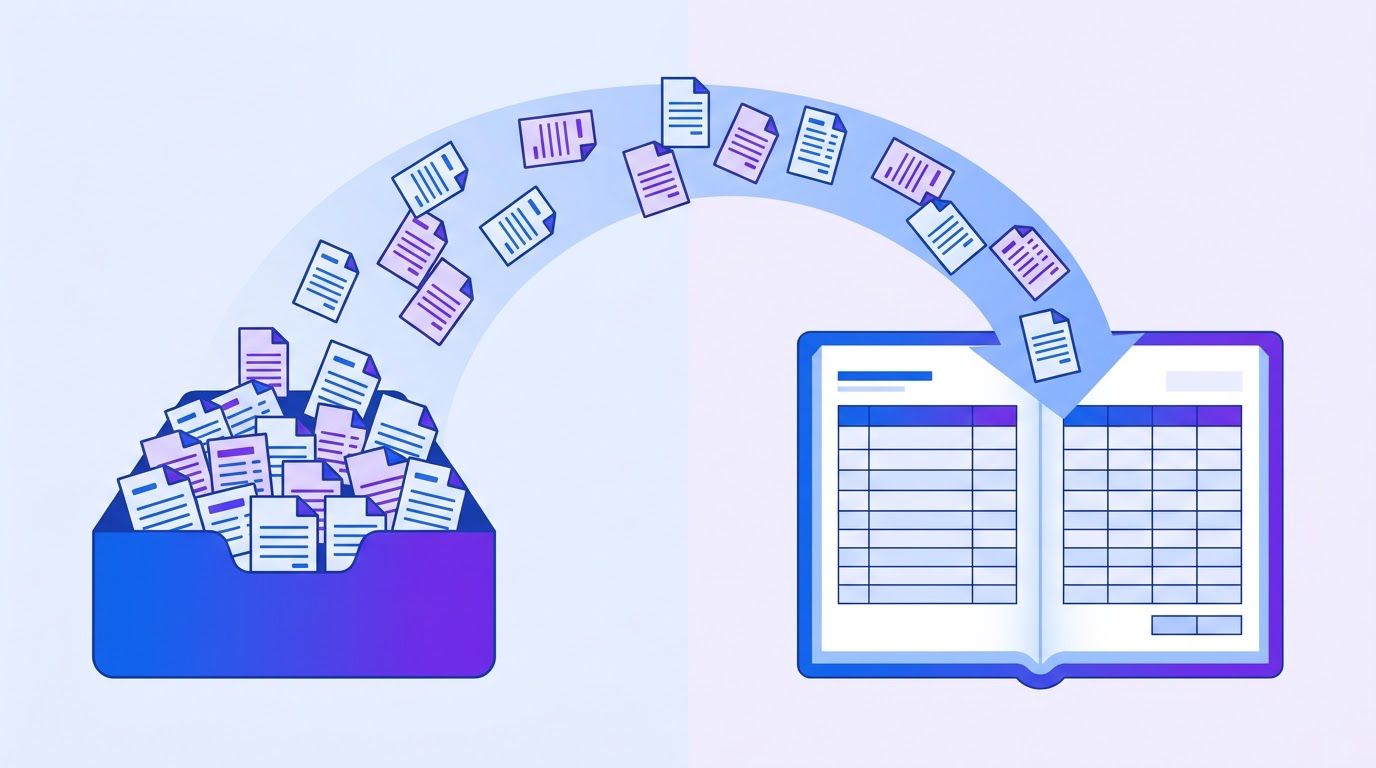
The owner forwards an invoice from his personal email on Sunday night. A technician photographs a fuel receipt and sends it on WhatsApp. A supplier mails a PDF to the accounting address, and a second copy to the owner’s address, because that is the one they have always used. On the 28th, the bookkeeper opens three inboxes, a phone gallery and a paper envelope and tries to work out which of the forty documents are new, which are duplicates and which are missing entirely. (An invented scene, and a common one.)
Getting those documents into your accounting system without retyping them is what people mean by invoice capture and receipt capture. This guide is about the practical version: how to inventory where documents arrive, how to build a pipeline from email to a draft entry, what breaks it, how to measure how accurate it is with a sampling routine, and how a bookkeeper fixes a mistake in ten seconds. If you are looking for a way to automate invoice processing end to end, this is the capture half, and our guide to accounts payable automation for small businesses covers the rest.
A note on what this is. We did not run invoices through OCR engines and we publish no accuracy table for any product. Accuracy depends on your suppliers’ layouts, your scan quality and your fields, so a number from someone else’s documents tells you little. What we read are the vendors’ own documentation pages (cited with the date we read them), and what we built is a method for measuring accuracy on your documents. All examples are invented and labeled.
- Start with an inventory, not a tool: every place a document can arrive, and who owns it.
- Give documents one door: a dedicated address that everything is forwarded to, with the original always archived.
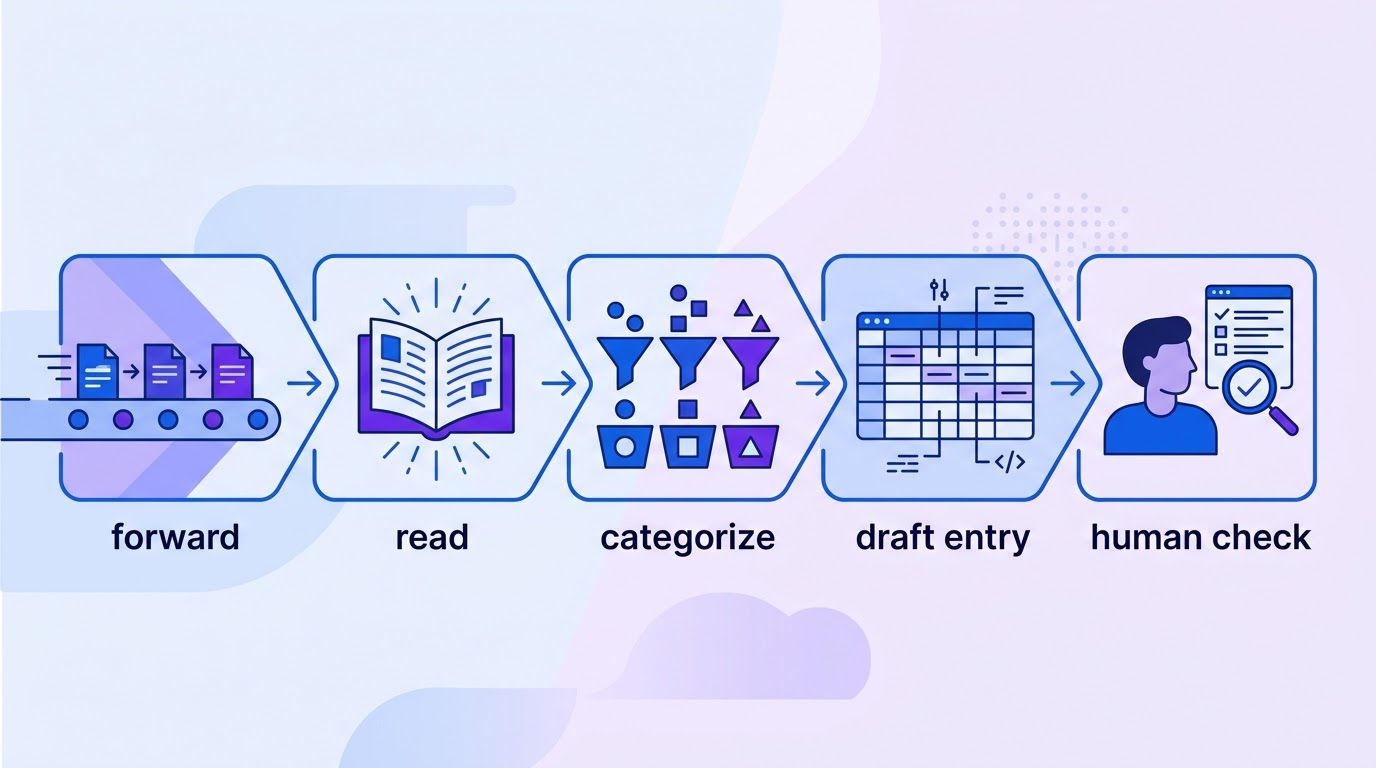
- Pipeline: receive, extract, validate, categorize, create a draft entry, and let a person approve.
- Validate with arithmetic: subtotal plus tax equals total, lines add up, the date is plausible, the currency is a code.
- Measure on a sample: about 100 documents a week, scored field by field, with the uncertainty stated.
- Log every correction. The log, not the engine, is what improves the system.
- Inventory the entry points
- The pipeline, step by step
- The cases that break it
- Measuring accuracy: a weekly sampling protocol
- The ten-second correction and the feedback loop
- Comparing OCR engines honestly
- Automating the pipeline with n8n
- A two-week rollout
- When it is time to hand it to someone
- Frequently asked questions
- Sources
Inventory the entry points
Every capture project fails the same way: the pipeline handles the documents that arrive in the place you thought about and ignores the rest. So before choosing a tool, list every place a business document can arrive, who looks at it and what happens to it today.
| Entry point | Typical documents | Who owns it | Usual problem |
|---|---|---|---|
| Owner’s or executive’s inbox | Supplier invoices, subscriptions, contract bills | The owner | Never forwarded. Only the owner knows they exist. |
| Accounting or bills inbox | Supplier invoices as PDFs | Bookkeeper or office manager | Mixed with newsletters and replies. Duplicates from supplier reminders. |
| Personal email of staff | Receipts for purchases made for the business | Each employee | Never forwarded, or forwarded in bulk at month-end. |
| Phone photos and messaging apps | Receipts, fuel slips, handwritten tickets | Each employee | Blurry, cropped, several receipts in one picture, lost when the phone changes. |
| Supplier portals and links | Invoices behind a login or a "view invoice" link | Whoever has the login | No attachment to capture. Someone has to download it. |
| Paper | Delivery invoices, utility bills | Whoever opens the post | Scanned late or filed and forgotten. |
| Card and bank feeds | Transactions with no document | Bookkeeper | A payment with no invoice to match it to. |
Run the inventory in an hour
- Ask each person one question: "Where did the last three bills or receipts you handled come from, and what did you do with them?"
- Search each mailbox for the last 30 days for words like invoice, receipt, statement and payment due, and count the hits.
- Write the count next to each row of the table. The mailbox with the most documents that nobody forwards is where you start.
- Name an owner for every row. A pipeline with an unowned door fills with documents nobody checks.
Invoices and receipts are not the same document
An invoice is a bill you owe, from a supplier, usually with a due date and sometimes a purchase order number. A receipt is proof that you already paid. They need different handling: an invoice creates something to be paid and approved, while a receipt usually needs to be matched to a transaction that has already left your account. Treating both as "documents to scan" is the source of many of the bookkeeping errors that surface at year-end: unpaid bills that were never recorded, and payments that were never matched to a document.
Why the original must survive
Whatever you extract, keep the original file, unchanged, in an archive, and link to it from the entry. The IRS page on how long to keep records (last reviewed June 30, 2026, read November 13, 2026) gives 3 years as the default for income tax records, 4 years for employment tax records, 6 years in the case of unreported income that exceeds 25% of the gross income on a return, and 7 years for records supporting a bad debt or worthless securities claim, and says to keep records for property until the limitation period for the year you dispose of it expires. It also says to check whether insurers or creditors require longer. We are not tax advisers, and your own situation or country may differ, so ask your accountant. The practical point is that an extracted field is a convenience, and the original document is the evidence.
The pipeline, step by step
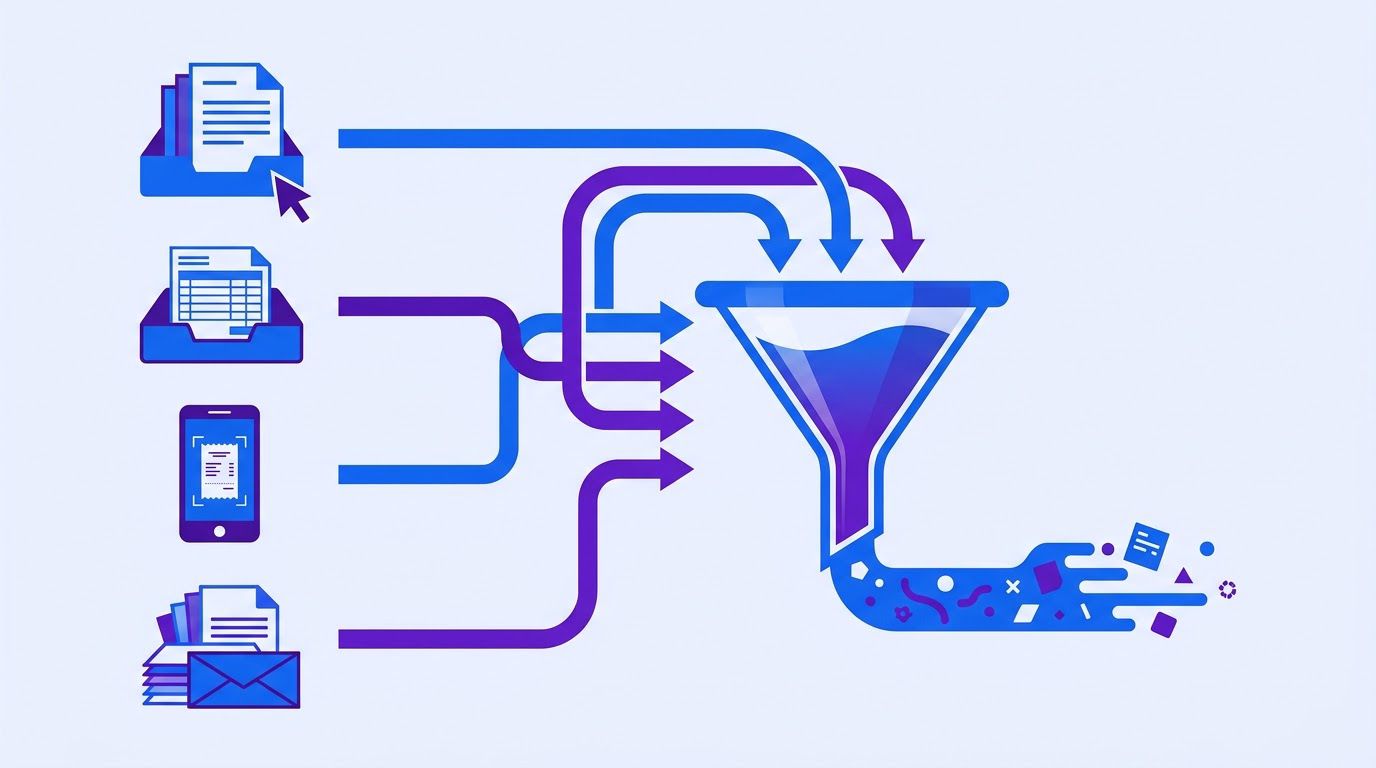
The pipeline has seven steps. Each one is small. The value comes from running them in the same order every time.
| Step | What happens | Where a person is needed |
|---|---|---|
| 1. Forward | Every entry point sends documents to one dedicated address, or drops them in one folder. | Setting up the rules once, and getting staff to use the door. |
| 2. Archive | The original file is saved unchanged with a predictable name and a received date. | Never. This step is automatic. |
| 3. Read | An extraction step pulls vendor, number, date, currency, subtotal, tax, total and, if you need them, line items. | Reviewing documents it could not read. |
| 4. Validate | Arithmetic and sanity checks run on the extracted values (below). | Reviewing anything that fails a check. |
| 5. Categorize | A rule or a model proposes an account or category from the vendor and the lines. | Approving new vendors and ambiguous categories. |
| 6. Draft | A draft entry or bill is created in the accounting system, linked to the archived original. | Approving the draft before it is posted. |
| 7. Match and log | A bill is checked against purchase orders and earlier invoices. A receipt is matched to a transaction. Everything is logged. | Resolving mismatches. |
Step 1: one door, many ways in
The simplest design is a dedicated address such as bills@yourcompany.com. Staff and suppliers forward there, and you set a forwarding rule in each source mailbox to send matching messages to it automatically. Some accounting systems give you the door ready-made. According to the QuickBooks help article on emailing receipts and bills (last updated August 5, 2026, read November 13, 2026), an administrator creates a custom address ending in @assist.intuit.com from the Receipts page. Each user registers one address, and emails must come from the address the user signs in with. The supported file types are PDF, JPEG, JPG, GIF and PNG, each attachment must be between 46 KB and 20 MB, and each image should contain only one receipt, though one email can carry several images. After sending, QuickBooks reads the image, pulls the date, amount, vendor and the last four digits of the card, and puts the receipt in the Receipts tab to review, categorize or match to a transaction. Gmail users can forward automatically, but addresses containing a plus sign may not register.
That description is worth reading for what it shows about the problem. Even a mature accounting product limits file types and sizes, wants one receipt per image and asks a person to review the result. Your own pipeline should expect the same constraints and handle the exceptions.
Step 2: archive before you read
- Name files predictably: received date, source, then a short random ID, for example 2026-11-13_bills-inbox_a81f.pdf. Do not rename by invoice number yet, because you have not read it.
- Never overwrite and never delete the original, even when you later replace it with a cleaner scan.
- Record the sender and the email subject next to the file. They are the best clue when extraction fails.
- Keep a link in the draft entry that opens the original in one click.
Step 3: read the document
Extraction turns a file into fields. There are three broad approaches, and a small team can mix them. Built-in readers in accounting tools, like the QuickBooks one above, are the cheapest start. Cloud document engines are services that return structured fields from an invoice or receipt, and Section 6 compares what two of them document. Language-model extraction sends the document to a model and asks for the fields as structured data, which is how the invoice data extraction workflow with n8n and Claude works, as described in its entry. Each approach is more or less fragile on different documents, which is why the measurement in Section 4 matters more than the choice.
Whatever you use, ask for the same set of fields every time: vendor name, invoice number, invoice date, due date, currency, subtotal, tax, total, and the purchase order number if there is one. Add line items only if you use them. Our invoice line item logging workflow reads an invoice PDF, logs each line item to a sheet, checks the totals and emails a verification report, so it shows what the extra detail costs.
Step 4: validate with arithmetic, not hope
The most useful checks are cheap and need no model. They catch a large share of extraction errors because most errors break arithmetic or plausibility.
| Check | Rule | Catches |
|---|---|---|
| Subtotal plus tax equals total | Within 5 cents | Misread digits, a missed tax line, a total from another page |
| Lines add up | Sum of line totals equals subtotal (or total if no subtotal) | Missed or duplicated lines, a table that was cut |
| Date is plausible | Not in the future by more than a week, and not older than about 13 months | Day and month swapped, year misread |
| Vendor is known | Matches an existing vendor or is routed to review | New suppliers and misspelled names |
| Currency is a three-letter code | USD, EUR and so on, not a symbol | Mixed currencies posted as dollars |
| Required fields present | Vendor, number, total are not empty | Pages that are not invoices |
| Engine confidence | Below your threshold goes to review | Blurry or unusual layouts |
Here is the logic as a function you could paste into a code step in n8n or adapt to any language. It returns a list of flags, and an invoice with any flag goes to a person instead of straight to a draft. Checked against two invented invoices, one clean and one with several planted problems, it returned no flags for the first and flagged the second as expected.
function validate(inv) {
  const flags = [];
  const num = x => Number(x);
  if (!inv.vendor) flags.push("MISSING_VENDOR");
  if (!inv.invoiceNumber) flags.push("MISSING_NUMBER");
  if (!(num(inv.total) > 0)) flags.push("TOTAL_NOT_POSITIVE");
  if (inv.subtotal != null && inv.tax != null) {
    const diff = Math.abs(num(inv.subtotal) + num(inv.tax) - num(inv.total));
    if (diff > 0.05) flags.push("SUBTOTAL_PLUS_TAX_MISMATCH");
  }
  if (inv.lineTotals && inv.lineTotals.length) {
    const sum = inv.lineTotals.reduce((a, b) => a + num(b), 0);
    const base = inv.subtotal != null ? num(inv.subtotal) : num(inv.total);
    if (Math.abs(sum - base) > 0.05) flags.push("LINES_DO_NOT_ADD_UP");
  }
  const d = new Date(inv.date);
  if (isNaN(d)) flags.push("BAD_DATE");
  else {
    const days = (Date.now() - d) / 864e5;
    if (days > 400 || days < -7) flags.push("DATE_OUT_OF_RANGE");
  }
  if (!/^[A-Z]{3}$/.test(inv.currency || "")) flags.push("CURRENCY_NOT_ISO");
  if (inv.confidence != null && inv.confidence < 0.9) flags.push("LOW_CONFIDENCE");
  return flags;
}
The thresholds (5 cents, 400 days, 0.9 confidence) are starting points that we chose, not standards. Adjust them after you see your own flags, and never use the function as proof that an invoice is right. It proves only that the numbers are consistent with each other.
Steps 5 to 7: categorize, draft, match
- Categorize by vendor first. Once a vendor has been approved with an account, reuse it. A model is for new vendors and ambiguous lines, and a person approves the first use.
- Create drafts, never posted entries. A draft can be corrected in seconds. A posted entry has consequences for reports and tax.
- Match before you pay. Check the invoice against purchase orders (see the three-way match workflow and the layers in our guide to duplicate invoice detection) and, for receipts, against the card or bank transaction.
- Log every document, including the ones that passed. The log is the data for Section 4.
The cases that break it
A pipeline that works on clean PDFs from your three biggest suppliers will still fail on the documents that matter most to a bookkeeper: the odd ones. Plan for them before they appear, and decide what happens to each: fix automatically, send to review or reject.
| Case | What goes wrong | What to do |
|---|---|---|
| Skewed or rotated scans | Text reads out of order, fields are missed | Straighten and rotate before reading if your engine does not. Route low-confidence results to review. |
| Blurry or dark phone photos | Digits are misread, especially 3, 5, 8 and 1, 7 | Ask staff to photograph flat, in light, one receipt per image. Always validate totals. |
| Several receipts in one image or PDF | Totals mix, or only one is captured | Reject with a message asking for one per image. The QuickBooks help article makes the same request. |
| Multi-page invoices | The total is on the last page and the lines on earlier ones | Read all pages and use the total from the final page. Check that lines add up. |
| Tables and line items | Rows merge or split, quantities and prices swap | Check lines against the subtotal. If you do not use line items, do not extract them. |
| Multiple currencies | A euro amount is posted as dollars | Capture the currency code exactly as printed. Never convert at capture. Convert in the accounting system with a dated rate. |
| Sales tax, VAT or several tax lines | Only one tax line is captured, or tax is merged into lines | Extract each tax line separately and sum them. Check subtotal plus taxes equals total. |
| Handwritten tickets | Low accuracy, ambiguous digits | Send to a person every time. Do not try to automate. |
| Link instead of attachment | Nothing to capture | A person or a login-based step downloads the file. Log the supplier and ask them for attachments. |
| Password-protected PDFs | The reader fails, sometimes silently | Azure’s invoice documentation, for one, says to remove the lock before submitting. Route failures to review. |
| Credit notes | A negative document is entered as a bill | Detect the words credit note or a negative total and route separately. |
| Statements mistaken for invoices | A summary of invoices is entered as a new bill | Check for the word statement and the absence of an invoice number. Route to review. |
| Zip files and embedded images | The pipeline sees an email with no PDF | Unpack archives. Treat inline images as documents. |
Multiple currencies and taxes: three rules
- Capture what is printed. The currency code, the tax label and the amounts exactly as shown on the document.
- Do the conversion and the tax logic in your accounting system, where rates and tax codes are controlled and audited, not inside the extraction step.
- Check the sum. Subtotal plus every tax line equals the total, to the cent or within your tolerance. If it does not, a person looks.
Tax rules differ by country and by product, and we are not tax advisers. The pipeline’s job is to record what the document says accurately. What the tax treatment should be is a question for your accountant.
A rejection message that works
Subject: We could not read your attachment

Hi [Name],

Thank you for sending [file name]. We could not read it automatically.
Could you resend it as one PDF or one photo per document, flat and in good light?
If this is a supplier invoice, a PDF attachment (not a link) works best.

Thank you,
[Company] accounts
- Trying to automate everything. Handwritten tickets and odd scans cost more to automate than to type.
- Converting currency or computing tax at capture. Keep the extraction faithful and do the logic where it is auditable.
- Silently dropping failures. A document that fails must create a visible task, not disappear.
- Never telling suppliers. One polite message asking for attachments instead of links fixes a whole class of failures.
A spreadsheet that ranks your repetitive tasks by what is worth automating first. List the task, rate how often it happens, how long it takes, how error-prone it is and how many tools it touches, and the sheet orders your list. Enter your email below and we will send the download link.
Measuring accuracy: a weekly sampling protocol
"95% accurate" is a sentence without a meaning until you say which field, on which documents, measured how. Accuracy figures quoted online depend on the documents, the fields and the way they were counted, and we did not find one we could trust for your documents, so we quote none. The reliable way to know is to measure, and the routine is small.
Pick the fields that matter
| Field | Why it matters | Counted as correct when |
|---|---|---|
| Vendor | Wrong vendor means wrong payee and wrong category | Matches the vendor record, ignoring punctuation and legal endings |
| Invoice number | Drives duplicate checks and matching | Exact match, character for character |
| Date | Drives period and aging | Same day |
| Currency | A wrong currency is a wrong amount | Same code |
| Total | The amount you pay and record | Exact to the cent |
| Tax | Reporting and compliance | Exact to the cent |
The weekly sample
- Draw about 100 documents a week at random from everything the pipeline processed, including the ones that passed validation. If you sample only flagged documents you measure the wrong thing.
- Stratify if you can: make sure the sample includes phone photos, scans, multi-page invoices and each major supplier, in rough proportion to how often they arrive.
- Check each field against the original file, not against another extraction.
- Record one row per document with a correct or wrong mark per field and a note on the cause.
- Time yourself. Checking 100 documents on 6 fields takes real time, and the cost matters when you decide how often to do it.
DOC ID | SOURCE (inbox/photo/scan/portal) | VENDOR ok? | NUMBER ok? | DATE ok? | CURRENCY ok? | TOTAL ok? | TAX ok? | CAUSE OF ERROR | MINUTES
How certain is a result from 100 documents?
Less than people assume. If 95 of 100 documents had a correct total, the true rate on all your documents is not exactly 95%. Using a standard 95% confidence interval (the Wilson method), we calculated the range that is consistent with each result on a sample of 100:
| Correct out of 100 | Plausible true rate |
|---|---|
| 99 | 94.6% to 99.8% |
| 97 | 91.5% to 99.0% |
| 95 | 88.8% to 97.8% |
| 90 | 82.6% to 94.5% |
| 80 | 71.1% to 86.7% |
Read the table this way: after one week, a result of 95 out of 100 could be a true rate anywhere from about 89% to 98%. That is enough to see that a field is poor or good, and not enough to rank two tools that differ by two points. Pool several weeks, or measure each field separately, before concluding that a change helped.
The figures are invented to show the reasoning. They are not benchmarks. A bookkeeper samples 100 documents and finds: vendor 98 correct, number 96, date 97, currency 100, total 94, tax 88. The overall picture is useful. Tax is the weak field, so she looks at the errors: 9 of the 12 tax mistakes are on invoices with two tax lines, where only one was captured. That points to a fix (extract each tax line and sum them) and not to a change of engine.
A careful reader would add that one week is a small sample, that 100 documents may include only a handful of two-tax invoices, and that the sample says nothing about documents that were never captured at all. To estimate those, compare the count of documents the pipeline processed with the count in your bank and card feed for the same period.
Measure what the pipeline did not see
Accuracy of what was captured is half the picture. Coverage is the other half: of the payments that left your account this month, how many have a document attached? A pipeline that reads 99% of what it receives and receives half of what exists is not a good pipeline. Count the card and bank transactions with no document, and track the number weekly.
The ten-second correction and the feedback loop
Mistakes will happen, and the bookkeeper will be the one who catches them. The system’s job is to make each correction fast and to make sure it teaches something. Those are two separate problems.
Make the correction take ten seconds
- Show the original next to the extracted fields, on one screen, so the bookkeeper does not hunt for the file.
- Highlight the fields that failed a check so the eye goes there first.
- Fix a value in place and press one key or button to approve. No second screen, no retyping the whole entry.
- Record the correction automatically: the field, the wrong value, the right value and the source type. Do not rely on a person to log it.
- Offer an easy reject with a reason (not an invoice, unreadable, duplicate), which sends the sender the message from Section 3.
What actually improves the system
Many people assume corrections "retrain" the engine. For most hosted extraction services we have not seen documentation saying that individual corrections change the model, so do not count on it. What the corrections do reliably is improve the parts you control.
| Pattern in the correction log | What you change |
|---|---|
| The same vendor is wrong repeatedly | Add a rule for that vendor: the label to read, the format of its number, the default account. |
| Tax is wrong on two-line invoices | Change the extraction to return each tax line and sum them. |
| Phone photos fail more than scans | Add guidance for staff, or reject photos below a size, and add a straightening step. |
| One currency is mislabelled | Add a rule that maps the symbol and country to a code, and route the rest to review. |
| Statements are entered as invoices | Add a keyword check and a review route. |
| Same wrong category on a new vendor | Require approval of the first use of every vendor. |
A weekly ten-minute review
- Sort the correction log by field and by cause. The top two causes get fixed this week.
- Look at the flagged documents that turned out fine. If most flags are false alarms, loosen the check. Reviewers learn to ignore a noisy check.
- Compare the weekly accuracy sample with last week’s, keeping the uncertainty in mind from the table above.
- Write down one change and its date, so that next month you can tell whether it worked.
For documents that are processed, matched and paid, also look at the duplicates the pipeline caught or missed. The four layers in our guide to duplicate invoice detection are the natural next step once capture is reliable.
Comparing OCR engines honestly
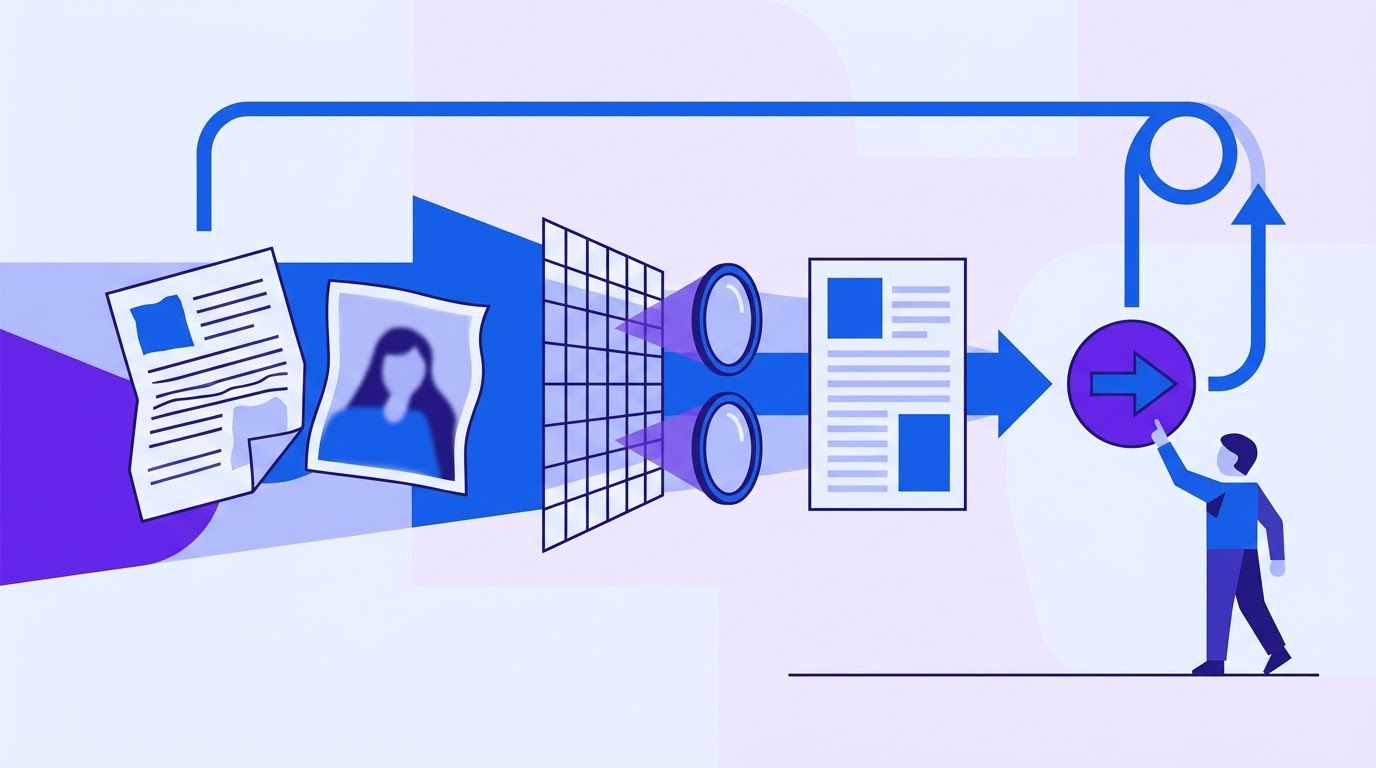
The question most readers arrive with is which invoice OCR engine is best. We cannot answer it, because we did not test any engine on a shared set of documents, and a ranking built on someone else’s invoices would not transfer to yours. What we can give you is what two cloud services say about themselves in their own documentation, a note on language-model extraction, and a protocol to run the comparison yourself.
What two vendors’ documentation says
| Amazon Textract (AnalyzeExpense) | Azure Document Intelligence (invoice model) | |
|---|---|---|
| Product pages | Amazon Textract (may be an affiliate link) | Azure Document Intelligence (may be an affiliate link) |
| Summary fields listed | Vendor name, invoice or receipt ID and date, due date, order date, PO number, payment terms, subtotal, tax, discount, shipping, total, amount due. Fields outside its standard set are labelled OTHER. | Customer name, billing address, due date, amount due, invoice ID, ship to, bill to, vendor details, total. |
| Line items | Description, quantity, unit price, price and product code, with a whole-row object. | Line items are returned. The full schema is published separately. |
| Confidence | A confidence score is returned for each detected label and value. The sample on the page shows 97.1 for a total’s label and 99.85 for its value. | The page we read documents confidence for tables and cells. It did not document per-field confidence for invoice fields. |
| Inputs and limits | The page we read did not list file formats or size limits. | PDF, JPEG, JPG, PNG, BMP, TIFF and HEIF. Up to 2,000 pages for PDF and TIFF. The free tier processes the first two pages and 4 MB. The paid tier allows 500 MB. Images between 50 × 50 and 10,000 × 10,000 pixels. Password-protected PDFs must be unlocked first. |
| Languages | Not stated on the page we read. | 27 languages for the model. |
| Accuracy claim | None on the page. It says the service works from almost any invoice or receipt without templates. | None on the page we read. |
| Page date | No date shown. | Last updated 2026-08-15, covering version 4.0 (2024-11-30). |
Notice what is missing from both: neither page gives an accuracy figure. That is not a criticism. It is the reason a measurement on your documents is the only comparison worth making. Pricing and data-handling terms differ again and change often, so we do not quote them. Read each vendor’s current pricing and privacy documentation before you send real invoices anywhere.
Language-model extraction and built-in readers
- Language-model extraction (sending the document to a model and asking for fields as structured data) is flexible on odd layouts and needs no template. It can also return a fluent, wrong value, which is why validation and confidence handling matter. Our extraction workflow and auto-capture workflow show this approach in n8n, as described in their entries.
- Built-in readers in accounting software, like the QuickBooks one described in Section 2, are the lowest effort and the least flexible. They are the right place to start if your accounting system has one.
A protocol to compare engines on your documents
- Build a corpus of 50 documents that represents your real mix: your top suppliers, phone photos, scans, multi-page invoices, two-tax invoices and a few foreign-currency ones. Remove or mask anything you must not share before you send it to any service.
- Write the answer key by hand: for each document, the correct value of each field in Section 4.
- Run the same 50 documents through each engine with the same settings and record the outputs.
- Score field by field, using the same rules as the weekly sample.
- Record the cost per document and the time to review, not only the accuracy.
- Repeat on a fresh set of 50 after a month to see whether the result holds.
| Criterion | Weight | How to score (0 to 2) |
|---|---|---|
| Total correct | 3 | 0: under 90% of documents. 1: 90% to 97%. 2: over 97%. |
| Vendor and number correct | 3 | Same scale. |
| Date, currency and tax correct | 2 | Same scale. |
| Wrong values stated with high confidence | 3 | 0: more than 2 documents. 1: 1 or 2. 2: none. |
| Handles your worst documents (photos, scans) | 2 | 0: fails most. 1: fails some. 2: reads most. |
| Cost per document at your volume | 1 | 0: above budget. 1: at the limit. 2: comfortably within. |
| Where documents are stored and for how long, in the vendor’s own terms | 2 | 0: unclear. 1: partly clear. 2: clear and acceptable. |
The weights add up to 16, so the maximum is 32. The percentages in the scale are our suggestion, not a standard. With 50 documents the uncertainty is wide (the interval for 45 out of 50 is wider than the one in Section 4 for 100), so treat a gap of a few points as a tie and decide on the rows that matter most to you: wrong values stated confidently, and your worst documents.
Automating the pipeline with n8n
Everything above can be done with an accounting tool’s built-in forwarding and a weekly sample. A workflow in n8n (may be an affiliate link) becomes useful when you want a rule the tool does not offer: a shared door for several mailboxes, your own validation, a review queue or a log. Several workflows already published on this site cover pieces of the pipeline. Their descriptions below come from their own entries, and each is a starting point for a customization, not a finished solution for your accounting system.
What is already on this site
- Capture: the supplier invoice auto-capture workflow watches a Gmail label, reads each PDF with OpenAI, checks the totals and logs clean invoices to Google Sheets. It implements steps 1 to 4 for one door.
- Extraction: the invoice data extraction workflow with n8n and Claude covers getting vendor, number and amount out of a PDF.
- Line items: the invoice line item logging workflow logs every line, checks the totals and emails a verification report.
- Matching: the vendor invoice three-way match workflow blocks duplicate vendor invoices, matches each invoice to a purchase order and goods receipt in Google Sheets and emails Finance.
- Outgoing side: the Stripe invoice PDF workflow archives invoices you issue, going by its title through S3, Gmail and Google Sheets, and the weekly accounts receivable aging report covers what customers owe you.
- Context: our guide to accounts payable automation for small businesses and the piece on AI agents in finance show where capture fits and where a person must stay in charge.
A design that keeps a person in charge
- Receive: a trigger on the dedicated mailbox or label picks up each new message and its attachments.
- Archive: each attachment is saved unchanged with the predictable name and the sender and subject are logged.
- Read: an extraction step returns the fixed field set as structured data.
- Validate: the function from Section 2 flags problems, and a document with any flag goes to a review sheet.
- Draft: clean documents create a draft entry or a row in a Google Sheets staging tab, linked to the original.
- Notify: a daily digest lists new drafts, failures and rejections.
- Approve: a person approves drafts, and only approved rows are posted.
- Log: every correction is stored with its cause for the weekly review.
- Archive first, read second. Never lose an original because extraction failed.
- Draft, do not post. Posting is a human decision.
- Surface every failure. A document that cannot be read creates a visible task and an optional message to the sender.
- Limit what leaves your systems. Check what a third-party service receives and keeps before sending real invoices, and mask what you must not share.
- Protect bank details and personal data in the documents. Keep them out of email bodies and chat channels.
- Keep a person on the weekly sample. The sample is how you find out whether the pipeline is quietly getting worse.
If you want a shared door for your mailboxes, validation, a review queue and drafts in your accounting system or a sheet, describe it on the request page. We review it, send a quote, and you decide whether to go ahead.
A two-week rollout
| Day | Task | Time |
|---|---|---|
| 1 | Run the inventory: ask each person where their last three documents came from. | 60 min |
| 2 | Create the dedicated address and the archive folder. Write the naming rule. | 30 min |
| 3 | Set forwarding rules in the owner’s and the accounting mailboxes. | 30 min |
| 4 | Tell staff and top suppliers about the door and ask for attachments, not links. | 20 min |
| 5-7 | Process by hand through the door while you watch what arrives. | 15 min a day |
| 8 | Turn on your tool’s reader, or the workflow, for the top 3 suppliers only. | 60 min |
| 9-11 | Add validation and a review sheet. Route failures to a person. | 45 min a day |
| 12 | Take your first 100-document sample, or all of them if there are fewer. Score six fields. | 90 min |
| 13 | Review the correction log and fix the top cause. | 30 min |
| 14 | Decide what to automate next, and count payments with no document. | 30 min |
If it feels like too much, do Day 1 alone. The inventory is the most useful hour you can spend, and it costs nothing.
When it is time to hand it to someone
You can build all of this with forwarding rules, a staging sheet and a weekly sample, and for the first month you should. What tends to break is the plumbing and the discipline: the mailbox rule someone deleted, the failure that nobody saw, the weekly sample that was skipped for six weeks.
At LeenLabs we build n8n workflows for tasks like this. The process is plain. You describe the task once on a single form, with where documents arrive, which accounting tool or sheet you use and which checks matter. We review it and send a quote. You pay 40% to start and the remaining 60% when we deliver the workflow. There is no bidding round and no profiles to compare. We do not promise an accuracy rate, because it depends on your documents. What we deliver is a workflow that does what your request describes.
Tell us where invoices and receipts arrive, which fields you need and who approves a draft. You get a quote, and you decide whether to go ahead.
To see how these workflows are put together first, browse the free workflows, which come with JSON you can import, or read more about us.
Frequently asked questions
How do I automate invoice processing from email?
Give documents one door (a dedicated address), archive each original, extract a fixed set of fields, validate them with arithmetic checks, create a draft entry and let a person approve it. Sections 2 to 5 cover each step and how to measure accuracy.
What is invoice capture?
Invoice capture is the step that turns an invoice file or email into structured data, such as vendor, number, date and total, ready to enter into an accounting system. It sits before approval and payment.
What is receipt capture, and how is it different?
Receipt capture reads a proof of payment, usually from a photo or an email, so that it can be matched to a transaction that already happened. An invoice creates a bill to approve and pay. They need different handling.
Can I forward receipts to my accounting software?
Many accounting tools offer a dedicated address. QuickBooks Online, for example, lets an administrator create one, accepts PDF, JPEG, JPG, GIF and PNG files between 46 KB and 20 MB, and shows the read receipt in a Receipts tab for review. Check your own tool’s current help page for its rules.
How accurate is invoice OCR?
It depends on your documents, the field and how you count. We found no vendor documentation that states an accuracy figure for invoices, and we publish none. Section 4 shows how to measure it on a weekly sample of about 100 documents, and how uncertain such a measurement is.
Which invoice OCR software is best?
We do not rank products, because we have not tested them on a shared set of documents. Section 6 lists what two vendors’ own documentation says and gives a protocol to compare engines on 50 of your own documents.
Can ChatGPT or another language model automate invoice processing?
A language model can extract fields from an invoice, and several published workflows do. It can also state a wrong value fluently, so the output should go through arithmetic checks and human approval before anything is posted.
What should I do with documents that cannot be read?
Create a visible task, ask the sender for a cleaner copy with a standard reply, and have a person enter the document. Handwritten tickets are usually cheaper to type than to automate.
How long should I keep the original invoice or receipt?
The IRS page on record keeping gives 3 years as the default for income tax records and longer periods in specific cases, such as 4 years for employment tax. Your situation and country may differ, so ask your accountant. Keep the original file, not just the extracted data.
How do I reduce bookkeeping errors from missing documents?
Track coverage as well as accuracy: count the bank and card transactions that have no document attached, every week, and chase those. Many errors come from bills never recorded and payments never matched.
Sources
- Intuit, QuickBooks Help, Email receipts and bills (quickbooks.intuit.com). Last updated August 5, 2026; read November 13, 2026. The assist.intuit.com address, one address per user, supported file types and sizes, one receipt per image, fields read, the Receipts tab, Gmail forwarding note.
- Amazon Web Services, Amazon Textract documentation, Analyzing invoices and receipts (docs.aws.amazon.com). Read November 13, 2026. The page shows no date. Summary and line-item fields, confidence scores, no accuracy figure, no input limits listed on that page.
- Microsoft, Azure Document Intelligence invoice model (learn.microsoft.com). Page last updated August 15, 2026; read November 13, 2026. Fields, supported formats, page and size limits, 27 languages, unlock requirement for password-protected PDFs. The page also contained an older 50 MB bullet, and we used the more specific figures.
- Internal Revenue Service, How long should I keep records? (irs.gov). Page last reviewed June 30, 2026; read November 13, 2026. Retention periods of 3, 4, 6 and 7 years and the property rule.
- Calculated by us: the Wilson 95% confidence intervals in Section 4 (for 99, 97, 95, 90 and 80 correct out of 100), and the time arithmetic where it appears. The validation function was checked on two invented invoices.
- Created by us, not tested on real documents: the pipeline, the checks and their thresholds, the sampling protocol, the engine comparison protocol and its weights. Every document, vendor, bookkeeper and figure in the examples is invented.
- Not found and therefore not quoted: accuracy figures for any OCR engine on invoices, pricing for any engine, vendors’ data retention and training terms, a study on bookkeeping errors as a top small-business pain, and Google Document AI’s documentation, which was not reachable from our working environment.
- About Us: who we are and how we work
- Free Workflows: n8n workflows with JSON you can import
- Request a Custom Workflow: describe a task and get a quote
- Terms of Service
- Privacy Policy
This article is general information and not legal, tax or financial advice. Laws and rules differ by country and state and change over time. Check with a qualified professional about your own situation.