
Affiliate disclosure: some links in this article may be affiliate links. If you sign up through them, we may earn a commission at no extra cost to you. See our Terms of Service.
Picture a small agency that sells one service to one kind of buyer: say, a bookkeeping firm that works only with owners of print shops. On Monday somebody opens a contact database, filters by job title and country, copies forty names into a spreadsheet, opens each company website to find something worth mentioning, and writes forty emails that start with “I came across your company.” By Wednesday the list is cold, the emails sound alike, and nobody remembers who has been contacted. B2B sales outreach automation is the attempt to take the repetitive parts of that week (finding the people, reading about them, drafting the first message) and hand them to a machine, while a human keeps the one decision that matters: whether an email goes out.
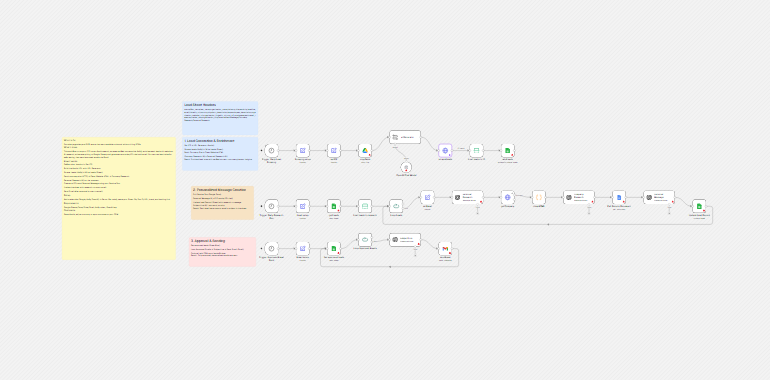
This free n8n workflow is built around that idea. It turns a job title and a country into a search in a contact database called Apollo, collects the matching people through a scraping service called Apify, writes them into a Google Sheet, asks an AI model to research each person and their company, writes a short cold email for each one from a description of your services, and then sends the emails you have marked as approved through Gmail. It has 28 working nodes in three separate flows on one canvas.
It is also a template that does not match its own description. The description talks about a Telegram bot that approves drafts; the file contains no Telegram node, so approval is you typing a word in a spreadsheet. The file mapped only three columns when saving leads, so the research flow had no website to read. It carried a time limit of 180 milliseconds on a call that takes much longer. It never marks an email as sent, so the next run can email the same people again. Its prompt carried another company’s name, a personal name, a promise of a 40 to 60 percent improvement and a “you don’t pay” guarantee. And three of the AI model names in it have been retired or are scheduled to be. In this guide we explain every step in plain English, show where it breaks, say what we changed and why, and list what we could not test.
Read this first: this workflow scrapes, researches and emails real people
- It collects personal data about strangers (names, work email addresses, job titles, company websites) and sends parts of it to an AI service. Read the terms of Apollo, Apify, OpenAI and Google, and the rules that apply where you and your leads are, before you run it.
- It sends real emails from your Gmail account. The send flow runs on a timer and never marks a lead as sent, so a row that stays
Approvedis emailed again on the next run. - The email prompt can make promises for you. It asks the AI to quote a measurable result and a guarantee from your service document. If your document says something you cannot deliver, so will your emails.
- Several AI model names in the file are retired or scheduled to be. The subject line step probably fails as the file stands. See the section on models.
- The file has placeholders for your sheet, your Apify key, your service document, your brand and your booking link. If you leave them, that is what is sent or what fails.
Start with one row that contains your own email address. This guide is not legal advice.
Template source: this workflow comes from the n8n Library at n8n.io, the public collection of workflow templates. We did not create it. LeenLabs prepared its JSON for publication and documented it. What we changed is listed in the section What we changed in the original template.
At a glance
- What it does: builds an Apollo search from a job title and countries, scrapes up to 10 contacts per run through Apify, researches each person and company with AI, drafts a short cold email, and sends the ones you approve through Gmail.
- Apps used: n8n, Apify, OpenAI, Google Sheets, Google Drive, Google Docs and Gmail. The file also refers to Apollo, which Apify reads for you.
- Triggers: three Schedule Trigger nodes, one per flow. The file stores empty schedules, so you set the times yourself.
- Setup effort: high. Four accounts (n8n, Apify, OpenAI and Google), a sheet with 24 columns, a service document, five values to replace and three flows to understand.
- Cost to run: the file is free. Apify, OpenAI and your Google account have their own terms, so check each provider’s current page.
- Watch out for: personal data, scraping terms, retired AI models, no “sent” status, the same two leads researched on every run, and a run that silently stops when a company website fails to load.
- Test status: the file was checked for structure and every node reference was matched against the node names. One Code node was run outside n8n on simulated pages. No service was contacted and the file was not imported into n8n. Not tested on live APIs.
In this guide
- From a job title to a sent email: the idea behind this pipeline
- How to generate sales leads here, and what a B2B sales lead is
- What is web scraping, and how far can you rely on the Apollo step?
- Words you will see in this guide
- Apps and accounts this workflow talks to
- What to have ready before you import anything
- Several AI model names in this file are retired or scheduled to be
- Three flows on one canvas: what starts each one
- Where the logic is fragile, with an example
- The big picture: how a lead travels through the sheet
- Follow the data: what each of the 28 nodes does
- Get the workflow JSON
- Install it in thirteen steps
- What it will not do: limits, costs and trade-offs
- Personal data, platform rules and who you email
- The email prompt: what it asks for, and what we removed
- Problems you may meet and how to fix them
- Too much of a puzzle? Let us build or adapt it for you
- What we changed in the original template
- What was verified, and what was not
- Changes worth making before you scale
- Frequently asked questions
- Tools used in this workflow
- Suggested reading
- Get more advanced automation and AI resources for business
- Keep exploring
From a job title to a sent email: the idea behind this pipeline
An email outreach pipeline has four jobs. It has to find people who might want what you sell, learn enough about each one to say something specific, write a message, and send it without annoying anyone. Most manual outreach fails at the second job, because reading about forty companies takes hours and nobody wants to do it. This workflow gives that job to an AI model that can search the web, and it gives the writing job to a second model that reads your service document before it writes.
The file arranges these jobs as three flows. They share one Google Sheet, which acts as the memory of the whole system: flow 1 adds people to it, flow 2 adds research and a draft to each row, and flow 3 reads the rows you approved and sends them. None of the flows calls another. They simply read and write the same sheet, each on its own timer. That design is easy to follow and easy to break, and the rest of this guide shows where.
Here is a made-up example to keep in mind. You sell bookkeeping to print shop owners. Flow 1 searches for owners in three countries and adds Jonas Lind, Owner, Northwind Print Co. to your sheet, with his email address and company website. Flow 2 reads his website, asks the AI what is notable about him and the company, reads your service document and writes a short email that mentions one specific thing about his shop. You open the sheet, read the email, change the status to Approved. Flow 3 sends it. Jonas, his shop and his address are invented for this guide.
How to generate sales leads here, and what a B2B sales lead is
A sales lead is a person or company that might buy from you. A B2B sales lead is one at a business that buys for the business: the owner of a print shop, the head of operations at a logistics company. A lead is not a customer, and it is not yet a conversation. It is a name with a reason to be on your list.
People ask how to generate sales leads as if there were one method. There are several: they find you (content, referrals, search), you find them (outbound), or you buy a list. This workflow is the second kind. It generates leads by describing an ideal customer, searching a database for people who match, and collecting their contact details. That is quick, and it comes with a cost that no automation removes: a person who never asked to hear from you is receiving a message from you. How you handle that decides whether outbound works for you or against you.
The workflow does not decide who is a good lead. It takes whatever the Apollo search returns. If your description of the ideal customer is vague, you will pay for research and writing on people who were never a fit. We cover the filtering side in our guide to lead qualification for solo sellers, and the sender side in the sections below.
What is web scraping, and how far can you rely on the Apollo step?
Web scraping means having a program read pages or data from a website and collect it into a table, instead of a person copying it by hand. In this file the scraping is done by an actor on Apify, which is a ready-made scraper that someone published on that platform. The workflow sends the actor an Apollo search address and gets people back.
Three things are worth knowing before you build on it. First, the actor is somebody else’s product. The file names it code_crafter~apollo-io-scraper. Its price, its input fields, the fields it returns and whether it still exists are not something we could verify, and they are not controlled by n8n or by us. Second, whether collecting data from Apollo this way is allowed is a question for Apollo’s terms and for the law where you live. We did not read those terms for this guide and we make no statement about them. Third, the file asks the actor for contacts whose email addresses are marked verified. We did not check what that setting means in practice. Treat the email column as a list to check, not as a guarantee that every address works.
A practical test before you trust the scraper: run flow 1 once with a very narrow search, look at the ten rows in your sheet, and open five of the company websites yourself. If the data is thin or wrong, no amount of AI research will rescue the emails.
Words you will see in this guide
- ICP (ideal customer profile): the description of the kind of person and company you want to reach. In the file it is two values: a job title and a list of countries.
- Apollo: a sales database where you can search for people by job title, company size, location and keywords. The workflow uses an Apollo search address as its input.
- Apify and actor: Apify is a platform that runs scrapers. An actor is one scraper on it.
- Enrichment: adding information to a row you already have, here a short research note about the person and the company.
- ServiceDoc: the name the prompt gives to a Google Doc where you describe your services, the measurable outcomes you deliver, your credibility examples and your guarantee. The email writer reads it.
- KPI: a number a person is judged on, such as response time or cost per lead. The prompt asks the AI to tie your offer to a KPI that fits the reader’s job.
- Search model: an AI model that can look things up on the web while it answers. Two nodes in the file use one.
- Schedule Trigger: an n8n node that starts a flow at set times.
- Loop Over Items: a node that handles one batch of rows at a time and comes back for the next one. The file calls two of them
Loop LeadsandLoop Approved Emails. - Expression: the
{{ ... }}text n8n fills in while it runs, for example{{ $json.email }}. - Credential: the saved login n8n uses to talk to an app such as Gmail.
Apps and accounts this workflow talks to
| App | What it does here | What you need |
|---|---|---|
| n8n | Runs the three flows | A hosted or self-hosted n8n, and permission to add credentials |
| Apify | Runs the actor that reads Apollo | An account and an API token, plus access to the actor the file names |
| OpenAI | Writes the Apollo address, researches people and companies, writes the email and its subject | An API key and models your account can still use |
| Google Sheets | Stores the leads, the research and the drafts | One sheet with a tab and 24 exact column headers |
| Google Drive | Makes a copy of your sheet each time flow 1 runs | Permission to copy the sheet file |
| Google Docs | Holds your ServiceDoc | A document you wrote and its address or ID |
| Gmail | Sends the approved emails | A Gmail account connected to n8n, ideally a test address first |
What to have ready before you import anything
1. The Google Sheet. Create a sheet with a tab called Sheet1 (or change the name in the Set nodes). Row 1 must hold these headers, spelled exactly:
status, first_name, last_name, organization_name, industry, title, seniority, headline, email, linkedin_url, country, city, short_description, keywords, seo_description, organization_website_url, organization_linkedin_url, num_of_employees, estimated_revenue, market_cap, organization_city, Personalized Message, Company Research, Personal Research
In the file as it came, flow 1 filled only first_name, last_name and email. We added four more columns to that step (see the section on changes), so the sheet now gets organization_name, title, headline and organization_website_url too, if the actor returns them. The other columns can stay empty.
2. The ServiceDoc. Create a Google Doc that describes what you sell. The email writer looks for services, the KPIs they improve, measurable outcomes, examples of similar work and a guarantee. Write only what is true and what you can deliver. Whatever is in this document can end up in an email under your name.
3. The five values to replace. They live in three Set nodes: YOUR_GOOGLE_SHEET_ID (the long ID in your sheet’s address), YOUR_APIFY_API_KEY, YOUR_GOOGLE_DOC_URL_OR_ID, YOUR_BRAND_NAME and YOUR_BOOKING_LINK.
4. Your ideal customer. Two values in the setICP node: Position and Location (country). The file ships with sample values, a list of owner and founder titles and five countries. Replace them with your own, as narrow as you can.
5. A test mailbox. A second email address you control, to put in the sheet in place of a real lead.
Several AI model names in this file are retired or scheduled to be
The workflow uses five different OpenAI models, written into five nodes. When we read OpenAI’s deprecations page on November 19, 2026, it listed the following. Pages like this change, so check it yourself before you rely on this table.
| Node | Model in the file | What the page said when we read it |
|---|---|---|
subjectLine |
chatgpt-4o-latest |
Listed with a shutdown date of February 17, 2026. This step probably fails as the file stands. |
personal Research and company Research |
gpt-4o-search-preview |
Listed under past deprecations. Only its dated snapshot appears in the table, so check whether the plain name is still offered to your account. |
personal Message |
gpt-5 |
Listed as deprecated with a shutdown date of December 11, 2026. |
OpenAI Chat Model (used by urlGenerator) |
gpt-5-mini |
Listed as deprecated with a shutdown date of December 11, 2026. |
We did not change the model names in the JSON. We cannot test any of them, and picking one for you would mean guessing which model your account can use and what it costs. After you import the file, open each of the five nodes, choose a current model from the list n8n shows you, and keep in mind one detail: the two research nodes depend on a model that can search the web. If you pick a model without web access, the research becomes the model’s memory, which may be out of date or invented. In that case it is safer to shorten the research prompts so they ask only for what is in the lead’s own row.
Three flows on one canvas: what starts each one
| Flow | What it reads | What it writes or sends |
|---|---|---|
| 1. Find leads | Your ICP and the Apollo actor | New rows in the sheet, and a copy of the sheet file in Drive. Sends nothing. |
| 2. Research and write | The first two rows of the sheet, each company website, your ServiceDoc | Research notes and a draft email in each row. Sends nothing. |
| 3. Send approved | Rows whose status is Approved | Sends emails through Gmail. Writes nothing in the sheet. |
Each flow has its own start: Trigger: Daily Lead Scraping, Trigger: Daily Research Run and Trigger: Approved Email Send.
All three triggers sit on the same workflow, so activating the workflow switches all three on. The file stores each schedule as an empty rule, so you must open each trigger and choose the interval and the time yourself. If you want to test one flow at a time, disable the other two triggers first, or run a flow from the node you want with the manual test button.
Where the logic is fragile, with an example
Four design choices matter more than the rest, and each one is easier to understand with the made-up print shop example.
The first two rows, every time. Flow 2 reads every row of the sheet and then keeps the first two. It does not look at whether a row has been researched. On Monday, rows 1 and 2 get research and a draft. On Tuesday, rows 1 and 2 are researched again, and the drafts are overwritten. Row 3 never gets a draft until you remove or move rows 1 and 2. Each repeat is a paid AI call.
One failing website ends the run. For each lead, getCompany loads the company website. If the address is empty or the site does not answer, the node sends the item to its error output, and nothing is connected to that output. The lead stops there, the loop never gets its signal to continue, and the run ends. The second lead of the day is never processed.
No memory of what was sent. Flow 3 emails every row with Approved in status. After sending, nothing changes that status. If flow 3 runs daily, Jonas gets the same email every day until you change the cell yourself.
An approval you must do by hand. The template’s description speaks of approving drafts in Telegram. The file has no Telegram node. The only approval is you reading the sheet and typing Approved. That is a sound human check, but it is a manual one, and it is the only safety the workflow has.
The big picture: how a lead travels through the sheet
It helps to follow one row. It is born in flow 1 with a name and an email. In flow 2 it gains three more cells: Personal Research, Company Research and Personalized Message. You then read those cells and, if you are happy, type Approved in status. In flow 3 the row is read again, a subject line is written for it, and Gmail sends the message to the address in email. At no point does the workflow change the row to say that the email went out.
The two-stage design has one real advantage: nothing is sent until a person has opened the sheet. That is also its limit. It protects you only if you really read every draft, and the draft quality depends on a prompt you have not written and a ServiceDoc you must write well.
Follow the data: what each of the 28 nodes does
The names below are the exact names in the JSON file, including the ones that are a little odd, such as personal Research with a lowercase first letter. The file also holds five notes on the canvas. They are reminders, not steps, and we rewrote their text (see the section on changes).
Flow 1: find leads and save them (9 nodes)
Trigger: Daily Lead Scraping
A Schedule Trigger that starts flow 1. Its rule is stored empty, so the time and interval depend on what you choose when you open it. The name says daily, but the file does not set a day or an hour. Choose one yourself.
Scraping setup
An Edit Fields (Set) node that holds three values for this flow: Apify Api key, leadSheetID and leadsSheetTabName. In the original, the sheet ID was a real one belonging to the template’s author. We replaced it with YOUR_GOOGLE_SHEET_ID and the key with YOUR_APIFY_API_KEY. Keeping a secret key in a Set node works, but it ends up in saved executions and in any copy of the workflow you share. A credential is safer, which is one of the adaptations later in this guide.
setICP
Another Set node with two values that describe your ideal customer: Position and Location (country). The sample values are a list of owner and founder titles and five European countries. This is the only place you describe who you want to reach, so make it specific.
copyTable
A Google Drive node that copies a file. It copies your lead sheet and names the copy with the position, the countries and today’s date. Nothing later in the flow uses the copy: the leads are saved into your original sheet, not into the copy. The likely purpose is a dated snapshot, but the effect is that every run adds one more file to your Drive. Delete the node if you do not want that.
urlGenerator
A Basic LLM Chain that turns the two ICP values into an Apollo search address. Its instructions give the address format, three filters it may use (locations, company size ranges and a keyword search) and two examples. The address comes out in a field called text. Notice that none of the three filters is a job title filter, so the title you wrote in setICP can only reach Apollo as a keyword, if the model puts it there. We did not verify that Apollo accepts the addresses the model writes. Paste one into your browser while logged in to Apollo before you trust the flow.
OpenAI Chat Model
The model behind urlGenerator. The file uses gpt-5-mini, which OpenAI’s deprecations page listed with a December 11, 2026 shutdown when we read it. It needs an OpenAI credential.
scrapeLeads
An HTTP Request node that sends a POST request to Apify’s endpoint that runs an actor and waits for the results. The Apify key travels in the address as a token parameter. The body asks the actor for contacts whose email addresses are marked verified, with catch-all addresses excluded, with the email included, a maximum of 10 results, and the Apollo address from the previous step. Apify’s documentation says that if a synchronous run goes beyond 300 seconds, the response is a 408 timeout. The file set the node’s time limit to 180. n8n’s documentation says this field is in milliseconds, so the file allowed 0.18 seconds for a call that takes far longer. We changed it to 180000, which is 180 seconds and what the author most likely meant.
Limit leads to 10
Keeps the first 10 items. The actor is already asked for 10, so this is a second guard. Raise both numbers together if you want more.
addLeads
A Google Sheets node set to append or update. It matches rows on email: a person already in the sheet is updated, a new one is added. In the original it wrote only email, first_name and last_name. We added organization_name, title, headline and organization_website_url, because flow 2 reads exactly those four and would otherwise find them empty. We could not check what field names the actor really returns, so confirm in your first test that these columns fill up.
Flow 2: research each lead and write the draft (13 nodes)
Trigger: Daily Research Run
The Schedule Trigger for flow 2, with an empty rule like the first. Set it to a time after flow 1 has had time to finish.
Lead setup
A Set node with five values for this flow: leadSheetID, leadsSheetTabName, serviceDocId, brand_name and booking_link. In the original the brand and the link were stray test words. They are now YOUR_BRAND_NAME and YOUR_BOOKING_LINK, and the document value is YOUR_GOOGLE_DOC_URL_OR_ID.
getLeads
A Google Sheets node that reads rows from your tab. It has no filter, so it returns every row you have, researched or not.
Limit leads to research
Keeps the first 2 items. This is a safe cost cap while you test, and it is also the reason rows beyond the second are never touched. Think of it as a dial, not a fixed rule, and read the example earlier in this guide.
Loop Leads
A Loop Over Items node with a batch size of 1, so each lead goes through the research one at a time. Its loop output goes to setEmail. Its done output is not connected, which is fine because nothing is supposed to happen at the end. Each pass must come back to this node through Update Lead Record, otherwise the loop stops.
setEmail
A Set node with one value, lead_email, copied from the email of the current row. The research prompt uses it.
personal Research
An OpenAI node that asks a search model to act as a researcher and write a short profile of the person: notable work, awards, projects, leadership roles, public affiliations, listed as bullets, ending with one sentence. It receives the first name, last name, headline, title, company and email from the row. The prompt tells the model to avoid unverifiable claims and private details. The file uses gpt-4o-search-preview, which belongs to the models that OpenAI’s page lists as deprecated. Even with a model that works, treat the result as a lead to check, not as a fact: an AI search can attach a person’s name to the wrong individual, especially with common names.
getCompany
An HTTP Request node that loads the company website from the organization_website_url of the current row. Its error setting is “continue using error output”, but nothing is connected to that error output. When the address is empty or the site fails, the lead disappears from the flow and the run stops, as described earlier. The expression reads the row through getLeads, not through Loop Leads like the other nodes. We could not confirm that n8n always pairs the right row inside the loop, so check this in your test.
cleanHTML
The only Code node. It takes the page the previous node loaded, reads its text from a field called data, and removes scripts, style blocks, comments and HTML tags, then collapses extra spaces. It returns one field, text. We ran it outside n8n on simulated pages and it did what it says, with three limits: it has no maximum length (a very large page goes whole to the AI), a page that arrives as something other than text makes it fail with rawHtml.replace is not a function, and HTML entities such as & stay as they are.
company Research
An OpenAI node that receives the cleaned text and writes a summary of three to five sentences plus exactly three bullet points about notable things from it. The prompt asks for strictly factual content. The file uses the same search model as personal Research, although the prompt hands it the page text. Whatever the model, it only knows what is on the first page you loaded: a homepage is a thin source.
Pull Service Document
A Google Docs node that reads your ServiceDoc and returns its text in a field called content. If the address or ID is wrong or the Google account cannot open the document, the lead stops here.
personal Message
The writer. An OpenAI node whose long prompt gives the model the lead’s details, both research notes, your brand name, your booking link and the ServiceDoc. It asks for one cold email of at most 100 words in a short, casual style, with a fixed shape: a specific detail from the research, a measurable offer tied to a KPI, one credibility example, one guarantee, a booking link and a sign-off. The section on writing explains what the prompt asks for and what we removed from it. The file uses gpt-5, which OpenAI’s page listed with a December 11, 2026 shutdown.
Update Lead Record
A Google Sheets node set to update. It finds the row by email and writes three cells: Company Research, Personal Research and Personalized Message. It then returns to Loop Leads for the next lead. Because it matches on email, two rows with the same address would be confused, and a row with an empty email cannot be matched.
Flow 3: send what you approved (6 nodes)
Trigger: Approved Email Send
The Schedule Trigger for flow 3, also stored empty. This is the flow that sends real mail. Until your tests are done, keep this trigger disabled.
Email setup
A Set node with the sheet ID, the tab name, a brand name and a booking link. The brand and link are not used anywhere in flow 3. They are leftovers, now placeholders.
Get approved leads
A Google Sheets node that reads only the rows whose status column equals Approved. The match is on the word you type, so a typo or a different spelling means the row is skipped. Rows with Approved and an empty Personalized Message are not filtered out.
Loop Approved Emails
A Loop Over Items node with default settings, so it handles the approved rows in batches. Its loop output leads to subjectLine. Its done output is not connected.
subjectLine
An OpenAI node that reads the draft and is told to write a two-word subject line in a punchy style, answering in JSON with one field, Subject. The node is set to return JSON. The file uses chatgpt-4o-latest, which OpenAI’s page lists with a shutdown on February 17, 2026. If this model is no longer offered to you, this step fails and nothing is sent. A two-word subject also deserves a look: a vague subject can lower how often people open the email.
sendEmail
A Gmail node that sends a plain-text email. The recipient comes from Get approved leads, the body is the Personalized Message of the current row, and the subject is the Subject field from the previous node. After sending, the node connects back to Get approved leads, not to Loop Approved Emails, so the sheet is read again after every email. We could not confirm how the loop treats that second read, and the recipient expression looks up the row by name instead of reading it from the loop. With one row there is no risk. With several, send first to two addresses you own and check that each message arrives at the right address with the right text. And remember that nothing here marks the row as sent.
The five notes. The canvas has five sticky notes. One heads each flow, one is a checklist called Before you turn it on with the placeholders, the triggers and the models to review, and one lists the 24 sheet headers. They have no effect on the run.
Get the workflow JSON
Open the box below to copy the JSON, or download the file. It contains the 28 nodes above, connected as described, with placeholders for your sheet, your Apify key, your ServiceDoc, your brand and your booking link, and 5 notes on the canvas. It contains none of your logins and none of the original author’s data.
Please read this first: this JSON is free and provided as is. n8n versions and installed nodes differ from one person to another, so it may not run correctly on your side without adjustments. We cannot test it on every setup. That is why this article includes a long section, Problems you may meet and how to fix them. And if you would rather not deal with any of it, you can request a custom workflow and let us handle it.
Click to show or hide the workflow JSON
Click inside the box, select the whole text, copy it, then paste it onto an empty n8n canvas. If selecting is awkward on your device, use the download link above.
{
"name": "B2B Sales Outreach Automation with n8n, Apollo and GPT",
"nodes": [
{
"id": "ef1b8e9f-7fcc-4a2c-932e-7733efbad2c4",
"name": "OpenAI Chat Model",
"type": "@n8n/n8n-nodes-langchain.lmChatOpenAi",
"position": [
528,
-320
],
"parameters": {
"model": {
"__rl": true,
"mode": "list",
"value": "gpt-5-mini",
"cachedResultName": "gpt-5-mini"
},
"options": {}
},
"typeVersion": 1.2
},
{
"id": "5be27344-0a6f-44f2-bd3d-52dca6346ec1",
"name": "scrapeLeads",
"type": "n8n-nodes-base.httpRequest",
"position": [
800,
-448
],
"parameters": {
"url": "=https://api.apify.com/v2/acts/code_crafter~apollo-io-scraper/run-sync-get-dataset-items?token={{ $('Scraping setup').item.json['Apify Api key'] }}",
"method": "POST",
"options": {
"timeout": 180000
},
"jsonBody": "={\n \"contact_email_exclude_catch_all\": true,\n \"contact_email_status_v2_verified\": true,\n \"include_email\": true,\n \"max_result\": 10,\n \"url\": \"{{ $json.text }}\"\n}",
"sendBody": true,
"specifyBody": "json"
},
"typeVersion": 4.2
},
{
"id": "cfbc6d68-8acf-4b10-b667-61ba91cd48f3",
"name": "getLeads",
"type": "n8n-nodes-base.googleSheets",
"position": [
0,
-48
],
"parameters": {
"options": {},
"sheetName": {
"__rl": true,
"mode": "name",
"value": "={{ $json.leadsSheetTabName }}"
},
"documentId": {
"__rl": true,
"mode": "id",
"value": "={{ $json.leadSheetID }}"
}
},
"typeVersion": 4.5
},
{
"id": "01ad509c-1368-4fc2-8930-5b76f312ed8d",
"name": "cleanHTML",
"type": "n8n-nodes-base.code",
"position": [
1472,
-112
],
"parameters": {
"jsCode": "const items = $input.all();\n\nconst results = items.map(item => {\n const rawHtml = item.json.data || '';\n\n const cleaned = rawHtml\n .replace(/<script[\\s\\S]*?>[\\s\\S]*?<\\/script>/gi, '')\n .replace(/<style[\\s\\S]*?>[\\s\\S]*?<\\/style>/gi, '')\n .replace(/<!--[\\s\\S]*?-->/g, '')\n .replace(/<[^>]+>/g, ' ')\n .replace(/\\s+/g, ' ')\n .trim();\n\n return { json: { text: cleaned } };\n});\n\nreturn results;\n"
},
"typeVersion": 2
},
{
"id": "f8f9dfb1-bfd1-4614-afd5-f44dcc633faf",
"name": "getCompany",
"type": "n8n-nodes-base.httpRequest",
"onError": "continueErrorOutput",
"position": [
1248,
-112
],
"parameters": {
"url": "={{ $('getLeads').item.json.organization_website_url }}",
"options": {}
},
"typeVersion": 4.2
},
{
"id": "5f243457-8b9f-4e37-8fd1-2ed9edc24ec6",
"name": "copyTable",
"type": "n8n-nodes-base.googleDrive",
"position": [
224,
-448
],
"parameters": {
"name": "={{ $('setICP').item.json.Position }} - {{ $('setICP').item.json['Location (country)'] }} ({{ $now.format('yyyy-MM-dd') }})",
"fileId": {
"__rl": true,
"mode": "id",
"value": "={{ $('Scraping setup').item.json.leadSheetID }}"
},
"options": {},
"operation": "copy"
},
"typeVersion": 3
},
{
"id": "23e9af47-9bdc-4b0a-b182-89f6c5b52bb1",
"name": "urlGenerator",
"type": "@n8n/n8n-nodes-langchain.chainLlm",
"position": [
448,
-544
],
"parameters": {
"text": "=Target Audience: {{ $('setICP').item.json.Position }} in {{ $ ('setICP').item.json['Location (country)'] }}\n\n",
"messages": {
"messageValues": [
{
"message": "=You are a URL generation agent. Your task is to convert natural language input into a valid Apollo search URL string.\n\n[OUTPUT FORMAT]\n- Always output as: \n\nhttps://app.apollo.io/#/people?[query_parameters]\n\n[RULES]\n1. Encode all values using URL encoding (e.g., spaces become %20, commas become %2C).\n2. Use query parameters based on recognized Apollo filters:\n - organizationLocations[] for countries or cities\n - organizationNumEmployeesRanges[] for employee counts\n - qKeywords for keyword search\n - sortAscending=false and sortByField=%5Bnone%5D by default\n - page=1 by default\n3. Concatenate parameters using &.\n4. Output must match this example style:\n \nhttps://app.apollo.io/#/people?organizationLocations[]=United%20States&sortAscending=false&sortByField=%5Bnone%5D&page=1&qKeywords=digital%20marketing%20agency&organizationNumEmployeesRanges[]=1%2C10\n\n[NATURAL LANGUAGE EXAMPLES → OUTPUT BEHAVIOR]\n- \"Digital marketing agencies in the US with 1–10 employees\" \n→ organizationLocations[]=United%20States, organizationNumEmployeesRanges[]=1%2C10, qKeywords=digital%20marketing%20agency\n\n- \"AI startups in Canada with under 50 employees\" \n→ organizationLocations[]=Canada, organizationNumEmployeesRanges[]=1%2C50, qKeywords=AI%20startup\n\nAlways return the URL exactly in the format shown.\n"
}
]
},
"promptType": "define"
},
"typeVersion": 1.6
},
{
"id": "112e1852-8017-4415-80ae-642b18bd0e16",
"name": "addLeads",
"type": "n8n-nodes-base.googleSheets",
"position": [
1248,
-448
],
"parameters": {
"columns": {
"value": {
"email": "={{ $json.email }}",
"last_name": "={{ $json.last_name }}",
"first_name": "={{ $json.first_name }}",
"organization_name": "={{ $json.organization_name }}",
"title": "={{ $json.title }}",
"headline": "={{ $json.headline }}",
"organization_website_url": "={{ $json.organization_website_url }}"
},
"schema": [
{
"id": "status",
"type": "string",
"display": true,
"removed": false,
"required": false,
"displayName": "status",
"defaultMatch": false,
"canBeUsedToMatch": true
},
{
"id": "first_name",
"type": "string",
"display": true,
"removed": false,
"required": false,
"displayName": "first_name",
"defaultMatch": false,
"canBeUsedToMatch": true
},
{
"id": "last_name",
"type": "string",
"display": true,
"removed": false,
"required": false,
"displayName": "last_name",
"defaultMatch": false,
"canBeUsedToMatch": true
},
{
"id": "organization_name",
"type": "string",
"display": true,
"removed": false,
"required": false,
"displayName": "organization_name",
"defaultMatch": false,
"canBeUsedToMatch": true
},
{
"id": "industry",
"type": "string",
"display": true,
"removed": false,
"required": false,
"displayName": "industry",
"defaultMatch": false,
"canBeUsedToMatch": true
},
{
"id": "title",
"type": "string",
"display": true,
"removed": false,
"required": false,
"displayName": "title",
"defaultMatch": false,
"canBeUsedToMatch": true
},
{
"id": "seniority",
"type": "string",
"display": true,
"removed": false,
"required": false,
"displayName": "seniority",
"defaultMatch": false,
"canBeUsedToMatch": true
},
{
"id": "headline",
"type": "string",
"display": true,
"removed": false,
"required": false,
"displayName": "headline",
"defaultMatch": false,
"canBeUsedToMatch": true
},
{
"id": "email",
"type": "string",
"display": true,
"removed": false,
"required": false,
"displayName": "email",
"defaultMatch": false,
"canBeUsedToMatch": true
},
{
"id": "linkedin_url",
"type": "string",
"display": true,
"removed": false,
"required": false,
"displayName": "linkedin_url",
"defaultMatch": false,
"canBeUsedToMatch": true
},
{
"id": "country",
"type": "string",
"display": true,
"removed": false,
"required": false,
"displayName": "country",
"defaultMatch": false,
"canBeUsedToMatch": true
},
{
"id": "city",
"type": "string",
"display": true,
"removed": false,
"required": false,
"displayName": "city",
"defaultMatch": false,
"canBeUsedToMatch": true
},
{
"id": "short_description",
"type": "string",
"display": true,
"removed": false,
"required": false,
"displayName": "short_description",
"defaultMatch": false,
"canBeUsedToMatch": true
},
{
"id": "keywords",
"type": "string",
"display": true,
"removed": false,
"required": false,
"displayName": "keywords",
"defaultMatch": false,
"canBeUsedToMatch": true
},
{
"id": "seo_description",
"type": "string",
"display": true,
"removed": false,
"required": false,
"displayName": "seo_description",
"defaultMatch": false,
"canBeUsedToMatch": true
},
{
"id": "organization_website_url",
"type": "string",
"display": true,
"removed": false,
"required": false,
"displayName": "organization_website_url",
"defaultMatch": false,
"canBeUsedToMatch": true
},
{
"id": "organization_linkedin_url",
"type": "string",
"display": true,
"removed": false,
"required": false,
"displayName": "organization_linkedin_url",
"defaultMatch": false,
"canBeUsedToMatch": true
},
{
"id": "num_of_employees",
"type": "string",
"display": true,
"removed": false,
"required": false,
"displayName": "num_of_employees",
"defaultMatch": false,
"canBeUsedToMatch": true
},
{
"id": "estimated_revenue",
"type": "string",
"display": true,
"removed": false,
"required": false,
"displayName": "estimated_revenue",
"defaultMatch": false,
"canBeUsedToMatch": true
},
{
"id": "market_cap",
"type": "string",
"display": true,
"removed": false,
"required": false,
"displayName": "market_cap",
"defaultMatch": false,
"canBeUsedToMatch": true
},
{
"id": "organization_city",
"type": "string",
"display": true,
"removed": false,
"required": false,
"displayName": "organization_city",
"defaultMatch": false,
"canBeUsedToMatch": true
},
{
"id": "Personalized Message",
"type": "string",
"display": true,
"removed": false,
"required": false,
"displayName": "Personalized Message",
"defaultMatch": false,
"canBeUsedToMatch": true
},
{
"id": "Company Research",
"type": "string",
"display": true,
"removed": false,
"required": false,
"displayName": "Company Research",
"defaultMatch": false,
"canBeUsedToMatch": true
},
{
"id": "Personal Research",
"type": "string",
"display": true,
"removed": false,
"required": false,
"displayName": "Personal Research",
"defaultMatch": false,
"canBeUsedToMatch": true
}
],
"mappingMode": "defineBelow",
"matchingColumns": [
"email"
],
"attemptToConvertTypes": false,
"convertFieldsToString": false
},
"options": {},
"operation": "appendOrUpdate",
"sheetName": {
"__rl": true,
"mode": "name",
"value": "={{ $('Scraping setup').item.json.leadSheetTabName }}"
},
"documentId": {
"__rl": true,
"mode": "id",
"value": "={{ $('Scraping setup').item.json.leadSheetID }}"
}
},
"typeVersion": 4.5
},
{
"id": "b4d4b3da-71a3-47f6-8904-a18ec3607e88",
"name": "setICP",
"type": "n8n-nodes-base.set",
"position": [
0,
-448
],
"parameters": {
"options": {},
"assignments": {
"assignments": [
{
"id": "505904b6-c6ac-42b8-9151-6d31a9ccb863",
"name": "Position",
"type": "string",
"value": "Founder, Owner, Co-Founder"
},
{
"id": "b285cbb8-b502-4ed3-a293-149bf0fab172",
"name": "Location (country)",
"type": "string",
"value": "Netherlands, Sweden, Norway, Denmark, Belgium"
}
]
}
},
"typeVersion": 3.4
},
{
"id": "86e4cb4f-d643-4f6f-9872-36d920908efb",
"name": "setEmail",
"type": "n8n-nodes-base.set",
"position": [
672,
-112
],
"parameters": {
"options": {},
"assignments": {
"assignments": [
{
"id": "ca6c21da-a0c4-4d04-af99-bb552c61af59",
"name": "lead_email",
"type": "string",
"value": "={{ $json.email }}"
}
]
}
},
"typeVersion": 3.4
},
{
"id": "2c146e19-13df-4ea9-89a1-aab00af790de",
"name": "personal Research",
"type": "@n8n/n8n-nodes-langchain.openAi",
"position": [
896,
-112
],
"parameters": {
"modelId": {
"__rl": true,
"mode": "list",
"value": "gpt-4o-search-preview",
"cachedResultName": "GPT-4O-SEARCH-PREVIEW"
},
"options": {},
"messages": {
"values": [
{
"content": "=You are an expert online researcher and biographical analyst with access to the open web, public records, professional profiles, and credible news sources.\n\nTask: Research the following individual in depth and compile a concise but information-rich profile. Focus on unique, noteworthy, or verifiable facts that go beyond basic résumé details. \n\nIndividual details:\nFirst Name: {{ $('Loop Leads').item.json.first_name }}\nLast Name: {{ $ ('Loop Leads').item.json.last_name }}\nHeadline: {{ $('Loop Leads').item.json.headline }} \nCurrent Role: {{ $('Loop Leads').item.json.title }} at {{ $('Loop Leads').item.json.organization_name }}\nemail: {{ $json.lead_email }}\n\nInstructions:\n\nSearch for reliable information about the person using multiple reputable sources (e.g., LinkedIn, industry publications, press releases, interviews, awards listings, conference speaker rosters). \n\nPrioritize information that demonstrates notable accomplishments, professional impact, awards, high-profile projects, innovations, leadership roles, patents, publications, or significant contributions in their field.\n\nIf available, include relevant affiliations, boards, charitable work, or media appearances.\n\nAvoid unverifiable claims, rumors, or personal/private details that are not public and professional in nature.\n\nReturn findings in a structured bullet-point list, starting with the most significant and unique facts first.\n\nEnd with a brief one-sentence summary highlighting the most remarkable aspect of this person’s career."
}
]
}
},
"typeVersion": 1.8
},
{
"id": "b32202d0-d095-415c-b074-dbc802780443",
"name": "company Research",
"type": "@n8n/n8n-nodes-langchain.openAi",
"position": [
1696,
-112
],
"parameters": {
"modelId": {
"__rl": true,
"mode": "list",
"value": "gpt-4o-search-preview",
"cachedResultName": "GPT-4O-SEARCH-PREVIEW"
},
"options": {},
"messages": {
"values": [
{
"content": "=Using the information provided about the company below, produce a succinct 3–5 sentence overview that captures its core identity, focus, and market position. Then, list exactly three bullet points highlighting the most notable or interesting achievements, innovations, or milestones from the company’s history or recent activities.\n\nCompany information:\n{{ $json.text }}\n\nInstructions:\n\nIdentify the company’s primary industry, products/services, and market scope from the provided text.\n\nFocus the summary on what makes the company stand out (e.g., scale, unique positioning, key innovations, partnerships, market impact).\n\nFor the bullet points, prioritize tangible achievements such as major product launches, significant awards, record-breaking performance, notable partnerships, or impactful social initiatives.\n\nUse clear, professional language and keep both the summary and bullet points strictly fact-based.\n\nAvoid repeating information across the summary and bullet points —each should add distinct value."
}
]
}
},
"typeVersion": 1.8
},
{
"id": "c9171864-e9f8-477e-a38d-02b6b3c76aef",
"name": "personal Message",
"type": "@n8n/n8n-nodes-langchain.openAi",
"position": [
2272,
-112
],
"parameters": {
"modelId": {
"__rl": true,
"mode": "list",
"value": "gpt-5",
"cachedResultName": "GPT-5"
},
"options": {},
"messages": {
"values": [
{
"content": "=You are an expert in high-impact cold email outreach in Alex Hormozi’s style. \nYou will be given:\n- Prospect details\n- Research about the person & their company\n- Information about {{ $('Lead setup').item.json.brand_name }} and its services\n- A detailed ServiceDoc describing services, KPIs, and outcomes\n\nYour job:\nWrite ONE personalized cold email ≤100 words in a casual, spartan tone (like talking to a friend). \nNEVER output intros or outros—only the message body. \n\nInputs:\nFirst Name: {{ $('Loop Leads').item.json.first_name }}\nHeadline: {{ $('Loop Leads').item.json.headline }}\nJob Title: {{ $('Loop Leads').item.json.title }}\nCompany Name: {{ $('Loop Leads').item.json.organization_name }}\nPersonal Research: {{ $('personal Research').item.json.message.content }}\nCompany Research: {{ $('company Research').item.json.message.content }}\nBrand Name: {{ $('Lead setup').item.json.brand_name }}\nBooking link: {{ $('Lead setup').item.json.booking_link }} \nServiceDoc: {{ $json.content }}\n\n### Connection-Finding Logic:\n1. From Personal/Company Research, identify the main business goal or pain.\n2. Select ONE best-fit service from the ServiceDoc based on role, KPIs, triggers, and keywords.\n3. Tie the measurable outcome directly to a KPI relevant to the prospect’s role. \n - If KPI data is missing, infer the most likely KPI for that role from the ServiceDoc.\n4. Use the prospect’s actual job title in the email (shorten if too long, e.g., \"Head of Operations\").\n5. Select from ServiceDoc: \n - ONE measurable outcome tied to the KPI\n - ONE **AI-related credibility hook** taken from the delivery history written in the ServiceDoc \n - ONE guarantee, with KPI explicitly included in the guarantee\n6. If no clear match, default to “Automation” with a process efficiency KPI.\n\n### Email Strategy:\n- Lead with a verifiable fact from research to show it’s not a mass email.\n- State a measurable offer tied to their KPI and the chosen service.\n- Add one credibility hook that highlights AI we’ve delivered.\n- Remove risk with the guarantee tied to the KPI.\n- Direct CTA: booking link + two fallback times. \n- End with “Best regards, {{ $('Lead setup').item.json.brand_name }} Team” (no personal names).\n\n### Template:\nHi [First Name],\n\nNoticed [specific relevant detail]. I help [their role/title] improve [KPI from the ServiceDoc] using [service from the ServiceDoc].\n\nRecently built [credibility hook from the ServiceDoc].\n\n[Guarantee from the ServiceDoc, with the KPI named.]\n\nBook a 15-min slot: [Booking Link]\n\nBest regards,\n{{ $('Lead setup').item.json.brand_name }} Team\n\n### Quality Rules:\n- ≤100 words\n- Specific metric + timeframe\n- No fluff, no generic claims\n- One service per email\n- All details must be supported by provided inputs or ServiceDoc (no inventing facts)\n- Credibility hooks must feature AI-related solutions described in the ServiceDoc\n"
}
]
}
},
"typeVersion": 1.8
},
{
"id": "52e39c3b-2672-4dd2-b89f-5b428f3a58df",
"name": "sendEmail",
"type": "n8n-nodes-base.gmail",
"position": [
800,
256
],
"parameters": {
"sendTo": "={{ $('Get approved leads').item.json.email }}",
"message": "={{ $('Loop Approved Emails').item.json['Personalized Message'] }}",
"options": {},
"subject": "={{ $json.message.content.Subject }}",
"emailType": "text"
},
"typeVersion": 2.1
},
{
"id": "7bc4df39-4869-4273-b6f7-75ecc825d38e",
"name": "subjectLine",
"type": "@n8n/n8n-nodes-langchain.openAi",
"position": [
448,
192
],
"parameters": {
"modelId": {
"__rl": true,
"mode": "list",
"value": "chatgpt-4o-latest",
"cachedResultName": "CHATGPT-4O-LATEST"
},
"options": {},
"messages": {
"values": [
{
"content": "={{ $json['Personalized Message'] }}"
},
{
"role": "system",
"content": "=For this custom email, generate me an Alex Hormozi-style two-word subject line.\n\nOutput in json - Subject: "
}
]
},
"jsonOutput": true
},
"typeVersion": 1.8
},
{
"id": "fec39122-d3d1-4fd5-8841-6344281200cb",
"name": "Sticky Note",
"type": "n8n-nodes-base.stickyNote",
"position": [
-1040,
-496
],
"parameters": {
"color": 5,
"width": 544,
"height": 240,
"content": "## Flow 1: find leads\n\nDaily Lead Scraping trigger, Scraping setup, setICP, copyTable, urlGenerator (AI writes an Apollo search address), scrapeLeads (Apify), Limit leads to 10, addLeads.\n\nResult: new rows with first name, last name, email, title, headline, company and website in your Google Sheet."
},
"typeVersion": 1
},
{
"id": "6d9ab4bf-2851-4d2b-b884-f7eaf5c18605",
"name": "Sticky Note1",
"type": "n8n-nodes-base.stickyNote",
"position": [
-976,
-144
],
"parameters": {
"color": 2,
"width": 448,
"height": 240,
"content": "## Flow 2: research and write\n\nDaily Research Run trigger, Lead setup, getLeads, Limit leads to research, Loop Leads. For each lead: personal Research, getCompany, cleanHTML, company Research, Pull Service Document, personal Message, Update Lead Record.\n\nResult: Personal Research, Company Research and Personalized Message filled in the sheet. Nothing is sent here."
},
"typeVersion": 1
},
{
"id": "73a54492-3425-45a8-b907-757af2772b9c",
"name": "Sticky Note2",
"type": "n8n-nodes-base.stickyNote",
"position": [
-992,
224
],
"parameters": {
"color": 3,
"width": 480,
"height": 208,
"content": "## Flow 3: send what you approved\n\nApproved Email Send trigger, Email setup, Get approved leads, Loop Approved Emails, subjectLine, sendEmail.\n\nIt sends one email per row whose status is exactly Approved. Nothing in the file changes the status after sending."
},
"typeVersion": 1
},
{
"id": "ac5c73bd-566f-4cf7-8cdf-22eb99ea404a",
"name": "Sticky Note3",
"type": "n8n-nodes-base.stickyNote",
"position": [
-1904,
-496
],
"parameters": {
"width": 816,
"height": 880,
"content": "## Before you turn it on\n\nTemplate source: n8n Library at n8n.io. Prepared and documented by LeenLabs.\n\n1. Replace YOUR_GOOGLE_SHEET_ID, YOUR_APIFY_API_KEY, YOUR_GOOGLE_DOC_URL_OR_ID, YOUR_BRAND_NAME and YOUR_BOOKING_LINK in the Set nodes (Scraping setup, Lead setup, Email setup).\n2. Connect your own credentials: OpenAI, Google Sheets, Google Drive, Google Docs, Gmail.\n3. Open every AI node and choose a model your account still offers. Several model names in this file have been retired or are scheduled to be.\n4. Open the three Schedule Trigger nodes and set the interval and time yourself. The file stores empty rules.\n5. Write the ServiceDoc (a Google Doc describing your services, KPIs and guarantees) and check that personal Message does not promise anything you cannot deliver.\n6. After a send, change the status in your sheet yourself (for example to Sent). The file never does, so the next run would email the same rows again.\n7. Test with one row that holds your own email address.\n\nThis workflow collects personal data and sends real emails. Read the terms of every service involved and the rules that apply to you."
},
"typeVersion": 1
},
{
"id": "ff0599c4-3cd6-45af-bde7-24a12c6f859b",
"name": "Limit leads to 10",
"type": "n8n-nodes-base.limit",
"position": [
1024,
-448
],
"parameters": {
"maxItems": 10
},
"typeVersion": 1
},
{
"id": "3e44c6d2-ba81-4ce1-86fb-d47501c7fa22",
"name": "Loop Approved Emails",
"type": "n8n-nodes-base.splitInBatches",
"position": [
224,
192
],
"parameters": {
"options": {}
},
"typeVersion": 3
},
{
"id": "7b3655d4-92ab-4ca0-9108-83f5e4b17b9d",
"name": "Loop Leads",
"type": "n8n-nodes-base.splitInBatches",
"position": [
448,
-48
],
"parameters": {
"options": {},
"batchSize": "=1"
},
"typeVersion": 3
},
{
"id": "83585580-6130-47c6-be4d-6527369553d2",
"name": "Trigger: Daily Lead Scraping",
"type": "n8n-nodes-base.scheduleTrigger",
"position": [
-448,
-448
],
"parameters": {
"rule": {
"interval": [
{}
]
}
},
"typeVersion": 1.2
},
{
"id": "285d542a-273d-4237-9b16-325d3a6eef5d",
"name": "Trigger: Daily Research Run",
"type": "n8n-nodes-base.scheduleTrigger",
"position": [
-448,
-48
],
"parameters": {
"rule": {
"interval": [
{}
]
}
},
"typeVersion": 1.2
},
{
"id": "425a7fe8-a512-4906-ac7d-b50060566660",
"name": "Trigger: Approved Email Send",
"type": "n8n-nodes-base.scheduleTrigger",
"position": [
-448,
256
],
"parameters": {
"rule": {
"interval": [
{}
]
}
},
"typeVersion": 1.2
},
{
"id": "048d5815-d0c3-4f6c-9039-6a5444672f2e",
"name": "Update Lead Record",
"type": "n8n-nodes-base.googleSheets",
"position": [
2624,
-48
],
"parameters": {
"columns": {
"value": {
"email": "={{ $('setEmail').item.json.lead_email }}",
"Company Research": "={{ $('company Research').item.json.message.content }}",
"Personal Research": "={{ $('personal Research').item.json.message.content }}",
"Personalized Message": "={{ $json.message.content }}"
},
"schema": [
{
"id": "status",
"type": "string",
"display": true,
"removed": true,
"required": false,
"displayName": "status",
"defaultMatch": false,
"canBeUsedToMatch": true
},
{
"id": "first_name",
"type": "string",
"display": true,
"removed": true,
"required": false,
"displayName": "first_name",
"defaultMatch": false,
"canBeUsedToMatch": true
},
{
"id": "last_name",
"type": "string",
"display": true,
"removed": true,
"required": false,
"displayName": "last_name",
"defaultMatch": false,
"canBeUsedToMatch": true
},
{
"id": "organization_name",
"type": "string",
"display": true,
"removed": true,
"required": false,
"displayName": "organization_name",
"defaultMatch": false,
"canBeUsedToMatch": true
},
{
"id": "industry",
"type": "string",
"display": true,
"removed": true,
"required": false,
"displayName": "industry",
"defaultMatch": false,
"canBeUsedToMatch": true
},
{
"id": "title",
"type": "string",
"display": true,
"removed": true,
"required": false,
"displayName": "title",
"defaultMatch": false,
"canBeUsedToMatch": true
},
{
"id": "seniority",
"type": "string",
"display": true,
"removed": true,
"required": false,
"displayName": "seniority",
"defaultMatch": false,
"canBeUsedToMatch": true
},
{
"id": "headline",
"type": "string",
"display": true,
"removed": true,
"required": false,
"displayName": "headline",
"defaultMatch": false,
"canBeUsedToMatch": true
},
{
"id": "email",
"type": "string",
"display": true,
"removed": false,
"required": false,
"displayName": "email",
"defaultMatch": false,
"canBeUsedToMatch": true
},
{
"id": "linkedin_url",
"type": "string",
"display": true,
"removed": true,
"required": false,
"displayName": "linkedin_url",
"defaultMatch": false,
"canBeUsedToMatch": true
},
{
"id": "country",
"type": "string",
"display": true,
"removed": true,
"required": false,
"displayName": "country",
"defaultMatch": false,
"canBeUsedToMatch": true
},
{
"id": "city",
"type": "string",
"display": true,
"removed": true,
"required": false,
"displayName": "city",
"defaultMatch": false,
"canBeUsedToMatch": true
},
{
"id": "short_description",
"type": "string",
"display": true,
"removed": true,
"required": false,
"displayName": "short_description",
"defaultMatch": false,
"canBeUsedToMatch": true
},
{
"id": "keywords",
"type": "string",
"display": true,
"removed": true,
"required": false,
"displayName": "keywords",
"defaultMatch": false,
"canBeUsedToMatch": true
},
{
"id": "seo_description",
"type": "string",
"display": true,
"removed": true,
"required": false,
"displayName": "seo_description",
"defaultMatch": false,
"canBeUsedToMatch": true
},
{
"id": "organization_website_url",
"type": "string",
"display": true,
"removed": true,
"required": false,
"displayName": "organization_website_url",
"defaultMatch": false,
"canBeUsedToMatch": true
},
{
"id": "organization_linkedin_url",
"type": "string",
"display": true,
"removed": true,
"required": false,
"displayName": "organization_linkedin_url",
"defaultMatch": false,
"canBeUsedToMatch": true
},
{
"id": "num_of_employees",
"type": "string",
"display": true,
"removed": true,
"required": false,
"displayName": "num_of_employees",
"defaultMatch": false,
"canBeUsedToMatch": true
},
{
"id": "estimated_revenue",
"type": "string",
"display": true,
"removed": true,
"required": false,
"displayName": "estimated_revenue",
"defaultMatch": false,
"canBeUsedToMatch": true
},
{
"id": "market_cap",
"type": "string",
"display": true,
"removed": true,
"required": false,
"displayName": "market_cap",
"defaultMatch": false,
"canBeUsedToMatch": true
},
{
"id": "organization_city",
"type": "string",
"display": true,
"removed": true,
"required": false,
"displayName": "organization_city",
"defaultMatch": false,
"canBeUsedToMatch": true
},
{
"id": "Personalized Message",
"type": "string",
"display": true,
"removed": false,
"required": false,
"displayName": "Personalized Message",
"defaultMatch": false,
"canBeUsedToMatch": true
},
{
"id": "Company Research",
"type": "string",
"display": true,
"removed": false,
"required": false,
"displayName": "Company Research",
"defaultMatch": false,
"canBeUsedToMatch": true
},
{
"id": "Personal Research",
"type": "string",
"display": true,
"removed": false,
"required": false,
"displayName": "Personal Research",
"defaultMatch": false,
"canBeUsedToMatch": true
},
{
"id": "row_number",
"type": "number",
"display": true,
"removed": true,
"readOnly": true,
"required": false,
"displayName": "row_number",
"defaultMatch": false,
"canBeUsedToMatch": true
}
],
"mappingMode": "defineBelow",
"matchingColumns": [
"email"
],
"attemptToConvertTypes": false,
"convertFieldsToString": false
},
"options": {},
"operation": "update",
"sheetName": {
"__rl": true,
"mode": "name",
"value": "={{ $('Lead setup').item.json.leadsSheetTabName }}"
},
"documentId": {
"__rl": true,
"mode": "id",
"value": "={{ $('Lead setup').item.json.leadSheetID }}"
}
},
"typeVersion": 4.6
},
{
"id": "a81e4732-57be-4f73-b8fc-dfb9098406e3",
"name": "Pull Service Document",
"type": "n8n-nodes-base.googleDocs",
"position": [
2048,
-112
],
"parameters": {
"operation": "get",
"documentURL": "={{ $('Lead setup').item.json.serviceDocId }}"
},
"typeVersion": 2
},
{
"id": "96c3f9ba-67d6-4f29-8f6c-46a3c4849d61",
"name": "Get approved leads",
"type": "n8n-nodes-base.googleSheets",
"position": [
0,
256
],
"parameters": {
"options": {},
"filtersUI": {
"values": [
{
"lookupValue": "Approved",
"lookupColumn": "status"
}
]
},
"sheetName": {
"__rl": true,
"mode": "name",
"value": "={{ $json.leadsSheetTabName }}"
},
"documentId": {
"__rl": true,
"mode": "id",
"value": "={{ $json.leadSheetID }}"
}
},
"typeVersion": 4.7
},
{
"id": "f8388600-bcc3-4c13-8adf-381669594ff3",
"name": "Limit leads to research",
"type": "n8n-nodes-base.limit",
"position": [
224,
-48
],
"parameters": {
"maxItems": 2
},
"typeVersion": 1
},
{
"id": "2f6d0aa7-c3f5-407c-a608-80462c394a81",
"name": "Scraping setup",
"type": "n8n-nodes-base.set",
"position": [
-224,
-448
],
"parameters": {
"options": {},
"assignments": {
"assignments": [
{
"id": "93ee900e-76c6-4989-ba63-9b791ee5a20a",
"name": "Apify Api key",
"type": "string",
"value": "YOUR_APIFY_API_KEY"
},
{
"id": "4f99ca2b-645e-479c-8506-43a04dbd5ef6",
"name": "leadSheetID",
"type": "string",
"value": "YOUR_GOOGLE_SHEET_ID"
},
{
"id": "06a5d478-a615-49da-9231-82915ad96731",
"name": "leadsSheetTabName",
"type": "string",
"value": "Sheet1"
}
]
}
},
"typeVersion": 3.4
},
{
"id": "12f08cda-099d-4b0a-b019-bd3484e2ef3c",
"name": "Lead setup",
"type": "n8n-nodes-base.set",
"position": [
-224,
-48
],
"parameters": {
"options": {},
"assignments": {
"assignments": [
{
"id": "4f99ca2b-645e-479c-8506-43a04dbd5ef6",
"name": "leadSheetID",
"type": "string",
"value": "YOUR_GOOGLE_SHEET_ID"
},
{
"id": "06a5d478-a615-49da-9231-82915ad96731",
"name": "leadsSheetTabName",
"type": "string",
"value": "Sheet1"
},
{
"id": "8d69835f-0b9b-415c-8902-b28bdef4eb77",
"name": "serviceDocId",
"type": "string",
"value": "YOUR_GOOGLE_DOC_URL_OR_ID"
},
{
"id": "0a071bf4-a0dc-4989-a885-b94c73120690",
"name": "brand_name",
"type": "string",
"value": "YOUR_BRAND_NAME"
},
{
"id": "c99e7110-c2ba-437a-bc5f-1f58697c759f",
"name": "booking_link",
"type": "string",
"value": "YOUR_BOOKING_LINK"
}
]
}
},
"typeVersion": 3.4
},
{
"id": "0f590c22-3460-4d65-bf99-70e2c432cff1",
"name": "Email setup",
"type": "n8n-nodes-base.set",
"position": [
-224,
256
],
"parameters": {
"options": {},
"assignments": {
"assignments": [
{
"id": "4f99ca2b-645e-479c-8506-43a04dbd5ef6",
"name": "leadSheetID",
"type": "string",
"value": "YOUR_GOOGLE_SHEET_ID"
},
{
"id": "06a5d478-a615-49da-9231-82915ad96731",
"name": "leadsSheetTabName",
"type": "string",
"value": "Sheet1"
},
{
"id": "0a071bf4-a0dc-4989-a885-b94c73120690",
"name": "brand_name",
"type": "string",
"value": "YOUR_BRAND_NAME"
},
{
"id": "c99e7110-c2ba-437a-bc5f-1f58697c759f",
"name": "booking_link",
"type": "string",
"value": "YOUR_BOOKING_LINK"
}
]
}
},
"typeVersion": 3.4
},
{
"id": "3c9c675a-6e1c-48f3-9967-40eebd3f9017",
"name": "Sticky Note4",
"type": "n8n-nodes-base.stickyNote",
"position": [
-1040,
-752
],
"parameters": {
"color": 5,
"width": 544,
"height": 240,
"content": "## Lead sheet headers (row 1)\n\nstatus, first_name, last_name, organization_name, industry, title, seniority, headline, email, linkedin_url, country, city, short_description, keywords, seo_description, organization_website_url, organization_linkedin_url, num_of_employees, estimated_revenue, market_cap, organization_city, Personalized Message, Company Research, Personal Research\n\nType Approved in the status column for rows you want sent."
},
"typeVersion": 1
}
],
"settings": {
"executionOrder": "v1"
},
"connections": {
"setICP": {
"main": [
[
{
"node": "copyTable",
"type": "main",
"index": 0
}
]
]
},
"addLeads": {
"main": [
[]
]
},
"getLeads": {
"main": [
[
{
"node": "Limit leads to research",
"type": "main",
"index": 0
}
]
]
},
"setEmail": {
"main": [
[
{
"node": "personal Research",
"type": "main",
"index": 0
}
]
]
},
"cleanHTML": {
"main": [
[
{
"node": "company Research",
"type": "main",
"index": 0
}
]
]
},
"copyTable": {
"main": [
[
{
"node": "urlGenerator",
"type": "main",
"index": 0
}
]
]
},
"sendEmail": {
"main": [
[
{
"node": "Get approved leads",
"type": "main",
"index": 0
}
]
]
},
"Lead setup": {
"main": [
[
{
"node": "getLeads",
"type": "main",
"index": 0
}
]
]
},
"Loop Leads": {
"main": [
[],
[
{
"node": "setEmail",
"type": "main",
"index": 0
}
]
]
},
"getCompany": {
"main": [
[
{
"node": "cleanHTML",
"type": "main",
"index": 0
}
]
]
},
"Email setup": {
"main": [
[
{
"node": "Get approved leads",
"type": "main",
"index": 0
}
]
]
},
"scrapeLeads": {
"main": [
[
{
"node": "Limit leads to 10",
"type": "main",
"index": 0
}
]
]
},
"subjectLine": {
"main": [
[
{
"node": "sendEmail",
"type": "main",
"index": 0
}
]
]
},
"urlGenerator": {
"main": [
[
{
"node": "scrapeLeads",
"type": "main",
"index": 0
}
]
]
},
"Scraping setup": {
"main": [
[
{
"node": "setICP",
"type": "main",
"index": 0
}
]
]
},
"company Research": {
"main": [
[
{
"node": "Pull Service Document",
"type": "main",
"index": 0
}
]
]
},
"personal Message": {
"main": [
[
{
"node": "Update Lead Record",
"type": "main",
"index": 0
}
]
]
},
"Limit leads to 10": {
"main": [
[
{
"node": "addLeads",
"type": "main",
"index": 0
}
]
]
},
"OpenAI Chat Model": {
"ai_languageModel": [
[
{
"node": "urlGenerator",
"type": "ai_languageModel",
"index": 0
}
]
]
},
"personal Research": {
"main": [
[
{
"node": "getCompany",
"type": "main",
"index": 0
}
]
]
},
"Get approved leads": {
"main": [
[
{
"node": "Loop Approved Emails",
"type": "main",
"index": 0
}
]
]
},
"Update Lead Record": {
"main": [
[
{
"node": "Loop Leads",
"type": "main",
"index": 0
}
]
]
},
"Loop Approved Emails": {
"main": [
[],
[
{
"node": "subjectLine",
"type": "main",
"index": 0
}
]
]
},
"Pull Service Document": {
"main": [
[
{
"node": "personal Message",
"type": "main",
"index": 0
}
]
]
},
"Limit leads to research": {
"main": [
[
{
"node": "Loop Leads",
"type": "main",
"index": 0
}
]
]
},
"Trigger: Daily Research Run": {
"main": [
[
{
"node": "Lead setup",
"type": "main",
"index": 0
}
]
]
},
"Trigger: Approved Email Send": {
"main": [
[
{
"node": "Email setup",
"type": "main",
"index": 0
}
]
]
},
"Trigger: Daily Lead Scraping": {
"main": [
[
{
"node": "Scraping setup",
"type": "main",
"index": 0
}
]
]
}
},
"tags": []
}Install it in thirteen steps
- Create the sheet with the tab
Sheet1and the 24 headers listed earlier, and one test row with your own second email address inemailand a real, working website inorganization_website_url. - Write your ServiceDoc in a Google Doc, and copy its address.
- Get the JSON from the box above or the download link.
- Import it. Open a new empty workflow in n8n, then paste the JSON onto the canvas or import it from a file.
- Check that the 28 working nodes appear, with 5 notes and no missing-node warning.
- Replace the five placeholders in
Scraping setup,Lead setupandEmail setup. - Connect your credentials: OpenAI, Google Sheets, Google Drive, Google Docs and Gmail.
- Choose a current model in the five AI nodes, as described in the section on models.
- Disable
Trigger: Approved Email Sendfor now, so nothing can be sent while you test the first two flows. - Test flow 1 on its own. Set a very narrow ICP, run the flow manually from
Trigger: Daily Lead Scraping, and confirm that rows appear with their websites. Delete rows you do not want to research. - Test flow 2 with your own row first. Put your test row at the top of the sheet, run it manually and read what lands in the three cells.
- Test flow 3 with your own address. Type
Approvedin the status cell of the test row only, enable the trigger or run the flow manually, and check the email and the subject line. Then change the status yourself. - Set the three schedules and activate only when each flow behaved. Decide how you will mark rows as sent before flow 3 ever runs on a timer.
What it will not do: limits, costs and trade-offs
- It does not mark emails as sent. You must do it, or add a step.
- It does not check for replies. A person who answered you can still receive a later email if their row stays approved.
- It does not follow up. There is a single email per approval and no sequence.
- It does not pick a limit that is right for your sending. The file sets 10 leads per scrape and 2 per research run, which are caps for testing. Whether those numbers suit your mailbox, your domain and your list is for you to decide.
- It does not verify the email addresses. It trusts the actor’s verified filter, which we could not check.
- It does not de-duplicate against other lists. It only merges rows with the same email within this sheet.
- It does not filter bad drafts. A human must read each one.
- It costs money in three places that we cannot price for you: the scraper, every AI call, and your own time reading drafts. Check each provider’s current page. A repeated research run on the same two rows multiplies the AI part.
- It depends on search models. The two research nodes need a model that can browse, and the file’s choice is retired. Without browsing, research is weaker.
Personal data, platform rules and who you email
The people in your sheet did not sign up for your list. The workflow reads their name, work email, job title and employer, sends them to an AI service, and writes a message about them. In many places the law treats that as processing personal data, and rules on cold email differ by country and by who the recipient is. The default countries in the file are in Europe, where data protection and email marketing rules can be strict, but we are not going to summarize them here: we are not lawyers, and we could not verify the rules for every country. Our own short guide on cold email compliance for small teams lists the questions to ask, and a qualified professional can answer them for your situation.
Some practical habits that follow from how the file works:
- Read the terms of Apollo, Apify, OpenAI and Google for what you are doing. Scraping and automated sending are the parts most likely to be restricted.
- Collect only what you need. The sheet has columns for revenue and market cap that you may not need. Leave them empty.
- Tell people who you are and how to opt out, and keep a record of anyone who says no. The file has no opt-out list, so you need your own.
- Never claim something untrue because the prompt asked for a measurable outcome. A promise in an email is yours.
- Protect the sheet. It holds personal data and AI notes about named people. Limit who can open it.
- Send from a mailbox you can afford to put at risk. Many providers limit or suspend accounts that send unwanted mail. We do not give a safe number, because it depends on the provider and your history.
Nothing in this guide or in the file makes your outreach compliant or safe for your accounts. That responsibility stays with you.
The email prompt: what it asks for, and what we removed
The writing step is one long prompt, so it deserves a close read. It tells the model to write in the style of a well-known business author, in a short, casual way, at most 100 words, with no introduction or closing remarks. It tells the model to open with a verifiable fact from the research, pick one service from your ServiceDoc, tie a measurable result to a KPI that fits the reader’s job, add one credibility example about AI work you delivered, remove risk with a guarantee, and finish with a booking link and two fallback times.
The ingredients are sound for a short outreach email. The risk is in what is hard-coded. In the original, the prompt carried the template author’s company name, a personal sign-off name, a sentence that promised a 40 to 60 percent improvement in 30 days, a “you don’t pay” guarantee, and a sample credibility line with a number of hours saved. If you had imported it and run it, your emails could have named another company and promised results that nobody had approved. We replaced each of those with a pointer to your ServiceDoc and to your own brand name. The prompt now asks the model to use only what the ServiceDoc says.
Four things we did not change, so you can decide:
- The prompt names a famous author’s style. You may prefer your own tone.
- It asks for “a specific metric and timeframe” in every email. If your ServiceDoc has none, the model may invent one. Rule 5 in the prompt forbids inventing, but nothing enforces it.
- It asks for two fallback meeting times and gives the model no calendar, so the times will be made up. Delete that instruction or replace it with a real scheduling link.
- It writes in English only, whatever the lead’s country. Many of the file’s default countries are not English-speaking.
For the broader craft, our guide on writing AI cold email that does not sound like AI goes through what to look for when you read a draft.
Problems you may meet and how to fix them
Each problem has three parts: what you see, why it happens, and what to do. The ones about models and time limits come from our reading of the file and of the providers’ documentation, not from a run on live services.
1. The subject line step fails, or flow 3 stops before sending
What you see: subjectLine ends in an error about the model. Why: the file uses chatgpt-4o-latest, which OpenAI’s deprecations page lists with a February 17, 2026 shutdown. Fix: open the node, choose a model your account offers, and keep the JSON output setting on.
2. The research nodes fail or answer without web access
What you see: an error in personal Research or company Research, or research that reads like general knowledge. Why: both use gpt-4o-search-preview, which OpenAI lists among past deprecations, and a model without web access cannot look people up. Fix: choose a model that can browse, or shorten the prompts so they use only the row’s own data, and accept thinner research.
3. Flow 1 or flow 2 stops with a model error in December 2026
What you see: OpenAI Chat Model or personal Message reports that the model does not exist. Why: gpt-5-mini and gpt-5 are listed with a December 11, 2026 shutdown. Fix: change both before that date.
4. scrapeLeads fails almost at once
What you see: a timeout error within a fraction of a second. Why: the original time limit was 180, and n8n’s field is in milliseconds. Fix: our JSON sets 180000. If you built from the original file, set it yourself.
5. scrapeLeads returns an error after a long wait
What you see: a 408 response or a broken connection after several minutes. Why: Apify’s documentation says that a synchronous run beyond 300 seconds returns a 408, and that a long idle connection may be cut. Fix: ask for fewer results, use a narrower search, or switch to a run-and-poll pattern.
6. Apify says the actor cannot be found, or asks for payment or rental
What you see: an error naming code_crafter~apollo-io-scraper. Why: the actor belongs to someone else. Whether it exists, what it costs and what input it expects are outside our control and outside what we verified. Fix: open the actor on Apify, check its page and its input fields, and compare them with the request body in scrapeLeads.
7. The sheet stays empty after flow 1, or the Apollo address looks wrong
What you see: no rows, or the actor returns nothing. Why: urlGenerator asks a model to write the address, and a model can produce one that Apollo does not accept. The prompt has no job title filter. Fix: run only urlGenerator, paste its text into your browser while signed in to Apollo, and correct the prompt if the page shows the wrong people.
8. The new columns stay blank
What you see: organization_name, title, headline or organization_website_url are empty after flow 1. Why: the actor may name its fields differently, and we could not check. Fix: run scrapeLeads, look at the field names in its output, and change the four expressions in addLeads to match.
9. A row with no email behaves strangely
What you see: a lead with an empty email is added or never updated. Why: both sheet steps match rows on email, and an empty value cannot identify a row. Fix: delete rows without an email before flow 2 runs, or add a filter after scrapeLeads.
10. The same two leads are researched every day
What you see: rows 1 and 2 change daily, the rest are blank. Why: getLeads has no filter and Limit leads to research keeps the first two. Fix: filter on an empty Personalized Message, or move finished rows to another tab.
11. The run ends after one lead
What you see: the first lead is processed and the rest are not, with no clear error. Why: getCompany hit an empty or failing website, sent the item to its error output, and nothing is connected there. Fix: connect that output to a step that goes back to Loop Leads, or check every website before the run.
12. cleanHTML fails with rawHtml.replace is not a function
What you see: that message in cleanHTML. Why: the site returned something other than plain text, such as JSON, so the data field is not a string. We reproduced this outside n8n. Fix: make the code convert to a string first, or skip leads whose sites are not web pages.
13. The company research is huge, slow or expensive
What you see: long waits, or an error about too much text for the model. Why: cleanHTML has no length limit; a page of about a million characters went through whole in our test. Fix: cut the text to a fixed length in cleanHTML before it reaches company Research.
14. Pull Service Document fails or the email ignores your services
What you see: an error in the Docs step, or drafts with generic claims. Why: the address or ID is wrong, the Google account cannot open the document, or the document is thin. Fix: open the document with the connected account, then write the services, KPIs, outcomes, examples and guarantee in plain sentences.
15. The draft promises something you do not offer
What you see: a number, a guarantee or a past project that is not yours. Why: the prompt asks for a measurable outcome and a guarantee in every email. If the ServiceDoc has none, the model may invent them. Fix: list only true outcomes in the document, and read every draft before you type Approved.
16. The research is about the wrong person
What you see: awards or roles that do not match your lead. Why: a search model can confuse people with the same name. Fix: treat the research as a draft, check one fact on the lead’s own site, and delete lines you cannot confirm before approving.
17. Nothing is sent although rows look approved
What you see: flow 3 runs and no email goes out. Why: the filter wants the exact word Approved in status. A typo, an extra space or another spelling fails it. Fix: type it exactly, and check that the trigger is not disabled.
18. The same person gets the email again
What you see: repeated emails to one lead. Why: nothing changes status after sending, and flow 3 reads every approved row each time. Fix: change the cell yourself right after each batch, or add a step that writes Sent after sendEmail.
19. An email arrives with the wrong text or at the wrong address
What you see: a message meant for one lead sent to another. Why: sendEmail reads the address by name from Get approved leads, and the node loops back to it after each send. We could not confirm how n8n pairs rows here. Fix: test with two of your own addresses, and if they do not match, read the address from Loop Approved Emails instead.
20. The subject comes out empty or as undefined
What you see: the email has no subject. Why: sendEmail reads message.content.Subject, and the model must return exactly a Subject field. A different key or plain text breaks it. Fix: check the output of subjectLine and adjust the expression or the prompt.
21. A blank or half-written email is sent
What you see: an approved row with no Personalized Message is emailed. Why: flow 3 does not check that the draft exists. Fix: add a condition after Get approved leads that skips rows with an empty draft.
22. The flows run at the wrong time, or all at once
What you see: emails going out at an hour you did not choose, or research starting before the leads arrive. Why: the three triggers are stored with empty rules. Fix: open each trigger, set the interval and time, and leave a gap between flow 1 and flow 2.
23. Gmail refuses to send, or your mail lands in spam
What you see: an authorization error, a sending-limit message or replies that never come. Why: the credential is missing a permission, the provider limits sending, or recipients do not trust the sender. Fix: reconnect the credential, send slowly from a mailbox with a history, and read the provider’s current sending rules.
24. You expected a Telegram approval
What you see: there is no approval message anywhere. Why: the template’s description mentions one, but the file has no such node. Fix: approve in the sheet, or ask us to build a Telegram or Slack approval step.
Too much of a puzzle? Let us build or adapt it for you
This workflow touches seven apps, three schedules and a prompt that speaks in your name. If you would rather have it set up properly, we can help. We can:
- adapt the file to your sheet, your ServiceDoc and your brand, and replace the retired AI models;
- add a
Sentstatus, a reply check and a skip for rows without a draft; - fix the research step so every lead is handled once and a failing website does not stop the run;
- build a real approval step in Telegram, Slack or email;
- swap Apollo and Apify for another lead source you already use;
- connect the result to your CRM, so approved and sent leads are tracked there.
Request a Custom Workflow and tell us what you want automated. For a short question first, write to support@leenlabs.site.
What we changed in the original template
We changed as little as we could, and we changed things for three reasons: to remove another person’s data, to fix errors that the file could not work around, and to stop the prompt from speaking for a company that is not yours.
- Removed another person’s data and secrets. The file carried a real Google Sheet ID and a pinned sample of ten leads with names, emails, company sites and LinkedIn addresses. We removed the pinned sample (it would also have replaced the real Apify call when you pressed the test button) and replaced the ID and the other settings with placeholders. We also removed credential references, the instance ID, the webhook ID, the active flag and the template metadata.
- Fixed the time limit on
scrapeLeads. From180to180000, because the field is in milliseconds. - Completed the mapping in
addLeads. We addedorganization_name,title,headlineandorganization_website_url. - Rewrote part of
personal Message. We removed the author’s company name, a personal sign-off, the 40 to 60 percent claim, the “you don’t pay” guarantee and a sample hours figure. They now point to your ServiceDoc and to the brand name inLead setup. - Rewrote the five notes. The original main note was a marketing description. Ours gives a checklist, the three flows and the sheet headers, and credits the n8n Library.
- Renamed the workflow to match this article.
What we did not change: the AI model names, the empty schedules, the two loops, the unconnected error output on getCompany, the missing sent status, the loop back to Get approved leads, the research prompts, the subject prompt and the unused values in Email setup. They are described above so that you can decide.
Where the description and the file differ. The description mentions a Telegram bot that approves drafts, and lists it as a requirement. The file has no Telegram node. The description says a Webhook or Form trigger can replace the schedule; that is a suggestion, not something in the file. The description also says the workflow runs “while you sleep”, which is true only if you accept that nothing marks sent emails. It says nothing about the retired models.
What was verified, and what was not
Checked on the file itself. We read all 28 working nodes, the 5 notes and every connection. A script confirmed that every connection points to an existing node, that all 10 distinct node names used in expressions exist, that no credentials, webhook IDs or pinned data remain, that no HTML entity artifacts are in the JSON, and that the five placeholders are the only values to replace. The template reached us as a text printout, and we rejoined lines that had been wrapped in long prompts. Spacing inside prompts may therefore differ slightly from the version in the n8n Library.
Run outside n8n on simulated data. The Code node cleanHTML was run in Node.js on made-up pages: a normal page, a script block with attributes over several lines, empty and missing data, data that was an object or a number (it failed with rawHtml.replace is not a function), an unclosed script tag (its content stays), HTML entities (they stay) and a page of about a million characters (it passes whole).
Checked against documentation. We read OpenAI’s deprecations page for the five model names (on November 19, 2026), Apify’s documentation for the 300-second limit of synchronous runs, and n8n’s HTTP Request documentation for the unit of the time limit.
Not tested. No service was contacted. We did not import the file into n8n or run any other node. We did not confirm what the Apify actor returns or costs, whether the Apollo address works, what getCompany returns for different sites, how the Google nodes treat empty cells, whether the row pairing in getCompany and sendEmail holds inside the loops, how the loop in flow 3 reacts to the second read, what the AI models answer, or how Gmail reacts to your sending. Not tested on live APIs. That is why we recommend a full test with your own address before any real lead.
Changes worth making before you scale
- Add a “mark as sent” step. After
sendEmail, update the row’sstatustoSentand send the flow back toLoop Approved Emails. This also removes the re-read of the sheet. - Research each lead once. Filter
getLeadsto rows with an emptyPersonalized Message, so every run moves on to new leads. - Keep the run alive when a site fails. Connect the error output of
getCompanyto a step that sets an empty text and continues to the research, so the lead is still written without a company note. - Move the Apify key into a credential. Use a saved credential on
scrapeLeadsinstead of a value in a Set node and a token in the address.
These are suggestions based on how n8n works, not changes we tested on this template. If you want one built for you, send us a request.
Frequently asked questions
What is B2B sales outreach automation?
It is the use of software to handle the repeated parts of contacting businesses: finding the right people, collecting facts about them, drafting messages and sending them. A person still decides who to contact and what you promise. This workflow automates the finding, researching and drafting, and leaves the approval to you.
How do I generate sales leads with this workflow?
You describe a job title and countries in setICP. The workflow builds an Apollo search from it, runs it through an Apify actor and saves up to 10 contacts per run in your sheet. The quality of those leads depends on how narrow your description is and on what the actor returns.
What is a B2B sales lead?
A person at a business who might buy for that business and who matches the customer you want. A lead is not yet a conversation, and a list full of vague leads costs you time and trust.
Is this email outreach or outbound email automation?
Both terms describe contacting people who have not asked to hear from you. This workflow does it one approved email at a time. It is not a newsletter tool and it does not run a sequence.
How many emails per day per domain is safe for cold outreach?
There is no number we can verify, and the file sets none for sending. Its limits are 10 leads per scrape and 2 per research run, which are caps for testing. Mail providers set their own rules and your sending history matters, so read your provider’s current page and start small.
What should an outreach email contain?
Something specific about the reader, one clear offer, one believable proof and one easy next step. The prompt in this file asks for those. Read every draft and cut what you cannot back up.
Do I need Apollo?
The file builds an Apollo search address and runs it through an Apify actor. You need access to the actor, and you need to check the terms of the services involved. You can replace this step with another source if it produces the same columns.
Does it check whether a lead replied?
No. A lead who answered can still be emailed again if the row stays Approved.
Why was the same email sent again?
Nothing in the file changes the status after sending. Change it yourself or add a step. See problem 18.
Is there a Telegram approval?
The description says so, but the file has no Telegram node. Approval happens in the sheet.
Which AI model should I choose?
We cannot say which suits your account or budget. Pick current models from the list n8n shows you. For the two research nodes, pick one that can search the web.
Can it replace a sales development rep?
It can take over some of the preparation. It cannot judge who deserves an email, answer replies or build trust. Treat it as an assistant that drafts, not as a seller.
The JSON does not work on my setup. What do I do?
Read the problems section first. Most issues come from placeholders that were not replaced, credentials, retired models, column names and the node versions of your n8n. If you are still stuck, request a custom workflow.
Who created the original template?
It comes from the n8n Library at n8n.io. LeenLabs prepared and documented the file, and did not create it.
Tools used in this workflow
The links below go to each tool’s home page, and some may be affiliate links, as explained in our Terms of Service. We do not link to Google Sheets, Google Docs, Google Drive, Gmail or Apollo because we could not verify their home pages.
- n8n (may be an affiliate link): the automation platform that runs the three flows, available hosted or self-hosted.
- Apify (may be an affiliate link): the service that runs the scraper on the Apollo search.
- OpenAI (may be an affiliate link): the AI service behind the search address, the research, the email and its subject.
Suggested reading
If outbound email, leads and follow-up are your focus, these LeenLabs articles go well with this one.
Workflows
- Lead Generation Tool in n8n: Apify, AI and Gmail: a scraped list, a first email and a follow-up two days later.
- Email Outreach with n8n: AI, NocoDB and SMTP: a daily send with a follow-up date.
- Outreach Email Openers: n8n, Perplexity, Claude: researches each lead before writing.
- Cold Email Icebreakers with n8n, Apify and GPT: writes a first line from the prospect’s own website.
- Generate Sales Leads and Outreach Emails with n8n: finds a contact at each company and drafts the email, and never sends.
- How to Automate LinkedIn Lead Scoring and Outreach: scores each profile and writes drafts, and never sends.
- AI Email Automation for Outbound Outreach: personalizes the email and manages follow-ups from one sheet.
Guides
- B2B Lead Qualification Framework for Solo Sellers (No SDR): decide who deserves an email.
- Lead Follow-Up System: Recover Revenue From Your Pipeline: four lead states and a six-touch cadence.
- Cold Email Compliance for Small Teams: what to think about before you send.
- AI Cold Email That Does Not Sound Like AI: write the emails well.
Get more advanced automation and AI resources for business
A workflow article covers one template at a time. For people who want to go further, we will send more advanced resources on automation and AI in business, beyond what fits in a single workflow guide. Leave your email below and you will receive them as they are released.
Keep exploring
Browse more free n8n workflows from LeenLabs.
Prefer a ready-made workflow?
Outbound prospecting for an agency or a larger team is operations work, and that is the kind of work a ready-made workflow could simplify. The LeenLabs Marketplace is the home of paid n8n workflows for Agencies and Larger Organizations. Each workflow is tested on an n8n instance before it is listed. Leave your email on the category page to be notified when new workflows are listed.
See Agencies and Larger Organizations workflows Visit the marketplace home
Need this adapted to your own setup?
Tell us what you want to automate and we will come back to you with the next steps.