
Affiliate disclosure: some links in this article may be affiliate links. If you sign up through them, we may earn a commission at no extra cost to you. See our Terms of Service.
You send a good email on Monday. By Thursday nobody has answered, and you are not sure whether the message was ignored, buried or simply never read. You tell yourself to follow up, and then a week disappears. Most unanswered emails are not refusals. They are messages that arrived at a bad moment, and a short, polite second note often gets the reply the first one did not. The hard part is not writing the second note. It is remembering who still owes you an answer, and when to ask again.
This free n8n workflow tries to remember for you. Once a day, at 9 AM, it reads a Google Sheet of contacts, looks at each row, and sends one of two follow-up emails through Gmail to the people who have not replied. It writes the new status back into the sheet. A second, separate part of the workflow watches your mailbox for replies and marks the sender as “replied” in the same sheet, so that person stops receiving follow-ups. It has 10 working nodes, which makes it one of the smaller templates in this series.
The title of the template says “Automated Email Blast”. That is misleading, and you should know it before you import anything. The file contains no node that sends a first email, and no node that sends to a whole list at once. It is a follow-up workflow, and a narrow one: it sends exactly two follow-ups, at stages numbered 6 and 7, with the text “Testing-6” and “Testing-7”. The description and the file also disagree about the sheet, the stages and the columns. In this guide we explain each step in plain English, show where the logic breaks, say what we changed, and tell you what we could not test.
Read this first: what the file really does
- It does not send a first email. There is no “initial” stage and no blast. Only rows at stage 6 or 7 are touched.
- The run can stop at the first row that does not qualify. The loop moves on only after a row has been updated. A contact whose
Replycell is not exactlynoends the whole run, and so do the rows after it. - The “3 days later” date is written but never read. Nothing checks it, so the two follow-ups can go out on consecutive days.
- The email text is a test string. The file sends the subject and body “Testing-6” and “Testing-7”. The reply watcher also looks for the word “Testing” in the subject.
- The file used a Google service account for Gmail and Sheets, while the description asks for OAuth2. We switched the nodes to OAuth2.
- There is no unsubscribe line, and the messages go to real people from your own mailbox.
Start with rows that contain your own addresses. This guide is not legal advice.
Template source: this workflow comes from the n8n Library at n8n.io, the public collection of workflow templates. We did not create it. LeenLabs prepared its JSON for publication and documented it. What we changed is listed in the section What we changed in the original template.
At a glance
- What it does: every day at 9 AM, sends one of two follow-up emails to contacts who have not replied, updates their row, and separately marks a contact as replied when their email arrives.
- Apps used: n8n, Google Sheets, Gmail and an IMAP mailbox (your Gmail account, read over IMAP).
- Triggers: a schedule (daily at 9 AM, set by us) and an email trigger that checks the mailbox.
- Setup effort: medium. A sheet with specific headers, three credentials, seven values to replace and the two follow-up messages to write.
- Cost to run: the file is free. Gmail and Google Workspace have sending limits, and Google’s page says a standard Workspace account can send 2,000 messages a day per user, with lower numbers for mail merge and trial accounts. We could not verify the limit for personal Gmail accounts.
- Watch out for: no first email, a loop that stops early, text values that break the stage logic, a date nobody reads, mismatched column names and a reply filter tied to the test subject.
- Test status: the file was checked for structure and every node reference was matched against the node names. A few pieces of logic were run in plain JavaScript on simulated values. No service was contacted and the file was not imported into n8n. Not tested on live APIs.
In this guide
- Email blast or follow-up? What this workflow is, and is not
- Words you will see in this guide
- Apps and accounts this workflow talks to
- What to have ready before you import anything
- The description and the file do not agree
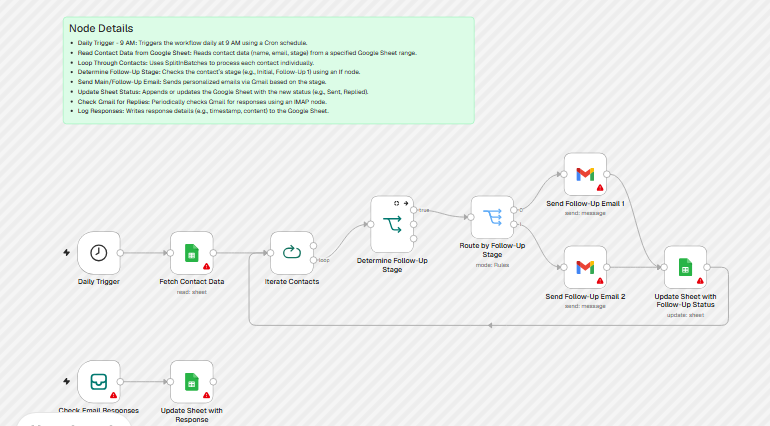
- Two flows on one canvas
- Six contacts, one run: what happens by our reading
- Follow the data: what each of the 10 nodes does
- Get the workflow JSON
- Install it in twelve steps
- What it will not do: limits, costs and trade-offs
- Consent, unsubscribe and the account you send from
- What to write in the two follow-ups
- What about interview and job-application follow-ups?
- Problems you may meet and how to fix them
- Too much of a puzzle? Let us build or adapt it for you
- What we changed in the original template
- What was verified, and what was not
- Changes worth making before you scale
- Frequently asked questions
- Tools used in this workflow
- Suggested reading
- Get more advanced automation and AI resources for business
- Keep exploring
Email blast or follow-up? What this workflow is, and is not
An email blast (also called email blasting) means sending the same message to a large list at once. The meaning is simple, and so is the usual advice about strategy: have one goal per message, send it to people who agreed to hear from you, split the list by interest when you can, write a subject line that says what is inside, include a clear way to opt out, and test with a small group first. Common examples are a product announcement, an invitation to an event, a monthly update and a sale notice.
If that is what you want, a dedicated email platform is the better tool, because it handles unsubscribes, bounces and sending reputation for you. That is what an email blasting service is for. It will also give you open and click numbers. We will not quote an “average open rate for an email blast” here, because it depends on your list, your subject line and your industry, and because some mail apps load images automatically and inflate opens. This workflow has no open tracking at all. It knows only one thing about a contact: whether a reply arrived.
What the template does instead is a follow-up sequence. It chases people who have already been contacted and have not answered. That is a different job, and a useful one. A follow-up email is a short message sent after a first one, to remind the person, add a small piece of value or give them an easy way to say no. For salespeople this is a follow-up sales email. For cold outreach it is a cold email follow-up. Both rely on the same habit: ask once, ask again politely, then stop.
Words you will see in this guide
- Schedule Trigger: an n8n node that starts a run at set times. This one uses a cron expression, a short code for times such as “every day at 9”.
- Google Sheet: the spreadsheet that holds your contacts and the status of each.
- Loop Over Items: a node that hands rows to the next node one at a time, then waits for the rest of the flow to finish before it hands over the next one.
- If node: a fork that sends an item one way when a condition is true.
- Switch node: a fork with several exits, one per rule.
- Gmail node: sends an email from your Gmail or Google Workspace account.
- IMAP: a standard way for software to read a mailbox. The Email Trigger (IMAP) node uses it to watch for new mail.
- OAuth2 and service account: two ways to give n8n access to Google. OAuth2 asks you to sign in and agree. A service account is a robot login created in Google Cloud.
- Expression: a small formula in double curly braces, such as
{{ $json['User Email'] }}, that reads data from an earlier node.
Apps and accounts this workflow talks to
- n8n: runs the two flows.
- Google Sheets: holds the contacts, and receives the new status. Three nodes use it.
- Gmail: sends the two follow-up emails.
- An IMAP mailbox: the reply watcher reads it. For a Gmail account that usually means turning on IMAP and creating an app password, so check Google’s current instructions for your account type.
What to have ready before you import anything
- A Google Sheet with a tab for your contacts and the headers listed in the note on the canvas:
User Name,User Email,Inquiry ID,Reply,Follow-up,Send Mail,Follow-up Type,Submission Date,Next Follow-up Date. - A
noin theReplycolumn for every contact you want to follow up, and the number6or7inFollow-up. - Two follow-up messages written in advance. You will find samples later in this guide.
- A Google sign-in for Sheets and Gmail, and an IMAP login for the reply watcher.
- One or two addresses of your own, to use as test contacts.
The description and the file do not agree
When a template and its description tell different stories, the file wins, because the file is what runs. Here is what we found.
- The sheet. The description describes a sheet called
EmailCampaignwith six columns:name,email,stage,last_email_date,statusandresponse. The file reads and writes nine different columns, such asUser Email,Inquiry IDandFollow-up. The description’s sheet will not work with the file. - The stages. The description talks about stages called Initial, Follow-Up 1 and Follow-Up 2. The file looks for the numbers 6 and 7 in a column called
Follow-up. - The first email. The description says the workflow sends a main email and follow-ups. The file has no node for the main email.
- The node names. The note in the file lists nodes such as “Loop Through Contacts” and “Log Responses”. The nodes are actually called
Iterate ContactsandUpdate Sheet with Response. - The credentials. The description asks for Gmail OAuth2 and Google Sheets credentials. The file used a Google service account for Sheets and Gmail.
- The replies. The description says the workflow checks Gmail for replies. It does, but only for unread messages with the word “Testing” in the subject.
- The “Cron service”. The description lists a “Cron service” among the requirements. n8n has its own scheduler, so you need nothing extra. The file’s schedule rule, however, was empty.
- Leftover pieces. The file’s connections mentioned two nodes called “Send a message for followup 6” and “Send a message for followup 7”, and a node about an “HRMS api”. None of them exist in the file. We removed those connections.
Two flows on one canvas
The canvas holds two separate flows. They share the sheet, and they never trigger each other.
- The daily follow-up flow (8 nodes).
Daily Triggerstarts it at 9 AM.Fetch Contact Datareads the sheet.Iterate Contactshands the rows over one by one.Determine Follow-Up Stagelets through the rows whereReplyisno.Route by Follow-Up Stagesends stage 6 to the first email and stage 7 to the second. After the email,Update Sheet with Follow-Up Statuswrites the row and sends the loop back to take the next one. - The reply tracking flow (2 nodes).
Check Email Responseswatches your mailbox. When an unread message with the right subject arrives,Update Sheet with Responsewritesyesin the reply column for the sender.
The two flows are linked only through the word in the Reply column. If tracking writes yes, the daily flow no longer sends to that person, because it only lets no through. That is the heart of the design, and it is also why a blank Reply cell matters so much.
Six contacts, one run: what happens by our reading
The loop is the part of this template that surprises people, so here is an invented sheet. We read the file’s logic and ran the same conditions in plain JavaScript. This is how the logic reads, not an n8n run.
| Contact | Reply | Follow-up | What happens |
|---|---|---|---|
| Ana | no | 6 | Email 1 is sent. Follow-up becomes 7. The loop continues. |
| Ben | yes | 6 | Stops here. The If node has no path for “yes”. |
| Cara | (blank) | 7 | Never reached. |
| Dev | no | 3 | Never reached. |
| Eli | no | 7 | Never reached. |
| Fay | no | 6 | Never reached. |
Only Ana is processed. Ben ends the run, because the only way the loop continues is through the update node, and Ben never gets there. The same would happen to a contact at stage 3, because the Switch has no exit for numbers other than 6 and 7. In a real sheet, where contacts who replied are mixed with contacts who did not, this means most days only a few rows are handled. The fix is simple and we describe it in the problems section: connect the “false” paths back to the loop.
There is a second surprise. After Ana receives email 1, her Follow-up becomes 7 and Next Follow-up Date is set to three days ahead. But no node reads that date. The next 9 AM run sees Ana at stage 7 and sends her email 2 the following day, not three days later.
Follow the data: what each of the 10 nodes does
The names below are the exact names in the JSON file. Three of them had a space at the end in the original, which we removed. The original also had one note on the canvas with a node list that did not match the file. We replaced it with five notes of our own (see the section on changes). They are reminders, not steps.
The daily follow-up flow (8 nodes)
Daily Trigger
A Schedule Trigger that starts the flow. In the original, the rule said “cron expression” but contained no expression, so the node had no time to run at. The description says 9 AM, so we wrote 0 9 * * *, which means every day at 9:00. The time follows the timezone set in your n8n instance or workflow settings. Change it if you want another hour.
Fetch Contact Data
A Google Sheets node that reads every row of one tab. It has no filter, so it reads all rows every day, including the ones that are finished. In the original it pointed at a real spreadsheet owned by the template author. We replaced the document and the tab with YOUR_GOOGLE_SHEET_ID and YOUR_SHEET_TAB_NAME. Google Sheets values usually arrive in n8n as text, even when they look like numbers. We did not confirm this for your sheet, and it matters for two nodes below.
Iterate Contacts
A Loop Over Items node with the default batch size, so it hands over one row at a time. Its “done” exit, which fires after the last row, is not connected to anything. Its “loop” exit goes to Determine Follow-Up Stage. The loop asks for the next row only when something sends data back into it, and in this file only one node does that.
Determine Follow-Up Stage
An If node with one condition: the Reply field must be exactly no, as text. Only the “true” exit is connected. A row with yes, a blank cell, No with a capital letter or a trailing space goes to the “false” exit, which leads nowhere, and the loop does not continue. The node also has its error output switched on, and that exit is not connected either.
Route by Follow-Up Stage
A Switch node with two rules. Rule one sends rows whose Follow-up value equals the number 6 to the first email. Rule two sends rows equal to 7 to the second. Both comparisons are strict about types, which means “6” as text may be refused with a type error, depending on how your sheet returns the value. There is no fallback exit, so any other number ends the run for that row.
Send Follow-Up Email 1
A Gmail node that sends a plain-text email to the address in the User Email column. The original subject and body were both the test string “Testing-6”. We replaced them with YOUR_FOLLOW_UP_1_SUBJECT and YOUR_FOLLOW_UP_1_MESSAGE. The option that adds a “sent with n8n” line is off, which is good. The body is the same for every contact: nothing in it uses the contact’s name.
Send Follow-Up Email 2
The same node for stage 7, with the original test string “Testing-7” replaced by YOUR_FOLLOW_UP_2_SUBJECT and YOUR_FOLLOW_UP_2_MESSAGE. If you want the second email to feel different from the first, write it differently: shorter, with a clear way to say no.
Update Sheet with Follow-Up Status
A Google Sheets update node that writes the result back. It sets Reply to what it was, Follow-up to the old value plus one, Send Mail to a text like “yes (Follow-up = 6)”, Follow-up Type to “Email”, Submission Date to today, and Next Follow-up Date to three days from now. It finds the row by User Name, so two contacts with the same name would be confused. Using Inquiry ID would be safer.
Three details deserve attention. First, the expression Follow-up + 1 adds numbers only if the value is a number. If it is the text “6”, the result is the text “61”, and the contact falls out of the Switch next time. We ran this in plain JavaScript: "6" + 1 gives "61". Second, Submission Date is overwritten with today’s date, which erases the real submission date. Third, in the original this node was set to “auto-map input data” while its values were written as expressions. That mode takes columns from the incoming item, which here is Gmail’s answer, so we switched it to manual mapping, which is what the expressions were written for.
The reply tracking flow (2 nodes)
Check Email Responses
An Email Trigger (IMAP) node. It runs on its own, not at 9 AM, and checks your mailbox for unread messages. Its filter is ["UNSEEN", ["SUBJECT", "Testing"]] in the original. The word “Testing” is the subject of the template’s own test emails: a reply to “Testing-6” has the subject “Re: Testing-6”, which matches. We replaced the word with YOUR_SUBJECT_KEYWORD. Whatever word you choose must appear in the subject of both follow-ups, or the replies will not be seen.
Update Sheet with Response
A Google Sheets update node that sets reply to yes for the row whose user email matches the sender. Two things may stop it from working. The column names are written in lowercase, while the follow-up node writes Reply and User Email with capitals, and column matching in the Sheets node may be case-sensitive. And the value it matches on is $json.from, which in an email usually looks like Ben Hill <ben@example.com>, not just the address. We did not run this node, so test it with a real reply before you rely on it.
Get the workflow JSON
Open the box below to copy the JSON, or download the file. It contains the 10 working nodes above, connected as described, with placeholders for your sheet, your two messages and your subject keyword, and 5 notes on the canvas. It contains none of your logins and none of the original author’s data.
Please read this first: this JSON is free and provided as is. n8n versions and installed nodes differ from one person to another, so it may not run correctly on your side without adjustments. We cannot test it on every setup. That is why this article includes a long section, Problems you may meet and how to fix them. And if you would rather not deal with any of it, you can request a custom workflow and we will come back to you with the next steps.
Click to show or hide the workflow JSON
Click inside the box, select the whole text, copy it, then paste it onto an empty n8n canvas. If selecting is awkward on your device, use the download link above.
{
"meta": {
"templateCredsSetupCompleted": true
},
"name": "Follow-up emails from a Google Sheet with reply tracking",
"tags": [],
"nodes": [
{
"id": "263d7a2a-0185-47b5-a58b-c00a0f756dcc",
"name": "Daily Trigger",
"type": "n8n-nodes-base.scheduleTrigger",
"position": [
-80,
-485
],
"parameters": {
"rule": {
"interval": [
{
"field": "cronExpression",
"expression": "0 9 * * *"
}
]
}
},
"typeVersion": 1.2
},
{
"id": "d5b54189-9981-4b23-afa1-d8c2007ce94d",
"name": "Fetch Contact Data",
"type": "n8n-nodes-base.googleSheets",
"position": [
140,
-485
],
"parameters": {
"options": {},
"sheetName": {
"__rl": true,
"mode": "name",
"value": "YOUR_SHEET_TAB_NAME"
},
"documentId": {
"__rl": true,
"mode": "id",
"value": "YOUR_GOOGLE_SHEET_ID"
},
"authentication": "oAuth2"
},
"typeVersion": 4.6
},
{
"id": "f2525c0e-4f9b-4430-a4f1-d21c18977095",
"name": "Iterate Contacts",
"type": "n8n-nodes-base.splitInBatches",
"position": [
360,
-485
],
"parameters": {
"options": {}
},
"typeVersion": 3
},
{
"id": "55ff15d6-15ed-4197-b2b4-98df8695f98c",
"name": "Determine Follow-Up Stage",
"type": "n8n-nodes-base.if",
"onError": "continueErrorOutput",
"position": [
580,
-560
],
"parameters": {
"options": {},
"conditions": {
"options": {
"version": 2,
"leftValue": "",
"caseSensitive": true,
"typeValidation": "strict"
},
"combinator": "and",
"conditions": [
{
"id": "8533f0cb-5664-4ba3-ac35-46587194560d",
"operator": {
"name": "filter.operator.equals",
"type": "string",
"operation": "equals"
},
"leftValue": "={{ $json.Reply }}",
"rightValue": "no"
}
]
}
},
"typeVersion": 2.2,
"alwaysOutputData": true
},
{
"id": "11f2e1b6-0f21-4d5b-aced-a4c45e29f970",
"name": "Route by Follow-Up Stage",
"type": "n8n-nodes-base.switch",
"position": [
800,
-560
],
"parameters": {
"rules": {
"values": [
{
"conditions": {
"options": {
"version": 2,
"leftValue": "",
"caseSensitive": true,
"typeValidation": "strict"
},
"combinator": "and",
"conditions": [
{
"id": "bde52b5f-b028-4849-acd0-fd976bbae44d",
"operator": {
"type": "number",
"operation": "equals"
},
"leftValue": "={{ $json['Follow-up'] }}",
"rightValue": 6
}
]
}
},
{
"conditions": {
"options": {
"version": 2,
"leftValue": "",
"caseSensitive": true,
"typeValidation": "strict"
},
"combinator": "and",
"conditions": [
{
"id": "1a69881c-21ce-4cb7-9c17-f5ed0e5dd6ac",
"operator": {
"type": "number",
"operation": "equals"
},
"leftValue": "={{ $json['Follow-up'] }}",
"rightValue": 7
}
]
}
}
]
},
"options": {}
},
"typeVersion": 3.2
},
{
"id": "2dbd64d3-ec48-4992-a25e-f665d4f04001",
"name": "Send Follow-Up Email 1",
"type": "n8n-nodes-base.gmail",
"position": [
1020,
-660
],
"parameters": {
"sendTo": "={{ $json['User Email'] }}",
"message": "YOUR_FOLLOW_UP_1_MESSAGE",
"options": {
"appendAttribution": false
},
"subject": "YOUR_FOLLOW_UP_1_SUBJECT",
"emailType": "text",
"authentication": "oAuth2"
},
"typeVersion": 2.1
},
{
"id": "c2ed8d92-11c0-49df-87c2-191917a18a9b",
"name": "Send Follow-Up Email 2",
"type": "n8n-nodes-base.gmail",
"position": [
1020,
-460
],
"parameters": {
"sendTo": "={{ $json['User Email'] }}",
"message": "YOUR_FOLLOW_UP_2_MESSAGE",
"options": {
"appendAttribution": false
},
"subject": "YOUR_FOLLOW_UP_2_SUBJECT",
"emailType": "text",
"authentication": "oAuth2"
},
"typeVersion": 2.1
},
{
"id": "715c5558-6bdb-4b8b-afc1-ae62bbf175f0",
"name": "Update Sheet with Follow-Up Status",
"type": "n8n-nodes-base.googleSheets",
"position": [
1240,
-460
],
"parameters": {
"columns": {
"value": {
"Reply": "={{ $('Route by Follow-Up Stage').item.json.Reply }}",
"Follow-up": "={{ $('Route by Follow-Up Stage').item.json['Follow-up'] + 1}}",
"Send Mail": "=yes (Follow-up = {{ $('Route by Follow-Up Stage').item.json['Follow-up'] }}) ",
"User Name": "={{ $('Route by Follow-Up Stage').item.json['User Name'] }}",
"Inquiry ID": "={{ $('Route by Follow-Up Stage').item.json['Inquiry ID'] }}",
"User Email": "={{ $('Route by Follow-Up Stage').item.json['User Email'] }}",
"Follow-up Type": "Email",
"Submission Date": "={{ new Date($now).toISOString().split('T')[0] }}",
"Next Follow-up Date": "={{ new Date(Date.now() + 3 * 24 * 60 * 60 * 1000).toISOString().split('T')[0] }}"
},
"schema": [
{
"id": "User Name",
"type": "string",
"display": true,
"removed": false,
"required": false,
"displayName": "User Name",
"defaultMatch": false,
"canBeUsedToMatch": true
},
{
"id": "User Email",
"type": "string",
"display": true,
"removed": false,
"required": false,
"displayName": "User Email",
"defaultMatch": false,
"canBeUsedToMatch": true
},
{
"id": "Inquiry ID",
"type": "string",
"display": true,
"removed": false,
"required": false,
"displayName": "Inquiry ID",
"defaultMatch": false,
"canBeUsedToMatch": true
},
{
"id": "Reply",
"type": "string",
"display": true,
"removed": false,
"required": false,
"displayName": "Reply",
"defaultMatch": false,
"canBeUsedToMatch": true
},
{
"id": "Follow-up",
"type": "string",
"display": true,
"removed": false,
"required": false,
"displayName": "Follow-up",
"defaultMatch": false,
"canBeUsedToMatch": true
},
{
"id": "Send Mail",
"type": "string",
"display": true,
"removed": false,
"required": false,
"displayName": "Send Mail",
"defaultMatch": false,
"canBeUsedToMatch": true
},
{
"id": "Follow-up Type",
"type": "string",
"display": true,
"removed": false,
"required": false,
"displayName": "Follow-up Type",
"defaultMatch": false,
"canBeUsedToMatch": true
},
{
"id": "Communication Mode",
"type": "string",
"display": true,
"removed": false,
"required": false,
"displayName": "Communication Mode",
"defaultMatch": false,
"canBeUsedToMatch": true
},
{
"id": "Status",
"type": "string",
"display": true,
"removed": false,
"required": false,
"displayName": "Status",
"defaultMatch": false,
"canBeUsedToMatch": true
},
{
"id": "Comment",
"type": "string",
"display": true,
"removed": false,
"required": false,
"displayName": "Comment",
"defaultMatch": false,
"canBeUsedToMatch": true
},
{
"id": "Requirement Doc",
"type": "string",
"display": true,
"removed": false,
"required": false,
"displayName": "Requirement Doc",
"defaultMatch": false,
"canBeUsedToMatch": true
},
{
"id": "Workflow Diagram",
"type": "string",
"display": true,
"removed": false,
"required": false,
"displayName": "Workflow Diagram",
"defaultMatch": false,
"canBeUsedToMatch": true
},
{
"id": "Test Cases",
"type": "string",
"display": true,
"removed": false,
"required": false,
"displayName": "Test Cases",
"defaultMatch": false,
"canBeUsedToMatch": true
},
{
"id": "Call Schedule",
"type": "string",
"display": true,
"removed": false,
"required": false,
"displayName": "Call Schedule",
"defaultMatch": false,
"canBeUsedToMatch": true
},
{
"id": "Submission Date",
"type": "string",
"display": true,
"removed": false,
"required": false,
"displayName": "Submission Date",
"defaultMatch": false,
"canBeUsedToMatch": true
},
{
"id": "Next Follow-up Date",
"type": "string",
"display": true,
"removed": false,
"required": false,
"displayName": "Next Follow-up Date",
"defaultMatch": false,
"canBeUsedToMatch": true
},
{
"id": "row_number",
"type": "string",
"display": true,
"removed": true,
"readOnly": true,
"required": false,
"displayName": "row_number",
"defaultMatch": false,
"canBeUsedToMatch": true
}
],
"mappingMode": "defineBelow",
"matchingColumns": [
"User Name"
],
"attemptToConvertTypes": false,
"convertFieldsToString": false
},
"options": {},
"operation": "update",
"sheetName": {
"__rl": true,
"mode": "name",
"value": "YOUR_SHEET_TAB_NAME"
},
"documentId": {
"__rl": true,
"mode": "id",
"value": "YOUR_GOOGLE_SHEET_ID"
},
"authentication": "oAuth2"
},
"typeVersion": 4.6
},
{
"id": "009b187a-a8b6-4748-bc9a-2e7dcd69f233",
"name": "Check Email Responses",
"type": "n8n-nodes-base.emailReadImap",
"position": [
-80,
-200
],
"parameters": {
"options": {
"customEmailConfig": "[\"UNSEEN\", [\"SUBJECT\", \"YOUR_SUBJECT_KEYWORD\"]]"
}
},
"typeVersion": 2
},
{
"id": "91e87156-bd84-4df5-ad9e-11089af50c02",
"name": "Update Sheet with Response",
"type": "n8n-nodes-base.googleSheets",
"position": [
140,
-200
],
"parameters": {
"columns": {
"value": {
"reply": "=yes",
"user email": "={{ $json.from }}"
},
"schema": [
{
"id": "user name",
"type": "string",
"display": true,
"removed": true,
"required": false,
"displayName": "user name",
"defaultMatch": false,
"canBeUsedToMatch": true
},
{
"id": "user email",
"type": "string",
"display": true,
"removed": false,
"required": false,
"displayName": "user email",
"defaultMatch": false,
"canBeUsedToMatch": true
},
{
"id": "reply",
"type": "string",
"display": true,
"required": false,
"displayName": "reply",
"defaultMatch": false,
"canBeUsedToMatch": true
},
{
"id": "followup",
"type": "string",
"display": true,
"removed": true,
"required": false,
"displayName": "followup",
"defaultMatch": false,
"canBeUsedToMatch": true
},
{
"id": "Send mail",
"type": "string",
"display": true,
"removed": true,
"required": false,
"displayName": "Send mail",
"defaultMatch": false,
"canBeUsedToMatch": true
},
{
"id": "row_number",
"type": "string",
"display": true,
"removed": true,
"readOnly": true,
"required": false,
"displayName": "row_number",
"defaultMatch": false,
"canBeUsedToMatch": true
}
],
"mappingMode": "defineBelow",
"matchingColumns": [
"user email"
],
"attemptToConvertTypes": false,
"convertFieldsToString": false
},
"options": {},
"operation": "update",
"sheetName": {
"__rl": true,
"mode": "name",
"value": "YOUR_SHEET_TAB_NAME"
},
"documentId": {
"__rl": true,
"mode": "id",
"value": "YOUR_GOOGLE_SHEET_ID"
},
"authentication": "oAuth2"
},
"typeVersion": 4.6
},
{
"id": "1dd2ad29-a4cb-43cf-b93d-274d1f74bc1c",
"name": "Sticky Note",
"type": "n8n-nodes-base.stickyNote",
"typeVersion": 1,
"position": [
-100,
-960
],
"parameters": {
"color": 4,
"width": 460,
"height": 230,
"content": "## 1. Daily follow-up flow\n\nAt 9 AM the sheet is read and its rows are processed one by one. A row continues only if Reply is exactly no and Follow-up is 6 or 7. Follow-up 6 gets email 1, Follow-up 7 gets email 2, then the row is updated.\n\nThis flow sends follow-ups only. It does not send a first email."
}
},
{
"id": "6455bef6-a901-45e2-8740-a0904c6f94d7",
"name": "Sticky Note1",
"type": "n8n-nodes-base.stickyNote",
"typeVersion": 1,
"position": [
380,
-960
],
"parameters": {
"color": 3,
"width": 440,
"height": 230,
"content": "## 2. How the loop continues\n\nThe loop moves to the next row only after Update Sheet with Follow-Up Status. A row that fails the If or the Switch ends the run, and the rows after it are not processed."
}
},
{
"id": "1443ea57-efd8-43b4-875e-bb82c1ce39a1",
"name": "Sticky Note2",
"type": "n8n-nodes-base.stickyNote",
"typeVersion": 1,
"position": [
-100,
-120
],
"parameters": {
"color": 5,
"width": 460,
"height": 230,
"content": "## 3. Reply tracking\n\nCheck Email Responses watches your mailbox over IMAP for unread mail whose subject contains your keyword. Update Sheet with Response then sets reply to yes for the sender. It runs on its own, not at 9 AM."
}
},
{
"id": "c8edf2e3-0312-4c64-8c60-159b0ad76da6",
"name": "Sticky Note3",
"type": "n8n-nodes-base.stickyNote",
"typeVersion": 1,
"position": [
380,
-120
],
"parameters": {
"color": 6,
"width": 440,
"height": 330,
"content": "## Sheet headers used by the file\n\nUser Name, User Email, Inquiry ID, Reply, Follow-up, Send Mail, Follow-up Type, Submission Date, Next Follow-up Date.\n\nThe reply node uses lowercase user email and reply. Make sure your headers match what each node writes, including capitals.\n\nReply must contain no for a row to be followed up."
}
},
{
"id": "06f3d6c0-fd01-4924-a3ae-0e2ff1a45fce",
"name": "Sticky Note4",
"type": "n8n-nodes-base.stickyNote",
"typeVersion": 1,
"position": [
-100,
240
],
"parameters": {
"color": 7,
"width": 460,
"height": 330,
"content": "## Before you run it\n\nReplace every YOUR_ value: sheet ID, tab name, both subjects, both messages and the subject keyword. Connect your own Google Sheets, Gmail and IMAP credentials.\n\nTest with rows that contain your own addresses. The workflow is saved inactive.\n\nThe messages are plain text and contain no unsubscribe line. Add one."
}
}
],
"settings": {
"executionOrder": "v1"
},
"connections": {
"Daily Trigger": {
"main": [
[
{
"node": "Fetch Contact Data",
"type": "main",
"index": 0
}
]
]
},
"Iterate Contacts": {
"main": [
[],
[
{
"node": "Determine Follow-Up Stage",
"type": "main",
"index": 0
}
]
]
},
"Fetch Contact Data": {
"main": [
[
{
"node": "Iterate Contacts",
"type": "main",
"index": 0
}
]
]
},
"Check Email Responses": {
"main": [
[
{
"node": "Update Sheet with Response",
"type": "main",
"index": 0
}
]
]
},
"Send Follow-Up Email 2": {
"main": [
[
{
"node": "Update Sheet with Follow-Up Status",
"type": "main",
"index": 0
}
]
]
},
"Send Follow-Up Email 1": {
"main": [
[
{
"node": "Update Sheet with Follow-Up Status",
"type": "main",
"index": 0
}
]
]
},
"Route by Follow-Up Stage": {
"main": [
[
{
"node": "Send Follow-Up Email 1",
"type": "main",
"index": 0
}
],
[
{
"node": "Send Follow-Up Email 2",
"type": "main",
"index": 0
}
]
]
},
"Determine Follow-Up Stage": {
"main": [
[
{
"node": "Route by Follow-Up Stage",
"type": "main",
"index": 0
}
]
]
},
"Update Sheet with Follow-Up Status": {
"main": [
[
{
"node": "Iterate Contacts",
"type": "main",
"index": 0
}
]
]
}
}
}Install it in twelve steps
- Create the sheet with one tab and the nine headers listed earlier. Add two test rows with your own addresses,
noinReplyand6inFollow-upfor the first and7for the second. - Get the JSON from the box above or the download link.
- Import it. Open a new empty workflow in n8n, then paste the JSON onto the canvas or import it from a file.
- Check that the 10 working nodes appear, with 5 notes and no missing-node warning.
- Connect Google Sheets. Create an OAuth2 credential, attach it to the three Sheets nodes, and select your spreadsheet and tab in each.
- Connect Gmail to the two Gmail nodes.
- Connect the mailbox to
Check Email Responseswith an IMAP credential, and choose a subject keyword. - Write the two messages, using the samples later in this guide as a starting point. Put the keyword from step 7 in both subjects.
- Disable
Check Email Responsesfor now, so that only one flow runs during the first test. - Run the daily flow by hand with the manual button, one node at a time, and read each node’s output. Check that the Switch accepts your
Follow-upvalues and thatFollow-upbecomes 7 and not 61. - Enable the reply watcher, reply to one of your test emails from the other address, and check the row.
- Activate the workflow only when both tests are clean, and watch the first real 9 AM run.
What it will not do: limits, costs and trade-offs
- It does not send a first email, and it does not blast a list.
- It does not wait between follow-ups. The stored date is never read.
- It does not skip rows safely. Rows that fail a condition stop the run instead of being skipped.
- It does not personalize. Both emails are the same for everyone, and neither uses the contact’s name or any detail of the earlier conversation.
- It does not handle unsubscribes or bounces. Someone who writes “please stop” is marked as having replied, which stops follow-ups, but you must still take them off your lists.
- It does not recognize out-of-office replies or bounce notices. They count as replies if they carry the right subject.
- It has sending limits. Google’s page on Gmail sending limits in Google Workspace, which we read on November 20, 2026, lists 2,000 messages per day for a standard user account, 1,500 for mail merge and 500 for trial accounts. Exceeding a limit blocks sending for up to 24 hours. We did not verify limits for personal Gmail accounts. Check Google’s current page.
Consent, unsubscribe and the account you send from
- Follow-ups still count as email you send. If your first email was cold outreach, the rules for cold email apply to the follow-up too. Our guide on cold email compliance for small teams is a starting point.
- Add a way out. The two messages have no unsubscribe line unless you write one. A single sentence such as “If you would rather not hear from me, just say so and I will stop” is a minimum.
- Stop at two. The template stops after stage 7. Keep it that way.
- Keep the sheet private. It holds names and email addresses.
- Prefer OAuth2 to a service account. n8n’s documentation says that impersonating a user with a service account requires domain-wide delegation, which needs a Google Workspace super administrator and which Google recommends avoiding because of the security risk. If you use a normal Google account, OAuth2 is the simpler path.
- Send from an address you can afford to lose. Many follow-ups to unresponsive contacts can lead to spam complaints.
This section is general information, not legal advice. Rules differ by country, and we do not claim that this workflow complies with any of them.
What to write in the two follow-ups
The file ships with placeholders, so here are two samples you can adapt. They are our own wording, not part of the template. Replace the brackets, keep them short, and refer to something specific from your first email.
Follow-up 1: a short reminder (stage 6)
Subject: Quick follow-up on [topic of your first email]
Hi,
I wrote last week about [one sentence on the offer or question]. I know inboxes fill up, so I wanted to check whether it reached you at a bad moment.
If it is useful, a short reply is enough. If not, tell me and I will not follow up again.
[Your name]
Follow-up 2: a last note (stage 7)
Subject: Last note on [topic of your first email]
Hi,
This is my last message on [topic]. If the timing is wrong, no problem. If you would like [the next step], reply with “yes” and I will send the details.
[Your name]
To write a follow-up email that gets read, keep four rules in mind: say who you are in the first line, refer to the earlier message, ask one easy question, and make it simple to decline. A follow-up email after no response works best when it adds something small, such as a link or a one-line example, rather than only repeating “just checking in”. Remember that the template sends the same body to everyone, so keep the text general enough to fit every row.
What about interview and job-application follow-ups?
Some people look for a follow-up email after an interview or after an application and end up at a workflow like this one. It is the wrong tool for that. A thank-you or follow-up after an interview is one message to one person, and it should be written by you, because the value is in the personal detail. A sheet and a daily schedule add nothing and risk sending the wrong text to the wrong person.
A good format for a follow-up email after an interview is short: a subject line with the role and your name, one line of thanks, one specific thing you discussed, one sentence restating your interest, and a question about next steps. How long to wait depends on the timeline the interviewer gave you. If they said a decision would take two weeks, wait until those two weeks are over, then send one polite note. There is no universal waiting time. The same format works for a follow-up email after an application: say which role you applied for, when, and that you are still interested.
Subject: [Role]: following up on our conversation, [Your name]
Hello [Name],
Thank you for speaking with me on [day]. I enjoyed our discussion about [specific topic], and it made me more interested in the role. You mentioned a decision by [date]. Could you tell me where things stand, or whether you need anything more from me?
Best regards,
[Your name]
You can use the tracking idea of this workflow for yourself, as a sheet that reminds you whom to write to. Send the message by hand.
Problems you may meet and how to fix them
Each problem has three parts: what you see, why it happens, and what to do. Many come from our reading of the file’s logic and from the providers’ documentation, not from a run on live services.
1. Only the first row is processed, or only a few
What you see: the run ends early, and most contacts are untouched. Why: the loop continues only after Update Sheet with Follow-Up Status, and a row that fails the If or the Switch never gets there. Fix: connect the “false” exit of Determine Follow-Up Stage, and add a fallback exit to Route by Follow-Up Stage, back to Iterate Contacts.
2. Contacts are ignored although they should be followed up
What you see: a contact who never replied gets nothing. Why: the If node lets through only the exact text no. A blank cell, No with a capital or a space after the word does not match. Fix: fill the column with no in lowercase for every contact, or change the condition so that anything other than yes passes.
3. The Switch fails with a type error
What you see: an error saying a value is text but a number was expected. Why: Google Sheets usually returns cell values as text, and the Switch compares with numbers in strict mode. Fix: in the Switch rules, turn on loose type validation, or compare the text 6 and 7.
4. Follow-up becomes 61 instead of 7
What you see: after the first follow-up the sheet shows 61 and the contact is never followed up again. Why: if Follow-up arrives as the text “6”, then "6" + 1 is the text “61”. We reproduced this in plain JavaScript. Fix: change the expression to {{ Number($('Route by Follow-Up Stage').item.json['Follow-up']) + 1 }}.
5. A contact at another stage never gets an email
What you see: contacts at 1, 2, 3 or 8 are untouched. Why: only 6 and 7 have rules. The numbers are the original author’s. Fix: renumber your sheet to 6 and 7, or edit the two Switch rules to your own numbers.
6. Both follow-ups arrive on consecutive days
What you see: email 2 arrives the day after email 1. Why: the workflow writes Next Follow-up Date but never reads it. Fix: add an If node after Determine Follow-Up Stage that continues only when today’s date is on or after Next Follow-up Date, and send the other rows back to the loop.
7. Nothing happens at 9 AM
What you see: no execution in the list. Why: the workflow is saved inactive, the schedule uses the timezone of your n8n instance, or the cron expression was changed. Fix: activate the workflow, check the timezone in the settings and read the cron expression again: 0 9 * * * is every day at 9:00.
8. Gmail answers with an authorization error
What you see: a 401 or “unauthorized” on a Gmail node. Why: the credential is missing or expired. n8n’s documentation says that impersonating a user with a Google service account requires domain-wide delegation, set up by a Workspace super administrator. Fix: use an OAuth2 credential, reconnect it, and send one test email.
9. Gmail stops sending
What you see: a message such as “You reached a Gmail sending limit”. Why: Google limits how many messages an account can send per day, and blocks sending for up to 24 hours when you exceed it. Fix: send smaller batches, and check Google’s current limits for your account type.
10. The email says “YOUR_FOLLOW_UP_1_MESSAGE”
What you see: a placeholder in the Sent folder. Why: you did not replace the subject and body placeholders. Fix: edit both Gmail nodes, replace all four placeholders and send the first test to yourself.
11. Contacts receive an impersonal message
What you see: replies such as “who is this?”. Why: both emails use the same fixed text. Fix: start the body with Hi {{ $json['User Name'] }}, and refer to something from your first email.
12. The reply watcher never fires
What you see: replies arrive and nothing changes in the sheet. Why: IMAP is off for your mailbox, the login is wrong, or the subject keyword does not appear in the reply’s subject. Fix: check the IMAP settings of your mail account, test the credential, and make sure the keyword is in the subject of both follow-ups.
13. A reply is seen but the sheet is not updated
What you see: an error, or no row changes in Update Sheet with Response. Why: the node matches on $json.from, which usually contains a name and angle brackets, and its column names are lowercase. Fix: extract the bare address from from with a Set node, and rename the columns in the node to match your headers exactly.
14. A contact is marked as replied after an automatic message
What you see: yes for someone who is on holiday. Why: out-of-office and bounce messages can carry the same subject. Fix: add a condition that ignores messages whose subject or body contains “automatic reply” or “undeliverable”, and review the sheet weekly.
15. A reply opened in Gmail is missed
What you see: a contact replied, you read the message, and the sheet still says no. Why: the filter asks for unread messages. If you open the email before n8n sees it, it is no longer unread. Fix: keep the watcher running continuously, or remove the unread condition and filter by date instead.
16. The wrong person’s row is updated
What you see: two contacts share a name and only one changes. Why: the update node matches on User Name. Fix: change the matching column to Inquiry ID or User Email, and make that value unique.
17. The real submission date disappears
What you see: Submission Date shows today. Why: the update node overwrites it. Fix: delete that line from the node, or write today’s date in a new column called Last Follow-up Date.
18. “Column not found” in a Sheets node
What you see: an error naming a column. Why: the sheet’s header text differs from the node’s, even by one capital letter or one space. Fix: compare the nine headers on the canvas note with row 1 of your sheet.
19. The sheet from the description does not work
What you see: empty values everywhere. Why: the description’s sheet has columns called name, email, stage, status and response, and the file reads others. Fix: use the nine headers of the file.
20. The emails land in spam
What you see: contacts say they did not receive anything. Why: identical text sent to many people, no unsubscribe line, or a new sending address. Fix: keep batches small, personalize, add an opt-out sentence and ask a test contact to check the spam folder.
Too much of a puzzle? Let us build or adapt it for you
This workflow touches three Google credentials, one mailbox, one fragile loop and two messages that speak in your name. If you would rather have it set up properly, we can help. We can:
- rebuild the loop so that every row is handled, or skipped on purpose;
- add the first email, so the workflow covers the whole sequence;
- make the waiting time between follow-ups real, and stop after two;
- make reply detection reliable, including auto-replies and bounces;
- personalize each message from your sheet.
Tell us what you need on the Request a Custom Workflow page, or write to support@leenlabs.site if this JSON fails on your setup. We fix our free workflows at no charge.
What we changed in the original template
We changed as little as we could, for three reasons: to remove another person’s data, to replace test text that would be sent to real people, and to fix settings that could not work as they were.
- Removed another person’s data. The file pointed at a real Google spreadsheet and tab, with their links. We replaced them with
YOUR_GOOGLE_SHEET_IDandYOUR_SHEET_TAB_NAME. We also removed credential references, the instance ID, the webhook IDs, the active flag and the template metadata. - Replaced the test text. The subjects and bodies “Testing-6” and “Testing-7” became four
YOUR_FOLLOW_UP_…placeholders, and the reply filter word “Testing” becameYOUR_SUBJECT_KEYWORD. - Wrote the schedule. The cron rule was empty. We set
0 9 * * *, which matches the 9 AM in the description. - Switched the authentication to OAuth2 on the Google nodes, which is what the description asks for. The file had used a service account.
- Switched
Update Sheet with Follow-Up Statusto manual mapping, so that its expressions are used. - Removed two leftover connections that pointed to nodes that are not in the file.
- Removed trailing spaces from three node names.
- Replaced the single note with five notes that describe what the nodes really do.
- Renamed the workflow to match this article.
What we did not change: the stage numbers 6 and 7, the exact match on no, the unconnected exits, the strict number comparisons, the + 1 expression, the unused follow-up date, the matching on User Name, the overwritten submission date and the lowercase column names and from value in the reply node. They are described above so that you can decide.
Where the description and the file differ. The description says the workflow sends a main email, handles stages called Initial and Follow-Up 1 and 2, uses a sheet called EmailCampaign with six columns and needs a separate cron service. The file sends no first email, uses the numbers 6 and 7, reads nine other columns and uses n8n’s own scheduler.
What was verified, and what was not
Checked on the file itself. We read all 10 working nodes, the 5 notes and every connection. A script confirmed that every connection points to an existing node, that every node name used in an expression exists, that no credentials, webhook IDs, Google Sheet IDs or test strings remain, that no HTML entity artifacts are in the JSON, and that seven placeholders are the only values to replace.
Run outside n8n on simulated data. In plain JavaScript we ran the conditions of the If and the Switch on six invented contacts (only the first is processed before the run stops), the expression + 1 on the text “6” (it gives “61”) and on the number 6 (it gives 7), and the date expression that adds three days.
Checked against documentation. We read n8n’s page on Google service account credentials (impersonating a user requires domain-wide delegation) and Google’s page on Gmail sending limits in Google Workspace, both on November 20, 2026.
Not tested. No service was contacted. We did not import the file into n8n or run any node. We did not confirm how the Sheets node returns your values, whether column matching is case-sensitive, what the IMAP node returns in from, whether your mailbox accepts the IMAP login, or how Gmail treats your messages. Not tested on live APIs. That is why we recommend a full test with your own accounts and your own addresses before real contacts reach it.
Changes worth making before you scale
- Connect every exit of the loop so rows that do not qualify are skipped, not fatal.
- Filter the sheet before the loop, so only rows with
Replyequal tonoand a due date enter it. - Use
Number()for the stage and for the increment. - Read the follow-up date to space the two emails.
- Add a first-email flow, or send the first email another way and keep this workflow for follow-ups.
- Match rows by a unique ID instead of the name.
- Add an opt-out sentence and a
Stopvalue inReply. - Add the contact’s name to both messages.
Frequently asked questions
What is an email blast?
An email blast is one message sent to a large list at once, such as an announcement, an event invitation or a product update. This workflow is not an email blast. It sends two follow-ups to contacts who have not replied.
How do I send an email blast with n8n?
You can build one with a Google Sheet, a loop and a Gmail node, but you would take on unsubscribes, bounces, sending limits and reputation yourself. For large lists, a dedicated email platform is usually the safer choice.
What is a good average open rate for an email blast?
There is no single number. It depends on your list, your subject line and your industry, and open counts are unreliable because some mail apps load images automatically. This workflow does not measure opens.
How do I write a follow-up email after no response?
Say who you are, mention your first message, add one small piece of value and ask one easy question. Make it simple to say no. Two samples are in the section on what to write.
How many follow-ups should I send?
This template sends two and stops, which is a reasonable limit for a cold email follow-up or a follow-up sales email. After that, move on.
Can I use this workflow for interview or job-application follow-ups?
We advise against it. Those messages are personal and one-to-one. Write them yourself, and use a sheet only as a reminder of whom to write to.
Why does the workflow stop after the first contact?
Because the loop continues only after a row has been updated, and rows that fail the If or the Switch have no exit. See the first problem for the fix.
Tools used in this workflow
The links below go to each tool’s home page, and some may be affiliate links, as explained in our Terms of Service. We do not link to Google Sheets or Gmail because we could not verify their home pages.
- n8n (may be an affiliate link): the automation platform that runs both flows, available hosted or self-hosted.
Suggested reading
If outbound email, follow-up and tracking are your focus, these LeenLabs articles go well with this one.
Workflows
- B2B Sales Outreach Automation with n8n, Apollo and GPT: researches leads, drafts emails you approve in a sheet, then sends.
- Lead Generation Tool in n8n: Apify, AI and Gmail: a scraped list, a first email and a follow-up two days later.
- Email Outreach with n8n: AI, NocoDB and SMTP: a daily send with a follow-up date.
- AI Email Automation for Outbound Outreach: personalizes the email and manages follow-ups from one sheet.
Guides
- Lead Follow-Up System: Recover Revenue From Your Pipeline: four lead states and a six-touch cadence.
- Cold Email Compliance for Small Teams: what to think about before you send.
- AI Cold Email That Does Not Sound Like AI: write the emails well.
- Creative Approval Workflow for Agencies: 3 Rules + Kit: three rules, five stages and a tracker to cap revision rounds. Chasing approvals is its own kind of follow-up.
- Client Onboarding for Agencies: A 14-Day System + Checklist: a questionnaire, access without shared passwords and a scope template for the first two weeks.
Get more advanced automation and AI resources for business
A workflow article covers one template at a time. For people who want to go further, we will send more advanced resources on automation and AI in business, beyond what fits in a single workflow guide. Leave your email below and you will receive them as they are released.
Keep exploring
Browse more free n8n workflows from LeenLabs.
Prefer a ready-made workflow?
Chasing contacts who have not answered is repetitive back-office work, and that is the kind of task a ready-made workflow can take over. The LeenLabs Marketplace is the home of paid n8n workflows for Operations Teams. Each workflow is tested on an n8n instance before it is listed. Leave your email on the category page to be notified when new workflows are listed.
Explore Operations Teams workflows Go to the marketplace home
Need this adapted to your own setup?
Tell us what you want to automate and we will come back to you with the next steps.