
Affiliate disclosure: some links in this article may be affiliate links. If you sign up through them, we may earn a commission at no extra cost to you. See our Terms of Service.
Most cold emails fail in the first line. “I hope this email finds you well” tells the reader that nobody looked at them. A cold email icebreaker is the opposite: one or two sentences at the start of the message that show you read something real about the person’s business. Writing one by hand takes minutes per prospect, which is why people try to automate it. This free n8n workflow does it in a chain: it pulls prospects from an Apollo search through an Apify scraper, downloads each prospect’s website, has GPT summarize a few pages, and writes an opener for each person into a Google Sheet.
It is an ambitious template, and a useful one to learn from, because it shows how web scraping and AI can be combined for cold email lead sourcing. It is also a template whose description promises more than the file delivers. The description speaks of built-in delays, token limits and a deep analysis of the whole site; the file has no pause node, no token limit, and reads at most three links per prospect. Its author’s prompt also asks the AI to make people believe a lot of manual research was done, and it contains a real person’s name as an example. In this guide we explain every step in plain English, run the one piece of code it contains on simulated links, show where it breaks, say exactly what we changed, and list what we could not test.
Read this first: it scrapes data about real people, including personal emails
- Personal data. The scraper is asked for work emails and personal emails. Having a lawful reason to email these people, and being allowed to extract the data, is your responsibility.
- No delays and no token limits. Despite what the original description says, there is no pause between downloads and no limit on the size of what is sent to the AI.
- Weak page selection. It reads the first three links of a homepage, and it drops many of a site’s own pages.
- The loop can stall. A prospect that yields nothing in the middle of the chain can stop the rest from being processed.
- It does not send emails, and the icebreakers are AI text that you must read.
Start with one Apollo search and a very small number of records. This guide is not legal advice.
Template source: this workflow comes from the n8n Library at n8n.io, the public collection of workflow templates. We did not create it. LeenLabs prepared its JSON for publication and documented it. What we changed is listed in the section What we changed in the original template.
At a glance
- What it does: finds prospects through an Apollo search, scrapes their websites, summarizes up to three pages each, and writes a cold email opener per prospect into Google Sheets.
- Apps used: n8n, Google Sheets, Apify (with an Apollo scraper), and OpenAI.
- Trigger: you click the button. There is no schedule.
- Setup effort: high. Four accounts, two sheet tabs and one outside scraper whose terms you must check.
- Cost to run: the file is free. Apify, Apollo and OpenAI each charge by their own plans. One prospect can cost up to four AI calls.
- Watch out for: personal data, a scraper timeout, dropped site pages, a stalling loop, duplicate rows, and AI text that sounds more informed than it is.
- Test status: the Code node was run outside n8n on simulated links. No other node was run in n8n and no service was contacted.
In this guide
- What is web scraping?
- Cold email icebreakers: what this workflow does
- Web scraping, web search APIs and where leads come from
- Qualify before you write
- Words you will see in this guide
- Apps and accounts this workflow talks to
- What to have ready before you import anything
- Where the logic is fragile: checks we made
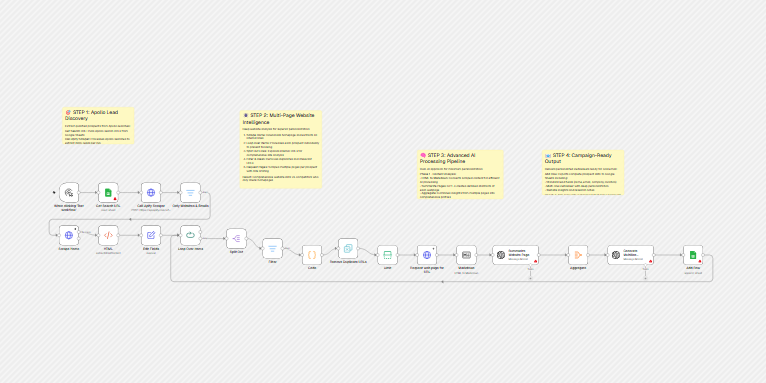
- The big picture: from search to icebreaker
- Follow the data: what each of the 19 steps does
- Get the workflow JSON
- Install it in twelve steps
- What it will not do: limits, costs and trade-offs
- Access, privacy and responsible use
- Making the icebreaker good
- Problems you may meet and how to fix them
- Too much of a puzzle? Let us build or adapt it for you
- What we changed in the original template
- What was verified, and what was not
- Five ways to adapt the workflow
- Frequently asked questions
- Tools used in this workflow
- Suggested reading
- Keep exploring
What is web scraping?
Web scraping means using a program to download web pages and pull data out of them, instead of copying it by hand. A scraper can read a page’s text, its links or a list of people on a results page. There are many web scraping tools, from small code libraries to hosted platforms, and some companies sell web scraping services that run the scrapers for you. This workflow uses two kinds of scraping. The first is a hosted scraper at Apify that collects people from an Apollo search. The second is plain page downloading, done by n8n itself, to read each prospect’s website.
Cold email icebreakers: what this workflow does
For each Apollo search address in your sheet, the workflow goes through four stages:
- Find. An Apify actor runs the search and returns up to 500 people with their emails and company websites.
- Read. For each person, n8n downloads the company homepage, collects its links, keeps up to three, downloads those pages and turns them into plain text.
- Summarize. GPT-4.1 writes a two-paragraph abstract of each page.
- Write. GPT-4.1 writes a short opener from the abstracts and adds a row to your Leads tab.
It suits a person who already knows who they want to reach, has a clear offer, and wants a first draft of a personal opener per prospect to review. It does not suit you if you want finished campaigns, verified emails, or a “set and forget” system: it does not send, does not check addresses, and does not remember who it has already processed.
Web scraping, web search APIs and where leads come from
The “leads” in this workflow are not found by the workflow itself. They come from Apollo, a sales database of people and companies, through a scraper hosted on Apify, a platform for running web scrapers. Apify exposes an API, a web address that a program such as n8n can call, so the same call that asks for the scrape also returns the results. This is why you will see a call to a web search API and scraping service in the middle of an n8n workflow. Whether a given scraper is allowed to extract from a given site is a matter of that site’s terms and the law where you work. We did not verify Apollo’s terms, so check them before you rely on this step. Our article on generating sales leads and outreach emails shows a different approach that starts from a list you already have.
Qualify before you write
An icebreaker makes a message feel personal. It does not make a prospect a good fit. Before you spend AI credits on 500 people, decide who is worth writing to. Our B2B lead qualification framework for solo sellers gives five questions you can apply to a list, and you can put the answer in the sheet before you run the workflow, so that only the right rows are processed. And when a prospect replies, our guide on call notes to CRM with an AI note taker covers what to do next.
Words you will see in this guide
- n8n (say “n-eight-n”): a tool that connects apps and makes them follow your instructions automatically.
- Workflow: one set of instructions in n8n, drawn as boxes connected by lines.
- Node: one box in a workflow. Each node does one job.
- Icebreaker: the first lines of a cold email, meant to show that you looked at the reader’s business.
- Cold email: an email to someone who does not know you yet.
- Scraping: using a program to download pages and extract data from them.
- Actor: in Apify, a ready-made scraping program that you run through the platform.
- API: a web address that programs can call to get data or run a task.
- HTML: the code a web page is made of, with its text, links and layout.
- Markdown: a simple text format, shorter than HTML, that an AI reads more easily.
- Relative link: a link written without the site’s address, such as
/about. - Loop: a way to repeat the same steps for each item, one at a time.
- Token: a small piece of text that an AI is charged for. Longer pages mean more tokens.
- Prompt: the instructions you give to an AI.
- Credential: a saved login that lets n8n use one of your accounts. The JSON file does not contain yours.
Apps and accounts this workflow talks to
- n8n: runs the workflow.
- Google Sheets: holds your search addresses and receives the results. We do not link to it because we could not verify a home page.
- Apify: runs the Apollo scraper. You need an Apify API token.
- Apollo: the source of the search. You build the search address in Apollo.
- OpenAI: GPT-4.1 summarizes pages and writes the opener.
Costs: the workflow file is free. Apify, Apollo and OpenAI have their own plans, limits and prices, which change, and we have not verified them. The original description quotes a monthly operating cost; we could not verify it and do not repeat it. What the file does tell us is the scale. Each search address asks for up to 500 records, and each prospect can use up to three page summaries and one icebreaker, which is up to four AI calls. For one address, that is up to 2,000 AI calls and many page downloads. Test on a handful of records.
What to have ready before you import anything
- A Google Sheet with two tabs. The tab
Search URLshas one column namedURL. The tabLeadshas the columnsfirst_name,last_name,email,website_url,headline,location,phone_numberandmultiline_icebreaker. - One Apollo search address, copied from your browser after you set filters such as country, job title and keywords, in the first row of
Search URLs. - An Apify account and API token, and the right to use the actor in the file.
- An OpenAI API key.
- One sentence about your offer, honest and specific, to put where the file says
YOUR_ONE_LINE_OFFER. - A decision about who you will and will not contact, and a way to handle opt-outs. Our guide to CRM data cleanup is a useful routine once the data starts to pile up.
Where the logic is fragile: checks we made
Only one node contains code: the node called Code. We ran its code outside n8n, in Node.js, on simulated links, together with the conditions of the Filter before it, the three-link Limit and the way the page address is built. We also read every other setting. Here is what we found.
The link cleaning
We fed the steps a list of fourteen simulated links like those found on a homepage. The Filter keeps links that start with a slash, and the Code node then cleans them:
| Link on the homepage (simulated) | What happens |
|---|---|
/about, /services, /privacy |
Kept. |
/about/ |
Kept, and treated as different from /about. |
/contact?x=1, /#top |
Kept as they are. |
https://example.com/contact (the same site, full address) |
Dropped by the Filter. |
https://example.com/blog/ (the same site, full address) |
Dropped by the Filter. |
//cdn.example.org/x.js (another site) |
Kept and passed on unchanged. |
mailto:, tel:, #section, a link to another site |
Dropped. |
Two things follow. First, many sites write their own links as full addresses, and all of those are discarded, so for those sites the workflow may see no page except the homepage. Second, the part of the Code node that turns full addresses into paths never gets any, because the Filter runs first. The same code run alone on a full address does work: it turned https://example.com/contact/ into /contact.
Which three pages are read
After the duplicates are removed, the Limit keeps the first three links in page order. In our simulated list that gave /, /about and /about/: the homepage itself, and the about page twice. That is the real extent of the “multi-page analysis”: three downloads, which can include the homepage and near-duplicates.
The page address
The address of each page is the prospect’s website followed by the link:
| Website in the sheet | Link | Address requested |
|---|---|---|
https://example.com |
/about |
https://example.com/about (fine) |
https://example.com/ |
/about |
https://example.com//about (double slash) |
https://example.com |
//cdn.example.org/x.js |
https://example.com//cdn.example.org/x.js (broken) |
A double slash often still works, but a broken address wastes a download and ends up as an empty page.
Claims in the original that the file does not support
| Claim in the original description or notes | What the file contains |
|---|---|
| Built-in delays and rate limiting | No Wait node. The downloads run one after another with no pause. |
| Intelligent token limiting | No limit on the text sent to the AI. The only limit is three pages per prospect. |
| Website insights and research notes exported | Only the icebreaker and the contact details are saved. |
| Phone number saved when available | The phone field is set to empty. |
| Intelligent batching to prevent blocking | One prospect at a time in the loop, but every homepage is downloaded before the loop starts. |
| Specific reply rates and revenue | Not something a file can show. We do not repeat or verify these. |
The loop and empty results
Between the loop and the final row, several steps can produce no items: a homepage with no links that start with a slash, for example. When that happens, nothing returns to the loop for that prospect. As far as we know, n8n then stops the loop and the remaining prospects are not processed. We could not run it to confirm this.
The big picture: from search to icebreaker
- Start. You click the button.
- Read your searches from the sheet.
- Scrape Apollo through Apify and keep records that have an email and a website.
- Download every homepage and collect the links.
- Loop through prospects one at a time.
- Pick up to three pages and download them.
- Summarize each page with GPT-4.1.
- Write the icebreaker from the summaries.
- Save a row and move to the next prospect.
Follow the data: what each of the 19 steps does
The names below are the names you will see on the canvas, in the order the data flows through them.
When clicking ‘Test workflow’
The start of the workflow. It runs when you click the button that executes the workflow, and at no other time. There is no schedule. For a batch job that spends scraping and AI credits, starting it by hand is a reasonable choice. Replace it with a Schedule Trigger only when you trust the results.
Get Search URL
A Google Sheets node that reads the tab named Search URLs. Each row holds one Apollo search address in a column named URL. Apollo is a sales database; an Apollo search is a saved list of people filtered by country, job title and keywords. It needs a Google Sheets credential, and you replace YOUR_GOOGLE_SHEET_ID. Every row is processed, so start with one.
Call Apify Scraper
An HTTP Request node that asks an Apify actor to run the search and return the results in the same call. An actor is a ready-made scraping program hosted on Apify. The body asks for work emails and personal emails and for up to 500 records per search address. You replace YOUR_APIFY_API_TOKEN in the Authorization header. Apify’s documentation says a run started this way must finish within 300 seconds, otherwise the endpoint returns a timeout error, so a large search may fail. We could not check what this actor does, who publishes it, what it costs or whether it still works, and we did not verify whether Apollo’s terms allow this kind of extraction.
Only Websites & Emails
A Filter node that keeps only the records that have a company website and an email address. A record without either is dropped. If a record has no organization at all, the expression that reads the website may raise an error instead of dropping the record; we could not test that.
Scrape Home
An HTTP Request node that downloads the homepage of each remaining prospect. It runs for every prospect before the loop starts, one after the other, with no pause, so a search with hundreds of results means hundreds of downloads in a row. If a homepage cannot be downloaded, the item leaves through the node’s error output, which is connected to nothing, so that prospect is silently dropped.
HTML
An HTML node that reads the homepage and collects the address of every link on it (the href of every a tag) into a list called links.
Edit Fields
A Set node that builds the record for one prospect: first name, last name, email, website, job title (called headline), location (city and country), an empty phone number and the list of links. The phone number is set to an empty value in the file, so the phone column stays empty even when Apollo has a number.
Loop Over Items
Handles one prospect at a time. The file does not set a batch size, and as far as we know n8n’s default is one item. It receives all the prospects once from Edit Fields, and it receives each finished prospect back from Add Row, which is what starts the next one. The “done” output is connected to nothing, so the workflow simply ends after the last prospect. One consequence: if a prospect produces no items somewhere between here and Add Row (for example, a homepage with no usable links), nothing comes back to the loop for that prospect, and as far as we know the remaining prospects are not processed.
Split Out
Turns the list of links of the current prospect into one item per link.
Filter
Keeps only the links whose text starts with a slash, such as /about. The idea is to keep the pages of the prospect’s own site. In practice it also removes every internal link that is written as a full address, such as https://example.com/contact, which many sites use, and it lets through addresses that start with two slashes, which usually point to another site. See the examples.
Code
A short JavaScript step that cleans up the links: it keeps relative links as they are and, for full addresses, keeps only the path and removes a trailing slash. Because the Filter before it already removed every full address, the part that handles full addresses never runs in this order. It also does not remove a trailing slash from relative links, so /about and /about/ stay different.
Remove Duplicate URLs
Removes repeated items. The node has no settings in the file, so it uses its defaults, which we did not confirm. It does not merge /about and /about/, because they are different texts.
Limit
Keeps the first three links of each prospect, in the order they appear on the page. That is usually the top menu, which is often the homepage link itself followed by two pages. The original description speaks of “intelligent” selection and a “comprehensive” analysis of the site; this node is the whole selection logic.
Request web page for URL
An HTTP Request node that downloads each selected page. The address is the prospect’s website followed by the link. If the website already ends with a slash, the address gets a double slash, and an address that started with two slashes becomes a broken address. A failed download does not stop the workflow: the failure flows on as an item without page content.
Markdown
Turns the page’s HTML into plain Markdown text, which is shorter for an AI to read. If a page came back empty, it uses the text <div>empty</div> instead.
Summarize Website Page
An OpenAI node using GPT-4.1 that reads one page and returns a two-paragraph abstract in JSON, in a spartan tone, or the words “no content” if the page is empty. The whole page text is sent, and the file sets no limit on its size, although the original description says it limits tokens. An OpenAI error here stops the whole run, because the node has no error handling.
Aggregate
Collects the abstracts of one prospect’s pages into a single list, so that the next step receives one item per prospect. The list can include pages that said “no content”. We could not confirm how n8n names the collected field when the path has dots; the next step expects it to be abstract.
Generate Multiline Icebreaker
An OpenAI node using GPT-4.1, at a temperature of 0.5, that writes the opener. Its instructions include a format to follow, rules about tone and shortening names, and one worked example. It receives the prospect’s first name, last name and job title and the abstracts, joined with blank lines. It does not receive the company name or the location, so the rules about shortening them depend on the AI finding the name in the abstracts. In the original, the instructions asked the AI to make recipients believe a lot of manual research had been done, the format contained the author’s own sales pitch, and the example used a real person and company. LeenLabs replaced these (see below). You replace YOUR_ONE_LINE_OFFER in the format and in the example with your own offer.
Add Row
A Google Sheets node that adds one row to the tab named Leads: first name, last name, email, website, location, phone and the icebreaker. The job title is read but not saved, and the page abstracts are not saved either, although a note in the original says that website insights are exported. It does not check whether the prospect is already in the sheet. When it finishes, it sends the loop to the next prospect.
Get the workflow JSON
Open the box below to copy the JSON, or download the file. It contains the 19 nodes above, connected as described, with placeholders where your sheet, your Apify token and your offer go, and 6 notes on the canvas, including one called Before you turn it on. It contains none of your logins.
Please read this first: this JSON is free and provided as is. n8n versions and installed nodes differ from one person to another, so it may not run correctly on your side without adjustments. We cannot test it on every setup. That is why this article includes a long section, Problems you may meet and how to fix them. And if you would rather not deal with any of it, you can request a custom workflow and let us handle it.
Click to show or hide the workflow JSON
Click inside the box, select the whole text, copy it, then paste it onto an empty n8n canvas. If selecting is awkward on your device, use the download link above.
{
"name": "Cold Email Icebreakers with n8n, Apify and GPT (free JSON)",
"nodes": [
{
"id": "9e8d941d-d623-41bb-bd96-458507829b5c",
"name": "Sticky Note",
"type": "n8n-nodes-base.stickyNote",
"position": [
-4336,
-640
],
"parameters": {
"width": 350,
"height": 320,
"content": "## 1. Find prospects\n\nGet Search URL reads your Apollo search addresses from the Search URLs tab. Call Apify Scraper sends each one to an Apify actor and asks for up to 500 records, with work and personal emails. Only Websites & Emails keeps the records that have both an email and a company website.\n\nReplace YOUR_APIFY_API_TOKEN in the Authorization header. Remove it again before you share the workflow."
},
"typeVersion": 1
},
{
"id": "05fc2a6f-da87-4dcc-b748-8de72ab527ee",
"name": "Sticky Note1",
"type": "n8n-nodes-base.stickyNote",
"position": [
-3472,
-624
],
"parameters": {
"width": 400,
"height": 380,
"content": "## 2. Read the website\n\nScrape Home downloads the homepage of every prospect. The HTML node collects the links on it. Loop Over Items then takes one prospect at a time. Split Out, Filter and Code keep the links that start with a slash, Remove Duplicate URLs removes repeats, and Limit keeps the first three. Request web page for URL downloads those pages. A page that cannot be downloaded becomes an empty page."
},
"typeVersion": 1
},
{
"id": "3cd12f0e-d723-4515-9f1b-8a55878b7372",
"name": "Sticky Note2",
"type": "n8n-nodes-base.stickyNote",
"position": [
-2608,
-432
],
"parameters": {
"width": 420,
"height": 300,
"content": "## 3. Summarize and write\n\nMarkdown turns each page into plain text. Summarize Website Page asks GPT-4.1 for a two-paragraph abstract of each page. Aggregate gathers the abstracts of one prospect. Generate Multiline Icebreaker writes the opener from them, using one invented example. Replace YOUR_ONE_LINE_OFFER in its instructions and in the example."
},
"typeVersion": 1
},
{
"id": "a515c2ba-4e77-40ec-a38d-9754e652d48d",
"name": "Sticky Note3",
"type": "n8n-nodes-base.stickyNote",
"position": [
-2000,
-432
],
"parameters": {
"width": 400,
"height": 300,
"content": "## 4. Save\n\nAdd Row appends the prospect's details and the icebreaker to the Leads tab: first_name, last_name, email, website_url, location, phone_number and multiline_icebreaker. The page abstracts are not saved. Add Row then sends the loop to the next prospect."
},
"typeVersion": 1
},
{
"id": "d626ecef-bb0f-4b27-bb70-3cf62c9456a2",
"name": "Remove Duplicate URLs",
"type": "n8n-nodes-base.removeDuplicates",
"position": [
-2992,
0
],
"parameters": {},
"typeVersion": 1.1
},
{
"id": "6b9040dc-a03a-47d2-b519-0e64268f6237",
"name": "When clicking ‘Test workflow’",
"type": "n8n-nodes-base.manualTrigger",
"position": [
-4352,
-272
],
"parameters": {},
"typeVersion": 1
},
{
"id": "7eb94278-b337-4856-b2d9-02ee34d79aa2",
"name": "HTML",
"type": "n8n-nodes-base.html",
"position": [
-4160,
-64
],
"parameters": {
"options": {
"trimValues": true,
"cleanUpText": true
},
"operation": "extractHtmlContent",
"extractionValues": {
"values": [
{
"key": "links",
"attribute": "href",
"cssSelector": "a",
"returnArray": true,
"returnValue": "attribute"
}
]
}
},
"typeVersion": 1.2
},
{
"id": "76fa8c51-28b8-46a9-841f-d7aa298db7bf",
"name": "Split Out",
"type": "n8n-nodes-base.splitOut",
"position": [
-3536,
-48
],
"parameters": {
"options": {},
"fieldToSplitOut": "links"
},
"typeVersion": 1
},
{
"id": "ba1f94fc-9aef-4380-be26-9d3b32fc8eb9",
"name": "Filter",
"type": "n8n-nodes-base.filter",
"position": [
-3360,
0
],
"parameters": {
"options": {},
"conditions": {
"options": {
"version": 2,
"leftValue": "",
"caseSensitive": true,
"typeValidation": "strict"
},
"combinator": "and",
"conditions": [
{
"id": "9a75bc22-f6b3-426e-96df-db5e319e5cd5",
"operator": {
"type": "string",
"operation": "startsWith"
},
"leftValue": "={{ $json.links }}",
"rightValue": "/"
}
]
}
},
"typeVersion": 2.2
},
{
"id": "53db04ce-30e5-41f9-bb0b-225debeec0ef",
"name": "Request web page for URL",
"type": "n8n-nodes-base.httpRequest",
"onError": "continueRegularOutput",
"position": [
-2608,
32
],
"parameters": {
"url": "={{ $('Loop Over Items').item.json.website_url }}{{ $json.links }}",
"options": {}
},
"typeVersion": 4.2,
"alwaysOutputData": false
},
{
"id": "7abaaf97-14f5-406f-90bf-27d02d58c214",
"name": "Markdown",
"type": "n8n-nodes-base.markdown",
"position": [
-2416,
32
],
"parameters": {
"html": "={{ $json.data ? $json.data : \"<div>empty</div>\" }}",
"options": {}
},
"typeVersion": 1
},
{
"id": "04f31bd6-c7ea-42a7-adff-3e1e77c80adf",
"name": "Summarize Website Page",
"type": "@n8n/n8n-nodes-langchain.openAi",
"position": [
-2240,
32
],
"parameters": {
"modelId": {
"__rl": true,
"mode": "list",
"value": "gpt-4.1",
"cachedResultName": "GPT-4.1"
},
"options": {},
"messages": {
"values": [
{
"role": "system",
"content": "You're a helpful, intelligent website scraping assistant."
},
{
"content": "You're provided a Markdown scrape of a website page. Your task is to provide a two-paragraph abstract of what this page is about.\n\nReturn in this JSON format:\n\n{\"abstract\":\"your abstract goes here\"}\n\nRules:\n- Your extract should be comprehensive—similar level of detail as an abstract to a published paper.\n- Use a straightforward, spartan tone of voice.\n- If it's empty, just say \"no content\"."
},
{
"content": "={{ $json.data }}"
}
]
},
"jsonOutput": true
},
"typeVersion": 1.6
},
{
"id": "ae2e52fc-273f-4b37-8c10-90b360513078",
"name": "Limit",
"type": "n8n-nodes-base.limit",
"position": [
-2800,
32
],
"parameters": {
"maxItems": 3
},
"typeVersion": 1
},
{
"id": "8631db4d-a6ba-44ca-892b-2227b7b376a2",
"name": "Scrape Home",
"type": "n8n-nodes-base.httpRequest",
"onError": "continueErrorOutput",
"position": [
-4352,
-64
],
"parameters": {
"url": "={{ $json.organization.website_url }}",
"options": {
"redirect": {
"redirect": {}
},
"allowUnauthorizedCerts": false
}
},
"executeOnce": false,
"typeVersion": 4.2,
"alwaysOutputData": false
},
{
"id": "753cc95f-24ad-4815-bdf4-a6bcaeb63b90",
"name": "Aggregate",
"type": "n8n-nodes-base.aggregate",
"position": [
-1872,
32
],
"parameters": {
"options": {},
"fieldsToAggregate": {
"fieldToAggregate": [
{
"fieldToAggregate": "message.content.abstract"
}
]
}
},
"typeVersion": 1
},
{
"id": "a46d0f66-ff41-4b5b-9a7b-1f93c4f38208",
"name": "Generate Multiline Icebreaker",
"type": "@n8n/n8n-nodes-langchain.openAi",
"position": [
-1680,
32
],
"parameters": {
"modelId": {
"__rl": true,
"mode": "list",
"value": "gpt-4.1",
"cachedResultName": "GPT-4.1"
},
"options": {
"temperature": 0.5
},
"messages": {
"values": [
{
"role": "system",
"content": "You're a helpful, intelligent sales assistant."
},
{
"content": "=We just scraped a series of web pages from a prospect's website. Your task is to take their summaries and turn them into short, personalized openers for a cold email campaign, based only on what the website says.\n\nYou'll return your icebreakers in the following JSON format:\n\n{\"icebreaker\":\"Hey {name}. Love {thing}—also doing/like/a fan of {otherThing}. Wanted to run something by you.\\n\\nI read through your site and noticed {anotherThing}, which seems important to you (or at least I'm assuming this given the focus on {fourthThing}). YOUR_ONE_LINE_OFFER. I think it fits with {someImpliedBeliefTheyHave}\"}\n\nRules:\n- Write in a spartan/laconic tone of voice.\n- Only mention details that appear in the summaries. Never invent a detail.\n- Do not claim to have done manual research.\n- Make sure to use the above format when constructing your icebreakers. We wrote it this way on purpose.\n- Shorten the company name wherever possible (say, \"XYZ\" instead of \"XYZ Agency\"). More examples: \"Love AMS\" instead of \"Love AMS Professional Services\", \"Love Mayo\" instead of \"Love Mayo Inc.\", etc.\n- Do the same with locations. \"San Fran\" instead of \"San Francisco\", \"BC\" instead of \"British Columbia\", etc.\n- For your variables, focus on small, non-obvious things to paraphrase. The idea is to show that we really read their website, so mention only details that are actually on it and avoid anything obvious. Do not say cookie-cutter stuff like \"Love your website!\" or \"Love your take on marketing!\"."
},
{
"content": "=Profile: Jordan Lee, Founder, Pinewood Studio, design and branding, Springfield\n\nWebsite: This page presents Pinewood Studio, a small branding studio that designs logos, packaging and websites for independent food and drink brands. The studio describes a three-step process of discovery, design and handover, and says it works with a limited number of clients at a time to keep projects personal.\n\nThe journal section describes a recent project for a small bakery with a focus on recyclable packaging, and the team page says that every project starts with a visit to the client's premises."
},
{
"role": "assistant",
"content": "{\"icebreaker\": \"Hey Jordan,\\n\\nLove the packaging work at Pinewood. Also a fan of studios that start with a visit to the client's premises, wanted to run something by you.\\n\\nI read through your site and noticed the focus on recyclable packaging, and I'm assuming sustainable work matters to you guys given the bakery project. YOUR_ONE_LINE_OFFER. I think it fits with Pinewood's habit of keeping the client list small.\"}"
},
{
"content": "=Profile: {{ $('Loop Over Items').item.json.first_name }} {{ $('Loop Over Items').item.json.last_name }} {{ $('Loop Over Items').item.json.headline }}\n\nWebsite: {{ $json.abstract.join(\"\\n\\n\") }}"
}
]
},
"jsonOutput": true
},
"typeVersion": 1.6
},
{
"id": "634223ae-9046-4b63-98cd-dab98322a7aa",
"name": "Add Row",
"type": "n8n-nodes-base.googleSheets",
"position": [
-1312,
32
],
"parameters": {
"columns": {
"value": {
"email": "={{ $('Edit Fields').item.json.email }}",
"location": "={{ $('Edit Fields').item.json.location }}",
"last_name": "={{ $('Edit Fields').item.json.last_name }}",
"first_name": "={{ $('Edit Fields').item.json.first_name }}",
"website_url": "={{ $('Edit Fields').item.json.website_url }}",
"phone_number": "={{ $('Edit Fields').item.json.phone_number }}",
"multiline_icebreaker": "={{ $json.message.content.icebreaker }}"
},
"schema": [
{
"id": "first_name",
"type": "string",
"display": true,
"removed": false,
"required": false,
"displayName": "first_name",
"defaultMatch": false,
"canBeUsedToMatch": true
},
{
"id": "last_name",
"type": "string",
"display": true,
"removed": false,
"required": false,
"displayName": "last_name",
"defaultMatch": false,
"canBeUsedToMatch": true
},
{
"id": "email",
"type": "string",
"display": true,
"removed": false,
"required": false,
"displayName": "email",
"defaultMatch": false,
"canBeUsedToMatch": true
},
{
"id": "website_url",
"type": "string",
"display": true,
"removed": false,
"required": false,
"displayName": "website_url",
"defaultMatch": false,
"canBeUsedToMatch": true
},
{
"id": "headline",
"type": "string",
"display": true,
"removed": true,
"required": false,
"displayName": "headline",
"defaultMatch": false,
"canBeUsedToMatch": true
},
{
"id": "location",
"type": "string",
"display": true,
"removed": false,
"required": false,
"displayName": "location",
"defaultMatch": false,
"canBeUsedToMatch": true
},
{
"id": "phone_number",
"type": "string",
"display": true,
"removed": false,
"required": false,
"displayName": "phone_number",
"defaultMatch": false,
"canBeUsedToMatch": true
},
{
"id": "multiline_icebreaker",
"type": "string",
"display": true,
"removed": false,
"required": false,
"displayName": "multiline_icebreaker",
"defaultMatch": false,
"canBeUsedToMatch": true
}
],
"mappingMode": "defineBelow",
"matchingColumns": []
},
"options": {
"useAppend": true
},
"operation": "append",
"sheetName": {
"__rl": true,
"mode": "name",
"value": "Leads"
},
"documentId": {
"__rl": true,
"mode": "id",
"value": "YOUR_GOOGLE_SHEET_ID"
}
},
"executeOnce": false,
"typeVersion": 4.5
},
{
"id": "b126ba2f-4df7-4d8e-82da-5d69c0e00588",
"name": "Call Apify Scraper",
"type": "n8n-nodes-base.httpRequest",
"position": [
-3952,
-272
],
"parameters": {
"url": "https://api.apify.com/v2/acts/jljBwyyQakqrL1wae/run-sync-get-dataset-items",
"method": "POST",
"options": {
"redirect": {
"redirect": {}
}
},
"jsonBody": "={\n \"getPersonalEmails\": true,\n \"getWorkEmails\": true,\n \"totalRecords\": 500,\n \"url\": \"{{ $json.URL }}\"\n}",
"sendBody": true,
"sendHeaders": true,
"specifyBody": "json",
"headerParameters": {
"parameters": [
{
"name": "Accept",
"value": "application/json"
},
{
"name": "Authorization",
"value": "Bearer YOUR_APIFY_API_TOKEN"
}
]
}
},
"typeVersion": 4.2
},
{
"id": "2a876646-e39f-4c53-8c29-e4da9c9c3599",
"name": "Get Search URL",
"type": "n8n-nodes-base.googleSheets",
"position": [
-4160,
-272
],
"parameters": {
"options": {},
"sheetName": {
"__rl": true,
"mode": "name",
"value": "Search URLs"
},
"documentId": {
"__rl": true,
"mode": "id",
"value": "YOUR_GOOGLE_SHEET_ID"
}
},
"executeOnce": false,
"typeVersion": 4.5
},
{
"id": "ef18c7d5-6a09-4b86-913f-c4437c9878d4",
"name": "Edit Fields",
"type": "n8n-nodes-base.set",
"position": [
-3952,
-64
],
"parameters": {
"options": {},
"assignments": {
"assignments": [
{
"id": "e7737c7a-b5b6-44a1-9f0d-361f0ac7a459",
"name": "first_name",
"type": "string",
"value": "={{ $('Only Websites & Emails').item.json.first_name }}"
},
{
"id": "e867e03d-60e6-4dee-b1ac-12c517fd8d6c",
"name": "last_name",
"type": "string",
"value": "={{ $('Only Websites & Emails').item.json.last_name }}"
},
{
"id": "d522ec31-e21e-417e-ab78-f4a49019e544",
"name": "email",
"type": "string",
"value": "={{ $('Only Websites & Emails').item.json.email }}"
},
{
"id": "8f1ddf8d-7df8-433e-a687-c1a81cced4e1",
"name": "website_url",
"type": "string",
"value": "={{ $('Only Websites & Emails').item.json.organization.website_url }}"
},
{
"id": "9ccf7442-97cc-4840-aff0-7919e4119027",
"name": "headline",
"type": "string",
"value": "={{ $('Only Websites & Emails').item.json.headline }}"
},
{
"id": "d2eb1588-87d2-43b2-8356-7bfe754c7707",
"name": "location",
"type": "string",
"value": "={{ $('Only Websites & Emails').item.json.city }} {{ $('Only Websites & Emails').item.json.country }}"
},
{
"id": "b9ca5dad-9733-4b62-aeb8-c5675bc423d9",
"name": "phone_number",
"type": "string",
"value": "="
},
{
"id": "40fd7130-c65d-4826-a713-ecca24d23b07",
"name": "links",
"type": "array",
"value": "={{ $json.links }}"
}
]
}
},
"typeVersion": 3.4
},
{
"id": "92bfc8fa-08af-4183-9a69-5e7c3c71b860",
"name": "Only Websites & Emails",
"type": "n8n-nodes-base.filter",
"position": [
-3760,
-272
],
"parameters": {
"options": {},
"conditions": {
"options": {
"version": 2,
"leftValue": "",
"caseSensitive": true,
"typeValidation": "strict"
},
"combinator": "and",
"conditions": [
{
"id": "fc44a289-8c50-4682-8b50-c2e63cfc6514",
"operator": {
"type": "string",
"operation": "exists",
"singleValue": true
},
"leftValue": "={{ $json.organization.website_url }}",
"rightValue": "/"
},
{
"id": "f8e675e8-99cc-4c30-92e3-e08a659cff9b",
"operator": {
"type": "string",
"operation": "exists",
"singleValue": true
},
"leftValue": "={{ $json.email }}",
"rightValue": ""
}
]
}
},
"typeVersion": 2.2
},
{
"id": "799ffd81-dedf-459f-850f-342d7db83fdf",
"name": "Loop Over Items",
"type": "n8n-nodes-base.splitInBatches",
"position": [
-3760,
-64
],
"parameters": {
"options": {}
},
"typeVersion": 3
},
{
"id": "c973eaf8-438d-4ab9-bbf2-90a530ea5015",
"name": "Code",
"type": "n8n-nodes-base.code",
"position": [
-3168,
32
],
"parameters": {
"jsCode": "const items = $input.all();\n\nconst updatedItems = items.map((item) => {\n const link = item?.json?.links;\n\n if (typeof link === \"string\") {\n // Case: starts with \"/\" → already relative\n if (link.startsWith(\"/\")) {\n item.json.links = link;\n } \n \n // Case: absolute URL (http or https)\n else if (link.startsWith(\"http://\") || link.startsWith(\"https://\")) {\n try {\n const url = new URL(link);\n let path = url.pathname;\n\n // Strip trailing slash unless root \"/\"\n if (path !== \"/\" && path.endsWith(\"/\")) {\n path = path.slice(0, -1);\n }\n\n item.json.links = path || \"/\";\n } catch (e) {\n // On parse error, keep original\n item.json.links = link;\n }\n }\n\n // Fallback: not relative or absolute, leave as-is\n else {\n item.json.links = link;\n }\n }\n\n return item;\n});\n\nreturn updatedItems;"
},
"typeVersion": 2
},
{
"id": "3b7c9e41-52d8-4a6f-9c10-7e2a5d8b1f64",
"name": "Overview",
"type": "n8n-nodes-base.stickyNote",
"position": [
-4352,
320
],
"parameters": {
"color": 7,
"width": 900,
"height": 420,
"content": "## Cold email icebreaker generator: overview\n\nThis workflow turns Apollo search results into a Google Sheet of prospects with a written opener for each. It does not send any email.\n\nYour Google Sheet needs two tabs:\n- Search URLs, with a column named URL (one Apollo search address per row)\n- Leads, with the columns first_name, last_name, email, website_url, headline, location, phone_number and multiline_icebreaker\n\nTo set it up: connect Google Sheets, replace YOUR_GOOGLE_SHEET_ID in both Google Sheets nodes, replace YOUR_APIFY_API_TOKEN, connect OpenAI in both OpenAI nodes, and replace YOUR_ONE_LINE_OFFER in the icebreaker instructions. The workflow starts when you click the test button."
},
"typeVersion": 1
},
{
"id": "d9a4f2c7-6e13-4b85-8a07-1c5e9b3d7f20",
"name": "Before you turn it on",
"type": "n8n-nodes-base.stickyNote",
"position": [
-3400,
320
],
"parameters": {
"color": 3,
"width": 1000,
"height": 460,
"content": "## Before you turn it on\n\n1. Put one Apollo search address in the sheet, with a small result count, before you use a big search. The scraper is asked for up to 500 records per address, and each prospect can cost up to four AI calls.\n2. Check that you are allowed to extract that data, and that you have a lawful reason to email these people. Personal emails are requested too.\n3. Read every icebreaker. It is AI text based on short summaries of three pages.\n4. Prospects whose homepage has no usable links, or whose homepage cannot be downloaded, may stop the loop or be skipped silently.\n5. Running it twice adds the same prospects twice.\n6. Company websites and prospect details go to Apify, Apollo and OpenAI.\n7. Not tested on live APIs."
},
"typeVersion": 1
}
],
"connections": {
"Code": {
"main": [
[
{
"node": "Remove Duplicate URLs",
"type": "main",
"index": 0
}
]
]
},
"HTML": {
"main": [
[
{
"node": "Edit Fields",
"type": "main",
"index": 0
}
]
]
},
"Limit": {
"main": [
[
{
"node": "Request web page for URL",
"type": "main",
"index": 0
}
]
]
},
"Filter": {
"main": [
[
{
"node": "Code",
"type": "main",
"index": 0
}
]
]
},
"Add Row": {
"main": [
[
{
"node": "Loop Over Items",
"type": "main",
"index": 0
}
]
]
},
"Markdown": {
"main": [
[
{
"node": "Summarize Website Page",
"type": "main",
"index": 0
}
]
]
},
"Aggregate": {
"main": [
[
{
"node": "Generate Multiline Icebreaker",
"type": "main",
"index": 0
}
]
]
},
"Split Out": {
"main": [
[
{
"node": "Filter",
"type": "main",
"index": 0
}
]
]
},
"Edit Fields": {
"main": [
[
{
"node": "Loop Over Items",
"type": "main",
"index": 0
}
]
]
},
"Scrape Home": {
"main": [
[
{
"node": "HTML",
"type": "main",
"index": 0
}
]
]
},
"Get Search URL": {
"main": [
[
{
"node": "Call Apify Scraper",
"type": "main",
"index": 0
}
]
]
},
"Loop Over Items": {
"main": [
[],
[
{
"node": "Split Out",
"type": "main",
"index": 0
}
]
]
},
"Call Apify Scraper": {
"main": [
[
{
"node": "Only Websites & Emails",
"type": "main",
"index": 0
}
]
]
},
"Remove Duplicate URLs": {
"main": [
[
{
"node": "Limit",
"type": "main",
"index": 0
}
]
]
},
"Only Websites & Emails": {
"main": [
[
{
"node": "Scrape Home",
"type": "main",
"index": 0
}
]
]
},
"Summarize Website Page": {
"main": [
[
{
"node": "Aggregate",
"type": "main",
"index": 0
}
]
]
},
"Request web page for URL": {
"main": [
[
{
"node": "Markdown",
"type": "main",
"index": 0
}
]
]
},
"Generate Multiline Icebreaker": {
"main": [
[
{
"node": "Add Row",
"type": "main",
"index": 0
}
]
]
},
"When clicking ‘Test workflow’": {
"main": [
[
{
"node": "Get Search URL",
"type": "main",
"index": 0
}
]
]
}
},
"settings": {
"executionOrder": "v1"
}
}Install it in twelve steps
- Create the Google Sheet with the two tabs and the columns listed above.
- Build one Apollo search and paste its address in the first row of
Search URLs. - Get the JSON from the box above or the download link.
- Import it. Open a new empty workflow in n8n, then paste the JSON onto the canvas or import it from a file.
- Check that the 19 nodes appear, with 6 notes and no missing-node warning.
- Connect Google Sheets in Get Search URL and Add Row, and replace
YOUR_GOOGLE_SHEET_IDin both. - Put your Apify token in the Authorization header of Call Apify Scraper, in place of
YOUR_APIFY_API_TOKEN. Remove it again before you share or export. - Lower the number of records (the
totalRecordsvalue in the request body) to a small number for your first test. - Connect OpenAI in Summarize Website Page and Generate Multiline Icebreaker.
- Replace
YOUR_ONE_LINE_OFFERin the icebreaker instructions and in the example. - Run it, and read the output of each node for the first prospect.
- Read the rows in
Leads. Only when they are honest and useful should you try a larger search.
What it will not do: limits, costs and trade-offs
- It does not send emails. It only writes openers.
- It does not verify emails. Addresses from the scraper may be wrong or out of date.
- It does not read JavaScript-built pages properly. A plain download only gets the HTML the server sends; as far as we know, a site that builds its content in the browser may return very little.
- It reads three pages at most, chosen by position, and drops many internal links.
- It does not pause, so big runs may be blocked by sites or by your own provider’s limits.
- It does not remember. Running it again adds the same prospects again.
- It has little error handling. A failed OpenAI call stops the run, and a failed homepage drops a prospect without a trace.
- It costs per prospect, on Apify, OpenAI and probably Apollo, and a large run can take hours.
Access, privacy and responsible use
This workflow collects names, emails and information about named people and their businesses, and it writes messages for you to send. Use it with care.
- Know where the data goes. The search address goes to Apify, the prospect data goes to your sheet, and website text and the prospect’s name and job title go to OpenAI. Read each provider’s terms.
- Personal emails. The request asks for personal emails as well as work emails. Contacting people at a personal address needs a stronger reason than a business address, and the rules differ by country. If you do not need personal emails, set that option to false in the request body.
- Check you are allowed to extract it. We did not verify Apollo’s terms, the terms of the actor, or the terms of the websites that are downloaded. Check them, and respect what a site says about automated access.
- Be honest in the message. The original prompt told the AI to make recipients believe a lot of manual research had been done. We changed it, because pretending to have researched someone personally is deceptive. Say only what is true, and mention only things that are actually on their site.
- Keep the opener truthful. An AI can misread a summary. Check that every detail in the opener is really on the prospect’s site.
- Follow the rules on unsolicited email. In the United States this means, among other things, honest sender details, a real way to opt out, and honoring opt-outs. Our article on cold email compliance for small teams covers part of it. Other countries have different rules. We are not lawyers, and nothing here is legal advice or a statement that this workflow complies with any law.
- Keep your keys safe. The Apify token sits in the request header in plain text. Remove it before you export or share the workflow.
- Limit what you keep. Delete prospects you will not contact.
Making the icebreaker good
The instructions in the file are better than most: they ask for a short, plain tone, they forbid lines such as “Love your website”, and they give an example. They also have limits. The AI only sees short abstracts of three pages and the prospect’s name and job title, so the best it can do is mention something small from those. Keep the offer sentence specific and honest, read each opener, and rewrite any that sounds forced. Our article on AI cold emails that do not sound like AI gives more rules, and the outbound outreach workflow shows how to send a sequence from a sheet.
Problems you may meet and how to fix them
Every n8n setup is different, so this workflow can behave differently for you than in our checks. Here are the most likely problems. For each one: what you see, why it happens, and what to do. They come from reading how the nodes are set up and from running the Code node on simulated links, not from a live run with real accounts.
1. The workflow imports, but nodes show as unknown or with warnings
What you see: red or grey nodes after import.
Why: your n8n version may not have the same node versions as the one the template was made on.
Fix: update n8n, or replace the node with the same kind of node from your own menu and copy its settings across.
2. Google Sheets cannot find the document or the tab
What you see: an error in Get Search URL or Add Row.
Why: YOUR_GOOGLE_SHEET_ID was not replaced, a tab is not named exactly Search URLs or Leads, or your credential has no access to the sheet.
Fix: replace the id in both nodes, check the tab names, and share the sheet with the account of your credential.
3. The Apify call returns an authorization error
What you see: an error 401 or 403 in Call Apify Scraper.
Why: the token still reads YOUR_APIFY_API_TOKEN, or is wrong, or your account cannot use the actor.
Fix: put the right token in the header, and check that the actor is available to your account.
4. The Apify call times out
What you see: a timeout error after several minutes.
Why: Apify’s documentation says a run started this way must finish in 300 seconds, and 500 records may take longer.
Fix: lower totalRecords, use narrower searches, or start the actor in the background and fetch the results afterwards.
5. The scrape returns nothing, or an error about the search address
What you see: no items, or an actor error.
Why: the Apollo address may have the wrong form, the actor may no longer work with Apollo, or Apollo may block the scraper. We could not test any of these.
Fix: open the actor on Apify, run it by hand with the same address, and read its log.
6. Very few prospects survive the first filter
What you see: many records disappear after Only Websites & Emails.
Why: the filter needs both an email and a company website.
Fix: that is the intended behavior. Change the search, or relax the filter.
7. The run stops with an error in Only Websites & Emails
What you see: an error about reading a property of an empty value.
Why: a record without an organization may make the expression fail instead of being filtered out.
Fix: add a check for the organization, or make the expressions tolerant of missing values.
8. Many homepages fail to download
What you see: fewer rows than prospects.
Why: the site is down, blocks automated requests, or the address in Apollo is wrong. Failed prospects leave through an error output that is connected to nothing.
Fix: connect the error output to a node that records the failure, so you can see which prospects were skipped.
9. Only the homepage seems to be read
What you see: abstracts that are all about one page, or “no content”.
Why: the site writes its own links as full addresses, and the Filter drops those, or the site builds its menu in the browser, which a plain download does not see.
Fix: accept links that start with the site’s own address as well, or run the Code node before the Filter.
10. The same page is read twice
What you see: two near-identical abstracts.
Why: /about and /about/ are different texts, and the homepage link / is often first.
Fix: remove trailing slashes from every link, and skip the homepage link, before you remove duplicates.
11. A page address is broken
What you see: a download error on an address with two slashes or a strange mix.
Why: a website that ends with a slash, or a link that starts with two slashes, produces a wrong address.
Fix: remove the trailing slash from the website, and filter out links that start with two slashes.
12. The loop stops before the end of the list
What you see: only some prospects have rows, and the run finishes without an error.
Why: a prospect produced no items in the middle of the chain, for example a homepage with no usable links, and nothing came back to the loop.
Fix: make sure every prospect always returns one item to Add Row, even if it is an empty note, or add a branch that sends it back to the loop.
13. The AI refuses or fails
What you see: an OpenAI error in Summarize Website Page or Generate Multiline Icebreaker.
Why: the key is missing, the model name is not available on your account, a page was too long, or you hit a rate limit.
Fix: connect your key, pick a model your account can use, and add a pause or a size limit. The summary node has no error handling, so one failure stops the run.
14. The bill is bigger than expected
What you see: high usage on OpenAI or Apify after a run.
Why: up to 500 records per search and up to four AI calls per prospect, with whole pages sent to the AI.
Fix: lower the record count, set spending limits on both services, and cut the page text to a fixed length before it is sent.
15. The opener mentions something that is not on the site
What you see: a claim you cannot find on the prospect’s website.
Why: a language model can misread or invent a detail. We added a rule against it, but a rule is not a guarantee.
Fix: check every opener against the site before you use it.
16. The opener sounds like a template
What you see: similar sentences in every row.
Why: the format and the single example push the AI towards the same shape.
Fix: add a second example in a different style, and vary the format by industry.
17. The company name is wrong or long
What you see: full company names such as “XYZ Professional Services”.
Why: the prompt asks the AI to shorten the name, but it is never given the company name; it has to find it in the abstracts.
Fix: add the company name to the Edit Fields step and to the prompt.
18. The phone column is empty
What you see: no phone numbers.
Why: the field is set to an empty value in the file.
Fix: map the phone field from the scraper’s output, if it provides one, and check that you are allowed to keep it.
19. The same prospects appear twice
What you see: duplicate rows after a second run.
Why: the workflow does not check what is already in the Leads tab.
Fix: add a lookup on the email before the AI steps, and skip prospects that are already in the sheet.
20. Everything imports but the JSON does not behave as described
What you see: something this guide describes does not match what you see.
Why: versions differ, and we did not run this exact file in n8n.
Fix: test each step in your own n8n with the execute button, look at what each node outputs, and if you get stuck, request a custom workflow.
Too much of a puzzle? Let us build or adapt it for you
Some people enjoy tinkering with n8n. Others want a prospecting workflow that behaves, with limits they can trust. If you are in the second group, LeenLabs builds and adapts n8n workflows for people like you. We can:
- Fix the page selection so the right pages are read.
- Make the loop safe, so one bad prospect never stops the rest.
- Add pauses, size limits and cost limits.
- Check for duplicates before spending on AI.
- Add a qualification score so only fitting prospects are processed.
- Save the page summaries next to each opener, for review.
- Connect your own list or CRM instead of an Apollo scrape.
- Build a new workflow from scratch for another task you want to automate.
We build the automation. You stay in charge of who is contacted and what is said.
Request a Custom Workflow, describe what you want to automate, and we will come back to you with the next steps. Prefer to ask a question first? Write to support@leenlabs.site.
What we changed in the original template
We want you to know exactly how this file differs from the template it comes from. Compared with the file we received, LeenLabs made these changes:
- Removed internal data. We removed the template’s instance and version identifiers, its course tag, the inactive flag, the empty saved test data and the credential references, renamed the workflow to this article’s title and kept only the execution-order setting.
- Replaced the sheet identifiers. The author’s Google Sheet identifiers, with the cached links to it, became
YOUR_GOOGLE_SHEET_ID, and the tabs are now selected by name. - Replaced the Apify placeholder. The token placeholder in the request header became
YOUR_APIFY_API_TOKEN. - Replaced the example in the icebreaker prompt. The example named a real person and a real company. It is now an invented person and studio, Jordan Lee at Pinewood Studio.
- Replaced the author’s pitch. The format and the example contained the author’s own offer, including claims about cost and conversion. They now contain
YOUR_ONE_LINE_OFFER. - Changed three instructions in the prompt. We removed the instruction to make recipients believe manual research had been done, the phrase about having “creeped” the recipient’s site, and the broken phrase “a business called .” (the name was never filled in). We added two rules: mention only details that appear in the summaries, and do not claim manual research.
- Fixed the separator of the abstracts. It was written as
"/n", which would have appeared in the text; it is now two line breaks. - Rewrote the notes. The originals contained emoji, reply-rate and revenue-style claims, comparisons with competitors and features the file does not have. We rewrote four, and added Overview and Before you turn it on.
The nodes, the Apify request, the filters, the Code node, the limit of three pages, the models, the loop and the sheet mapping are otherwise unchanged. That includes the defects described above, which we documented rather than fixed.
What was verified, and what was not
Here is exactly what we did. The Code node contains JavaScript, and we ran that code outside n8n, in Node.js, on a list of simulated links, together with the conditions of the Filter, the three-link Limit and the way the page address is built. We checked the structure of the file: 19 working nodes, correct connections, no logins, no identifiers of the author’s sheet and no personal data. We compared the claims in the original description and notes with what the nodes contain. We also read Apify’s documentation page for synchronous runs, which says a run must finish in 300 seconds.
We did not import this exact file into n8n and run it end to end. We did not connect Google Sheets, Apify, Apollo or OpenAI. So we cannot confirm what the actor returns or whether it still works, how the Aggregate step names its field, how the loop behaves when a prospect produces nothing, what the AI writes, what Apollo’s and the actor’s terms allow, or how long a run takes. That is why we recommend a full test with one search and a few records before you use a larger one.
Five ways to adapt the workflow
- Read the right pages. Keep links to the site’s own full address, drop the homepage link, and pick pages whose names suggest an about, services or news page.
- Cut the cost. Trim each page to a fixed length before it goes to the AI and use a smaller model for the summaries.
- Save the summaries. Add the abstracts to the Leads tab, so you can check each opener against its source.
- Skip what you already have. Look up the email in the sheet first, and process only new prospects.
- Add a human step. Add an approved column and send only the rows you marked, from your own mailbox.
These variations are suggestions based on how n8n works, not changes we tested on this template. If you want one built for you, send us a request.
Frequently asked questions
What is a cold email icebreaker?
The first lines of a cold email that show you looked at the reader’s business. A good one mentions something small and true, and leads to your reason for writing.
What is web scraping?
Using a program to download web pages and extract data from them, such as text, links or lists of people.
What are web scraping tools?
Programs and platforms that do web scraping. They range from code libraries to hosted platforms such as Apify, which runs ready-made scrapers for you. This workflow uses Apify for the people list and n8n’s own page download for the websites.
Are there web scraping services I can pay instead?
Yes, some companies run scraping for you. We did not compare any, so we cannot recommend one. Whatever you choose, check that the data you collect and the way you collect it are allowed.
Is web scraping legal?
It depends on the country, the site’s terms, and what data you collect and what you do with it. Personal data is treated more strictly than company data. We are not lawyers and did not verify the terms of the sites involved, so check before you rely on this.
Where do the email leads come from?
From an Apollo search, extracted by an Apify actor. The workflow does not check that the emails are valid or that the people agreed to be contacted.
Does this workflow send the emails?
No. It writes openers into a Google Sheet. You decide what to send and to whom, and you take on the duties of the sender.
Can AI tools improve cold email reply rates?
They can save time on research and drafting. Whether replies improve depends on your offer, your list and your honesty, and we cannot promise a rate. The original description quotes reply rates; we could not verify them and do not repeat them.
Can it read any website?
No. As far as we know, a plain download only gets the HTML the server sends, so sites that build their content in the browser may return very little. It also reads three pages at most.
How many emails can I send per day?
This workflow does not send, so it sets no limit. Sending limits depend on your email provider and your domain’s reputation. Check your provider’s documentation and start small.
Is the workflow free?
The file is free. Apify, Apollo, OpenAI and Google have their own plans, limits and prices.
What if the JSON does not work on my n8n?
It can happen, because setups differ. Go through the problems section above. If it still does not work, or you do not want to spend the time, request a custom workflow and we will handle it.
Who built the original template?
The original template comes from the n8n Library at n8n.io. LeenLabs adjusted and documented it.
Tools used in this workflow
The links below go to each tool’s home page, and some may be affiliate links, as explained in our Terms of Service. We do not link to Google Sheets because we could not verify its home page.
- n8n (may be an affiliate link): the automation platform that runs the workflow, available hosted or self-hosted.
- Apify (may be an affiliate link): a platform for running web scrapers, used here for the Apollo search.
- Apollo (may be an affiliate link): the sales database the search is built in.
- OpenAI (may be an affiliate link): the AI service that summarizes pages and writes the openers.
Suggested reading
If cold email, leads and sales are your focus, these LeenLabs articles go well with this one.
Workflows
- Generate Sales Leads and Outreach Emails with n8n: starts from your own list and drafts emails in Airtable.
- AI Email Automation with n8n: Outbound Outreach: the sending side, with a follow-up and a reply check.
- AI Email Autoresponder for Leads with n8n: replies to inbound leads and sorts them.
- AI Email Assistant for Gmail: Classify and Route: sorts incoming mail into categories.
- AI Email Reply with n8n, Airtable and Gmail: a short reply workflow that logs to Airtable.
- AI Email Responder with RAG: Pinecone, Gmail, n8n: answers questions from your own documents.
- How to Automate Zoho CRM Data Quality Audits: keeps your lead data clean.
Business guides
- B2B Lead Qualification Framework for Solo Sellers (No SDR): five questions to decide who is worth contacting.
- Call Notes to CRM Without Typing: AI Note Taker Workflow: what to do once a prospect replies.
- AI Cold Email That Does Not Sound Like AI: how to keep drafts human.
- Cold Email Compliance for Small Teams: what the rules ask of senders.
- Missed Lead Follow-Up System: what to do with leads once you have them.
- CRM Data Cleanup Friday: A 20-Minute Protocol: a routine for clean lead data.
Keep exploring
Browse more free n8n workflows from LeenLabs.
Need this adapted to your own setup?
Tell us what you want to automate and we will come back to you with the next steps.