
Affiliate disclosure: some links in this article may be affiliate links. If you sign up through them, we may earn a commission at no extra cost to you. See our Terms of Service.
Imagine a consulting site with a “Contact us” form. Fifteen people fill it in during a normal week. One is a student who wants a free opinion, one is a freelancer who wants a discount, one is the head of data at a company you would love to work with, and the rest are somewhere in between. All fifteen look the same in your inbox: a name, an email address, a phone number and a link to a LinkedIn profile. Somebody has to open each one, look the person up, decide whether the lead is worth a call and write a reply. That somebody is usually you, on a Friday evening, and the head of data waits three days for an answer.
AI lead scoring is an attempt to do the first pass automatically. This free n8n workflow takes what a person typed into a form, asks Apollo (a business contact database) what it knows about that person, asks an AI model to give the lead a score from 1 to 10 based on job title and industry, and, only if the score is 6 or higher, writes a short email and sends it through Gmail. Every lead that passes is also saved as a row in Google Sheets. It has 12 working nodes, which is small, and that is its appeal for a beginner.
It is also a template that needs honest handling. The description promises six explanatory notes on the canvas; the file contains none. The description warns about community nodes; the file contains only standard ones. A setting that should be a yes or no switch for Apollo receives a phone number instead. Two of the three ways into the workflow cannot work without edits. And the email goes out the moment the score passes, with nobody reading it first. This guide explains each of these points, shows you what to change, and tells you what we could and could not check.
Read this first: this workflow emails real people without asking you
- There is no approval step. When a lead scores 6 or more, the second AI agent writes the email and sends it through Gmail on its own. The description of the template mentions an optional Telegram approval flow; the file does not contain one.
- It sends personal data to outside services. The name, email address, phone number and LinkedIn address typed into the form go to Apollo, and the job title and organization go to an AI service. Read the terms of each service and the rules that apply where you and your leads live.
- Only the form door works as shipped. The Webhook and the Google Sheets Trigger lead into the same Apollo call, but they carry different field names, so the expressions downstream find nothing or fail. The Google Sheets Trigger also has no document selected.
- Leads below 6 disappear. They are neither emailed nor saved. The score itself is never written to the sheet either.
- The prompt contains placeholders. If you leave
YOUR_COMPANY_NAMEin place, that is what your leads will read.
Start with the form’s test URL and your own second email address. This guide is not legal advice.
Template source: this workflow comes from the n8n Library at n8n.io, the public collection of workflow templates. We did not create it. LeenLabs prepared its JSON for publication and documented it. What we changed is listed in the section What we changed in the original template.
At a glance
- What it does: takes a form submission, enriches the person through Apollo, scores the lead from 1 to 10 with an AI model, and emails and logs the leads that score 6 or more.
- Apps used: n8n, Apollo, Groq, Gmail and Google Sheets.
- Triggers: a form, a webhook and a Google Sheets row watcher. Only the form matches the rest of the file.
- Setup effort: medium. Five accounts or credentials, one sheet with seven headers, five values to replace and two AI models to choose.
- Cost to run: the file is free. Apollo, Groq, Gmail and Google each have their own current terms, so check each provider’s page. Apollo’s documentation lists between 1 and 9 credits per enriched person, depending on what is returned.
- Watch out for: automatic sending, the phone number sent in a yes-or-no field, an industry the score cannot see, an empty score treated as 0, leads that vanish below the threshold, and a possible loop if the sheet trigger watches the sheet you write to.
- Test status: the file was checked for structure and every node reference was matched against the node names. Small pieces of logic were run in plain JavaScript on simulated values. No service was contacted and the file was not imported into n8n. Not tested on live APIs.
In this guide
- Why score leads before you answer them
- Words you will see in this guide
- Apps and accounts this workflow talks to
- What to have ready before you import anything
- The description and the file do not agree
- Three doors in, one path through
- One lead, start to finish
- Follow the data: what each of the 12 nodes does
- The scoring prompt: what it asks, and where it guesses
- The email prompt, and the details you must replace
- Get the workflow JSON
- Install it in twelve steps
- What it will not do: limits, costs and trade-offs
- Personal data, consent and who you email
- Problems you may meet and how to fix them
- Too much of a puzzle? Let us build or adapt it for you
- What we changed in the original template
- What was verified, and what was not
- Changes worth making before you scale
- Frequently asked questions
- Tools used in this workflow
- Suggested reading
- Get more advanced automation and AI resources for business
- Keep exploring
Why score leads before you answer them
A lead is a person or company that might buy from you. Lead qualification is the habit of deciding, early and cheaply, which leads deserve your time. Large sales teams do it with a person called a sales development representative. Small teams do it in their heads, late and inconsistently. The idea behind this workflow is to write that decision down as a rule a machine can apply: which job titles matter, which industries matter, and how many points each is worth.
The rule in this template is narrow and a little odd. It rewards people who work in artificial intelligence, machine learning or data science, and decision-makers most of all. That fits a company that sells AI services, which is clearly who wrote it. If you sell bookkeeping to print shops, the same rule would score your best customer a 1. The structure is reusable, and the content of the rule is not, and the section on the scoring prompt shows where to change it.
Two other ideas are worth knowing before you open the file. Enrichment means taking the little you know about a lead and adding what a database knows: current employer, job title, company size and so on. Here, Apollo does that. And an inbound lead is a person who contacted you, as opposed to an outbound one whom you contacted first. This workflow is built for inbound leads, because the first door is a form that the lead fills in. That matters for how you think about consent, and we come back to it in the section on personal data.
Words you will see in this guide
- Trigger: the node that starts a run. Here there are three: a form, a webhook and a Google Sheets watcher.
- Form Trigger: an n8n node that builds a small web form and starts the workflow when someone submits it. It has a test address and a production address.
- Webhook: an address on your n8n instance that other software can call to hand over data.
- Apollo: a sales database of people and companies, reached here through its API, the way software talks to software.
- AI Agent: an n8n node that gives an AI model instructions and, optionally, tools it may decide to use. Here one agent scores, and another writes and sends.
- Chat model: the AI model attached to an agent. Here both come from Groq, a company that runs open models.
- Tool: an action an agent may take. The Gmail node is attached as a tool, so the model decides when to send.
- Structured Output Parser: a helper that asks the model to answer in a fixed shape.
- If node: a fork. Items that meet a condition go one way, and here nothing goes the other way.
- Credential: a saved login that n8n uses for a service, kept apart from the workflow.
- Expression: a small formula in double curly braces, such as
{{ $json.person.title }}, that reads data from an earlier node.
Apps and accounts this workflow talks to
- n8n: runs everything. The description says the workflow needs a self-hosted n8n because of community nodes. We checked the node types in the file and found none that come from a community package. Check that the form, Groq and Gmail nodes are available on your own instance.
- Apollo: the enrichment step. The call is made with an HTTP Request node and a Header Auth credential.
- Groq: two chat model nodes, one for scoring and one for writing. The file does not choose a model for either.
- Gmail: sends the email, as a tool of the second agent.
- Google Sheets: stores the leads that pass, and, if you use it, watches for new rows.
What to have ready before you import anything
- An n8n you can open, with a way to test a form (the test address is enough).
- An Apollo account and an API key, and a look at your plan’s credits.
- A Groq account and an API key, and the name of a current model you will pick.
- A Gmail account that you are happy to send from. Use a second address as the “lead” for testing.
- A Google Sheet with the tab
Sheet1and these headers in row 1, written exactly:Name,Phone,Email,Job Title(with a space after Title, see below),Organization,Linkedin URL,Lead Potential. - Four sentences about your company: its name, what it does, your name and a subject line you would use.
The description and the file do not agree
When the template and its description tell different stories, the file wins, because the file is what runs. Here are the differences we found.
- Sticky notes. The description lists six notes that the author says to add to the workflow. The file contains no notes at all. We wrote five short notes ourselves, plus a checklist, and they follow what the nodes really do rather than the description.
- Community nodes. The description says the workflow contains community nodes that work only on self-hosted n8n. All twelve working nodes in the file are standard n8n or n8n LangChain node types.
- “Lead form capture with validation.” The form marks name, email and phone as required and gives the email field an email type. Nothing validates the phone number or the LinkedIn address. In the sample data of the template, the LinkedIn field held
www.google.com. - “Update the form endpoint to your live webhook.” The form has its own test and production addresses. The separate Webhook node expects a different data shape, as explained below.
- “Logging leads with job title and organization.” True, but not the score. The sheet has a
Lead Potentialcolumn that nothing fills. - “Conditional email sending (score 6 or more only).” True, with one consequence the description leaves out: the other leads are dropped without a trace.
- Setup time. The description estimates 15 to 20 minutes. For a beginner who has none of the accounts yet, plan for more, mostly for the Apollo and Google credentials.
- Cost. The description says no paid service is required and that Apollo has a free tier. We did not verify any provider’s current free allowance. Apollo’s documentation, which we read on November 20, 2026, says an enrichment can cost between 1 and 9 credits per person depending on what comes back, so the free allowance may not go far.
Three doors in, one path through
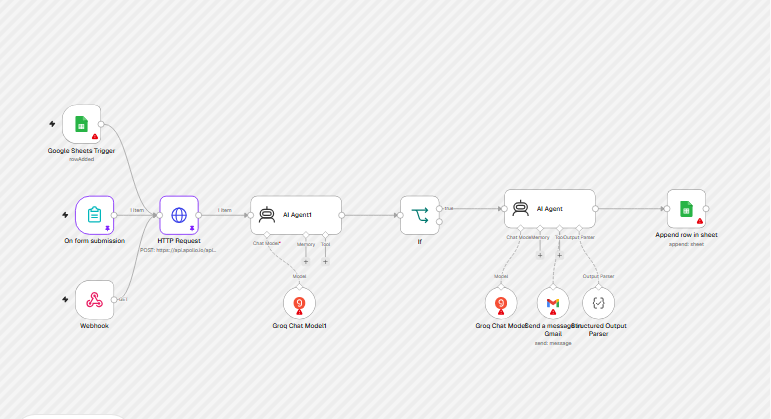
The canvas has one working path with three ways to start it:
- On form submission shows a “Contact us” form with four questions: full name, email address, phone number and LinkedIn profile URL.
- Webhook waits for another program to call it.
- Google Sheets Trigger checks a spreadsheet every minute for a new row.
All three connect to the same next node, HTTP Request, which asks Apollo to match the person. The result goes to AI Agent1, which scores the lead. If checks the score. For 6 or more, AI Agent writes and sends the email through Send a message in Gmail, and Append row in sheet saves the lead.
The problem is what each door hands over. The form gives fields named after its questions, such as What's your Full Name?. The HTTP Request node and the Append row in sheet node read exactly those names. A webhook call puts its data somewhere else, and a sheet row has columns such as Name and Email. For either of those, the Apollo call would receive empty values, and the sheet node would read from a form node that never ran. In practice, the form is the only door that works without edits.
One lead, start to finish
Here is an invented lead to make this concrete. Daniel Okafor, a data science manager at a company called Northwind Analytics, fills in the form. Apollo is asked to match him and, if it finds him, returns a block of data about him under the key person. The scoring agent receives only three facts from it: his name, his job title and his organization name. It does not receive the industry, although the prompt asks it to score the industry. It has to guess from the company name.
Suppose the model reads “Data Science Manager” and “Northwind Analytics” and answers 7. The If node turns the text into a number, compares it with 6 and lets Daniel through. The second agent writes a short, polite email that asks for a call, using the sample text in the prompt as a model, and the Gmail tool sends it to the email address that Apollo holds for Daniel. In this example that is the same address he typed, but the file does not guarantee it. Then the sheet gets a new row.
Now suppose a marketing intern at a bakery fills in the same form. The score is probably 1 or 2, the If node has nowhere to send the item, and the run ends. No email, no row, no record that the person ever contacted you. For an inbound form, that last part deserves a second thought: someone wrote to you and nothing came of it.
These two paths are an illustration of how the logic reads, not an output of the workflow. We did not run it.
Follow the data: what each of the 12 nodes does
The names below are the exact names in the JSON file, including the ones that are not very descriptive, such as AI Agent1. The file as we received it had no notes on the canvas. We added six (see the section on changes). They are reminders, not steps.
The three doors (3 nodes)
On form submission
A Form Trigger node titled “Contact us”, described as “get back to you”. It asks four questions: What’s your Full Name?, What is your email address? (an email field), What’s your phone number? (a number field) and What’s your Linkedin Profile URL. The first three are required. The question labels matter, because later expressions read them by their exact text, apostrophes included. If you rename a question, you break those expressions. Because the phone field is a number field, a leading zero is dropped when it is stored.
Webhook
A Webhook node with a path and default settings. We replaced the author’s path with lead-intake. When something calls it, the data arrives in the shape the caller chose, usually under a body key for a POST. The HTTP Request node does not look there. It expects the form’s field names. To use this door you must change the expressions or add a node that renames the fields first.
Google Sheets Trigger
A trigger that checks a sheet every minute for a new row (rowAdded). In the file, no document and no sheet are selected, so it cannot do anything yet and may stop you from activating the workflow until you select a sheet or remove the node. Its columns would be things like Name and Email, not the form’s long field names, so the Apollo step would get empty values. There is also a loop risk: if this node watches the same sheet that Append row in sheet writes to, every saved lead is a new row, which starts the workflow again.
Enrich and score (4 nodes)
HTTP Request
A POST call to https://api.apollo.io/api/v1/people/match with four query parameters: name, email, reveal_phone_number and linkedin_url, filled from the form. It authenticates with a Header Auth credential, where you store your Apollo key. Apollo’s documentation, which we read on November 20, 2026, says the key goes in an x-api-key header.
The third parameter is the problem. Apollo documents reveal_phone_number as a true-or-false switch, and says a webhook address is needed when you use it, unless you poll for the result. The template sends the lead’s own phone number as its value. We could not confirm how Apollo reacts to that. Either it ignores the value, or it treats it as a request to reveal a mobile number, which costs extra credits according to the same documentation. Neither is what the author intended. The sensible fix is to delete that parameter.
AI Agent1
The scoring agent. Its prompt says: score the lead from 1 to 10 on two criteria, industry match (5 points) and job title match (5 points), and return only a single digit, as a number. It receives the name, job title and organization name from Apollo’s answer, through $json.person, and uses employment_history[0] for the organization. It does not receive the industry. The prompt also says “a single digit between 1 and 10,” and 10 has two digits. Its answer arrives in a field called output.
Groq Chat Model1
The language model attached to the scoring agent. Its settings are empty: no model is chosen. Groq retires models regularly. Its deprecations page, which we read on November 20, 2026, lists several, among them two older Llama 3 models with an August 2025 shutdown date and llama-3.1-8b-instant with an August 16, 2026 date and a replacement named. Open the node, pick a model from the list your account shows today, and check Groq’s page before you rely on it.
If
A fork with one condition: Number($json.output) must be greater than or equal to 6. Only the true branch is connected. The comparison is strict about types, so a result that cannot be read as a number can stop the run or fall to the unconnected branch, depending on what the model said. The next section shows how Number() treats different answers.
Write, send and log (5 nodes)
AI Agent
The writing agent. Its prompt asks for “a short, professional, and polite outreach email to schedule a call”, gives a fixed layout and fills in the lead’s name, email, job title and organization. The layout includes a subject line, a greeting, one paragraph that introduces your company and one question asking whether the lead is free for a quick call this week. We replaced the author’s company details with placeholders. The prompt ends by telling the agent to use the Gmail tool to send mail, so sending is the agent’s decision, not a separate node that always runs.
Groq Chat Model
The model attached to the writing agent, again with no model chosen. Pick one, and consider choosing a different one from the scoring model if you want a stronger writer.
Send a message in Gmail
A Gmail node used as a tool. The recipient is fixed by an expression, $('HTTP Request').item.json.person.email, so the model cannot change who receives the message. That is a good design choice. The subject and the message body are filled by the model through $fromAI. The email is plain text. Note the source of the address: it is the email that Apollo returns for the person, not the one typed in the form. They are often the same, and when they are not, you would be writing to an address the person did not give you.
Structured Output Parser
A helper attached to the writing agent, with no settings. The agent has the “output parser” option switched on. Nothing later in the workflow reads a structured answer from the agent, so the parser adds a possible failure and no benefit. Open it, check what it asks the model to produce, and consider switching the option off.
Append row in sheet
A Google Sheets node that appends a row after the writing agent finishes. It fills six columns: Name, Email and Phone from the form node, Job Title and Organization from Apollo’s answer, and Linkedin URL from the form. The column is spelled Job Title with a space at the end, and the sheet header must match that exactly. The seventh column, Lead Potential, exists in the node’s list but is not filled, so the score is lost. Because the name, email, phone and LinkedIn values come from On form submission, this node can only work when the run started at the form.
The scoring prompt: what it asks, and where it guesses
A score from a language model is an opinion, not a measurement. The prompt does the right things for an opinion: it gives a rubric, caps each criterion at 5, and asks for a bare number. But three details make the result less reliable than it looks.
It scores something it cannot see. The first criterion is “industry match”, yet the data passed in contains no industry. The model sees a title and a company name. For a famous company it will probably guess well, and for a small unknown one it will guess. Apollo’s answer does contain industry information in the organization block, so you can add it to the prompt, for example Industry: {{ $json.person.organization.industry }}. We did not run the call, so check the field name in your own Apollo result.
It hard-codes one ideal customer. The rubric rewards AI, machine learning and data science professionals. Replace the two lists of examples with your own industries and titles, and keep the points structure.
It depends on the format of the answer. The If node runs Number() on whatever the model returns. We ran that function in plain JavaScript on sample answers:
| Model answer | Number() | Passes (6+) |
|---|---|---|
8 |
8 | yes |
8 with a line break |
8 | yes |
8/10 |
NaN | no |
Score: 8 |
NaN | no |
| empty answer | 0 | no |
So a model that adds the slightest explanation turns a good lead into “not a number”, and an empty answer becomes a 0 without any error. Neither case leaves a trace. After you pick a model, run the scoring node ten times on the same lead and look at the answers.
For a rubric you can defend, write down why each score exists. A short table helps a human reviewer too:
| Lead | Title points | Industry points | Total |
|---|---|---|---|
| Head of AI at an AI company | 5 | 5 | 10 |
| Data scientist at an analytics firm | 3 to 4 | 3 to 4 | 6 to 8 |
| Intern at an unrelated company | 0 to 2 | 0 to 2 | 0 to 4 |
These rows follow the template’s own rubric. Notice that a mid-level specialist at a related firm lands at 6 to 8, so the threshold of 6 lets almost every related profile through, and the cut-off only removes the clearly unrelated ones.
The email prompt, and the details you must replace
The writing agent’s prompt has a fixed layout that works as a template. Four details in the original belong to the author, and we replaced them with placeholders:
- the company name and the sentence about its services, now
YOUR_COMPANY_NAMEandYOUR_SERVICE_DESCRIPTION; - the sign-off name, now
YOUR_NAME; - the fixed subject line, now
YOUR_SUBJECT_LINE.
The email is meant to be short and polite, and the prompt contains no marketing numbers, which is a point in its favor. But the model fills the gap with words, and a model that writes in your name can say things you did not mean. Read the first twenty emails in your Gmail “Sent” folder before you trust it.
Also consider the order of events. The agent receives a layout that begins with “Send a message in Gmail”. It is told to use the tool. We do not know whether an agent will call the tool exactly once every time, or whether it may call it twice. Watch the first runs, and check your Sent folder for duplicates.
Get the workflow JSON
Open the box below to copy the JSON, or download the file. It contains the 12 working nodes above, connected as described, with placeholders for your sheet, your company details and your subject line, and 6 notes on the canvas. It contains none of your logins and none of the original author’s data.
Please read this first: this JSON is free and provided as is. n8n versions and installed nodes differ from one person to another, so it may not run correctly on your side without adjustments. We cannot test it on every setup. That is why this article includes a long section, Problems you may meet and how to fix them. And if you would rather not deal with any of it, you can request a custom workflow and we will come back to you with the next steps.
Click to show or hide the workflow JSON
Click inside the box, select the whole text, copy it, then paste it onto an empty n8n canvas. If selecting is awkward on your device, use the download link above.
{
  "meta": {
    "templateCredsSetupCompleted": true
  },
  "name": "AI lead scoring from a form with Apollo, Groq and Gmail",
  "tags": [],
  "nodes": [
    {
      "id": "d33856c0-ae76-494d-aa57-39ffe8de3852",
      "name": "On form submission",
      "type": "n8n-nodes-base.formTrigger",
      "position": [
        -540,
        -20
      ],
      "parameters": {
        "options": {},
        "formTitle": "Contact us",
        "formFields": {
          "values": [
            {
              "fieldLabel": "What's your Full Name?",
              "placeholder": "e.g. John Wich",
              "requiredField": true
            },
            {
              "fieldType": "email",
              "fieldLabel": "What is your email address?",
              "placeholder": "e.g. user@example.com",
              "requiredField": true
            },
            {
              "fieldType": "number",
              "fieldLabel": "What's your phone number?",
              "placeholder": "e.g. 1234567890",
              "requiredField": true
            },
            {
              "fieldLabel": "What's your Linkedin Profile URL"
            }
          ]
        },
        "formDescription": "get back to you"
      },
      "typeVersion": 2.2
    },
    {
      "id": "87e4f3a8-8f35-4320-9ddc-218bd8f1ccd0",
      "name": "HTTP Request",
      "type": "n8n-nodes-base.httpRequest",
      "position": [
        -320,
        -20
      ],
      "parameters": {
        "url": "https://api.apollo.io/api/v1/people/match",
        "method": "POST",
        "options": {},
        "sendQuery": true,
        "authentication": "genericCredentialType",
        "genericAuthType": "httpHeaderAuth",
        "queryParameters": {
          "parameters": [
            {
              "name": "name",
              "value": "={{ $json['What\\'s your Full Name?'] }}"
            },
            {
              "name": "email",
              "value": "={{ $json['What is your email address?'] }}"
            },
            {
              "name": "reveal_phone_number",
              "value": "={{ $json['What\\'s your phone number?'] }}"
            },
            {
              "name": "linkedin_url",
              "value": "={{ $json['What\\'s your Linkedin Profile URL'] }}"
            }
          ]
        }
      },
      "typeVersion": 4.2
    },
    {
      "id": "5aac3e51-fd45-4f7c-99e1-7b81b1a6ea8b",
      "name": "AI Agent",
      "type": "@n8n/n8n-nodes-langchain.agent",
      "position": [
        520,
        -40
      ],
      "parameters": {
        "text": "=You are a professional B2B sales assistant.\n\nCompose a short, professional, and polite outreach email to schedule a call with the following lead.\n\nTone: concise and respectful. The goal is to open a conversation and set up a meeting.\n\nUse this format:\n---\nSend a message in Gmail:\nTo: {{ $('HTTP Request').item.json.person.email }}\nSubject: YOUR_SUBJECT_LINE\n\nHi {{ $('HTTP Request').item.json.person.name }},\n\nI hope this message finds you well.\n\nI’m reaching out from YOUR_COMPANY_NAME—YOUR_SERVICE_DESCRIPTION. Given your role at {{ $('HTTP Request').item.json.person.employment_history[0].organization_name }}, I’d love to briefly connect and explore potential synergies.\n\nWould you be available for a quick call sometime this week?\n\nBest regards,  \nYOUR_NAME  \nYOUR_COMPANY_NAME\n---\n\nHere is the lead detail:\nName: {{ $('HTTP Request').item.json.person.name }}\nEmail: {{ $('HTTP Request').item.json.person.email }}\nJob Title: {{ $('HTTP Request').item.json.person.title }}\nOrganization: {{ $('HTTP Request').item.json.person.employment_history[0].organization_name }}\n\nInstructions:\nTools - Send a message in Gmail Tools for send mails",
        "options": {},
        "promptType": "define",
        "hasOutputParser": true
      },
      "typeVersion": 2
    },
    {
      "id": "02cd5fdd-1baa-4a03-8832-af83476eec98",
      "name": "Send a message in Gmail",
      "type": "n8n-nodes-base.gmailTool",
      "position": [
        600,
        200
      ],
      "parameters": {
        "sendTo": "={{ $('HTTP Request').item.json.person.email }}",
        "message": "={{ /*n8n-auto-generated-fromAI-override*/ $fromAI('Message', ``, 'string') }}",
        "options": {},
        "subject": "={{ /*n8n-auto-generated-fromAI-override*/ $fromAI('Subject', ``, 'string') }}",
        "emailType": "text"
      },
      "typeVersion": 2.1
    },
    {
      "id": "cae69208-18b5-493b-8f14-809e0180a868",
      "name": "Groq Chat Model",
      "type": "@n8n/n8n-nodes-langchain.lmChatGroq",
      "position": [
        480,
        200
      ],
      "parameters": {
        "options": {}
      },
      "typeVersion": 1
    },
    {
      "id": "fac878f8-18eb-482c-a889-5d694549af6c",
      "name": "Structured Output Parser",
      "type": "@n8n/n8n-nodes-langchain.outputParserStructured",
      "position": [
        720,
        200
      ],
      "parameters": {},
      "typeVersion": 1.3
    },
    {
      "id": "da7ad0ef-87ae-4da0-bee0-d464c7e33d3c",
      "name": "Append row in sheet",
      "type": "n8n-nodes-base.googleSheets",
      "position": [
        920,
        -40
      ],
      "parameters": {
        "columns": {
          "value": {
            "Name": "={{ $('On form submission').item.json[\"What's your Full Name?\"] }}",
            "Email": "={{ $('On form submission').item.json[\"What is your email address?\"] }}",
            "Phone": "={{ $('On form submission').item.json[\"What's your phone number?\"] }}",
            "Job Title ": "={{ $('HTTP Request').item.json.person.title }}",
            "Linkedin URL": "={{ $('On form submission').item.json[\"What's your Linkedin Profile URL\"] }}",
            "Organization": "={{ $('HTTP Request').item.json.person.employment_history[0].organization_name }}"
          },
          "schema": [
            {
              "id": "Name",
              "type": "string",
              "display": true,
              "required": false,
              "displayName": "Name",
              "defaultMatch": false,
              "canBeUsedToMatch": true
            },
            {
              "id": "Phone",
              "type": "string",
              "display": true,
              "required": false,
              "displayName": "Phone",
              "defaultMatch": false,
              "canBeUsedToMatch": true
            },
            {
              "id": "Email",
              "type": "string",
              "display": true,
              "required": false,
              "displayName": "Email",
              "defaultMatch": false,
              "canBeUsedToMatch": true
            },
            {
              "id": "Job Title ",
              "type": "string",
              "display": true,
              "required": false,
              "displayName": "Job Title ",
              "defaultMatch": false,
              "canBeUsedToMatch": true
            },
            {
              "id": "Organization",
              "type": "string",
              "display": true,
              "required": false,
              "displayName": "Organization",
              "defaultMatch": false,
              "canBeUsedToMatch": true
            },
            {
              "id": "Linkedin URL",
              "type": "string",
              "display": true,
              "required": false,
              "displayName": "Linkedin URL",
              "defaultMatch": false,
              "canBeUsedToMatch": true
            },
            {
              "id": "Lead Potential",
              "type": "string",
              "display": true,
              "required": false,
              "displayName": "Lead Potential",
              "defaultMatch": false,
              "canBeUsedToMatch": true
            }
          ],
          "mappingMode": "defineBelow",
          "matchingColumns": [],
          "attemptToConvertTypes": false,
          "convertFieldsToString": false
        },
        "options": {},
        "operation": "append",
        "sheetName": {
          "__rl": true,
          "mode": "name",
          "value": "Sheet1"
        },
        "documentId": {
          "__rl": true,
          "mode": "id",
          "value": "YOUR_GOOGLE_SHEET_ID"
        }
      },
      "typeVersion": 4.6
    },
    {
      "id": "b0c08c59-1116-44ed-914f-2e71e43d3208",
      "name": "AI Agent1",
      "type": "@n8n/n8n-nodes-langchain.agent",
      "position": [
        -100,
        -20
      ],
      "parameters": {
        "text": "=You are an expert lead qualifier.\n\nScore the lead from 1 to 10 based on these two criteria:\n\n— INDUSTRY MATCH (5 points max) —\n- 5 points: Industry is AI, Artificial Intelligence, Machine Learning, Data Science\n- 3-4 points: Industry is closely related (e.g., analytics, automation, enterprise AI tools)\n- 0-2 points: Unrelated industry\n\n— JOB TITLE MATCH (5 points max) —\n- 5 points: Decision-makers or influencers in AI (e.g., Head of AI, AI Director, CTO, AI Product Manager)\n- 3-4 points: Mid-level AI professionals (e.g., ML Engineer, Data Scientist)\n- 0-2 points: Not related to AI or junior roles\n\nReturn **only a single digit between 1 and 10** — no explanation, no labels, no extra text. and the data type must be a number\n\nLead details:\nName: {{ $json.person.name }}\nJob Title: {{ $json.person.title }}\nOrganization: {{ $json.person.employment_history[0].organization_name }}\n",
        "options": {},
        "promptType": "define"
      },
      "typeVersion": 2
    },
    {
      "id": "e4e59a80-4c68-4880-accd-bd3be08cb759",
      "name": "If",
      "type": "n8n-nodes-base.if",
      "position": [
        260,
        -20
      ],
      "parameters": {
        "options": {},
        "conditions": {
          "options": {
            "version": 2,
            "leftValue": "",
            "caseSensitive": true,
            "typeValidation": "strict"
          },
          "combinator": "or",
          "conditions": [
            {
              "id": "eb511082-5f34-4027-993b-a787340fc4ea",
              "operator": {
                "type": "number",
                "operation": "gte"
              },
              "leftValue": "={{Number($json.output)}}",
              "rightValue": 6
            }
          ]
        }
      },
      "typeVersion": 2.2
    },
    {
      "id": "7aeac238-77c1-43ec-a189-2b69e72f745c",
      "name": "Groq Chat Model1",
      "type": "@n8n/n8n-nodes-langchain.lmChatGroq",
      "position": [
        -20,
        200
      ],
      "parameters": {
        "options": {}
      },
      "typeVersion": 1
    },
    {
      "id": "fa0db3cb-6bdf-46f4-9135-d2b149ca15a1",
      "name": "Webhook",
      "type": "n8n-nodes-base.webhook",
      "position": [
        -540,
        180
      ],
      "parameters": {
        "path": "lead-intake",
        "options": {}
      },
      "typeVersion": 2
    },
    {
      "id": "e74c132d-0270-4585-ace8-0651fa4d9617",
      "name": "Google Sheets Trigger",
      "type": "n8n-nodes-base.googleSheetsTrigger",
      "position": [
        -560,
        -240
      ],
      "parameters": {
        "event": "rowAdded",
        "options": {},
        "pollTimes": {
          "item": [
            {
              "mode": "everyMinute"
            }
          ]
        },
        "sheetName": {
          "__rl": true,
          "mode": "list",
          "value": ""
        },
        "documentId": {
          "__rl": true,
          "mode": "list",
          "value": ""
        }
      },
      "typeVersion": 1
    },
    {
      "id": "ff9ef01d-7705-42d0-8f65-5e2a2405f882",
      "name": "Sticky Note",
      "type": "n8n-nodes-base.stickyNote",
      "typeVersion": 1,
      "position": [
        -600,
        -480
      ],
      "parameters": {
        "width": 250,
        "height": 170,
        "content": "## 1. Intake\n\nThe form trigger collects name, email, phone and LinkedIn URL. The Webhook and the Google Sheets Trigger also lead to the Apollo step, but only the form's field names match the expressions downstream.",
        "color": 5
      }
    },
    {
      "id": "d13c16ec-2f6e-4cae-a61b-f9ac1bfd50ba",
      "name": "Sticky Note1",
      "type": "n8n-nodes-base.stickyNote",
      "typeVersion": 1,
      "position": [
        -330,
        -480
      ],
      "parameters": {
        "width": 250,
        "height": 170,
        "content": "## 2. Enrich\n\nThe HTTP Request node asks Apollo to match the person. Add your Apollo API key through a Header Auth credential, never in the node.",
        "color": 5
      }
    },
    {
      "id": "24a73272-f2bb-4d48-977e-929030081d6d",
      "name": "Sticky Note2",
      "type": "n8n-nodes-base.stickyNote",
      "typeVersion": 1,
      "position": [
        -90,
        -480
      ],
      "parameters": {
        "width": 250,
        "height": 170,
        "content": "## 3. Score\n\nThe first AI Agent returns a number from 1 to 10 from job title and organization. The If node lets 6 or more continue. Lower scores stop here and are not logged.",
        "color": 2
      }
    },
    {
      "id": "e0af97fd-6c2b-4758-a1c8-e6d2ce00b2f5",
      "name": "Sticky Note3",
      "type": "n8n-nodes-base.stickyNote",
      "typeVersion": 1,
      "position": [
        190,
        -480
      ],
      "parameters": {
        "width": 250,
        "height": 170,
        "content": "## 4. Write and send\n\nThe second AI Agent writes the email and sends it through the Gmail tool to the email address Apollo returns for the person, which may differ from the one typed in the form. No human approves it first.",
        "color": 3
      }
    },
    {
      "id": "2455ba9e-a94e-4f0a-b7d1-a3a5f86119d2",
      "name": "Sticky Note4",
      "type": "n8n-nodes-base.stickyNote",
      "typeVersion": 1,
      "position": [
        880,
        -480
      ],
      "parameters": {
        "width": 250,
        "height": 170,
        "content": "## 5. Log\n\nAppend row in sheet saves the lead. The sheet needs these headers exactly, including the space after Job Title: Name, Phone, Email, Job Title , Organization, Linkedin URL, Lead Potential. The score is not written to Lead Potential.",
        "color": 6
      }
    },
    {
      "id": "3d6a6249-eb7c-4d5f-bc90-dacf6812cc59",
      "name": "Sticky Note5",
      "type": "n8n-nodes-base.stickyNote",
      "typeVersion": 1,
      "position": [
        -600,
        330
      ],
      "parameters": {
        "width": 640,
        "height": 330,
        "content": "## Before you run it\n\nReplace every YOUR_ value (sheet ID, company name, what you offer, your name, subject line). Connect your own Apollo header credential, Groq, Gmail and Google Sheets credentials, and choose a Groq model in both Groq nodes.\n\nThe Google Sheets Trigger has no document selected. Select one or delete the node. If it watches the same sheet that Append row in sheet writes to, every logged lead would start the flow again.\n\nThe workflow is saved inactive. Test with your own email address first, using the form's test URL.",
        "color": 7
      }
    }
  ],
  "settings": {
    "executionOrder": "v1"
  },
  "connections": {
    "If": {
      "main": [
        [
          {
            "node": "AI Agent",
            "type": "main",
            "index": 0
          }
        ]
      ]
    },
    "Webhook": {
      "main": [
        [
          {
            "node": "HTTP Request",
            "type": "main",
            "index": 0
          }
        ]
      ]
    },
    "AI Agent": {
      "main": [
        [
          {
            "node": "Append row in sheet",
            "type": "main",
            "index": 0
          }
        ]
      ]
    },
    "AI Agent1": {
      "main": [
        [
          {
            "node": "If",
            "type": "main",
            "index": 0
          }
        ]
      ]
    },
    "HTTP Request": {
      "main": [
        [
          {
            "node": "AI Agent1",
            "type": "main",
            "index": 0
          }
        ]
      ]
    },
    "Groq Chat Model": {
      "ai_languageModel": [
        [
          {
            "node": "AI Agent",
            "type": "ai_languageModel",
            "index": 0
          }
        ]
      ]
    },
    "Groq Chat Model1": {
      "ai_languageModel": [
        [
          {
            "node": "AI Agent1",
            "type": "ai_languageModel",
            "index": 0
          }
        ]
      ]
    },
    "On form submission": {
      "main": [
        [
          {
            "node": "HTTP Request",
            "type": "main",
            "index": 0
          }
        ]
      ]
    },
    "Google Sheets Trigger": {
      "main": [
        [
          {
            "node": "HTTP Request",
            "type": "main",
            "index": 0
          }
        ]
      ]
    },
    "Send a message in Gmail": {
      "ai_tool": [
        [
          {
            "node": "AI Agent",
            "type": "ai_tool",
            "index": 0
          }
        ]
      ]
    },
    "Structured Output Parser": {
      "ai_outputParser": [
        [
          {
            "node": "AI Agent",
            "type": "ai_outputParser",
            "index": 0
          }
        ]
      ]
    }
  }
}
Install it in twelve steps
- Create the sheet with the tab
Sheet1and the seven headers listed earlier. Copy the headers exactly, including the space afterJob Title. - Get the JSON from the box above or the download link.
- Import it. Open a new empty workflow in n8n, then paste the JSON onto the canvas or import it from a file.
- Check that the 12 working nodes appear, with 6 notes and no missing-node warning.
- Decide about the two extra doors. For a first test, delete
WebhookandGoogle Sheets Trigger, or at least disable them. - Create the Apollo credential. In n8n, make a Header Auth credential, name the header
x-api-keyand paste your key as the value. Attach it toHTTP Request. - Delete the
reveal_phone_numberparameter inHTTP Request, unless you know how you want to use it. - Create the Groq credential and attach it to both Groq nodes. Choose a current model in each.
- Connect Gmail and Google Sheets, then select your sheet in
Append row in sheetin place ofYOUR_GOOGLE_SHEET_ID. - Replace the placeholders in
AI Agent:YOUR_COMPANY_NAME,YOUR_SERVICE_DESCRIPTION,YOUR_NAMEandYOUR_SUBJECT_LINE. - Test with the form’s test address, opened from
On form submission. Use your own name and a second email address you control, and a LinkedIn address that exists. Watch each node’s output, one at a time. - Activate only when the test is clean, then switch to the form’s production address, and check the first real submissions.
What it will not do: limits, costs and trade-offs
- It does not ask a human before sending. The only safeguard is the score.
- It does not record rejected leads. Anyone who scores below 6 vanishes from the record.
- It does not save the score. You cannot later see why a lead was treated the way it was.
- It does not handle an Apollo miss. If Apollo finds nobody, the run stops with an error when the expressions read data that is not there. We showed in plain JavaScript that reading
person.employment_history[0]on an empty value throws an error. - It does not follow up. There is one email and no reminder.
- It does not deduplicate. The same person submitting twice is processed twice, and may be emailed twice.
- It costs per run. Each submission uses an Apollo lookup, two model calls and a Gmail send. Check each provider’s current price or allowance.
Personal data, consent and who you email
The form door has one real advantage over most outreach workflows in this series: the person chose to contact you. Replying to them is a normal thing to do. That does not remove the questions, though.
- The form says nothing about what you do with the data. It collects a name, an email address, a phone number and a LinkedIn address, and sends them to Apollo and to an AI service. If you publish the form, add a short notice that says so, and link to your privacy policy.
- The email may go to a different address. The recipient comes from Apollo’s record. If the person typed a personal address and Apollo returns a work address, the message reaches a place the person did not give you. Prefer the address from the form.
- The other doors may carry people who never asked. If you feed the webhook or the sheet with purchased or scraped lists, the same workflow becomes cold outreach, and different rules apply. See our guide on cold email compliance for small teams.
- You are responsible for the content of the emails. The model writes in your name.
- Keep the sheet private. It holds personal data.
This section is general information, not legal advice. Rules differ by country, and we do not claim that this workflow complies with any of them.
Problems you may meet and how to fix them
Each problem has three parts: what you see, why it happens, and what to do. Several come from our reading of the file and of the providers’ documentation, not from a run on live services.
1. The workflow will not activate
What you see: an error about a missing document or sheet when you switch it on. Why: Google Sheets Trigger has no document selected. Fix: select a sheet, disable the node, or delete it.
2. Apollo receives empty values when the run starts from the webhook or the sheet
What you see: an Apollo answer with no match, or an error. Why: HTTP Request reads the form’s field names, and the other two doors send different ones. Fix: add an Edit Fields node after each of those doors that renames its data to the form’s field names, or rewrite the expressions.
3. “Node On form submission hasn’t been executed” at the last node
What you see: the run reaches Append row in sheet and fails there. Why: that node reads the lead’s name, email, phone and LinkedIn from the form node by name, and the form did not run. Fix: read these values from HTTP Request or from an Edit Fields node that sits after all doors.
4. Apollo answers 401 or 403
What you see: an authorization error on HTTP Request. Why: the key is missing, wrong, or sent in a header with the wrong name. Apollo’s documentation names the header x-api-key. Fix: recheck the Header Auth credential, and check that your plan allows API access.
5. Apollo credits disappear faster than expected
What you see: your balance drops. Why: the documentation lists 1 to 9 credits per person, and a mobile number adds more. The template sends a phone number in the reveal_phone_number parameter, which is meant to be true or false. Fix: delete that parameter, and check your usage page after the first test.
6. “Cannot read properties of null” or “of undefined”
What you see: an expression error in AI Agent1 or AI Agent. Why: Apollo found nobody or returned a record without employment history, and expressions such as person.employment_history[0].organization_name read data that is not there. We reproduced this error message in plain JavaScript. Fix: put an If node after HTTP Request that continues only when person exists, and log the other cases in your sheet.
7. A Groq model error
What you see: an error that names a model, or no model at all. Why: neither Groq node has a model selected, and Groq retires models regularly. Fix: open both nodes, choose a current model from the list, and read Groq’s deprecations page before you commit.
8. No lead ever passes the threshold
What you see: good leads are scored but no email is sent. Why: the model answers with more than a number (8/10, Score: 8), Number() returns NaN, and the comparison fails. An empty answer becomes 0. Fix: look at the output of AI Agent1, tighten the prompt, or add a Code node that extracts the first number from the answer.
9. The same lead gets different scores on different runs
What you see: a lead scores 5 today and 7 tomorrow. Why: a language model is not deterministic, and the prompt hides the industry. Fix: add the industry to the prompt, lower the model’s temperature if your node offers it, and run the same lead ten times to see the spread.
10. A good lead is scored but no email arrives
What you see: If passes the lead and nothing is sent. Why: the writing agent decides whether to call the Gmail tool, and may write an email in its answer without calling it. Fix: open the agent’s execution log, check the tool call, and make the instruction stricter. A fixed Gmail node placed after the agent removes this uncertainty.
11. Two emails are sent to the same person
What you see: two messages in the Sent folder. Why: an agent can call a tool more than once, or the person submitted the form twice. Fix: check the Sent folder during testing, and add a lookup in your sheet that skips an address already present.
12. The email contains YOUR_COMPANY_NAME
What you see: the placeholder in a sent email. Why: you did not replace the placeholders in the writing agent’s prompt. Fix: replace all four, then test again. Send the first run to yourself.
13. The email goes to an address the person did not type
What you see: a work address received a message after the lead typed a personal one. Why: the recipient expression uses Apollo’s email. Fix: change sendTo to {{ $('On form submission').item.json["What is your email address?"] }}.
14. The Structured Output Parser raises an error
What you see: the writing agent fails with a message about the output format. Why: the parser is attached with no schema, and nothing in the flow uses its result. Fix: switch off the agent’s output parser option and delete the parser node.
15. Gmail refuses to send
What you see: an authorization error on the Gmail tool. Why: the credential expired or lacks permission. Fix: reconnect it in n8n and send one test email.
16. The row is added but a column is empty, or a new column appears
What you see: Job Title is empty or a second column named Job Title shows up. Why: the node writes to a column whose name ends with a space. Fix: make the header match exactly, or rename the column in the node and the sheet at once.
17. The Lead Potential column stays empty
What you see: no scores in the sheet. Why: the node never maps that column. Fix: add a value for it, such as {{ $('AI Agent1').item.json.output }}.
18. Emails keep going out after each saved lead
What you see: repeated runs, repeated emails. Why: Google Sheets Trigger watches the sheet that Append row in sheet writes to, so every saved lead is a new row. Fix: stop the workflow, remove the trigger or point it at a different sheet, and check your Sent folder.
19. The phone number is wrong or missing a zero
What you see: 7067599678 instead of 07067599678, or no international prefix. Why: the form’s phone field is a number field. Fix: change it to a text field in On form submission.
20. Renaming a form question breaks the flow
What you see: empty values after you changed a label. Why: expressions use the label text as the field name. Fix: after renaming, update every expression that uses the old label, in HTTP Request and in Append row in sheet.
21. The form works in test but not on your site
What you see: submissions from visitors do nothing. Why: the test address only works while the workflow is waiting in the editor. The production address works only when the workflow is active. Fix: activate the workflow and use the production address.
22. “I submitted the form and nothing happened”
What you see: no email, no row. Why: the score was below 6, and that branch is not connected. Fix: connect the false output of If to a node that logs the lead, and send yourself a notice if you want to review them.
Too much of a puzzle? Let us build or adapt it for you
This workflow touches five services, three doors and two prompts that speak in your name. If you would rather have it set up properly, we can help. We can:
- rewrite the intake so every door uses the same fields;
- replace the scoring rubric with your own ideal customer;
- log every lead, with its score, and add an approval step before anything is sent;
- handle Apollo misses, duplicates and Groq model changes;
- connect the result to your CRM.
Tell us what you need on the Request a Custom Workflow page, or write to support@leenlabs.site if this JSON fails on your setup. We fix our free workflows at no charge.
What we changed in the original template
We changed as little as we could, for three reasons: to remove another person’s data, to stop the prompt from speaking for a company that is not yours, and to make the canvas explain itself.
- Removed another person’s data. The file carried a real Google Sheet ID and its link, and a pinned sample of one person’s full Apollo record and one form submission with a real work email, company address and photo link. We removed the pinned data and replaced the ID with
YOUR_GOOGLE_SHEET_ID. We also removed credential references, the instance ID, the webhook IDs, the active flag and the template metadata, and replaced the webhook path withlead-intake. - Replaced the author’s company details in the writing agent’s prompt with
YOUR_COMPANY_NAME,YOUR_SERVICE_DESCRIPTION,YOUR_NAMEandYOUR_SUBJECT_LINE. - Pointed the sheet node at a placeholder by ID and tab name.
- Added six notes (five for the flow and one checklist), because the file had none although the description asks for them.
- Renamed the workflow to match this article.
What we did not change: the phone number sent to Apollo, the missing industry in the scoring prompt, the rubric, the missing models, the empty Google Sheets Trigger, the Webhook, the output parser, the recipient expression, the unconnected false branch, the missing score in the sheet and the trailing space in Job Title . They are described above so that you can decide.
Where the description and the file differ. The description mentions six notes that are not in the file, community nodes that are not in the file, a “form endpoint to update” that is not a setting in the file, and a score that is not saved. It also says the cost is free, which we could not verify.
What was verified, and what was not
Checked on the file itself. We read all 12 working nodes, the 6 notes and every connection. A script confirmed that every connection points to an existing node, that every node name used in an expression exists, that no credentials, webhook IDs, pinned data or Google Sheet IDs remain, that no HTML entity artifacts are in the JSON, and that five placeholders are the only values to replace.
Run outside n8n on simulated data. In plain JavaScript we ran the number conversion used by the If node on ten sample model answers (it returns NaN for 8/10, Score: 8 and **8**, and 0 for an empty answer), and we read an organization name from an empty person, a missing employment history and an empty object (each throws an error).
Checked against documentation. We read Apollo’s People Enrichment documentation for the parameters, the header name, the behavior of reveal_phone_number, the no-match response and the credit costs, and Groq’s deprecations page, both on November 20, 2026.
Not tested. No service was contacted. We did not import the file into n8n or run any node. We did not confirm what Apollo returns for a particular person, what the Groq models answer, how the writing agent uses the Gmail tool, how Google Sheets handles the trailing space, or how the form, the webhook and the sheet trigger behave in your n8n version. Not tested on live APIs. That is why we recommend a full test with your own accounts and your own email address before real leads reach it.
Changes worth making before you scale
- Use one entry format. Add an Edit Fields node after each door so that everything downstream reads the same fields.
- Delete
reveal_phone_number, unless you set up the webhook Apollo asks for. - Give the scoring model the industry, and write your own rubric.
- Store the score and the reason. Add
Lead Potentialand log leads that fail. - Send to the address from the form.
- Add an approval step for the first few weeks: save a draft, change a status cell, and send only approved rows.
- Add a duplicate check on the email address.
- Add a consent notice to the form and a way to opt out in the email.
Frequently asked questions
What is AI lead scoring?
It is the use of an AI model to rate how well a lead fits your ideal customer, usually as a number. In this workflow the model gives 1 to 10 based on job title and industry match. It is an opinion to review, not a measurement.
How does lead qualification automation work in n8n?
A trigger receives the lead, other nodes add information, a rule or a model decides whether the lead is worth your time, and later nodes act on the decision. This workflow does it with a form, Apollo, a Groq model, a fork, Gmail and Google Sheets.
Is Apollo free to use with n8n?
You can call Apollo from n8n with an HTTP Request node and an API key. What the free plan allows changes over time, so check Apollo’s current page. Its documentation says an enrichment can cost 1 to 9 credits per person.
Does this workflow send the email without my approval?
Yes. When a lead scores 6 or more, the writing agent can send the email on its own. The Telegram approval mentioned in the description is not in the file. See Changes worth making before you scale for an approval step.
Can I use another AI model than Groq?
Yes. The two Groq nodes are chat model nodes attached to the agents, and you can replace them with another chat model node that connects the same way. Keep the scoring answer to a bare number.
Why do some leads never get an email or a row in the sheet?
Because the leads that score below 6 stop at the If node, and its other branch is not connected. Connect it to a logging node to keep a record.
Is it legal to email form leads automatically?
That depends on your country and on what the form told the person. We are not lawyers and do not give legal advice. Add a clear notice to the form, keep records, and read the rules that apply to you.
Tools used in this workflow
The links below go to each tool’s home page, and some may be affiliate links, as explained in our Terms of Service. We do not link to Google Sheets or Gmail because we could not verify their home pages.
- n8n (may be an affiliate link): the automation platform that runs the workflow, available hosted or self-hosted.
- Apollo (may be an affiliate link): the contact database used for enrichment.
- Groq (may be an affiliate link): the service that runs the AI models for scoring and writing.
Suggested reading
If leads, outbound email and follow-up are your focus, these LeenLabs articles go well with this one.
Workflows
- B2B Sales Outreach Automation with n8n, Apollo and GPT: researches leads, drafts emails you approve in a sheet, then sends.
- Lead Generation Tool in n8n: Apify, AI and Gmail: a scraped list, a first email and a follow-up two days later.
- Email Outreach with n8n: AI, NocoDB and SMTP: a daily send with a follow-up date.
- Outreach Email Openers: n8n, Perplexity, Claude: researches each lead before writing.
- Cold Email Icebreakers with n8n, Apify and GPT: writes a first line from the prospect’s own website.
- Generate Sales Leads and Outreach Emails with n8n: finds a contact at each company and drafts the email, and never sends.
- How to Automate LinkedIn Lead Scoring and Outreach: scores each profile and writes drafts, and never sends.
- AI Email Automation for Outbound Outreach: personalizes the email and manages follow-ups from one sheet.
Guides
- B2B Lead Qualification Framework for Solo Sellers (No SDR): decide who deserves an email.
- Lead Follow-Up System: Recover Revenue From Your Pipeline: four lead states and a six-touch cadence.
- Cold Email Compliance for Small Teams: what to think about before you send.
- AI Cold Email That Does Not Sound Like AI: write the emails well.
Get more advanced automation and AI resources for business
A workflow article covers one template at a time. For people who want to go further, we will send more advanced resources on automation and AI in business, beyond what fits in a single workflow guide. Leave your email below and you will receive them as they are released.
Keep exploring
Browse more free n8n workflows from LeenLabs.
Prefer a ready-made workflow?
Replying to every contact-form lead by hand is a common time sink for a small business, and that is the kind of task a ready-made workflow can take over. The LeenLabs Marketplace is the home of paid n8n workflows for Small Business Owners. Each workflow is tested on an n8n instance before it is listed. Leave your email on the category page to be notified when new workflows are listed.
See Small Business Owners workflows See every marketplace category
Need this adapted to your own setup?
Tell us what you want to automate and we will come back to you with the next steps.