
Affiliate disclosure: some links in this article may be affiliate links. If you sign up through them, we may earn a commission at no extra cost to you. See our Terms of Service.
Someone fills in the contact form on your website. They are interested right now, and a fast, personal answer is worth more than a perfect one a day later. Most small teams answer when they find the time, and nobody checks whether the person ever replied. A short automated sequence can cover that gap: a first email within minutes, a pause, a check for an answer, and a second email only if the lead stayed silent.
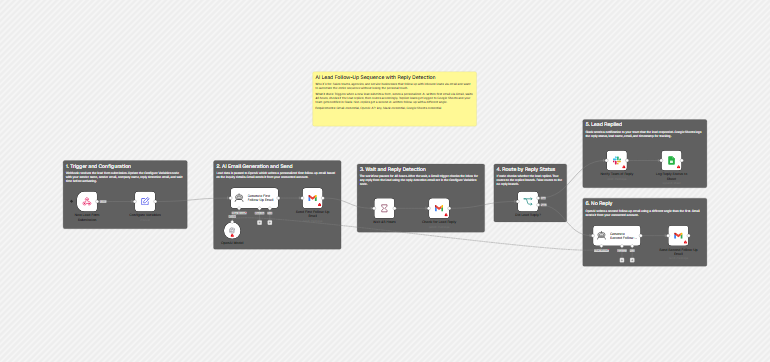
This free n8n workflow is that sequence in 12 working nodes. A form posts the lead to a webhook. An AI model writes a first email from the lead’s own message, and Gmail sends it. The workflow waits 48 hours, searches your Gmail for a message from that lead, and then splits. If there is a message, Slack alerts your team and Google Sheets gets a row. If not, the model writes a second email from a different angle and Gmail sends it. It is smaller than the cold-outreach templates in this series, and each lead runs in its own execution, so leads do not mix with each other.
It also has real problems. By our reading of the file, the branch that sends the second email never runs in the original, because the reply search returns nothing when nobody replied. The Google Sheets log has no columns set and receives Slack’s output, not the lead’s data. The Slack message asks for a field that the Gmail node does not return in its default mode. Two of the nine configuration values are never used. And the webhook that starts it all accepts anything from anyone, then writes to the address it was given. We explain each one, say what we changed, and mark what we could not test.
Read this first: an open webhook that sends email from your account
- Anyone who knows the webhook address can make your Gmail write to any address. The file has no authentication, no validation and no limit. The AI writes the text, and the person who posts the form chooses part of what it says.
- The AI can invent things. The second prompt suggests “a relevant case study” or “a limited-time offer”. The model has none to look at, so it may make one up, in an email sent in your name.
- Nobody approves the emails. Both go out as written.
- Replies are checked once, after the wait. A lead who writes back in the first hour is not noticed until the check, and your team is told then.
- Our changes are untested. We did not run the workflow in n8n. Test with your own addresses first.
This guide is not legal advice.
Template source: this workflow comes from the n8n Library at n8n.io, the public collection of workflow templates. We did not create it. LeenLabs prepared its JSON for publication and documented it. What we changed is listed in the section What we changed in the original template.
At a glance
- What it does: sends an AI-written first email to a new lead, waits, checks Gmail for a reply, and then either alerts Slack and logs a row, or sends a second email.
- Apps used: n8n, OpenAI, Gmail, Slack and Google Sheets.
- Trigger: a webhook that receives a POST from your form.
- Setup effort: medium. Four credentials, a form that posts the right fields, four placeholders, a Sheet with four headers and a Slack channel.
- Cost to run: the file is free. OpenAI, Google and Slack have their own current terms.
- Watch out for: the open webhook, the second email that does not run, the empty reply text in Slack, the log, invented claims and the detection window.
- Test status: the file was checked for structure and node references. We read the n8n documentation for the Gmail node. No service was contacted and the file was not run in n8n. Not tested on live APIs.
In this guide
- What a lead follow-up sequence is, and where this one fits
- Words you will see in this guide
- Apps and accounts this workflow talks to
- What to have ready before you import anything
- The description and the file do not agree
- How the workflow runs, from form to second email
- Follow the data: what each of the 12 nodes does
- The main problem: the second email does not run
- The detection window depends on the wait
- Get the workflow JSON
- Install it in twelve steps
- What it will not do: limits, costs and trade-offs
- What good lead follow-up emails look like
- Inbound leads, consent and what to put on your form
- Problems you may meet and how to fix them
- Too much of a puzzle? Let us build or adapt it for you
- What we changed in the original template
- What was verified, and what was not
- Changes worth making before you scale
- Frequently asked questions
- Tools used in this workflow
- Suggested reading
- Get more advanced automation and AI resources for business
- Keep exploring
What a lead follow-up sequence is, and where this one fits
A lead follow-up email is the message you send to someone who just asked to hear from you. It is different from a cold email: the person started the contact. That changes the tone (thank them, answer what they asked) and the legal footing, which we cover later. A follow-up email after no response is the second message, sent when the first got no answer, and a follow up sales email is the same thing with a commercial goal.
This guide is about inbound leads. If you write to people who never contacted you, read our B2B cold email sequence guide. If your leads live in a spreadsheet and you want follow-ups with a reply column, see Follow-Up Email Automation in n8n with Gmail and Sheets. And to decide which leads deserve an email at all, read AI Lead Scoring in n8n.
Words you will see in this guide
- Webhook: a web address that n8n listens on. When your form sends data to it, the workflow starts.
- POST request: the way a form sends data to a webhook.
- AI Agent: an n8n node that gives an AI model instructions. Here each agent has no tools: it only writes text.
- Wait node: pauses a run for a time. n8n stores the paused run and resumes it later.
- If node: sends items to a “true” or “false” exit.
- Expression: a small formula in double curly braces, such as
{{ $json.leadEmail }}. - Item: one record passing through the workflow. A node that returns no items ends that branch of the run.
Apps and accounts this workflow talks to
- n8n: hosts the webhook and the paused runs. The instance must stay online for days.
- OpenAI: one chat model node, shared by both agents. The file selects
gpt-4o-mini. - Gmail: sends both emails and searches for the reply.
- Slack: receives the “lead responded” message.
- Google Sheets: receives one row per reply.
What to have ready before you import anything
- A contact form that can send a POST request with a JSON body containing
name,email,companyandinquiry. - Credentials for OpenAI, Gmail, Slack and Google Sheets.
- A Google Sheet with the headers
Lead Name,Email,Reply StatusandDatein row 1. - A Slack channel for the alerts, and its channel ID.
- A sentence on your form telling people they will receive an email and a follow-up.
- Two addresses of your own to test with.
The description and the file do not agree
- Model name. The title says GPT-4o. The file selects
gpt-4o-mini. - Reply detection. One note says “a Gmail trigger checks the inbox” using the reply detection email. The file uses a normal Gmail node that searches by the lead’s address. The value
replyDetectionEmailis not used anywhere, and neither issenderEmail. - The Sheet log. The description says Google Sheets logs the reply status, name, email and timestamp. In the original the Sheet node has no document, no tab and no columns, and it receives the output of the Slack node, not the lead’s data.
- The no-reply branch. The description says non-replies get a second email. By our reading it does not run (explained below).
- “Check if the lead replied.” The workflow checks for any message from the lead’s address in the last two days, which includes messages that are not replies to your email.
- Slack content. The message includes
$json.text. In its default mode the Gmail node does not return the message text.
How the workflow runs, from form to second email
New Lead Form Submissionreceives the POST.Configure Variablescopies the form fields and your own settings into one item.Generate First Follow-Up Emailwrites the first email andSend First Follow-Up Emailsends it.Wait 48 Hourspauses the run.Check for Lead Replysearches Gmail, andDid Lead Reply?routes the result.- If replied:
Notify Team of ReplythenLog Reply Status to Sheet. - If not:
Generate Second Follow-Up EmailthenSend Second Follow-Up Email.
Everything after the first email depends on step 5, which is where the main problem sits.
Follow the data: what each of the 12 nodes does
The names below are the exact names in the JSON file. Seven notes on the canvas are not counted. Statements about what happens at run time come from our reading of the file and the documentation, not from a run.
New Lead Form Submission
A Webhook node that listens for a POST at the path lead-form. It has no authentication, no origin limit and no validation. n8n shows a test address and a production address for a webhook, and the production one only works once the workflow is active. Anyone who learns the address can post any name and email, and the workflow will write to that email. See the first problem in the list below for what to do about it.
Configure Variables
A Set node that builds one item with nine values: senderName, senderEmail, companyName, replyDetectionEmail, waitTimeBetweenEmails (48), and four lead fields copied from the form body: leadName, leadEmail, leadCompany, leadInquiry. The first four were placeholders in a special format that we replaced with YOUR NAME, YOUR_SENDER_EMAIL, YOUR COMPANY NAME and YOUR_REPLY_EMAIL. Two of them, senderEmail and replyDetectionEmail, are not read by any node. The emails are sent from the Gmail account in your credential, whatever you type there. If the form omits a field, we did not check what the expression returns.
Generate First Follow-Up Email
An AI Agent node. Its prompt gives the lead’s name, email, company and inquiry, and asks for a warm email of 3 to 4 paragraphs that thanks the lead, addresses the inquiry and offers a call or more information, returning only the body. The agent has no tools and no memory of your prices, services or calendar, so “addresses their specific inquiry” is whatever the model can say from one message. It may promise something you do not offer. The lead’s text goes straight into the prompt.
OpenAI Model
The chat model node, set to gpt-4o-mini with default options. It is connected to both agents, so the first and second emails use the same model. Choose the model in your own credential; we did not compare models. Current prices and availability are in OpenAI’s own documentation.
Send First Follow-Up Email
A Gmail node that sends the text to leadEmail as plain text, with your sender name. The subject is Re: Your inquiry about followed by your company name. Two oddities: the “Re:” makes a first email look like an answer inside an existing thread, which it is not, and the subject shows your company, not the lead’s topic. Change both. We did not check how Gmail threads these messages.
Wait 48 Hours
A Wait node that pauses the run for the number of hours in waitTimeBetweenEmails. The name says 48 hours even if you change the value. n8n stores the paused run and resumes it later, so the instance must survive that time. We did not test restarts. The wait also decides the detection window, as the next node shows.
Check for Lead Reply
A Gmail node set to “Get Many” with a limit of 10. Its filters are: sender equal to leadEmail, and received after the current time minus 2 days. By the n8n documentation, the sender filter takes an address or part of a name, and the default “Simplify” mode returns message IDs, labels and headers (From, To, CC, BCC, Subject), not the body. Three consequences. First, with the default 48-hour wait, the window starts about when the first email was sent, so it works. With another wait it does not (see the table below). Second, any message from that address in the window counts, an out-of-office reply or an unrelated question included. Third, if there is no message, the node returns no items, and a node with no items ends its branch. We added “Always Output Data” to this node so that the next node still runs. Without it, the workflow ends silently on the no-reply path.
Did Lead Reply?
An If node. The condition is that $json.id is not empty, in strict type mode. A real message has an id, so it goes to the “true” exit, which leads to Slack. An empty item (which “Always Output Data” produces) has no id, so it goes to “false” and to the second email. If the lead sent several messages, the node runs once per message, up to 10, so Slack and the Sheet can get several rows for one lead.
Notify Team of Reply
A Slack message to a channel. Its text starts with a party emoji and includes the lead’s name, company and email from Configure Variables, and $json.text as the reply. Because of the Simplify mode above, there is no text in the item, so the “Reply:” line is probably blank. To get the body, turn Simplify off in Check for Lead Reply, then check the field name in the output. We left this unchanged because we could not run it. The original channel was empty. We set YOUR_SLACK_CHANNEL_ID.
Log Reply Status to Sheet
A Google Sheets node set to “append”. In the original it had no document, no tab and no column mapping. It is connected after Slack, so its input is the Slack response, which has none of the lead’s fields. We pointed it to YOUR_GOOGLE_SHEET_ID and YOUR_SHEET_TAB_NAME and added a mapping for four columns: Lead Name, Email, Reply Status (the text “Replied”) and Date (the current time), reading the lead’s data from Configure Variables. If Slack fails, the log is not written, because it comes after Slack.
Generate Second Follow-Up Email
The second AI Agent. Its prompt asks for a brief email that “takes a different angle (for example, share a relevant case study, offer a resource, or mention a limited-time offer)”, acknowledges that the lead is busy, gives next steps and stays within 2 to 3 paragraphs. The model has no case study and no offer to look at. Unless you give it real ones in the prompt, it may invent them, and a made-up offer in a sales email is a problem for you, not for the model. Replace the examples with real assets, or with “do not mention any offer or case study”.
Send Second Follow-Up Email
A Gmail node that sends the second text to the same address with the subject Quick follow-up: and your company name. It is a new email, not a reply in the same thread. Nothing records that it was sent, there is no third email, and no node watches for an answer after it.
The main problem: the second email does not run
The no-reply path is the point of the workflow, so this deserves its own section. After the wait, Check for Lead Reply searches Gmail. If the lead is silent, the search finds nothing. In n8n, a node that returns no items passes nothing on, and the nodes after it do not run for that branch; a thread on the n8n community forum describes this and suggests turning on “Always Output Data” for the node. In the original file that setting is off. So for a silent lead, the run would end at Check for Lead Reply: no Did Lead Reply?, no second email. The workflow would only ever send the first email, and the only visible effect would be a quiet finished execution.
We set “Always Output Data” on that node. With it, the silent case produces one empty item, which has no id, so Did Lead Reply? sends it down the “false” exit. We did not run this in n8n, so test it: add yourself as a lead, do not reply, and wait for the second email (use a short wait while testing).
The detection window depends on the wait
The reply search looks for messages received after “now minus 2 days”, evaluated when the search runs, after the wait. The value is fixed at 2 days, while the wait is a variable. This is arithmetic on the file, not a test:
| Wait | Window starts | Effect |
|---|---|---|
| 24 hours | 24 hours before the first email | Messages from the lead received before your first email count as replies. |
| 48 hours | About when the first email was sent | Matches the intention. |
| 72 hours | 24 hours after the first email | A reply in the first 24 hours is not seen, and the lead gets a second email anyway. |
If you change the wait, change the window to the same number of hours. Also note that a message from a colleague of the lead, or from another address, is not seen.
Get the workflow JSON
Open the box below to copy the JSON, or download the file. It contains the 12 working nodes above, connected as described, with placeholders for your details, and 7 notes on the canvas. It contains none of your logins and none of the original author’s identifiers.
Please read this first: this JSON is free and provided as is. n8n versions and installed nodes differ from one person to another, so it may not run correctly on your side without adjustments. We cannot test it on every setup. That is why this article includes a long section, Problems you may meet and how to fix them. And if you would rather not deal with any of it, you can ask us to adapt it.
Click to show or hide the workflow JSON
Click inside the box, select the whole text, copy it, then paste it onto an empty n8n canvas. If selecting is awkward on your device, use the download link above.
{
  "meta": {
    "templateCredsSetupCompleted": true
  },
  "name": "AI lead follow-up emails with reply detection",
  "tags": [],
  "nodes": [
    {
      "id": "f75cfa63-5819-4d29-97c1-595e92422c96",
      "name": "New Lead Form Submission",
      "type": "n8n-nodes-base.webhook",
      "position": [
        -368,
        448
      ],
      "parameters": {
        "path": "lead-form",
        "options": {},
        "httpMethod": "POST"
      },
      "typeVersion": 2.1
    },
    {
      "id": "275a6593-5ca4-4ca4-b9e2-2ab01a641430",
      "name": "Configure Variables",
      "type": "n8n-nodes-base.set",
      "position": [
        -96,
        448
      ],
      "parameters": {
        "options": {},
        "assignments": {
          "assignments": [
            {
              "id": "1",
              "name": "senderName",
              "type": "string",
              "value": "YOUR NAME"
            },
            {
              "id": "2",
              "name": "senderEmail",
              "type": "string",
              "value": "YOUR_SENDER_EMAIL"
            },
            {
              "id": "3",
              "name": "companyName",
              "type": "string",
              "value": "YOUR COMPANY NAME"
            },
            {
              "id": "4",
              "name": "replyDetectionEmail",
              "type": "string",
              "value": "YOUR_REPLY_EMAIL"
            },
            {
              "id": "5",
              "name": "waitTimeBetweenEmails",
              "type": "number",
              "value": 48
            },
            {
              "id": "6",
              "name": "leadName",
              "type": "string",
              "value": "={{ $json.body.name }}"
            },
            {
              "id": "7",
              "name": "leadEmail",
              "type": "string",
              "value": "={{ $json.body.email }}"
            },
            {
              "id": "8",
              "name": "leadCompany",
              "type": "string",
              "value": "={{ $json.body.company }}"
            },
            {
              "id": "9",
              "name": "leadInquiry",
              "type": "string",
              "value": "={{ $json.body.inquiry }}"
            }
          ]
        }
      },
      "typeVersion": 3.4
    },
    {
      "id": "3ba03f03-6b64-480c-9979-81c0d6e95012",
      "name": "Generate First Follow-Up Email",
      "type": "@n8n/n8n-nodes-langchain.agent",
      "position": [
        352,
        432
      ],
      "parameters": {
        "text": "=Write a personalized follow-up email for a new lead.\n\nLead Details:\n- Name: {{ $json.leadName }}\n- Email: {{ $json.leadEmail }}\n- Company: {{ $json.leadCompany }}\n- Inquiry: {{ $json.leadInquiry }}\n\nSender Details:\n- Name: {{ $json.senderName }}\n- Company: {{ $json.companyName }}\n\nWrite a warm, professional email that:\n1. Thanks them for their interest\n2. Addresses their specific inquiry\n3. Offers to schedule a call or provide more information\n4. Keeps it concise (3-4 paragraphs)\n\nReturn ONLY the email body text, no subject line.",
        "options": {
          "systemMessage": "You are a professional sales assistant who writes personalized, warm follow-up emails to leads. Write in a friendly but professional tone."
        },
        "promptType": "define"
      },
      "typeVersion": 3.1
    },
    {
      "id": "49c1a9fd-e393-4a3e-9629-a587dd60a5ca",
      "name": "OpenAI Model",
      "type": "@n8n/n8n-nodes-langchain.lmChatOpenAi",
      "position": [
        320,
        592
      ],
      "parameters": {
        "model": {
          "__rl": true,
          "mode": "id",
          "value": "gpt-4o-mini"
        },
        "options": {},
        "builtInTools": {}
      },
      "typeVersion": 1.3
    },
    {
      "id": "d1295ec8-47ab-4e73-9dc3-4a23aa838ed7",
      "name": "Send First Follow-Up Email",
      "type": "n8n-nodes-base.gmail",
      "position": [
        688,
        432
      ],
      "parameters": {
        "sendTo": "={{ $(\"Configure Variables\").item.json.leadEmail }}",
        "message": "={{ $json.output }}",
        "options": {
          "senderName": "={{ $(\"Configure Variables\").item.json.senderName }}"
        },
        "subject": "=Re: Your inquiry about {{ $(\"Configure Variables\").item.json.companyName }}",
        "emailType": "text"
      },
      "typeVersion": 2.2
    },
    {
      "id": "6927e43e-483c-43bf-9df4-ab9365763ab9",
      "name": "Wait 48 Hours",
      "type": "n8n-nodes-base.wait",
      "position": [
        1024,
        480
      ],
      "parameters": {
        "unit": "hours",
        "amount": "={{ $(\"Configure Variables\").item.json.waitTimeBetweenEmails }}"
      },
      "typeVersion": 1.1
    },
    {
      "id": "16e907ed-6bf5-4062-8cea-f808c375056d",
      "name": "Notify Team of Reply",
      "type": "n8n-nodes-base.slack",
      "position": [
        2112,
        256
      ],
      "parameters": {
        "text": "=🎉 Lead responded!\n\n*Lead:* {{ $(\"Configure Variables\").item.json.leadName }} ({{ $(\"Configure Variables\").item.json.leadCompany }})\n*Email:* {{ $(\"Configure Variables\").item.json.leadEmail }}\n*Reply:* {{ $json.text }}\n\nCheck your inbox to continue the conversation!",
        "select": "channel",
        "channelId": {
          "__rl": true,
          "mode": "id",
          "value": "YOUR_SLACK_CHANNEL_ID"
        },
        "otherOptions": {}
      },
      "typeVersion": 2.4
    },
    {
      "id": "8e0240f3-d4d9-4b67-b2e7-26bbd3d4341e",
      "name": "Log Reply Status to Sheet",
      "type": "n8n-nodes-base.googleSheets",
      "position": [
        2368,
        256
      ],
      "parameters": {
        "operation": "append",
        "sheetName": {
          "__rl": true,
          "mode": "name",
          "value": "YOUR_SHEET_TAB_NAME"
        },
        "documentId": {
          "__rl": true,
          "mode": "id",
          "value": "YOUR_GOOGLE_SHEET_ID"
        },
        "columns": {
          "mappingMode": "defineBelow",
          "value": {
            "Lead Name": "={{ $(\"Configure Variables\").item.json.leadName }}",
            "Email": "={{ $(\"Configure Variables\").item.json.leadEmail }}",
            "Reply Status": "Replied",
            "Date": "={{ $now.toISO() }}"
          },
          "matchingColumns": [],
          "schema": [
            {
              "id": "Lead Name",
              "type": "string",
              "display": true,
              "removed": false,
              "required": false,
              "displayName": "Lead Name",
              "defaultMatch": false,
              "canBeUsedToMatch": true
            },
            {
              "id": "Email",
              "type": "string",
              "display": true,
              "removed": false,
              "required": false,
              "displayName": "Email",
              "defaultMatch": false,
              "canBeUsedToMatch": true
            },
            {
              "id": "Reply Status",
              "type": "string",
              "display": true,
              "removed": false,
              "required": false,
              "displayName": "Reply Status",
              "defaultMatch": false,
              "canBeUsedToMatch": true
            },
            {
              "id": "Date",
              "type": "string",
              "display": true,
              "removed": false,
              "required": false,
              "displayName": "Date",
              "defaultMatch": false,
              "canBeUsedToMatch": true
            }
          ],
          "attemptToConvertTypes": false,
          "convertFieldsToString": false
        }
      },
      "typeVersion": 4.7
    },
    {
      "id": "9ca4ff75-79df-40d2-a696-ddfb130c8fe7",
      "name": "Sticky Note",
      "type": "n8n-nodes-base.stickyNote",
      "position": [
        736,
        -112
      ],
      "parameters": {
        "color": "#FFF995",
        "width": 768,
        "height": 256,
        "content": "## AI Lead Follow-Up Sequence with Reply Detection\n\n**Who it's for:** teams that answer inbound leads by email.\n\n**What it does:** a form posts to the webhook, an AI model writes a first email that Gmail sends, the workflow waits, Gmail searches for a message from the lead, and then either Slack and Google Sheets record the reply or a second AI-written email is sent.\n\n**Requirements:** Gmail, OpenAI, Slack and Google Sheets credentials. Replace the YOUR_ placeholders before activating."
      },
      "typeVersion": 1
    },
    {
      "id": "59f899cf-cb9a-420d-b788-58dae0b06571",
      "name": "Sticky Note1",
      "type": "n8n-nodes-base.stickyNote",
      "position": [
        -432,
        304
      ],
      "parameters": {
        "color": "#606060",
        "width": 582,
        "height": 320,
        "content": "## 1. Trigger and Configuration\n\nThe webhook receives the form submission. Fill in Configure Variables before activating. Note: the sender email and reply email values are not used by any node."
      },
      "typeVersion": 1
    },
    {
      "id": "51dec2a6-254b-4ba1-8ea7-8a321694a2fb",
      "name": "Sticky Note2",
      "type": "n8n-nodes-base.stickyNote",
      "position": [
        272,
        304
      ],
      "parameters": {
        "color": "#606060",
        "width": 598,
        "height": 416,
        "content": "## 2. AI Email Generation and Send\n\nLead data is passed to OpenAI which writes a personalized first follow-up email based on the inquiry details. Gmail sends it from your connected account."
      },
      "typeVersion": 1
    },
    {
      "id": "cd2d981d-1755-46b4-9865-a810ce3c73df",
      "name": "Sticky Note3",
      "type": "n8n-nodes-base.stickyNote",
      "position": [
        933,
        320
      ],
      "parameters": {
        "color": "#606060",
        "width": 598,
        "height": 320,
        "content": "## 3. Wait and Reply Detection\n\nThe workflow pauses for the number of hours set in Configure Variables. A Gmail node then searches the inbox for messages from the lead received in the last 2 days. It is set to output an empty item when nothing is found, so that the no-reply branch can run."
      },
      "typeVersion": 1
    },
    {
      "id": "af4f39e1-7ee0-43e9-b054-76eeb7b963c5",
      "name": "Send Second Follow-Up Email",
      "type": "n8n-nodes-base.gmail",
      "position": [
        2400,
        608
      ],
      "parameters": {
        "sendTo": "={{ $(\"Configure Variables\").item.json.leadEmail }}",
        "message": "={{ $json.output }}",
        "options": {
          "senderName": "={{ $(\"Configure Variables\").item.json.senderName }}"
        },
        "subject": "=Quick follow-up: {{ $(\"Configure Variables\").item.json.companyName }}",
        "emailType": "text"
      },
      "typeVersion": 2.2
    },
    {
      "id": "7e0f0778-34fd-4ffa-9c51-fb42994e56a7",
      "name": "Generate Second Follow-Up Email",
      "type": "@n8n/n8n-nodes-langchain.agent",
      "position": [
        2048,
        608
      ],
      "parameters": {
        "text": "=Write a second follow-up email for a lead who has not responded to the first email.\n\nLead Details:\n- Name: {{ $(\"Configure Variables\").item.json.leadName }}\n- Company: {{ $(\"Configure Variables\").item.json.leadCompany }}\n- Original Inquiry: {{ $(\"Configure Variables\").item.json.leadInquiry }}\n\nSender Details:\n- Name: {{ $(\"Configure Variables\").item.json.senderName }}\n- Company: {{ $(\"Configure Variables\").item.json.companyName }}\n\nWrite a brief, friendly follow-up that:\n1. Takes a different angle (e.g., share a relevant case study, offer a resource, or mention a limited-time offer)\n2. Acknowledges they might be busy\n3. Provides clear value or next steps\n4. Keeps it short (2-3 paragraphs)\n\nReturn ONLY the email body text, no subject line.",
        "options": {
          "systemMessage": "You are a professional sales assistant who writes brief, value-focused follow-up emails. Take a different angle from the first email and keep it concise."
        },
        "promptType": "define"
      },
      "typeVersion": 3.1
    },
    {
      "id": "db9bbb98-66ca-4881-b1aa-45450ce97567",
      "name": "Did Lead Reply?",
      "type": "n8n-nodes-base.if",
      "position": [
        1696,
        448
      ],
      "parameters": {
        "options": {},
        "conditions": {
          "options": {
            "version": 2,
            "leftValue": "",
            "caseSensitive": true,
            "typeValidation": "strict"
          },
          "combinator": "and",
          "conditions": [
            {
              "id": "1",
              "operator": {
                "type": "string",
                "operation": "notEmpty"
              },
              "leftValue": "={{ $json.id }}",
              "rightValue": ""
            }
          ]
        }
      },
      "typeVersion": 2.3
    },
    {
      "id": "d6c71fc6-8fbf-44c0-b385-d74d9c6f8dfd",
      "name": "Sticky Note4",
      "type": "n8n-nodes-base.stickyNote",
      "position": [
        1584,
        320
      ],
      "parameters": {
        "color": "#606060",
        "width": 342,
        "height": 272,
        "content": "## 4. Route by Reply Status\n\nIf node checks whether the lead replied. True routes to the replied branch. False routes to the no reply branch."
      },
      "typeVersion": 1
    },
    {
      "id": "d98befd3-1033-4cd6-b88d-3c03339bf362",
      "name": "Sticky Note5",
      "type": "n8n-nodes-base.stickyNote",
      "position": [
        2000,
        112
      ],
      "parameters": {
        "color": "#606060",
        "width": 582,
        "height": 320,
        "content": "## 5. Lead Replied\n\nSlack notifies your team. Google Sheets appends a row with lead name, email, reply status and date. Columns: Lead Name, Email, Reply Status, Date."
      },
      "typeVersion": 1
    },
    {
      "id": "014c08ab-6dd1-4ab9-964c-2b3890586ecf",
      "name": "Sticky Note6",
      "type": "n8n-nodes-base.stickyNote",
      "position": [
        2000,
        480
      ],
      "parameters": {
        "color": "#606060",
        "width": 582,
        "height": 320,
        "content": "## 6. No Reply\n\nOpenAI writes a second follow-up email using a different angle than the first. Gmail sends it from your connected account."
      },
      "typeVersion": 1
    },
    {
      "id": "1a842e3f-5389-43b5-ba36-1b68bbef6948",
      "name": "Check for Lead Reply",
      "type": "n8n-nodes-base.gmail",
      "position": [
        1280,
        480
      ],
      "parameters": {
        "limit": 10,
        "filters": {
          "sender": "={{ $(\"Configure Variables\").item.json.leadEmail }}",
          "receivedAfter": "={{ $now.minus(2, \"days\").toISO() }}"
        },
        "operation": "getAll"
      },
      "typeVersion": 2.2,
      "alwaysOutputData": true
    }
  ],
  "active": false,
  "pinData": {},
  "settings": {
    "binaryMode": "separate",
    "executionOrder": "v1"
  },
  "connections": {
    "OpenAI Model": {
      "ai_languageModel": [
        [
          {
            "node": "Generate First Follow-Up Email",
            "type": "ai_languageModel",
            "index": 0
          },
          {
            "node": "Generate Second Follow-Up Email",
            "type": "ai_languageModel",
            "index": 0
          }
        ]
      ]
    },
    "Wait 48 Hours": {
      "main": [
        [
          {
            "node": "Check for Lead Reply",
            "type": "main",
            "index": 0
          }
        ]
      ]
    },
    "Did Lead Reply?": {
      "main": [
        [
          {
            "node": "Notify Team of Reply",
            "type": "main",
            "index": 0
          }
        ],
        [
          {
            "node": "Generate Second Follow-Up Email",
            "type": "main",
            "index": 0
          }
        ]
      ]
    },
    "Configure Variables": {
      "main": [
        [
          {
            "node": "Generate First Follow-Up Email",
            "type": "main",
            "index": 0
          }
        ]
      ]
    },
    "Check for Lead Reply": {
      "main": [
        [
          {
            "node": "Did Lead Reply?",
            "type": "main",
            "index": 0
          }
        ]
      ]
    },
    "Notify Team of Reply": {
      "main": [
        [
          {
            "node": "Log Reply Status to Sheet",
            "type": "main",
            "index": 0
          }
        ]
      ]
    },
    "New Lead Form Submission": {
      "main": [
        [
          {
            "node": "Configure Variables",
            "type": "main",
            "index": 0
          }
        ]
      ]
    },
    "Send First Follow-Up Email": {
      "main": [
        [
          {
            "node": "Wait 48 Hours",
            "type": "main",
            "index": 0
          }
        ]
      ]
    },
    "Generate First Follow-Up Email": {
      "main": [
        [
          {
            "node": "Send First Follow-Up Email",
            "type": "main",
            "index": 0
          }
        ]
      ]
    },
    "Generate Second Follow-Up Email": {
      "main": [
        [
          {
            "node": "Send Second Follow-Up Email",
            "type": "main",
            "index": 0
          }
        ]
      ]
    }
  }
}
Install it in twelve steps
- Create the Google Sheet with the headers
Lead Name,Email,Reply Status,Datein row 1. - Create credentials for OpenAI, Gmail, Slack and Google Sheets in n8n.
- Import the JSON into a new workflow.
- In
Configure Variables, replace the four placeholders. Remember that two of them are unused. - Select your credential in the OpenAI Model node, both Gmail nodes, the Gmail search node, the Slack node and the Sheets node.
- Select your document and tab in
Log Reply Status to Sheet, and your channel inNotify Team of Reply. - Edit both prompts: remove the case study and limited-time offer ideas, and add one sentence about what you really offer.
- Change the first subject so it does not start with “Re:”.
- Protect the webhook (see the first problem below) before you publish the address on a real form.
- For a first test, set
waitTimeBetweenEmailsto a small number such as 0.1 (6 minutes), and send a test POST from a tool such as curl with your own second address. - Check that the first email arrives. Then do not reply, and check that the second email arrives. Do the test again, this time replying, and check Slack and the Sheet.
- Set the wait back to 48, make sure the detection window matches, activate the workflow and put the production webhook address on your form.
What it will not do: limits, costs and trade-offs
- No protection against abuse. No authentication, no captcha, no rate limit, no duplicate check.
- No approval step. Both emails go out as the model wrote them.
- Only two emails and one check. After the second email nothing watches for an answer.
- Replies are not tied to a thread. Any message from the lead’s address counts.
- No opt-out handling. There is no unsubscribe line and no stop list.
- Sending limits. Google Workspace documents a limit of 2,000 messages per day per user, and 500 for trial accounts. We did not verify limits for personal accounts.
- Cost. Each lead uses two model calls. We did not measure tokens. Check OpenAI’s current prices.
- An instance that must stay on. Every lead is a run paused for two days.
What good lead follow-up emails look like
The AI writes the emails here, but you should know what you want. These two samples of our own are the standard to compare the model’s output against. Replace the brackets, and only mention things that are true.
First email: within minutes of the form (about 100 words)
Subject: Your question about [topic]
Hi [First name],
Thank you for writing to us about [their request, in their words]. Here is a first answer: [one or two sentences that really answer it].
If it helps, we can talk for 15 minutes this week. Here is my calendar: [link]. Or reply with a good time.
[Your name], [company]
Follow-up after no response (about 60 words)
Subject: Still useful? [Topic]
Hi [First name],
I wrote two days ago about [topic]. I know inboxes fill up, so here is the shortest version: [one sentence on the next step].
If this is no longer a priority, just tell me and I will not write again.
[Your name]
For more on writing a follow-up email after no response, a follow-up email after no response sample like the one above works because it is short, refers to the first email, adds one next step and gives a polite way out. Read AI Cold Email That Does Not Sound Like AI to tune the prompts, and Lead Follow-Up System: Recover Revenue From Your Pipeline for a longer cadence.
Inbound leads, consent and what to put on your form
This section is a starting point, not legal advice. A person who fills in your form has asked you to get in touch, which is a stronger position than a cold email, but it does not cover everything. Rules differ by country and by who the recipient is, and we did not research every country for this guide.
- Say what happens. On the form, say that the person will receive an email and a follow-up, and who sends them.
- Offer an opt-out. Put a line in both emails and honor it. The UK ICO says the right to object to direct marketing is absolute for personal data under UK GDPR; other countries have their own rules.
- Do not let strangers sign people up. Because the webhook accepts any address, a person can enter someone else’s email. A confirmation step (the person must click a link before any email is sent) protects third parties and your sending reputation.
- Keep the follow-up proportionate. One follow-up after a requested answer is different from a long sales sequence.
Our cold email compliance guide covers the basics for small teams.
Problems you may meet and how to fix them
Each problem has three parts: what you see, why it happens, and what to do. Many come from our reading of the file’s logic and from the providers’ documentation, not from a run on live services.
1. Strangers can make your Gmail write to anyone
What you see: emails go to people who never asked, or the form is flooded with fake leads. Why: the webhook has no authentication, validation or limit. Fix: add header authentication to the Webhook node, put a captcha on the form, check the email format, and send the first email only after a confirmation click.
2. The second email never arrives
What you see: silent leads get one email and nothing more. Why: the reply search returns no items and the branch ends. Fix: keep “Always Output Data” on Check for Lead Reply, then test with a short wait and no reply.
3. The same lead gets a second email although they replied
What you see: a reply was sent and the second email still goes out. Why: the check runs once, after the wait, and only looks at the last 2 days. A reply sent from another address is not seen. Fix: use the same address on the form as the lead will write from, and align the window with the wait.
4. Replies from the first hours are missed
What you see: you reply to a lead yourself and the workflow writes again. Why: the window is fixed at 2 days while the wait is a variable. Fix: set the received-after hours to match waitTimeBetweenEmails.
5. Slack shows an empty reply
What you see: the line “Reply:” has nothing after it. Why: the Gmail node is in Simplify mode, which returns IDs, labels and headers, not the body. Fix: turn Simplify off in Check for Lead Reply, run once, and use the field that holds the body, or use the snippet field if it is present.
6. Slack is notified several times for one lead
What you see: two or three alerts for one person. Why: the If node runs once per found message, up to 10. Fix: add a node that keeps only the first message, or use a Limit node before the If.
7. The Sheet gets rows with empty cells
What you see: a row appears but the columns are blank. Why: the headers differ from Lead Name, Email, Reply Status and Date. Fix: copy the four headers exactly into row 1.
8. The Sheet log is missing after a Slack error
What you see: Slack fails and no row is written. Why: the log node comes after Slack. Fix: connect the log node to the “true” exit directly, or enable “Continue on fail” on Slack.
9. The webhook returns 404 or nothing starts
What you see: the form posts and no run appears. Why: the production address only works when the workflow is active, and the test address only works while you listen. Fix: activate the workflow and use the production address in the form.
10. The lead’s name or message is blank in the email
What you see: “Hi ,” or an empty inquiry. Why: the form sends other field names, or sends form data instead of JSON. Fix: check the body in the first execution and match the four names name, email, company, inquiry.
11. The email promises something you do not offer
What you see: a discount, a call slot or a case study that does not exist. Why: the model fills gaps because the prompt asks for a case study or offer. Fix: remove those examples, add facts, and add “do not invent offers, prices or case studies”.
12. The email contains text from the form that you did not expect
What you see: the model repeats or obeys odd text in the inquiry. Why: the lead’s message goes into the prompt. Fix: tell the model to treat the inquiry as data, keep the agent without tools, and read the output before you scale.
13. The first email looks like a reply
What you see: the subject starts with “Re:”. Why: the file adds it to the subject. Fix: remove “Re:” and put the lead’s topic in the subject.
14. Both emails land in spam
What you see: the lead says they saw nothing. Why: reputation and content matter, not the workflow. Fix: set up SPF, DKIM and DMARC on your domain, avoid links and attachments in the first email, and send from a real mailbox.
15. The same lead submits twice
What you see: two sequences, two first emails. Why: there is no duplicate check. Fix: look up the email in your Sheet before the first email, and stop if it exists.
16. Waiting runs disappear
What you see: a lead gets the first email and never the second. Why: a restart, update or cleanup of old executions may affect waiting runs. We did not test it. Fix: keep a record of each send in the Sheet, and run a daily check for leads without a second email.
17. The wait name says 48 but the value is different
What you see: the node is called Wait 48 Hours but waits 72. Why: the name is not linked to the variable. Fix: rename the node when you change the value.
18. Gmail stops sending
What you see: errors after many sends. Why: sending limits. Google documents limits and says exceeding them can block sending for up to 24 hours. Fix: stay below them, and check your account type.
19. Nothing alerts you when the workflow fails
What you see: an error and no message. Why: there is no Error Trigger in this file. Fix: create a second workflow with an Error Trigger and a Slack message, and set it as this workflow’s error workflow.
Too much of a puzzle? Let us build or adapt it for you
This workflow sends email in your name from a public address, so a mistake is seen by real people. If you would rather have it set up properly, we can help. We can:
- protect the webhook and add a confirmation step;
- make the reply check reliable and tied to the right thread;
- add an approval step before the first email;
- write prompts that use your real offers and facts;
- add a third touch, a stop list and an error alert.
Tell us what you need on the Request a Custom Workflow page, or write to support@leenlabs.site if this JSON fails on your setup. We fix our free workflows at no charge.
What we changed in the original template
We changed as little as we could, to remove identifiers, to replace placeholders that n8n could not use, and to fix the two places where the workflow could not do what it says.
- Removed identifiers: the instance ID, the workflow ID and version ID, and the webhook IDs on five nodes.
- Replaced the four placeholders in
Configure VariableswithYOUR NAME,YOUR_SENDER_EMAIL,YOUR COMPANY NAMEandYOUR_REPLY_EMAIL. - Set
YOUR_SLACK_CHANNEL_IDonNotify Team of Reply. - Turned on “Always Output Data” for
Check for Lead Reply, so the no-reply branch can run. - Filled in
Log Reply Status to Sheetwith the placeholdersYOUR_GOOGLE_SHEET_IDandYOUR_SHEET_TAB_NAMEand a mapping for four columns. - Corrected four notes: the main note, note 1 (unused values), note 3 (a Gmail node, not a trigger, and the empty-item setting) and note 5 (columns).
- Renamed the workflow to match this article.
What we did not change: the open webhook, the “Re:” subject, the prompts, the 2-day window, the model, the Slack text and the Simplify mode.
What was verified, and what was not
Checked on the file itself. We read all 12 working nodes, the 7 notes and every connection. A script confirmed that every connection points to an existing node and that no identifiers remain.
Checked against documentation. The n8n Gmail documentation for “Get Many”: the sender and received-after filters, and Simplify returning IDs, labels and headers. An n8n community thread on empty outputs, which says a node with no results ends the flow and suggests “Always Output Data”.
Worked out by arithmetic. The detection window for waits of 24, 48 and 72 hours.
Not tested. No service was contacted. We did not import the file into n8n or run any node. We did not confirm the exact fields of the Gmail output when Simplify is off, how the Sheets node behaves with our mapping, how the webhook handles missing fields, or whether waiting runs survive a restart.
Changes worth making before you scale
- Protect the webhook and confirm the email address.
- Make the detection window follow the wait.
- Turn Simplify off and use the real reply text in Slack.
- Remove the invented-offer ideas from the second prompt.
- Remove “Re:” from the first subject.
- Add an opt-out line and a stop list.
- Add an error alert and a duplicate check.
Frequently asked questions
How do I write a follow-up email after no response?
Refer to your first email in one line, add one concrete next step and give a polite way to say no. See the sample in the templates section.
How long should I wait before following up with a lead?
This workflow waits 48 hours. We have no verified data on the best delay, so test it on your own leads.
What is a follow up sales email?
Any email after the first that moves a sales conversation forward. The second email in this workflow is one.
Does this workflow send the second email if the lead replied?
It is built not to: a found message sends the run to Slack and the Sheet instead. The check only looks once and only for messages from the lead’s address.
Can it write to leads who never filled in my form?
Yes, if someone posts their address to the webhook. That is why protection and confirmation matter.
Which model does it use?
gpt-4o-mini, despite the GPT-4o in the title.
Is this lead follow-up workflow free?
The JSON is free. n8n, OpenAI, Google and Slack have their own terms and prices.
Can I use it with a different form tool?
Yes, if the tool can send a POST with the four fields. We did not test any specific form tool.
Tools used in this workflow
The links below go to each tool’s home page, and some may be affiliate links, as explained in our Terms of Service. We do not link to Google Sheets or Gmail because we could not verify their home pages.
- n8n (may be an affiliate link): the automation platform that runs the workflow, hosted or self-hosted.
- OpenAI: provides the model that writes the emails.
- Slack: receives the reply alert.
Suggested reading
If inbound follow-up, outreach and lead qualification are your focus, these LeenLabs articles go well with this one.
Workflows
- Follow-Up Email Automation in n8n with Gmail and Sheets: follow-ups from a sheet with a reply column.
- AI Lead Scoring in n8n: Apollo, Groq and Gmail: qualify before you write.
- B2B Cold Email Templates in n8n: 3-Email Sequence: a three-email sequence with reply detection for cold lists.
- B2B Sales Outreach Automation with n8n, Apollo and GPT: drafts you approve before sending.
- AI Email Automation for Outbound Outreach: personalizes and manages follow-ups from one sheet.
- Email Outreach with n8n: AI, NocoDB and SMTP: a daily send with a follow-up date.
- Generate Sales Leads and Outreach Emails: leads and first emails in one flow.
- Lead Generation Tool in n8n: Apify, AI and Gmail: a scraped list, a first email and a follow-up.
Guides
- Lead Follow-Up System: Recover Revenue From Your Pipeline: four lead states and a six-touch cadence.
- Lead Qualification Framework for Solo Sellers: decide who deserves a reply first.
- AI Cold Email That Does Not Sound Like AI: write the emails well.
- Cold Email Compliance for Small Teams: what to think about before you send.
Get more advanced automation and AI resources for business
A workflow article covers one template at a time. For people who want to go further, we will send more advanced resources on automation and AI in business, beyond what fits in a single workflow guide. Leave your email below and you will receive them as they are released.
Keep exploring
Browse more free n8n workflows from LeenLabs.
Prefer a ready-made workflow?
Answering every inquiry quickly is the kind of task a small business owner has little time for, and a ready-made workflow can take it over. The LeenLabs Marketplace is the home of paid n8n workflows for Small Business Owners. Each workflow is tested on an n8n instance before it is listed. Leave your email on the category page to be notified when new workflows are listed.
Browse the Small Business Owners category Go to the workflow marketplace
Need this adapted to your own setup?
Tell us what you want to automate and we will come back to you with the next steps.