
Affiliate disclosure: some links in this article may be affiliate links. If you sign up through them, we may earn a commission at no extra cost to you. See our Terms of Service.
A single cold email rarely does the job. The person is busy, the message lands between two meetings, and silence follows. A short sequence works better: a first email that says who you are and what you offer, a second that adds one new piece of value, and a third that closes politely. The sequence has to stop the moment the person answers, and every email has to go out on a day and at a time that looks human. Doing that by hand for thirty prospects means a spreadsheet, a calendar full of reminders and a lot of discipline.
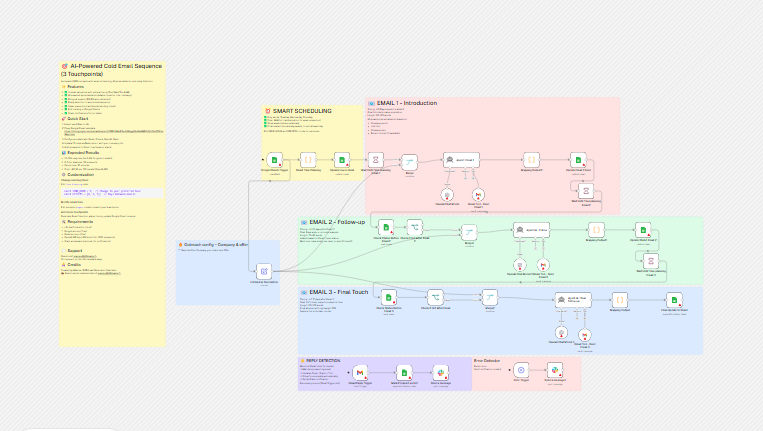
This free n8n workflow tries to do all of it. You add a prospect as a row in a Google Sheet. The workflow works out three send dates, waits for the first one, asks an AI model to write email 1 and sends it through Gmail, waits again, writes email 2, waits again, writes email 3, and records each step in the sheet. A second, independent part watches your inbox, and when a reply arrives it marks the sender as “hot” in the sheet and posts a message to Slack. It is the largest template in this series so far, with 34 working nodes and 8 notes on one canvas.
It is also a template whose description promises more than the file delivers. It says the sequence stops when someone replies; the nodes that check for a reply read the whole sheet, not one prospect. It says the emails go out at J0, J+3 and J+7; the code picks three days that depend on the weekday on which the row was added. It says the workflow adapts to whether an email was opened; nothing in it tracks opens. And in its original form the reply detector added a new row to the sheet for any unrelated email that reached your inbox, which could start a cold sequence aimed at the sender. In this guide we explain every step in plain English, show where it breaks, say what we changed, and tell you what we could and could not test.
Read this first: three emails to real people, sent by a model
- Nobody approves the emails. The AI agent writes each email and sends it through Gmail on its own. The recipient address is chosen by the model, not fixed by the workflow.
- The reply detector looks at your whole inbox. Every new inbox message passes through it. In the original file, a sender who was not in your sheet was added as a new row, which could start a sequence for them. We changed that node so it only updates existing rows.
- Emails 2 and 3 may be written for the wrong person. The status check reads every row of the sheet, then pairs the first non-hot row with your company details. With more than one prospect in the sheet, that row is not necessarily the prospect the run is about.
- The send dates are not J+3 and J+7. We ran the planning code on invented dates. The gaps range from 2 to 7 days depending on the weekday.
- The promised results are not verified. The description quotes reply rates, a number of hot leads and a cost per hundred emails “based on real usage”. We could not check any of it and we do not repeat it.
- The prompts contain no unsubscribe line, and the sequence knows nothing about consent or about the country of the recipient.
Start with a spare mailbox and two prospects that are your own addresses. This guide is not legal advice.
Template source: this workflow comes from the n8n Library at n8n.io, the public collection of workflow templates. We did not create it. LeenLabs prepared its JSON for publication and documented it. What we changed is listed in the section What we changed in the original template.
At a glance
- What it does: when a row is added to a Google Sheet, plans three send dates, writes and sends three emails with AI through Gmail, updates the sheet after each one, and marks a prospect as hot, with a Slack message, when a reply arrives.
- Apps used: n8n, Google Sheets, OpenAI, Gmail and Slack (optional).
- Triggers: a Google Sheets “row added” check every minute, a Gmail check of the inbox every minute, and an Error Trigger.
- Setup effort: high. A sheet with 15 headers, four credentials, a Slack channel, six values to replace and a sequence you must test over several days.
- Cost to run: the file is free. OpenAI, Google and Slack have their own current terms. The description quotes a price per hundred emails that we could not verify.
- Watch out for: automatic sending, the reply detector on your whole inbox, emails 2 and 3 reading the whole sheet, send dates that vary by weekday, JSON that the model must return perfectly, and no unsubscribe or consent handling.
- Test status: the file was checked for structure and every node reference was matched against the node names. The scheduling code was run outside n8n on invented dates, and two small expressions were run in plain JavaScript. No service was contacted and the file was not imported into n8n. Not tested on live APIs.
In this guide
- What a cold email sequence is, and what this one adds
- B2B cold email templates: what each of the three emails should do
- Words you will see in this guide
- Apps and accounts this workflow talks to
- What to have ready before you import anything
- The description and the file do not agree
- Three flows on one canvas
- When do the emails really go out? We ran the planning code
- Follow the data: what each of the 34 nodes does
- The main problem: a hot reply does not stop the right prospect
- Get the workflow JSON
- Install it in fourteen steps
- What it will not do: limits, costs and trade-offs
- Consent, GDPR and sending cold email to businesses
- Problems you may meet and how to fix them
- Too much of a puzzle? Let us build or adapt it for you
- What we changed in the original template
- What was verified, and what was not
- Changes worth making before you scale
- Frequently asked questions
- Tools used in this workflow
- Suggested reading
- Get more advanced automation and AI resources for business
- Keep exploring
What a cold email sequence is, and what this one adds
A cold email is a first message to someone who does not know you, sent to start a business conversation. A sequence is a planned series of such messages, with gaps between them, that stops when the person replies. A cold email follow-up is any message after the first, and a follow up sales email is the same thing with a commercial goal. The reasoning is simple: the first email often arrives at a bad moment, so a polite second and third give the person a fair chance to answer.
What this workflow adds is automation of the three hard parts. First, timing: it only sends on Tuesday, Wednesday and Thursday, in the morning, with a few minutes of randomness. Second, writing: three AI agents, one per email, each with a prompt that sets the length, the angle and the tone. Third, stopping: a reply detector that is supposed to end the sequence. The first two mostly work as described, as far as we can tell from reading. The third has the problems listed above, which is why most of this guide is about it.
B2B cold email templates: what each of the three emails should do
The AI writes the emails in this workflow, but you decide what it aims for, and a good B2B cold email template is the best way to judge what it produces. Here are three samples of our own that follow the prompts’ structure. Replace the brackets, keep them short and read each one aloud before you send anything. Use them as a standard to compare the model’s output against, or paste them into the prompts as examples.
Email 1: introduce one benefit (about 80 to 120 words)
Subject: [One concrete benefit] for [their company]
Hi [First name],
I saw that you lead [function] at [company]. Teams in [sector] often tell us that [one specific problem] takes more time than it should.
We help [type of company] [one concrete result], without [one common objection]. Nothing for you to install.
Would a 15-minute call next week be worth it, or is this not a priority? Either answer is fine.
[Your name], [company]
Email 2: one new angle (about 70 to 90 words)
Subject: Re: [One concrete benefit] for [their company]
Hi [First name],
I wrote a few days ago about [topic]. To make it concrete: [one short example of a result you obtained for a similar company, only if it is true].
Would it help if I sent a one-page summary of how it works? If the timing is wrong, just tell me.
[Your name]
Email 3: close politely (about 60 to 100 words)
Subject: Last note about [topic]
Hi [First name],
This is my last message. I will assume the timing is not right and close this on my side.
If [benefit] becomes a priority, reply to this email and I will pick it up. If you would rather not hear from me again, say so and I will stop.
[Your name]
For a cold email template for HR tech and demo booking, the same structure works: in email 1, replace the benefit with a specific HR outcome you can support (for example, less time spent on a named recurring task), and make the call to action a short demo, not a general conversation. In email 2, offer a recorded walkthrough, and in email 3, say that you will stop. Do not quote numbers you cannot prove. The same goes for a Singapore cold email template for B2B: the wording does not change much by country. What changes is the legal framework, which we cover in the section on consent and GDPR.
Words you will see in this guide
- Trigger: the node that starts a run. This workflow has three: a Google Sheets watcher, a Gmail watcher and an Error Trigger.
- Polling: checking for new data at a regular interval, here every minute.
- AI Agent: an n8n node that gives an AI model instructions and tools. Here three agents write the three emails, and each one has a Gmail tool it may call.
- Tool: an action an agent may take. Here, sending an email.
$fromAI: a way to let the model fill in a field of a tool. In this file the model fills in the recipient, the subject and the body.- Wait node: pauses a run until a given time. n8n stores the paused run and resumes it later.
- Merge node: combines two streams of items. “Combine by position” pairs item 1 with item 1, item 2 with item 2, and so on.
- Code node: runs a small JavaScript program. Four are used here.
- Hot prospect: in this workflow, a sender whose email matches a row; the row gets the status
hot. - Expression: a small formula in double curly braces, such as
{{ $json.Email }}.
Apps and accounts this workflow talks to
- n8n: runs it all. Waiting runs are stored by n8n, so the instance must stay available for days.
- Google Sheets: holds the prospects and every status. Eight nodes read or write it.
- OpenAI: three chat model nodes, one per email. The file selects
gpt-4.1-minifor each. - Gmail: sends the three emails and watches the inbox for replies.
- Slack (optional): posts the “prospect replied” message and the error message.
What to have ready before you import anything
- A Google Sheet with one tab and these headers in row 1, written exactly:
Email,First Name,Last Name,Job_title,company,company size,Sector,LinkedIn URL,Statut Prospect,email1_at,email2_at,email3_at,email1_Statut,email2_Statut,email3_Statut. - Credentials for Google Sheets, Gmail, OpenAI and, if you want alerts, Slack.
- Three sentences for the company node: your company name, your name and title, and what you help clients achieve.
- A spare mailbox, or at least two prospects that are your own addresses, to test with.
- A decision about consent and opt-out for your market, before you add a real prospect.
The description and the file do not agree
When a template and its description tell different stories, the file wins, because the file is what runs. Here is what we found.
- Timing. The description says emails go out at J0, J+3 and J+7, with waits of 3 and 4 days. The planning code uses offsets of 0, 3 and 6 days with a minimum gap of 2 days, and moves each date to the next Tuesday, Wednesday or Thursday. The real gaps range from 2 to 7 days.
- Reply detection. The description says the sequence stops automatically when someone replies. The check before email 2 and email 3 reads all rows of the sheet.
- Open tracking. The description and the notes say email 2 “adapts based on Email 1 open status”. The workflow has no way to know whether an email was opened. The prompts show a field called
email1_Statutas “opened”, but that field only holds the text “Sent at” and a date. - Bilingual support. The workflow does not detect language. The prompts tell the model to write in French if the prospect “appears French-speaking” and in English otherwise, which is the model’s guess.
- Spam prevention. The description counts random send times as spam prevention. A few random minutes do not decide whether a message reaches the inbox. Content, your domain and your sending history matter more.
- “Based on real usage.” The reply rates, the hot leads and the cost in the description cannot be checked from the file, and the file does not measure them.
- Sheet template and contact. The main note pointed to the author’s own Google Sheet template and to the author’s email address, and presented the author’s business. We removed both.
- Two spreadsheets. One node,
Update row in sheet, pointed to a different spreadsheet from all the others, a copy named as a test. We pointed every node to the same placeholder.
Three flows on one canvas
- The sequence flow.
Google Sheets Triggernotices a new row and starts two branches.Smart Time Planningcomputes the dates and the sheet is updated.Wait Until Time planning Email 1pauses until the first date.Entreprise Descriptionholds your company details. AfterMerge, the first agent writes and sends email 1. Then a second wait, a sheet check, a second agent, a third wait, another sheet check and a third agent follow. - The reply flow.
Gmail Reply Triggerchecks the inbox every minute.Mark Prospect as Hotupdates the sender’s row, andSend a messageposts to Slack. - The error flow.
Error Triggersends the failure to Slack throughSend a message1.
The first two flows are linked only through the word hot in the Statut Prospect column. That is both the strength of the design and the source of its worst problems.
When do the emails really go out? We ran the planning code
The node Smart Time Planning is the only place where dates are decided, so we extracted its code and ran it in Node.js outside n8n, with the server set to UTC and invented prospects added at 8:00 on the week of 23 November 2026. The code uses offsets of 0, 3 and 6 days, a minimum gap of 2 days between emails, a send time of 9:00 plus a random 0 to 119 minutes, and it moves every date to the next Tuesday, Wednesday or Thursday. In our runs the minutes came out between 10:17 and 10:25, because of the random part.
| Row added on | Email 1 | Email 2 | Email 3 | Gaps in days |
|---|---|---|---|---|
| Monday | Tuesday | Thursday | Tuesday (next week) | 1.1, 2, 5 |
| Tuesday, 8:00 | Tuesday (same day) | Tuesday (next week) | Thursday | 0.1, 7, 2 |
| Wednesday | Wednesday (same day) | Tuesday (next week) | Thursday | 0.1, 6, 2 |
| Thursday | Thursday (same day) | Tuesday (next week) | Thursday | 0.1, 5, 2 |
| Friday | Tuesday | Thursday | Tuesday | 4.1, 2, 5 |
| Saturday | Tuesday | Thursday | Tuesday | 3.1, 2, 5 |
| Sunday | Tuesday | Thursday | Tuesday | 2.1, 2, 5 |
| Tuesday, 15:00 | Wednesday 25 Nov | Tuesday 1 Dec | Thursday 3 Dec | (next day, 6, 2) |
Three things stand out. The gaps are not 3 and 4 days: they range from 2 to 7. A row added on Tuesday morning gets email 1 the same morning, only minutes to hours after you typed it. And the second email can be as close as 2 days after the first, or as far as 7. When we ran the same weekday pattern with the server in Asia/Singapore, the weekdays were the same for rows added Monday to Wednesday. We did not run every weekday in that timezone. The code uses the server’s timezone, and it normally uses the current moment, since a created_at field is absent from the sheet. If you want a true “day 0, day 3, day 7” rhythm, change the code, and test it again.
Follow the data: what each of the 34 nodes does
The names below are the exact names in the JSON file. One had a space at the end in the original (Check if Hot After Email 3), which we removed. Most nodes are repeated three times, once per email, so we explain the first of each kind in detail and then say what is different. A few facts come from our reading of the file and are marked as such.
Start and planning (4 nodes)
Google Sheets Trigger
Starts the sequence. It watches one tab of your sheet for a new row and checks every minute. It starts the run for each new row, so it also starts one for a row added by another node. That matters for the reply flow, explained below. We replaced the original document and tab with YOUR_GOOGLE_SHEET_ID and YOUR_SHEET_TAB_NAME.
Smart Time Planning
A Code node with the scheduling logic described in the previous section. It outputs email1_at, email2_at and email3_at. Its comments were French and partly damaged by a text replacement in the original; we cleaned the comment lines and left the logic as it was.
Update row in sheet
A Google Sheets node that writes the three planned dates back to the prospect’s row and blanks the three status cells. By our reading it finds the row by the Email value. In the original it pointed to a different spreadsheet, a copy named as a test, from all the other nodes. We pointed it to the same placeholder as the rest. What it returns to the next node decides whether the prospect’s fields (First Name, company and so on) reach the first agent. We did not verify that.
Entreprise Description
A Set node that holds three values: companyName, senderName and a description of your company or product. In the file they read YOUR COMPANY NAME, YOUR NAME – YOUR TITLE and YOUR VALUE PROPOSITION. Replace all three. Every email is written from these lines, so vague text gives vague emails.
Email 1 (6 nodes)
Wait Until Time planning Email 1
A Wait node set to a specific time: the value of email1_at from the planning node. The run is paused and stored by n8n until then. A paused run depends on your instance staying up, and on n8n keeping the execution. We did not test either.
Merge
Combines two streams by position: the prospect row and the single item from Entreprise Description. With one item on each side, it works. The same node type is used again later, where it does not work as well.
Agent : Email 1
An AI Agent node. Its prompt lists the prospect’s fields, and its system message asks for an email of 80 to 120 words with one benefit, one question and no hype, in French if the prospect “appears French-speaking” and in English otherwise. The model decides whether the prospect looks French-speaking, from a name and a company. The agent is told to call the Gmail tool to send the email and to return JSON. Two limits: nothing forces the agent to call the tool, and nothing stops it calling it twice. The sheet is marked “Sent” either way.
OpenAI Chat Model
The model behind the first agent: gpt-4.1-mini with default options. Pick the model yourself in your own credentials. We did not compare models for this task, and the model’s current availability and price are in OpenAI’s own documentation.
Gmail Tool – Send Email 1
The tool the first agent may call. Three fields are filled by the model with $fromAI: to, subject and message_html. The recipient is chosen by the model, not copied from the sheet by a fixed expression. It is normally the prospect’s address because the prompt contains it, but nothing in the node forces it. The attribution line “sent by n8n” is turned off. Compare with our AI lead scoring guide, where the recipient is fixed.
Mapping Output2
A Code node that turns the agent’s reply, which is text, into data. It calls JSON.parse on the agent’s output. We tested this in Node.js: the parse fails if the output is empty, if the model wraps the JSON in a markdown fence (three backticks and the word json), or if there is any text before the JSON. A failure stops the run, and the Error Trigger sends the message to Slack. Because the prompt asks for pure JSON the failure may be rare, but we did not measure how often it happens.
Update Email 1 Send
A Google Sheets node that writes email1_Statut as “Sent at” plus the current time, for the row whose Email equals the to value from the agent. If the model wrote a different address, the update targets that address. We removed an empty id mapping that could have blanked an id column.
Email 2 (9 nodes)
Wait Until Time planning Email 2
The second wait, to email2_at. Note that Update Statut Email 2, further down, overwrites that same column with “Sent at …” after the send. It is only a record, but it destroys the planned date.
Check Status Before Email 2
A Google Sheets node that reads rows. It has no filter, so it reads all rows of the tab, not the row of the prospect in this run. This is the root of the main problem of the workflow, explained after the node list.
Check if Hot After Email 2
An If node that tests whether Statut Prospect equals hot, as text and in strict mode. It is evaluated for each row that came from the previous node. The “true” exit is connected to nothing, so hot rows are simply dropped. The “false” exit goes on to Merge1. The check is per row, not per prospect in the run.
Merge1
The same combine-by-position merge as before, now with a stream of all non-hot rows on one side and one item from Entreprise Description on the other. With N rows and one description, position 0 matches and the others have no partner. The first non-hot row of the sheet is the one that gets an email 2.
Agent IA : Follow
The second agent. It receives the prospect profile, plus the status of email 1 and, according to the prompt, whether email 1 was opened. Its instructions ask for an email of 70 to 90 words that references the first one. As noted, “opened” is not recorded anywhere, and the fields email1_date and has_replied mentioned in the prompt are not written by any node.
OpenAI Chat Model 2
The model for the second agent. Same settings as the first.
Gmail Tool – Send Email 2
The second Gmail tool. Same three $fromAI fields, same limits as the first.
Mapping Output1
The second JSON parsing step. Same code and same three failure cases as Mapping Output2.
Update Statut Email 2
Writes email2_Statut as “Send” (a typo for “Sent”) and overwrites email2_at with “Sent at” plus the time. If you filter or count on the word “Sent”, you will miss these rows. We did not change the word, so that you can see it in the file.
Email 3 (9 nodes)
Wait Until Time planning Email 3
The third wait, to email3_at.
Check Status Before Email 3
Another unfiltered read of the whole tab. Same problem as before.
Check if Hot After Email 3
The same If test, with the same unconnected “true” exit. The original name had a trailing space, which we removed.
Merge2
The third combine-by-position merge, with the same effect as Merge1.
Agent IA : final follow-up
The third agent. It asks for a short closing email of 60 to 100 words that gives the person an easy way out. It has the same tool, the same fields and the same limits.
OpenAI Chat Model 3
The model for the third agent.
Gmail Tool – Send Email 3
The third Gmail tool.
Mapping Output
The third JSON parsing step, again with the same three failure cases.
Final Update to Sheet
Writes email3_Statut as “Sent at” plus the time, for the row matching the to address. By our reading it uses “append or update”: if the model returned an address that is not in the sheet, a new row is added with only that address and the status.
Reply flow (3 nodes) and error flow (2 nodes)
Gmail Reply Trigger
A Gmail trigger that checks the INBOX label every minute. It does not filter by sender, subject or thread, so every new message in the inbox starts a run: newsletters, invoices, colleagues, and replies alike.
Mark Prospect as Hot
Sets Statut Prospect to hot for the row matching the sender. In the original it used “append or update” and matched on the whole From header, which Gmail usually writes as Name <address>. That text does not equal the plain address in your sheet, so no row matched, and the node added a new row with the status hot. That new row then started the Google Sheets Trigger, which started a cold sequence aimed at that sender, and sent a Slack alert on the way. We changed the operation to “update” and the match value to the address only. We tested the address extraction in plain JavaScript on four formats (Jane Doe <jane@x.com>, a quoted name with a comma, a bare address and mixed case). We did not confirm what “update” does when no row matches.
Send a message
A Slack message to a channel: “A prospect replied”, with the sender. The original text was a French test string, which we replaced. Because of the trigger above, it fires for every inbox message, not only replies from prospects, unless the update step stops the flow.
Error Trigger
Starts when another workflow fails. It only works if this workflow is selected as the error workflow in the settings of the workflow you want to watch, which for this file means its own settings. Without that, nothing reaches Slack.
Send a message1
A Slack message with the execution link, the workflow name, the error message and the last node executed.
The main problem: a hot reply does not stop the right prospect
Put the pieces together. After the second wait, Check Status Before Email 2 reads every row. Check if Hot After Email 2 removes the hot ones. What is left is a list of rows, which Merge1 pairs by position with one company description. The agent then writes email 2 for the first row in that list, and the send is addressed to whatever the model puts in the to field. Nothing in this chain carries the identity of the prospect whose wait just ended.
With one prospect in the sheet, it behaves as the description says: if that person is hot, they are dropped, otherwise they get email 2. With two or more, two failures are possible. A prospect who replied is not stopped if another row is not hot, because the other row takes position 0. And a prospect may receive an email 2 from a run that was started for someone else. This is our reading of how the nodes connect, not a result from a run. Test it with two addresses of your own before you trust it.
The fix is to filter the read to the right row (a Google Sheets filter on Email using the prospect of the current run) and to carry that email through the run. We list it among the changes to make before you scale.
Get the workflow JSON
Open the box below to copy the JSON, or download the file. It contains the 34 working nodes above, connected as described, with placeholders for your sheet, your Slack channel and your company, and 8 notes on the canvas. It contains none of your logins and none of the original author’s data.
Please read this first: this JSON is free and provided as is. n8n versions and installed nodes differ from one person to another, so it may not run correctly on your side without adjustments. We cannot test it on every setup. That is why this article includes a long section, Problems you may meet and how to fix them. And if you would rather not deal with any of it, you can ask us to adapt it.
Click to show or hide the workflow JSON
Click inside the box, select the whole text, copy it, then paste it onto an empty n8n canvas. If selecting is awkward on your device, use the download link above.
{
"meta": {
"templateCredsSetupCompleted": true
},
"nodes": [
{
"id": "0d14bc34-45ce-4662-97c2-47626255899e",
"name": "OpenAI Chat Model",
"type": "@n8n/n8n-nodes-langchain.lmChatOpenAi",
"position": [
6688,
1520
],
"parameters": {
"model": {
"__rl": true,
"mode": "list",
"value": "gpt-4.1-mini"
},
"options": {},
"builtInTools": {}
},
"typeVersion": 1.3
},
{
"id": "c7cf1a6f-3aa1-4c4a-af41-1ba14a2165a3",
"name": "Gmail Tool - Send Email 1",
"type": "n8n-nodes-base.gmailTool",
"position": [
6880,
1520
],
"parameters": {
"sendTo": "={{ $fromAI('to') }}",
"message": "={{ $fromAI('message_html') }}",
"options": {
"appendAttribution": false
},
"subject": "={{ $fromAI('subject') }}"
},
"typeVersion": 2.1
},
{
"id": "a08a7f3b-e01c-4523-a0d2-495b1f7a7819",
"name": "OpenAI Chat Model 2",
"type": "@n8n/n8n-nodes-langchain.lmChatOpenAi",
"position": [
7136,
1952
],
"parameters": {
"model": {
"__rl": true,
"mode": "list",
"value": "gpt-4.1-mini"
},
"options": {},
"builtInTools": {}
},
"typeVersion": 1.3
},
{
"id": "2ecb0030-2d43-45af-93ae-e5cfd3ad283a",
"name": "Gmail Tool - Send Email 2",
"type": "n8n-nodes-base.gmailTool",
"position": [
7280,
1952
],
"parameters": {
"sendTo": "={{ $fromAI('to') }}",
"message": "={{ $fromAI('message_html') }}",
"options": {
"appendAttribution": false
},
"subject": "={{ $fromAI('subject') }}"
},
"typeVersion": 2.1
},
{
"id": "d83a2b90-71e6-40c5-83a9-23a109217169",
"name": "OpenAI Chat Model 3",
"type": "@n8n/n8n-nodes-langchain.lmChatOpenAi",
"position": [
7392,
2368
],
"parameters": {
"model": {
"__rl": true,
"mode": "list",
"value": "gpt-4.1-mini"
},
"options": {},
"builtInTools": {}
},
"typeVersion": 1.3
},
{
"id": "707df043-89f2-49db-9db0-810f9aac121b",
"name": "Gmail Tool - Send Email 3",
"type": "n8n-nodes-base.gmailTool",
"position": [
7536,
2384
],
"parameters": {
"sendTo": "={{ $fromAI('to') }}",
"message": "={{ $fromAI('message_html') }}",
"options": {
"appendAttribution": false
},
"subject": "={{ $fromAI('subject') }}"
},
"typeVersion": 2.1
},
{
"id": "e72a9091-3fd7-4562-86fd-70b3119cacf8",
"name": "Final Update to Sheet",
"type": "n8n-nodes-base.googleSheets",
"position": [
8080,
2160
],
"parameters": {
"columns": {
"value": {
"Email": "={{ $json.to }}",
"email3_Statut": "=Sent at {{ $now.toISO() }}"
},
"schema": [
{
"id": "id",
"type": "string",
"display": true,
"removed": false,
"required": false,
"displayName": "id",
"defaultMatch": true,
"canBeUsedToMatch": true
},
{
"id": "Email",
"type": "string",
"display": true,
"removed": false,
"required": false,
"displayName": "Email",
"defaultMatch": false,
"canBeUsedToMatch": true
},
{
"id": "Prénom",
"type": "string",
"display": true,
"required": false,
"displayName": "Prénom",
"defaultMatch": false,
"canBeUsedToMatch": true
},
{
"id": "Nom",
"type": "string",
"display": true,
"required": false,
"displayName": "Nom",
"defaultMatch": false,
"canBeUsedToMatch": true
},
{
"id": "Poste",
"type": "string",
"display": true,
"required": false,
"displayName": "Poste",
"defaultMatch": false,
"canBeUsedToMatch": true
},
{
"id": "Entreprise",
"type": "string",
"display": true,
"required": false,
"displayName": "Entreprise",
"defaultMatch": false,
"canBeUsedToMatch": true
},
{
"id": "Secteur",
"type": "string",
"display": true,
"required": false,
"displayName": "Secteur",
"defaultMatch": false,
"canBeUsedToMatch": true
},
{
"id": "Taille",
"type": "string",
"display": true,
"required": false,
"displayName": "Taille",
"defaultMatch": false,
"canBeUsedToMatch": true
},
{
"id": "LinkedIn URL",
"type": "string",
"display": true,
"required": false,
"displayName": "LinkedIn URL",
"defaultMatch": false,
"canBeUsedToMatch": true
},
{
"id": "email1_at",
"type": "string",
"display": true,
"required": false,
"displayName": "email1_at",
"defaultMatch": false,
"canBeUsedToMatch": true
},
{
"id": "email2_at",
"type": "string",
"display": true,
"required": false,
"displayName": "email2_at",
"defaultMatch": false,
"canBeUsedToMatch": true
},
{
"id": "email3_at",
"type": "string",
"display": true,
"required": false,
"displayName": "email3_at",
"defaultMatch": false,
"canBeUsedToMatch": true
},
{
"id": "email1_Statut",
"type": "string",
"display": true,
"required": false,
"displayName": "email1_Statut",
"defaultMatch": false,
"canBeUsedToMatch": true
},
{
"id": "email2_Statut",
"type": "string",
"display": true,
"required": false,
"displayName": "email2_Statut",
"defaultMatch": false,
"canBeUsedToMatch": true
},
{
"id": "email3_Statut",
"type": "string",
"display": true,
"required": false,
"displayName": "email3_Statut",
"defaultMatch": false,
"canBeUsedToMatch": true
},
{
"id": "Statut Prospect",
"type": "string",
"display": true,
"required": false,
"displayName": "Statut Prospect",
"defaultMatch": false,
"canBeUsedToMatch": true
}
],
"mappingMode": "defineBelow",
"matchingColumns": [
"Email"
],
"attemptToConvertTypes": false,
"convertFieldsToString": false
},
"options": {},
"operation": "appendOrUpdate",
"sheetName": {
"__rl": true,
"mode": "name",
"value": "YOUR_SHEET_TAB_NAME"
},
"documentId": {
"__rl": true,
"mode": "id",
"value": "YOUR_GOOGLE_SHEET_ID"
}
},
"typeVersion": 4.7
},
{
"id": "8636c456-654e-4742-a885-f5b204d0d22e",
"name": "Gmail Reply Trigger",
"type": "n8n-nodes-base.gmailTrigger",
"position": [
6144,
2608
],
"parameters": {
"filters": {
"labelIds": [
"INBOX"
]
},
"pollTimes": {
"item": [
{
"mode": "everyMinute"
}
]
}
},
"typeVersion": 1.3
},
{
"id": "2e4e3a49-9e78-4b18-a29a-16da82824828",
"name": "Mark Prospect as Hot",
"type": "n8n-nodes-base.googleSheets",
"position": [
6416,
2608
],
"parameters": {
"columns": {
"value": {
"Email": "={{ ($json.From.match(/<([^>]+)>/) || [null, $json.From])[1].trim() }}",
"Statut Prospect": "hot"
},
"schema": [
{
"id": "id",
"type": "string",
"display": true,
"removed": false,
"required": false,
"displayName": "id",
"defaultMatch": true,
"canBeUsedToMatch": true
},
{
"id": "Email",
"type": "string",
"display": true,
"removed": false,
"required": false,
"displayName": "Email",
"defaultMatch": false,
"canBeUsedToMatch": true
},
{
"id": "Prénom",
"type": "string",
"display": true,
"required": false,
"displayName": "Prénom",
"defaultMatch": false,
"canBeUsedToMatch": true
},
{
"id": "Nom",
"type": "string",
"display": true,
"required": false,
"displayName": "Nom",
"defaultMatch": false,
"canBeUsedToMatch": true
},
{
"id": "Poste",
"type": "string",
"display": true,
"required": false,
"displayName": "Poste",
"defaultMatch": false,
"canBeUsedToMatch": true
},
{
"id": "Entreprise",
"type": "string",
"display": true,
"required": false,
"displayName": "Entreprise",
"defaultMatch": false,
"canBeUsedToMatch": true
},
{
"id": "Secteur",
"type": "string",
"display": true,
"required": false,
"displayName": "Secteur",
"defaultMatch": false,
"canBeUsedToMatch": true
},
{
"id": "Taille",
"type": "string",
"display": true,
"required": false,
"displayName": "Taille",
"defaultMatch": false,
"canBeUsedToMatch": true
},
{
"id": "LinkedIn URL",
"type": "string",
"display": true,
"required": false,
"displayName": "LinkedIn URL",
"defaultMatch": false,
"canBeUsedToMatch": true
},
{
"id": "email1_at",
"type": "string",
"display": true,
"required": false,
"displayName": "email1_at",
"defaultMatch": false,
"canBeUsedToMatch": true
},
{
"id": "email2_at",
"type": "string",
"display": true,
"required": false,
"displayName": "email2_at",
"defaultMatch": false,
"canBeUsedToMatch": true
},
{
"id": "email3_at",
"type": "string",
"display": true,
"required": false,
"displayName": "email3_at",
"defaultMatch": false,
"canBeUsedToMatch": true
},
{
"id": "email1_Statut",
"type": "string",
"display": true,
"required": false,
"displayName": "email1_Statut",
"defaultMatch": false,
"canBeUsedToMatch": true
},
{
"id": "email2_Statut",
"type": "string",
"display": true,
"required": false,
"displayName": "email2_Statut",
"defaultMatch": false,
"canBeUsedToMatch": true
},
{
"id": "email3_Statut",
"type": "string",
"display": true,
"required": false,
"displayName": "email3_Statut",
"defaultMatch": false,
"canBeUsedToMatch": true
},
{
"id": "Statut Prospect",
"type": "string",
"display": true,
"required": false,
"displayName": "Statut Prospect",
"defaultMatch": false,
"canBeUsedToMatch": true
}
],
"mappingMode": "defineBelow",
"matchingColumns": [
"Email"
],
"attemptToConvertTypes": false,
"convertFieldsToString": false
},
"options": {},
"operation": "update",
"sheetName": {
"__rl": true,
"mode": "name",
"value": "YOUR_SHEET_TAB_NAME"
},
"documentId": {
"__rl": true,
"mode": "id",
"value": "YOUR_GOOGLE_SHEET_ID"
}
},
"typeVersion": 4.7
},
{
"id": "238fa380-3ea7-4e33-bb9c-0b7d7278d21f",
"name": "Check Status Before Email 2",
"type": "n8n-nodes-base.googleSheets",
"position": [
6304,
1712
],
"parameters": {
"options": {},
"sheetName": {
"__rl": true,
"mode": "name",
"value": "YOUR_SHEET_TAB_NAME"
},
"documentId": {
"__rl": true,
"mode": "id",
"value": "YOUR_GOOGLE_SHEET_ID"
}
},
"typeVersion": 4.7
},
{
"id": "1bb3c08b-3fc4-40b2-a9d0-ea0f49a481d8",
"name": "Check if Hot After Email 2",
"type": "n8n-nodes-base.if",
"position": [
6480,
1712
],
"parameters": {
"options": {},
"conditions": {
"options": {
"version": 2,
"leftValue": "",
"caseSensitive": true,
"typeValidation": "strict"
},
"combinator": "and",
"conditions": [
{
"id": "id-1",
"operator": {
"type": "string",
"operation": "equals"
},
"leftValue": "={{ $json['Statut Prospect'] }}",
"rightValue": "hot"
}
]
}
},
"typeVersion": 2.2
},
{
"id": "6993dd41-3c79-4143-b7de-161322fc3891",
"name": "Check Status Before Email 3",
"type": "n8n-nodes-base.googleSheets",
"position": [
6320,
2144
],
"parameters": {
"options": {},
"sheetName": {
"__rl": true,
"mode": "name",
"value": "YOUR_SHEET_TAB_NAME"
},
"documentId": {
"__rl": true,
"mode": "id",
"value": "YOUR_GOOGLE_SHEET_ID"
}
},
"typeVersion": 4.7
},
{
"id": "9689ac7a-51db-4044-a7ac-3ef085776a9b",
"name": "Check if Hot After Email 3",
"type": "n8n-nodes-base.if",
"position": [
6608,
2144
],
"parameters": {
"options": {},
"conditions": {
"options": {
"version": 2,
"leftValue": "",
"caseSensitive": true,
"typeValidation": "strict"
},
"combinator": "and",
"conditions": [
{
"id": "id-1",
"operator": {
"type": "string",
"operation": "equals"
},
"leftValue": "={{ $json['Statut Prospect'] }}",
"rightValue": "hot"
}
]
}
},
"typeVersion": 2.2
},
{
"id": "d9c3fc00-2c42-4760-b57f-08b2b490d518",
"name": "Send a message",
"type": "n8n-nodes-base.slack",
"position": [
6640,
2608
],
"parameters": {
"text": "=A prospect replied.\nFrom: {{ $('Gmail Reply Trigger').item.json.From }}",
"select": "channel",
"channelId": {
"__rl": true,
"mode": "id",
"value": "YOUR_SLACK_CHANNEL_ID"
},
"otherOptions": {},
"authentication": "oAuth2"
},
"typeVersion": 2.3
},
{
"id": "7dbcffbd-73a1-4fb3-81eb-97c6973fbe86",
"name": "Agent : Email 1",
"type": "@n8n/n8n-nodes-langchain.agent",
"position": [
6704,
1296
],
"parameters": {
"text": "==Prospect profile:\n- First Name: {{ $json[\"First Name\"] }}\n- Last Name: {{ $json[\"Last Name\"] }}\n- Job title: {{ $json.Job_title }}\n- Company: {{ $json.company }}\n- Company size (employees): {{ $json[\"company size\"] }}\n- Sector: {{ $json.Sector }}\n- LinkedIn URL: {{ $json[\"LinkedIn URL\"] }}\n- Email: {{ $json.Email }}\n\nSender / offer:\n- Sender name: {{ $json.senderName }}\n- Sender company: {{ $json.companyName }}\n- Product / service description: {{ $json[\"Description of the companies or product\"] || \"Not provided\" }}\n\nSequence timing:\n- Email 1 scheduled at (ISO): {{ $json.email1_at }}\n- Email 2 scheduled at (ISO): {{ $json.email2_at }}\n- Email 3 scheduled at (ISO): {{ $json.email3_at }}\n",
"options": {
"systemMessage": "You are an expert in B2B outbound prospecting and cold email copywriting, running inside an n8n workflow.\n\nYOUR GOAL\n- Analyze the prospect profile and the sender’s offer.\n- Choose the best possible commercial angle for this specific prospect.\n- WRITE and SEND Email 1 using the Gmail tool available in this workflow.\n- Do not just return plain text: you must both call the Gmail tool and then return a JSON summary with the fields `to`, `subject`, and `message_html`.\n\nINPUT DATA (from the user message)\nYou receive:\n- Prospect data: first name, last name, job title, company size, sector, LinkedIn URL, email.\n- Sender data: senderName, companyName, and \"Description of the companies or product\".\n- Sequence timing: email1_at, email2_at, email3_at.\n\nBEHAVIOR\n- Think like a senior B2B strategist and copywriter.\n- Select a credible, relevant angle, for example:\n - saving time, reducing costs, increasing revenue,\n - reducing risk, improving processes, boosting team performance.\n- Adapt tone based on company size:\n - Large enterprises: slightly more formal.\n - SMEs / startups: more direct and conversational, still professional.\n\nRESEARCH (OPTIONAL)\n- If web / HTTP tools are available, you may:\n - quickly review the prospect’s company website,\n - identify 1–2 typical challenges or priorities for their sector or role.\n- Use this only to sharpen your angle and personalization, not to write long context paragraphs.\n\nEMAIL 1 REQUIREMENTS\n- Length: 80–120 words.\n- Subject: clear, benefit-oriented, not clickbait.\n- Opening: personalized to the role, sector, and company context.\n- Body:\n - Focus on ONE main, concrete benefit for the prospect.\n - Use 1–2 simple impact statements (what changes for them).\n- Call to action:\n - Light, low pressure: propose a short call or ask if this is worth exploring.\n- Style:\n - No empty jargon.\n - No aggressive or pushy tone.\n\nLANGUAGE\n- If the prospect clearly appears French-speaking (French company, .fr domain, French name, etc.), write the email in FRENCH.\n- Otherwise, write the email in ENGLISH.\n\nGMAIL TOOL USAGE\n- You have access to a Gmail tool in this workflow (gmailTool / “Gmail Tool - Send Email 1”).\n- Once the email is ready, you MUST call this Gmail tool with:\n - `to` / `sendTo`: the prospect’s email,\n - `subject`: the subject line you wrote,\n - `message` / `message_html`: the email body in simple HTML (`<p>`, `<br>`).\n- You must call this tool exactly once per execution.\n\nFINAL OUTPUT FORMAT\nAfter calling the Gmail tool, you must return a single JSON object (no markdown) summarizing what you sent:\n\n{\n \"to\": \"email_of_the_prospect\",\n \"subject\": \"Subject of email 1\",\n \"message_html\": \"<p>Email 1 content in simple HTML</p>\"\n}\n\n- `to` = the prospect’s email (from the input).\n- `subject` = the benefit-driven subject line you wrote.\n- `message_html` = the body of the email in very simple HTML.\n"
},
"promptType": "define"
},
"typeVersion": 3
},
{
"id": "faabcdd8-b027-44ac-a9b8-3d81a9eed1ec",
"name": "Sticky Note",
"type": "n8n-nodes-base.stickyNote",
"position": [
5808,
2560
],
"parameters": {
"color": 6,
"width": 1072,
"height": 208,
"content": "## Reply detection\n\nThe Gmail trigger checks the inbox every minute, and every new inbox message from anyone passes through it. The sender address is cut out of the From field and looked up in the Email column. A match sets Statut Prospect to hot and sends a Slack message."
},
"typeVersion": 1
},
{
"id": "262e7fa2-39a9-4331-893f-9c349b0767cb",
"name": "Google Sheets Trigger",
"type": "n8n-nodes-base.googleSheetsTrigger",
"position": [
5616,
1296
],
"parameters": {
"event": "rowAdded",
"options": {},
"pollTimes": {
"item": [
{
"mode": "everyMinute"
}
]
},
"sheetName": {
"__rl": true,
"mode": "name",
"value": "YOUR_SHEET_TAB_NAME"
},
"documentId": {
"__rl": true,
"mode": "id",
"value": "YOUR_GOOGLE_SHEET_ID"
}
},
"typeVersion": 1
},
{
"id": "adf44e05-5c2c-4c2b-a3cc-9d06e40432a6",
"name": "Merge",
"type": "n8n-nodes-base.merge",
"position": [
6448,
1312
],
"parameters": {
"mode": "combine",
"options": {},
"combineBy": "combineByPosition"
},
"typeVersion": 3.2
},
{
"id": "a04177f6-1fc6-479a-ab22-073d730b6053",
"name": "Update Statut Email 2",
"type": "n8n-nodes-base.googleSheets",
"position": [
7888,
1728
],
"parameters": {
"columns": {
"value": {
"Email": "={{ $json.to }}",
"email2_at": "=Sent at {{ $now.toISO() }}",
"email2_Statut": "Send"
},
"schema": [
{
"id": "Email",
"type": "string",
"display": true,
"removed": false,
"required": false,
"displayName": "Email",
"defaultMatch": false,
"canBeUsedToMatch": true
},
{
"id": "Prénom",
"type": "string",
"display": true,
"required": false,
"displayName": "Prénom",
"defaultMatch": false,
"canBeUsedToMatch": true
},
{
"id": "Nom",
"type": "string",
"display": true,
"required": false,
"displayName": "Nom",
"defaultMatch": false,
"canBeUsedToMatch": true
},
{
"id": "Poste",
"type": "string",
"display": true,
"required": false,
"displayName": "Poste",
"defaultMatch": false,
"canBeUsedToMatch": true
},
{
"id": "Entreprise",
"type": "string",
"display": true,
"required": false,
"displayName": "Entreprise",
"defaultMatch": false,
"canBeUsedToMatch": true
},
{
"id": "Secteur",
"type": "string",
"display": true,
"required": false,
"displayName": "Secteur",
"defaultMatch": false,
"canBeUsedToMatch": true
},
{
"id": "Taille",
"type": "string",
"display": true,
"required": false,
"displayName": "Taille",
"defaultMatch": false,
"canBeUsedToMatch": true
},
{
"id": "LinkedIn URL",
"type": "string",
"display": true,
"required": false,
"displayName": "LinkedIn URL",
"defaultMatch": false,
"canBeUsedToMatch": true
},
{
"id": "email1_at",
"type": "string",
"display": true,
"required": false,
"displayName": "email1_at",
"defaultMatch": false,
"canBeUsedToMatch": true
},
{
"id": "email2_at",
"type": "string",
"display": true,
"required": false,
"displayName": "email2_at",
"defaultMatch": false,
"canBeUsedToMatch": true
},
{
"id": "email3_at",
"type": "string",
"display": true,
"required": false,
"displayName": "email3_at",
"defaultMatch": false,
"canBeUsedToMatch": true
},
{
"id": "email1_Statut",
"type": "string",
"display": true,
"required": false,
"displayName": "email1_Statut",
"defaultMatch": false,
"canBeUsedToMatch": true
},
{
"id": "email2_Statut",
"type": "string",
"display": true,
"required": false,
"displayName": "email2_Statut",
"defaultMatch": false,
"canBeUsedToMatch": true
},
{
"id": "email3_Statut",
"type": "string",
"display": true,
"required": false,
"displayName": "email3_Statut",
"defaultMatch": false,
"canBeUsedToMatch": true
},
{
"id": "Statut Prospect",
"type": "string",
"display": true,
"required": false,
"displayName": "Statut Prospect",
"defaultMatch": false,
"canBeUsedToMatch": true
},
{
"id": "row_number",
"type": "number",
"display": true,
"removed": true,
"readOnly": true,
"required": false,
"displayName": "row_number",
"defaultMatch": false,
"canBeUsedToMatch": true
}
],
"mappingMode": "defineBelow",
"matchingColumns": [
"Email"
],
"attemptToConvertTypes": false,
"convertFieldsToString": false
},
"options": {},
"operation": "update",
"sheetName": {
"__rl": true,
"mode": "name",
"value": "YOUR_SHEET_TAB_NAME"
},
"documentId": {
"__rl": true,
"mode": "id",
"value": "YOUR_GOOGLE_SHEET_ID"
}
},
"typeVersion": 4.7
},
{
"id": "b9ad028b-c249-4829-837e-7736eba2be86",
"name": "Entreprise Description",
"type": "n8n-nodes-base.set",
"position": [
5552,
1984
],
"parameters": {
"options": {},
"assignments": {
"assignments": [
{
"id": "id-1",
"name": "companyName",
"type": "string",
"value": "YOUR COMPANY NAME"
},
{
"id": "id-2",
"name": "senderName",
"type": "string",
"value": "YOUR NAME – YOUR TITLE"
},
{
"id": "0c1cc95a-9978-48a4-8a6d-599996b9e39a",
"name": "Description of the companies or product",
"type": "string",
"value": "YOUR VALUE PROPOSITION (what you help your clients achieve)"
}
]
},
"includeOtherFields": true
},
"typeVersion": 3.4
},
{
"id": "0e6f4bbe-6892-489c-a5a2-3ef563ebf72f",
"name": "Merge1",
"type": "n8n-nodes-base.merge",
"position": [
6816,
1744
],
"parameters": {
"mode": "combine",
"options": {},
"combineBy": "combineByPosition"
},
"typeVersion": 3.2
},
{
"id": "819e885c-e1e2-4d02-b719-100e118bdf9c",
"name": "Merge2",
"type": "n8n-nodes-base.merge",
"position": [
6944,
2144
],
"parameters": {
"mode": "combine",
"options": {},
"combineBy": "combineByPosition"
},
"typeVersion": 3.2
},
{
"id": "1bbd1262-ef5a-40e7-9c50-7f6b8747bf8f",
"name": "Sticky Note1",
"type": "n8n-nodes-base.stickyNote",
"position": [
5584,
1008
],
"parameters": {
"width": 624,
"height": 464,
"content": "## Smart Time Planning\n\nWhen a row is added, this code computes three send times. Allowed days are Tuesday to Thursday, at 9:00 plus 0 to 119 minutes. The offsets are 0, 3 and 6 days with at least 2 days between emails, so the real gaps depend on the weekday. Days are read in the timezone of your server."
},
"typeVersion": 1
},
{
"id": "317c4acc-8d45-46bd-9816-45d366391338",
"name": "Error Trigger",
"type": "n8n-nodes-base.errorTrigger",
"position": [
7136,
2592
],
"parameters": {},
"typeVersion": 1
},
{
"id": "e9854f6e-01a1-42c2-93ea-45dd3c7a5496",
"name": "Sticky Note2",
"type": "n8n-nodes-base.stickyNote",
"position": [
6224,
960
],
"parameters": {
"color": 3,
"width": 1568,
"height": 720,
"content": "## Email 1\n\nAfter the wait, the AI agent writes email 1 and sends it through the Gmail tool, then returns a JSON summary. Mapping Output2 parses it, and the sheet is updated. The prompt asks for 80 to 120 words."
},
"typeVersion": 1
},
{
"id": "4770bb7b-f77e-41e6-aeea-7ff6a7c8f563",
"name": "Sticky Note3",
"type": "n8n-nodes-base.stickyNote",
"position": [
5808,
1696
],
"parameters": {
"color": 4,
"width": 2496,
"height": 416,
"content": "## Email 2\n\nAfter the second wait, the sheet is read and checked for hot prospects. The read returns every row of the sheet, not only this prospect's row. The prompt asks for 70 to 90 words."
},
"typeVersion": 1
},
{
"id": "c30fd2bd-1937-4681-922d-50b11f0f6436",
"name": "Sticky Note4",
"type": "n8n-nodes-base.stickyNote",
"position": [
5808,
2128
],
"parameters": {
"color": 5,
"width": 2496,
"height": 416,
"content": "## Email 3\n\nSame structure as email 2, with a last note. The prompt asks for 60 to 100 words."
},
"typeVersion": 1
},
{
"id": "13a943a7-8dff-467b-8c58-c4808205a056",
"name": "Send a message1",
"type": "n8n-nodes-base.slack",
"position": [
7344,
2592
],
"parameters": {
"text": "=Error Workflow : {{ $json.execution.url }}\nWorkflow Name : {{ $json.workflow.name }}\nMessage Error : {{ $json.execution.error.message }}\nLast Node Executed : {{ $json.execution.lastNodeExecuted }}",
"otherOptions": {},
"authentication": "oAuth2",
"channelId": {
"__rl": true,
"mode": "id",
"value": "YOUR_SLACK_CHANNEL_ID"
},
"select": "channel"
},
"typeVersion": 2.3
},
{
"id": "905dca04-5997-4e3a-9c66-12fa73eef658",
"name": "Sticky Note5",
"type": "n8n-nodes-base.stickyNote",
"position": [
6880,
2560
],
"parameters": {
"color": 3,
"width": 672,
"height": 208,
"content": "## Error notification\n\nThe Error Trigger sends the workflow name, the execution link and the error message to Slack. It runs only if this workflow is chosen as its own error workflow in the workflow settings."
},
"typeVersion": 1
},
{
"id": "6201eaee-cd17-4908-8157-bc7a4afb4117",
"name": "Sticky Note6",
"type": "n8n-nodes-base.stickyNote",
"position": [
4336,
736
],
"parameters": {
"width": 656,
"height": 1760,
"content": "## Before you run it\n\nReplace every YOUR_ value: sheet ID, tab name and Slack channel. Connect your own Google Sheets, Gmail, OpenAI and Slack credentials, and fill in the Entreprise Description node.\n\nSheet headers used by the file: Email, First Name, Last Name, Job_title, company, company size, Sector, LinkedIn URL, Statut Prospect, email1_at, email2_at, email3_at, email1_Statut, email2_Statut, email3_Statut.\n\nThe emails are sent automatically and nobody approves them. Test with your own addresses on a spare mailbox first. The prompts contain no unsubscribe line. Add one."
},
"typeVersion": 1
},
{
"id": "dd727abb-468a-4555-8127-ec58dabde510",
"name": "Update Email 1 Send",
"type": "n8n-nodes-base.googleSheets",
"position": [
7488,
1296
],
"parameters": {
"columns": {
"value": {
"Email": "={{ $json.to }}",
"email1_Statut": "=Sent at {{ $now.toISO() }}"
},
"schema": [
{
"id": "Email",
"type": "string",
"display": true,
"removed": false,
"required": false,
"displayName": "Email",
"defaultMatch": false,
"canBeUsedToMatch": true
},
{
"id": "Prénom",
"type": "string",
"display": true,
"required": false,
"displayName": "Prénom",
"defaultMatch": false,
"canBeUsedToMatch": true
},
{
"id": "Nom",
"type": "string",
"display": true,
"required": false,
"displayName": "Nom",
"defaultMatch": false,
"canBeUsedToMatch": true
},
{
"id": "Poste",
"type": "string",
"display": true,
"required": false,
"displayName": "Poste",
"defaultMatch": false,
"canBeUsedToMatch": true
},
{
"id": "Entreprise",
"type": "string",
"display": true,
"required": false,
"displayName": "Entreprise",
"defaultMatch": false,
"canBeUsedToMatch": true
},
{
"id": "Secteur",
"type": "string",
"display": true,
"required": false,
"displayName": "Secteur",
"defaultMatch": false,
"canBeUsedToMatch": true
},
{
"id": "Taille",
"type": "string",
"display": true,
"required": false,
"displayName": "Taille",
"defaultMatch": false,
"canBeUsedToMatch": true
},
{
"id": "LinkedIn URL",
"type": "string",
"display": true,
"required": false,
"displayName": "LinkedIn URL",
"defaultMatch": false,
"canBeUsedToMatch": true
},
{
"id": "email1_at",
"type": "string",
"display": true,
"required": false,
"displayName": "email1_at",
"defaultMatch": false,
"canBeUsedToMatch": true
},
{
"id": "email2_at",
"type": "string",
"display": true,
"required": false,
"displayName": "email2_at",
"defaultMatch": false,
"canBeUsedToMatch": true
},
{
"id": "email3_at",
"type": "string",
"display": true,
"required": false,
"displayName": "email3_at",
"defaultMatch": false,
"canBeUsedToMatch": true
},
{
"id": "email1_Statut",
"type": "string",
"display": true,
"removed": false,
"required": false,
"displayName": "email1_Statut",
"defaultMatch": false,
"canBeUsedToMatch": true
},
{
"id": "email2_Statut",
"type": "string",
"display": true,
"removed": false,
"required": false,
"displayName": "email2_Statut",
"defaultMatch": false,
"canBeUsedToMatch": true
},
{
"id": "email3_Statut",
"type": "string",
"display": true,
"removed": false,
"required": false,
"displayName": "email3_Statut",
"defaultMatch": false,
"canBeUsedToMatch": true
},
{
"id": "Statut Prospect",
"type": "string",
"display": true,
"removed": false,
"required": false,
"displayName": "Statut Prospect",
"defaultMatch": false,
"canBeUsedToMatch": true
},
{
"id": "row_number",
"type": "number",
"display": true,
"removed": true,
"readOnly": true,
"required": false,
"displayName": "row_number",
"defaultMatch": false,
"canBeUsedToMatch": true
}
],
"mappingMode": "defineBelow",
"matchingColumns": [
"Email"
],
"attemptToConvertTypes": false,
"convertFieldsToString": false
},
"options": {},
"operation": "update",
"sheetName": {
"__rl": true,
"mode": "name",
"value": "YOUR_SHEET_TAB_NAME"
},
"documentId": {
"__rl": true,
"mode": "id",
"value": "YOUR_GOOGLE_SHEET_ID"
}
},
"typeVersion": 4.7
},
{
"id": "18e90644-4f46-46ee-b32c-ee3601fc7c2f",
"name": "Wait Until Time planning Email 2",
"type": "n8n-nodes-base.wait",
"position": [
7536,
1488
],
"parameters": {
"resume": "specificTime",
"dateTime": "={{ $('Smart Time Planning').item.json.email2_at }}"
},
"typeVersion": 1.1
},
{
"id": "5edf0b66-9279-4df3-aac7-145a522027a7",
"name": "Wait Until Time planning Email 1",
"type": "n8n-nodes-base.wait",
"position": [
6240,
1296
],
"parameters": {
"resume": "specificTime",
"dateTime": "={{ $('Smart Time Planning').item.json.email1_at }}"
},
"typeVersion": 1.1
},
{
"id": "3dd0167a-0d23-48ff-9402-093ed738178b",
"name": "Wait Until Time planning Email 3",
"type": "n8n-nodes-base.wait",
"position": [
7936,
1920
],
"parameters": {
"resume": "specificTime",
"dateTime": "={{ $('Smart Time Planning').item.json.email3_at }}"
},
"typeVersion": 1.1
},
{
"id": "3c1c537f-1314-4789-ab60-376d78045a5c",
"name": "Mapping Output",
"type": "n8n-nodes-base.code",
"position": [
7744,
2160
],
"parameters": {
"jsCode": "// On part de l'output de l'agent\nconst items = $input.all();\n\nreturn items.map(item => {\n // Champ où l'agent a mis son JSON en texte\n // Adapte ici le nom si ce n'est pas \"response\"\n const raw = item.json.response || item.json.output || item.json.result || item.json.data;\n\n // On parse la string JSON\n const parsed = JSON.parse(raw);\n\n // On renvoie un item propre avec les bons champs\n return {\n json: parsed,\n };\n});\n"
},
"typeVersion": 2
},
{
"id": "e0bdc947-dfb2-4e3d-b78d-0ebe411399e1",
"name": "Mapping Output1",
"type": "n8n-nodes-base.code",
"position": [
7600,
1728
],
"parameters": {
"jsCode": "// On part de l'output de l'agent\nconst items = $input.all();\n\nreturn items.map(item => {\n // Champ où l'agent a mis son JSON en texte\n // Adapte ici le nom si ce n'est pas \"response\"\n const raw = item.json.response || item.json.output || item.json.result || item.json.data;\n\n // On parse la string JSON\n const parsed = JSON.parse(raw);\n\n // On renvoie un item propre avec les bons champs\n return {\n json: parsed,\n };\n});\n"
},
"typeVersion": 2
},
{
"id": "5021296c-63aa-4b2a-b1b6-00f2981d3651",
"name": "Mapping Output2",
"type": "n8n-nodes-base.code",
"position": [
7200,
1296
],
"parameters": {
"jsCode": "// On part de l'output de l'agent\nconst items = $input.all();\n\nreturn items.map(item => {\n // Champ où l'agent a mis son JSON en texte\n // Adapte ici le nom si ce n'est pas \"response\"\n const raw = item.json.response || item.json.output || item.json.result || item.json.data;\n\n // On parse la string JSON\n const parsed = JSON.parse(raw);\n\n // On renvoie un item propre avec les bons champs\n return {\n json: parsed,\n };\n});\n"
},
"typeVersion": 2
},
{
"id": "da466e6a-035e-43cb-90a5-29cea1c5c035",
"name": "Smart Time Planning",
"type": "n8n-nodes-base.code",
"position": [
5824,
1296
],
"parameters": {
"jsCode": "// ==================================================\n// TIME PLANNING - Cold Email Sequence\n// Objectif : J0, J+3, J+5/7 (avec contraintes jours & random)\n// ==================================================\nconst items = $input.all();\n\n// Configuration de base\nconst OFFSETS = [0, 3, 6]; // J0, J+3, J+6 (≈ J5–7 selon les jours autorisés)\nconst MIN_GAP_DAYS = 2; // au moins 2 jours entre chaque email\nconst SEND_HOUR = 9;\nconst SEND_MIN = 0;\nconst RANDOMIZE = true;\nconst MAX_RANDOM_MIN = 120; // 0–120 min → 9h–11h\n\nconst NOW = new Date();\n\n// Jours autorisés : mardi (2), mercredi (3), jeudi (4)\nfunction isAllowedDay(date) {\n const day = date.getDay();\n return day === 2 || day === 3 || day === 4;\n}\n\nfunction moveToNextAllowedDay(date) {\n let d = new Date(date);\n let attempts = 0;\n while (!isAllowedDay(d) && attempts < 10) {\n d.setDate(d.getDate() + 1);\n attempts++;\n }\n if (attempts >= 10) throw new Error('No allowed day found');\n return d;\n}\n\nfunction addDays(date, days) {\n const d = new Date(date);\n d.setDate(d.getDate() + days);\n return d;\n}\n\nfunction setTime(date, hour, min) {\n const d = new Date(date);\n d.setHours(hour, min, 0, 0);\n return d;\n}\n\n// pseudo-random stable par prospect + index d'email\nfunction getRandomOffset(seed, max) {\n if (!RANDOMIZE) return 0;\n let hash = 0;\n for (let i = 0; i < seed.length; i++) {\n hash = ((hash << 5) - hash) + seed.charCodeAt(i);\n hash = hash & hash;\n }\n return Math.abs(hash) % max;\n}\n\nfunction diffInDays(a, b) {\n const msPerDay = 24 * 60 * 60 * 1000;\n return Math.floor((a - b) / msPerDay);\n}\n\nreturn items.map(item => {\n const json = item.json;\n const createdAt = json.created_at || NOW.toISOString();\n const created = new Date(createdAt);\n\n const baseSeed = json.Email || String(json.id || NOW.getTime());\n const result = { ...json };\n\n let prevSend = null;\n\n OFFSETS.forEach((offsetDays, index) => {\n // 1) base J+offset\n let target = addDays(created, offsetDays);\n\n // 2) si on a déjà envoyé un email, on impose un gap minimum\n if (prevSend) {\n const minNextDate = addDays(prevSend, MIN_GAP_DAYS);\n if (target < minNextDate) {\n target = minNextDate;\n }\n }\n\n // 3) respecter les jours autorisés (mar/mer/jeu)\n target = moveToNextAllowedDay(target);\n\n // 4) heure de base 9h00\n target = setTime(target, SEND_HOUR, SEND_MIN);\n\n // 5) randomiser l'heure pour cet email\n const randomMin = getRandomOffset(baseSeed + '_' + (index + 1), MAX_RANDOM_MIN);\n if (RANDOMIZE) {\n target.setMinutes(target.getMinutes() + randomMin);\n }\n\n // 6) s'assurer que la date est dans le futur\n if (target <= NOW) {\n let future = addDays(NOW, 1);\n future = moveToNextAllowedDay(future);\n future = setTime(future, SEND_HOUR, SEND_MIN);\n const futureRandom = getRandomOffset(baseSeed + '_future_' + (index + 1), MAX_RANDOM_MIN);\n if (RANDOMIZE) {\n future.setMinutes(future.getMinutes() + futureRandom);\n }\n target = future;\n }\n\n result[`email${index + 1}_at`] = target.toISOString();\n prevSend = target;\n });\n\n return { json: result };\n});\n"
},
"typeVersion": 2
},
{
"id": "0aee5a3e-7ec4-4734-bb08-47e901d6ada3",
"name": "Agent IA : final follow-up",
"type": "@n8n/n8n-nodes-langchain.agent",
"position": [
7392,
2160
],
"parameters": {
"text": "==Prospect profile:\n- First Name: {{ $json[\"First Name\"] }}\n- Last Name: {{ $json[\"Last Name\"] }}\n- Job title: {{ $json.Job_title }}\n- Company: {{ $json.company }}\n- Company size (employees): {{ $json[\"company size\"] }}\n- Sector: {{ $json.Sector }}\n- LinkedIn URL: {{ $json[\"LinkedIn URL\"] }}\n- Email: {{ $json.Email }}\n\nSender / offer:\n- Sender name: {{ $json.senderName }}\n- Sender company: {{ $json.companyName }}\n- Product / service description: {{ $json[\"Description of the companies or product\"] || \"Not provided\" }}\n\nSequence status:\n- Email 1 sent at (ISO): {{ $json.email1_date || \"unknown\" }}\n- Email 1 status: {{ $json.email1_Statut || \"unknown\" }}\n- Email 2 sent at (ISO): {{ $json.email2_date || \"unknown\" }}\n- Email 2 status: {{ $json.email2_Statut || \"unknown\" }}\n- Reply received: {{ $json.has_replied || \"no\" }}\n\nTiming:\n- Email 3 scheduled at (ISO): {{ $json.email3_at }}\n",
"options": {
"systemMessage": "You are an expert in final follow-up emails for B2B cold outreach sequences.\n\nCONTEXT\nThis is Email 3, the third and LAST email in the sequence.\nYou know:\n- The prospect profile.\n- The sender’s product / value proposition.\n- When Emails 1 and 2 were sent.\n- Status indicators for those emails (e.g. email1_Statut, email2_Statut, if provided).\n- Whether any reply has been received (has_replied).\n- When Email 3 is scheduled (email3_at).\n\nYOUR GOAL\n- Send a final, respectful follow-up that maximizes the chance of a reply,\n- while protecting the long-term relationship and not creating pressure,\n- then return a JSON summary with `to`, `subject`, and `message_html`.\n\nINPUT DATA\nYou receive:\n- Prospect data: First Name, Last Name, Job_title, company size, Sector, LinkedIn URL, Email.\n- Sender data: senderName, companyName, \"Description of the companies or product\".\n- Sequence status:\n - email1_date, email2_date,\n - email1_Statut, email2_Statut (if present),\n - has_replied (yes/no),\n - email3_at.\n\nSTRATEGY\n- If one of the previous emails appears to have been opened but no reply:\n - Assume there might be some interest, but low priority.\n - Highlight ONE strong, concrete idea: a very simple use case, result, or small business case.\n- If no emails appear to have been opened (or status is unknown):\n - Go straight to the core benefit in a very clear way.\n - Summarize in one sentence what changes for the prospect if they use the solution.\n- In all cases:\n - Make it clear, explicitly or implicitly, that this is the last follow-up.\n - Use a very light CTA:\n - e.g. “a quick yes/no will help me know whether to close this on my side”,\n - or offer a short call only if they are interested.\n\nRESEARCH (OPTIONAL)\n- If web / HTTP tools are available, you may:\n - check a typical trend or challenge in the prospect’s sector or role,\n - use it to support one short sentence that strengthens relevance.\n\nEMAIL 3 REQUIREMENTS\n- Length: 60–100 words.\n- Start with one sentence of context (“I’m sending you a last follow-up regarding…”).\n- Focus on ONE key benefit or usage scenario, concrete and specific.\n- End with a very simple CTA:\n - either for a short conversation,\n - or to let you know it’s not a priority / not the right time.\n- Tone:\n - warm, respectful, zero pressure or guilt.\n\nLANGUAGE\n- If the prospect appears French-speaking → write the email in FRENCH.\n- Otherwise → write the email in ENGLISH.\n\nGMAIL TOOL USAGE\n1) After deciding on the subject and writing the HTML content of the email:\n - You MUST call the “Gmail Tool - Send Email 3” with:\n - `to` = the prospect’s Email,\n - `subject` = the subject line you wrote,\n - `message_html` = the HTML body you wrote.\n2) Call this tool exactly once per execution.\n\nFINAL OUTPUT FORMAT\nAfter calling the Gmail tool, return a single JSON object (no markdown):\n\n{\n \"to\": \"email_of_the_prospect\",\n \"subject\": \"Subject of email 3\",\n \"message_html\": \"<p>Email 3 content in simple HTML</p>\"\n}\n"
},
"promptType": "define"
},
"typeVersion": 3
},
{
"id": "bfa4d994-cb57-4e29-9321-771415379789",
"name": "Agent IA : Follow",
"type": "@n8n/n8n-nodes-langchain.agent",
"position": [
7136,
1728
],
"parameters": {
"text": "==Prospect profile:\n- First Name: {{ $json[\"First Name\"] }}\n- Last Name: {{ $json[\"Last Name\"] }}\n- Job title: {{ $json.Job_title }}\n- Company: {{ $json.company }}\n- Company size (employees): {{ $json[\"company size\"] }}\n- Sector: {{ $json.Sector }}\n- LinkedIn URL: {{ $json[\"LinkedIn URL\"] }}\n- Email: {{ $json.Email }}\n\nSender / offer:\n- Sender name: {{ $json.senderName }}\n- Sender company: {{ $json.companyName }}\n- Product / service description: {{ $json[\"Description of the companies or product\"] || \"Not provided\" }}\n\nSequence status:\n- Email 1 sent at (ISO): {{ $json.email1_date || \"unknown\" }}\n- Email 1 opened: {{ $json.email1_Statut || \"unknown\" }}\n- Reply received: {{ $json.has_replied || \"no\" }}\n\nTiming:\n- Email 2 scheduled at (ISO): {{ $json.email2_at }}\n",
"options": {
"systemMessage": "You are a specialist in B2B follow-up emails in multi-step cold outreach sequences.\n\nCONTEXT\nThis is Email 2 in a 3-step sequence.\nEmail 1 has already been sent. You know:\n- When Email 1 was sent.\n- A status or “opened” indicator for Email 1 (if provided).\n- Whether there has been any reply so far.\n- When Email 2 is scheduled.\n\nYOUR GOAL\n- Adapt the follow-up based on the engagement with Email 1 (opened / not opened, no reply).\n- Bring NEW value or a slightly different angle versus Email 1.\n- WRITE and SEND Email 2 using the Gmail tool in this n8n workflow.\n- Then return a JSON summary with `to`, `subject`, and `message_html`.\n\nINPUT DATA\nYou receive:\n- Prospect data: First Name, Last Name, Job_title, company size, Sector, LinkedIn URL, Email.\n- Sender data: senderName, companyName, \"Description of the companies or product\".\n- Sequence status:\n - Email 1 sent at: email1_date.\n - Email 1 status / opened flag: email1_Statut (if present).\n - Reply status: has_replied.\n - Email 2 scheduled at: email2_at.\n\nFOLLOW-UP STRATEGY\n- If Email 1 appears to have been opened and there is no reply:\n - Assume there is potential interest but low priority or bad timing.\n - Keep the same general positioning.\n - Add something NEW: a small customer example, use case, result, or concrete idea.\n- If Email 1 was not opened or status is unknown:\n - Try a slightly different subject or opening line.\n - Go faster to the main benefit.\n - Simplify and clarify the value proposition.\n\nRESEARCH (OPTIONAL)\n- If web / HTTP tools are available, you may:\n - quickly check the prospect’s company website,\n - identify a typical pain point or initiative for their role or sector.\n- Use this to enrich ONE sentence or example.\n\nEMAIL 2 REQUIREMENTS\n- Length: 70–90 words.\n- Start with a very short reminder (one sentence) of who you are / why you reached out (“I contacted you recently about…”).\n- Add one new piece of value:\n - client example, mini use case, insight, or simple scenario.\n- Call to action:\n - Softer than Email 1 (e.g. “would you like to see a concrete example?”, “should we keep this for later?”).\n- Tone:\n - Respectful, no guilt-tripping or pressure.\n\nLANGUAGE\n- If the prospect likely speaks French → write the email in FRENCH.\n- Otherwise → write the email in ENGLISH.\n\nGMAIL TOOL USAGE\n- You must use the Gmail tool (gmailTool / “Gmail Tool - Send Email 2”) to send Email 2.\n- Once the email is ready, call the Gmail tool with:\n - `to` / `sendTo`: the prospect’s Email,\n - `subject`: the subject you chose,\n - `message` / `message_html`: the email body in simple HTML (`<p>`, `<br>`).\n- Call this tool exactly once per execution.\n\nFINAL OUTPUT FORMAT\nAfter calling the Gmail tool, return a single JSON object (no markdown):\n\n{\n \"to\": \"email_of_the_prospect\",\n \"subject\": \"Subject of email 2\",\n \"message_html\": \"<p>Email 2 content in simple HTML</p>\"\n}\n"
},
"promptType": "define"
},
"typeVersion": 3
},
{
"id": "801ebf0f-0e91-4dc5-b388-e60b03655d93",
"name": "Sticky Note7",
"type": "n8n-nodes-base.stickyNote",
"position": [
5056,
1840
],
"parameters": {
"color": 5,
"width": 640,
"height": 400,
"content": "## Company and offer\n\nFill in the three values below: your company name, your name and title, and what you help clients achieve. Every email reads them."
},
"typeVersion": 1
},
{
"id": "3c2912d9-0b5b-4b30-ba6e-a8fa9709faba",
"name": "Update row in sheet",
"type": "n8n-nodes-base.googleSheets",
"position": [
6032,
1296
],
"parameters": {
"columns": {
"value": {
"Email": "={{ $json.Email }}",
"email1_at": "={{ $json.email1_at }}",
"email2_at": "={{ $json.email2_at }}",
"email3_at": "={{ $json.email3_at }}",
"email1_Statut": "=",
"email2_Statut": "=",
"email3_Statut": "="
},
"schema": [
{
"id": "id",
"type": "string",
"display": true,
"removed": false,
"required": false,
"displayName": "id",
"defaultMatch": true,
"canBeUsedToMatch": true
},
{
"id": "Email",
"type": "string",
"display": true,
"removed": false,
"required": false,
"displayName": "Email",
"defaultMatch": false,
"canBeUsedToMatch": true
},
{
"id": "First Name",
"type": "string",
"display": true,
"required": false,
"displayName": "First Name",
"defaultMatch": false,
"canBeUsedToMatch": true
},
{
"id": "Last Name",
"type": "string",
"display": true,
"required": false,
"displayName": "Last Name",
"defaultMatch": false,
"canBeUsedToMatch": true
},
{
"id": "Job_title",
"type": "string",
"display": true,
"required": false,
"displayName": "Job_title",
"defaultMatch": false,
"canBeUsedToMatch": true
},
{
"id": "company",
"type": "string",
"display": true,
"required": false,
"displayName": "company",
"defaultMatch": false,
"canBeUsedToMatch": true
},
{
"id": "Sector",
"type": "string",
"display": true,
"required": false,
"displayName": "Sector",
"defaultMatch": false,
"canBeUsedToMatch": true
},
{
"id": "Company size",
"type": "string",
"display": true,
"required": false,
"displayName": "Company size",
"defaultMatch": false,
"canBeUsedToMatch": true
},
{
"id": "LinkedIn URL",
"type": "string",
"display": true,
"required": false,
"displayName": "LinkedIn URL",
"defaultMatch": false,
"canBeUsedToMatch": true
},
{
"id": "email1_at",
"type": "string",
"display": true,
"required": false,
"displayName": "email1_at",
"defaultMatch": false,
"canBeUsedToMatch": true
},
{
"id": "email2_at",
"type": "string",
"display": true,
"required": false,
"displayName": "email2_at",
"defaultMatch": false,
"canBeUsedToMatch": true
},
{
"id": "email3_at",
"type": "string",
"display": true,
"required": false,
"displayName": "email3_at",
"defaultMatch": false,
"canBeUsedToMatch": true
},
{
"id": "email1_Statut",
"type": "string",
"display": true,
"required": false,
"displayName": "email1_Statut",
"defaultMatch": false,
"canBeUsedToMatch": true
},
{
"id": "email2_Statut",
"type": "string",
"display": true,
"required": false,
"displayName": "email2_Statut",
"defaultMatch": false,
"canBeUsedToMatch": true
},
{
"id": "email3_Statut",
"type": "string",
"display": true,
"required": false,
"displayName": "email3_Statut",
"defaultMatch": false,
"canBeUsedToMatch": true
},
{
"id": "Statut Prospect",
"type": "string",
"display": true,
"required": false,
"displayName": "Statut Prospect",
"defaultMatch": false,
"canBeUsedToMatch": true
},
{
"id": "row_number",
"type": "number",
"display": true,
"removed": true,
"readOnly": true,
"required": false,
"displayName": "row_number",
"defaultMatch": false,
"canBeUsedToMatch": true
}
],
"mappingMode": "defineBelow",
"matchingColumns": [
"Email"
],
"attemptToConvertTypes": false,
"convertFieldsToString": false
},
"options": {},
"operation": "update",
"sheetName": {
"__rl": true,
"mode": "name",
"value": "YOUR_SHEET_TAB_NAME"
},
"documentId": {
"__rl": true,
"mode": "id",
"value": "YOUR_GOOGLE_SHEET_ID"
}
},
"typeVersion": 4.7
}
],
"connections": {
"Merge": {
"main": [
[
{
"node": "Agent : Email 1",
"type": "main",
"index": 0
}
]
]
},
"Merge1": {
"main": [
[
{
"node": "Agent IA : Follow",
"type": "main",
"index": 0
}
]
]
},
"Merge2": {
"main": [
[
{
"node": "Agent IA : final follow-up",
"type": "main",
"index": 0
}
]
]
},
"Error Trigger": {
"main": [
[
{
"node": "Send a message1",
"type": "main",
"index": 0
}
]
]
},
"Mapping Output": {
"main": [
[
{
"node": "Final Update to Sheet",
"type": "main",
"index": 0
}
]
]
},
"Agent : Email 1": {
"main": [
[
{
"node": "Mapping Output2",
"type": "main",
"index": 0
}
]
]
},
"Mapping Output1": {
"main": [
[
{
"node": "Update Statut Email 2",
"type": "main",
"index": 0
}
]
]
},
"Mapping Output2": {
"main": [
[
{
"node": "Update Email 1 Send",
"type": "main",
"index": 0
}
]
]
},
"Agent IA : Follow": {
"main": [
[
{
"node": "Mapping Output1",
"type": "main",
"index": 0
}
]
]
},
"OpenAI Chat Model": {
"ai_languageModel": [
[
{
"node": "Agent : Email 1",
"type": "ai_languageModel",
"index": 0
}
]
]
},
"Gmail Reply Trigger": {
"main": [
[
{
"node": "Mark Prospect as Hot",
"type": "main",
"index": 0
}
]
]
},
"OpenAI Chat Model 2": {
"ai_languageModel": [
[
{
"node": "Agent IA : Follow",
"type": "ai_languageModel",
"index": 0
}
]
]
},
"OpenAI Chat Model 3": {
"ai_languageModel": [
[
{
"node": "Agent IA : final follow-up",
"type": "ai_languageModel",
"index": 0
}
]
]
},
"Smart Time Planning": {
"main": [
[
{
"node": "Update row in sheet",
"type": "main",
"index": 0
}
]
]
},
"Update Email 1 Send": {
"main": [
[
{
"node": "Wait Until Time planning Email 2",
"type": "main",
"index": 0
}
]
]
},
"Update row in sheet": {
"main": [
[
{
"node": "Wait Until Time planning Email 1",
"type": "main",
"index": 0
}
]
]
},
"Mark Prospect as Hot": {
"main": [
[
{
"node": "Send a message",
"type": "main",
"index": 0
}
]
]
},
"Google Sheets Trigger": {
"main": [
[
{
"node": "Smart Time Planning",
"type": "main",
"index": 0
},
{
"node": "Entreprise Description",
"type": "main",
"index": 0
}
]
]
},
"Update Statut Email 2": {
"main": [
[
{
"node": "Wait Until Time planning Email 3",
"type": "main",
"index": 0
}
]
]
},
"Entreprise Description": {
"main": [
[
{
"node": "Merge",
"type": "main",
"index": 1
},
{
"node": "Merge1",
"type": "main",
"index": 1
},
{
"node": "Merge2",
"type": "main",
"index": 0
}
]
]
},
"Check if Hot After Email 3": {
"main": [
[],
[
{
"node": "Merge2",
"type": "main",
"index": 1
}
]
]
},
"Gmail Tool - Send Email 1": {
"ai_tool": [
[
{
"node": "Agent : Email 1",
"type": "ai_tool",
"index": 0
}
]
]
},
"Gmail Tool - Send Email 2": {
"ai_tool": [
[
{
"node": "Agent IA : Follow",
"type": "ai_tool",
"index": 0
}
]
]
},
"Gmail Tool - Send Email 3": {
"ai_tool": [
[
{
"node": "Agent IA : final follow-up",
"type": "ai_tool",
"index": 0
}
]
]
},
"Agent IA : final follow-up": {
"main": [
[
{
"node": "Mapping Output",
"type": "main",
"index": 0
}
]
]
},
"Check if Hot After Email 2": {
"main": [
[],
[
{
"node": "Merge1",
"type": "main",
"index": 0
}
]
]
},
"Check Status Before Email 2": {
"main": [
[
{
"node": "Check if Hot After Email 2",
"type": "main",
"index": 0
}
]
]
},
"Check Status Before Email 3": {
"main": [
[
{
"node": "Check if Hot After Email 3",
"type": "main",
"index": 0
}
]
]
},
"Wait Until Time planning Email 1": {
"main": [
[
{
"node": "Merge",
"type": "main",
"index": 0
}
]
]
},
"Wait Until Time planning Email 2": {
"main": [
[
{
"node": "Check Status Before Email 2",
"type": "main",
"index": 0
}
]
]
},
"Wait Until Time planning Email 3": {
"main": [
[
{
"node": "Check Status Before Email 3",
"type": "main",
"index": 0
}
]
]
}
},
"name": "B2B cold email sequence with AI, Gmail and reply detection"
}Install it in fourteen steps
- Create the Google Sheet with the 15 headers from the preparation section, in row 1, spelled exactly.
- In n8n, create credentials for Google Sheets, Gmail, OpenAI and Slack.
- Import the JSON into a new workflow.
- Open each of the 9 Google Sheets nodes (the trigger included) and select your document and tab. If you prefer, replace the placeholders
YOUR_GOOGLE_SHEET_IDandYOUR_SHEET_TAB_NAMEin the file before importing. - Open the three OpenAI Chat Model nodes and choose your credential and model.
- Open the three Gmail tool nodes and the Gmail Reply Trigger and choose your Gmail credential. Use a spare mailbox for the first tests.
- Open the two Slack nodes, choose the credential and replace
YOUR_SLACK_CHANNEL_ID. If you do not want Slack, disable both nodes and the Error Trigger. - In
Entreprise Description, write your company name, your name and title, and what you do for clients. - Read the three system messages and edit them to your offer. Add an opt-out line to the prompts, see the section on consent.
- In the workflow settings, set the error workflow to this same workflow, so that the Error Trigger can work.
- Change
Check Status Before Email 2andCheck Status Before Email 3to filter on the current prospect, before you add more than one real prospect. - Add a first prospect row with your own second address as the email. Activate the workflow and watch the run. Check that email 1 arrives at that address and that the sheet is updated.
- Reply from that address, and check that the row becomes
hotand that no new row appears. - To test emails 2 and 3 without waiting days, edit the three planned dates in the sheet to a few minutes from now. Only then add a real prospect.
What it will not do: limits, costs and trade-offs
- No approval step. The email goes out as the model wrote it. Our B2B sales outreach guide shows a version where a person approves in a sheet first.
- No open or click tracking. Replies are the only signal.
- No bounce or auto-reply handling. An out-of-office message counts as a reply and marks the person hot.
- No unsubscribe mechanism and no suppression list.
- No prospect finding. You bring the list. For finding leads, see the Apify lead generation guide.
- Sending limits. Google Workspace documents a limit of 2,000 messages per day per user, and 500 for trial accounts. We did not verify the limits for personal Gmail accounts. A sequence of three emails per prospect uses three of them each, and a new account sending cold email at volume is likely to be treated with suspicion by providers, which we cannot quantify.
- Cost. Each email involves one model call and possibly more. We did not measure tokens. Check current prices from OpenAI before you scale.
- An instance that must stay on. Three waits per prospect last up to 14 days in total, and the run must survive restarts. We did not test that.
Consent, GDPR and sending cold email to businesses
This section gives a starting point and is not legal advice. Rules depend on the country of the sender and of the recipient, and on who the recipient is. Ask a lawyer who knows your market before you send at scale.
United Kingdom: PECR and UK GDPR
According to the UK Information Commissioner’s Office (ICO) guidance on B2B marketing, the rule on electronic mail marketing in PECR does not apply to messages sent to corporate subscribers, so consent is not required for those. You still must not hide your identity, and you must give a valid address for opting out. Sole traders and some partnerships are treated as individual subscribers, and for them you need consent or the soft opt-in. UK GDPR still applies to the personal data of the people at those companies, such as a firstname.surname@company address. The right to object to direct marketing is absolute, so you must stop when someone says so. The ICO says legitimate interests can often be the legal basis if you pass its three-part test, and recommends keeping a suppression list. When in doubt, it advises treating the recipient as an individual.
GDPR in the European Union: legitimate interest or consent?
This is the question behind “GDPR legitimate interest vs consent”. Under the GDPR, legitimate interests and consent are two of the possible legal bases for processing personal data. Which one is available for cold email depends on the national law of the country that implements the ePrivacy rules, and these differ between countries. We could not verify the specific rules of individual EU countries here and we do not state them. In particular, we could not reach an official source for Poland, so we say nothing about Poland: ask a local lawyer.
Singapore: the Spam Control Act
The Spam Control Act 2007, as published on the Singapore Statutes Online site, defines bulk messages as more than 100 messages with the same or a similar subject in 24 hours, 1,000 in 30 days or 10,000 in a year. A message is unsolicited when the recipient did not request or consent to it, and publishing an address is not consent. Messages sent more than 10 business days after an unsubscribe request are not treated as consented. The Act applies when there is a Singapore link. The definitions we read do not exclude business addresses. We did not confirm the exact labelling and unsubscribe obligations from the text we read, so check them before you send.
What to add to this workflow
- A clear sender identity in every email: your name, company and a real postal or contact detail.
- A one-line opt-out (“Reply STOP and I will not write again”) in all three prompts, and a rule that any reply containing it sets
Statut Prospecttostop. - A suppression list that the workflow checks before each send.
- A record of where each address came from and why you believe you may write to it. Our cold email compliance guide covers the basics for small teams.
Problems you may meet and how to fix them
Each problem has three parts: what you see, why it happens, and what to do. Many come from our reading of the file’s logic and from the providers’ documentation, not from a run on live services.
1. The run stops with a JSON error after an agent
What you see: the run ends in a Mapping Output node and Slack shows an error such as “Unexpected token”. Why: the node calls JSON.parse on the agent’s text. We tested in Node.js that an empty output, a markdown fence or text before the JSON all fail. Fix: in the three Mapping Output nodes, strip a leading fence and any text before the first { before parsing, and wrap the parse in a try/catch that returns a clear error.
2. Nothing starts when I add a row
What you see: the sheet has a new row but no run appears. Why: the trigger polls every minute, only watches the tab you selected, and the workflow must be active. A row inserted in the middle or added by a script may behave differently from a row typed at the bottom, which we did not test. Fix: activate the workflow, check the tab name, add the row at the bottom and wait two minutes.
3. The first email is sent minutes after I add a row
What you see: a row added on Tuesday morning gets email 1 almost at once. Why: the planning code allows the same day when it is Tuesday to Thursday and the send time has not passed, plus a random 0 to 119 minutes. Fix: change the planning code to start on the next day, or add a delay, and test the dates.
4. The gaps between emails are not 3 and 4 days
What you see: you get 2, 5, 6 or 7 days between sends. Why: the code uses offsets 0, 3 and 6, a minimum of 2 days and only Tuesday to Thursday. Fix: rewrite the offsets and the allowed days to the rhythm you want, then run the simulation described above on several weekdays.
5. The emails are sent in the wrong timezone
What you see: emails arrive at a time that is not 9 AM for the prospect. Why: the code uses the timezone of the n8n server. Prospects in other timezones are not considered. Fix: set the instance timezone deliberately and add a timezone column if your prospects are spread across regions.
6. A new row appears after a reply, with only an email address
What you see: the sheet grows with rows you did not add. Why: this is the original behavior of Mark Prospect as Hot: append when no row matched. Our version uses update, but other nodes, such as Final Update to Sheet, still use append or update. Fix: keep the update operation, and check the other write nodes. Add a column check before each write.
7. Every inbox message triggers a Slack alert
What you see: Slack fills with alerts about newsletters and colleagues. Why: the Gmail trigger has no sender filter. Fix: add an If node after the trigger that continues only when the sender address exists in the sheet, or use a dedicated mailbox or label for prospects.
8. Out-of-office replies mark the prospect as hot
What you see: a person who is away is marked hot. Why: any message from the address counts as a reply. Fix: filter subjects like “Automatic reply” or check the auto-submitted header before you update the row.
9. A prospect who replied still gets email 2 or 3
What you see: someone you are talking to receives the next email. Why: the status check reads all rows and pairs the first non-hot row with the description. See the section on the main problem. Fix: filter the Google Sheets read on the prospect’s email and carry that email in the run, then test with two addresses.
10. Email 2 is written for another prospect
What you see: the greeting or company in email 2 does not match the person. Why: same cause: position-based merging of a list of rows with one item. Fix: use a lookup on the current email instead of positions, or run one prospect per execution.
11. The agent sends the email to the wrong address
What you see: the sheet is updated for an address that is not the prospect’s. Why: the recipient is filled by the model through $fromAI('to'). Fix: set sendTo in the three Gmail tool nodes to an expression that reads the prospect’s address from the sheet.
12. The agent sends two emails, or none
What you see: the prospect receives a duplicate, or the sheet says “Sent” but nothing left the mailbox. Why: the agent decides whether to call the tool. The sheet update does not check the tool call. Fix: add a Gmail node that sends the email after the agent returns it, instead of a tool, or check the Sent folder for each run during your tests.
13. The sheet says “Send” instead of “Sent”
What you see: a filter on “Sent” misses email 2. Why: the typo is in the file. Fix: edit the value in Update Statut Email 2 and keep one spelling across all columns.
14. A cell that holds a date was replaced by text
What you see: email2_at no longer holds a planned date. Why: Update Statut Email 2 overwrites it with “Sent at …”. Fix: write the send time to a different column.
15. Email 2 mentions that I did not hear back, or that the email was opened
What you see: the second email says something that is not true. Why: the prompt describes opens and fields that nothing writes. Fix: remove the open and date lines from the prompt, or add real tracking and the fields it needs.
16. The first agent has no prospect data
What you see: email 1 starts with “Hi ,” or has blanks. Why: what Update row in sheet returns decides whether the prospect fields reach the agent. We did not check it. Fix: run one test and open the agent’s input. If fields are missing, read the row again by email before the merge.
17. An error occurs on a Google Sheets write
What you see: a node fails with a column or type error. Why: the headers in your sheet differ from the names in the file, for example Statut Prospect or company size. Fix: copy the 15 headers exactly, as listed in the preparation section.
18. The Error Trigger never fires
What you see: something fails but Slack stays silent. Why: the workflow is not set as its own error workflow. Fix: set it in the workflow settings and then force a failure with a wrong credential.
19. Gmail stops sending
What you see: sends fail after many emails. Why: sending limits. Google documents limits for Workspace accounts and exceeding them can block sending for up to 24 hours. We did not verify personal account limits. Fix: stay well below the limit and warm up a new mailbox slowly, using your own judgment.
20. The emails land in spam
What you see: prospects say they never saw the email. Why: content, domain reputation and sending history matter. Random minutes do not solve this. Fix: set up SPF, DKIM and DMARC for your domain, send small batches, avoid links and attachments in email 1 and read the emails before you scale.
21. The emails sound the same or sound like a machine
What you see: replies are cold or negative. Why: one prompt per email with little data produces generic text. Fix: give each prompt two real examples written by you, and read our guide on AI cold email that does not sound like AI.
22. The French and English mix is wrong
What you see: a prospect gets the wrong language. Why: the model guesses the language from a name. Fix: add a Language column to the sheet and tell the agent to use it.
23. Waiting runs disappear after a restart
What you see: email 2 or 3 never goes out. Why: an instance restart, an update or a cleanup of old executions may affect waiting runs. We did not test it. Fix: keep the planned dates in the sheet, and add a daily check that sends emails whose date has passed.
24. The same prospect enters the sequence twice
What you see: two rows with the same email, two sequences. Why: the workflow does not check for duplicates. Fix: add a lookup by email before the planning step and stop if the address exists.
25. Slack sends the message to the wrong place or fails
What you see: no message, or a channel error. Why: the channel ID is still the placeholder, or the Slack app is not in the channel. Fix: paste the right channel ID and add the app to the channel.
Too much of a puzzle? Let us build or adapt it for you
This workflow sends emails in your name, reads your whole inbox and writes to a shared sheet, so mistakes are visible to real people. If you would rather have it set up properly, we can help. We can:
- make the status checks work per prospect, so a reply really stops the sequence;
- fix the recipient and add an approval step before the first email;
- make the dates follow the rhythm you choose;
- handle out-of-office replies, bounces and opt-outs;
- personalize each email from your own examples.
Tell us what you need on the Request a Custom Workflow page, or write to support@leenlabs.site if this JSON fails on your setup. We fix our free workflows at no charge.
What we changed in the original template
We changed as little as we could, for three reasons: to remove another person’s data, to remove text that would be sent to real people or that made unverifiable promises, and to fix a node that could add rows and start sequences by itself.
- Removed another person’s data. We removed the author’s name and email address, a link to the author’s own sheet template and the real spreadsheet references, and the stored sample data. All sheet nodes now use
YOUR_GOOGLE_SHEET_IDandYOUR_SHEET_TAB_NAME, which also putsUpdate row in sheeton the same sheet as the others. - Removed credentials and webhook IDs from every node.
- Changed
Mark Prospect as Hotfrom “append or update” to “update”, and made it match on the bare address extracted from theFromheader. - Replaced the Slack test text with a short message, and the channel with
YOUR_SLACK_CHANNEL_ID. - Removed two empty
idmappings that could blank an id column. - Cleaned the comments in the planning code, which contained damaged text.
- Removed a trailing space from the name
Check if Hot After Email 3and updated its connections. - Rewrote the 8 notes in plain text, without the reply rates, the cost per hundred emails or the author’s details.
- Renamed the workflow to match this article.
What we did not change: the planning logic, the unfiltered status checks, the position-based merges, the model-chosen recipient, the “Send” typo, the unconnected “true” exits, the prompts and the model.
What was verified, and what was not
Checked on the file itself. We read all 34 working nodes, the 8 notes and every connection. A script confirmed that every connection points to an existing node, that no credentials remain and that no personal data is left.
Run outside n8n on simulated data. In Node.js we ran the planning code on invented dates (results in the table above), the address extraction on four sender formats and the JSON parsing on an empty output, a fenced output and an output with text before the JSON.
Checked against documentation. We read the ICO guidance on B2B marketing, the Singapore Spam Control Act 2007 as published on Singapore Statutes Online, and Google’s documented Workspace sending limits. We could not reach an official source for Poland.
Not tested. No service was contacted. We did not import the file into n8n or run any node. We did not confirm what the sheet nodes return, how “update” behaves when no row matches, what the models write, or whether waiting runs survive a restart. We did not verify any reply rate, number of hot leads, time saving or cost from the description.
Changes worth making before you scale
- Filter both status checks on the current prospect and carry the email through the run.
- Set the recipient of the three Gmail tools from the sheet, not from the model.
- Add an approval step for email 1.
- Filter the reply trigger to known senders and to real replies.
- Add an opt-out line and a suppression list.
- Rewrite the planning dates to your rhythm and add a timezone column.
- Make the Mapping Output nodes tolerant of fenced JSON.
- Add a duplicate check before the planning step.
- Write the send time of each email to its own column.
Frequently asked questions
What is a good B2B cold email template?
One that is short, names one concrete benefit, asks one easy question and gives the person a way to say no. See the three samples near the top.
How many follow-ups should a cold email sequence have?
This workflow uses two follow-ups after the first email. We have no verified data on the best number, so test it on a small batch and judge from the replies you get.
How do I write a cold email follow-up?
Refer to the first email in one line, add one new piece of information, and ask a small question. Do not repeat the first email.
What is a follow up sales email?
Any message after the first that moves a sales conversation forward. In this workflow, emails 2 and 3 are follow up sales emails.
Does this workflow stop when someone replies?
Only in a limited case: when the sheet has a single prospect. With several prospects, by our reading, a reply does not reliably stop the right one. See the section on the main problem.
Can I use it in French and English?
The prompts ask the model to write in French or English, by guessing. A language column is more reliable.
Do I need consent to send B2B cold email?
It depends on the country and on the recipient. In the United Kingdom, the ICO says the PECR rule does not apply to corporate subscribers, but sole traders are treated as individuals and UK GDPR still applies. Singapore has its own Spam Control Act. This is not legal advice.
Is this cold email workflow free?
The JSON is free. n8n, OpenAI, Google and Slack have their own terms and prices.
Does it track opens?
No. Despite what the description says, the workflow has no way to know whether an email was opened.
Can I use it with something other than Gmail?
Not without rebuilding the Gmail tools and the reply trigger. We did not test any alternative.
Tools used in this workflow
The links below go to each tool’s home page, and some may be affiliate links, as explained in our Terms of Service. We do not link to Google Sheets or Gmail because we could not verify their home pages.
- n8n (may be an affiliate link): the automation platform that runs the three flows, available hosted or self-hosted.
- OpenAI: provides the models that write the three emails.
- Slack: receives the reply and error messages.
Suggested reading
If cold outreach, follow-up and lead qualification are your focus, these LeenLabs articles go well with this one.
Workflows
- B2B Sales Outreach Automation with n8n, Apollo and GPT: drafts emails you approve in a sheet, then sends.
- AI Lead Scoring in n8n: Apollo, Groq and Gmail: qualifies leads before you write to them.
- Follow-Up Email Automation in n8n with Gmail and Sheets: a simpler follow-up loop with reply tracking.
- Lead Generation Tool in n8n: Apify, AI and Gmail: a scraped list, a first email and a follow-up.
- Email Outreach with n8n: AI, NocoDB and SMTP: a daily send with a follow-up date.
- Cold Email Icebreaker Generator with Apify: personal opening lines.
- Outreach Email Openers with Perplexity and Claude: research-based first lines.
- Generate Sales Leads and Outreach Emails: leads and first emails in one flow.
- AI Email Automation for Outbound Outreach: personalizes the email and manages follow-ups from one sheet.
- Automate LinkedIn Lead Scoring and Outreach: score leads from LinkedIn data.
Guides
- Cold Email Compliance for Small Teams: what to think about before you send.
- AI Cold Email That Does Not Sound Like AI: write the emails well.
- Lead Qualification Framework for Solo Sellers: decide who deserves an email.
- Lead Follow-Up System: Recover Revenue From Your Pipeline: four lead states and a six-touch cadence.
Get more advanced automation and AI resources for business
A workflow article covers one template at a time. For people who want to go further, we will send more advanced resources on automation and AI in business, beyond what fits in a single workflow guide. Leave your email below and you will receive them as they are released.
Keep exploring
Browse more free n8n workflows from LeenLabs.
Prefer a ready-made workflow?
A sequence that must stay in step with replies, dates and several prospects is the kind of work a ready-made workflow can take over. The LeenLabs Marketplace is the home of paid n8n workflows for Agencies and Larger Organizations. Each workflow is tested on an n8n instance before it is listed. Leave your email on the category page to be notified when new workflows are listed.
Browse workflows for Agencies and Larger Organizations Visit the marketplace home
Need this adapted to your own setup?
Tell us what you want to automate and we will come back to you with the next steps.